Last updated: June 7, 2026
Quick Answer: Canva Magic is the suite of AI-powered design tools built into Canva’s platform, branded under the “Magic Studio” umbrella. It includes features like Magic Design, Magic Write, Magic Edit, Magic Eraser, Magic Media, and the newest addition, Magic Layers. These tools let anyone, from beginners to professional designers, generate, edit, and repurpose visual content using simple text prompts and conversational AI. Most Magic tools require a Canva Pro, Teams, or Enterprise subscription, though free users get limited access.
Key Takeaways
- Canva Magic refers to the full collection of AI tools inside Canva, unified under Magic Studio and now expanded with Canva AI 2.0.
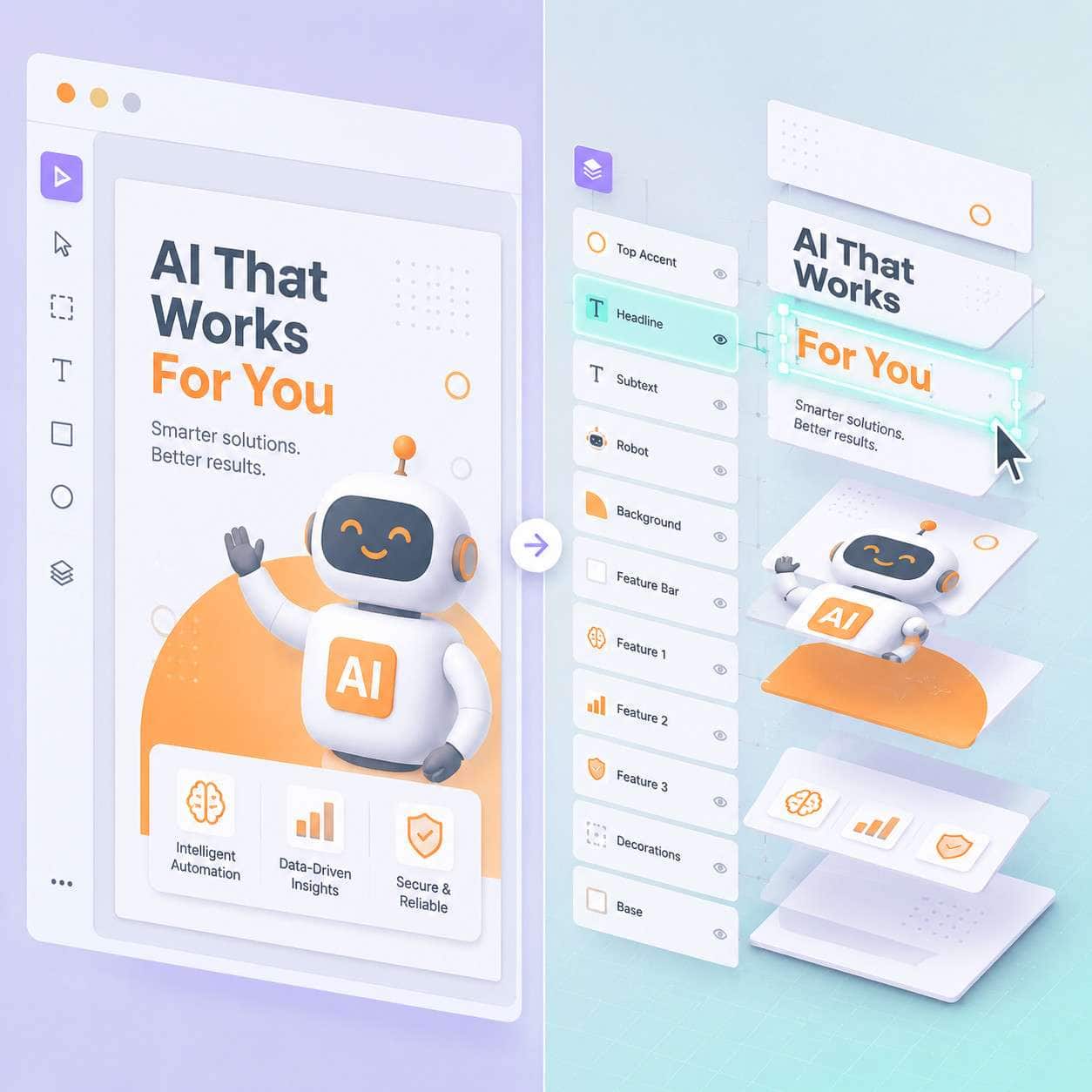
- Magic Layers, announced in March 2026, converts flat AI-generated images into fully editable, layered designs [1].
- Free Canva accounts get limited Magic tool access; full functionality requires Canva Pro ($120/year for individuals) or a Teams plan.
- Canva Magic handles social media graphics, presentations, logos, videos, documents, and more from a single platform.
- The tools work best when paired with clear prompts and existing brand guidelines, not as a replacement for design judgment.
- Canva AI 2.0 introduced conversational design, where you describe what you need and get a complete, editable output [4].
- Professional designers can use Canva Magic for rapid prototyping and content repurposing, though it has real limitations for complex illustration work.
- Common alternatives include Adobe Express, Microsoft Designer, and Figma’s AI features.
What Exactly Is Canva Magic and How Does It Work?
Canva Magic is the branded name for Canva’s integrated AI design tools, housed within Magic Studio. It works by combining generative AI models with Canva’s template library and design engine so users can create visuals through text prompts, automated suggestions, and one-click transformations [6].
Here’s how the core tools break down:
- Magic Design — Describe what you need (e.g., “a product launch Instagram post for a skincare brand”) and Canva generates multiple template-based designs you can customize.
- Magic Write — AI-powered text generation for copy, captions, and documents.
- Magic Edit — Select an area of an image and describe what you want changed. The AI replaces or modifies that region.
- Magic Eraser — Remove unwanted objects from photos with a brush tool.
- Magic Media — Text-to-image and text-to-video generation.
- Magic Animate — Adds motion to static designs automatically.
- Magic Layers (2026) — Converts flat AI outputs into fully editable layered designs with separate text, image, and shape elements [1].
The newest evolution, Canva AI 2.0, introduced at Canva Create 2026, acts as a conversational entry point. Instead of starting with a blank canvas, you start with a conversation. You tell the AI what you need, and it builds a complete, on-brand, editable design [4]. This system also supports connectors that pull live data from Google Sheets and other apps directly into your designs.
For a deeper look at how these AI tools fit into the broader design workflow, check out our guide on crafting visuals with Canva’s AI tools.
Canva Magic vs Adobe Express: Which Is Better for Design?
For most small businesses and solo creators, Canva Magic offers a faster, more intuitive experience than Adobe Express. Adobe Express has stronger integration with the broader Adobe ecosystem (Photoshop, Illustrator, Lightroom), which matters if you already use those tools.
| Feature | Canva Magic | Adobe Express |
|---|---|---|
| AI image generation | Magic Media (text-to-image/video) | Firefly (text-to-image) |
| Editable AI layers | Yes (Magic Layers, 2026) | Limited |
| Brand kit | Pro and Teams plans | Premium plan |
| Template library | 250,000+ templates | 200,000+ templates |
| Video editing | Built-in with AI assist | Basic |
| Pricing (individual) | ~$120/year (Pro) | ~$100/year (Premium) |
| Conversational AI design | Yes (Canva AI 2.0) | No |
| Best for | All-in-one content creation | Users in Adobe ecosystem |
Choose Canva Magic if you want a single platform for social posts, presentations, videos, and documents with strong AI generation. Choose Adobe Express if you need tight integration with Photoshop or Illustrator files and prefer Adobe’s Firefly image model.
How Much Does Canva Magic Cost for Small Businesses?
Canva Magic tools are partially available on the free plan but fully unlocked on paid tiers. For small businesses, the practical choice is between Canva Pro and Canva for Teams.
- Canva Free — Limited access to Magic Write (25 lifetime uses), basic Magic Design templates, and restricted Magic Media credits.
- Canva Pro — $120/year per person. Full access to all Magic Studio tools, 500 Magic Media credits per month, brand kit, background remover, and premium templates.
- Canva for Teams — $100/year per person (minimum 3 people). Everything in Pro plus shared brand kits, team folders, approval workflows, and increased AI credits.
- Canva Enterprise — Custom pricing. Adds SSO, advanced admin controls, and dedicated support.
For a solo freelancer or a team of 2, Pro is the right fit. Once you hit 3+ team members, the Teams plan actually costs less per person and adds collaboration features that save real time.
Why Isn’t My Canva Magic Working Right?
When Canva Magic tools produce poor results or fail to load, the issue usually falls into one of four categories: vague prompts, account limitations, browser problems, or regional availability.
Troubleshooting steps:
- Check your plan — If you’re on the free tier, many Magic features are restricted or have exhausted credits.
- Improve your prompts — “Make something cool” won’t work. Be specific: include the format, audience, color preferences, and content type.
- Clear browser cache — Magic tools rely on server-side processing. Stale cache or outdated browser versions cause loading failures.
- Check regional availability — Magic Layers, for example, launched first in the US, UK, Canada, and Australia [1]. Some features roll out gradually.
- Disable browser extensions — Ad blockers and privacy extensions sometimes interfere with Canva’s AI requests.
- Try a different browser — Chrome and Edge tend to have the best compatibility with Canva’s latest features.
If Magic Media generates images that don’t match your prompt, try adding negative descriptors (“no people,” “minimalist style”) and keep prompts under 200 words for best results.
What Other AI Design Tools Are Similar to Canva Magic?
Several platforms compete with Canva Magic, each with different strengths. Canva’s main advantage is combining design, writing, and media generation in one place, but alternatives may be better for specific tasks.
- Adobe Express + Firefly — Best for users already in the Adobe ecosystem; stronger image generation model for photorealistic content.
- Microsoft Designer — Free with a Microsoft account; good for quick social posts but limited template variety.
- Figma AI — Aimed at UI/UX designers; better for interface design but not for marketing content. Learn more in our Figma components guide.
- Piktochart — Focused on infographics and data visualization.
- Visme — Strong for presentations and interactive content.
- Kittl — Popular for logo and print-on-demand design with AI generation.
For a broader overview of AI-powered creative tools, see our guide to AI-powered content generation tools.
Is Canva Magic Good for Graphic Designers or Just Beginners?
Canva Magic serves both audiences, but in different ways. Beginners benefit from Magic Design’s template-driven approach, which produces polished results without design knowledge. Professional designers benefit from speed: rapid prototyping, content repurposing, and batch creation [7].
The 2026 release of Magic Layers specifically addresses a long-standing complaint from professionals. Previously, AI-generated designs were flat images you couldn’t easily edit. Magic Layers breaks those outputs into separate, editable elements, so a designer can adjust typography, swap images, or recolor individual shapes without starting over [1].
Choose Canva Magic as a beginner if you need ready-to-use designs for social media, email headers, or simple branding. Choose it as a professional if you need to produce high volumes of on-brand content quickly or prototype ideas before refining them in specialized tools.
I’ve personally used Magic Design to generate 15 Instagram story variations in under 10 minutes for a client campaign. The AI handled layout and color matching to the brand kit, and I only needed to fine-tune copy and swap one image. That kind of speed wasn’t possible two years ago.
For Instagram-specific workflows, our guide to designing engaging Instagram story templates walks through the full process.
Common Mistakes People Make When Using Canva Magic
The biggest mistake is treating Canva Magic as a finished-product generator instead of a starting point. Here are the errors I see most often:
- Using default AI outputs without editing — AI-generated designs often need font adjustments, spacing fixes, and brand color corrections.
- Writing vague prompts — “Make a flyer” gives generic results. “Create a modern A5 flyer for a yoga studio grand opening with earth tones and sans-serif fonts” gives usable output.
- Ignoring brand kit setup — If you haven’t configured your brand colors, fonts, and logos in Canva, the AI can’t match your brand identity.
- Over-relying on Magic Write for final copy — AI-generated text needs human editing for tone, accuracy, and brand voice.
- Not checking image licensing — AI-generated images in Canva are covered under their content license, but always verify if you’re using them commercially in sensitive contexts.
- Skipping the resize and repurpose step — One of Magic Studio’s strongest features is converting a single design into multiple formats (Instagram post to story to LinkedIn banner). Many users create each format from scratch unnecessarily.
Can Canva Magic Help Me Design Logos for My Startup?
Yes, but with caveats. Canva Magic can generate logo concepts quickly using Magic Design and Magic Media, and the results are fine for early-stage branding, MVPs, or social media profiles. However, the outputs typically lack the refinement and strategic thinking a professional brand designer provides.
Magic Layers improves the logo workflow significantly because you can now edit individual elements of an AI-generated logo rather than treating it as a flat image [1]. You can swap icons, adjust letter spacing, and change colors independently.
When Canva Magic logos work well: internal projects, placeholder branding, side hustles, event logos, and social media avatars.
When you need a professional designer: investor-facing materials, trademark registration (AI-generated elements may have originality concerns), and brands that need to stand out in competitive markets.
For a step-by-step approach, see our Canva logo design guide for beginners.
Does Canva Magic Work for Social Media Graphics?
Social media content is arguably where Canva Magic performs best. Magic Design generates platform-specific templates (Instagram posts, Stories, Reels covers, LinkedIn banners, TikTok thumbnails) with correct dimensions and layout conventions [5].
The conversational AI in Canva AI 2.0 makes this even faster. You can say “Create a carousel post about five benefits of remote work for my tech company’s LinkedIn page” and get a complete, editable multi-slide design [4].
Key social media features in Canva Magic:
- Auto-resize across platforms (one design becomes five formats)
- Magic Animate for adding motion to static posts
- Content scheduling directly from Canva to social platforms
- Magic Write for generating captions and hashtag suggestions
For carousel-specific strategies, our guide to engaging Canva carousel design covers layout and content planning in detail.
Limitations of Canva Magic AI Design Features
Canva Magic is powerful but not without real constraints:
- AI credit limits — Even Pro users are capped at 500 Magic Media generations per month. Heavy users burn through credits fast.
- Template dependency — Magic Design works within Canva’s template system. Truly custom layouts still require manual work.
- Image quality ceiling — Magic Media produces good images for social and web use, but they don’t match the quality of Midjourney or DALL-E 3 for complex, detailed illustrations.
- Limited offline functionality — Everything requires an internet connection.
- Brand consistency gaps — While the brand kit helps, AI outputs sometimes drift from brand guidelines, especially with complex multi-element designs.
- No vector export for AI images — AI-generated images export as rasterized files, which limits print and scaling use cases.
- Regional feature rollout — New Magic features often launch in select countries first [1], leaving other users waiting weeks or months.
How Accurate Are the AI-Generated Designs in Canva Magic?
Accuracy depends heavily on prompt quality and the specific tool. Magic Design produces well-structured layouts about 70-80% of the time when given detailed prompts and a configured brand kit. Magic Media’s image generation is less predictable, with perhaps 1 in 3 generations closely matching the user’s intent on the first try.
Magic Layers has improved accuracy for editing because you can fix individual elements rather than regenerating the entire design [1]. And Canva’s “Creative Operating System” vision, with persistent memory and full brand awareness, is designed to make AI outputs more consistent over time as the system learns your preferences across documents and projects [3].
Tip: Always generate 3-4 variations and pick the best one to refine, rather than trying to get a perfect result on the first prompt.
Frequently Asked Questions
Is Canva Magic the same as Magic Studio? Yes. “Canva Magic” is the informal name users give to the AI features. Officially, these tools live under Magic Studio, which is Canva’s AI product suite [6].
Can I use Canva Magic for free? Partially. Free accounts get limited access to Magic Write (25 uses) and basic Magic Design templates. Full access to Magic Media, Magic Eraser, Magic Edit, and Magic Layers requires Canva Pro or higher.
Does Canva Magic work on mobile? Yes. All Magic Studio tools are available in the Canva mobile app for iOS and Android, though the experience is better on tablets and desktops for complex editing.
Is Magic Layers available to everyone? As of June 2026, Magic Layers is in public beta in the US, UK, Canada, and Australia, with global rollout planned [1].
Can Canva Magic create videos? Yes. Magic Media supports text-to-video generation, and Magic Animate adds motion to static designs. Canva also has a full video editor with AI-assisted transitions and audio.
Does Canva own the designs I create with Magic tools? No. Under Canva’s content license, you own the designs you create. However, AI-generated elements (like Magic Media images) are subject to Canva’s AI terms, which grant you a broad usage license but not exclusive ownership of the generated imagery.
How does Canva AI 2.0 differ from the original Magic Studio? Canva AI 2.0 adds a conversational interface, persistent memory across projects, data connectors for live information, and task scheduling. It builds on Magic Studio rather than replacing it [4].
Can I use Canva Magic for email templates? Absolutely. Magic Design generates email layouts, and Magic Write helps with subject lines and body copy. See our guide to creating effective email templates in Canva for detailed instructions.
Is Canva Magic suitable for print design? For basic print materials like business cards, flyers, and posters, yes. For high-end print work requiring precise color management (CMYK profiles, spot colors), Canva’s tools are limited compared to Adobe InDesign or Illustrator.
How many AI credits do I get per month? Canva Pro includes 500 Magic Media credits per month. Teams and Enterprise plans may include more, depending on the subscription tier.
Conclusion
Canva Magic has evolved from a collection of helpful AI features into a genuine design operating system in 2026. With Magic Layers making AI outputs fully editable, Canva AI 2.0 enabling conversational design, and the platform’s persistent memory learning your brand over time, the gap between “AI-assisted” and “professionally designed” continues to narrow.
Here’s what to do next:
- Set up your brand kit before using any Magic tools. Colors, fonts, and logos make every AI output more accurate.
- Start with Magic Design for your most common content type (social posts, presentations, or emails) and evaluate the quality against your current workflow.
- Try Magic Layers if you’re in a supported region. It solves the biggest frustration with AI design: the inability to edit individual elements.
- Write specific prompts. The more detail you give, the better the output. Include format, audience, style, and color preferences.
- Browse our Canva resource hub for tutorials on specific workflows, from Instagram stories to carousel posts to logo design.
Canva Magic won’t replace a skilled designer’s creative judgment, but it will handle the repetitive, time-consuming parts of visual content creation so you can focus on strategy and storytelling.
References
[1] Canva Introduces Magic Layers Turning Static AI Outputs Into Editable Designs – https://www.businesswire.com/news/home/20260311951174/en/Canva-Introduces-Magic-Layers-Turning-Static-AI-Outputs-Into-Editable-Designs
[3] Canva Turns On The Magic With AI Powered Tools For Upgraded Design Suite – https://thewest.com.au/business/startup/canva-turns-on-the-magic-with-ai-powered-tools-for-upgraded-design-suite–c-10127964
[4] THE ALL NEW CANVA IS HERE (Canva Create 2026) – https://www.youtube.com/watch?v=qYTLCKzMYcU
[5] Canva Reveals Magic New AI Apps For Marketers – https://www.techradar.com/news/canva-reveals-magic-new-ai-apps-for-marketers
[6] Canva Magic Studio Guide – https://aitoolsdevpro.com/ai-tools/canva-magic-studio-guide/
[7] Canva All In On AI With New Magic Studio Tools – https://www.fastcompany.com/90961659/canva-all-in-on-ai-with-new-magic-studio-tools
Related: Canva Shirt Design: The Complete Guide to Creating Custom T-Shirts in 2026
Related: The Complete Guide to the Canva App in 2026
Related: Canva Free: The Complete Guide to What You Get Without Paying a Cent