Last updated: June 7, 2026This article covers everything you need to know in the Canva App Complete Guide Features Pricing Tips for getting the most out of this powerful design tool.
Quick Answer: The Canva app is a browser-based and mobile graphic design platform that lets anyone create professional-looking visuals using drag-and-drop tools, pre-made templates, and a massive library of stock assets. It’s free to start, works on desktop and mobile, and handles everything from social media posts to presentations, logos, and print materials. Canva Pro costs around $15/month (or $120/year) and adds premium templates, brand kits, and advanced features.
Key Takeaways
- The Canva app is free to download on iPhone, Android, and desktop, with a paid Pro tier for advanced features.
- It uses a drag-and-drop editor, so you don’t need any design experience to produce quality visuals.
- Canva Pro costs approximately $15/month or $120/year for individuals as of 2026.
- You can create social media graphics, presentations, videos, logos, flyers, resumes, and much more.
- Designs made with Canva’s free and Pro content can generally be used for commercial purposes, but read the license terms carefully.
- The app requires an internet connection for most features, though limited offline editing exists on mobile.
- Common issues like blurry exports are usually fixed by choosing the right file type and dimensions.
- Professional designers often use Canva for quick mockups and social content, not as a full Photoshop replacement.
What Exactly Is Canva and How Does It Work?
Canva is an online design platform founded in 2013 that puts graphic design tools in the hands of non-designers. It works through a web browser at canva.com and through dedicated mobile apps for iOS and Android.
Here’s the basic workflow:
- Pick a template or start from a blank canvas. Canva offers hundreds of thousands of templates organized by category (Instagram post, business card, presentation, etc.).
- Customize with drag-and-drop. Swap out images, change fonts, adjust colors, add icons, and rearrange elements without writing a single line of code.
- Use built-in assets. The library includes millions of stock photos, illustrations, icons, and video clips. Free users get a large selection; Pro subscribers unlock the full library.
- Download or share. Export as PNG, JPG, PDF, MP4, or GIF. You can also share a link, present directly, or publish to social media from inside the app.
The Canva app saves your work automatically to the cloud, so you can start a design on your laptop and finish it on your phone. If you’re interested in Canva’s newer AI-powered features, check out our guide on crafting visuals with Canva’s AI design tools.
Canva vs. Adobe Photoshop: Which Is Better for Design?
The short answer: they serve different purposes. Canva is better for fast, template-based design work. Photoshop is better for detailed photo manipulation, compositing, and pixel-level control.
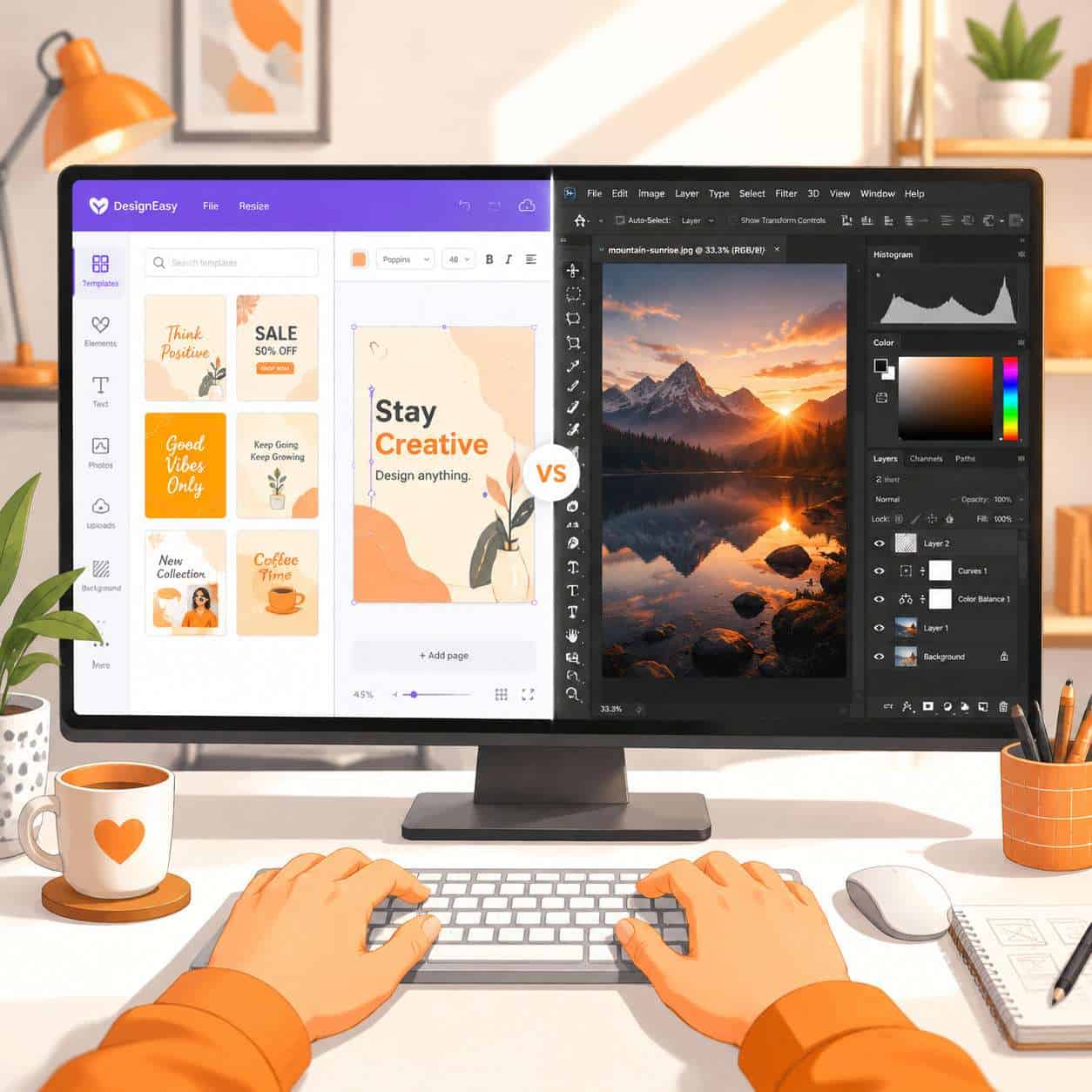
| Feature | Canva App | Adobe Photoshop |
|---|---|---|
| Learning curve | Low (minutes to start) | High (weeks to months) |
| Price | Free tier available; Pro ~$15/month | ~$23/month (Photography plan) |
| Best for | Social media, presentations, marketing materials | Photo retouching, complex compositing, print production |
| Templates | 250,000+ ready-made | Limited; relies on third-party sources |
| Collaboration | Real-time team editing built in | Limited; requires Creative Cloud sharing |
| Platform | Browser, iOS, Android | Desktop app (Windows, Mac) |
| Offline use | Very limited | Full offline capability |
Choose Canva if you need to produce branded social posts, slide decks, or marketing materials quickly and you don’t have formal design training. Choose Photoshop if you need advanced layer blending, RAW photo editing, or precise control over every pixel.
Many professional designers actually use both. I’ve seen marketing teams draft concepts in Canva for speed, then hand off final assets to a Photoshop specialist for refinement.
How Much Does Canva Pro Cost per Month?
Canva Pro costs approximately $15 per month for an individual plan, or $120 per year (which works out to $10/month). Canva for Teams starts at around $10 per person per month when billed annually, with a minimum of three users.
What you get with Pro that you don’t get for free:
- Access to the full stock library (100+ million premium photos, videos, and graphics)
- Brand Kit for saving logos, colors, and fonts
- Background Remover tool
- Magic Resize to instantly reformat designs for different platforms
- 1 TB of cloud storage (vs. 5 GB on the free plan)
- Ability to schedule social media posts directly
Canva also offers a free plan for education (Canva for Education) and discounted rates for registered nonprofits.
What Kind of Designs Can I Actually Make with Canva?
Almost anything visual that isn’t a complex 3D render or advanced video production. The Canva app supports a wide range of design types:
- Social media graphics: Instagram posts, Stories, Facebook covers, LinkedIn banners, Pinterest pins, TikTok thumbnails
- Presentations: Slide decks with animations and speaker notes
- Print materials: Business cards, flyers, posters, brochures, invitations
- Marketing assets: Email headers, ads, infographics, newsletters
- Video: Short-form video editing with text overlays, transitions, and music
- Documents: Resumes, reports, letterheads, planners
- Branding: Logos, brand boards, style guides
For a step-by-step walkthrough on logo creation, see our Canva logo design guide for beginners. If you’re focused on social content, our tutorial on designing engaging Instagram Story templates is worth a read.
Is the Canva App Free to Download on iPhone and Android?
Yes, the Canva app is completely free to download on both iPhone (via the App Store) and Android (via Google Play). The free version gives you access to thousands of templates, basic stock assets, and core editing tools. You only pay if you choose to upgrade to Canva Pro or purchase individual premium elements.
The mobile app mirrors most of the desktop functionality, though some advanced features (like bulk editing or detailed animation controls) work more smoothly on a larger screen.
Is Canva Good for Professional Designers or Just Beginners?
Canva started as a tool for beginners, but it’s grown into something professionals use daily for specific tasks. It won’t replace a full Adobe Creative Suite workflow for a senior graphic designer working on complex brand identity systems. But for producing high volumes of social media content, internal presentations, and quick marketing assets, it’s genuinely efficient.
Where professionals find Canva useful:
- Rapid prototyping and mood boards
- Client-facing presentations
- Social media content at scale (especially with Brand Kit and Magic Resize)
- Collaborating with non-designer teammates who need to make minor edits
Where Canva falls short for pros:
- No CMYK color mode for precise print work
- Limited typography controls (no kerning adjustments, limited leading options)
- No vector editing comparable to Illustrator
- Fewer export format options than professional tools
Can I Use Canva for Commercial Projects and Sell My Designs?
Yes, with conditions. Canva’s free and Pro content licenses allow you to use designs for commercial purposes, including marketing materials, client work, and products. However, you cannot sell unmodified Canva templates or stock elements as standalone files. You also can’t trademark a design that uses unmodified Canva stock graphics, because other users have access to those same assets.
If you’re creating designs for clients or for sale (like printed merchandise), make sure you’ve customized the template enough that it’s a unique creation. When in doubt, review Canva’s Content License Agreement directly on their website.
Tips for Making Social Media Graphics Faster in Canva
Speed is one of the biggest reasons people love the Canva app for social content. Here’s how to cut your production time:
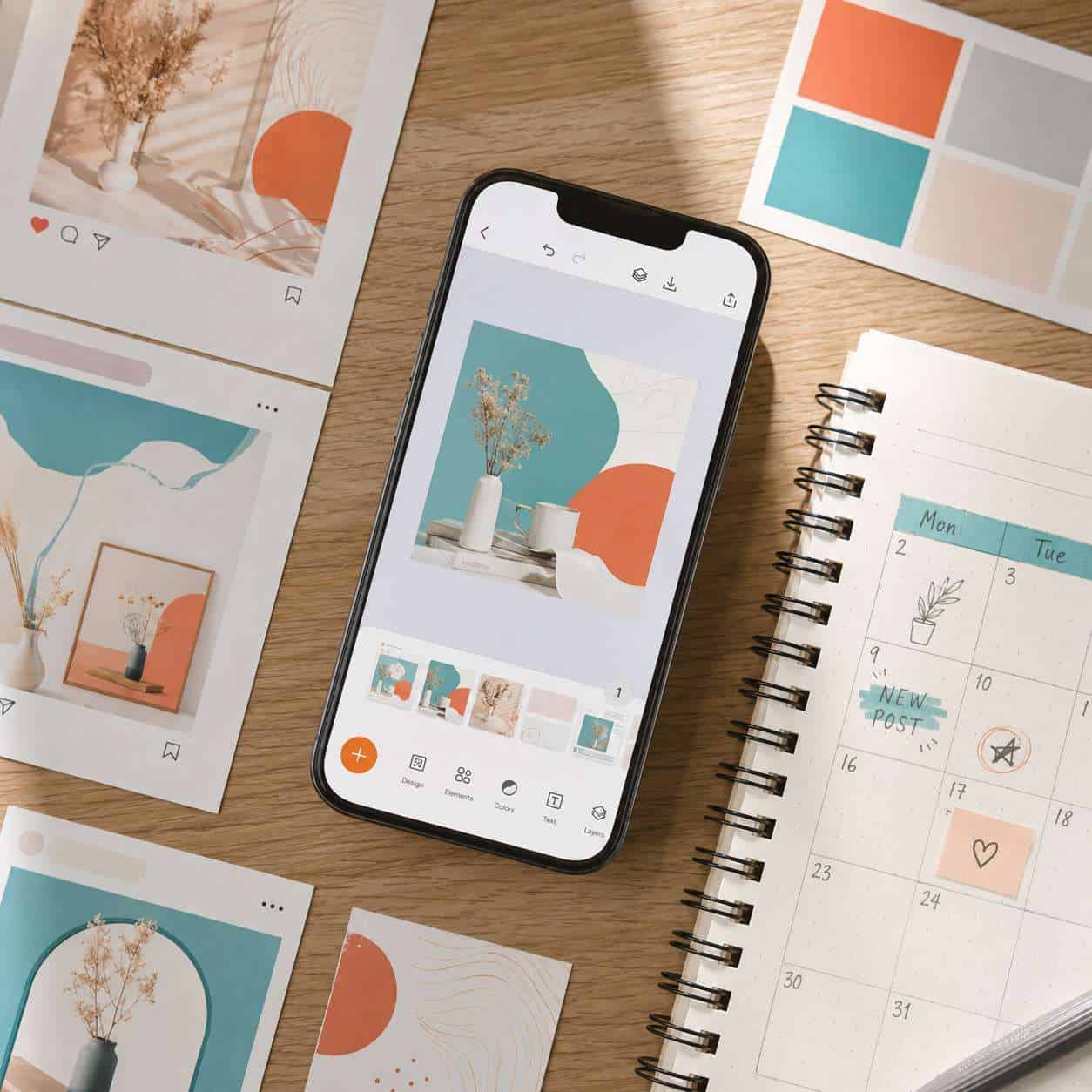
- Set up a Brand Kit first. Save your brand colors, fonts, and logo so you can apply them to any template in one click.
- Use Magic Resize. Design once, then instantly resize for Instagram, Facebook, Twitter, LinkedIn, and Pinterest.
- Batch-create with templates. Find one template you like, duplicate it, and swap content for each post. This keeps your feed visually consistent.
- Learn keyboard shortcuts. Press “T” to add text, “R” for a rectangle, “L” for a line, and “/” to search elements. These small shortcuts add up.
- Schedule directly from Canva. Pro users can schedule posts to major social platforms without leaving the app.
For carousel-style content, our guide on creating engaging Canva carousel designs walks through the full process. And if you’re building email campaigns alongside your social content, see our piece on mastering Canva email template creation.
How to Fix Image Quality Issues in Canva
Blurry or pixelated exports are the most common quality complaint. The fix is usually straightforward.
- Check your source images. If you upload a 200×200 pixel photo and stretch it across a poster, it will look terrible. Use images that are at least as large as your canvas dimensions.
- Export as PNG for sharp graphics. PNG preserves quality better than JPG for designs with text, icons, and flat colors. Use JPG only for photo-heavy designs where file size matters.
- Use PDF Print for print projects. This format maintains the highest quality and includes crop marks if needed.
- Don’t over-compress. When downloading, Canva sometimes offers a quality slider. Keep it at the highest setting unless file size is a hard constraint.
- Match canvas size to output. If you’re designing for a billboard, don’t use an Instagram post template. Set custom dimensions that match your final output size.
Why Won’t My Design Save in Canva?
If your design isn’t saving, the most common causes are internet connectivity issues, browser cache problems, or exceeding your storage limit.
Troubleshooting steps:
- Check your internet connection (Canva saves to the cloud and needs a stable connection).
- Clear your browser cache and cookies, then reload.
- Try a different browser (Chrome and Edge tend to work best with Canva).
- Check if you’ve hit your storage limit (5 GB free, 1 TB on Pro).
- If using the mobile app, force-close and reopen it.
- Reduce file sizes of uploaded images if your design is very large.
If none of these work, Canva’s status page (status.canva.com) will tell you if there’s a platform-wide outage.
Does Canva Work Offline or Only with Internet Connection?
The Canva app primarily requires an internet connection. All templates, stock assets, and cloud saving depend on being online. However, the mobile app does offer limited offline functionality: you can view and make minor edits to recently opened designs. Those changes sync once you reconnect.
For fully offline design work, desktop tools like Photoshop, Affinity Designer, or even PowerPoint are better options. If you’re exploring other design tools, our overview of Canva and other design resources covers several alternatives.
Common Mistakes People Make When Using Canva
Even a simple tool can produce bad results if you fall into these traps:
- Using too many fonts. Stick to two, maybe three fonts per design. More than that looks chaotic.
- Ignoring alignment. Canva has alignment guides, but many users drag elements around without snapping them into place. Use the alignment and spacing tools.
- Overloading with elements. White space is your friend. A cluttered design communicates nothing.
- Not resizing for the platform. A design sized for Instagram won’t look right on a LinkedIn banner. Always start with the correct dimensions.
- Relying too heavily on defaults. Change the default template colors and fonts to match your brand. Otherwise your content looks like everyone else’s.
- Forgetting to check licensing. Some elements in Canva are marked as “Pro” and will export with a watermark if you’re on the free plan.
Best Free Alternatives to Canva for Graphic Design
If Canva doesn’t fit your needs, several free alternatives exist:
| Tool | Best For | Key Difference from Canva |
|---|---|---|
| Adobe Express | Social media graphics | Tighter integration with Adobe ecosystem |
| Figma (free tier) | UI/UX design and prototyping | More powerful for interface design; steeper learning curve |
| Photopea | Photo editing in browser | Closest free Photoshop alternative; no templates |
| Pixlr | Quick photo edits | Focused on photo editing, not layout design |
| Google Slides | Presentations | Already in your Google account; limited design features |
For those comparing Canva with Figma specifically, our guide to Figma components explains where Figma excels.
FAQ
Is the Canva app safe to use? Yes. Canva uses encryption for data transfer and storage. It’s a publicly valued company with millions of users worldwide and follows standard security practices.
Can I use Canva without creating an account? No. You need to sign up with an email address, Google account, or Apple ID to use the Canva app.
Does Canva have an AI image generator? Yes. Canva includes a text-to-image AI tool (Magic Media) that generates images from text prompts. It’s available to both free and Pro users with usage limits.
Can I cancel Canva Pro anytime? Yes. You can cancel your Canva Pro subscription at any time. You’ll retain access until the end of your current billing period.
Is Canva better than PowerPoint for presentations? Canva offers more visually polished templates and easier design customization. PowerPoint provides more advanced animation, data integration, and offline reliability. Choose based on your priority.
Can multiple people edit a Canva design at the same time? Yes. Canva supports real-time collaboration. You can share a design link and multiple users can edit simultaneously, similar to Google Docs.
What file formats can I export from Canva? PNG, JPG, PDF (standard and print), MP4, GIF, and SVG (Pro only). You can also export presentations as PPTX files.
Does Canva own the designs I create? No. You own your original designs. Canva retains rights to its stock content and templates, but your unique creations belong to you.
Can I use Canva on a Chromebook? Yes. Since Canva runs in a web browser, it works on any Chromebook with an internet connection. The Android app is also available through the Google Play Store on supported Chromebooks.
How do I remove a background from an image in Canva? Use the Background Remover tool, available to Canva Pro subscribers. Select your image, click “Edit Image,” then choose “BG Remover.” The tool processes the image in a few seconds.
Conclusion
The Canva app has earned its place as the go-to design tool for non-designers and a useful supplement for professionals. It’s free to start, runs on virtually any device, and produces results that look polished enough for real business use.
Here’s what to do next:
- Download the Canva app on your phone or visit canva.com to start with the free plan.
- Set up your Brand Kit early, even if it’s just your colors and one or two fonts. This saves time on every future design.
- Try Pro for free using Canva’s 30-day trial before committing. Test Magic Resize and the premium stock library to see if the upgrade is worth it for your workflow.
- Build templates, not one-offs. Create a few reusable templates for your most common design needs (social posts, email headers, presentations) and duplicate them each time.
Whether you’re a solo entrepreneur making your first Instagram post or a marketing team producing hundreds of assets per month, the Canva app is a practical starting point that scales with your needs.
SEO Meta Title: Canva App: Complete Guide to Features, Pricing and Tips
Useful Resources: Canva design platform & Canva Design School free tutorials