Last updated: June 7, 2026. This article is your Canva US Complete Guide to Features Pricing Tips, providing everything you need to know in one place.
Quick Answer: Canva US refers to Canva’s platform and services as used by millions of Americans for graphic design, from social media posts to business presentations. It’s a browser-based design tool with a free tier and paid plans starting at $15/month (Canva Pro), and it works for everyone from solo entrepreneurs to marketing teams at Fortune 500 companies.
Key Takeaways
- Canva is a drag-and-drop design platform that runs in your browser or mobile app, requiring zero design experience to start.
- The free plan includes over 250,000 templates and thousands of stock photos, but limits access to premium elements and certain export formats.
- Canva Pro costs $15/month (billed monthly) or $120/year for US users in 2026, while Canva Teams starts at $10/month per person.
- You can use Canva designs for commercial purposes, but specific stock elements have licensing restrictions worth understanding.
- Canva exports to PNG, JPG, PDF, SVG, MP4, and GIF, covering most professional needs.
- For advanced photo manipulation or vector illustration, Adobe Creative Cloud still outperforms Canva.
- Common template mistakes include overcrowding layouts, ignoring brand consistency, and using too many fonts.
- Canva works exceptionally well for social media marketing graphics, with pre-sized templates for every major platform.
What Exactly Is Canva and How Does It Work?
Canva is an online graphic design platform founded in 2013 that lets anyone create professional-looking visuals using a drag-and-drop editor. It runs entirely in your web browser or through iOS and Android apps.
Here’s how it works in practice: you pick a template (or start from a blank canvas), then customize it by swapping out text, images, colors, and design elements. The interface is built around a simple sidebar where you search for photos, icons, shapes, and fonts, then drag them onto your design.
What makes Canva US particularly popular among American users is its deep integration with platforms like Instagram, Facebook, YouTube, and LinkedIn. Templates come pre-sized for each platform’s specifications, so you don’t need to Google dimensions every time you create a post.
I started using Canva back in 2019 when a client needed quick social media graphics and didn’t have the budget for a dedicated designer. Within 30 minutes, I had a week’s worth of Instagram posts ready. That speed is Canva’s core value proposition.
If you’re exploring AI-powered design tools alongside Canva, the platform now includes its own AI features like Magic Write, Magic Eraser, and text-to-image generation built directly into the editor.
How Much Does Canva Pro Cost Per Month?
Canva Pro costs $15 per month when billed monthly, or $10 per month ($120 total) when billed annually for US users. Canva Teams pricing starts at $10 per month per person with annual billing.
Here’s a breakdown of the current Canva US pricing tiers:
| Plan | Monthly Price (US) | Annual Price (US) | Best For |
|---|---|---|---|
| Canva Free | $0 | $0 | Casual users, students |
| Canva Pro | $15/month | $120/year | Freelancers, solopreneurs |
| Canva Teams | $10/person/month | $100/person/year | Teams of 3+ |
| Canva Enterprise | Custom pricing | Custom pricing | Large organizations |
The free plan is genuinely useful, not just a teaser. You get access to over 250,000 templates, basic photo editing, and standard export options. But Pro unlocks the full stock library (over 100 million premium assets), Brand Kit, background remover, Magic Resize, and SVG export.
Choose Canva Pro if you create designs at least a few times per week and regularly need premium stock photos. Stick with Free if you only design occasionally and can work with the basic template library.
Why Does Canva Limit Design Elements in the Free Version?
Canva’s free tier restricts access to premium stock photos, videos, audio, and certain templates because these assets are licensed from third-party providers who require payment. The watermarked elements you see in the editor are previews of premium content.
Specific limitations on the free plan include:
- Storage: 5 GB of cloud storage (vs. 1 TB on Pro)
- Brand Kit: Not available on Free
- Background Remover: Pro only
- Magic Resize: Pro only
- Premium templates: Marked with a crown icon, require Pro or one-time purchase
- SVG export: Pro only
One workaround: you can purchase individual premium elements for about $1 each without upgrading to Pro. This makes sense if you only occasionally need a specific stock photo or template.
Canva vs Adobe Creative Cloud: Which Is Better for Designers?
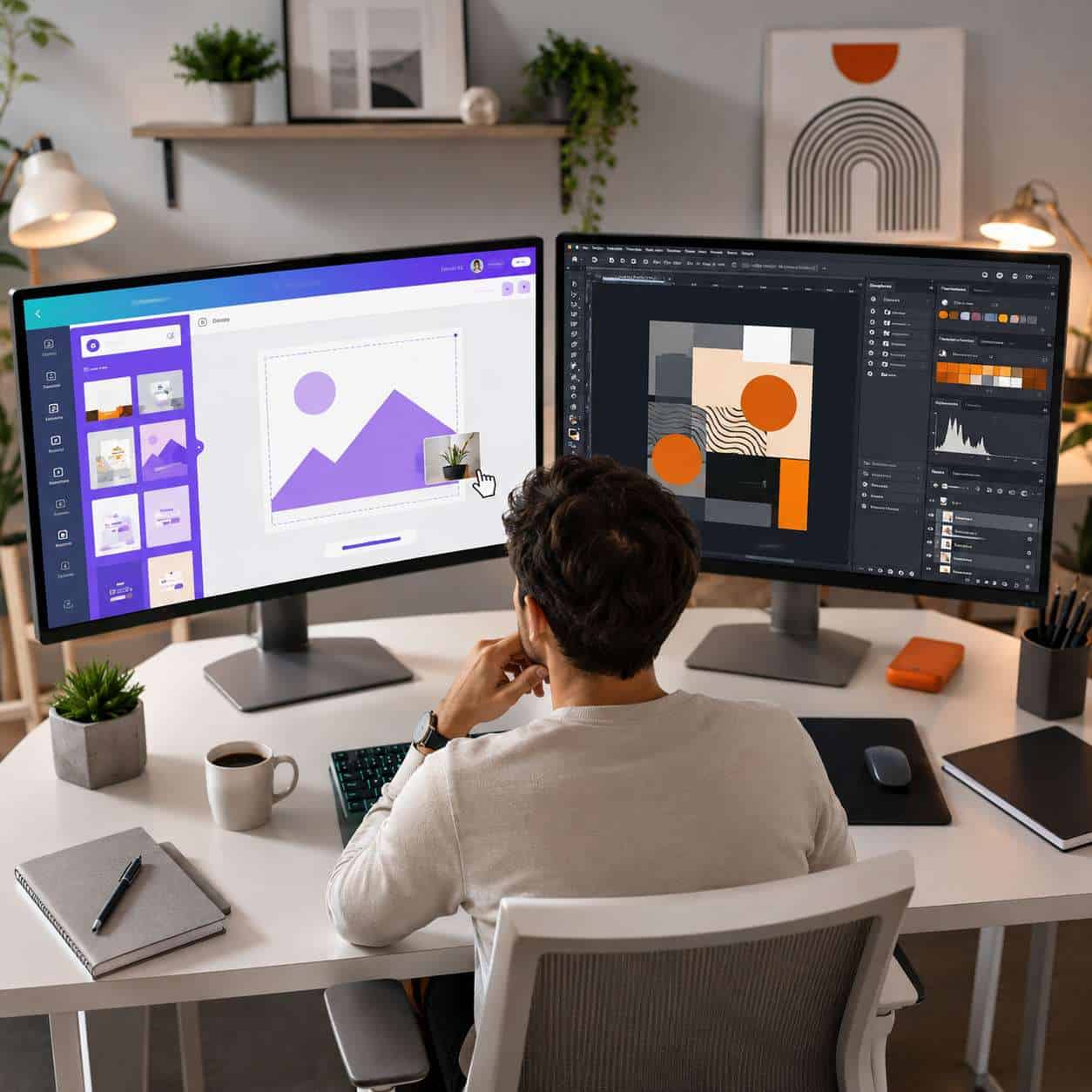
Canva is better for quick, template-based design work and non-designers who need professional results fast. Adobe Creative Cloud is better for advanced photo editing, vector illustration, video production, and print-ready design work requiring precise control.
Here’s how they compare on key factors:
| Factor | Canva US | Adobe Creative Cloud |
|---|---|---|
| Learning curve | Minutes | Weeks to months |
| Monthly cost | $0-$15 | $23-$60 (single app to all apps) |
| Photo editing depth | Basic to moderate | Industry-leading (Photoshop) |
| Vector design | Limited | Full control (Illustrator) |
| Video editing | Basic | Professional (Premiere Pro) |
| Template library | Massive | Smaller, via Adobe Stock |
| Collaboration | Built-in, real-time | Via Creative Cloud, less intuitive |
| Offline use | Limited | Full offline support |
A common mistake is treating this as an either/or decision. Many professional designers I know use both: Canva for rapid social media content and client presentations, and Adobe for detailed brand identity work and print production. If you’re comparing design tools more broadly, our design resources hub covers several other options.

Is Canva Good for Professional Graphic Designers or Just Beginners?
Canva works well for professionals handling high-volume, template-driven work like social media management, presentation design, and basic marketing collateral. It’s not a replacement for professional-grade tools when you need pixel-level control or complex vector work.
Here’s who gets the most value from Canva US:
- Marketing managers producing weekly social content
- Small business owners creating their own flyers, menus, and ads
- Content creators building YouTube thumbnails and blog graphics
- Teachers and educators making worksheets and presentations
- Startup founders who can’t yet afford a full-time designer
Edge case: If you’re a freelance graphic designer, Canva can speed up your workflow for certain deliverables, but showing a portfolio built entirely in Canva may hurt credibility with agencies or design-focused clients. Use it as a production tool, not your primary creative platform.
What Kind of Businesses or People Should Use Canva?
Any business that produces visual content regularly but doesn’t have a dedicated design team should consider Canva US. This includes restaurants, real estate agents, e-commerce stores, coaches, nonprofits, and content marketing teams.
Canva is especially strong for:
- E-commerce brands that need product social posts, email headers, and ad creatives on a daily basis
- Real estate agents creating listing flyers and open house invitations
- Restaurants and cafes designing menus, seasonal promotions, and Instagram stories
- Coaches and consultants building course materials and lead magnets
If you run a business that needs engaging Instagram story templates or email marketing graphics, Canva handles both of these use cases directly with pre-built templates.
Does Canva Work Well for Social Media Marketing Graphics?
Yes, Canva is one of the best tools available for social media marketing graphics. It offers pre-sized templates for every major platform, including Instagram (posts, stories, reels covers), Facebook, TikTok, LinkedIn, Pinterest, YouTube, and X (formerly Twitter).
What makes Canva US particularly effective for social media:
- Content calendar integration lets you schedule posts directly from Canva (Pro plan)
- Brand Kit ensures every post uses your exact colors, fonts, and logos
- Magic Resize converts a single design into multiple platform sizes in one click
- Bulk Create generates dozens of variations from a spreadsheet of data
For teams managing social accounts, the ability to create carousel designs directly in Canva saves significant time compared to building each slide individually in Photoshop.
Can I Use Canva for Commercial Projects and Sell My Designs?
You can use Canva designs for commercial purposes, including marketing materials, client work, and products for sale, but with important restrictions on the stock elements within your designs.
Key licensing rules for Canva US commercial use:
- Your original designs using Canva’s tools are yours to use commercially
- Free and Pro stock elements can be used in commercial designs but cannot be sold as standalone files (e.g., you can’t sell a Canva stock photo as a print)
- Templates can be customized and used commercially, but you cannot resell an unmodified or barely modified template
- Canva designs on merchandise (t-shirts, mugs) require that the stock element is not the primary value of the product
Common mistake: Selling Canva templates on Etsy or Creative Market that use premium Canva stock elements without significant original modification. This violates Canva’s content license agreement.
If you’re building a brand identity for commercial use, our logo design guide for beginners walks through how to create original logos within Canva’s limitations.
What File Formats Can I Export From Canva?
Canva supports exporting in PNG, JPG, PDF (standard and print-ready), SVG, MP4, and GIF. The available formats depend on your plan and the type of design.
| Format | Free Plan | Pro Plan | Best Use |
|---|---|---|---|
| PNG | Yes | Yes | Social media, web graphics |
| JPG | Yes | Yes | Photos, email attachments |
| PDF Standard | Yes | Yes | Documents, presentations |
| PDF Print | Yes | Yes | Professional printing (with crop marks on Pro) |
| SVG | No | Yes | Scalable graphics, web icons |
| MP4 | Yes | Yes | Video content, animations |
| GIF | Yes | Yes | Animated social posts |
Pro tip: When exporting for print, always use PDF Print format and enable crop marks and bleed. For web use, PNG with transparent background (Pro feature) gives you the most flexibility.
Why Can’t I Upload Certain File Types in Canva?
Canva accepts uploads in JPG, PNG, SVG, PDF, GIF, MP4, MOV, and WEBM formats. If your file won’t upload, it’s likely in an unsupported format (like PSD, AI, or TIFF), exceeds the file size limit, or has a corrupted file header.
File size limits for Canva US uploads:
- Images: 25 MB per file
- Videos: 500 MB per file (Free), 500 MB per file (Pro)
- Total storage: 5 GB (Free), 1 TB (Pro)
Quick fix: Convert unsupported files before uploading. Use a free tool like CloudConvert to change PSD files to PNG, or AI files to SVG.
How to Fix Canva Not Loading or Crashing
If Canva won’t load or keeps crashing, the most common fixes are clearing your browser cache, disabling browser extensions, and switching to Chrome or Edge (Canva’s best-supported browsers).
Step-by-step troubleshooting:
- Clear browser cache and cookies for canva.com specifically
- Disable browser extensions, especially ad blockers and VPNs, which can interfere with Canva’s asset loading
- Check your internet connection — Canva requires a stable connection since it’s cloud-based
- Try incognito/private mode to rule out extension conflicts
- Switch browsers — Chrome and Edge perform best with Canva
- Reduce design complexity — designs with 50+ elements or large video files can cause performance issues
- Check Canva’s status page (status.canva.com) for known outages
If you’re experiencing persistent issues, the Canva mobile app sometimes works when the web version doesn’t, and vice versa.
Common Mistakes People Make When Using Canva Templates
The biggest mistake is using a template without customizing it enough, resulting in designs that look identical to thousands of other Canva users’ work.
Other frequent mistakes include:
- Using too many fonts — stick to two, maximum three fonts per design
- Ignoring alignment and spacing — Canva has alignment guides, but many users place elements by eye and end up with uneven layouts
- Overcrowding the design — white space is your friend; resist the urge to fill every inch
- Mixing brand styles — pulling elements from different templates creates visual inconsistency
- Not setting up Brand Kit — Pro users who skip this step waste time manually matching colors and fonts on every design
- Using low-resolution uploads — stretching small images looks unprofessional in print
What Are Some Good Alternatives to Canva for Graphic Design?
The best Canva alternatives depend on what you need: Adobe Express for Adobe ecosystem users, Figma for UI/UX design, Visme for data-heavy presentations, and Piktochart for infographics.
| Alternative | Strength Over Canva | Free Plan | Paid Starting Price |
|---|---|---|---|
| Adobe Express | Adobe font/stock integration | Yes | $10/month |
| Figma | UI/UX and collaborative design | Yes | $15/editor/month |
| Visme | Data visualization, infographics | Yes | $12.25/month |
| Piktochart | Infographics, reports | Yes | $14/month |
| Snappa | Speed for social media graphics | Yes (limited) | $10/month |
| VistaCreate (Crello) | Animation and video templates | Yes | $13/month |
For broader design tool comparisons, our Figma resources cover that platform’s strengths in detail.
Conclusion
Canva US remains one of the most accessible and practical design tools available in 2026. Whether you’re a small business owner creating your first flyer or a marketing team producing hundreds of social media posts per month, Canva’s template-driven approach saves real time and money.
Your next steps:
- Start with the free plan and explore templates relevant to your industry before committing to Pro.
- Set up your Brand Kit immediately if you upgrade — it’s the single biggest time-saver for consistent design output.
- Learn keyboard shortcuts (Ctrl/Cmd + D to duplicate, T for text, R for rectangle) to speed up your workflow significantly.
- Combine Canva with other tools where needed — use it for speed, and reach for Adobe or Figma when you need deeper control.
For more Canva tutorials and design strategies, explore our full Canva resource library.
Frequently Asked Questions
Is Canva US different from Canva in other countries?
The core platform is identical worldwide. The difference is pricing (displayed in USD for US users), available stock content licensing terms, and customer support hours. US users also get access to certain integrations like direct social media scheduling that may vary by region.
Can I use Canva offline?
Canva is primarily a cloud-based tool and requires an internet connection. However, the Canva mobile app allows limited offline editing for designs you’ve previously opened. Changes sync when you reconnect.
Is Canva safe to use for business documents?
Yes. Canva uses encryption for data in transit and at rest. Canva Teams and Enterprise plans include additional security features like SSO, team permissions, and audit logs suitable for business use.
Can I cancel Canva Pro anytime?
Yes. You can cancel your Canva Pro subscription at any time. If you cancel, you retain access until the end of your current billing period. Your designs remain in your account, but you lose access to premium features and elements.
Does Canva have an affiliate program in the US?
Yes. Canva runs an affiliate program that pays commissions for referring new Pro and Teams subscribers. US-based content creators and bloggers can apply through Canva’s affiliate page.
Can multiple people edit a Canva design at the same time?
Yes. Canva supports real-time collaboration similar to Google Docs. Multiple team members can edit the same design simultaneously, with changes appearing in real time. This feature is available on all plans, including Free.
How do I transfer Canva designs to another account?
You can transfer designs by sharing them with the other account and having that user make a copy. On Canva Teams, admins can transfer ownership of designs directly between team members.
Does Canva work on Chromebooks?
Yes. Since Canva runs in a web browser, it works well on Chromebooks. The Android app is also available through the Chrome OS Play Store for an app-like experience.
Useful Resources: Canva design platform & Canva Design School free tutorials