Last updated: May 7, 2026
Quick Answer: N8N is a free, open-source workflow automation tool that lets you schedule, generate, and post tweets automatically without writing complex code. By connecting nodes for Google Sheets, AI models, and the Twitter API, you can build a fully automated Twitter content pipeline in under an hour. This guide covers everything from basic scheduling to AI-driven tweet generation and common troubleshooting fixes.
Key Takeaways
- N8N uses a visual node-based editor to connect apps and automate Twitter posting on a defined schedule.
- A simple starter workflow reads tweets from a Google Sheet and posts them every few hours, then removes the used row. [1]
- Trigger nodes act as “alarm clocks” that fire your workflow on a schedule, via webhook, or manually. [5]
- AI-powered workflows can pull Google Trends data daily and generate fresh tweet drafts automatically. [4]
- The default Twitter node in n8n does not support image uploads; you need a custom HTTP Request node with the
media.writeAPI scope. [9] - The same n8n logic can extend to LinkedIn, YouTube, and other platforms with minimal changes. [2]
- Common mistakes include rate limit errors, missing API credentials, and forgetting to mark rows as “used” in your spreadsheet.
What Is N8N and Why Use It for Twitter Automation?
N8N is an open-source, self-hostable workflow automation platform that connects apps through a drag-and-drop node editor. For Twitter automation specifically, it gives you granular control over scheduling, content sourcing, and API interactions without paying for expensive third-party tools.
Most social media schedulers lock core features behind monthly subscriptions. N8N’s self-hosted version is free, and even its cloud tier costs far less than dedicated social tools. More importantly, n8n lets you build logic that proprietary tools can’t: pull live trend data, run AI content generation mid-workflow, and write results back to a spreadsheet, all in one pipeline.
Choose n8n if you:
- Want to self-host and own your automation stack
- Need to combine Twitter with other apps (Google Sheets, OpenAI, Slack)
- Are comfortable with a visual editor but don’t want to write full backend code
- Manage multiple social channels and want one unified tool
Skip n8n if you:
- Need a polished consumer UI with zero setup
- Only post manually and rarely need scheduling
- Have no interest in connecting Twitter to other data sources
For a broader look at automation tools across content workflows, see the Automation Archives on WebAiStack.
How Does the Basic Spreadsheet-to-Tweet Workflow Work?
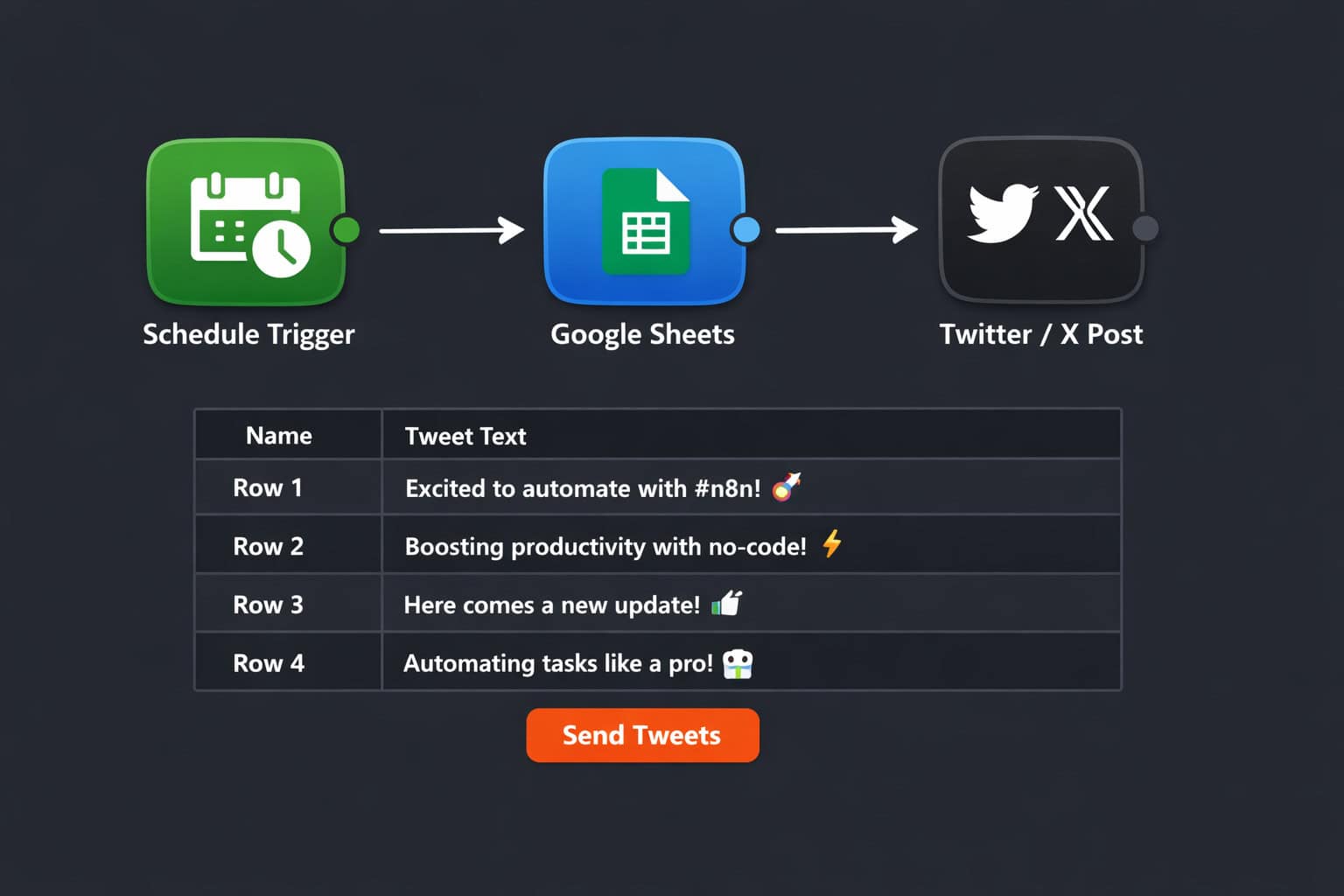
The simplest n8n Twitter workflow reads a tweet from a Google Sheet and posts it on a schedule, then deletes or marks that row so the same tweet never posts twice. [1]
Here’s how the core flow works, step by step:
Step 1: Set up your Google Sheet
Create a sheet with at least two columns: Tweet Text and Status. Write your tweets in the Tweet Text column and leave Status blank for unposted tweets.
Step 2: Add a Schedule Trigger node In n8n, add a Schedule Trigger node. Set it to fire every 6 hours (or whatever cadence fits your strategy). This node is the starting point of every automated run. [5]
Step 3: Add a Google Sheets node
Connect a Google Sheets node set to “Read Rows.” Filter for rows where Status is empty so you always grab an unposted tweet.
Step 4: Add a Twitter node
Connect a Twitter node set to “Create Tweet.” Map the Tweet Text field from your Google Sheets data to the tweet body.
Step 5: Update the row status
Add a second Google Sheets node set to “Update Row.” Write “Posted” into the Status column for the row you just used. This prevents duplicate posts.
Common mistake: Skipping the status update step. Without it, your workflow will post the same tweet on every run until you manually clear the sheet.
| Node | Action | Key Setting |
|---|---|---|
| Schedule Trigger | Fires workflow | Every 6 hours |
| Google Sheets (Read) | Gets next tweet | Filter: Status = blank |
| Posts tweet | Map Tweet Text field | |
| Google Sheets (Update) | Marks as posted | Set Status = “Posted” |
How Do You Build an AI-Powered Tweet Generation Workflow?
An AI-powered n8n workflow can generate fresh tweet content daily by pulling live trend data, passing it to a language model, and posting the output automatically. [4]
This approach removes the need to write tweets manually. Instead, you define a content style and let the AI draft based on what’s trending.
The workflow structure:
- Schedule Trigger fires once daily (e.g., 8:00 AM)
- HTTP Request node fetches the latest Google Trends RSS feed for your niche
- Excel/Google Sheets node stores the raw trend data for reference
- AI Agent node (connected to OpenAI’s GPT-4o or similar) receives the trends and a prompt like: “Pick the top 3 technology trends from this list and write one tweet for each. Keep each tweet under 280 characters. Use a direct, conversational tone.”
- Twitter node posts each generated tweet with a short delay between posts to avoid rate limits [4]
Prompt engineering tips for better AI tweets:
- Specify character limits explicitly (Twitter’s limit is 280 characters)
- Tell the model to avoid hashtag spam (1-2 relevant hashtags maximum)
- Include your brand voice in the prompt (“write in a casual but expert tone”)
- Ask for a hook in the first 10 words to stop the scroll
For more on AI content generation strategies, the comprehensive guide to AI-powered content generation tools covers the broader landscape of tools you can integrate with n8n.
You can also combine this with performance analysis: tools like n8n, Apify, and OpenAI can scrape your past tweets, identify which hooks and formats get the most engagement, and feed those patterns back into your generation prompts. [2]

What Are the Key N8N Nodes for Twitter Automation?
N8N provides a dedicated Twitter integration with several built-in actions, plus the flexibility to extend functionality through HTTP Request nodes for anything the native node doesn’t cover. [7]
Native Twitter node actions:
- Create a tweet
- Search tweets
- Like a tweet
- Retweet
- Get user profile data
When to use the HTTP Request node instead:
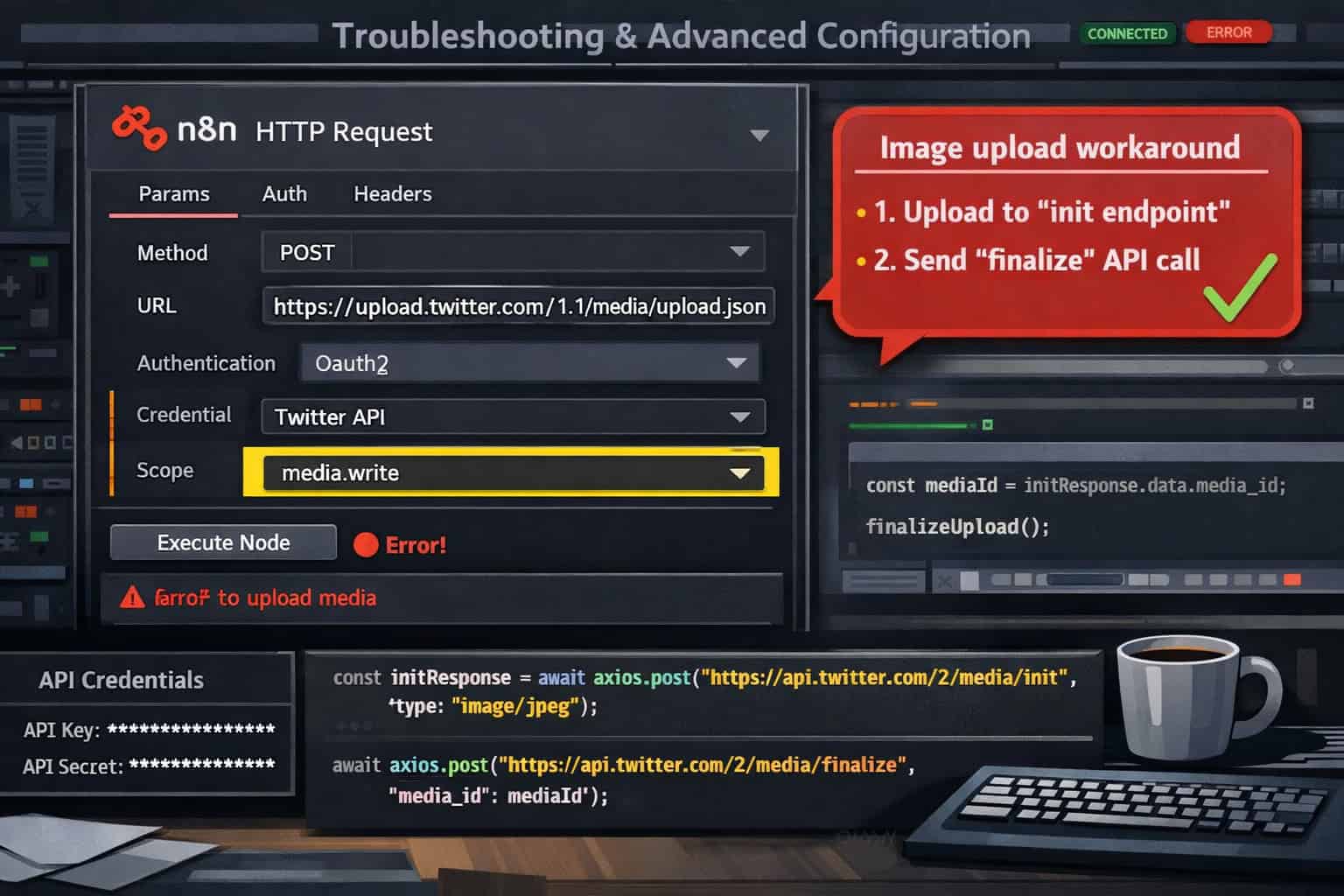
The native Twitter node covers basic text tweets well, but it has gaps. For example, posting tweets with images requires the media.write scope in Twitter’s API v2, which the default node doesn’t support. In those cases, you build a custom HTTP Request node pointing directly to the Twitter API endpoint. [9]
Other nodes commonly used in Twitter workflows:
| Node | Purpose |
|---|---|
| Schedule Trigger | Time-based automation start |
| Google Sheets | Read/write tweet queues |
| OpenAI | Generate or refine tweet content |
| HTTP Request | Custom API calls (images, advanced endpoints) |
| IF / Switch | Conditional logic (post only if engagement > X) |
| Wait | Add delays between posts |
| Slack / Email | Send alerts when a workflow fails |
Edge case: Twitter’s API v2 has tiered rate limits. Free-tier API access allows roughly 1,500 tweet posts per month as of 2026. If your workflow fires too frequently, you’ll hit rate limits and posts will silently fail unless you add error handling.
How Do You Handle Image Uploads in N8N Twitter Workflows?
Posting images with tweets requires a workaround in n8n because the default Twitter node only supports text. [9]
The Twitter API v2 uses a two-step process for media: first upload the image to get a media_id, then attach that ID when creating the tweet.
Step-by-step image upload workaround:
- Get your image using an HTTP Request node or read it from Google Drive / a URL
- Upload to Twitter’s media endpoint using a custom HTTP Request node:
- Method:
POST - URL:
https://upload.twitter.com/1.1/media/upload.json - Auth: OAuth 1.0a credentials with
media.writescope - Body: multipart/form-data with the image binary
- Method:
- Extract the
media_id_stringfrom the response using an n8n expression - Create the tweet with a second HTTP Request node, including
"media": {"media_ids": ["YOUR_MEDIA_ID"]}in the JSON body
Important: You must use OAuth 1.0a credentials (not just Bearer Token) for media uploads. Many users get stuck here because n8n’s Twitter credential setup defaults to OAuth 2.0 for newer endpoints.
This is one of the more technical parts of mastering Twitter automation through n8n workflows, but once the credential setup is correct, the pattern is reusable across all your image-posting automations.
How Do You Expand Twitter Automation to Other Platforms?
The same n8n workflow logic that powers Twitter automation transfers directly to LinkedIn, YouTube, and other channels with minor node swaps. [2]
This is one of n8n’s biggest practical advantages: you build the content generation and scheduling logic once, then route the output to multiple platforms.
Cross-platform workflow pattern:
<code>Schedule Trigger
    → Fetch trend data (HTTP Request)
    → Generate content (OpenAI node)
    → Route by platform (Switch node)
        → Twitter node (short-form tweet)
        → LinkedIn node (longer professional post)
        → Slack node (internal team notification)
</code>
For social media design assets that pair with automated posts, check out the guide on mastering graphic design for social media marketing. Pairing strong visuals with automated posting schedules significantly improves engagement rates.
If you’re also auto-sharing blog content to social media, the guide on how to auto-share WordPress blog posts to social media covers a complementary workflow that feeds directly into your n8n setup.
Practical tip: Use a Switch node after your content generation step to apply platform-specific formatting. Twitter needs short, punchy text. LinkedIn tolerates longer paragraphs. YouTube descriptions need timestamps and keywords. One AI generation step can produce all three formats if your prompt asks for them explicitly.
What Are the Most Common N8N Twitter Automation Mistakes?
Most failures in n8n Twitter workflows come from four recurring issues: credential misconfiguration, missing error handling, rate limit blindness, and duplicate post logic gaps.
1. Wrong API credentials Twitter’s API v2 requires different credential types for different actions. Text tweets work with OAuth 2.0. Media uploads require OAuth 1.0a. Using the wrong type returns a cryptic 403 error that looks like a permissions issue.
2. No error handling If the Twitter API returns an error (rate limit, invalid token, network timeout), n8n will stop the workflow silently by default. Add an Error Trigger node or connect a Slack/Email node to the error output of your Twitter node so you get notified immediately.
3. Ignoring rate limits The free Twitter API tier has strict monthly post limits. Add a Wait node between posts in batch workflows and track your monthly usage in a Google Sheet to avoid hitting the cap mid-campaign.
4. Duplicate posts If your spreadsheet-based workflow doesn’t correctly mark rows as “posted,” the same tweet will publish on every trigger run. Always test your status-update logic with a dry run before activating the workflow.
For teams managing content at scale, the AI-powered content optimization guide covers performance tracking strategies that complement automated posting workflows.
How Do You Test and Monitor N8N Twitter Workflows?
Testing before activation prevents embarrassing duplicate posts or broken workflows from going live.
Testing checklist:
- Run the workflow manually using n8n’s “Execute Workflow” button before enabling the schedule
- Check each node’s output in the execution log to confirm data passes correctly between steps
- Verify your Google Sheets status column updates correctly after a test run
- Confirm the tweet appears on your Twitter account with the right text and formatting
- Test with a private Twitter account first if you’re worried about accidental public posts
- Add a “dry run” mode: use an IF node to check for a
DRY_RUN=trueenvironment variable and skip the Twitter post node during testing
Monitoring in production:
- Enable n8n’s built-in execution history to review past runs
- Set up email or Slack alerts on workflow failures using the Error Trigger node
- Log each posted tweet (text, timestamp, tweet ID) to a Google Sheet for a permanent audit trail
- Review engagement data weekly and feed high-performing tweet patterns back into your AI prompts [2]
For broader workflow management approaches, Framer project management templates for optimizing professional workflows offers useful frameworks for organizing multi-channel automation projects.
Mastering Twitter Automation: A Comprehensive Guide to N8N Workflows — FAQ
Q: Is n8n free to use for Twitter automation? Yes. N8N’s self-hosted version is completely free with no workflow limits. The cloud version has a free tier with limited executions per month. Self-hosting on a $5/month VPS is the most cost-effective option for most users.
Q: Do I need coding skills to build these workflows? No. The visual node editor handles most use cases without code. You’ll occasionally write short JavaScript expressions to map data between nodes, but these are simple one-liners, not full programs.
Q: What Twitter API tier do I need? The free API tier allows approximately 1,500 tweet posts per month as of 2026. For higher volume, the Basic tier ($100/month) raises that limit significantly. Check Twitter’s current developer portal for exact limits, as these change periodically.
Q: Can n8n post threads (multi-tweet sequences)?
Yes, but it requires chaining multiple Twitter nodes in sequence, passing the reply_to_tweet_id from the first tweet to each subsequent node. It’s a slightly more complex workflow but fully achievable.
Q: How do I avoid getting my Twitter account suspended? Post at human-like intervals (not every 60 seconds), avoid spammy repetitive content, and stay within API rate limits. Twitter’s automation policies allow scheduled posting but prohibit coordinated inauthentic behavior.
Q: Can I use n8n to auto-reply to mentions? Yes. Use a Schedule Trigger to periodically search for mentions using the Twitter Search node, filter for unanswered ones, and route them to an AI node for response generation before posting the reply.
Q: What happens if my workflow fails mid-run? N8N logs the failure in execution history. Without error handling nodes, the workflow stops silently. Always add an Error Trigger node connected to a notification channel so you know immediately when something breaks.
Q: Can I run multiple Twitter accounts from one n8n instance? Yes. N8N supports multiple credential sets. You can create separate Twitter credentials for each account and reference the correct one in each workflow.
Q: Is self-hosting n8n difficult? Not particularly. The most common setup is Docker on a VPS (DigitalOcean, Hetzner, etc.). N8N’s official documentation provides a working Docker Compose file that gets you running in about 20 minutes.
Q: Can I combine n8n Twitter automation with content from my blog? Absolutely. Connect an RSS Feed node to your blog’s feed, extract new post titles and URLs, and pass them to the Twitter node. This pairs well with the auto-share WordPress blog posts to social media approach for a fully automated content distribution pipeline.
Conclusion: Your Next Steps for Twitter Automation with N8N
Mastering Twitter automation through n8n workflows is a practical skill that pays off quickly. You can go from zero to a working scheduled-posting system in a single afternoon, and from there, layer in AI content generation, cross-platform distribution, and performance-based optimization over time.
Here’s a clear action plan to get started:
This week: Set up n8n (self-hosted via Docker or cloud trial), connect your Twitter Developer credentials, and build the basic Google Sheets-to-tweet workflow. Get one successful manual test run completed.
Week two: Add the status-update logic to prevent duplicates, set up an Error Trigger with Slack or email notifications, and activate the schedule. Let it run for a week and review the execution logs.
Week three: Add an AI generation layer. Connect an OpenAI node to pull Google Trends data and draft daily tweets. Review the AI output before fully automating, then gradually reduce manual review as you trust the output quality.
Ongoing: Log every posted tweet with its engagement data, feed high-performing patterns back into your AI prompts, and expand the workflow to LinkedIn or other channels using the same node structure.
The tools covered here connect directly to broader content and automation strategies. For teams building out a full digital presence, pairing Twitter automation with AI-powered content optimization and a solid social media design workflow creates a compounding advantage over time.
Start simple. One working workflow beats ten planned ones.
References
[1] 2199 Auto Tweet Spreadsheet To Tweet Automation – https://n8n.io/workflows/2199-auto-tweet-spreadsheet-to-tweet-automation/ [2] Watch (AI-powered content analysis with n8n, Apify, OpenAI) – https://www.youtube.com/watch?v=B7nufSIUgSM [4] Watch (Daily trend-based tweet generation workflow) – https://www.youtube.com/watch?v=p9Z1Qxzjc9w [5] Watch (N8N trigger nodes and scheduling) – https://www.youtube.com/watch?v=YUS4OGFZ_fw [7] Twitter Integration – https://n8n.io/integrations/twitter/ [9] Watch (Image upload workaround for Twitter API v2) – https://www.youtube.com/watch?v=X8G_hT57Txs