Last updated: May 7, 2026
Quick Answer: N8N is a self-hostable, open-source workflow automation platform that connects Instagram’s Meta Graph API to tools like Google Sheets, OpenAI, and webhooks. By building N8N workflows, creators and marketers can automate posting Reels, Stories, and Carousels; generate AI captions; and handle DMs with intelligent chatbots — all without writing complex code from scratch.
Key Takeaways
- N8N supports automated posting for all major Instagram content types: Reels, Stories, and Carousels, via the Meta Graph API [3][4]
- Long-lived and short-lived Meta API tokens are both supported, with pre-built N8N templates available for each [9]
- Google Sheets can serve as a content database, letting N8N filter and post only new items per workflow run [1]
- AI caption generation (via OpenAI) can be embedded directly into posting workflows to create SEO-ready captions from video metadata [1][2]
- Instagram DM automation supports text, voice transcription, and image analysis through OpenAI integration [5]
- Webhook-based triggers enable real-time responses to DMs and comments, with smart routing nodes [10]
- N8N is best suited for creators, agencies, and developers comfortable with a visual node editor; it is not a point-and-click tool for complete beginners
- Costs vary: N8N Cloud starts at a paid tier, while self-hosting is free but requires server management
- Common mistakes include using short-lived tokens without a refresh mechanism and skipping duplicate-post checks in Google Sheets workflows

What Is N8N and Why Use It for Instagram Automation?
N8N is an open-source, node-based workflow automation platform that lets you connect apps and APIs without building integrations from scratch. For Instagram automation specifically, N8N sits between your content sources (Google Sheets, cloud storage, AI tools) and the Meta Graph API, handling the logic that would otherwise require custom code.
Why N8N over other tools like Zapier or Make?
- Self-hosting option: You can run N8N on your own server, keeping data private and avoiding per-task pricing
- Code nodes: When the visual nodes aren’t enough, you can drop in JavaScript or Python directly
- No per-operation billing: Unlike Zapier, N8N Cloud charges by workflow runs, not individual operations — which matters when automating high-volume Instagram posting
- Active template library: N8N’s community has published ready-to-use Instagram workflow templates [4][9]
Choose N8N if you want full control over your automation logic and are comfortable managing a visual workflow editor. Stick with simpler tools if you need a one-click setup with no technical involvement.
How Does the Meta Graph API Connect to N8N for Instagram Posting?
The Meta Graph API is the official pathway for programmatic Instagram posting. N8N connects to it using HTTP Request nodes or the built-in Facebook Graph API node, authenticated with either a short-lived or long-lived access token [9].
Token types explained:
| Token Type | Lifespan | Best For |
|---|---|---|
| Short-lived | ~1–2 hours | Testing and one-off posts |
| Long-lived | ~60 days | Production workflows |
| System User Token | Does not expire | Agency/enterprise setups [9] |
For production workflows, long-lived tokens or System User tokens are the right choice. N8N has a pre-built template specifically for automating Instagram and Facebook posting using Meta Graph API with System User tokens [9].
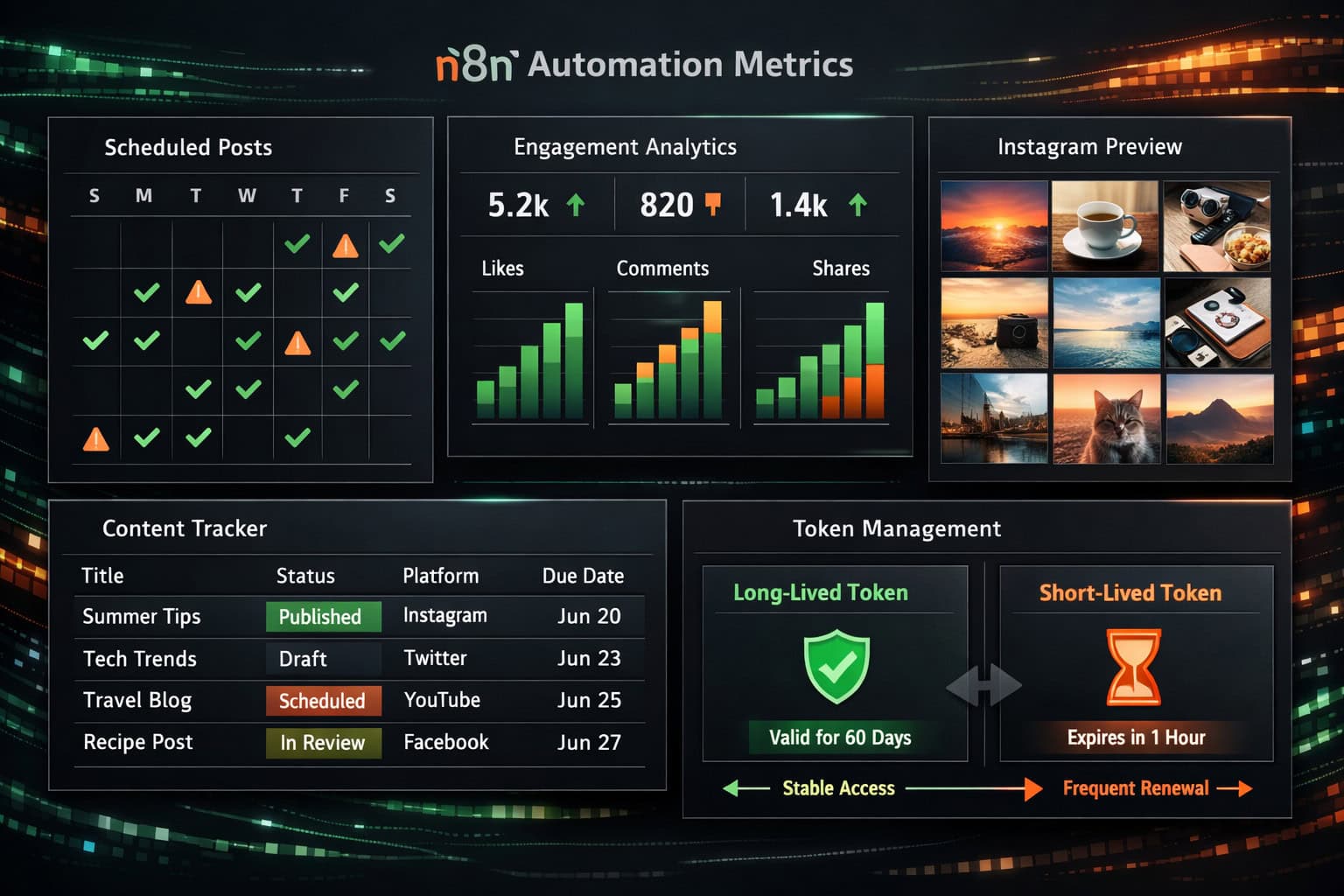
Common mistake: Many beginners use a short-lived token in their workflow and wonder why it stops working after an hour. Always build a token refresh step or use a System User token from the Meta Business Manager.
Quick setup steps:
- Create a Meta Developer App at developers.facebook.com
- Add the Instagram Graph API product to your app
- Generate a long-lived token via the Graph API Explorer
- Store the token as a credential in N8N (never hardcode it in a node)
- Use the HTTP Request node or Facebook Graph API node to call the
/me/mediaand/me/media/publishendpoints
For more on automating social content workflows, see our guide on how to auto-share WordPress blog posts to social media.
What Instagram Content Types Can N8N Automate?
N8N workflows now support all major Instagram post formats through the Meta Graph API: single image posts, Reels, Stories, and Carousels [3][4]. This is a significant expansion from earlier limitations that restricted automation to single-image posts only.
Supported content types and their API requirements:
- Single Image Posts: Upload image URL, set caption, publish via two-step API call
- Reels: Upload video URL, set caption and share_to_feed parameter, use
VIDEOmedia type [4] - Carousels: Create individual child media containers first, then create a carousel container referencing all children [3]
- Stories: Use the
STORIESmedia type parameter; note Stories have no caption field
Reels automation example (from N8N’s published template [4]):
The automated Instagram Reels workflow pulls video files from a source (cloud storage or Google Drive), calls the Meta API to create a media container, polls for the container’s FINISHED status, then publishes. The polling step is critical — skipping it causes publish failures because Instagram needs time to process video files.
💡 Pro tip: Always include a Wait node between the media creation step and the publish step when automating Reels. A 30–60 second wait handles most processing delays without over-engineering a polling loop.
How to Build a Google Sheets-Driven Instagram Posting Workflow
A Google Sheets integration turns your spreadsheet into a content calendar that drives automated Instagram posts. N8N reads rows from the sheet, filters for items marked as “pending,” posts them, then updates the status to “posted” [1].
Workflow structure:
- Trigger: Schedule node (e.g., runs daily at 9 AM)
- Read Sheet: Google Sheets node pulls all rows from your content calendar
- Filter: IF node checks for rows where Status = “Pending”
- Limit: Set node takes only the first 1–3 items (to respect rate limits)
- Post to Instagram: HTTP Request node calls the Meta Graph API
- Update Sheet: Google Sheets node marks the row as “Posted” with a timestamp
Columns to include in your Google Sheets content calendar:
Media URL(direct link to image or video)Caption(pre-written or AI-generated)Post Type(IMAGE, REEL, CAROUSEL, STORY)Status(Pending / Posted / Error)Scheduled DatePosted At(timestamp written by N8N)
Edge case: If your workflow runs but the Instagram API returns an error, the row status won’t update to “Posted” — meaning the next run will try again. Add an error branch that writes “Error” to the Status column so you don’t accidentally double-post.
This approach pairs well with AI-powered content generation tools to pre-fill your caption column automatically.
How Does AI Caption Generation Work Inside N8N Workflows?
AI caption generation in N8N uses an OpenAI node (or HTTP Request to the OpenAI API) placed before the Instagram posting step. The node receives video or image metadata and returns a ready-to-use caption [1][2].
Basic AI caption workflow:
- Extract metadata from your media file (title, description, tags)
- Pass metadata to an OpenAI node with a prompt like: “Write an Instagram caption under 150 characters for a Reel about [topic]. Include 3 relevant hashtags.”
- Parse the OpenAI response to extract the caption text
- Feed the caption into the Instagram media creation API call
Prompt engineering tips for Instagram captions:
- Specify character limits (Instagram captions max out at 2,200 characters, but shorter captions often perform better)
- Ask for hashtags separately if you want to control hashtag placement
- Include brand voice instructions in the system prompt, not the user prompt
- Request a call-to-action phrase if your goal is engagement
When AI captions work best: High-volume posting workflows where writing individual captions isn’t feasible. For brand-sensitive content, always add a human review step before publishing.
For a broader look at AI-assisted content strategies, our AI-powered content optimization guide covers prompt structures and quality checks in detail.
How to Automate Instagram DM Responses with N8N
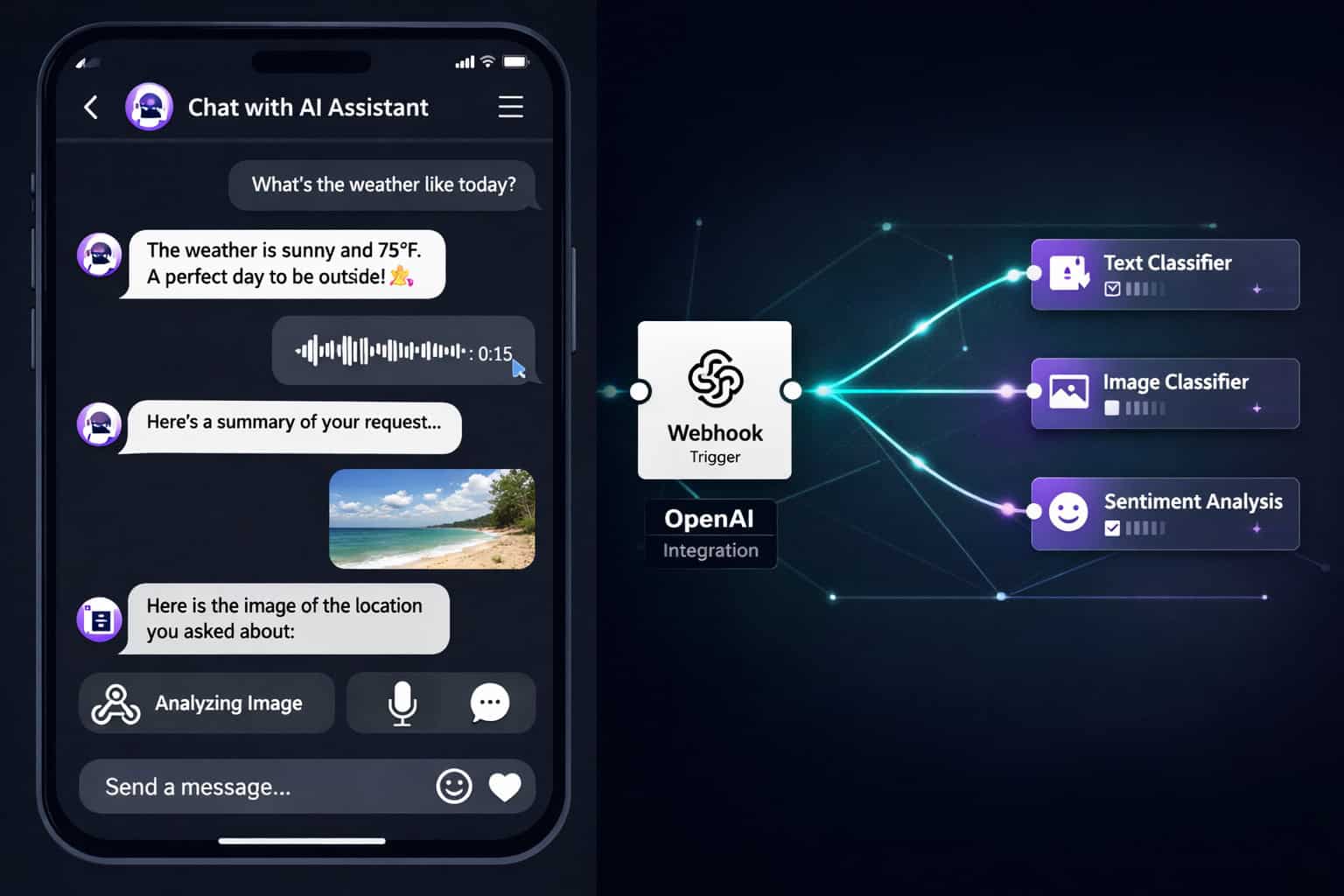
Instagram DM automation in N8N uses a webhook trigger that fires when a new message arrives, then routes the message through classification and response nodes [5][10]. This is one of the more advanced use cases in mastering Instagram automation with N8N workflows, but the payoff is significant for accounts with high DM volume.
What N8N can handle in Instagram DMs:
- Text messages: Classify intent, generate a response via OpenAI, send reply
- Voice messages: Transcribe audio using OpenAI Whisper, then process as text [5]
- Image messages: Send the image URL to OpenAI Vision for analysis, generate a contextual reply [5]
DM automation workflow structure:
- Webhook Trigger: Receives Instagram DM payload from Meta’s Webhooks API [10]
- Switch Node: Routes by message type (text / audio / image)
- Processing Node: Transcribes audio or analyzes image as needed
- OpenAI Node: Generates a relevant, on-brand reply
- HTTP Request Node: Posts the reply back via the Instagram Messaging API
- Log Node: Writes conversation data to a Google Sheet or database
Important constraint: Instagram’s Messaging API requires your app to be approved for the instagram_manage_messages permission. This approval process can take days to weeks, so plan accordingly before building the workflow.
⚠️ Compliance note: Meta’s policies prohibit fully automated DM responses that impersonate humans without disclosure. Always ensure your automated replies identify themselves as automated or use them only for FAQ-style responses.
What Are the Best Pre-Built N8N Templates for Instagram?
N8N’s community template library includes several production-ready Instagram workflows that save significant setup time [4][8][9]. Rather than building from scratch, these templates give you a working foundation to customize.
Top N8N Instagram workflow templates:
| Template | Use Case | Key Integrations |
|---|---|---|
| Automated Instagram Reels Workflow [4] | Auto-post Reels from cloud storage | Meta Graph API, Google Drive |
| Instagram + Facebook Posting with System User Tokens [9] | Multi-platform posting | Meta Graph API, System User Auth |
| Instagram DM Chatbot [5] | Auto-reply to DMs with AI | Meta Webhooks, OpenAI |
| Google Sheets to Instagram [1] | Content calendar automation | Google Sheets, Meta Graph API |
How to use a template:
- Go to n8n.io/workflows and search “Instagram”
- Click “Use workflow” to import it into your N8N instance
- Replace placeholder credentials with your own Meta API tokens
- Test with a single post before enabling the schedule trigger
- Monitor the first 3–5 runs manually to catch edge cases
Templates are a starting point, not a finished product. Most require credential setup and minor adjustments to match your specific content structure.
For more automation strategies across platforms, browse the Automation Archives on WebAiStack.
What Are Common Mistakes and How Do You Troubleshoot Them?
Even experienced N8N users run into predictable problems when building Instagram automation. Here are the most common issues and how to fix them.
Top mistakes in N8N Instagram workflows:
1. Token expiration breaking scheduled workflows
- Fix: Use System User tokens (non-expiring) or build a token refresh sub-workflow that runs weekly
2. Skipping the media processing poll for Reels
- Fix: Add a Wait node (30–60 seconds) or a loop that checks
status_codeuntil it returnsFINISHEDbefore calling the publish endpoint [4]
3. Duplicate posts from Google Sheets workflows
- Fix: Always update the Status column immediately after a successful post, and add an error handler that writes “Error” (not “Pending”) on failure
4. Webhook not receiving DM events
- Fix: Verify your Meta App’s webhook subscription includes
messagesandmessaging_postbacksfields, and confirm the webhook URL is publicly accessible (not localhost)
5. Caption encoding errors
- Fix: URL-encode captions before passing them to the API, especially if they contain emojis or special characters
Troubleshooting checklist:
- Check N8N execution logs for the exact error node and message
- Test API calls independently using the Meta Graph API Explorer
- Confirm your Instagram account is a Professional (Business or Creator) account
- Verify the connected Facebook Page has admin access to the Instagram account
- Check Meta App review status for required permissions
How Does N8N Compare to Other Instagram Automation Tools?
N8N is not the only option for Instagram automation. The right tool depends on your technical comfort level, budget, and how much customization you need.
N8N vs. alternatives:
| Tool | Self-Hostable | Code-Free | Instagram API | Price Model |
|---|---|---|---|---|
| N8N | ✅ Yes | Partial | Full Graph API | Free (self-host) / Paid cloud |
| Make (Integromat) | ❌ No | ✅ Yes | Limited | Per-operation |
| Zapier | ❌ No | ✅ Yes | Limited | Per-task |
| Buffer/Later | ❌ No | ✅ Yes | Posting only | Subscription |
| Custom code | ✅ Yes | ❌ No | Full Graph API | Dev time cost |
Choose N8N if:
- You want full API access including DMs, Stories, and Carousels
- Data privacy matters and you prefer self-hosting
- You’re comfortable with a visual workflow editor and occasional JavaScript
Choose Make or Zapier if:
- You need a fully no-code setup with minimal configuration
- Your automation needs are simple (scheduled single-image posts)
- You don’t want to manage server infrastructure
For teams already working with design and content tools, pairing N8N with AI graphic design tools for creative workflows can create a fully automated content pipeline from creation to publishing.
FAQ: Mastering Instagram Automation with N8N Workflows
Q: Do I need coding skills to use N8N for Instagram automation? Basic N8N workflows require no coding — you connect nodes visually. However, advanced use cases like custom DM routing or dynamic caption formatting benefit from JavaScript knowledge in N8N’s Code node.
Q: Is N8N free to use? N8N is free to self-host on your own server. N8N Cloud (managed hosting) has a paid tier. Self-hosting requires a server (a $5–10/month VPS works for most small workflows).
Q: Can N8N post to Instagram automatically without manual approval? Yes. Once your workflow is configured and your Meta API tokens are valid, N8N can post on a fully automated schedule with no manual steps required.
Q: Does Instagram allow automation through the Graph API? Yes. The Meta Graph API is Instagram’s official, approved method for programmatic posting. Third-party tools that simulate browser behavior (not API-based) violate Instagram’s Terms of Service. N8N uses the official API [4][9].
Q: How many posts can I automate per day? Meta’s API rate limits vary by endpoint. As of 2026, the Content Publishing API allows up to 50 API-published posts per 24-hour period per Instagram account (Stories excluded from this count). Always check Meta’s current documentation for the latest limits.
Q: Can N8N automate Instagram Stories?
Yes. Stories use the STORIES media type in the Media Creation API call. Note that Stories don’t support captions and expire after 24 hours, so automated Stories workflows are typically used for time-sensitive promotions [3].
Q: What happens if my workflow fails mid-execution? N8N logs all execution attempts with error details. Failed executions don’t automatically retry unless you configure a retry setting. For critical workflows, add error trigger nodes that send you a Slack or email alert on failure.
Q: Can I use N8N to grow Instagram followers automatically? N8N can automate posting and DM responses, but automated following, liking, or commenting on other accounts’ content violates Meta’s Terms of Service and risks account suspension. Stick to content publishing and inbound DM automation.
Q: How do I handle multiple Instagram accounts in one N8N instance? Create separate credentials for each Instagram account in N8N’s credential manager. You can reuse the same workflow structure with different credential sets, or use a single workflow with a Switch node that routes to the correct account based on input data.
Q: Is there a limit to how complex an N8N Instagram workflow can be? No hard limit. Workflows can have hundreds of nodes. Performance depends on your server resources (for self-hosted) or your N8N Cloud plan. Very large workflows benefit from being split into sub-workflows called via the Execute Workflow node.
Conclusion: Your Next Steps for Instagram Automation with N8N
Mastering Instagram automation through N8N workflows is a practical, high-value skill for creators, marketers, and agencies managing content at scale. The combination of Meta’s Graph API, Google Sheets content calendars, and OpenAI caption generation creates a pipeline that handles the repetitive work — so you can focus on strategy and creative direction.
Actionable next steps:
- Start with a template. Import the Automated Instagram Reels Workflow from N8N’s library and test it with a single post before building anything custom [4]
- Set up proper token management. Get a System User token from Meta Business Manager to avoid expiration issues [9]
- Build your Google Sheets content calendar. Use the column structure from this guide and connect it to N8N before your first scheduled run [1]
- Add AI caption generation. Once posting works reliably, layer in an OpenAI node to generate captions from your media metadata [2]
- Explore DM automation last. It requires Meta app review approval, so start the application process early while you build the rest of your workflow [5]
For teams looking to extend automation beyond Instagram, our guides on advanced WordPress automation strategies and graphic design for social media marketing cover complementary workflows that complete a full content operation.
References
[1] Watch – https://www.youtube.com/watch?v=m02TeQ9kHVo [2] Watch – https://www.youtube.com/watch?v=AGSyWdjN5A4 [3] Watch – https://www.youtube.com/watch?v=t63IlcH1GJY [4] 5139 Automated Instagram Reels Workflow – https://n8n.io/workflows/5139-automated-instagram-reels-workflow/ [5] Watch – https://www.youtube.com/watch?v=5tHDBNQEcTY [9] 5457 Automate Instagram And Facebook Posting With Meta Graph Api And System User Tokens – https://n8n.io/workflows/5457-automate-instagram-and-facebook-posting-with-meta-graph-api-and-system-user-tokens/ [10] Watch – https://www.youtube.com/watch?v=D3LKaWyCcmg