Last updated: May 9, 2026
Quick Answer: Make.com (formerly Integromat) is a visual workflow automation platform that connects apps and services without writing code. It uses a drag-and-drop scenario builder to automate repetitive tasks — from sending emails to syncing spreadsheets — making it practical for both beginners and experienced users who want to save time and reduce manual work.
Key Takeaways
- Make.com uses visual “scenarios” to automate tasks between apps like Gmail, Google Sheets, Slack, and hundreds more.
- The free tier includes 1,000 operations per month — enough to test real automations before committing to a paid plan. [1]
- Scenarios are built from a trigger (what starts the automation) and one or more actions (what happens next).
- Advanced features include routers, filters, conditional logic, and AI tool integrations. [3]
- Make Academy offers official courses and certifications for structured learning. [5]
- You don’t need coding skills to build most automations, but understanding logic (if/then thinking) helps significantly.
- Common use cases include lead capture, email automation, social media posting, and e-commerce order management. [6]
What Is Make.com and Why Does It Matter for Workflow Automation?
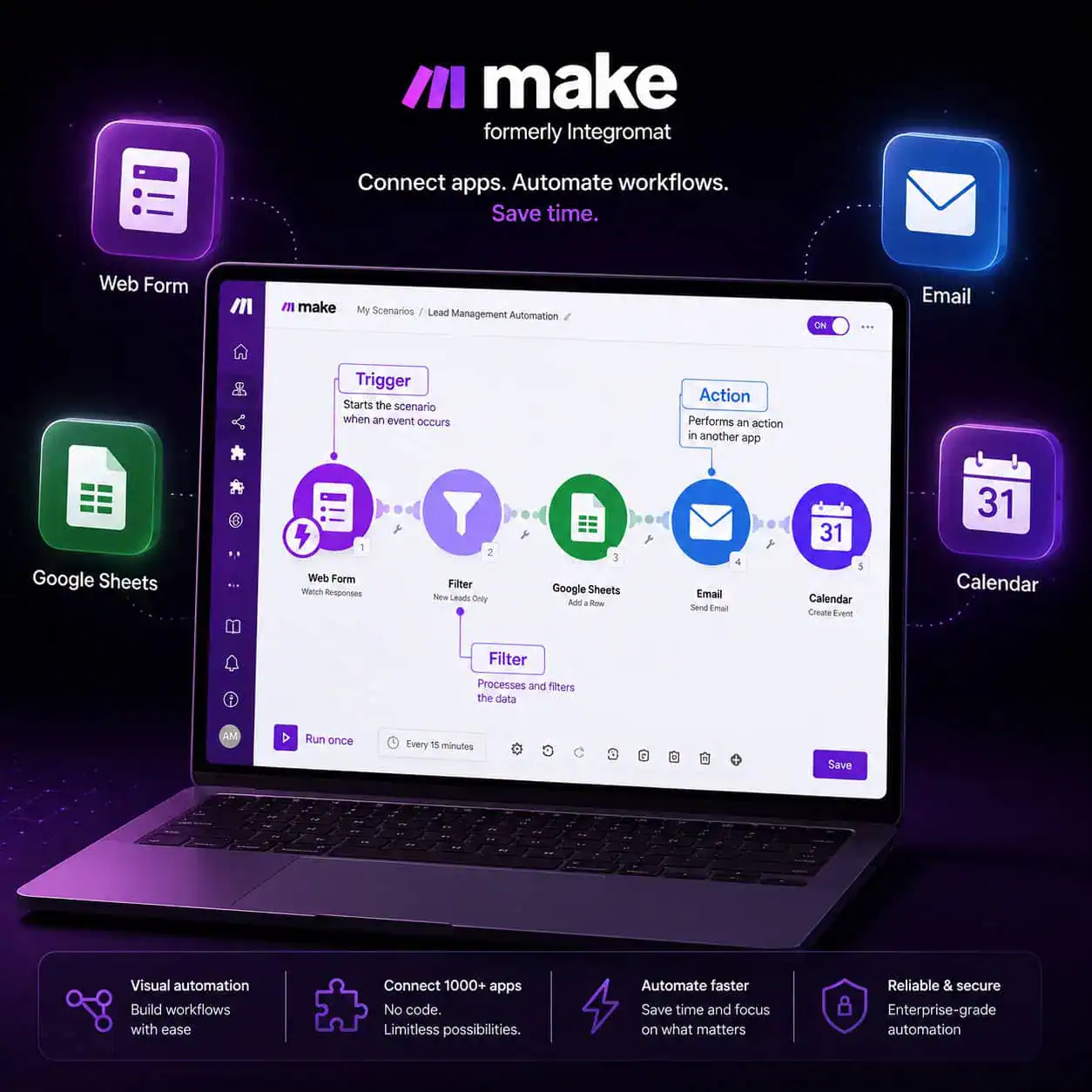
Make.com is a no-code automation platform that connects your apps and automates workflows through a visual drag-and-drop interface. Unlike simple two-step automation tools, it supports complex, multi-branch logic that can handle real business processes.
Originally launched as Integromat, the platform rebranded to Make.com and has grown into one of the most capable tools in the no-code automation space. It sits alongside tools like Zapier and n8n, but stands out for its visual scenario builder and flexibility with conditional logic.
Who it’s for:
- Freelancers and solopreneurs automating client workflows
- Small business owners handling repetitive admin tasks
- Marketing teams automating lead capture and follow-up
- Developers building lightweight integrations without a full backend
Who it may not suit: Teams that need enterprise-grade security compliance or developers who prefer code-first solutions like n8n or custom APIs.
If you’re also exploring how automation fits into broader digital workflows, the Automation Archives on WebAiStack covers a wide range of related tools and strategies.
How Does Make.com Work? Understanding Scenarios, Triggers, and Actions
Make.com automates tasks through “scenarios” — visual workflows built on the Make dashboard. Each scenario starts with a trigger event and then runs one or more actions in response. [1]
The three core building blocks:
| Element | What It Does | Example |
|---|---|---|
| Trigger | Starts the scenario | New row added to Google Sheets |
| Action | Does something in response | Send an email via Gmail |
| Filter/Router | Controls which path to take | Only proceed if status = “New” |
A simple example: when a customer fills out a contact form (trigger), Make.com can add their data to a CRM, send them a welcome email, and notify your Slack channel — all automatically.
💡 Quick tip: Think of scenarios like recipes. The trigger is the “if this happens,” and the actions are the “then do these things.”
Common mistake: New users often build one massive scenario instead of breaking complex processes into smaller, linked scenarios. Smaller scenarios are easier to debug and maintain.
Getting Started: Building Your First Make.com Scenario Step by Step
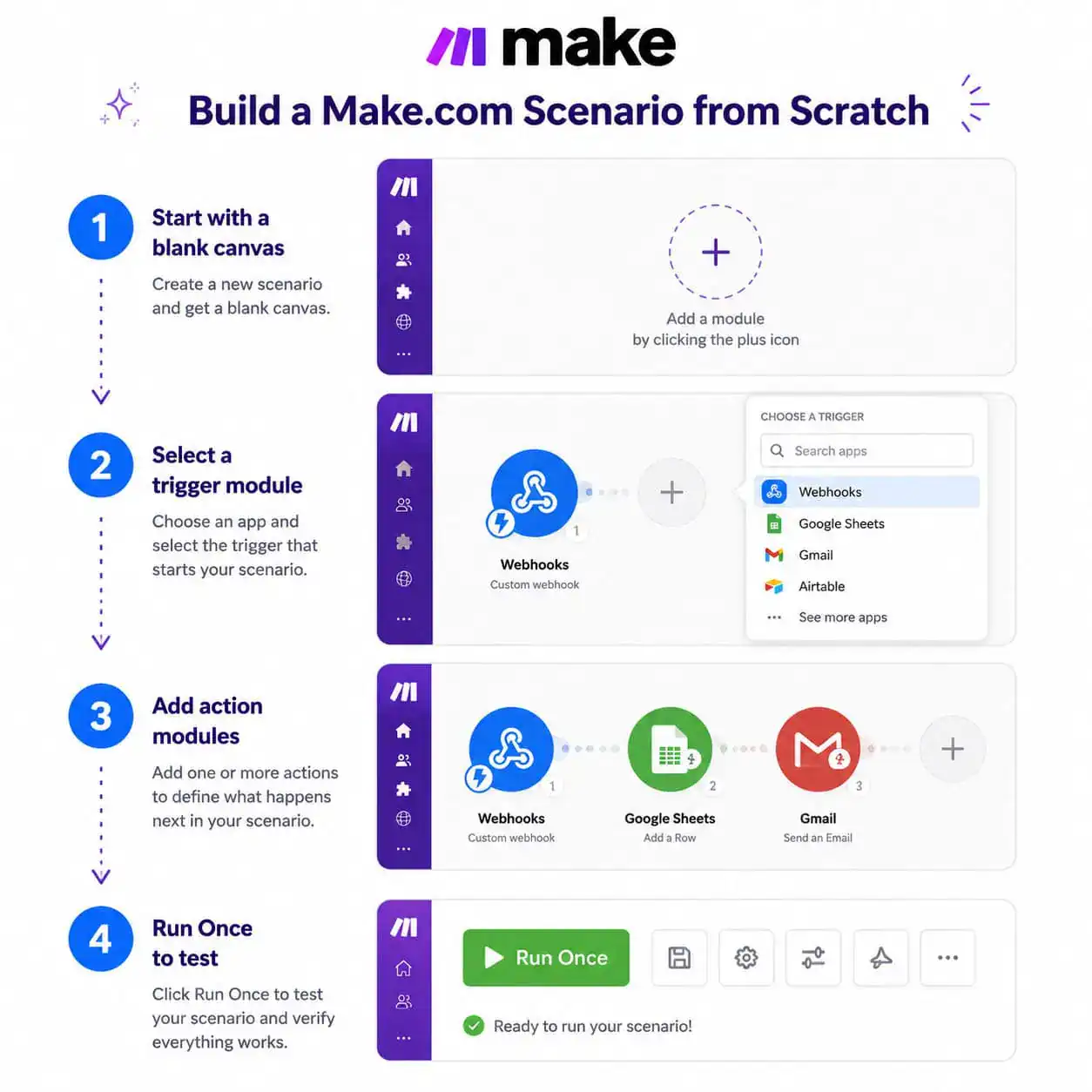
Building your first automation in Make.com takes about 15–20 minutes once you understand the interface. Here’s a practical walkthrough for beginners. [1] [3]
Step-by-step: Build a contact form to email automation
- Create a free account at make.com (free tier: 1,000 operations/month). [1]
- Click “Create a new scenario” from the dashboard.
- Add your trigger module — for example, Google Forms or a Webhook to capture form submissions.
- Add an action module — choose Gmail and configure it to send a notification email.
- Map the data fields — connect form fields (name, email, message) to the email template.
- Click “Run Once” to test with a real submission.
- Turn the scenario ON to run automatically going forward.
For more complex workflows, you can add:
- Routers to split the flow into multiple branches
- Filters to set conditions (e.g., only process orders over $50)
- Iterators to process items in a list one by one
A comprehensive 2026 beginner tutorial covers building real-world automations including meeting scheduling, web research, and personalized email sequences. [3]
What Can You Automate with Make.com? Real-World Use Cases
Make.com handles a wide range of automation tasks across industries. The most practical use cases fall into a few categories.
Marketing and lead management:
- Capture leads from web forms and push them to a CRM (HubSpot, Airtable, Notion)
- Send personalized follow-up emails based on form responses
- Auto-share WordPress blog posts to social media using a Make.com scenario
E-commerce operations:
- Sync orders from Shopify or WooCommerce to Google Sheets
- Trigger fulfillment emails when order status changes
- Make.com’s own e-commerce workflow guide covers integrated order management end-to-end. [6]
Content and design workflows:
- When combined with AI tools, Make.com can generate content drafts, resize images, or post to social channels automatically. [3]
- Pair it with AI-powered content generation tools for fully automated content pipelines.
Internal operations:
- Automate meeting scheduling with Google Calendar and Gmail [3]
- Sync data between spreadsheets and project management tools
- Build approval workflows with Slack notifications
Make.com vs. Zapier: Which Automation Tool Should You Choose?
Make.com and Zapier both automate app connections, but they serve slightly different needs. Choose based on your complexity requirements and budget.

| Feature | Make.com | Zapier |
|---|---|---|
| Visual builder | ✅ Advanced node-based | ✅ Simple linear |
| Free tier | 1,000 ops/month | 100 tasks/month |
| Multi-branch logic | ✅ Routers + filters | Limited |
| Learning curve | Moderate | Low |
| Best for | Complex, multi-step workflows | Simple, quick automations |
| Pricing (paid) | From ~$9/month | From ~$20/month |
Choose Make.com if you need conditional logic, routers, or multi-step workflows with data transformation.
Choose Zapier if you want the fastest setup for simple two-step automations and prefer a gentler learning curve.
For teams already working in no-code environments, Make.com pairs well with other tools. If you’re building sites without code, check out the best no-coding website design software platforms for 2026 for a broader toolkit view.
How to Learn Make.com: Best Resources for Beginners and Advanced Users
Mastering Make.com: The Ultimate Guide to Workflow Automation for Beginners and Pros wouldn’t be complete without a clear learning path. The good news is that strong free resources exist at every level.
Structured learning options:
- Make Academy (academy.make.com) — Official courses with certification. Start here if you want a structured, credible foundation. [5]
- YouTube beginner tutorials — A full 2026 beginner-to-advanced guide covers the platform in about 2 hours, including AI agents, web scraping with Browse AI, and conditional logic. [4]
- YouTube course playlists — Structured playlists offer systematic, module-by-module learning for those who prefer video. [7]
- Make Community forums — Peer support and real-world scenario examples. [1]
Recommended learning sequence:
- Complete Make Academy’s free beginner course
- Build 2–3 simple scenarios from scratch (form → email, sheet → Slack)
- Watch a 2026 advanced tutorial covering routers, filters, and AI integrations [3]
- Join the Make Community to troubleshoot and discover new use cases [1]
If you’re pairing Make.com with AI tools for content or design work, AI-powered content optimization is a practical next step.
Common Make.com Mistakes and How to Avoid Them
Even experienced users run into predictable problems. Knowing these in advance saves hours of frustration.
Top mistakes and fixes:
- Not testing before activating: Always use “Run Once” with real data before turning a scenario on. Edge cases in live data break untested scenarios.
- Ignoring error handling: Make.com has built-in error handlers. Set them up on critical modules so a failed step doesn’t silently break the whole workflow.
- Overloading one scenario: Break large automations into smaller linked scenarios. Easier to debug, and Make.com handles them more reliably.
- Forgetting operation limits: On the free plan, 1,000 operations go fast if a scenario loops through large datasets. [1] Monitor your usage in the dashboard.
- Mapping wrong data fields: Double-check field mappings when connecting modules. A mismatched field type (text vs. number) causes silent failures.
FAQ: Mastering Make.com Workflow Automation
Q: Is Make.com free to use?
Yes. Make.com offers a free account with 1,000 operations per month. Pro plans start at approximately $9/month and include 10,000 operations monthly. [1]
Q: Do I need coding skills to use Make.com?
No. Make.com is designed for no-code users. However, understanding basic logic (if/then conditions) helps when building filters and routers.
Q: What’s the difference between an operation and a scenario?
A scenario is the workflow you build. An operation is each individual module execution within that scenario. One scenario run can consume multiple operations depending on how many modules it contains.
Q: Can Make.com connect to AI tools?
Yes. Make.com integrates with OpenAI, Google Gemini, and other AI services, allowing you to build AI-powered automation agents. [3]
Q: How is Make.com different from Integromat?
They are the same platform. Integromat rebranded to Make.com. Existing workflows and accounts transferred over.
Q: Can I automate WordPress tasks with Make.com?
Yes. Make.com connects with WordPress via webhooks and native integrations. For more, see advanced WordPress automation strategies for 2026.
Q: What happens if a scenario fails?
Make.com logs errors and can notify you by email. You can also configure error-handler routes to take alternative actions when a module fails.
Q: Is there a certification for Make.com?
Yes. Make Academy (academy.make.com) offers official courses and certifications. [5]
Conclusion: Your Next Steps for Mastering Make.com
Mastering Make.com: The Ultimate Guide to Workflow Automation for Beginners and Pros comes down to one thing — starting with a real problem you want to solve. Don’t build automations for the sake of it. Pick one repetitive task you do every week and automate that first.
Actionable next steps:
- Sign up for a free Make.com account and explore the dashboard for 30 minutes.
- Complete one Make Academy beginner course to learn the core concepts properly. [5]
- Build your first scenario using a form-to-email or sheet-to-Slack workflow.
- Watch a 2026 advanced tutorial to learn routers, filters, and AI integrations. [4]
- Explore the Make Community for templates and real-world examples. [1]
The platform rewards curiosity. Each scenario you build teaches you something new about how your tools connect — and how much time you can reclaim.
More Make.com guides: learn how to master array aggregation in Make.com, automate with the complete guide to connecting Make.com and Google Sheets, and explore Make.com Twitter automation integrations.
References
[1] Make.com Community Tutorial for Beginners – https://community.make.com/t/make-com-automation-tutorial-for-beginners-step-by-step-guide/55299
[3] Make.com Tutorial for Beginners 2026 (YouTube) – https://www.youtube.com/watch?v=CLutx-rqGgc
[4] Master Make.com in 2 Hours (YouTube) – https://www.youtube.com/watch?v=MpmpC4C5fZs
[5] Make Academy – https://academy.make.com
[6] Mastering Integrated Ecommerce Workflow (Make.com PDF Guide) – https://www.make.com/en/mastering-integrated-ecommerce-workflow.pdf
[7] Make.com Full Course Playlist (YouTube) – https://www.youtube.com/playlist?list=PLSl0igoJine-dwqeOyFgDVFOX_dbc3WtK
See also: Zapier Automation App: The Ultimate Guide to Streamlining Your Workflow in 2026
See also: Unlocking Career Opportunities: A Comprehensive Guide to Make.com Job Openings in 2026