Last updated: May 7, 2026
Quick Answer: n8n is an open-source, self-hostable workflow automation platform that connects apps, APIs, and AI services through a visual node-based canvas. To get started, install n8n via npm or Docker, create a new workflow, add a trigger node, chain action nodes, and activate. This guide covers everything from first setup to advanced multi-agent AI workflows.
Key Takeaways
- n8n is free to self-host and significantly cheaper long-term than Zapier or Make for high-volume workflows
- Every workflow starts with a trigger node (webhook, schedule, or app event) followed by action nodes
- n8n supports JavaScript/Python code nodes, conditional branching, and error handling natively
- As of 2026, n8n includes AI-native nodes for LangChain, RAG pipelines, and multi-agent orchestration [7]
- Self-hosted n8n scales horizontally using queue-based execution across multiple instances [5]
- Human-in-the-loop approvals let workflows pause and wait for a human decision in Slack or Teams [7]
- The learning curve is steeper than Zapier but the payoff in flexibility and cost savings is substantial
- Official docs at docs.n8n.io are the best reference for node-specific configuration [3]
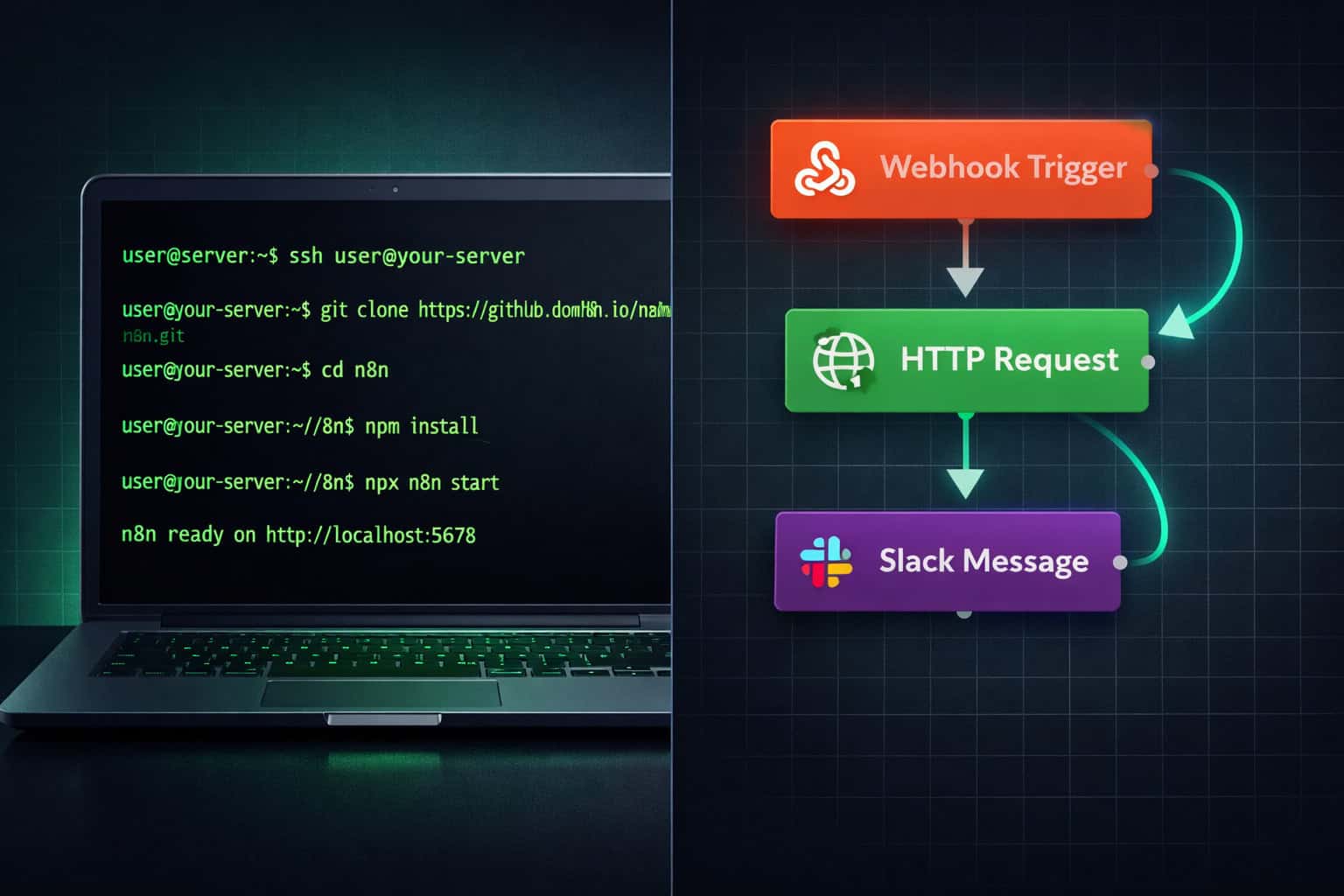
What Is n8n and Who Should Use It?
n8n is a fair-code licensed, open-source workflow automation tool that lets you connect apps, APIs, and AI services through a drag-and-drop visual canvas — no deep coding required for most tasks. It runs on your own server or in the cloud, and it supports over 400 integrations out of the box. [5]
Who it’s for:
- Developers and DevOps engineers who want full control over their automation infrastructure
- Small-to-mid-sized teams that need Zapier-level convenience without Zapier-level pricing
- AI/ML practitioners building LLM-powered pipelines with LangChain or OpenAI
- Agencies managing client automations who need white-label, self-hosted options
Who should probably use something else:
- Non-technical users who want a fully managed, zero-setup experience (Zapier or Make may suit them better)
- Teams with no server access or IT support (n8n Cloud is an option, but it adds cost)
💡 Choose n8n if you expect to run thousands of workflow executions per month, need custom code nodes, or want to integrate AI agents into your automations. Choose Zapier if you need the fastest possible setup with zero infrastructure management.
How to Install n8n: Self-Hosted vs. Cloud
The fastest way to start is n8n Cloud (no setup required), but self-hosting gives you full data control and lower costs at scale. [5]
Option 1: n8n Cloud
- Go to n8n.io and sign up
- Choose a plan (Starter, Pro, or Enterprise)
- Your instance is live in under two minutes — no server needed
Option 2: Self-Hosted via npm
<code class="language-bash">npm install n8n -g
n8n start
</code>
Access the editor at http://localhost:5678.
Option 3: Self-Hosted via Docker (recommended for production)
<code class="language-bash">docker run -it --rm
  --name n8n
  -p 5678:5678
  -v ~/.n8n:/home/node/.n8n
  n8nio/n8n
</code>
Key self-hosting considerations:
| Factor | npm | Docker | n8n Cloud |
|---|---|---|---|
| Setup time | ~5 min | ~10 min | ~2 min |
| Data control | Full | Full | Partial |
| Scaling | Manual | Easy (compose) | Automatic |
| Cost (high volume) | Server cost only | Server cost only | Subscription |
| Best for | Quick local testing | Production use | Non-technical teams |
⚠️ Common mistake: Running n8n without persistent storage in Docker. Always mount a volume (
-v) so your workflows survive container restarts.
Master n8n Workflow Automation: Understanding the Core Building Blocks
Every n8n workflow is built from three types of components. Understanding them is the foundation for everything else in this step-by-step tutorial.
1. Trigger Nodes
A trigger starts the workflow. It can be:
- Webhook — fires when an external service sends an HTTP request
- Schedule — runs on a cron-based timer (e.g., every day at 9am)
- App event — listens for something specific, like a new row in Google Sheets or a message in Slack
2. Action Nodes
Action nodes do the work after the trigger fires. Examples:
- Send an email via Gmail
- Create a record in Airtable
- Call an external API with HTTP Request
- Run a JavaScript or Python snippet with the Code node
3. Logic Nodes
These control the flow:
- IF node — routes data down different paths based on conditions
- Switch node — handles multiple conditional branches
- Merge node — combines data from parallel branches
- Wait node — pauses execution for a set time or until a webhook response

Data in n8n flows as JSON items. Each node receives an array of items, processes them, and passes the result to the next node. Understanding this item-based data model is the single most important concept for building reliable workflows. [3]
Step-by-Step: Building Your First n8n Workflow
Here’s a concrete example: automatically posting a Slack message whenever a new row is added to a Google Sheet.
Step 1: Open the workflow editor Click “New Workflow” in the n8n dashboard.
Step 2: Add a trigger node
- Click the + button
- Search for “Google Sheets”
- Select “On Row Added” as the trigger event
- Connect your Google account via OAuth
Step 3: Add an action node
- Click the + after the trigger
- Search for “Slack”
- Select “Send a Message”
- Map the Google Sheets column data to the Slack message field using n8n’s expression syntax:
{{ $json.columnName }}
Step 4: Test the workflow
- Click “Test Workflow”
- Add a row to your Google Sheet
- Confirm the Slack message appears
Step 5: Activate the workflow
- Toggle the workflow to “Active” in the top-right corner
- n8n will now run this automatically in the background [1]
🔑 Pro tip: Always test with real data before activating. n8n’s “Test Workflow” mode runs the workflow once with live data so you can inspect every node’s input and output before going to production.
For teams that also automate content publishing, pairing n8n with a tool like WordPress can be powerful. See our guide on how to auto-share WordPress blog posts to social media for a complementary workflow idea.
How to Handle Errors, Branching, and Complex Logic
Basic workflows break in production without proper error handling. n8n gives you several tools to manage this. [5]
Error Handling
- Error Trigger node: Create a separate “error workflow” that fires whenever any other workflow fails. Use it to send yourself a Slack alert or log the error to a database.
- Try/Catch pattern: Wrap risky nodes (external API calls) in a sub-workflow with error output routing.
Conditional Branching with IF Nodes
<code>IF node setup:
  Condition: {{ $json.status }} equals "approved"
  True branch → Send approval email
  False branch → Send rejection email
</code>
Looping Over Items
n8n processes all items in an array by default. But if you need to call an API once per item with a delay:
- Use the Split in Batches node to process items in groups
- Add a Wait node between batches to avoid rate limits
Using the Code Node
For logic that no built-in node covers:
<code class="language-javascript">// Example: filter items where value > 100
return items.filter(item => item.json.value > 100).map(item => ({ json: item.json }));
</code>
The Code node supports both JavaScript and Python, making n8n genuinely extensible for developers. [5]
If you’re building AI-powered automations, you may also find value in exploring AI-powered content generation tools that can plug directly into n8n via HTTP Request or dedicated nodes.
Advanced Features: AI Agents, Multi-Agent Systems, and Real-Time Streaming
As of 2026, n8n has evolved well beyond simple “if-this-then-that” logic into a full orchestration engine for AI-native workflows. [7]
AI-Native Nodes
n8n now includes built-in support for:
- LangChain integration — chain LLM calls with memory, tools, and agents
- Retrieval-Augmented Generation (RAG) — connect a vector database, retrieve relevant context, and pass it to an LLM before generating a response [7]
- OpenAI, Anthropic, and Gemini nodes — direct API connections with structured output support
Multi-Agent Systems
You can now deploy specialized sub-agents within a single n8n workflow. For example:
- Research agent — searches the web and retrieves documents
- Writing agent — drafts content based on research output
- QA agent — reviews the draft against a rubric before sending
These agents coordinate automatically, passing outputs between each other without manual intervention between steps. [7]
Human-in-the-Loop Approvals
Workflows can pause and send an approval request to a human via Slack or Microsoft Teams. The workflow resumes only after the human clicks “Approve” or “Reject” in the message. [7] This is useful for:
- Content review before publishing
- Financial transaction approvals
- Customer refund authorization
Real-Time Streaming
n8n’s streaming response capability lets AI-generated text appear letter-by-letter in a chat interface, providing near-zero latency for live applications like customer support bots. [7]
Enterprise Log Streaming
For teams running n8n at scale, execution logs can be piped directly into monitoring tools like Sentry or Grafana, giving full visibility into workflow health. [7]

For teams building AI-assisted web workflows, check out our guide on Figma AI workflow automation as a complementary approach to automating design pipelines alongside n8n.
n8n vs. Zapier vs. Make: Which Should You Choose?
n8n is the strongest choice for developers and high-volume use cases, but it’s not the right fit for everyone. Here’s a direct comparison:
| Feature | n8n | Zapier | Make |
|---|---|---|---|
| Pricing model | Free (self-hosted) | Per task | Per operation |
| Self-hosting | ✅ Yes | ❌ No | ❌ No |
| Code nodes | ✅ JS + Python | ❌ No | Limited |
| AI/LLM nodes | ✅ Native (2026) | Basic | Basic |
| Multi-agent support | ✅ Yes | ❌ No | ❌ No |
| Learning curve | Moderate-High | Low | Moderate |
| Integrations | 400+ | 6,000+ | 1,500+ |
| Best for | Devs, AI workflows | Non-technical users | Visual power users |
Choose n8n if: you need custom code, AI agents, self-hosting, or you’re running more than ~1,000 workflow executions per month and want to control costs.
Choose Zapier if: your team is non-technical and needs the widest app library with the least friction.
Choose Make if: you want a more visual, flowchart-style editor than Zapier but don’t need self-hosting.
For more on automation tools and broader workflow strategies, browse the Automation Archives on WebAiStack.
Common Mistakes and How to Avoid Them
Even experienced users run into these issues when building n8n workflows.
1. Not pinning test data When you test a node, n8n captures the output. If you don’t pin it, the next test run may use different data and break your expression mappings. Always pin test data during development.
2. Ignoring rate limits External APIs (Gmail, Slack, HubSpot) all have rate limits. Use the Split in Batches node and a Wait node to throttle requests. Ignoring this causes workflows to fail silently at scale.
3. Hardcoding credentials Never paste API keys directly into node fields. Use n8n’s built-in Credentials manager so keys are encrypted and reusable across workflows.
4. No error workflow Without an error workflow, failed executions disappear silently. Set up a global error workflow on day one that at minimum sends you an alert.
5. Overcomplicating a single workflow If a workflow exceeds 20-30 nodes, break it into sub-workflows using the Execute Workflow node. Smaller workflows are easier to debug and reuse. [3]
For teams also managing WordPress-based content pipelines, our guide on advanced WordPress strategies for power users covers complementary automation patterns.
Master n8n Workflow Automation: A Step-by-Step Tutorial for Real-World Use Cases
Here are five practical workflows you can build today, ranging from beginner to pro level.
| Use Case | Difficulty | Nodes Used |
|---|---|---|
| Email-to-Slack digest | Beginner | Gmail Trigger → Slack |
| New lead to CRM + email | Beginner | Webhook → HubSpot → Gmail |
| AI content summarizer | Intermediate | RSS → OpenAI → Notion |
| Multi-step approval flow | Intermediate | Form → IF → Slack Wait → Database |
| RAG-powered support bot | Advanced | Webhook → Vector DB → LLM → Response |
Quick example — AI Content Summarizer:
- RSS Feed trigger (checks a blog feed every hour)
- HTTP Request node (fetches full article HTML)
- Code node (strips HTML to plain text)
- OpenAI node (summarizes to 3 bullet points)
- Notion node (appends summary to a database page)
This entire workflow takes about 15 minutes to build and runs fully automatically. [8]
For teams that publish content regularly, pairing this with our guide on AI-powered content optimization can help you get more from each automated summary.
FAQ
Q: Is n8n really free? Yes. The self-hosted version of n8n is free under a fair-code license. You only pay for server costs. n8n Cloud (managed hosting) has paid plans starting at a monthly fee. [3]
Q: Do I need to know how to code to use n8n? No, but it helps. Most workflows can be built with the visual editor alone. The Code node becomes useful when you need custom data transformations that no built-in node handles. [5]
Q: How is n8n different from Zapier? n8n is self-hostable, supports custom code, and has native AI/LLM nodes. Zapier is fully managed, has more app integrations, and is easier for non-technical users. n8n is cheaper at high execution volumes. [5]
Q: Can n8n handle large-scale production workloads? Yes. n8n supports queue-based asynchronous execution and horizontal scaling across multiple instances, making it suitable for enterprise-level workloads. [5]
Q: What is a webhook in n8n? A webhook is a URL that n8n generates for your workflow. When an external service sends an HTTP POST to that URL, your workflow triggers immediately. It’s the fastest way to react to real-time events. [3]
Q: Can n8n connect to AI models like ChatGPT? Yes. n8n has native nodes for OpenAI, Anthropic, and other LLM providers. It also supports LangChain-based agent workflows and RAG pipelines as of 2026. [7]
Q: What happens when a workflow fails? By default, n8n logs the error and stops execution. If you set up an error workflow (recommended), it fires automatically and can alert you via Slack, email, or any other channel. [3]
Q: Is n8n suitable for beginners? n8n has a moderate learning curve compared to Zapier. Beginners can build basic workflows in an hour using the visual editor, but advanced features like sub-workflows and AI agents require more time. Multiple beginner tutorials are available on YouTube and the official n8n blog. [1][10]
Q: How do I update n8n when self-hosting?
For npm: npm update -g n8n. For Docker: pull the latest image (docker pull n8nio/n8n) and restart your container. Always back up your workflow data before updating. [3]
Q: Can multiple people collaborate on n8n workflows? Yes. n8n supports multiple user accounts with role-based access control on Pro and Enterprise plans. Self-hosted instances can also be configured for team access. [3]
Conclusion: Your Next Steps with n8n
n8n is one of the most capable workflow automation platforms available in 2026, especially for teams that want AI-native features, custom code support, and full data ownership. The path from zero to productive is straightforward:
- Install n8n — use Docker for production, npm for local testing, or n8n Cloud if you want zero setup
- Build your first workflow — start with a simple trigger-to-action pair (Google Sheets to Slack is a great first project)
- Add error handling — set up a global error workflow before you go live with anything important
- Explore AI nodes — once you’re comfortable with basics, experiment with the OpenAI or LangChain nodes
- Join the community — the n8n community forum and official docs are excellent resources for troubleshooting and inspiration [3][8]
The biggest mistake most people make is waiting until they have a “perfect” use case. Start with something small, get it working, and build from there. The skills transfer directly to more complex workflows.
For broader context on how automation fits into modern web and design workflows, explore the WebAiStack Automation Archives for related guides and tutorials.
References
[1] Watch – https://www.youtube.com/watch?v=4cQWJViybAQ [2] Watch – https://www.youtube.com/watch?v=UB0w0vuyMw4 [3] docs.n8n – https://docs.n8n.io [5] N8n Workflow Automation Guide – https://www.digitalocean.com/community/conceptual-articles/n8n-workflow-automation-guide [7] How To Create N8n Workflow – https://www.zignuts.com/blog/how-to-create-n8n-workflow [8] Tutorial – https://blog.n8n.io/tag/tutorial/ [10] Watch – https://www.youtube.com/watch?v=7mEzvJVrFfk