Last updated: May 9, 2026
Quick Answer: Connecting Make.com to Notion lets you automate repetitive database tasks, sync data from thousands of external apps, and trigger workflows without writing a single line of code. Users who set up this integration report saving 5+ hours per week on manual data entry and project tracking alone. [5]
Key Takeaways
- Make.com connects Notion to over 3,000 apps, including Gmail, Slack, Todoist, Airtable, and Google Calendar [8]
- Automation runs in both directions: Notion can trigger Make scenarios, and Make can create or update Notion pages and databases [1]
- Setup requires no coding — you connect accounts through Make’s scenario builder and Notion’s integration gallery [3]
- Common use cases include content calendars, task syncing, CRM pipelines, and meeting note automation
- Users can save an estimated 5+ hours weekly through automated task management and data sync [5]
- Workspace-level permissions matter: always verify you’re authorizing the correct Notion workspace [4]
- Make’s free tier supports basic scenarios; paid plans unlock multi-step automations and higher operation volumes
- Alternatives include Zapier and n8n, but Make offers more granular control over complex, multi-branch workflows

What Is the Make.com and Notion Integration, and Why Does It Matter?
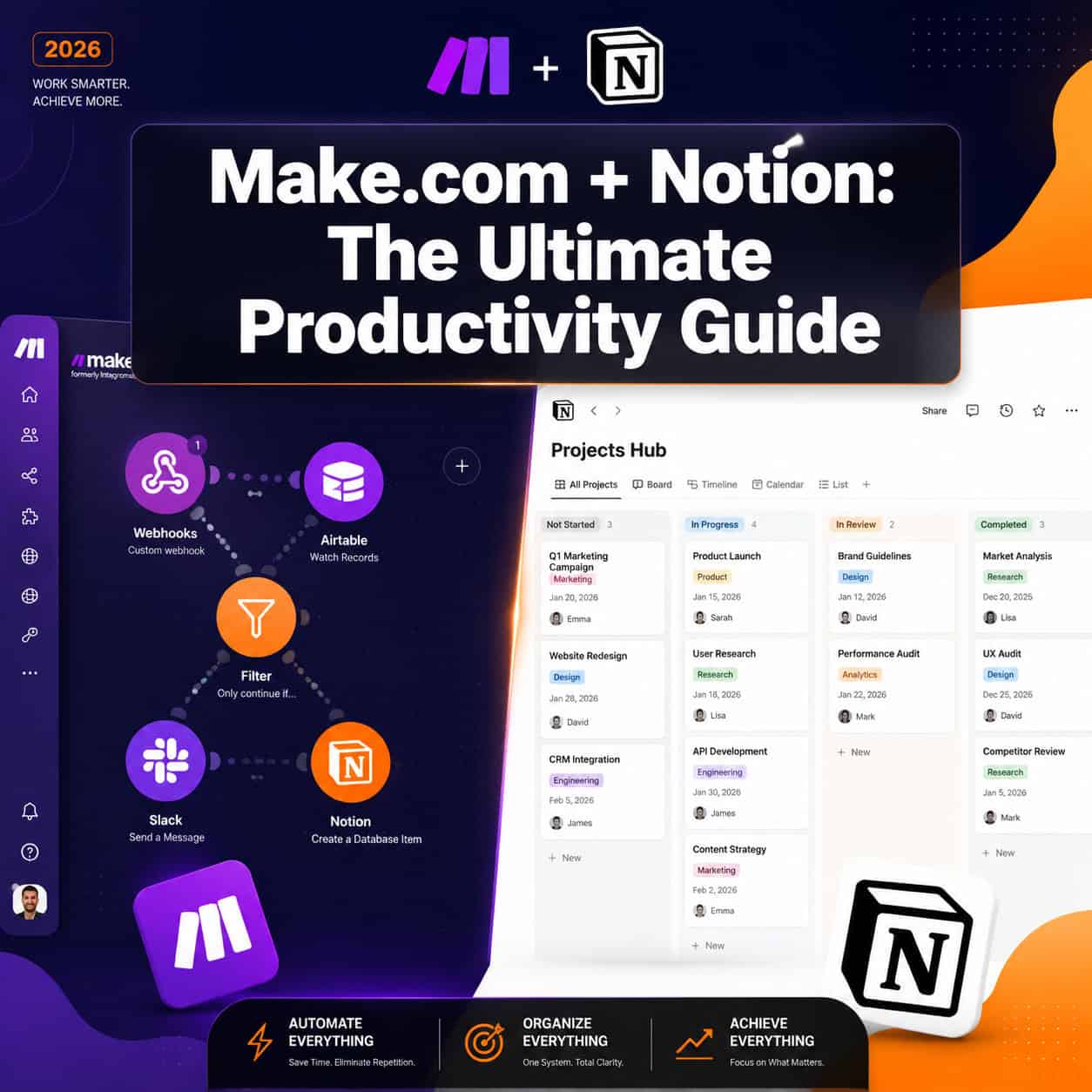
Make.com (formerly Integromat) is a visual automation platform that connects apps through scenario-based workflows. Notion is a flexible workspace for notes, databases, and project management. Together, they form a powerful system where data flows automatically between your tools without manual copying or updating.
The integration matters because Notion is excellent for organizing information, but it doesn’t natively push or pull data from other platforms. Make bridges that gap. When a new lead fills out a form, a task gets completed in Todoist, or a calendar event is created, Make can instantly reflect that change inside your Notion workspace [1].
Who this is for:
- Freelancers managing client projects across multiple tools
- Small teams using Notion as a central hub but working across Slack, email, and task managers
- Content creators who want automated publishing pipelines
- Operations managers tracking data from multiple sources in one place
Who it’s NOT ideal for: Teams that need real-time, sub-second data sync (Make runs on scheduled intervals or webhooks, not true live sync) or organizations with strict data residency requirements that prohibit third-party automation tools.
What Can You Actually Automate Between Make.com and Notion?
The integration supports two core directions: Notion as a trigger and Notion as an action target. [1]
Notion as a trigger (Make reacts to Notion events):
- New database item created → send a Slack notification or email
- Page status changed to “Done” → move data to a reporting sheet
- Meeting notes added → extract action items and push them to Todoist
Make performs actions inside Notion:
- External form submission → create a new Notion project page automatically
- Completed Todoist task → update or create a matching Notion database entry [2]
- Airtable record updated → sync the change to a Notion database for centralized reporting [7]
- RSS feed item published → add it to a Notion content calendar
“Make connects Notion with over 3,000 apps, allowing users to automate database management, content changes, and cross-platform workflows without manual intervention.” [8]
This breadth means you can build a content pipeline, a client CRM, a hiring tracker, or a product roadmap — all fed automatically by the tools your team already uses. For teams already exploring AI-powered workflow automation, adding Make.com to Notion creates an even more connected productivity stack.
How Do You Set Up the Make.com and Notion Integration Step by Step?
Setup takes roughly 15–30 minutes for a basic scenario. Here’s the exact process:
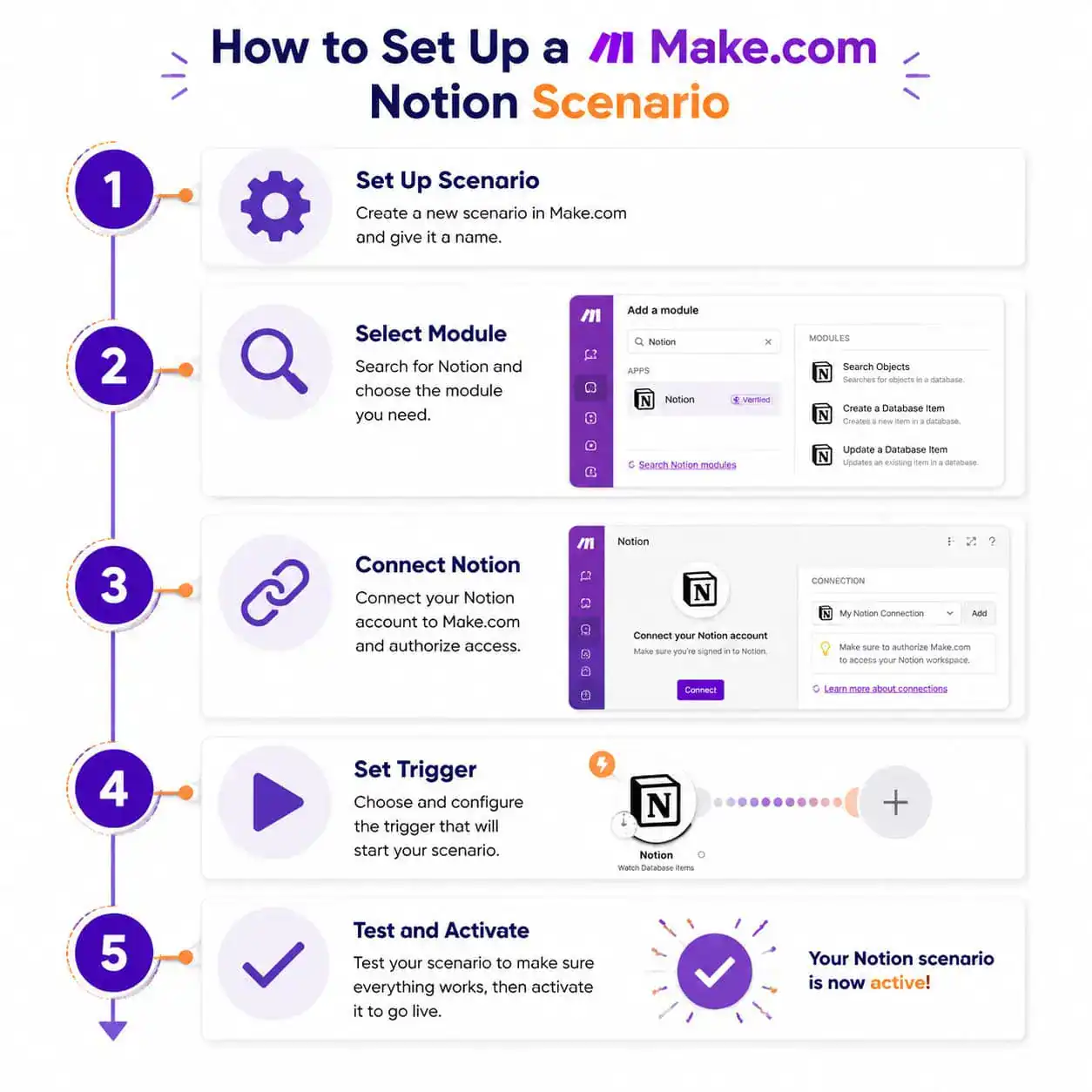
Step 1: Connect Notion to Make.com
- Log into your Make.com account (create a free one if needed)
- Click Create a new scenario
- Search for the Notion module in the app search bar
- Click Add and then Create a connection
- You’ll be redirected to Notion’s authorization page — verify you’re in the correct workspace [4]
- Grant Make the requested permissions and click Allow access
Step 2: Choose your trigger
- Select whether Notion is the trigger (something happens in Notion first) or the action target (Make does something in Notion based on another app’s event)
- Common trigger: “Watch Database Items” — Make polls your Notion database at set intervals for new or updated entries
Step 3: Add your action module
- Click the + icon after your trigger
- Search for the destination app (e.g., Gmail, Slack, Google Sheets)
- Map the data fields from Notion to the destination app’s fields
Step 4: Name and save your connection
- Give your connection a clear name (e.g., “Notion — Client Projects Workspace”) so it’s easy to identify when managing multiple automations [6]
Step 5: Test and activate
- Click Run once to test the scenario with live data
- If the output looks correct, toggle the scenario to ON
Common mistake: Authorizing Make with a personal Notion account instead of the shared workspace account. Always double-check which workspace you’re connecting, especially in team environments [4].
What Are the Most Useful Real-World Automation Scenarios?
These are the workflows that consistently deliver the most time savings:
| Scenario | Trigger | Action in Notion | Time Saved (Est.) |
|---|---|---|---|
| Lead capture | Typeform submission | Create new CRM page | 3–5 min per lead |
| Task sync | Todoist task completed | Update project database | 2–3 min per task |
| Content calendar | RSS feed new item | Add to editorial database | 5 min per item |
| Meeting follow-up | Google Calendar event ends | Create action item page | 10 min per meeting |
| Airtable sync | Airtable record updated | Mirror to Notion database | 5 min per record [7] |
For content teams, the RSS-to-Notion pipeline alone can eliminate hours of manual research logging each week. For project managers, the meeting-to-action-item flow means nothing falls through the cracks after a call.
If you’re also looking to automate content creation alongside these workflows, our comprehensive guide to AI-powered content generation tools covers tools that pair well with this stack.
How Does Make.com Compare to Zapier for Notion Automation?
Make.com and Zapier both connect Notion to external apps, but they serve different complexity levels.
Choose Make.com if:
- You need multi-branch logic (if/else paths, filters, iterators)
- You want to process arrays of data (e.g., multiple database items in one run)
- You’re comfortable with a slightly steeper learning curve for more control
- Budget matters — Make’s free tier includes 1,000 operations/month vs. Zapier’s 100 tasks/month
Choose Zapier if:
- You need simple, single-step automations set up in under 5 minutes
- Your team has no technical background and needs the most beginner-friendly interface
- You rely on apps that Zapier supports but Make doesn’t (rare, but possible)
For teams running no-code automation workflows, Make’s visual canvas is often the better long-term investment because it scales with complexity without requiring a developer.
What Are the Most Common Mistakes to Avoid?

Even experienced users run into these issues:
Wrong workspace authorization — Make connects to whichever Notion workspace you’re logged into at authorization time. If you have multiple workspaces, this causes data to land in the wrong place [4].
Polling delays misunderstood as errors — Make’s default polling interval is 15 minutes on free plans. If your Notion item doesn’t appear instantly in the destination app, it’s not broken — it’s waiting for the next poll cycle.
Unmapped required fields — Notion databases often have required properties. If Make doesn’t map a value to a required field, the scenario will error out. Always check your database schema before building the scenario.
No error handling set up — Make allows you to add error handlers to scenarios. Skipping this means a single bad data entry can stop your entire automation silently.
Over-automating too early — Build one scenario, test it for a week, then expand. Trying to automate everything at once leads to tangled scenarios that are hard to debug.
For teams also managing automated content publishing, our guide on how to auto-share WordPress blog posts to social media covers similar pitfalls in cross-platform automation.
How Much Does It Cost to Run Make.com with Notion?
Make.com uses an operation-based pricing model. Each action in a scenario counts as one operation.
| Plan | Monthly Cost | Operations/Month | Best For |
|---|---|---|---|
| Free | $0 | 1,000 | Testing, simple 1-step automations |
| Core | ~$9 | 10,000 | Freelancers, small workflows |
| Pro | ~$16 | 10,000 + advanced features | Teams needing scheduling and priority |
| Teams | ~$29+ | 10,000+ shared | Multi-user team environments |
(Prices are approximate as of May 2026 — check Make.com’s pricing page for current rates.)
Notion itself is free for personal use and starts at $10/user/month for teams. The integration between the two platforms is free to set up — you only pay for Make’s operation volume [3].
FAQ: Make.com and Notion Integration
Q: Do I need to know how to code to use Make.com with Notion?
No. Make.com is a no-code visual platform. You drag, drop, and connect modules without writing any code.
Q: How often does Make sync data with Notion?
On free plans, Make polls for new data every 15 minutes. Paid plans support shorter intervals and instant webhook triggers.
Q: Can Make.com read data from Notion databases?
Yes. Make can query Notion databases, filter results, and use that data to trigger actions in other apps.
Q: Is my Notion data safe when using Make.com?
Make.com is SOC 2 Type II certified. Data passes through Make’s servers during automation runs, so review Make’s privacy policy if you handle sensitive information.
Q: Can I automate Notion page creation from a Google Form?
Yes. Connect Google Forms as the trigger and Notion’s “Create a Page” module as the action. Each form submission creates a new Notion page with the submitted data.
Q: What happens if my Make scenario errors out?
Make logs the error and stops the scenario run. With error handlers configured, you can set it to retry, skip, or send you an alert instead of stopping silently.
Q: Can I use Make to sync two Notion databases?
Yes. Use one Notion database as the trigger (watch for new items) and the other as the action target (create or update items).
Q: Does Make.com work with Notion AI features?
Make automates Notion’s database and page structure. Notion AI features (like AI summaries) are separate and not directly controllable through Make’s API as of May 2026.
Conclusion: Your Next Steps to Supercharge Your Productivity with Make.com and Notion
This ultimate guide to Make.com and Notion integration covers everything from basic setup to real-world automation scenarios and common pitfalls. The core takeaway is straightforward: if you’re managing projects in Notion but manually copying data from other tools, you’re spending time that automation can reclaim.
Here’s what to do next:
- Start with one scenario — pick the most repetitive task you do in Notion each week (task updates, form entries, meeting notes) and automate just that
- Use Make’s free tier to test before committing to a paid plan
- Document your scenario inside Notion itself — a simple page describing what each automation does saves hours of debugging later
- Review your automations monthly — as your workflow evolves, old scenarios may need updating or retiring
For teams building a broader automation stack, explore our resources on AI-powered content optimization and advanced WordPress automation strategies to extend these principles across your entire digital workflow.
The 5+ hours per week you recover from manual data entry is time you can redirect toward work that actually requires your judgment [5]. That’s the real value of this integration — not the technology itself, but what you do with the time it returns to you.
Related Make.com guides: explore Make.com Twitter automation integrations, and read our comprehensive guide to Make.com’s privacy policy and data protection.
References
[1] Notion — https://www.make.com/en/integrations/notion
[2] Notion — https://www.make.com/en/integrations/todoist/notion
[3] Make — https://www.notion.com/integrations/make
[4] Watch — https://www.youtube.com/watch?v=AX45Eaaza_A
[5] How To Connect Make Com With Notion — https://growwstacks.com/blog/how-to-connect-make-com-with-notion/
[6] Watch — https://www.youtube.com/watch?v=59JUurnScj0
[7] Airtable — https://www.make.com/en/integrations/notion/airtable
[8] Notion — https://www.make.com/en/integrations/make/notion
See also: Zapier Automation App: The Ultimate Guide to Streamlining Your Workflow in 2026
See also: Unlocking Career Opportunities: A Comprehensive Guide to Make.com Job Openings in 2026