Last updated: May 7, 2026
Quick Answer: n8n is an open-source workflow automation platform that lets you build end-to-end AI video production pipelines — from script generation and video rendering to multi-platform publishing — without writing complex code. By connecting AI tools like Veo 3, FFmpeg, and social media APIs inside n8n’s visual workflow editor, creators and agencies can cut video production time from hours to minutes and publish across YouTube, Instagram, and TikTok in a single automated run.
Key Takeaways
- n8n is a no-code/low-code automation platform that connects AI video tools, editing software, and publishing platforms into one workflow.
- Automated video pipelines can handle scripting, voiceover generation, video stitching, caption creation, and multi-platform publishing in sequence.
- FFmpeg integration inside n8n enables programmatic video trimming, resizing, cropping, and stitching without manual editing software. [1]
- AI video generation tools like Veo 3 can be called directly from n8n nodes to produce short-form video clips from text prompts. [10]
- YouTube channel automation workflows in n8n can combine script writing, SEO analysis, and content storage in a single triggered flow. [3]
- The platform suits solo creators, marketing agencies, and e-commerce brands that produce high volumes of video content regularly.
- Common mistakes include skipping error-handling nodes, ignoring API rate limits, and building workflows without a testing phase.
- n8n’s self-hosted option gives teams full data control, which matters for brands with content confidentiality requirements. [5]
What Is n8n and Why Does It Matter for Video Automation?
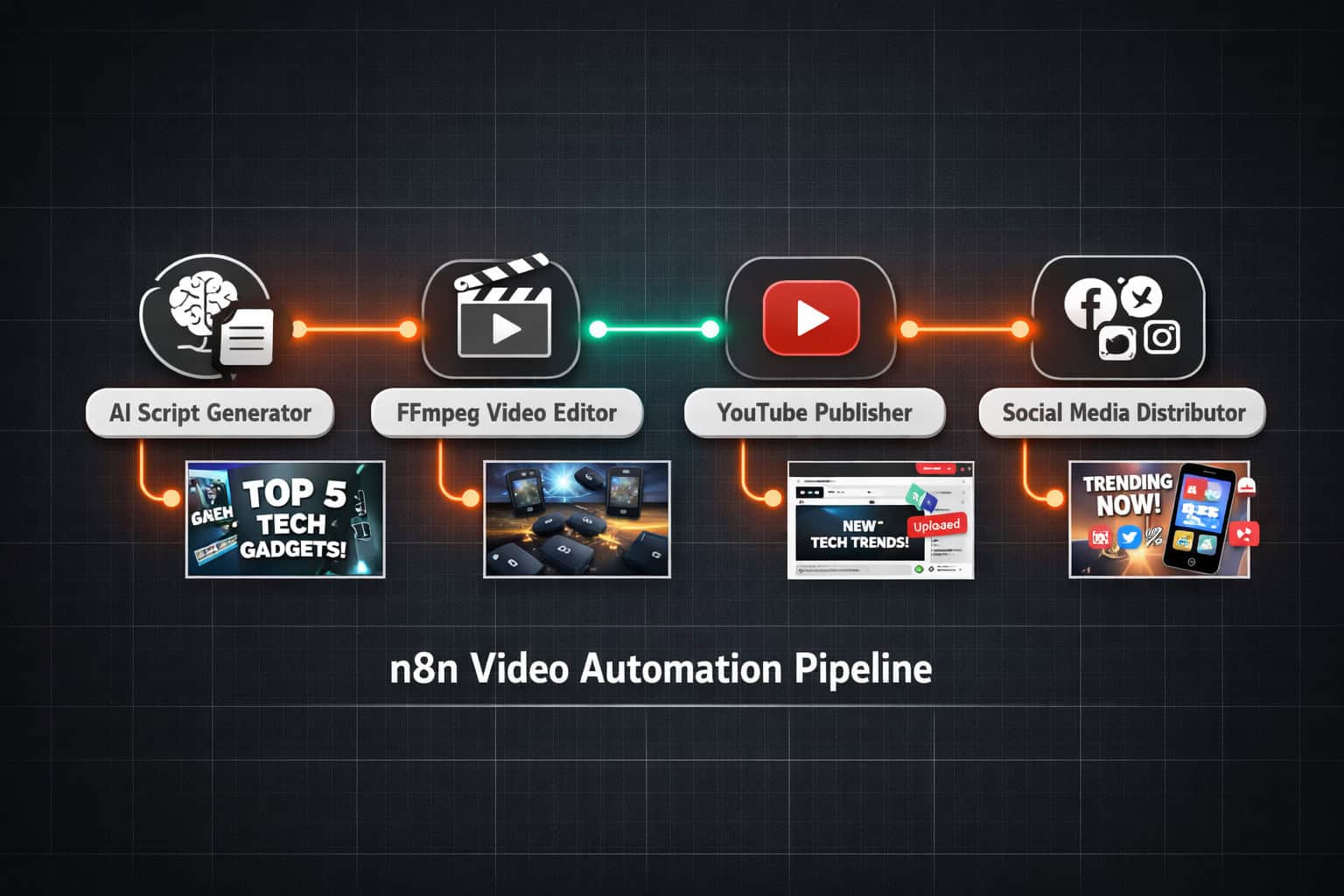
n8n is an AI-capable workflow automation platform that connects apps, APIs, and AI models through a visual node-based editor. For video production specifically, it acts as the central coordinator that triggers AI tools, processes media files, and pushes finished content to publishing platforms — all in one automated sequence. [5]
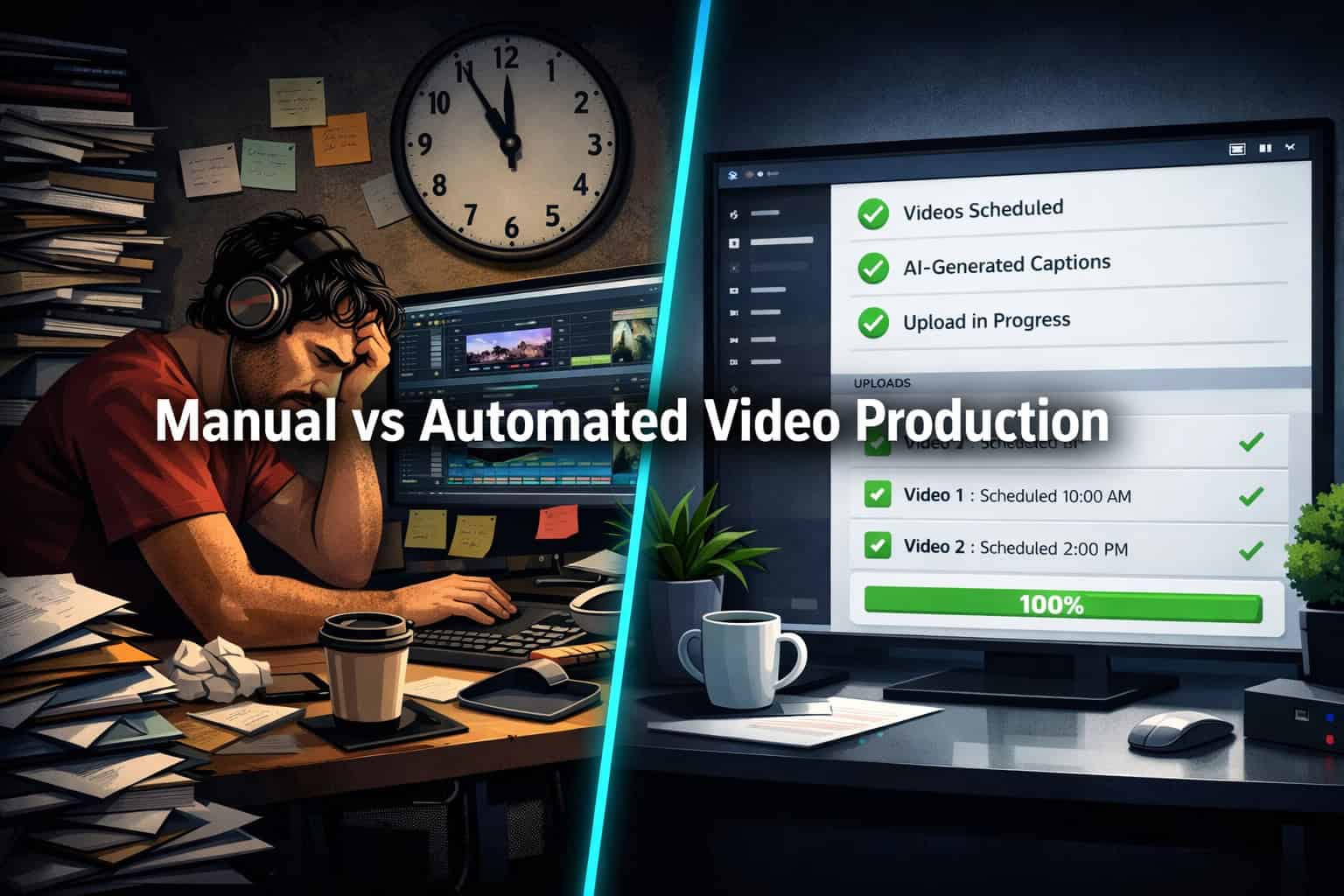
Traditional video production involves a chain of manual steps: write a script, record or generate audio, edit footage, add captions, export files, then upload to each platform separately. Each step is a bottleneck. n8n collapses that chain into a single workflow that runs on a schedule or trigger.
Why n8n over other automation tools?
- Open-source and self-hostable: You own your data and your workflows. No vendor lock-in.
- 400+ native integrations: Connects to Google services, OpenAI, Anthropic, FFmpeg, social media APIs, and storage platforms out of the box.
- AI agent support: n8n supports LLM-powered agents that can make decisions mid-workflow, not just pass data between steps.
- Fair-code license: Free to self-host; cloud plans available for teams that prefer managed infrastructure. [5]
n8n combines AI capabilities with business process automation, offering no-code and low-code capabilities for technical teams.” — n8n.io [5]
Choose n8n if you need flexible, custom video automation that integrates with your existing tech stack. Choose a simpler tool like Zapier if you only need basic trigger-action flows without media processing.
For teams already exploring automation across their digital stack, the Automation Archives on WebAiStack offer a useful starting point for understanding how these tools fit together.
How Does a Full AI Video Production Pipeline Work in n8n?
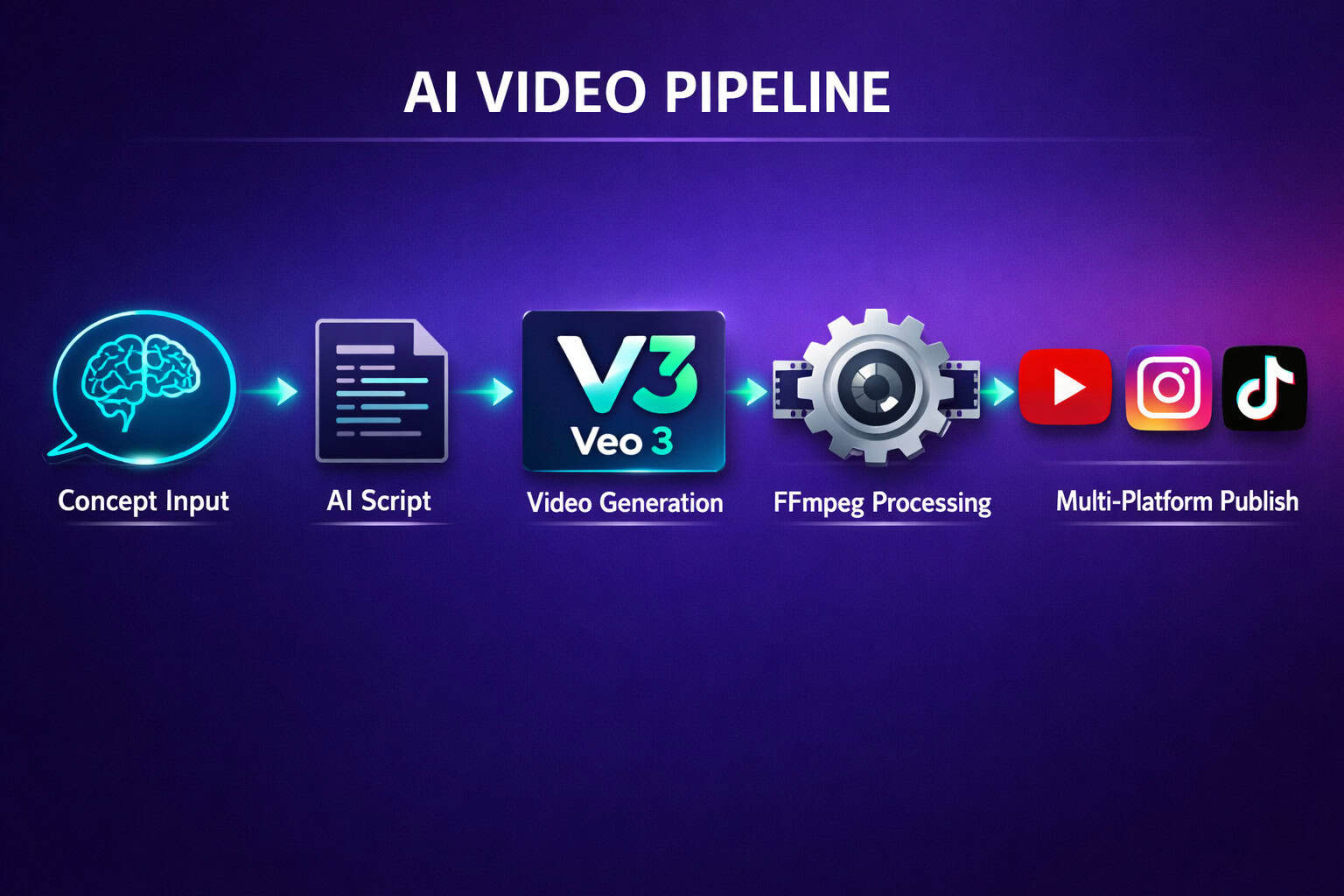
A complete n8n video pipeline moves through five core stages: input, script generation, media creation, post-processing, and publishing. Each stage is a node or group of nodes in the workflow canvas, and they execute in sequence when triggered. [4]
Here’s how a typical pipeline is structured:
Stage 1: Input and Trigger
- A schedule trigger fires daily, weekly, or on demand.
- Alternatively, a webhook receives a topic or product name from an external source (a CMS, a form submission, or a spreadsheet row).
Stage 2: AI Script and Voiceover Generation
- An OpenAI or Anthropic node generates a video script based on the input topic.
- A text-to-speech API (ElevenLabs, Google TTS, or similar) converts the script into an audio file.
- The audio file is saved to cloud storage (Google Drive, S3, or a local path).
Stage 3: AI Video Generation
- A Veo 3 API call (or similar AI video model) generates raw video clips from text prompts derived from the script. [10]
- For product videography workflows, AI image-to-video tools generate professional-looking product footage from static photos. [2]
Stage 4: FFmpeg Post-Processing
- FFmpeg nodes trim clips to the correct length, stitch multiple clips together, resize for platform-specific aspect ratios (9:16 for Reels/Shorts, 16:9 for YouTube), and burn in captions. [1]
- Captions are generated from the script or via a transcription API and formatted as SRT or ASS subtitle files before being embedded.
Stage 5: Multi-Platform Publishing
- Finished video files are uploaded to YouTube, Instagram, TikTok, and other platforms via their respective APIs.
- Platform-specific descriptions, hashtags, and titles are generated by the AI node and passed as metadata during upload. [4]
Common mistake: Skipping a file-validation node between Stage 4 and Stage 5. If FFmpeg fails silently (due to a corrupt source file or a missing codec), the workflow will attempt to upload an empty or broken file. Always add an “if file size > 0” check before the publish step.
What Can You Actually Automate? Real Workflow Examples
n8n supports several proven video automation patterns, each suited to a different content type or business model. Here are four concrete examples drawn from documented workflows:
1. YouTube Channel Automation
A workflow that monitors a topic list, generates a script using an LLM, creates a voiceover, assembles a video, uploads it to YouTube with SEO-optimized metadata, and stores all assets in a database. This pattern is well-suited for faceless YouTube channels in niches like finance, tech news, or educational content. [3]
2. Short-Form Video Pipeline (POV / Viral Style)
Generates POV-style short videos with AI-created visuals, auto-generated captions, voiceovers, and platform-specific descriptions for TikTok, Instagram Reels, and YouTube Shorts — all from a single text prompt. [4]
3. AI Product Videography
Takes product images as input, sends them to an AI image-to-video model, generates a professional product video with motion effects, and outputs files ready for e-commerce listings or paid ad campaigns. [2]
4. FFmpeg Batch Editing
Processes a folder of raw video files: trims silence, resizes to multiple aspect ratios, adds watermarks, and exports platform-ready versions automatically. This is especially useful for agencies handling large volumes of client footage. [1]
Comparison: Automation Scope by Use Case
| Use Case | Manual Time (est.) | Automated Time (est.) | Key n8n Nodes |
|---|---|---|---|
| YouTube video (5 min) | 4–8 hours | 15–30 min | OpenAI, ElevenLabs, FFmpeg, YouTube API |
| Short-form clip (60 sec) | 1–2 hours | 5–10 min | Veo 3, FFmpeg, Instagram API |
| Product video (30 sec) | 2–4 hours | 10–20 min | AI image-to-video, FFmpeg, S3 |
| Batch resize (50 files) | 3–5 hours | 10–15 min | FFmpeg, file system nodes |
Time estimates are approximate and depend on API response times, file sizes, and workflow complexity.
How Do You Set Up Your First n8n Video Workflow?
Start with a single, small workflow before building a full pipeline. The fastest path to a working video automation is to automate just one stage first — for example, auto-generating a script and saving it to a Google Doc — then expand from there.
Step-by-Step: Building a Basic Script-to-YouTube Workflow
- Install n8n. Use the cloud version at n8n.io for the fastest setup, or self-host via Docker for full control. [5]
- Create a new workflow and add a Schedule Trigger node. Set it to fire at your preferred publishing frequency.
- Add an OpenAI node. Connect it to the trigger. Write a system prompt that instructs the model to generate a video script on a given topic. Pass the topic as a variable from a Google Sheets node that holds your content calendar.
- Add a text-to-speech node. Connect it to the OpenAI output. Use the ElevenLabs or Google TTS HTTP Request node to convert the script text to an MP3 file.
- Add an FFmpeg node (via the Execute Command node in n8n). Pass the audio file path and a background video file path. Use FFmpeg to merge them into a single MP4.
- Add a YouTube node. Authenticate with your YouTube account using OAuth2. Map the video file, title (from the AI output), description, and tags to the upload fields.
- Test each node individually before running the full workflow. Use n8n’s built-in execution log to check outputs at each step.
- Activate the workflow. n8n will run it automatically on your set schedule.
Edge case: YouTube’s API has daily upload quota limits. If you’re running high-frequency workflows, monitor your quota usage in the Google Cloud Console and request a quota increase if needed.
For teams also managing content across their websites, pairing this with AI-powered content optimization strategies can help maintain consistency between your video content and written assets.
Which AI Tools Integrate Best with n8n for Video Production?
The most effective n8n video stacks combine a language model for scripting, a video generation model for visuals, and FFmpeg for post-processing. The exact tools depend on your budget, content type, and quality requirements.
Recommended Tool Stack by Role
Script and Metadata Generation:
- OpenAI GPT-4o or Anthropic Claude 3.5 — both have native n8n nodes
- Use structured output prompts to get script, title, description, and tags in one API call
Voiceover / Audio:
- ElevenLabs (via HTTP Request node) — best quality for natural-sounding voices
- Google Cloud TTS — lower cost, good for high-volume workflows
AI Video Generation:
- Veo 3 (Google DeepMind) — strong for short-form, cinematic-style clips [10]
- Runway ML Gen-3 — good for image-to-video product workflows [2]
- Kling AI — competitive option for longer clips
Video Post-Processing:
- FFmpeg (via Execute Command node) — free, powerful, handles trimming, stitching, resizing, caption burning [1]
- Cloudinary API — useful for simpler resize/crop operations without FFmpeg setup
Storage and Publishing:
- Google Drive or AWS S3 for intermediate file storage
- YouTube Data API v3, Instagram Graph API, TikTok API for publishing
Choose FFmpeg if you need precise control over video encoding, codec settings, and caption formatting. Choose Cloudinary if you want a simpler API-based approach for basic transformations.
Creators who also produce visual assets alongside their videos may find value in tools covered in our guide to AI graphic design tools for creative workflows — many of these integrate with n8n as well.
What Are the Biggest Mistakes to Avoid in n8n Video Workflows?
Most n8n video automation failures come from three sources: missing error handling, API rate limit violations, and file path mismatches. Knowing these in advance saves hours of debugging.
Mistake 1: No Error Handling Nodes
n8n workflows stop silently if a node fails and there’s no error branch. Add an Error Trigger workflow that sends you a Slack or email notification whenever a production workflow fails. This is non-negotiable for any workflow running on a schedule.
Mistake 2: Ignoring API Rate Limits
AI video generation APIs (especially Veo 3 and Runway) have rate limits on concurrent requests. If your workflow fires multiple video generation requests in parallel, you’ll hit 429 errors. Use n8n’s “Wait” node to add delays between API calls, or process items in batches using the SplitInBatches node.
Mistake 3: Hardcoded File Paths
FFmpeg commands that reference absolute file paths break when you move the workflow to a different server or container. Use n8n’s environment variables or dynamic path construction from node outputs instead.
Mistake 4: Skipping a Test Environment
Always build and test workflows in a separate n8n instance or with test API keys before activating them in production. A workflow that accidentally uploads 50 test videos to your main YouTube channel is difficult to recover from.
Mistake 5: Over-Engineering the First Workflow
Start with three to five nodes. Add complexity only after the core flow works reliably. Teams that try to build the full pipeline on day one often spend weeks debugging instead of publishing.
For teams managing multiple automation workflows across their business, the advanced WordPress automation strategies guide covers complementary automation patterns that pair well with video pipelines.
Is n8n the Right Tool for Your Video Automation Needs?
n8n is the right choice for teams that need custom, flexible video automation and are comfortable with a moderate technical learning curve. It’s not the best fit for complete beginners who want a one-click solution.
n8n Is a Good Fit If You:
- Produce video content at scale (10+ videos per week)
- Need to integrate video workflows with your existing CRM, CMS, or database
- Want self-hosted infrastructure for data privacy
- Have at least one team member comfortable with APIs and JSON
- Need to customize every step of the pipeline
Consider Alternatives If You:
- Are a solo creator who only needs basic scheduling (Buffer or Later may suffice)
- Have no technical resources and need a fully managed solution
- Only need to automate publishing, not production (social media schedulers handle this more simply)
Alternatives worth knowing:
- Make (formerly Integromat): More beginner-friendly UI, but less flexible for complex media processing
- Zapier: Easiest to use, but limited for heavy file manipulation and AI agent workflows
- Apache Airflow: More powerful for data engineering teams, but steeper learning curve than n8n
For teams already using no-code tools across their workflow, resources like AI-powered content generation tools and no-code website design platforms show how n8n fits into a broader no-code ecosystem.
How Do You Scale an n8n Video Automation System?
Scaling an n8n video workflow means moving from single-video runs to parallel pipelines that handle multiple content streams simultaneously. The key changes happen at the infrastructure and workflow architecture level.
Scaling Strategies
1. Use Queue Mode n8n’s queue mode (available in self-hosted setups) separates the main process from worker processes. This lets you run multiple workflow executions in parallel without overloading a single server instance.
2. Modular Workflow Design Break your pipeline into sub-workflows: one for script generation, one for video production, one for publishing. Call them using n8n’s “Execute Workflow” node. This makes each stage independently testable and reusable across different content types.
3. Dynamic Content Calendars Connect your workflow to a Google Sheets or Airtable database that holds your content topics, publishing schedules, and platform targets. The workflow reads one row per execution, processes it, and marks it as complete. This scales to hundreds of videos without changing the workflow itself.
4. Cloud Storage as the Backbone Use S3 or Google Cloud Storage as the intermediary between workflow stages. Each stage reads from and writes to cloud storage, so stages can run independently and even on different servers.
5. Monitor Execution Logs At scale, use n8n’s execution history combined with an external logging tool (like Datadog or a simple Google Sheets log) to track success rates, failure points, and API costs per video.
FAQ: n8n AI Video Automation
Q: Do I need coding skills to use n8n for video automation? Basic workflows require no coding — just connecting nodes visually. For FFmpeg commands and custom API calls, you’ll need to write command-line strings and understand JSON. Moderate technical comfort is recommended.
Q: How much does n8n cost for video automation workflows? n8n is free to self-host. Cloud plans start at around $20/month (pricing varies; check n8n.io for current rates). The main costs are the AI APIs you connect to (OpenAI, ElevenLabs, Veo 3), which are billed separately by usage. [5]
Q: Can n8n publish directly to TikTok? Yes, via the TikTok API using an HTTP Request node. TikTok’s API requires an approved developer account, so factor in approval time when planning your setup.
Q: What video formats does FFmpeg support in n8n? FFmpeg supports virtually all video formats including MP4, MOV, AVI, WebM, and MKV. For social media, output MP4 with H.264 encoding for the broadest compatibility. [1]
Q: How long does an automated video take to produce end-to-end? For a 60-second short-form video, expect 5–15 minutes depending on AI generation API response times and file sizes. For a 5-minute YouTube video, 15–40 minutes is a realistic range.
Q: Can I use n8n to automate video for e-commerce product pages? Yes. AI product videography workflows in n8n take product images as input, generate motion video using AI tools, and output files ready for product listings or ad campaigns. [2]
Q: Is n8n secure for handling client video content? Self-hosted n8n gives you full control over data storage and processing. No content passes through n8n’s servers. For agency use with client content, self-hosting is strongly recommended.
Q: What happens if an AI API is down during a scheduled workflow run? Without error handling, the workflow fails silently. With proper error handling (Error Trigger + retry logic), n8n can retry failed nodes automatically or alert you via Slack/email for manual intervention.
Q: Can n8n handle multi-language video production? Yes. You can pass a language parameter to your script generation node and your TTS node, producing videos in multiple languages from the same workflow template.
Q: How does n8n compare to custom Python scripts for video automation? n8n is faster to build and easier to maintain for non-developers. Custom Python scripts offer more control and lower API overhead. For most video automation use cases, n8n’s speed of development outweighs the performance difference.
Conclusion: Your Next Steps to Mastering AI Video Automation with n8n
The core insight here is straightforward: video production doesn’t need to be a manual, time-intensive process anymore. n8n gives you the infrastructure to connect AI scripting, video generation, post-processing, and multi-platform publishing into a single automated system that runs while you focus on strategy and creative direction.
Here’s a practical action plan to get started:
- This week: Sign up for n8n cloud (free tier) and build a two-node test workflow — a Schedule Trigger connected to an OpenAI node that generates a video script on a topic of your choice. Get comfortable with the interface.
- Week two: Add a TTS node and an FFmpeg Execute Command node. Produce your first automated audio-over-video file locally.
- Week three: Connect a YouTube or Instagram API node. Publish your first automated video to a test channel.
- Month two: Build out the full pipeline with error handling, a content calendar spreadsheet, and platform-specific formatting. Start running it on a weekly schedule.
- Month three: Add Veo 3 or another AI video generation tool for fully AI-generated visuals. Evaluate quality, cost, and output consistency.
The teams seeing the biggest gains from this approach aren’t the ones with the largest budgets — they’re the ones who started with a simple workflow, iterated quickly, and scaled what worked. Start small, test thoroughly, and add complexity only when the foundation is solid.
References
[1] Watch – https://www.youtube.com/watch?v=utRom_HkMFg [2] Watch – https://www.youtube.com/watch?v=qV7xOEKEBDA [3] Watch – https://www.youtube.com/watch?v=O6ukkzoQlD0 [4] 3442 Fully Automated Ai Video Generation And Multi Platform Publishing – https://n8n.io/workflows/3442-fully-automated-ai-video-generation-and-multi-platform-publishing/ [5] n8n – https://n8n.io [10] Watch – https://www.youtube.com/watch?v=0rMMWOWVBo0