


Last updated: May 7, 2026This ultimate n8n automation guide shows you how to effectively streamline your workflow.
Quick Answer: n8n is an open-source, node-based workflow automation platform that connects apps, APIs, and services without requiring code. It runs on self-hosted or cloud infrastructure, supports over 400 integrations, and lets teams build automation workflows in hours instead of weeks. It’s best suited for developers, technical marketers, and ops teams who want full control over their automation stack.
Key Takeaways
- n8n uses a visual, node-based canvas where each “node” represents a trigger, action, or logic step in your workflow.
- The platform offers both self-hosted (free, open-source) and managed cloud plans, giving teams flexibility based on compliance and budget needs.
- Over 9,500 community-contributed workflow templates are available to get started fast [6].
- AI-native features let you generate ready-to-run workflows using prompts to Claude or ChatGPT, reducing setup time significantly [3].
- Automation projects that once took weeks can now be built in hours using n8n’s no-code approach [5].
- Error handling, modular design, and execution logging are the three pillars of production-ready n8n workflows [1].
- n8n is not ideal for complete non-technical users — some JSON and API knowledge helps significantly.
- Cost efficiency is a major advantage: fewer engineering resources are needed compared to custom-coded automation [5].
What Is n8n and Who Is It Actually For?
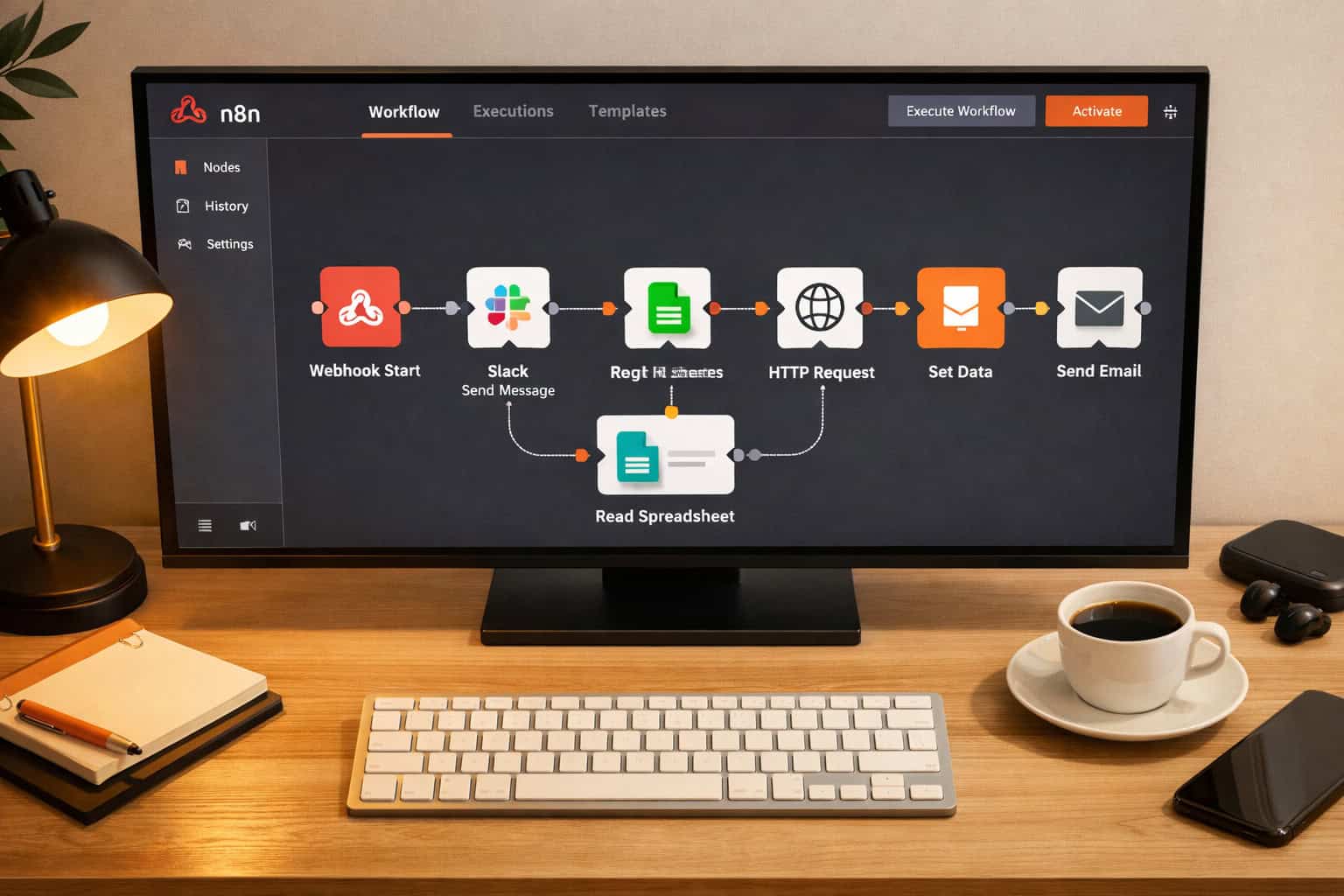
n8n (pronounced “n-eight-n”) is an open-source workflow automation tool that connects apps and services through a drag-and-drop node canvas. Unlike fully no-code tools like Zapier, n8n sits in a middle ground — visual enough for non-developers to build basic flows, but powerful enough for engineers to write custom JavaScript, call raw APIs, and self-host on their own servers.
Who gets the most value from n8n:
- Developers and DevOps teams who want automation without vendor lock-in
- Marketing and growth ops teams managing multi-step data pipelines (CRM syncs, lead routing, reporting)
- Agencies building client-facing automation without paying per-task pricing
- Startups that need enterprise-level automation on a startup budget
Who should probably look elsewhere:
- Complete beginners with no API or JSON experience (consider Zapier or Make for simpler use cases)
- Teams that need a fully managed, zero-maintenance solution with premium support out of the box
n8n gives you the power of a custom integration without writing a full application — but you do need to understand what an API response looks like.” — Common sentiment across G2 reviews [9]
How Does n8n Actually Work? Core Concepts Explained
Every n8n workflow is built from three types of nodes: triggers, actions, and logic nodes. Understanding these three building blocks is the foundation of this ultimate n8n automation guide.
The Three Node Types
| Node Type | What It Does | Example |
|---|---|---|
| Trigger | Starts the workflow | Webhook, Schedule, Gmail “On New Email” |
| Action | Performs a task | Send Slack message, Create Google Sheet row |
| Logic | Controls flow | IF condition, Merge, Split In Batches |
How Data Flows Through a Workflow
- A trigger fires (for example, a new form submission hits a webhook).
- n8n passes the data as a JSON object to the next node.
- Each subsequent node reads, transforms, or routes that data.
- The final node delivers the output (database write, email send, API call).
Key concept — items: n8n processes data as “items,” which are individual JSON objects. A single webhook might deliver one item or a hundred, and n8n handles each one through the same node chain. This is what makes batch processing straightforward.
Common mistake: New users often forget that each node only receives the output of the node directly before it — not all previous nodes. Use the Merge node when you need to combine data from multiple branches.
Setting Up n8n: Self-Hosted vs. Cloud — Which Should You Choose?
n8n offers two deployment paths, and the right choice depends on your team’s technical capacity and compliance requirements [5].
Self-Hosted (Open Source)
- Cost: Free (you pay for your own server)
- Best for: Teams with compliance requirements (HIPAA, GDPR), developers who want full customization, or anyone running high execution volumes
- Setup: Deploy via Docker, npm, or a cloud VM (DigitalOcean, AWS, etc.)
- Maintenance: You manage updates, backups, and uptime
Quick Docker setup:
docker run -it --rm
  --name n8n
  -p 5678:5678
  -v ~/.n8n:/home/node/.n8n
  n8nio/n8n
n8n Cloud (Managed)
- Cost: Starts at $20/month (Starter plan as of 2026)
- Best for: Small teams who want to start fast without server management
- Tradeoff: Execution limits apply; costs scale with workflow volume
Choose self-hosted if: you process sensitive data, run thousands of executions monthly, or need custom npm packages in your workflows.
Choose cloud if: you’re evaluating n8n for the first time, your team has no DevOps capacity, or you need to be running in under 30 minutes.
Building Your First n8n Workflow: A Step-by-Step Walkthrough
Building a workflow in n8n follows a consistent pattern regardless of complexity. Here’s a practical walkthrough using a real-world example: automatically saving new Typeform responses to Google Sheets and sending a Slack notification.
Step 1: Create a New Workflow
Open your n8n instance, click “New Workflow”, and give it a descriptive name (for example, “Typeform → Sheets + Slack”).
Step 2: Add a Trigger Node
- Click the “+” button on the canvas.
- Search for “Typeform Trigger”.
- Connect your Typeform account via OAuth.
- Select the form you want to monitor.
- Set the polling interval (or use a webhook for real-time triggers).
Step 3: Add an Action Node (Google Sheets)
- Click “+” after the trigger.
- Search for “Google Sheets”.
- Choose “Append Row” as the operation.
- Map the Typeform fields (name, email, response) to your sheet columns using n8n’s expression editor:
{{ $json.answers[0].text }}
Step 4: Add a Second Action (Slack)
- Click “+” after the Sheets node.
- Search for “Slack”.
- Choose “Send Message”.
- Write your message:
New submission from {{ $json.answers[0].text }} — check the sheet!
Step 5: Test and Activate
- Click “Test Workflow” to run a live test with real data.
- Check each node’s output panel to confirm data is flowing correctly.
- Click “Activate” to turn the workflow on.
Total build time for this workflow: approximately 15–20 minutes for someone new to n8n. For teams already familiar with the platform, similar workflows take under 5 minutes [5].
For teams also managing content pipelines, pairing n8n with an AI-powered content optimization strategy can extend your automation into publishing and SEO workflows.
What Are the Best n8n Use Cases in 2026?
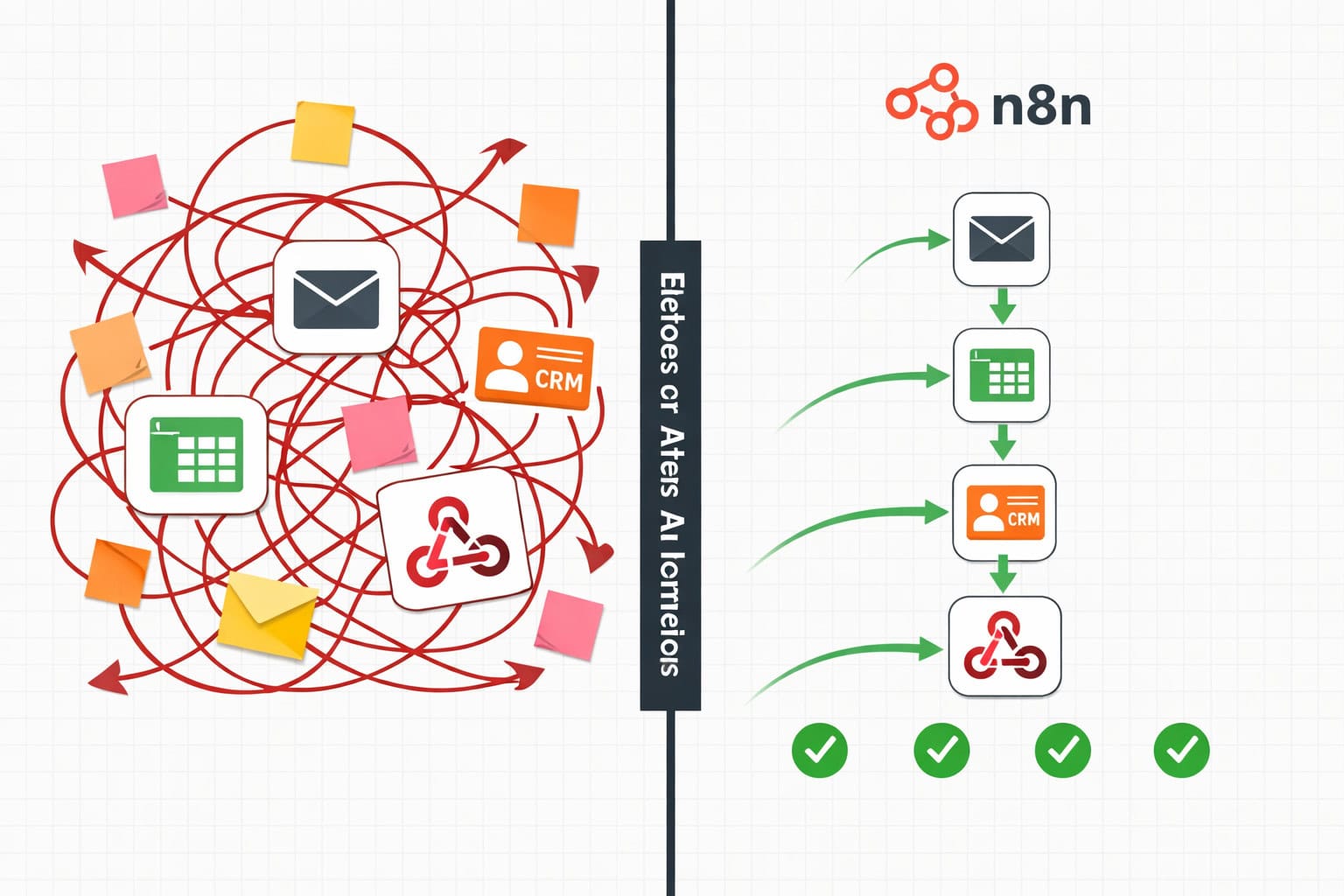
n8n works well across a wide range of operational and technical use cases. These are the highest-value applications based on community adoption and platform strengths.
Top Use Cases by Category
Marketing & Growth Ops
- Lead enrichment: Pull new CRM contacts through Clearbit, then update HubSpot with company data
- Social media scheduling: Trigger posts from a Google Sheet content calendar
- Automated reporting: Pull analytics data weekly and email a formatted summary
Development & DevOps
- GitHub issue to Slack alerts
- Automated deployment notifications
- API monitoring with alerting on failure
E-commerce & Customer Success
- New order → fulfillment system → customer email sequence
- Refund request routing to the right support agent
- Abandoned cart recovery via email trigger
Content & Publishing
- RSS feed monitoring → auto-draft in WordPress
- Auto-sharing blog posts to social media (see our guide on how to auto-share WordPress blog posts to social media)
- AI-generated content summaries for newsletters
Internal Operations
- Employee onboarding task creation across Notion, Slack, and Google Workspace
- Invoice processing from email attachments to accounting software
- Meeting notes → action items → project management tool
The n8n community template library contains over 9,500 ready-made workflows covering most of these scenarios [6], so you rarely need to start from scratch.
How Do You Use n8n’s AI Features to Build Workflows Faster?
n8n’s AI-native capabilities are one of its most significant recent additions. You can now describe a workflow in plain language and have Claude or ChatGPT generate a working node structure in minutes [3].
AI Workflow Generation (n8n AI Assistant)
- Open a new workflow canvas.
- Click the “Ask AI” button (available in n8n Cloud and recent self-hosted versions).
- Type a plain-language description: “When a new row is added to Google Sheets, send the data to a webhook and log it in Airtable.”
- n8n generates the node structure, pre-fills connection logic, and suggests credential mappings.
- Review, adjust field mappings, and activate.
What AI generation handles well:
- Standard integration patterns (trigger → transform → action)
- Generating JavaScript expressions for data transformation
- Suggesting error handling nodes
What still requires manual work:
- Complex branching logic with multiple conditions
- Custom authentication flows
- Workflows requiring proprietary or niche API nodes
This pairs naturally with broader AI-powered content generation workflows for teams running content-heavy operations.
For teams already using WordPress, combining n8n with AI plugins for WordPress automation creates a powerful end-to-end publishing pipeline.
How Do You Handle Errors and Make Workflows Production-Ready?
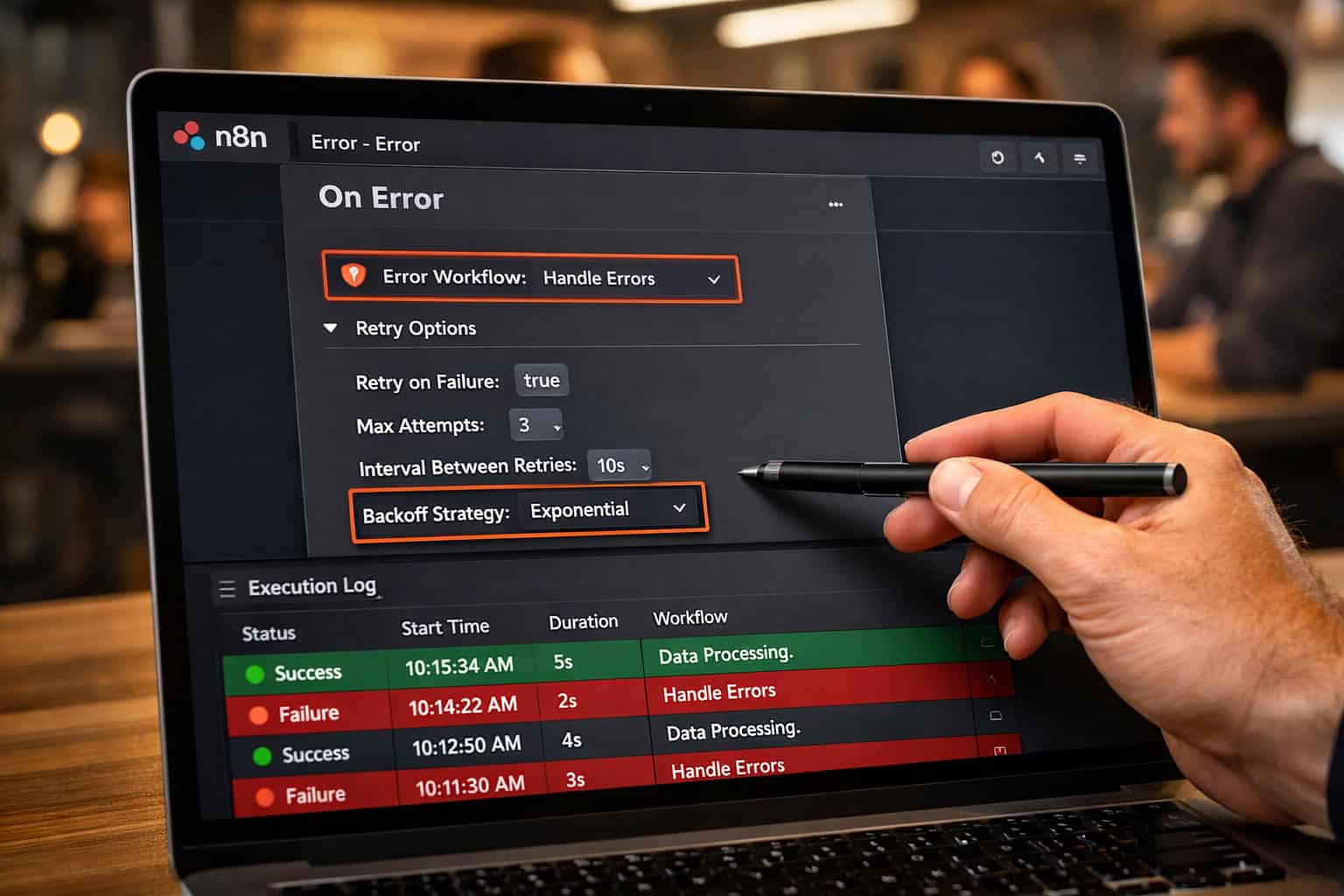
A workflow that works in testing but breaks silently in production is worse than no automation at all. Production-ready n8n workflows require three things: error handling, modular design, and execution logging [1].
Error Handling
Every critical node should have an “On Error” path configured. n8n provides two approaches:
- Continue on Error: The workflow keeps running and marks the failed item — good for batch jobs where one failure shouldn’t stop the rest.
- Error Workflow: Triggers a separate workflow when a failure occurs — ideal for sending alerts via Slack or email.
To set up an error workflow:
- Go to Settings → Error Workflow in your n8n instance.
- Create a dedicated workflow that receives error data and sends a Slack alert.
- Assign it as the global error handler.
Modular Design
Break large workflows into smaller, reusable sub-workflows. n8n’s Execute Workflow node lets you call one workflow from another. This keeps individual workflows under 20–30 nodes, which makes debugging far easier.
Execution Logging
Enable execution logging in your n8n settings to keep a history of every run. For self-hosted instances, set a retention period (30–90 days is typical) to balance storage and visibility. Review logs weekly to catch silent failures before they become real problems.
How Does n8n Compare to Zapier and Make (Integromat)?
n8n, Zapier, and Make are the three most common workflow automation platforms, but they serve different needs.
| Feature | n8n | Zapier | Make (Integromat) |
|---|---|---|---|
| Pricing model | Free self-hosted; paid cloud | Per-task pricing | Per-operation pricing |
| Self-hosting | Yes (open source) | No | No |
| Code support | JavaScript in nodes | Limited | Limited |
| AI workflow generation | Yes (native) | Limited | Limited |
| Template library | 9,500+ community templates [6] | 6,000+ Zap templates | 1,000+ templates |
| Learning curve | Medium-high | Low | Medium |
| Best for | Technical teams, high volume | Non-technical users, quick setup | Mid-complexity, visual logic |
Choose n8n if: you need self-hosting, run high execution volumes, or want to avoid per-task pricing that scales unpredictably.
Choose Zapier if: your team has no technical background and needs to be running in under an hour.
Choose Make if: you want more visual logic control than Zapier but less technical overhead than n8n.
For teams managing complex web projects alongside automation, tools like advanced WordPress strategies can complement your n8n workflows at the CMS layer.
What Are the Most Common n8n Mistakes (and How to Avoid Them)?
Even experienced users run into the same pitfalls. Here are the most common ones and how to fix them.
1. Not testing with real data The built-in test runner uses sample data that may not match production payloads. Always run a live test with actual input before activating a workflow.
2. Hardcoding credentials in expressions Never paste API keys directly into node fields. Use n8n’s Credentials Manager for all authentication. This matters especially on self-hosted instances where multiple team members share access.
3. Ignoring rate limits If your workflow calls an external API in a loop, you’ll hit rate limits fast. Use the Wait node to add delays between iterations, or the Split In Batches node to process items in controlled chunks.
4. Building monolithic workflows A single workflow with 50+ nodes is a debugging nightmare. Split complex processes into sub-workflows connected via the Execute Workflow node.
5. No error notifications Silent failures are the most dangerous kind. Set up a global error workflow on day one, before you build anything else.
6. Forgetting timezone handling Schedule triggers use the server’s timezone by default. If your n8n instance is in UTC and your team is in EST, your “9 AM daily report” will fire at 4 AM. Always set timezones explicitly in schedule nodes.
FAQ: n8n Automation Questions Answered
Q: Is n8n really free? Yes — the self-hosted version is fully open source and free. You pay only for your own server costs. The cloud version starts at $20/month with execution limits.
Q: Do I need to know how to code to use n8n? Not for basic workflows. But knowing JSON structure and basic JavaScript expressions makes n8n significantly more powerful. Complete beginners may find Zapier easier to start with.
Q: How many integrations does n8n support? n8n natively supports over 400 apps and services as of 2026. For anything not natively supported, the HTTP Request node connects to any REST API.
Q: Can n8n handle large data volumes? Yes. The “Split In Batches” node and proper rate-limit handling make n8n suitable for processing thousands of records per run. Self-hosted deployments scale with your server resources.
Q: Is n8n secure for sensitive data? Self-hosted n8n gives you full control over data storage and network access, making it suitable for GDPR and HIPAA-adjacent use cases. Cloud n8n is hosted on AWS with encryption at rest and in transit.
Q: What’s the difference between a trigger and a webhook in n8n? A trigger is any node that starts a workflow — it can be a schedule, an app event, or a webhook. A webhook is a specific type of trigger that receives HTTP POST requests from external services in real time.
Q: Can I run n8n on a Raspberry Pi or low-cost VPS? Yes. n8n runs comfortably on a $6/month VPS (1GB RAM, 1 vCPU) for small-to-medium workloads. Docker makes deployment straightforward on almost any Linux server.
Q: How do I share workflows with my team? Export workflows as JSON files and import them on another instance, or use n8n’s built-in sharing features on the cloud plan. The community template library [6] also lets you publish workflows publicly.
Q: Does n8n support multi-step AI agents? Yes. Recent versions include an AI Agent node that supports tool use, memory, and multi-step reasoning using models like GPT-4o and Claude 3.5. This enables autonomous workflows that make decisions based on context [3].
Q: What happens if my n8n server goes down? For self-hosted instances, missed webhook events are lost unless you implement a queue (n8n supports Redis-based queuing for reliability). Scheduled workflows simply don’t run until the server is back up. Cloud instances have uptime SLAs.
Conclusion: Your Next Steps With n8n
This ultimate n8n automation guide has covered the full picture — from core concepts and setup choices to production best practices and AI-powered workflow generation. The platform’s combination of open-source flexibility, 400+ integrations, and AI-native features makes it one of the most capable automation tools available in 2026.
Here’s how to move forward:
- Start with one workflow. Pick a manual task you repeat at least weekly and automate it first. A simple “form submission → spreadsheet + notification” workflow is a perfect first project.
- Browse the template library. Before building from scratch, check the 9,500+ community templates at n8n.io/workflows for a starting point [6].
- Set up error handling early. Configure a global error workflow before you have more than three active automations.
- Decide on deployment. If you’re serious about n8n long-term, self-hosting on a $6–10/month VPS saves money and gives you full control.
- Explore AI generation. Use the AI Assistant to prototype complex workflows faster, then refine the output manually.
For teams building broader digital operations, pairing n8n with tools for Figma AI workflow automation or AI-powered content generation creates a genuinely connected, efficient stack. Explore more automation resources in our Automation Archives.
References
[1] N8n Automation Guide – https://www.elsner.com/n8n-automation-guide/ [3] blog.n8n – https://blog.n8n.io [4] N8n Workflow Automation Guide – https://www.automake.io/blog/n8n-workflow-automation-guide [5] N8n Workflow Automation – https://www.helloroketto.com/articles/n8n-workflow-automation [6] Workflows – https://n8n.io/workflows/ [9] Reviews – https://www.g2.com/products/n8n/reviews [10] The Complete Beginners Guide To N8n Your First Workflow – https://contabo.com/blog/the-complete-beginners-guide-to-n8n-your-first-workflow/


