Last updated: May 7, 2026This post serves as an n8n gmail automation complete guide for boosting your email productivity.
Quick Answer
N8N Gmail automation connects your Gmail account to n8n’s workflow builder so that emails are read, classified, replied to, and organized without manual effort. You set up a trigger (such as a new unread email), chain it to actions (like an AI classifier or auto-reply node), and the workflow runs on its own. This guide covers every step from authentication to advanced AI-powered workflows.
Key Takeaways
- N8N is a self-hostable, open-source workflow tool that connects Gmail to 1,000+ apps without writing much code.
- Gmail authentication in n8n requires OAuth 2.0 credentials from Google Cloud Console — not just a password.
- Core use cases include: auto-replies, email summarization, AI classification, attachment management, and daily digest creation.
- AI integration (Google Gemini, OpenAI, LangChain) lets n8n read, understand, and respond to emails contextually.
- Self-hosting n8n is free; n8n Cloud starts at around $20/month (as of 2026).
- Common mistakes include skipping credential scopes, using polling instead of webhooks, and building overly complex workflows before testing simple ones.
- N8N works best for teams and solo operators who receive repetitive, pattern-based emails — support tickets, lead notifications, form submissions.
- Gmail + Google Drive automation enables automatic attachment extraction and file organization in a single workflow.
What Is N8N Gmail Automation and Why Does It Matter?
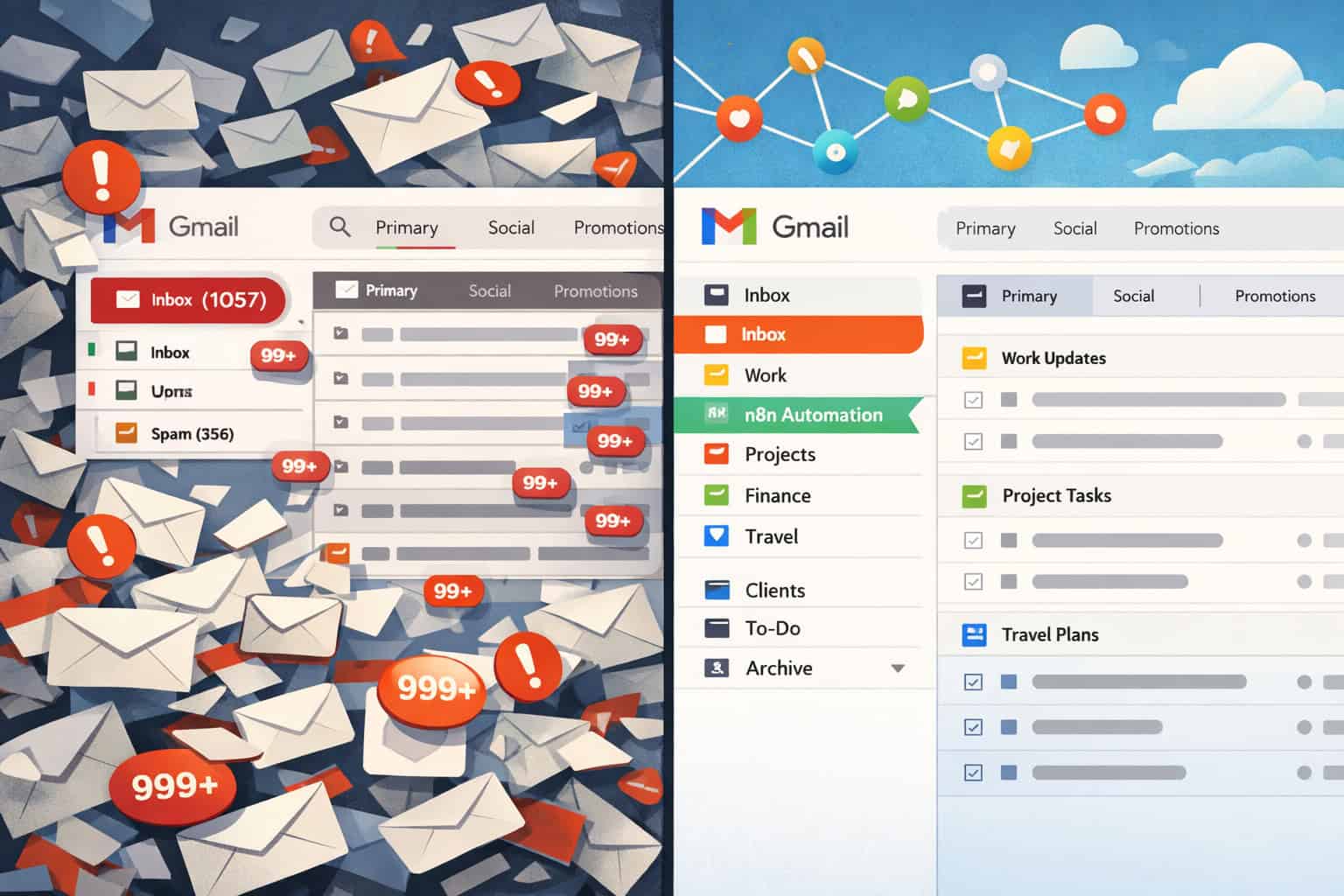
N8N Gmail automation means using n8n’s visual workflow builder to perform Gmail actions automatically — sending, reading, labeling, replying, or forwarding emails based on defined triggers and conditions. For anyone receiving more than 50 emails a day with repetitive patterns, this approach can cut manual email handling time significantly.
N8N (pronounced “nodemation”) is an open-source, fair-code workflow automation platform. Unlike Zapier or Make, you can self-host it, which means your email data stays on your own server. It connects Gmail through Google’s official API, so workflows are stable and reliable rather than fragile screen-scraping hacks.
Who this is for:
- Freelancers and small business owners drowning in client emails
- Marketing teams managing lead notifications from multiple sources
- Developers who want full control over automation logic
- Customer support teams routing tickets automatically
Who should skip it (for now):
- Non-technical users with no interest in learning a visual workflow tool
- Teams needing enterprise-grade compliance features out of the box
- Anyone whose email volume is low enough to handle manually in under 15 minutes a day
How Does N8N Connect to Gmail? (Authentication Setup)
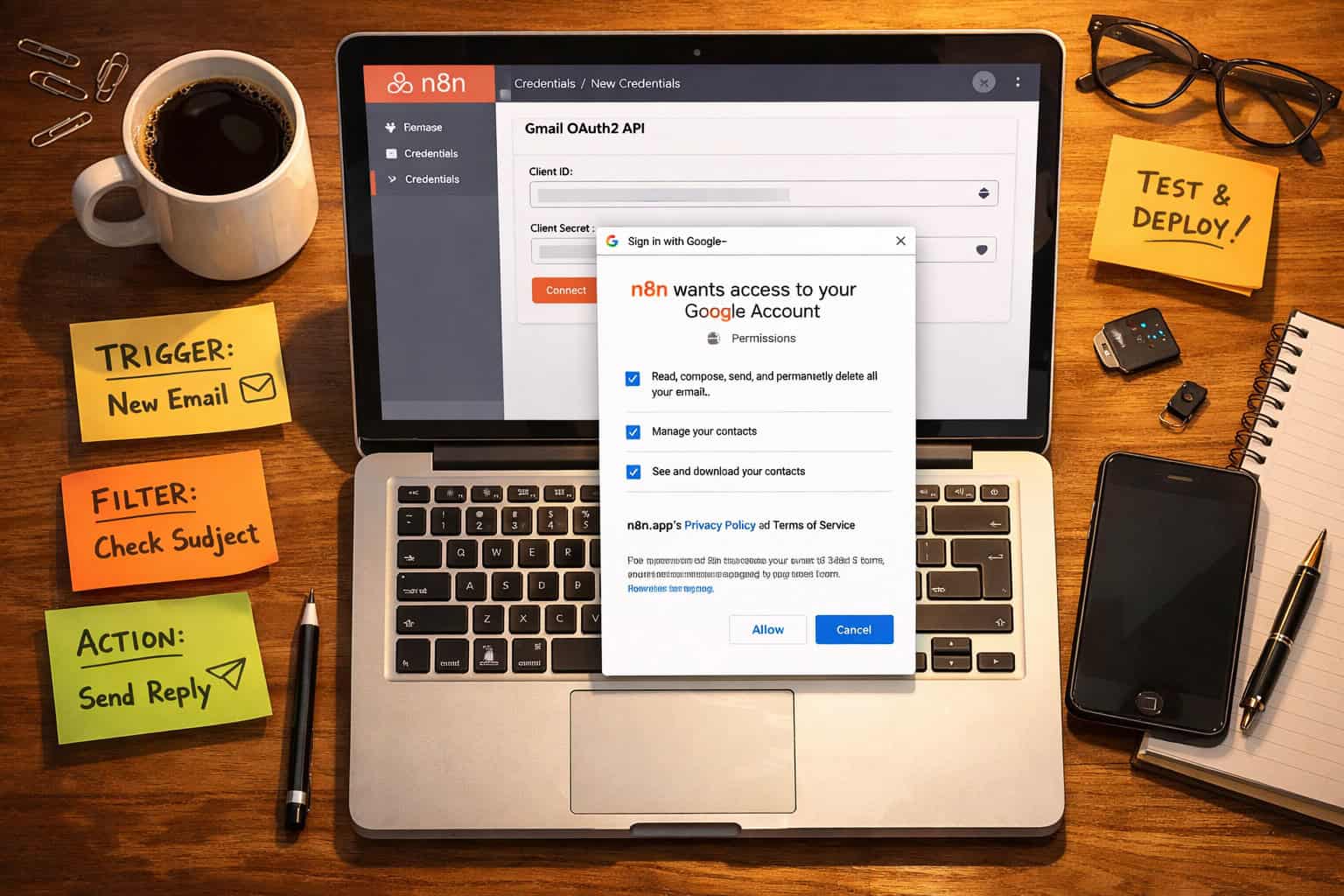
N8N connects to Gmail using OAuth 2.0 credentials from Google Cloud Console. You create a project in Google Cloud, enable the Gmail API, generate OAuth credentials, then paste the Client ID and Client Secret into n8n. This is the most common setup stumbling block, so it’s worth doing carefully [3].
Step-by-step: Setting up Gmail credentials in n8n
- Go to Google Cloud Console (console.cloud.google.com) and create a new project.
- Enable the Gmail API under “APIs & Services > Library.”
- Create OAuth 2.0 credentials under “APIs & Services > Credentials.” Choose “Web application” as the type.
- Add the n8n redirect URI to the authorized redirect URIs field. For self-hosted n8n, this is typically
https://your-n8n-domain/rest/oauth2-credential/callback. - Copy the Client ID and Client Secret.
- In n8n, go to Credentials > New > Gmail OAuth2 API and paste both values.
- Click “Connect my account” and complete the Google sign-in flow.
- Set the correct OAuth scopes. For full Gmail access, include
https://mail.google.com/. For read-only, usehttps://www.googleapis.com/auth/gmail.readonly.
Common mistake: Choosing too narrow a scope. If your workflow needs to send AND read emails, you need both scopes. Missing one scope causes silent failures where the workflow runs but does nothing.
Edge case: If you’re using a Google Workspace account (company email), your Google Workspace admin may need to approve the OAuth app before it appears in the consent screen.
What Are the Most Useful N8N Gmail Automation Workflows?
The most practical n8n Gmail workflows fall into five categories: auto-replies, email summarization, AI classification, attachment management, and digest creation. Each solves a specific problem and can be built incrementally — start with one, then layer in complexity [3].
1. Automated Email Responses
Set a Gmail Trigger node to fire when a new email arrives matching a filter (for example, subject contains “support request”). Chain it to an n8n Gmail node set to “Send Email” with a templated reply. Add a Set node in between to pull the sender’s name from the email data and personalize the response.
Choose this if: You receive the same category of inquiry repeatedly and want an instant acknowledgment or FAQ response sent within seconds.
2. AI-Powered Email Summarization
Connect a Gmail Trigger to an OpenAI or Google Gemini node. Pass the email body as a prompt asking the AI to extract the key points and any action items. Send the summary to Slack, save it to Notion, or append it to a Google Sheet [2].
This is especially useful for newsletters, vendor updates, or long client emails where you need the gist fast.
3. Intelligent Email Classification
Use LangChain’s Text Classifier node (available in n8n) combined with Google Gemini to read incoming emails and sort them into categories: urgent, billing, general inquiry, spam. Based on the category, route the email to different team members or apply Gmail labels automatically [6].
4. Email Attachment Management
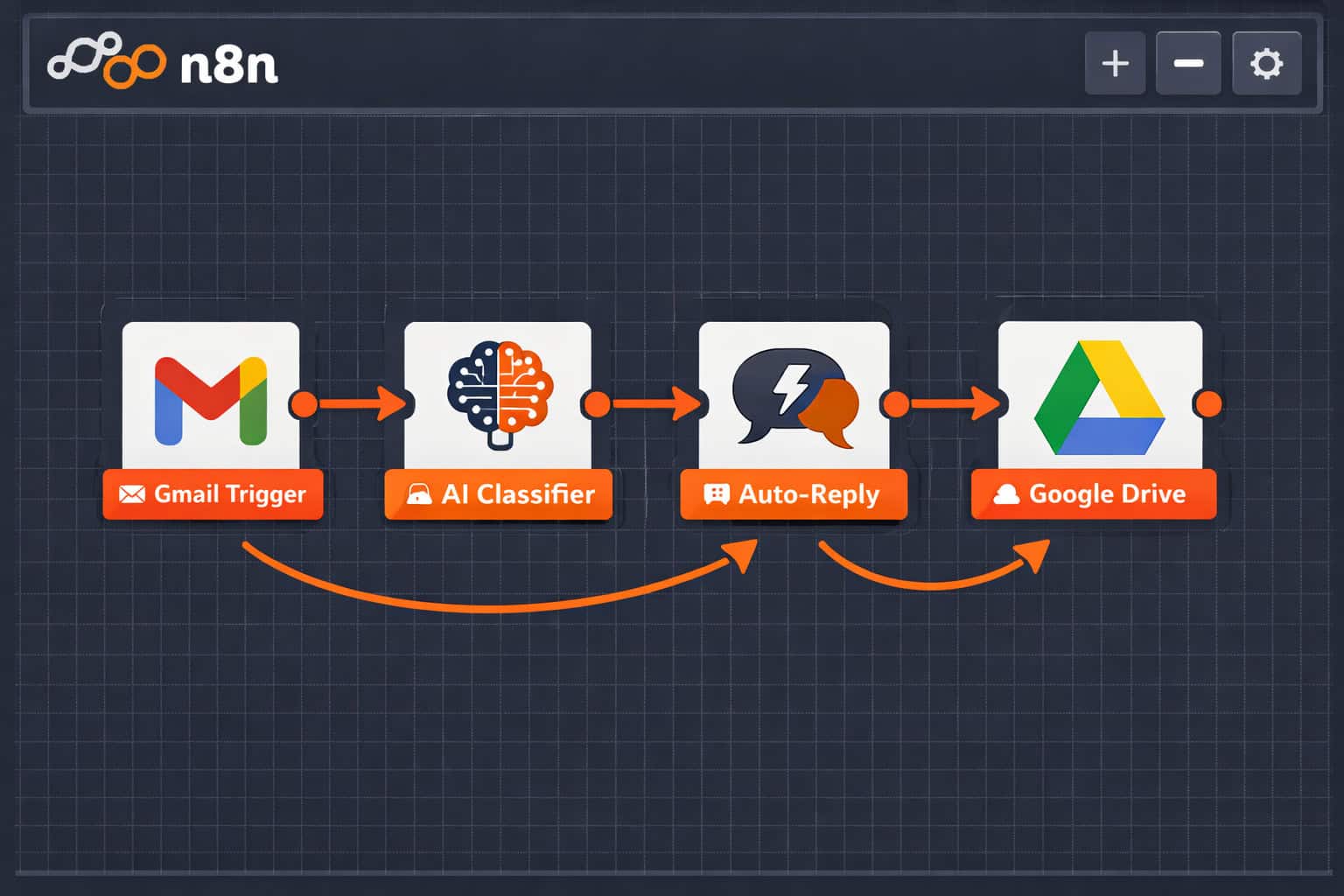
When an email arrives with an attachment, n8n can extract the file, upload it to Google Drive, rename it based on the sender or subject, and log the upload in a spreadsheet [7]. This removes the manual “download and file” step entirely.
5. Daily Email Digest
Merge data from Gmail, RSS feeds, and other sources into a formatted HTML digest using n8n’s Merge and Code nodes. Schedule it to run each morning and deliver a single summary email instead of dozens of individual ones [5].
How Do You Build Your First N8N Gmail Workflow? (Step-by-Step)
Start with a simple trigger-action workflow before building anything complex. A reliable first workflow is: new email arrives → extract subject and sender → log to Google Sheets. Once that runs cleanly, you can add AI nodes or conditional logic.
Building a basic Gmail-to-Google Sheets logger
| Step | Node Type | What It Does |
|---|---|---|
| 1 | Gmail Trigger | Fires when a new email matches your filter |
| 2 | Set | Extracts subject, sender, date from email data |
| 3 | Google Sheets | Appends a new row with the extracted data |
Detailed steps:
- Open n8n and click “New Workflow.”
- Add a Gmail Trigger node. Set it to “Message Received” and configure your filter (e.g., label = Inbox, unread = true).
- Add a Set node. Map these fields:
sender→{{ $json.from }},subject→{{ $json.subject }},date→{{ $json.date }}. - Add a Google Sheets node. Choose “Append Row” and map your Set node fields to the correct columns.
- Activate the workflow using the toggle in the top right.
- Send yourself a test email and verify the row appears in your sheet within the polling interval (default: 1 minute).
Pro tip: Use n8n’s “Execute Once” button during testing so you don’t flood your sheet with duplicates while debugging.
Once this works, you can swap the Google Sheets node for a Slack message, a Notion database entry, or an AI summarization step. The Gmail Trigger stays the same regardless of what you do downstream.
How Do You Add AI to Your N8N Gmail Workflows?
Adding AI to n8n Gmail workflows means connecting a language model node (OpenAI, Google Gemini, or Anthropic Claude) between your Gmail Trigger and your output action. The AI node receives the email content as a prompt and returns a structured response — a summary, a classification label, a draft reply, or extracted data [6].
Practical AI prompt structure for email processing
When passing email content to an AI node, use a structured prompt like this:
You are an email assistant. Read the following email and return:
1. A one-sentence summary
2. The sender's intent (inquiry / complaint / request / other)
3. A suggested reply in 2-3 sentences

Email:
Subject: {{ $json.subject }}
From: {{ $json.from }}
Body: {{ $json.text }}
The AI returns a JSON-formatted response (if you ask for it), which downstream n8n nodes can parse and act on.
AI classification with LangChain in n8n
N8N’s LangChain integration includes a Text Classifier node that routes emails to different branches of your workflow based on category. For example:
- Branch A (Urgent): Send a Slack DM to the account manager
- Branch B (Billing): Create a ticket in your helpdesk
- Branch C (General): Send an auto-reply and apply a Gmail label
This kind of multi-branch routing previously required custom code. With n8n’s visual builder and LangChain nodes, it’s a drag-and-drop process [6].
For teams already automating other content workflows, this pairs well with AI-powered content optimization tools that handle the writing side of your digital operations.
What Are the Costs and Hosting Options for N8N Gmail Automation?
N8N offers two deployment paths: self-hosted (free, open-source) and n8n Cloud (paid, managed). Your choice affects cost, maintenance burden, and data privacy.
Comparison: Self-hosted vs. n8n Cloud
| Factor | Self-Hosted | N8N Cloud |
|---|---|---|
| Cost | Free (server costs apply) | ~$20–$50/month (2026 pricing) |
| Setup time | 1–3 hours | Under 30 minutes |
| Maintenance | You manage updates | Handled by n8n |
| Data privacy | Full control | Data on n8n servers |
| Execution limits | None (limited by your server) | Depends on plan |
| Best for | Developers, privacy-conscious teams | Non-technical users, small teams |
Choose self-hosted if you handle sensitive email data (legal, medical, financial) or want unlimited workflow executions without paying per run.
Choose n8n Cloud if you want to get started quickly and don’t want to manage a server.
For self-hosting, a basic VPS (2GB RAM, 2 vCPUs) from providers like DigitalOcean or Hetzner costs roughly $6–$12/month and handles most small-to-medium Gmail automation workloads comfortably.
If you’re already running automation on WordPress or other platforms, the advanced WordPress automation strategies for power users guide covers complementary workflow ideas worth exploring.
What Are the Most Common Mistakes in N8N Gmail Automation?
The most common mistakes are authentication scope errors, polling delays mistaken for failures, and building complex workflows before validating simple ones. Each is easy to avoid once you know what to watch for [9].
Mistake 1: Wrong OAuth scopes
Setting gmail.readonly scope and then trying to send emails. The workflow activates, the trigger fires, but the send action silently fails. Fix: always check your credential scopes match every action your workflow performs.
Mistake 2: Confusing polling with real-time triggers
N8N’s Gmail Trigger uses polling by default (checks for new emails every 1–60 minutes). If you need near-instant responses, set the polling interval to 1 minute or use a webhook-based approach where possible. Don’t assume a 10-minute delay means the workflow is broken.
Mistake 3: Not filtering emails at the trigger level
If you set the trigger to fire on ALL incoming emails, every newsletter and spam message will run through your (potentially paid) AI nodes. Always add a filter — by label, sender domain, or subject keyword — at the trigger level to limit executions.
Mistake 4: Hardcoding values instead of using expressions
Writing a sender’s email address directly into a node instead of using {{ $json.from }}. When the workflow encounters a different sender, it breaks. Use n8n expressions everywhere you’d otherwise type a static value.
Mistake 5: Skipping error handling
N8N workflows fail silently if a node errors and you haven’t set up error handling. Add an Error Trigger workflow that sends you a Slack message or email when any workflow fails. This takes 10 minutes to set up and saves hours of debugging later.
For teams building broader automation stacks, the automation category on WebAiStack covers related tools and workflows worth bookmarking.
How Does N8N Gmail Automation Compare to Alternatives?
N8N competes with Zapier, Make (formerly Integromat), and Google Apps Script for Gmail automation. Each has a different trade-off between ease of use, cost, and flexibility.
| Tool | Ease of Use | Cost | Self-Hostable | AI Integration | Gmail Depth |
|---|---|---|---|---|---|
| N8N | Moderate | Free/low | Yes | Strong (LangChain, OpenAI) | Full API |
| Zapier | Easy | High | No | Basic | Good |
| Make | Moderate | Moderate | No | Moderate | Good |
| Apps Script | Hard | Free | N/A | Manual | Full |
Choose n8n if you want AI-native workflows, self-hosting, and complex multi-step logic without per-task pricing.
Choose Zapier if you need the fastest setup and don’t mind paying a premium for simplicity.
Choose Apps Script if you’re already a JavaScript developer and want free, deep Gmail API access without a visual tool.
Teams already using no-code tools for other parts of their stack can explore the best no-code website design platforms for context on how n8n fits into a broader no-code toolkit.
Supercharge Your Email Productivity: Advanced Tips and Workflow Ideas
To truly supercharge your email productivity with n8n Gmail automation, move beyond single-trigger workflows and build multi-source pipelines that combine Gmail with CRMs, project management tools, and AI content generators.
Here are five advanced workflow ideas worth building in 2026:
Lead nurture pipeline: New lead email arrives → AI extracts name, company, and need → creates a contact in your CRM → sends a personalized follow-up sequence over 3 days.
Invoice processing: Email with PDF attachment arrives from a vendor → n8n extracts the attachment → sends it to an OCR service → logs invoice data to a Google Sheet → flags overdue amounts via Slack.
Support ticket routing: Customer email arrives → AI classifies urgency and topic → creates a ticket in Jira or Linear → assigns to the right team member → sends an acknowledgment reply with a ticket number.
Content briefing digest: Every morning, n8n pulls unread emails from key newsletters, summarizes each with AI, and sends a single digest to your inbox or Notion [5].
Meeting scheduler: Email contains a meeting request → n8n checks Google Calendar for availability → replies with available slots → books the meeting when the sender confirms.
For teams also handling content creation workflows, pairing n8n with AI-powered content generation tools creates a fully automated content and communication pipeline.
If email design is part of your workflow, learning how to create effective email templates in Canva gives you polished templates that n8n can send automatically.
FAQ: N8N Gmail Automation
Q: Does n8n work with Gmail free accounts or only Google Workspace? A: N8N works with both standard Gmail (free) and Google Workspace accounts. The OAuth setup is identical; the only difference is that Workspace admins may need to approve the app.
Q: How often does n8n check for new emails? A: By default, the Gmail Trigger polls every minute. You can adjust this from 1 minute to 60 minutes in the trigger settings. True real-time webhooks are not natively supported by Gmail’s API, so polling is the standard approach.
Q: Can n8n read email attachments? A: Yes. The Gmail node can retrieve attachment data as binary content, which you can then pass to Google Drive, an OCR service, or any other node that accepts file input [7].
Q: Is n8n safe for handling sensitive emails? A: Self-hosted n8n keeps all data on your own server, which is appropriate for sensitive content. N8N Cloud stores data on n8n’s servers, so review their data processing agreement before using it for confidential emails.
Q: Can I send bulk emails with n8n Gmail automation? A: Technically yes, but Gmail’s API has sending limits (500 emails/day for free accounts, 2,000/day for Workspace). For bulk sending, use a dedicated email service like SendGrid or Mailgun and connect it to n8n instead.
Q: What happens if my n8n workflow fails mid-execution? A: N8N logs the error in the execution history. If you’ve set up an Error Trigger workflow, you’ll get an alert. Partial executions don’t automatically retry unless you configure retry logic in the workflow settings.
Q: Do I need coding skills to use n8n for Gmail automation? A: Basic workflows require no coding — just drag, drop, and configure nodes. Advanced workflows (custom JavaScript in Code nodes, complex expressions) benefit from basic programming knowledge, but most Gmail use cases are achievable without it.
Q: How do I avoid hitting Gmail API rate limits? A: Add a Wait node between bulk operations, use filters at the trigger level to reduce unnecessary executions, and avoid running the same workflow on every single incoming email if only a subset needs processing.
Conclusion: Your Next Steps to Supercharge Your Email Productivity
This complete guide to n8n Gmail automation covers everything from OAuth setup to AI-powered classification and multi-step pipelines. The path forward is straightforward: start small, validate, then expand.
Actionable next steps:
This week: Set up n8n (self-hosted or Cloud) and complete Gmail OAuth authentication. Build the simple Gmail-to-Google Sheets logger described above. Confirm it works reliably for 48 hours.
Next week: Add an AI summarization node to your workflow. Pick one email category you handle manually and automate the first response or routing step.
This month: Build one complete pipeline from the advanced workflow ideas list — lead routing, invoice processing, or a morning digest. Measure how much time it saves.
Ongoing: Explore the automation resources on WebAiStack for related workflow ideas, and check n8n’s community templates for pre-built Gmail workflows you can import and adapt.
The goal isn’t to automate everything at once. It’s to identify the three to five email tasks that consume the most time and eliminate them systematically. N8N gives you the tools. The workflow you build this week could be saving you hours every month by next month.
References
[1] Watch – https://www.youtube.com/watch?v=_2bfCG9922E [2] Watch – https://www.youtube.com/watch?v=df-7cozS9uw [3] Gmail – https://n8n.io/integrations/gmail/ [4] Watch – https://www.youtube.com/watch?v=LPsi62-Yclw [5] Watch – https://www.youtube.com/watch?v=rNyhtRviYcw [6] Watch – https://www.youtube.com/watch?v=OAu6tOwubgE [7] Google Drive – https://n8n.io/integrations/gmail/and/google-drive/ [8] Watch – https://www.youtube.com/watch?v=GJK-1DSYlI4 [9] Build Email Workflow Automation – https://n8n.expert/marketing/build-email-workflow-automation/ [10] Watch – https://www.youtube.com/watch?v=pxzo2lXhWJE