
Last updated: May 9, 2026
Quick Answer
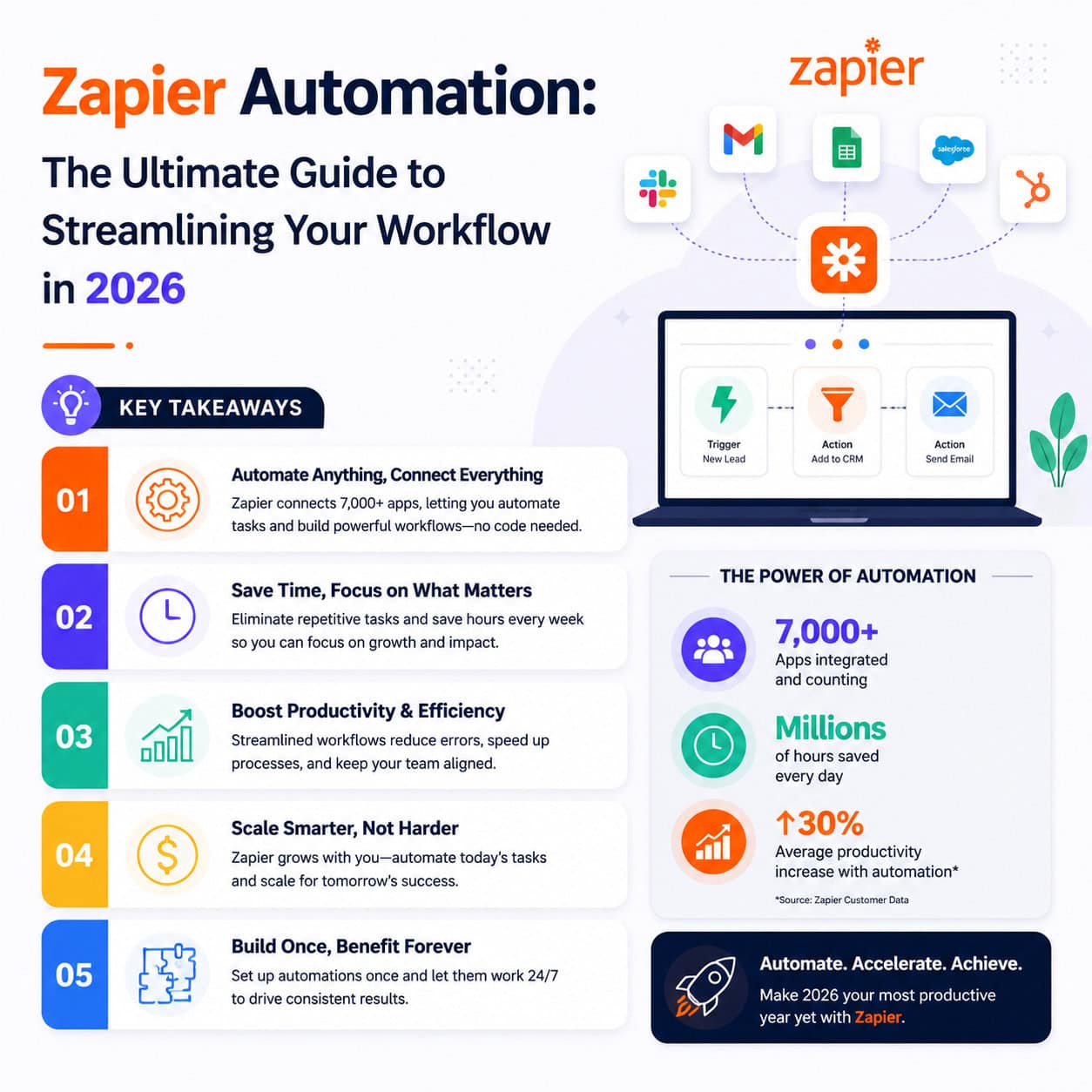
Zapier is a no-code middleware platform that connects over 7,000 apps through automated workflows called “Zaps,” using trigger-and-action logic to move data between systems automatically. Setting up a basic Zap takes under 10 minutes and requires zero coding knowledge. It’s best suited for small businesses, marketers, and entrepreneurs who want to eliminate repetitive manual tasks without hiring a developer.
Key Takeaways
- Zapier works on a trigger-action model: an event in one app (the trigger) automatically starts an action in another app.
- No coding is required to build or manage Zaps — the setup is entirely visual and guided [6].
- Zapier supports 7,000+ app integrations, including Gmail, Slack, Google Sheets, HubSpot, and Trello [3].
- Notification automations can route alerts via email, Slack, Google Sheets, or push notifications [4].
- Real estate, marketing, and e-commerce teams see measurable gains in lead response time and conversion rates using Zapier workflows [2].
- Pricing scales by task volume, so small teams can start free and upgrade as automation needs grow.
- Multi-step Zaps let you chain several actions from a single trigger, making complex workflows possible without custom code.
- Filters and Formatters let you add conditional logic and data transformation inside a Zap.
What Is Zapier and How Does It Actually Work?
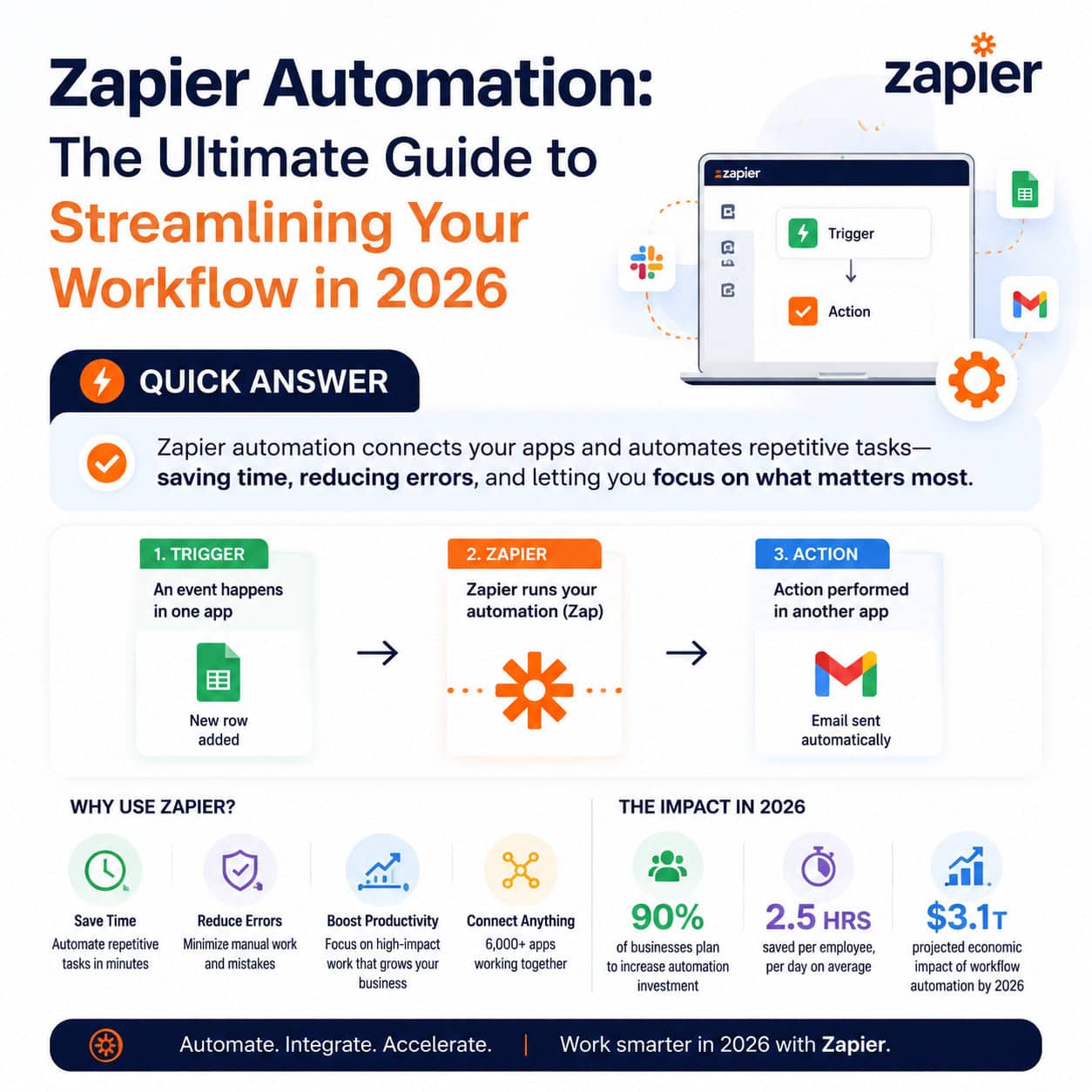
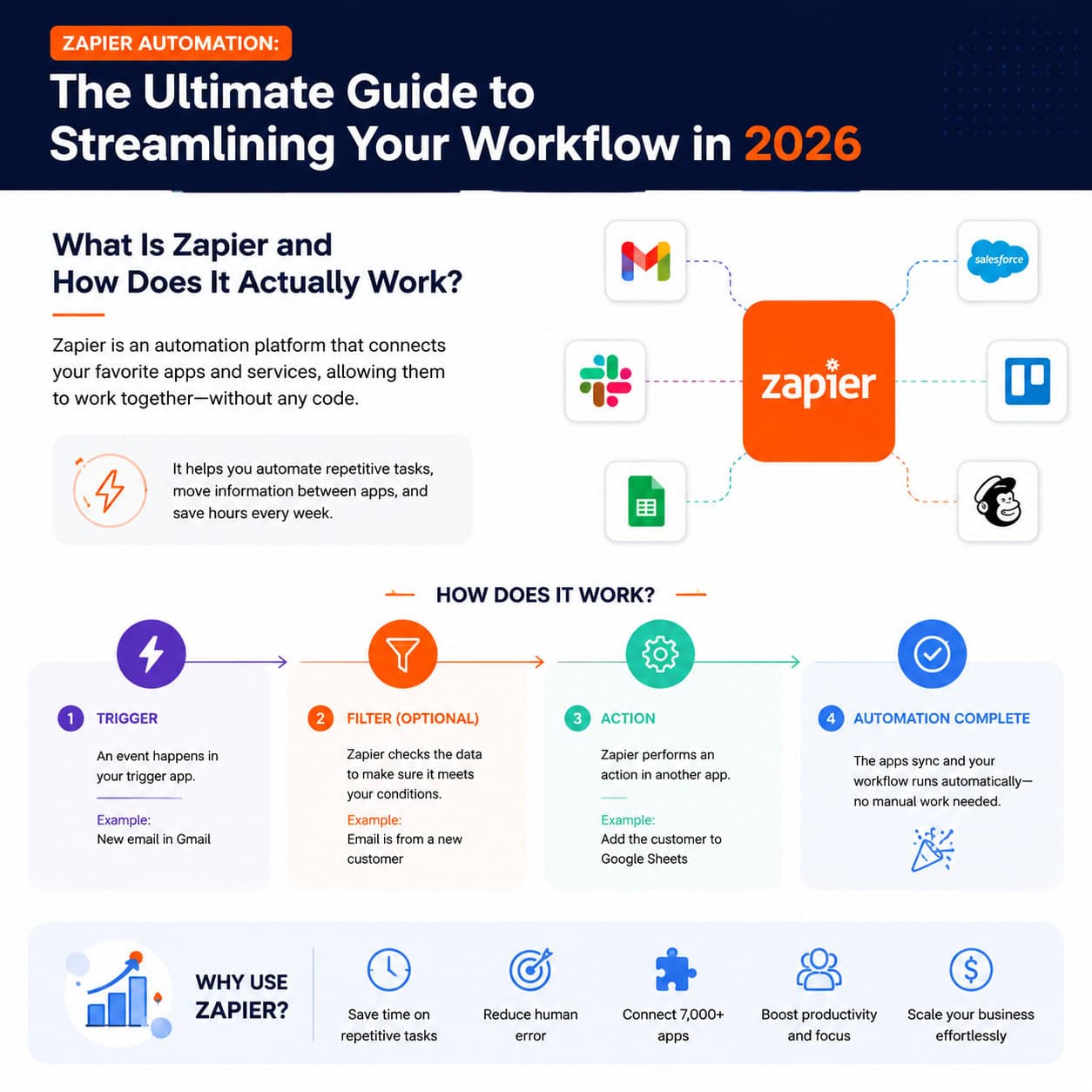
Zapier is a workflow automation platform that acts as a bridge between apps that don’t natively talk to each other. When a specific event happens in App A (the trigger), Zapier automatically performs one or more actions in App B, C, or beyond — all without human intervention [3].
The core building block is a Zap, which follows this structure:
- Trigger — the event that starts the workflow (e.g., “A new lead submits a form on my website”).
- Filter (optional) — a condition that must be true for the Zap to continue (e.g., “Only if the lead is from the US”).
- Action — what Zapier does next (e.g., “Add the lead to a Google Sheet AND send a Slack notification”).
“Zapier automation requires no coding and can be set up in minutes — making it accessible to entrepreneurs, marketers, and small business owners.” [6]
Who it’s for: Anyone who performs the same digital task more than a few times per week. Marketers, operations managers, real estate agents, and solopreneurs get the most value.
Who it’s NOT for: Teams needing deep custom logic, real-time data syncing at scale, or complex database operations. Those users may need a developer-built integration or a platform like Make (formerly Integromat).
How Do You Set Up Your First Zap?
Setting up a Zap is straightforward. The entire process takes under 10 minutes for a basic two-step workflow [6].
Step-by-step:
- Create a free Zapier account at zapier.com.
- Click “Create Zap” from your dashboard.
- Choose your Trigger app (e.g., Gmail) and select the trigger event (e.g., “New Email Matching Search”).
- Connect your account by signing in through Zapier’s OAuth prompt.
- Test the trigger to confirm Zapier can pull in real data.
- Choose your Action app (e.g., Google Sheets) and select the action event (e.g., “Create Spreadsheet Row”).
- Map the data fields — drag trigger data (like sender name or email body) into the action fields.
- Test the action to verify it works correctly.
- Turn the Zap on.
Common mistake: Skipping the test step. Always test both the trigger and the action before activating a Zap. Untested Zaps often fail silently because of mismatched field formats or missing permissions.
What Are the Most Useful Zapier Automation Use Cases?
This is where Zapier delivers real value. The most effective use cases fall into four categories:
1. Lead management and CRM
Real estate agents and sales teams use Zaps to automatically assign new leads, trigger email follow-ups, and create tasks in project management tools. Teams using these workflows report faster lead response times and higher engagement rates [2].
2. Marketing stack automation
Zapier connects ad platforms, email tools, and analytics dashboards. For example: when someone fills out a Facebook Lead Ad, Zapier can add them to a Mailchimp list, log them in Google Sheets, and ping your team in Slack — all at once [4].
For teams already automating their content publishing, pairing Zapier with tools like auto-sharing WordPress blog posts to social media can create a fully hands-off publishing pipeline.
3. Notifications and alerts
Zapier supports email notifications, Slack messages, Google Sheet logging, and push notifications as action types [4]. This is useful for monitoring form submissions, payment failures, or support tickets.
4. Data entry and reporting
Instead of manually copying data between tools, Zaps handle it automatically. A new Stripe payment can instantly create a row in a Google Sheet and update a HubSpot deal — no copy-paste required.
How Much Does Zapier Cost, and Which Plan Do You Need?
Zapier’s pricing is based on the number of tasks (individual actions) your Zaps run per month. Here’s a simplified breakdown:
| Plan | Monthly Tasks | Price (approx.) | Best For |
|---|---|---|---|
| Free | 100 | $0 | Testing, simple 2-step Zaps |
| Starter | 750 | ~$19.99/mo | Freelancers, basic automation |
| Professional | 2,000+ | ~$49/mo | Small businesses, multi-step Zaps |
| Team | 50,000+ | ~$399/mo | Agencies, shared workspaces |
(Prices are approximate and subject to change. Check zapier.com for current pricing.)
Choose the Free plan if you’re just testing Zapier or have fewer than 5 simple Zaps running.
Choose Professional if you need multi-step Zaps, filters, and formatter tools — these are locked behind paid plans.
Edge case: If your Zaps run infrequently but handle large data volumes in bursts, monitor your task usage in the first month before committing to a plan tier.
What Are Zapier’s Most Powerful Features Beyond Basic Zaps?
Once you’re past the basics, these features significantly expand what’s possible with Zapier automation:
- Multi-step Zaps: Chain multiple actions from one trigger. One form submission can update your CRM, send a welcome email, create a Trello card, and notify your team in Slack.
- Filters: Add conditional logic so a Zap only runs when specific criteria are met (e.g., only process orders over $100).
- Formatter by Zapier: Transform data inside a Zap — split names into first/last, reformat dates, extract numbers from text.
- Paths: Create branching logic (if/else) so one Zap can follow different routes depending on the data.
- Delay: Schedule actions to run after a set time period rather than immediately [1].
- Zapier Tables and Interfaces: Built-in database and form tools that reduce the need for external apps.
For teams building more complex automated systems, exploring AI-powered content optimization tools alongside Zapier can further reduce manual work in content workflows.
How Does Zapier Compare to Its Main Alternatives?
Zapier isn’t the only automation platform. Here’s how it stacks up:
| Feature | Zapier | Make (Integromat) | n8n |
|---|---|---|---|
| Ease of use | ⭐⭐⭐⭐⭐ | ⭐⭐⭐ | ⭐⭐ |
| App integrations | 7,000+ | 1,500+ | 400+ |
| Pricing | Higher | More affordable | Free (self-hosted) |
| Custom logic | Moderate | Advanced | Very advanced |
| Best for | Non-technical users | Power users | Developers |
Choose Zapier if ease of setup and a large app library matter more than price or deep customization.
Choose Make if you need visual, complex workflows at a lower cost per task.
Choose n8n if you’re a developer who wants full control and is comfortable with self-hosting.
For teams also looking to automate their WordPress environment, AI plugins for WordPress automation can complement Zapier’s cross-app capabilities with on-site automation.
What Are the Most Common Zapier Mistakes and How Do You Fix Them?
Even experienced users run into these issues:
1. Zap runs but does nothing visible
Usually caused by a filter blocking the action. Check your filter conditions first.
2. Data maps to the wrong fields
Happens when you set up the Zap before your trigger app has real data. Always test with a real sample, not dummy data.
3. Hitting task limits unexpectedly
A single multi-step Zap with 4 actions counts as 4 tasks per run. Plan your task budget accordingly.
4. Authentication errors after a few weeks
Many app connections expire. Reconnect the app in your Zap’s settings to fix this.
5. Duplicate entries in the destination app
This often means your trigger is firing multiple times for the same event. Add a filter or use Zapier’s built-in deduplication where available.
For broader workflow automation strategy — especially for design and development teams — see how Figma AI workflow automation can pair with Zapier to automate design handoff processes.
How Do You Build a Marketing Automation Stack with Zapier?
A marketing automation stack connects your lead capture, nurture, and reporting tools into one continuous flow. Zapier is the connective tissue [4].
Example stack for a small business:
- Lead capture: Typeform or Facebook Lead Ads
- CRM: HubSpot or Airtable
- Email marketing: Mailchimp or ActiveCampaign
- Team notifications: Slack
- Reporting: Google Sheets
The Zap chain:
- New Typeform submission → Add contact to HubSpot → Subscribe to Mailchimp list → Send Slack alert to sales team → Log row in Google Sheets
This replaces what would otherwise be 5 manual steps per lead. For high-volume lead environments, this kind of automation is the difference between a 5-minute response and a 5-hour one [2].
For teams managing content alongside leads, AI-powered content generation tools can feed into this same Zapier stack to automate content distribution.
You can also explore more automation ideas in the Automation Archives at WebAiStack.
Frequently Asked Questions
Q: Does Zapier require coding skills?
No. Zapier is entirely no-code. The setup process is guided and visual, with no programming required [6].
Q: How many apps does Zapier support?
Zapier connects over 7,000 apps as of 2026, including Google Workspace, Slack, Salesforce, Shopify, and thousands more [3].
Q: What is a “task” in Zapier?
A task is counted each time a Zap successfully completes an action step. A 3-action Zap running 100 times uses 300 tasks.
Q: Can Zapier handle conditional logic?
Yes. Filters let you stop a Zap if conditions aren’t met. Paths (available on paid plans) let you create if/else branching within a single Zap.
Q: Is Zapier safe to use with sensitive business data?
Zapier uses encryption in transit and at rest and complies with SOC 2 Type II standards. For highly sensitive data, review Zapier’s data retention policies and consider their enterprise plan.
Q: Can I use Zapier for free indefinitely?
Yes. The free plan allows up to 100 tasks per month with 2-step Zaps. It’s functional for light personal use but limited for business workflows.
Q: What’s the difference between a Zap and a workflow?
A Zap is Zapier’s term for a single automated workflow. The terms are interchangeable in most contexts.
Q: How fast do Zaps run?
Free plan Zaps check for new triggers every 15 minutes. Paid plans update as frequently as every 1–2 minutes.
Q: Can Zapier replace a developer for integrations?
For standard app-to-app data transfer, yes. For custom API logic, complex database operations, or real-time sync, you’ll still need developer support.
Q: What happens if a Zap fails?
Zapier logs all errors in your Zap history and sends an email alert. You can replay failed tasks once the issue is fixed.
Conclusion
Zapier automation is one of the most practical tools available for anyone who wants to reclaim time lost to repetitive digital tasks. The trigger-action model is easy to understand, the app library is vast, and the no-code setup means you don’t need a developer to get started [6].
Your next steps:
- Identify one repetitive task you do manually at least three times per week.
- Create a free Zapier account and search for both apps involved.
- Build your first 2-step Zap using the guided setup — aim to have it running within 30 minutes.
- Test it with real data, then turn it on and monitor the first 5 runs.
- Expand gradually — add filters, multi-step actions, and more Zaps as you get comfortable.
The goal isn’t to automate everything at once. Start with one workflow, prove the value, and build from there.
References
[1] Delay – https://zapier.com/apps/consensus/integrations/delay
[2] 5 Zapier Workflows For Follow Up Boss – https://followupace.com/blog/5-zapier-workflows-for-follow-up-boss
[3] Best Zapier Integrations For Business – https://baserow.io/blog/best-zapier-integrations-for-business
[4] How To Use Zapier To Automate Your Marketing Stack – https://www.thesocialmediahat.com/blog/how-to-use-zapier-to-automate-your-marketing-stack/
[5] Automate It With Zapier 9781800208971 – https://www.packtpub.com/en-gb/product/automate-it-with-zapier-9781800208971?type=print
[6] Watch – https://www.youtube.com/watch?v=ChR-vLYgi54