Last updated: May 13, 2026
Quick Answer
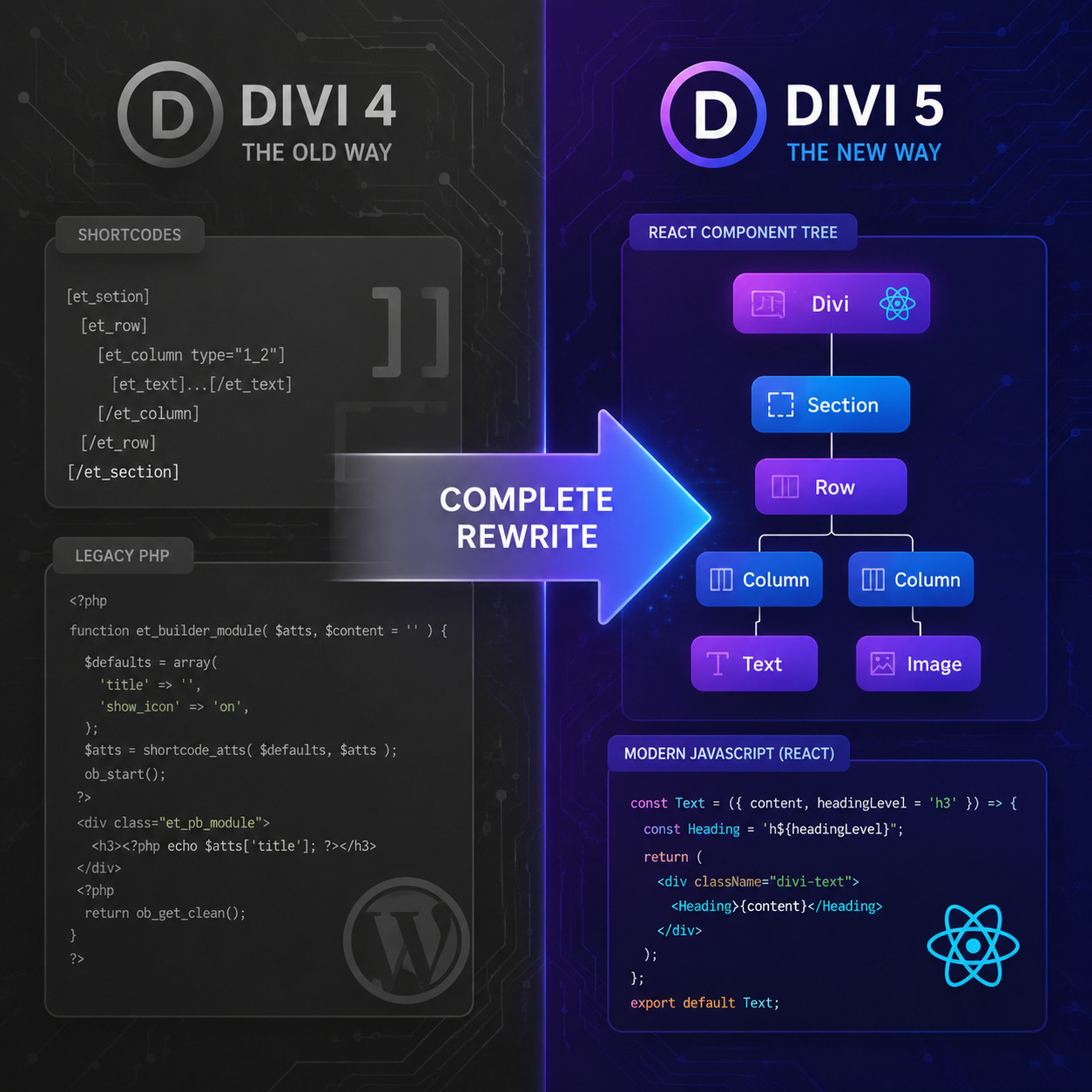
Divi is a premium WordPress theme and visual page builder by Elegant Themes that lets you design full websites without writing code. The recently released Divi 5 is a complete React-based rewrite that fixes long-standing performance issues and introduces composable design settings [5]. This guide covers everything you need to build professional sites with Divi in 2026: setup, builder workflow, performance tuning, and how it compares to alternatives like Elementor and Oxygen Builder.
Key Takeaways
- Divi 5 is a ground-up rewrite, replacing the old shortcode system with a modern React architecture for faster editing and cleaner output [5][6].
- Divi 5.2 (April 2, 2026) introduced Composable Settings, letting you apply design options to any module sub-element, plus 69 bug fixes [2].
- New image controls released May 11, 2026, add aspect ratio and framing options for responsive image handling [4].
- Unlimited site licensing makes Divi one of the most cost-effective builders for agencies and freelancers managing multiple projects.
- 2,695+ pre-built page layouts across 370+ layout packs give you a fast starting point for nearly any niche.
- A/B testing is built in, a feature most competing builders lack entirely.
- Divi still produces larger CSS/JS output than lightweight builders like Oxygen, so performance optimization matters.
- Accessibility concerns have led some institutions (like UCI) to remove Divi from new site selections [10], so check compliance requirements for your project.

What Is Divi and Why Does It Matter in 2026?
Divi is a WordPress theme and visual builder developed by Elegant Themes, used on over 2 million websites worldwide. It matters in 2026 because Divi 5 represents the biggest architectural change in the product’s history: a full migration from PHP shortcodes to a React-based front end [5].
Here’s what that means in practical terms:
- Faster visual editing. The builder no longer reloads the entire page when you make changes. Edits render instantly in the browser.
- Cleaner code output. Shortcodes are gone. The new system generates standard HTML and CSS, which search engines and screen readers handle better.
- Composable Settings. As of Divi 5.2, you can style individual sub-elements (like a button’s icon or a module’s title) directly, without custom CSS [2].
- Better extensibility. Developers can build custom modules using React components instead of the old PHP-based module framework.
Mastering Divi Theme: The Ultimate WordPress 5 Design Guide for Stunning Websites starts with understanding this shift. If you’ve used Divi 4, the interface will feel familiar, but the underlying engine is entirely new.
For those exploring WordPress development more broadly, our ultimate guide to custom WordPress theme development covers the full spectrum of theme-building approaches.
How Do You Set Up Divi on a WordPress Site?
Setting up Divi takes about 10 minutes. You need a WordPress installation (self-hosted, version 6.0+), an Elegant Themes membership, and basic hosting that meets WordPress requirements.
Step-by-Step Installation
- Purchase an Elegant Themes membership. Choose between the yearly plan ($89/year) or the lifetime plan ($249 one-time). The lifetime plan is better value if you plan to use Divi beyond two years.
- Download the Divi theme from your Elegant Themes dashboard. You’ll get a
.zipfile. - Upload to WordPress. Go to Appearance > Themes > Add New > Upload Theme. Select the
.zipfile and click Install Now. - Activate the theme and enter your Elegant Themes API key under Divi > Theme Options > Updates.
- Run the Setup Wizard. Divi 5 includes an onboarding wizard that walks you through basic site settings: logo upload, color palette, typography defaults, and layout preferences.
- Choose a starter site or start blank. You can import a complete pre-built website layout or build from scratch.
Common Mistake: Skipping the Global Presets
Many beginners jump straight into page building without configuring global design settings first. This creates inconsistency. Before building any pages, set your:
- Global colors (primary, secondary, accent, text, background)
- Global fonts (heading and body typefaces, sizes, line heights)
- Default spacing (section padding, row gutters, module margins)
These settings cascade across your entire site. Changing them later updates every element that uses the defaults, saving hours of manual editing.
If you want to go deeper into theme customization beyond Divi’s built-in options, check out our complete guide to WordPress theme customization.
How Does the Divi Visual Builder Actually Work?
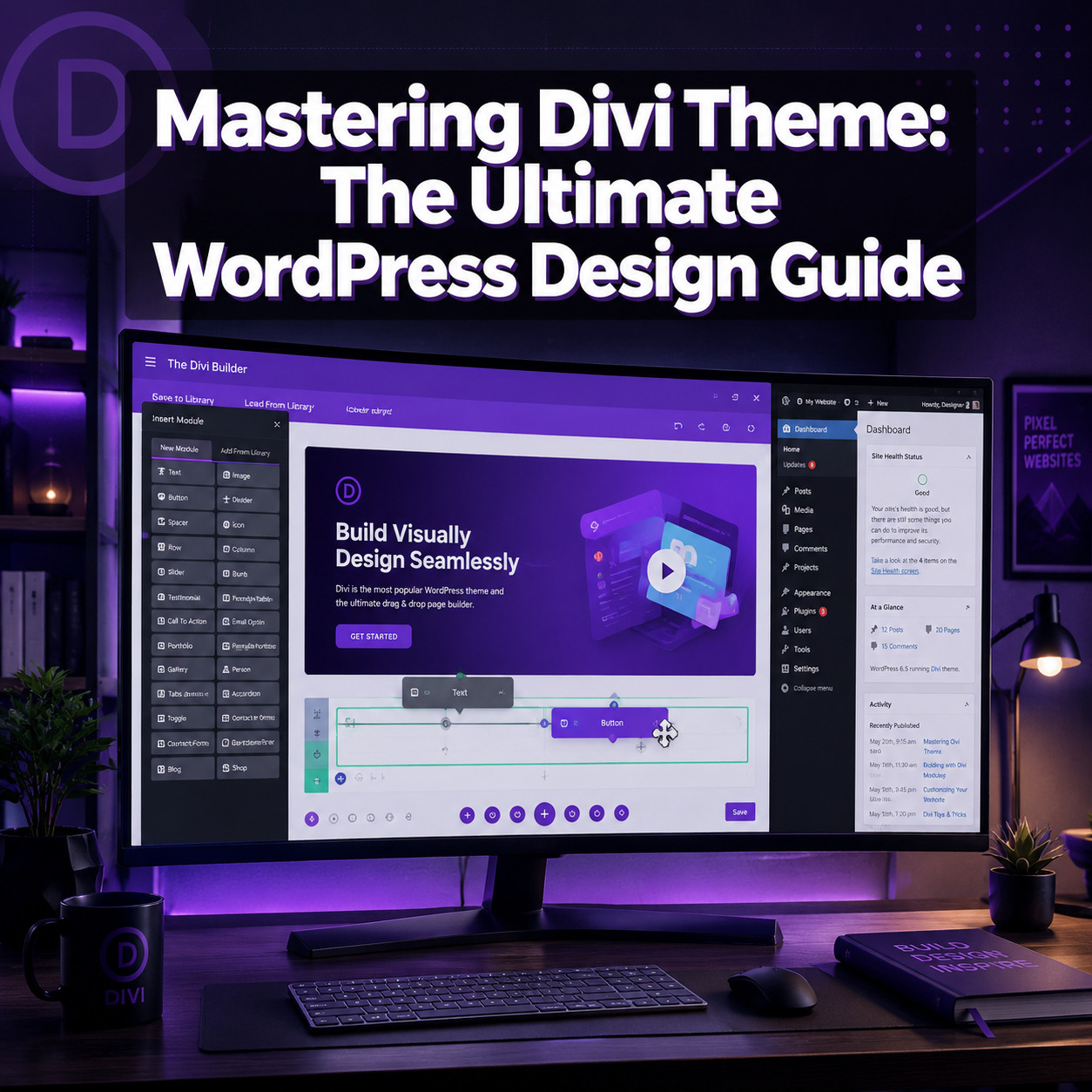
The Divi Visual Builder is a front-end, drag-and-drop editor. You see your actual website while editing it, not a separate back-end interface. Every change you make appears in real time on the page.
The Building Block Hierarchy
Divi uses a three-level structure:
| Level | Purpose | Example |
|---|---|---|
| Section | Full-width container that spans the page | Hero area, testimonials band, footer |
| Row | Column structure within a section | 1-column, 2-column, 3-column, custom splits |
| Module | Individual content element | Text, image, button, contact form, slider |
Every page is built by nesting modules inside rows, and rows inside sections. You can drag any element to reorder it, resize columns by dragging dividers, and click any element to open its settings panel.
Key Builder Features Worth Learning
- Inline editing. Click directly on text to type. No need to open a settings modal for simple text changes.
- Responsive editing tabs. Switch between desktop, tablet, and phone views. Each breakpoint can have independent settings for font size, padding, visibility, and layout.
- Right-click options. Right-clicking any element gives you copy, paste, paste style, save to library, disable, and extend styles options. This is the fastest way to duplicate designs across modules.
- Undo/redo history. Divi stores a full editing history for each session. You can step backward through dozens of changes.
- Wireframe mode. Toggle to see your page structure as a simplified outline. Useful for rearranging complex layouts without visual clutter.
The New Composable Settings (Divi 5.2)
Released April 2, 2026, Composable Settings let you target sub-elements within any module [2]. Before this update, styling a button’s icon separately from its text required custom CSS. Now you can:
- Select the sub-element directly in the visual builder
- Apply unique fonts, colors, spacing, hover effects, and animations
- Use the same design controls you’d use on any top-level module
This is a significant workflow improvement for designers who previously relied on CSS overrides for granular control.

How Does Divi Compare to Elementor and Oxygen Builder?
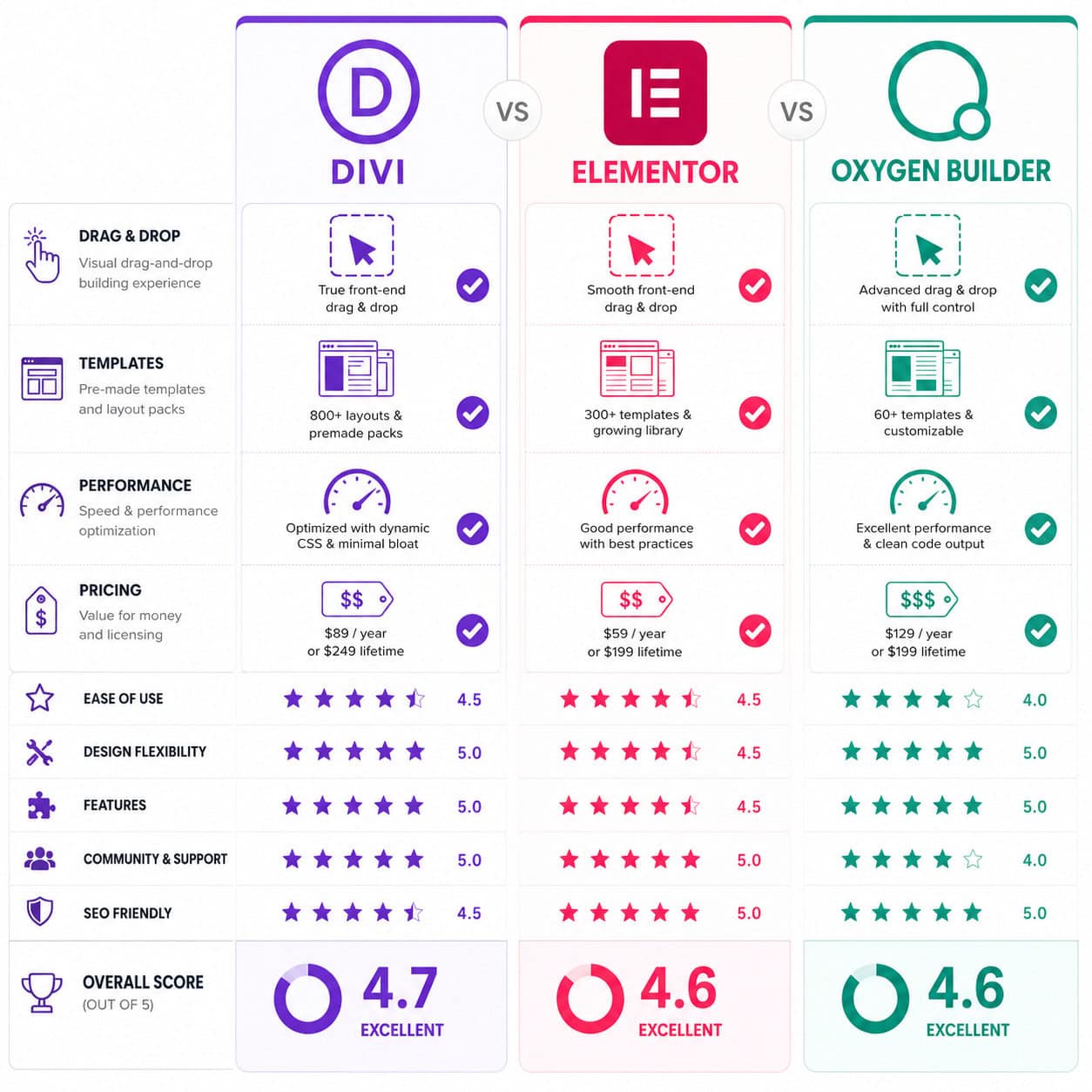
This is the most common question when people research mastering Divi Theme: The Ultimate WordPress 5 Design Guide for Stunning Websites. The short answer: Divi is best for agencies managing many sites, Elementor is easiest for beginners, and Oxygen gives developers the most code-level control.
Feature Comparison Table
| Feature | Divi | Elementor Pro | Oxygen Builder |
|---|---|---|---|
| Pricing | $89/yr or $249 lifetime | $99/yr (1 site) to $399/yr (1,000 sites) | $129 one-time (lifetime) |
| Sites allowed | Unlimited | Varies by plan | Unlimited |
| Pre-built layouts | 2,695+ pages, 370+ packs | 300+ templates | ~50 design sets |
| A/B testing | Built-in | Requires third-party plugin | Not available |
| Theme builder | Full (headers, footers, templates) | Full | Replaces theme entirely |
| Free version | No | Yes (limited) | No |
| Code output size | Larger (improving in Divi 5) | Moderate | Smallest/cleanest |
| Learning curve | Moderate | Low | High |
| WooCommerce support | Yes, with dedicated modules | Yes, with dedicated modules | Yes, with conditions |
| Architecture | React (Divi 5) | React | PHP + custom framework |
Choose Divi If…
- You manage 5+ client websites (unlimited licensing saves money fast)
- You want built-in A/B testing without extra plugins
- You prefer a large template library for rapid prototyping
- You’re comfortable with a moderate learning curve
Choose Elementor If…
- You’re new to WordPress page builders and want the gentlest start
- You need a free version to test before committing
- You build 1-3 sites and the per-site pricing works for you
Choose Oxygen If…
- You’re a developer who wants code-level control over every element
- Page speed is your top priority and you want minimal CSS/JS output
- You’re comfortable working without a traditional WordPress theme layer
For a broader look at visual website builders beyond WordPress, our review of the best drag-and-drop website builders covers options across multiple platforms.
How Do You Optimize Divi for Speed and SEO?
Divi’s historically larger code output means performance optimization isn’t optional; it’s required. The good news: Divi 5’s new architecture produces cleaner output than Divi 4, and there are concrete steps to get fast load times.
Performance Optimization Checklist
Enable Divi’s built-in performance settings. Go to Divi > Theme Options > Performance and turn on:
- Dynamic CSS (loads only the CSS each page needs)
- Dynamic JavaScript Libraries (loads JS modules on demand)
- Critical CSS (inlines above-the-fold styles)
- Defer jQuery and other scripts
Use the new image settings. The May 11, 2026 update added aspect ratio controls and framing options [4]. Set aspect ratios on images so they scale proportionally across screen sizes without layout shifts. This directly improves Core Web Vitals (specifically Cumulative Layout Shift).
Compress and serve modern image formats. Use WebP or AVIF. Plugins like ShortPixel or Imagify handle this automatically.
Install a caching plugin. WP Rocket or LiteSpeed Cache work well with Divi. Caching serves pre-built HTML to visitors instead of generating pages on every request.
Minimize unused modules. If you’re not using the Slider module on a page, don’t leave an empty one in the layout. Each module loads its own CSS/JS.
Use a CDN. Cloudflare (free tier works fine) or your host’s built-in CDN reduces server response times for visitors far from your hosting location.
References
[1] Divi Changelog – https://wpzone.co/divi-changelog/ [2] Divi 5.2 Release Notes – https://www.elegantthemes.com/blog/divi-resources/divi-5-2-release-notes [4] Theme Releases – https://www.elegantthemes.com/blog/category/theme-releases [5] Divi 5 Official – https://www.elegantthemes.com/blog/theme-releases/divi-5-official [6] Divi 5 Changelog – https://victorduse.com/divi-5-changelog/ [10] Upcoming Change: Divi Theme Removal From Available Themes – https://faculty.sites.uci.edu/blog/announcements/upcoming-change-divi-theme-removal-from-available-themes/