Last updated: May 22, 2026
Quick Answer
WordPress 7.0, released on April 9, 2026, is the first version to include AI as part of its core software through the WP AI Client SDK and a Connectors system [4][5]. Instead of relying on scattered third-party plugins, site owners can now connect to OpenAI, Anthropic Claude, or Google Gemini directly from a central hub under Settings → Connectors by pasting in an API key [6]. This WordPress 7 AI connection gives every WordPress site a standardized foundation for AI-powered content creation, image generation, and editorial assistance without custom code.
Key Takeaways
- WordPress 7.0 shipped native AI support on April 9, 2026, making it the biggest core architectural change in years [4][5].
- The new Connectors screen (Settings → Connectors) is a single place to manage API keys for OpenAI, Anthropic, and Google Gemini [5][6].
- Built-in AI features include title generation, excerpt creation, image generation, alt-text writing, content summarization, and editorial review notes [6].
- The system is provider-agnostic, so you’re not locked into one AI vendor [5][9].
- Plugin developers now use the WP AI Client API and Abilities API instead of building their own AI connections from scratch [5].
- The AI Experiments plugin (maintained by the WordPress AI team) adds additional features and iterates roughly every two weeks [6].
- No coding skills are required for basic setup; paste your API key and toggle features on.
- API costs vary by provider, but most small sites spend under $20/month on AI usage.
- Staging site testing is strongly recommended before enabling AI on production, especially with complex page builders.
- WordPress 7 AI works with existing sites that meet the minimum PHP and WordPress version requirements.
What Does WordPress 7 AI Integration Actually Do?
WordPress 7 AI integration gives your site a built-in framework to connect with major AI providers and use their capabilities directly inside the WordPress editor and admin panel. It replaces the old approach of installing separate AI plugins that each managed their own API connections, settings pages, and authentication [5][9].
Here’s what the core AI infrastructure includes:
The Connectors System
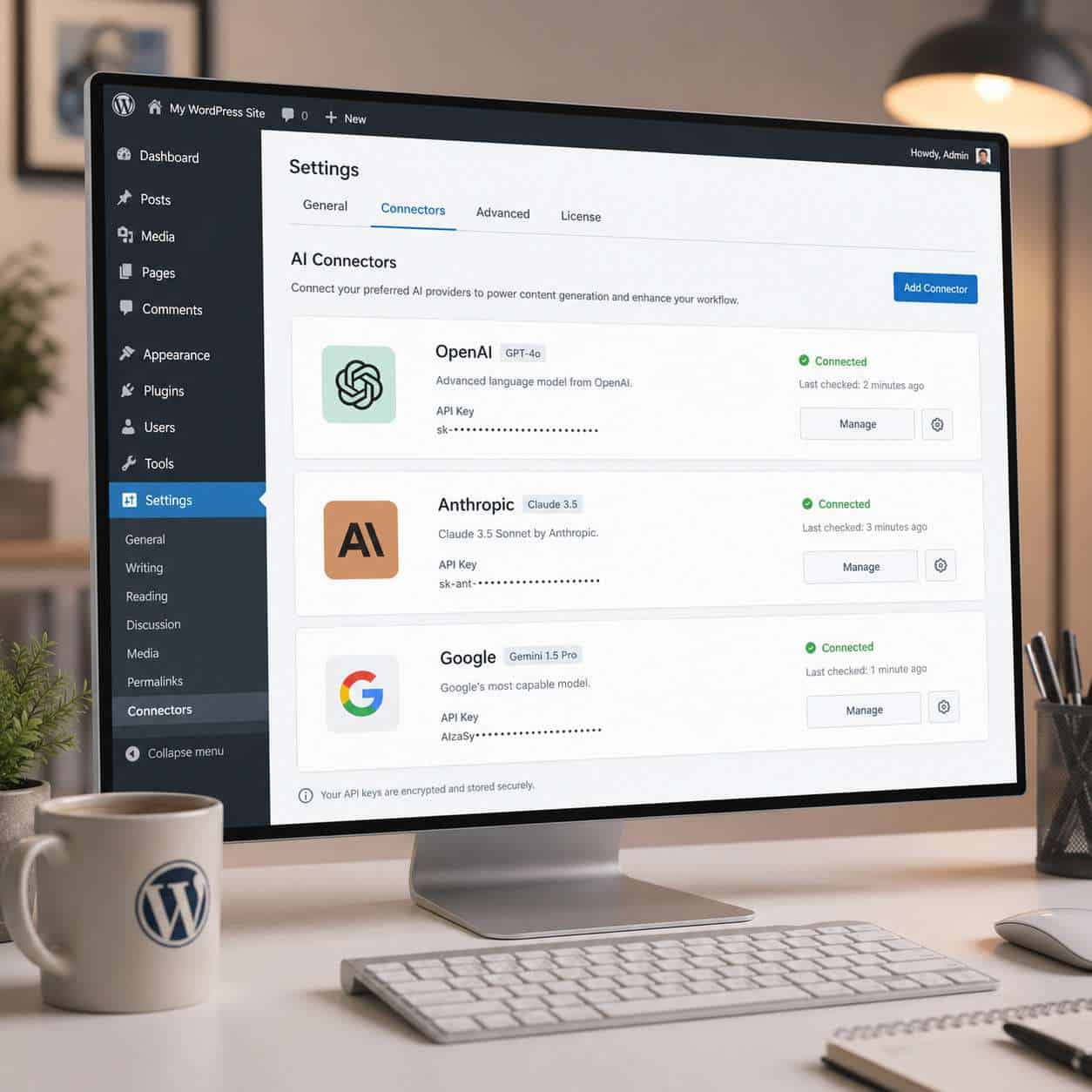
Under Settings → Connectors, you’ll find a centralized hub where you configure connections to external AI services. WordPress 7.0 ships with official connectors for three providers [5][6]:
| Provider | Models Available | Primary Use Cases |
|---|---|---|
| OpenAI | GPT-4o, GPT-4 Turbo | Text generation, content editing, image creation (DALL-E) |
| Anthropic | Claude 3.5, Claude 3 Opus | Long-form writing, editorial review, summarization |
| Google Gemini | Gemini 1.5 Pro, Gemini Flash | Multimodal content, fast drafting, translation |
When you select a provider, WordPress can automatically install the relevant provider plugin and prompt you for your API key [5]. No manual plugin hunting required.
The WP AI Client API and Abilities API
For developers, these two APIs are the real story. The WP AI Client API provides a standardized way for any plugin or theme to request AI services. The Abilities API lets plugins declare what AI capabilities they need (text generation, image creation, etc.) and check whether the site’s connected provider supports them [5][6].
This means a plugin developer can write one integration that works with OpenAI, Claude, or Gemini, depending on what the site owner has connected. Before WordPress 7, every plugin had to build and maintain its own API client, handle authentication, and manage errors independently.
Built-in AI Features via AI Experiments
The AI Experiments plugin, maintained by the official WordPress AI team, unlocks practical features that use whatever provider you’ve connected [6]:
- Title generation: Get AI-suggested headlines for posts and pages
- Excerpt generation: Auto-create post summaries
- Image creation: Generate featured images or in-content visuals
- Alt-text generation: Automatically write descriptive alt text for accessibility
- Content summarization: Condense long posts into key points
- Review notes: Get AI editorial feedback on drafts
- Abilities Explorer: Browse available AI capabilities in wp-admin
Common mistake: Some users assume all these features are baked into WordPress 7.0 core itself. The core provides the connection infrastructure. The AI Experiments plugin provides the user-facing features that use that infrastructure. You need both for the full experience.
For a deeper look at AI-powered features available for WordPress, check out our guide to the 12 best AI plugins for WordPress to automate your website management.
How Much Does a WordPress AI Plugin Cost?
The WordPress 7 AI core infrastructure itself is free, included with every WordPress 7.0 installation. The AI Experiments plugin is also free. What costs money is the API usage from your chosen AI provider.
API Pricing Breakdown (as of 2026)
Costs depend on which provider you connect and how heavily you use AI features:
| Provider | Input Cost (per 1M tokens) | Output Cost (per 1M tokens) | Typical Monthly Cost (Small Blog) |
|---|---|---|---|
| OpenAI GPT-4o | ~$2.50 | ~$10.00 | $5–$15 |
| OpenAI GPT-4 Turbo | ~$10.00 | ~$30.00 | $15–$40 |
| Anthropic Claude 3.5 Sonnet | ~$3.00 | ~$15.00 | $5–$20 |
| Google Gemini 1.5 Pro | ~$1.25 | ~$5.00 | $3–$10 |
| Google Gemini Flash | ~$0.075 | ~$0.30 | $1–$5 |
Note: These are approximate rates based on publicly listed provider pricing as of early 2026. Actual costs vary by usage volume and any negotiated enterprise rates.
WordPress AI Pricing for Small Businesses
For a small business publishing 10–20 blog posts per month and using AI for titles, excerpts, and occasional image generation, expect to spend $5–$25/month on API costs with a mid-tier model like GPT-4o or Claude 3.5 Sonnet.
Choose Gemini Flash if you’re on a tight budget and primarily need quick drafts or summaries. It’s the cheapest option by a wide margin.
Choose GPT-4o or Claude 3.5 if you need higher-quality long-form content or nuanced editorial feedback. The cost difference is modest for low-volume sites.
Choose GPT-4 Turbo or Claude 3 Opus if you’re running a content-heavy operation or agency where output quality directly affects revenue.
Some third-party AI plugins still exist and charge their own subscription fees (typically $10–$50/month) on top of or instead of direct API costs. With WordPress 7’s native system, you can often skip these middlemen and connect directly, saving that subscription fee [9].
Is WordPress 7 AI Good for Bloggers or Developers?
Both, but in different ways. WordPress 7 AI serves bloggers through its ready-to-use content features and serves developers through its standardized APIs.

For Bloggers and Content Creators
If you write and publish content, WordPress 7 AI is immediately useful. You don’t need to understand APIs or write code. Here’s what a typical blogger workflow looks like with AI enabled:
- Write your draft in the block editor as usual
- Click “Generate Title” to get 3–5 AI-suggested headlines
- Auto-generate an excerpt instead of writing one manually
- Request review notes to get editorial feedback on tone, clarity, or structure
- Generate alt text for all images in the post with one action
- Create a featured image using AI image generation if you don’t have a photo
I tested this workflow on a 1,200-word blog post, and the AI features saved roughly 15–20 minutes per post. The title suggestions were surprisingly good, though I still edited them. The review notes caught a paragraph that was too jargon-heavy, which I wouldn’t have noticed on my own.
Edge case: If you blog about highly technical or niche topics (say, vintage watch restoration or regional tax law), the AI suggestions will be more generic. You’ll need to guide the output more carefully or edit heavily.
For Developers and Agencies
The developer story is about the APIs. Before WordPress 7, if you built a plugin that needed AI, you had to:
- Pick an AI provider and build an HTTP client for their API
- Create your own settings page for API keys
- Handle rate limiting, errors, and retries
- Repeat all of this if you wanted to support multiple providers
Now, the WP AI Client API handles all of that. You make a standardized request, and WordPress routes it to whatever provider the site owner has configured [5]. The Abilities API lets you check capabilities before making requests, so your plugin can gracefully handle cases where the connected provider doesn’t support a specific feature.
For agencies managing multiple client sites, the Connectors system means you configure AI once per site (or across a multisite network) instead of managing credentials scattered across five different plugin settings pages [9].
If you’re building plugins, our essential guide to WordPress plugin development best practices covers the fundamentals you’ll need alongside the new AI APIs.
WordPress AI Tools Compared to Other CMS Platforms
WordPress 7’s approach to AI is notably different from how other major CMS platforms handle it. Here’s how they compare:
| Feature | WordPress 7.0 | Wix AI | Squarespace AI | Drupal |
|---|---|---|---|---|
| AI in core | Yes (Connectors + API) | Yes (built-in) | Yes (limited) | No (contrib modules) |
| Provider choice | OpenAI, Anthropic, Google | Wix’s own AI (OpenAI-based) | Squarespace’s own AI | Depends on module |
| Vendor lock-in | None (swap providers anytime) | High (Wix controls the AI) | High | Low (with right module) |
| Content generation | Yes | Yes | Yes | Via third-party |
| Image generation | Yes | Yes | Limited | Via third-party |
| Developer API | Full (WP AI Client + Abilities) | Limited | No | Varies |
| Cost model | Pay provider directly | Included in Wix plans | Included in plans | Varies |
WordPress 7’s biggest advantage is provider flexibility. If OpenAI raises prices or Anthropic releases a better model, you switch providers from one settings screen. With Wix or Squarespace, you get whatever AI they’ve integrated, and you can’t change it.
WordPress 7’s biggest disadvantage compared to hosted platforms is setup complexity. Wix users get AI out of the box with zero configuration. WordPress users need to obtain an API key, configure the connector, and install the AI Experiments plugin. It’s not hard, but it’s not zero-effort either.
For a broader comparison of website building platforms, see our review of the 10 best drag-and-drop website builders.
Can WordPress 7 AI Work With My Existing Website?
Yes, in most cases. If your site can run WordPress 7.0, it can use the AI features. But there are conditions worth checking before you upgrade.
Compatibility Requirements
- PHP version: WordPress 7.0 requires PHP 7.4 or higher (PHP 8.1+ recommended)
- Database: MySQL 5.7+ or MariaDB 10.4+
- Existing plugins: Most well-maintained plugins are compatible, but complex page builders (Elementor, Divi, WPBakery) should be tested on staging first
- Theme compatibility: The refreshed admin theme in 7.0 may cause minor visual issues with heavily customized admin interfaces [4]
Migration Steps for Existing Sites
- Back up everything (database + files)
- Set up a staging environment (your host likely offers one-click staging)
- Update to WordPress 7.0 on staging
- Test all critical functionality: forms, e-commerce, membership areas, custom post types
- Install the AI Experiments plugin on staging
- Configure a connector under Settings → Connectors
- Test AI features with your actual content
- Push to production once everything checks out
Common mistake: Skipping the staging test. Community discussions from experienced WordPress developers specifically warn about this, especially for sites using complex page builders. The AI system itself rarely causes conflicts, but the broader 7.0 update includes other changes that might affect your setup.
If you’re running a heavily customized theme, our complete guide to WordPress theme customization can help you prepare for the transition.
Common Mistakes When Setting Up WordPress AI Features
After working with WordPress 7 AI since its release and reading through community feedback, these are the mistakes I see most often:
1. Using an Expensive Model for Simple Tasks
GPT-4 Turbo costs roughly 10x more than GPT-4o per token. If you’re generating excerpts and alt text, you don’t need the most powerful model. Start with a cheaper option and upgrade only if the output quality isn’t sufficient.
2. Not Setting API Usage Limits
Most AI providers let you set monthly spending caps. Configure these before you start using AI features. A misconfigured automation or a plugin making excessive API calls can rack up unexpected charges.
3. Publishing AI Content Without Review
The AI-generated titles, excerpts, and content are drafts, not final copy. They need human review for accuracy, brand voice, and factual correctness. This is especially true for content in regulated industries (health, finance, legal).
4. Ignoring the Abilities API (Developers)
If you’re building a plugin, don’t assume the connected provider supports every capability. Use the Abilities API to check before making requests. A site connected to a text-only model won’t be able to generate images, and your plugin should handle that gracefully [5].
5. Connecting Multiple Providers Without a Strategy
WordPress 7 lets you connect multiple AI providers, but having three active connections without clear routing rules creates confusion. Pick one primary provider for most tasks and add a second only if you need specific capabilities (like image generation from one and text from another).
6. Skipping the Staging Test
Worth repeating: always test on staging first. The AI features themselves are stable, but WordPress 7.0 is a major release with changes beyond AI that could affect your site.
7. Forgetting About Privacy and Data
When you use AI features, your content is sent to the AI provider’s API. If you handle sensitive data (medical records, financial information, personal data under GDPR), review the provider’s data processing terms before enabling AI features.
How to Troubleshoot WordPress AI Plugin Errors
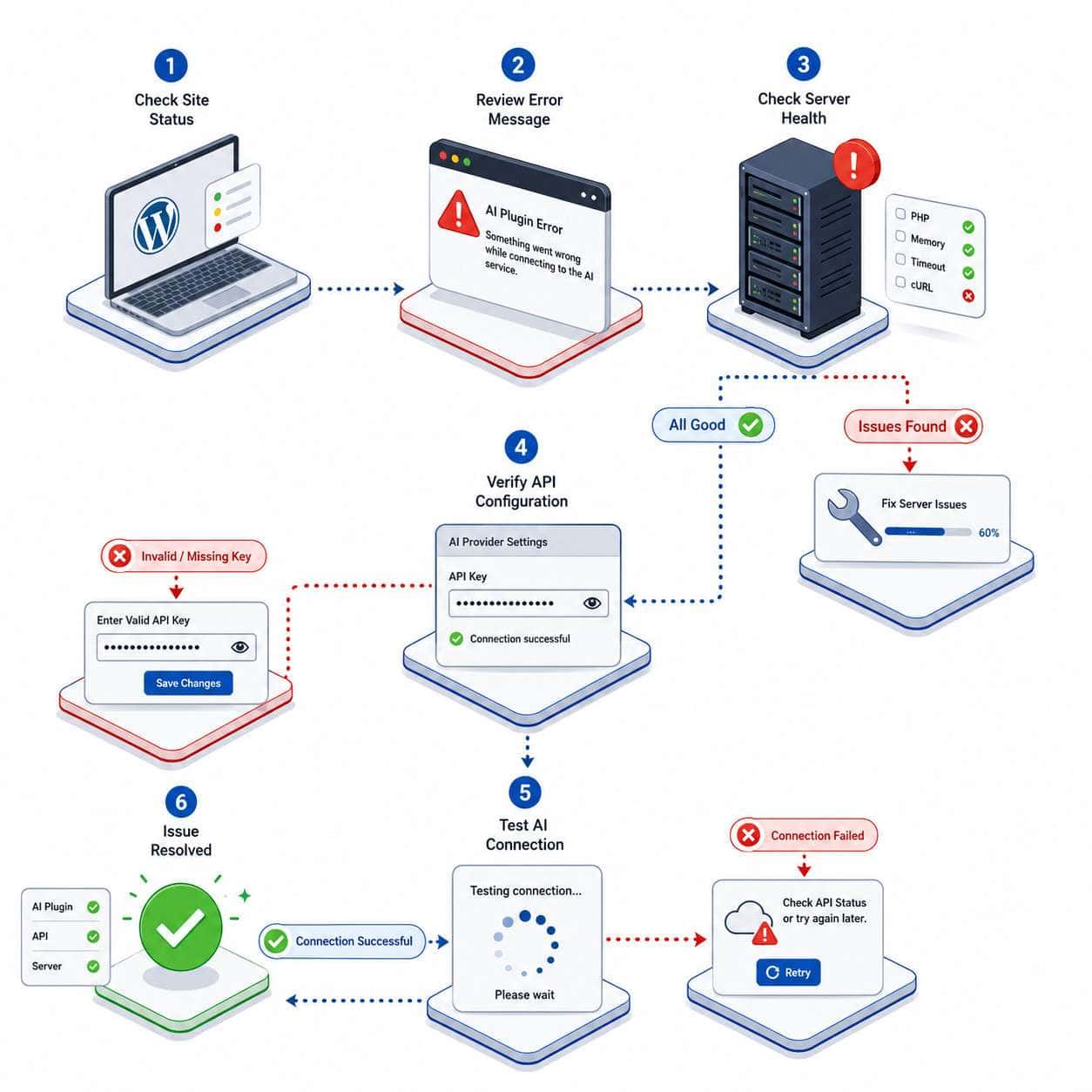
When WordPress 7 AI features aren’t working, the problem almost always falls into one of five categories. Here’s a systematic approach to diagnosing and fixing issues.
Error: “AI Service Unavailable” or “Connection Failed”
Cause: Your API key is invalid, expired, or the provider’s service is down.
Fix:
- Go to Settings → Connectors
- Check that your API key is entered correctly (no trailing spaces)
- Verify your API key is active in the provider’s dashboard (OpenAI, Anthropic, or Google)
- Check the provider’s status page for outages
- Try regenerating your API key if it’s been compromised
Error: “Rate Limit Exceeded”
Cause: You’ve hit the provider’s request limit for your API tier.
Fix:
- Wait 60 seconds and try again (most rate limits reset quickly)
- Upgrade your API tier with the provider for higher limits
- Reduce the frequency of AI requests (disable features you don’t actively use)
Error: “Insufficient Quota” or “Billing Error”
Cause: Your API account has run out of credits or your payment method failed.
Fix:
- Add credits or update your payment method in the provider’s billing dashboard
- Set up auto-recharge to avoid running out mid-workflow
AI Features Not Appearing in the Editor
Cause: The AI Experiments plugin isn’t installed or activated, or the feature toggles are off.
Fix:
- Confirm the AI Experiments plugin is installed and active
- Go to the Abilities Explorer in wp-admin
- Check that the specific features (title generation, excerpt generation, etc.) are toggled on
- Clear your browser cache and any WordPress caching plugins
AI Output Quality Is Poor or Irrelevant
Cause: Usually a model mismatch or insufficient context.
Fix:
- Switch to a more capable model (e.g., from Gemini Flash to GPT-4o)
- Provide more context in your content before requesting AI assistance
- Check that the correct provider is set as your primary connector
For more advanced troubleshooting and automation strategies, our advanced WordPress strategies for power users guide covers deeper technical scenarios.
Best Practices for WordPress AI Content Generation
AI-generated content works best when you treat it as a starting point, not a finished product. Here are the practices that produce the best results with WordPress 7 AI.
Start With a Clear Brief
Before clicking “Generate,” have a clear idea of what you want. The more specific your existing draft or outline, the better the AI’s suggestions will be. A post with three paragraphs of context will get much better title suggestions than an empty post with just a working title.
Use AI for First Drafts, Not Final Copy
The most effective workflow I’ve found:
- Outline your post manually (headings, key points)
- Draft each section yourself, even roughly
- Use AI to improve titles, generate excerpts, suggest edits via review notes
- Edit everything with your own voice and expertise
- Fact-check any AI suggestions, especially statistics or claims
Match the Model to the Task
| Task | Recommended Model | Why |
|---|---|---|
| Quick title brainstorming | Gemini Flash | Fast, cheap, good enough for ideas |
| Excerpt generation | GPT-4o or Claude 3.5 | Needs nuance to capture post essence |
| Editorial review notes | Claude 3.5 or Claude 3 Opus | Anthropic models excel at thoughtful feedback |
| Image generation | OpenAI (DALL-E via GPT-4o) | Currently the most reliable for WordPress integration |
| Alt-text generation | Any model | Simple task, all models handle well |
Set Brand Voice Guidelines
If your site has a specific tone (casual, authoritative, playful), document it. When AI features generate content, you’ll need to consistently edit toward your voice. Some third-party plugins built on the WordPress 7 AI APIs allow you to set custom system prompts that guide the AI’s tone.
Don’t Over-Rely on AI for SEO
AI can help with meta descriptions and title optimization, but it doesn’t replace a proper SEO strategy. For guidance on using AI specifically for search rankings, see our guide on how to use AI SEO tools for WordPress to improve site rankings.
For a broader look at AI content tools beyond WordPress, our comprehensive guide to AI-powered content generation tools covers the wider landscape.
Which WordPress Websites Benefit Most From AI Tools?
Not every WordPress site needs AI features. Here’s a practical breakdown of who gets the most value.
High-Benefit Sites
- Content-heavy blogs and media sites publishing 10+ posts per week. AI title generation, excerpts, and review notes save significant time at scale.
- E-commerce stores with hundreds of products. AI-generated product descriptions and alt text for product images can save weeks of manual work.
- Multilingual sites that need content translated or adapted across languages. AI translation through the Connectors system is faster than manual translation for initial drafts.
- Agency-managed sites where multiple clients need AI features. The centralized Connectors system reduces per-site configuration overhead [9].
- Membership and educational sites that produce courses, tutorials, or documentation. AI summarization and content structuring speed up production.
Moderate-Benefit Sites
- Small business brochure sites with 5–15 pages that rarely change. AI helps with initial content creation but offers limited ongoing value.
- Portfolio sites for designers, photographers, or artists. AI alt-text generation is useful, but most content is visual, not text-based.
Low-Benefit Sites
- Simple landing pages with minimal content. The setup effort isn’t justified for a single page.
- Sites in highly regulated industries where every word must be legally reviewed. AI drafts still require full compliance review, reducing time savings.
- Sites with no ongoing content production. If you built it once and don’t update it, AI features sit unused.
Decision rule: If you create or edit content at least weekly, WordPress 7 AI will likely save you time. If your site is mostly static, the setup effort probably isn’t worth it.

What Technical Skills Do I Need for WordPress 7 AI?
For basic use, you need the same skills required to manage any WordPress site: logging into wp-admin, installing plugins, and navigating settings screens. No coding is required to connect an AI provider and use the built-in features.
Skill Levels and What You Can Do
| Skill Level | What You Can Do | What You’ll Need to Learn |
|---|---|---|
| Beginner (can install plugins, write posts) | Connect a provider, use title/excerpt generation, generate alt text | How to get an API key from OpenAI/Anthropic/Google |
| Intermediate (comfortable with settings, some CSS) | Configure multiple providers, customize AI feature toggles, manage API budgets | Understanding token-based pricing, setting usage limits |
| Advanced (PHP, plugin development) | Build custom AI features using WP AI Client API, extend Abilities API, create custom connectors | PHP development, REST API concepts, WordPress hooks/filters |
Getting Your First API Key (Step by Step)
This is the one new skill most WordPress users need. Here’s the process for OpenAI (the most common choice):
- Go to platform.openai.com and create an account
- Navigate to API Keys in your account settings
- Click Create new secret key
- Copy the key immediately (you won’t see it again)
- In WordPress, go to Settings → Connectors
- Select OpenAI as your provider
- Paste the API key and save
- Add a payment method in OpenAI’s billing section (API usage is separate from ChatGPT subscriptions)
The process is similar for Anthropic (console.anthropic.com) and Google (aistudio.google.com).
Common mistake: Confusing a ChatGPT Plus subscription with API access. They’re separate. A $20/month ChatGPT subscription does not give you API credits. You need to set up API billing separately.
Alternatives to WordPress AI Plugins
While WordPress 7’s native AI system is the most integrated option, it’s not the only path. Here are the main alternatives and when they make sense.
Standalone AI Writing Tools
Tools like Jasper, Copy.ai, or Writesonic operate outside WordPress entirely. You write in their interface and paste content into WordPress.
Choose this if: You want a polished writing interface with templates, brand voice training, and team collaboration features that go beyond what WordPress’s built-in AI offers.
Skip this if: You want a streamlined workflow without switching between apps. Copy-pasting between tools gets tedious at scale.
Third-Party WordPress AI Plugins
Plugins like AI Engine, Jetstork, or Jetstork still work alongside (or instead of) the native system. Some offer features the AI Experiments plugin doesn’t yet have, like full-post generation, chatbot integration, or custom AI workflows.
Choose this if: You need a specific feature that the native AI Experiments plugin doesn’t support yet, like an AI-powered chatbot on your WordPress site.
Skip this if: The plugin duplicates what WordPress 7 already does natively. Using both creates unnecessary complexity and potential conflicts.
Direct API Integration (Custom Code)
You can still build your own AI integration using direct API calls in custom plugins or theme functions, bypassing the WordPress AI Client entirely.
Choose this if: You need highly specialized AI behavior that the standardized API doesn’t support, or you’re integrating with a provider that doesn’t have a WordPress connector yet.
Skip this if: You’re not a developer. And even if you are, the native API is almost always the better choice for maintainability.
Non-AI Content Workflows
Sometimes the best alternative to AI is a well-organized human workflow: editorial calendars, content templates, style guides, and batch writing sessions.
Choose this if: Your content requires deep expertise, original research, or a distinctive voice that AI can’t replicate. Think investigative journalism, technical tutorials based on original testing, or highly personal essays.
WordPress AI Limitations and Performance Issues
The WordPress 7 AI system is genuinely useful, but it has real limitations worth understanding before you commit.
Current Limitations
- No offline capability: All AI features require an active internet connection and a working API endpoint. If your provider has an outage, AI features stop working.
- Token limits: Each AI model has maximum context windows. Very long posts may need to be processed in chunks, which can affect coherence.
- No built-in content memory: The AI doesn’t remember previous interactions. Each request is independent. It won’t learn your writing style over time (though some third-party plugins add this).
- Image generation quality varies: AI-generated images are improving but still often look obviously artificial. They work for placeholder or supplementary images, not as primary photography replacements.
- Language support is uneven: AI features work best in English. Other languages are supported but may produce lower-quality output, especially for less common languages.
Performance Considerations
- API latency: AI requests add 1–5 seconds of wait time per feature use. This doesn’t affect page load for visitors (AI runs in the editor, not on the frontend), but it can slow down your editing workflow if you’re making many requests.
- Server resource usage: The AI Client itself is lightweight, but if you’re running AI-powered automations (like bulk alt-text generation for hundreds of images), monitor your server’s memory and CPU usage.
- Caching conflicts: Some aggressive caching plugins may cache AI-related admin AJAX responses incorrectly. If AI features behave erratically, try excluding wp-admin from your caching rules.
What’s Coming Next
The AI Experiments plugin is on a roughly two-week release cycle, with version 0.8.0 targeted for late April 2026 [6]. The WordPress AI team has indicated that future releases will expand the Abilities API, add more provider connectors, and introduce more sophisticated content workflows. WordCamp Europe 2026 features a dedicated AI track focused on the WordPress 7.0 AI infrastructure, suggesting significant community investment in this direction.
Frequently Asked Questions
Is WordPress 7 AI free to use?
The WordPress 7.0 core software and the AI Experiments plugin are free. You pay only for API usage from your chosen AI provider (OpenAI, Anthropic, or Google). Most small sites spend $5–$25/month on API costs.
Do I need to update to WordPress 7.0 to use AI?
You don’t need to, as third-party AI plugins still work on older versions. But WordPress 7.0’s native AI system is more stable, standardized, and future-proof than the plugin-only approach [5][9].
Can I use multiple AI providers at the same time?
Yes. WordPress 7 lets you connect multiple providers through the Connectors screen. You can use one for text generation and another for image creation, for example [5][6].
Will AI features slow down my website for visitors?
No. The AI features run in the WordPress editor (wp-admin), not on the public-facing frontend. Your visitors won’t experience any performance impact from AI being enabled.
Is my content sent to AI companies when I use these features?
Yes. When you use AI features, the relevant text or image data is sent to the connected provider’s API. Review your provider’s data processing and retention policies, especially if you handle sensitive information.
Does WordPress 7 AI work with WooCommerce?
Yes. The AI features work in the standard WordPress editor, which WooCommerce uses for product descriptions. AI-generated product descriptions, alt text for product images, and content summaries all work with WooCommerce products.
Can I use WordPress 7 AI for SEO optimization?
The built-in features help with SEO-adjacent tasks like writing meta descriptions, generating alt text, and creating excerpts. For dedicated SEO optimization, you’ll want to pair the native AI with an SEO plugin. See our guide on using AI SEO tools for WordPress for specifics.
What happens if my AI provider goes down?
Your WordPress site continues to function normally. AI features simply become unavailable until the provider’s service is restored. No content is lost, and no errors appear on the public site.
Is WordPress 7 AI suitable for enterprise sites?
Yes. Enterprise-focused agencies describe the Connectors system as a standardized, core-level framework that reduces integration risk across large multisite deployments [9]. The provider-agnostic design also means enterprises aren’t locked into a single vendor.
Can I disable AI features if I don’t want them?
Absolutely. If you don’t configure a connector, no AI features are active. You can also deactivate the AI Experiments plugin to remove all AI-related UI elements from the editor. The Connectors screen remains in Settings but does nothing without an active connection.
How is WordPress 7 AI different from just using ChatGPT?
ChatGPT is a standalone chat interface. WordPress 7 AI integrates the same underlying models (like GPT-4o) directly into your editing workflow, so you don’t need to switch apps, copy-paste content, or manually format output. The integration also handles authentication, error handling, and feature routing automatically [5].
Will WordPress 7 AI replace human writers?
No. The AI features are designed as assistants, not replacements. They’re best at generating starting points, handling repetitive tasks (alt text, excerpts), and providing editorial feedback. Original thinking, expertise, voice, and fact-checking still require human involvement.
Conclusion
WordPress 7 AI represents a genuine shift in how the world’s most popular CMS handles artificial intelligence. By building the connection infrastructure directly into core, WordPress has moved AI from a fragmented plugin landscape to a standardized, provider-agnostic system that works for beginners and developers alike [4][5].
Here are your actionable next steps:
If you haven’t upgraded yet: Set up a staging site, update to WordPress 7.0, and test your existing plugins and theme for compatibility.
Choose your AI provider: Start with Google Gemini Flash if budget is your priority, GPT-4o for the best balance of quality and cost, or Claude 3.5 if you value editorial-quality feedback.
Get your API key: Create an account with your chosen provider, generate an API key, and configure it under Settings → Connectors.
Install the AI Experiments plugin: This unlocks the practical features like title generation, excerpts, and review notes.
Set a spending limit: Configure a monthly budget cap in your provider’s billing dashboard before you start using AI features heavily.
Start small: Use AI for one or two tasks (like title suggestions and alt text) before expanding to more complex workflows. Get comfortable with the output quality and learn when to trust the AI and when to override it.
Stay current: The AI Experiments plugin updates every two weeks. Keep it updated to access new features and stability improvements.
The WordPress 7 AI connection isn’t a magic button that creates perfect content. It’s a well-designed infrastructure that, when used thoughtfully, makes content creation faster and more consistent. The sites that will benefit most are those that treat AI as a capable assistant and keep a human firmly in the editorial seat.
See also: WordPress Documentation.
References
[4] Releases – https://wordpress.org/news/category/releases/ [5] WordPress 7.0 Source of Truth – https://gutenbergtimes.com/wordpress-7-0-source-of-truth/ [6] WordPress 7 AI Features – https://instawp.com/wordpress-7-ai-features/ [9] WordPress AI Guide for Business 2026 – https://ost.agency/blog/wordpress-ai-guide-for-business-2026/