Last updated: May 13, 2026
Quick Answer
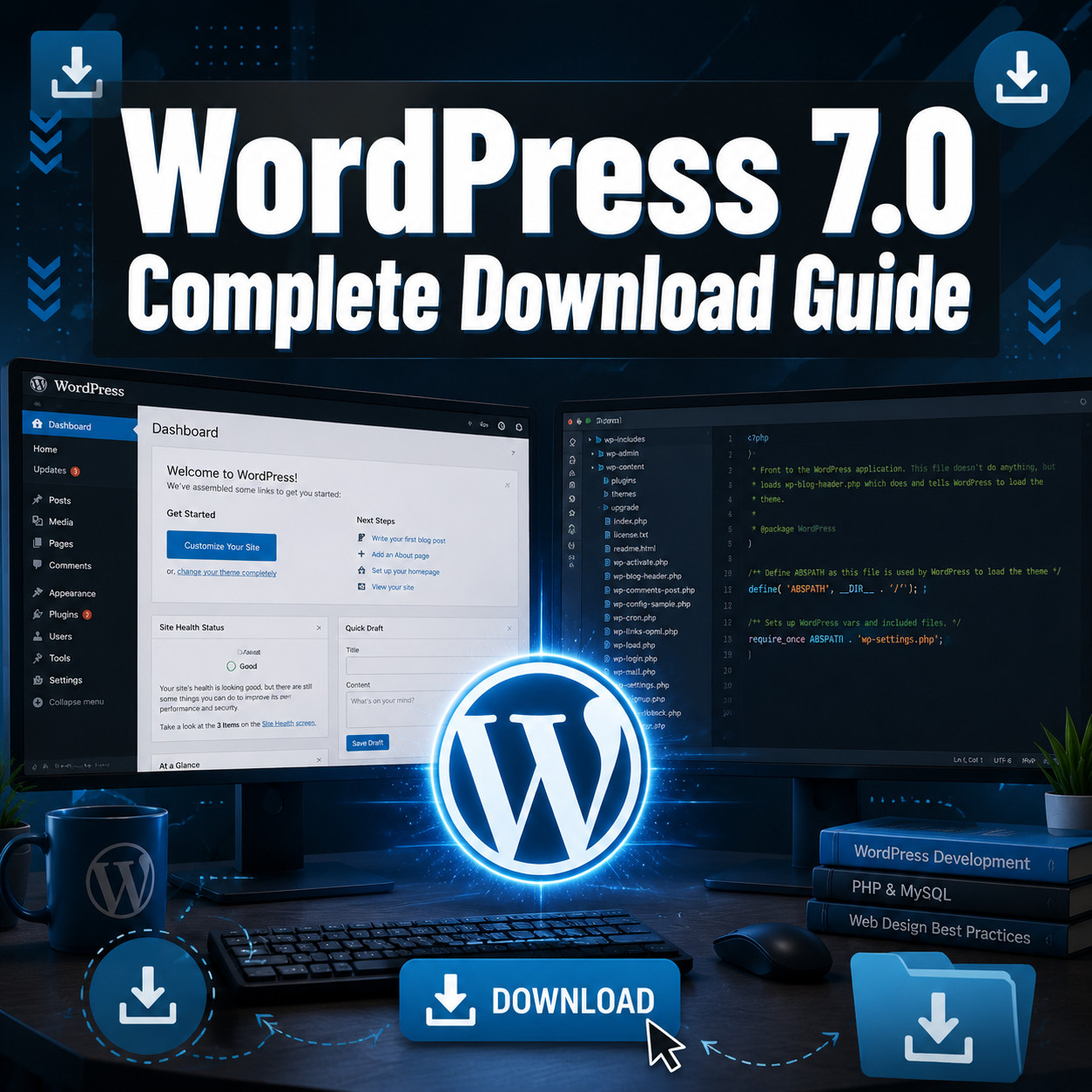
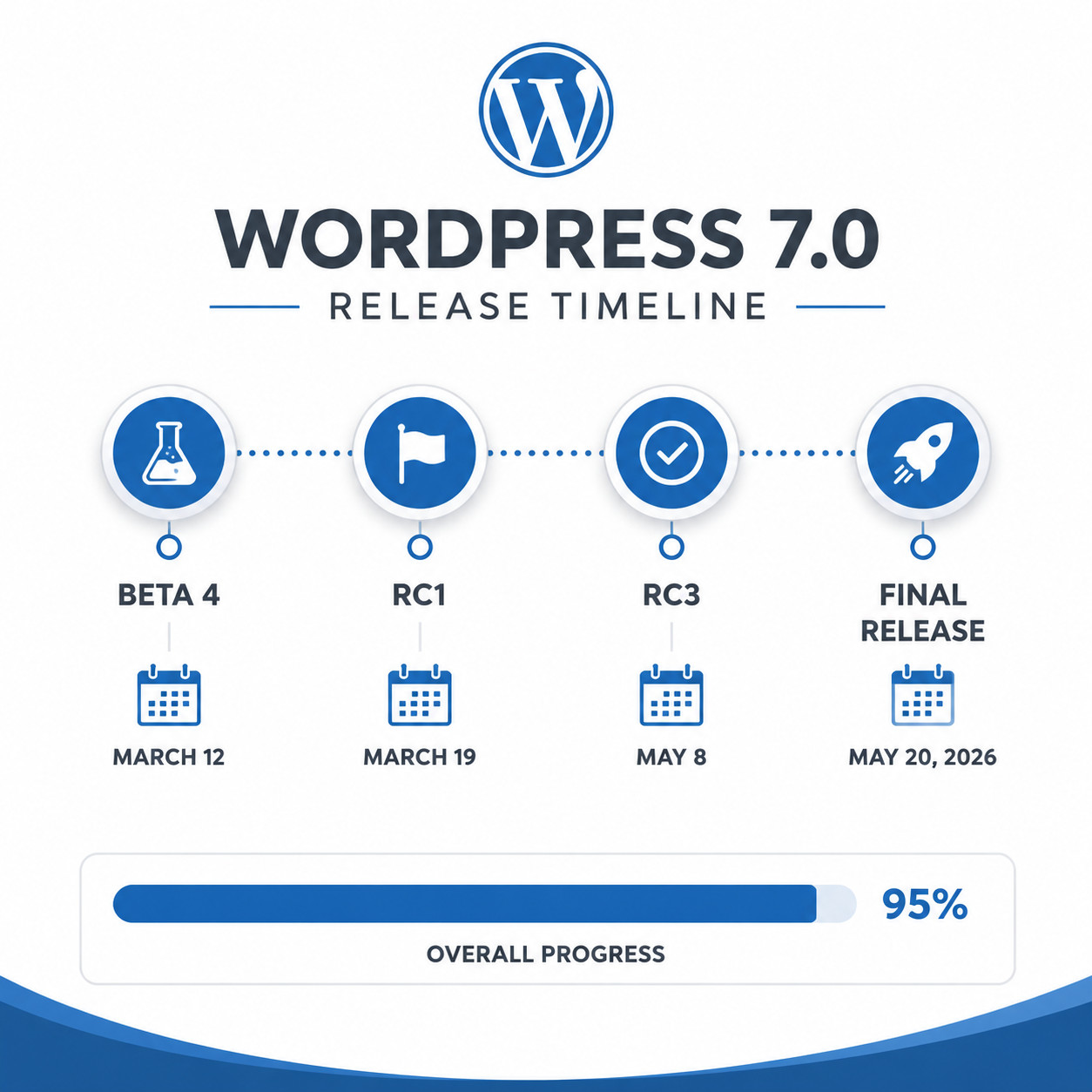
WordPress 7.0 releases on May 20, 2026, and you can download it from wordpress.org, update through your WordPress dashboard, or install via WP-CLI. This is the biggest WordPress release since 2018, introducing real-time collaboration, built-in AI tools, a redesigned admin dashboard, and Phase 3 of the Gutenberg project [2][9]. If you’re running WordPress 6.9.x, back up your site and test on staging before updating.
Key Takeaways
- Release date: WordPress 7.0 officially launches May 20, 2026, delayed from the original April 9 date [2][5]
- Download sources: wordpress.org/download, dashboard auto-update, or WP-CLI command
wp core update - Biggest change: Real-time collaborative editing (Google Docs-style co-editing in the block editor) [9]
- Phase 3 Gutenberg: This release marks the collaboration phase of the long-running Gutenberg initiative [8]
- Developer features: PHP-only block registration, pseudo-element support in theme.json, DataViews API updates [10]
- Security note: WordPress 6.9.2 through 6.9.4 patched critical vulnerabilities; update to the latest 6.9.x before jumping to 7.0 [1]
- PHP requirement: WordPress 7.0 requires PHP 7.4 minimum (PHP 8.1+ recommended)
- Testing status: Release Candidate 3 was published May 8, 2026, confirming the final build is stable [1]
- Market context: WordPress still powers 43.5% of all websites and holds 62.8% CMS market share in 2026
- Who should wait: Sites with heavily customized themes or plugins that haven’t confirmed 7.0 compatibility
What Is WordPress 7.0 and Why Does It Matter?
WordPress 7.0 is the next major release of the world’s most popular content management system, and it represents the most significant platform shift since the introduction of the block editor in 2018 [9]. It marks Phase 3 of the Gutenberg project, which focuses on multi-user collaboration.
Here’s what makes this release different from typical WordPress updates:
- Real-time collaboration is now a core feature, not a plugin
- AI-powered tools are built directly into the editor
- The admin dashboard has been redesigned for the first time in years
- New block types expand what you can build without code
- Developer APIs have been substantially improved for custom block development
WordPress VIP customers have been testing real-time collaboration since October 2025, and several organizations already use it in production environments. Early feedback confirms it works well when sites use modern WordPress blocks and follow plugin development best practices.
For context on what this means competitively: alternatives like Webflow ($10/month), Wix ($14/month), and Squarespace ($17/month) each target different use cases. But WordPress’s open-source model and massive ecosystem keep it dominant at 62.8% CMS market share.
How to Download WordPress 7.0: Step-by-Step Methods
There are three primary ways to get WordPress 7.0 on your site. Choose the method that matches your technical comfort level and hosting setup.
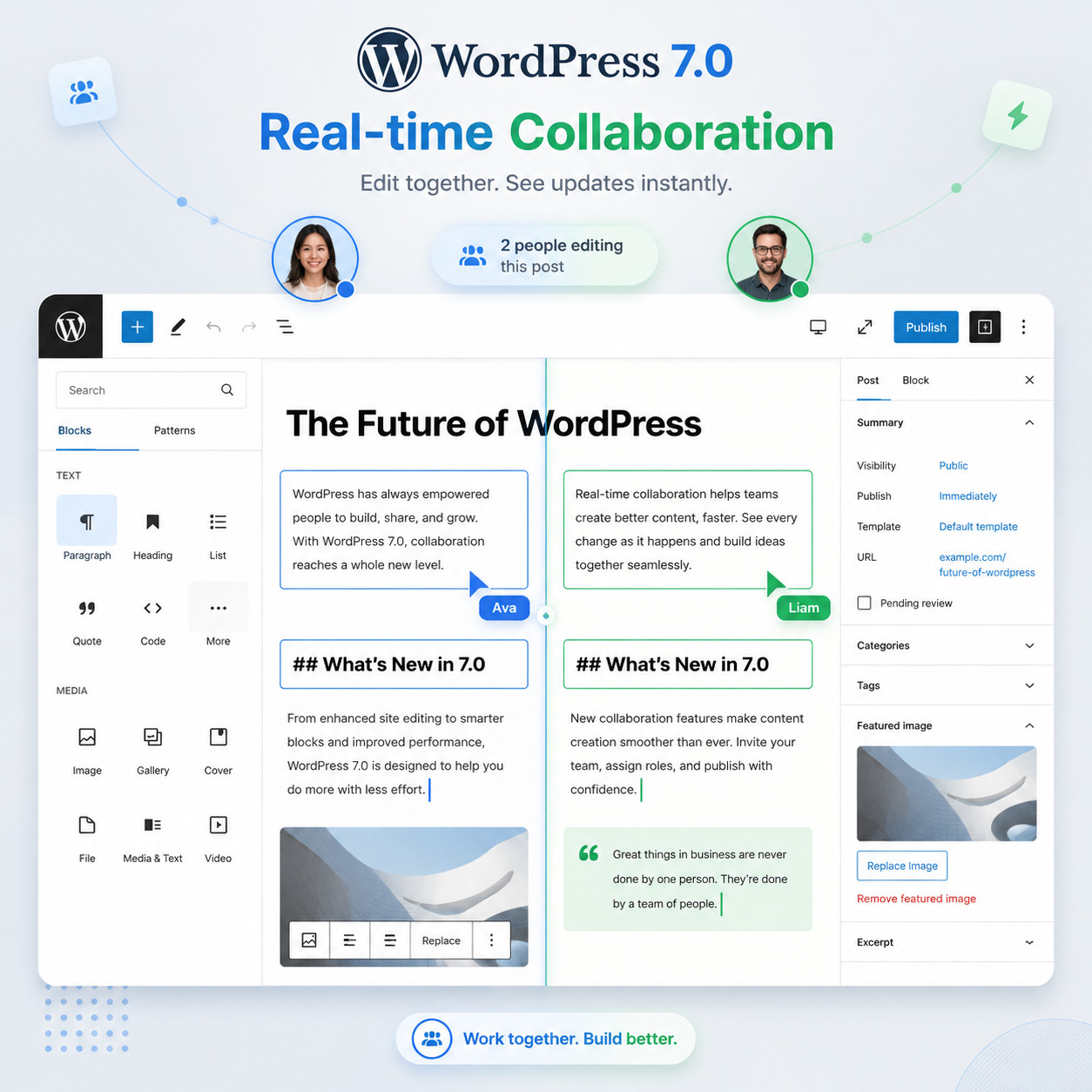
Method 1: Direct Download from WordPress.org
This is the manual approach, best for fresh installations or developers who want full control.
- Go to wordpress.org/download after May 20, 2026
- Click the “Download WordPress 7.0” button (ZIP file, approximately 25 MB)
- Extract the ZIP to your local machine
- Upload files to your server via FTP/SFTP or file manager
- Run the installation wizard at
yourdomain.com/wp-admin/install.php
Choose this method if: You’re setting up a brand-new site, need the files for local development, or want to manually control which files get replaced during an upgrade.
Method 2: One-Click Dashboard Update
The simplest method for existing WordPress sites.
- Log into your WordPress admin panel
- Navigate to Dashboard > Updates
- You’ll see “WordPress 7.0 is available” (after May 20)
- Click “Update Now”
- Wait for the process to complete (usually 30-90 seconds)
Common mistake: Running the update without a backup. Always create a full backup (database + files) before clicking that button.
Method 3: WP-CLI for Developers
For developers managing multiple sites or using deployment pipelines:
<code class="language-bash"># Check current version
wp core version

# Update to WordPress 7.0
wp core update

# Update the database
wp core update-db

# Verify the update
wp core version
</code>
Choose this method if: You manage multiple sites, use CI/CD pipelines, or prefer command-line workflows. WP-CLI also lets you script pre-update backups and post-update verification.
Method 4: Hosting Provider Auto-Update
Most managed WordPress hosts (Kinsta, WP Engine, Cloudways, SiteGround) will roll out WordPress 7.0 automatically within days of release. Check your hosting dashboard for:
- Auto-update scheduling settings
- Staging environment options for testing first
- Rollback capabilities if something breaks
What’s New in WordPress 7.0 for Developers?
WordPress 7.0 brings substantial quality-of-life improvements for developers building themes, plugins, and custom blocks [10].
PHP-Only Block Registration
You can now register blocks entirely in PHP without needing a block.json file for simple blocks. This reduces boilerplate for developers creating lightweight custom blocks.
Pseudo-Element Support in theme.json
The theme.json file now supports ::before and ::after pseudo-elements, giving theme developers more styling control without writing additional CSS files. If you’re working on custom WordPress theme development, this is a significant improvement.
DataViews API Updates
The DataViews API (used for list/grid views in the admin) has received major updates:
- New filter operators for complex queries
- Bulk action support
- Custom column renderers
- Improved pagination handling
Block Hooks Enhancements
Block Hooks, introduced in WordPress 6.4, now support more insertion points and conditional logic. Developers can programmatically insert blocks based on user roles, post types, or custom conditions.
REST API Improvements
- New endpoints for collaborative editing state
- Improved batch request handling
- Better error responses with actionable messages
For developers looking to extend WordPress 7.0 with automation, check out these AI plugins for WordPress that complement the new built-in AI features.
Real-Time Collaboration: How It Works in WordPress 7.0
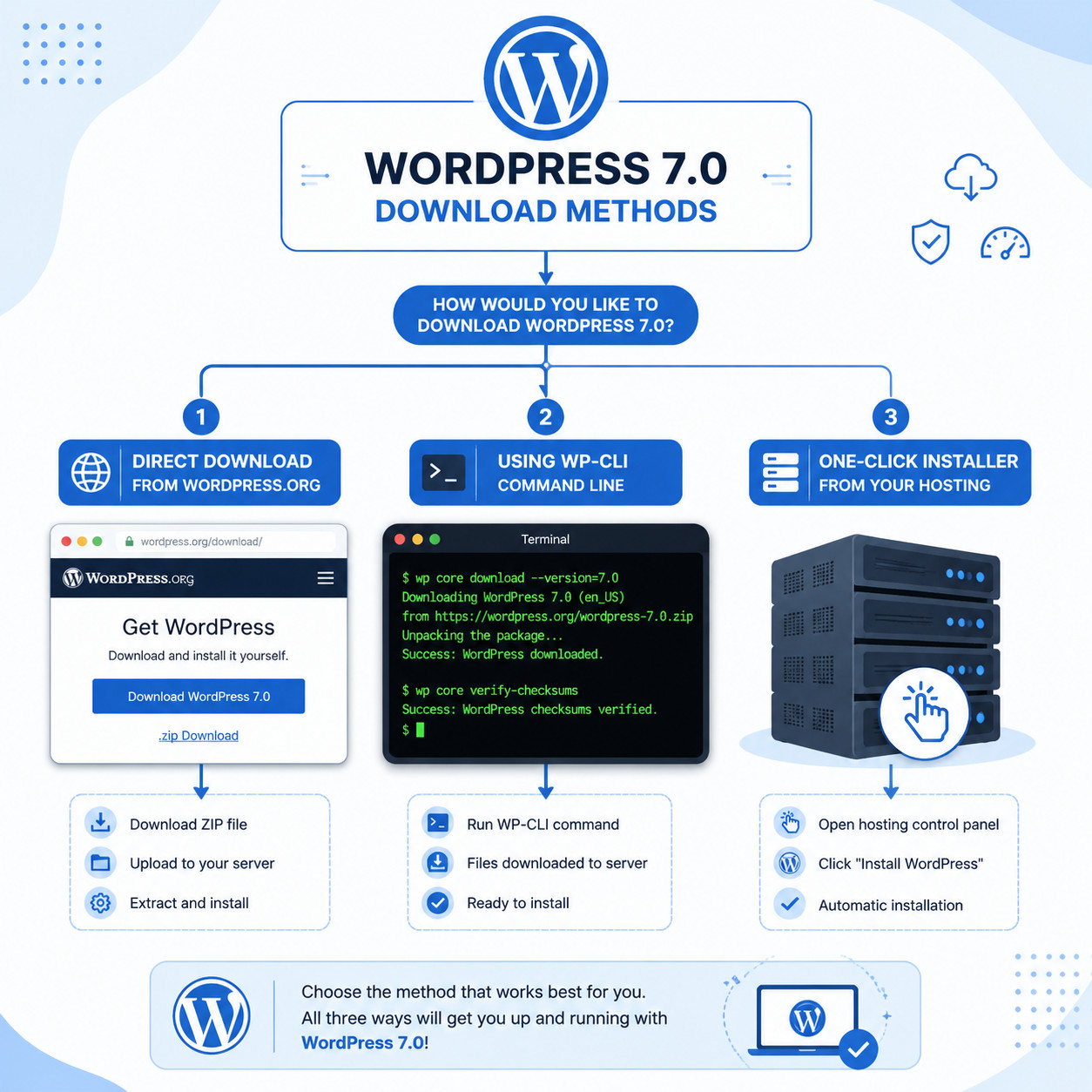
Real-time collaboration is the headline feature of WordPress 7.0. Multiple users can now edit the same post or page simultaneously, with changes appearing instantly for all participants [9].
How It Compares to Google Docs
| Feature | WordPress 7.0 | Google Docs |
|---|---|---|
| Real-time cursors | Yes | Yes |
| User presence indicators | Yes | Yes |
| Conflict resolution | Block-level locking | Character-level |
| Offline support | Limited | Yes |
| Version history | Yes (revisions) | Yes |
| Comments/suggestions | Yes | Yes |
| Works with structured layouts | Yes (blocks) | No |
The key difference: WordPress 7.0 uses block-level locking rather than character-level collaboration. When you’re editing a paragraph block, other users see it’s in use but can edit other blocks on the same page. This prevents the chaos of multiple cursors in the same sentence while still enabling true team editing [9].
Who Benefits Most
- Editorial teams writing and reviewing content together
- Agencies collaborating with clients on page layouts
- Distributed teams working across time zones
- Content marketers who need real-time feedback loops
Requirements for Collaboration to Work
- All collaborating users need editor or administrator roles
- The site must use the block editor (not Classic Editor plugin)
- Custom blocks must follow modern block development standards
- A stable internet connection for all participants
Edge Case: Classic Editor Users
If your site still uses the Classic Editor plugin, real-time collaboration won’t function. You’ll need to transition to the block editor first. For guidance on modernizing your site’s editing experience, our WordPress theme customization guide covers the transition process.
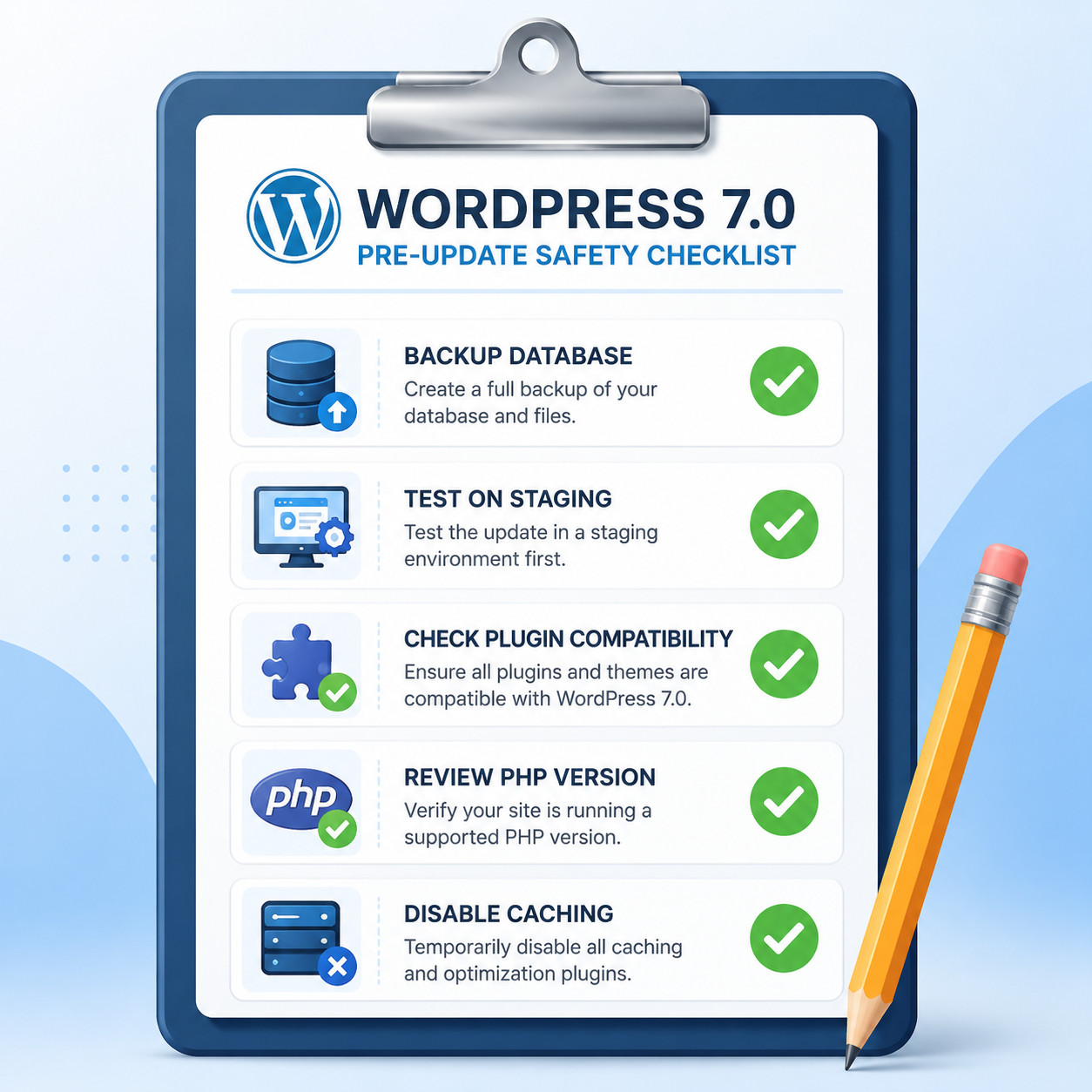
Pre-Update Checklist: What to Do Before Installing WordPress 7.0
Rushing into a major version update is one of the most common mistakes site owners make. Here’s your complete pre-update checklist:
Before You Update
- Back up everything: Full database export + all files (wp-content especially)
- Check PHP version: WordPress 7.0 requires PHP 7.4 minimum; PHP 8.1+ is recommended
- Update plugins and themes first: Run all available updates before the core update
- Check plugin compatibility: Visit each plugin’s changelog or support forum for 7.0 confirmation
- Test on staging: Clone your site to a staging environment and update there first
- Disable object caching temporarily: Prevents stale cache issues during the update
- Note your current version: Document what you’re running in case you need to rollback
- Review the changelog: Read the official release notes at wordpress.org/news
After You Update
- Check the front end of your site for visual issues
- Test all forms, checkout flows, and interactive elements
- Verify that all plugins are still active and functioning
- Clear all caches (page cache, CDN, browser)
- Run a quick SEO audit to confirm meta tags and structured data are intact
- Test the new collaboration features with a team member
When to Wait
Don’t update on day one if:
- Your site generates significant revenue and you can’t afford downtime
- You use plugins that haven’t confirmed WordPress 7.0 compatibility
- You’re running a custom theme that hasn’t been tested against 7.0
- Your hosting environment is on PHP 7.4 (upgrade PHP first)
A safe timeline: wait 1-2 weeks after release for the first patch (likely 7.0.1) unless you’ve thoroughly tested on staging.
WordPress 7.0 Security Considerations
Security is a critical reason to update. WordPress 6.9.2 patched ten vulnerabilities including blind SSRF, stored XSS in navigation menus, AJAX authorization bypass, and XXE in the bundled getID3 library [1]. Subsequent releases (6.9.3 and 6.9.4) addressed additional issues discovered in March 2026.
Security Improvements in 7.0
- Hardened REST API authentication for collaborative editing endpoints
- Improved nonce handling for AJAX requests
- Better input sanitization in new block types
- Updated bundled libraries (jQuery, getID3, PHPMailer)
Best Practice
Always run the latest security release. If you’re on WordPress 6.8 or earlier, update through each major version’s latest security patch before jumping to 7.0. The update path should be:
Your current version → Latest 6.9.x security release → WordPress 7.0
WordPress 7.0 vs. Alternatives: Should You Stay or Switch?
With WordPress 7.0’s improvements, here’s how it stacks up against alternatives in 2026:
| Platform | Monthly Cost | Best For | Key Advantage |
|---|---|---|---|
| WordPress 7.0 | Free (+ hosting) | Full control, scalability | Open source, massive plugin ecosystem |
| Webflow | From $14/month | Design-focused sites | Visual CSS control |
| Wix | From $17/month | Small business sites | Ease of use |
| Squarespace | From $16/month | Portfolio/creative sites | Beautiful templates |
| Ghost | From $9/month | Publishers/newsletters | Speed, focused writing |
| Shopify | From $39/month | E-commerce | Built-in commerce tools |
Stay with WordPress if:
- You need maximum flexibility and plugin options
- You want to own your data and hosting
- You have (or plan to hire) development resources
- You need real-time collaboration without per-seat fees
- SEO control matters to you (see our guide on AI SEO tools for WordPress)
Consider alternatives if:
- You want zero server management and don’t need plugins
- Your site is purely visual/portfolio-based (Webflow may suit better)
- You’re building a simple business site and want drag-and-drop simplicity
For those exploring other platforms, we’ve covered how to optimize Wix for SEO and reviewed the best no-code website builders for 2026.
The Redesigned Admin Dashboard in WordPress 7.0
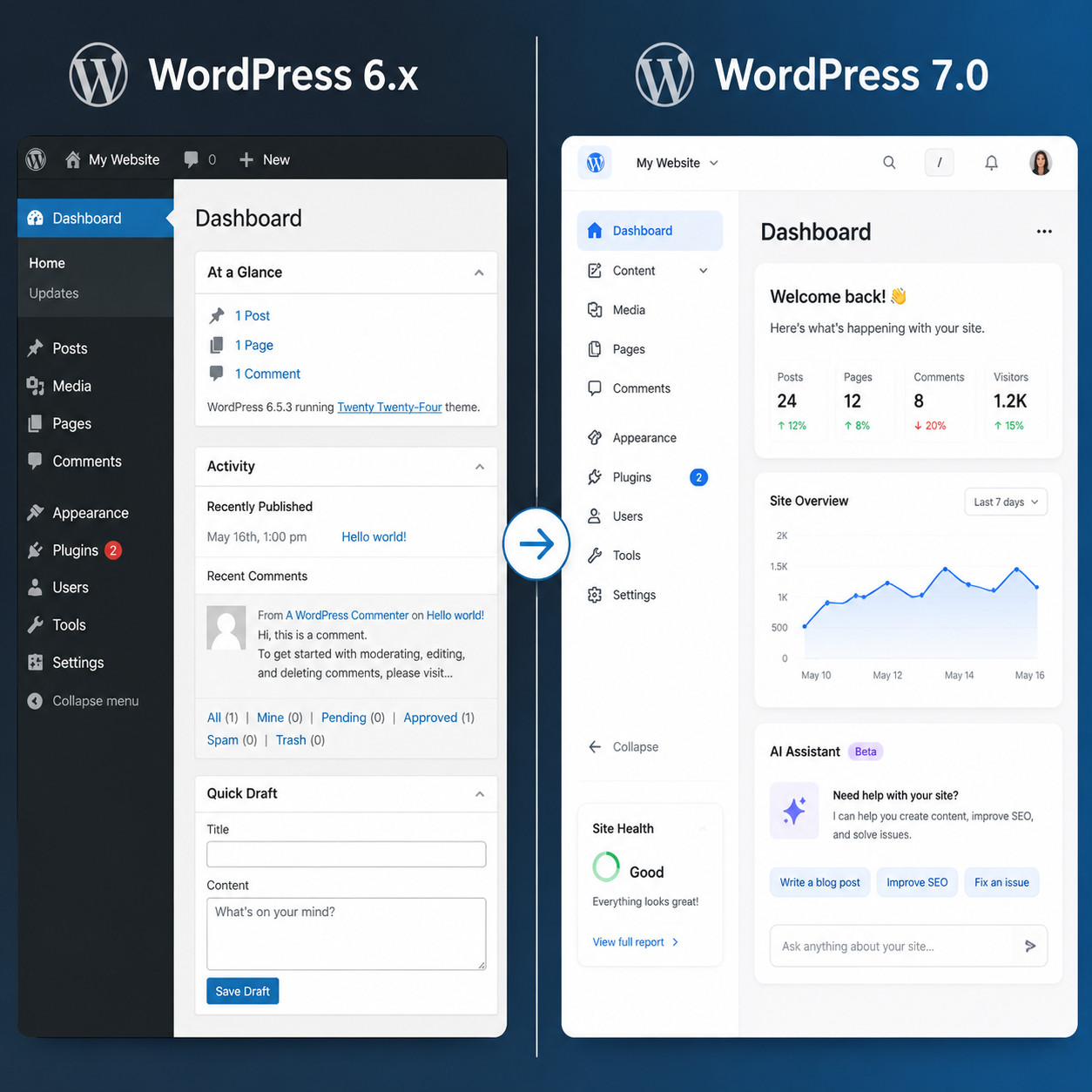
WordPress 7.0 introduces a refreshed admin interface that addresses long-standing usability complaints [7][9].
What Changed
- Simplified navigation: Fewer top-level menu items with smarter grouping
- AI assistant panel: A sidebar AI tool for content suggestions, SEO tips, and block recommendations
- Quick actions bar: Frequently used actions accessible from any admin screen
- Improved mobile admin: The admin panel is now genuinely usable on phones and tablets
- Dark mode: Official dark mode support (previously required plugins)
What Stayed the Same
- The overall left-sidebar structure remains
- Plugin and theme management screens are familiar
- Settings pages maintain their existing layout
- The Customizer is still available (though deprecated in favor of Site Editor)
Developer Impact
If you’ve built custom admin pages or meta boxes, test them thoroughly. The CSS class structure for admin screens has changed in several areas. WordPress provides backward-compatibility hooks, but visual alignment may need adjustment.
For advanced WordPress strategies, the new admin APIs open up possibilities for custom dashboard widgets and automated workflows.
Troubleshooting Common WordPress 7.0 Update Issues
Even with preparation, things can go wrong. Here are the most common issues and fixes:
White Screen of Death After Update
Cause: Usually a plugin or theme incompatibility.
Fix: Access your site via FTP, rename the wp-content/plugins folder to plugins-disabled, then check if the site loads. Re-enable plugins one by one to find the culprit.
Database Update Required Loop
Cause: The database upgrade script didn’t complete.
Fix: Navigate directly to yourdomain.com/wp-admin/upgrade.php and run the database update manually.
Collaboration Features Not Appearing
Cause: The Classic Editor plugin is active, or your user role lacks permissions. Fix: Deactivate Classic Editor. Ensure your role is Editor or Administrator. Check that your hosting supports WebSocket connections.
Slow Admin After Update
Cause: Object cache serving stale data or plugin conflicts with new admin styles. Fix: Flush all caches. If using Redis or Memcached, restart the cache service. Deactivate non-essential admin plugins temporarily.
Fatal Error During Update
Cause: PHP memory limit exceeded or timeout.
Fix: Add to wp-config.php:
<code class="language-php">define('WP_MEMORY_LIMIT', '512M');
set_time_limit(300);
</code>
Then retry the update via WP-CLI or manual file replacement.
Frequently Asked Questions
When exactly does WordPress 7.0 release? May 20, 2026. The release was delayed from the original April 9, 2026 date to allow additional testing time [2][5].
Is WordPress 7.0 free to download? Yes. WordPress is open-source software licensed under GPLv2. You only pay for hosting, domains, and any premium plugins or themes you choose to add.
Can I skip WordPress 6.9 and go straight to 7.0? Yes, but update to the latest 6.9.x security patch first, then update to 7.0. WordPress supports jumping major versions, but applying security patches in sequence is safer.
What PHP version does WordPress 7.0 require? Minimum PHP 7.4. However, PHP 8.1 or higher is strongly recommended for performance and security. PHP 7.4 reached end-of-life in November 2022 and no longer receives security patches.
Will my existing plugins work with WordPress 7.0? Most well-maintained plugins will work. Check each plugin’s support forum or changelog for 7.0 compatibility confirmation before updating. Popular plugins like Yoast, WooCommerce, and Elementor typically release compatibility updates within days of a major WordPress release.
Do I need to update my theme for WordPress 7.0? If you’re using a block theme (like Twenty Twenty-Five or a modern FSE theme), you’ll likely be fine. Classic themes should still work but won’t benefit from all new features. Test on staging first.
How do I roll back if WordPress 7.0 breaks my site? Restore from your pre-update backup. If you didn’t make one, use a plugin like WP Downgrade to revert to your previous version, then restore your database from your hosting provider’s automatic backups.
Is real-time collaboration available on all hosting plans? It should work on any hosting that supports WordPress 7.0’s requirements. However, some budget shared hosting plans may have WebSocket restrictions that limit collaboration features. Managed WordPress hosts are the safest bet.
Can I disable the new AI features?
Yes. The AI tools in WordPress 7.0 are opt-in. You can disable them in Settings > Writing or remove them entirely with a filter hook: add_filter('wp_ai_assistant_enabled', '__return_false');
How large is the WordPress 7.0 download? The ZIP file is approximately 25 MB. The installed size (without plugins, themes, or uploads) is roughly 70 MB.
Will the Classic Editor plugin still work? Yes, but it disables real-time collaboration and some new block features. WordPress has indicated that Classic Editor support will continue through at least 2026, but migration to the block editor is strongly encouraged.
Is WordPress 7.0 the same as WordPress.com? No. WordPress 7.0 is the self-hosted software from wordpress.org. WordPress.com is a hosted service run by Automattic. WordPress.com will likely adopt 7.0 features gradually, but the timeline differs.
Conclusion
WordPress 7.0 arrives on May 20, 2026, as the platform’s most significant update in eight years [2][9]. Real-time collaboration, built-in AI tools, and developer-focused improvements make this a release worth planning for rather than ignoring.
Your action plan for the next week:
- Today: Check your PHP version and update to PHP 8.1+ if needed
- Before May 20: Create a full backup and set up a staging environment
- May 20-22: Update your staging site to WordPress 7.0 and test thoroughly
- After testing passes: Update your production site during low-traffic hours
- Post-update: Test all critical functionality, clear caches, and explore the new collaboration features with your team
Don’t rush. The security patches in 6.9.x keep you protected in the meantime. But don’t wait too long either, because staying on outdated major versions means missing security improvements and falling behind on compatibility with updated plugins and themes.
WordPress 7.0 is a genuine step forward. Download it, test it, and put those collaboration features to work.
References
[1] WordPress 7.0 Release Candidate 3 – https://wordpress.org/news/2026/05/wordpress-7-0-release-candidate-3/ [2] WordPress 7.0 Release Party Updated Schedule – https://make.wordpress.org/core/2026/04/22/wordpress-7-0-release-party-updated-schedule/ [5] WordPress 7.0 Gets A New May 20 Release Date – https://www.therepository.email/wordpress-7-0-gets-a-new-may-20-release-date [7] WordPress 7.0 Features – https://www.wpfixit.com/wordpress-7-0-features/ [9] WordPress 7.0 Update – https://www.krishaweb.com/blog/wordpress-7-0-update/ [10] What’s New For Developers March 2026 – https://developer.wordpress.org/news/2026/03/whats-new-for-developers-march-2026/