
Last updated: May 9, 2026
Quick Answer: Zapier is a no-code automation platform that connects your apps and automates repetitive tasks using a trigger-and-action structure called a “Zap.” You don’t need coding skills to set it up. Businesses of any size use it to eliminate manual work, reduce errors, and keep data moving between tools automatically. [1]
Key Takeaways
- A Zap has two parts: a trigger (what starts it) and an action (what happens next). [1]
- Zapier connects thousands of apps, including Gmail, Slack, HubSpot, Google Sheets, and Trello. [1]
- No developer knowledge is required to build or manage Zaps.
- Multi-step Zaps let you chain several actions from a single trigger.
- Filters and paths give you conditional logic without writing code.
- Free and paid plans are available; the free tier supports basic single-step Zaps.
- Common use cases include lead management, social media posting, CRM updates, and internal notifications.
- Testing each Zap before activating it prevents silent failures and data errors.
What Is Zapier and Why Does It Matter for Workflow Automation?
Zapier is a web-based automation tool that connects apps and moves data between them automatically, without any code. [1] It acts as a bridge between software that wouldn’t otherwise talk to each other, so tasks that used to require manual copy-pasting simply happen on their own.
Workflow automation, as Zapier defines it, is “the act of streamlining and automating a series of tasks within the apps you use.” [1] That definition matters because it keeps the focus practical: you’re not building software, you’re removing the boring middle steps between tools you already use.
Who it’s for: Freelancers, small business owners, marketers, operations managers, and anyone who spends time on repetitive digital tasks.
Who it may not suit: Teams with highly complex, custom-coded systems that need deep API logic or real-time data processing at scale.
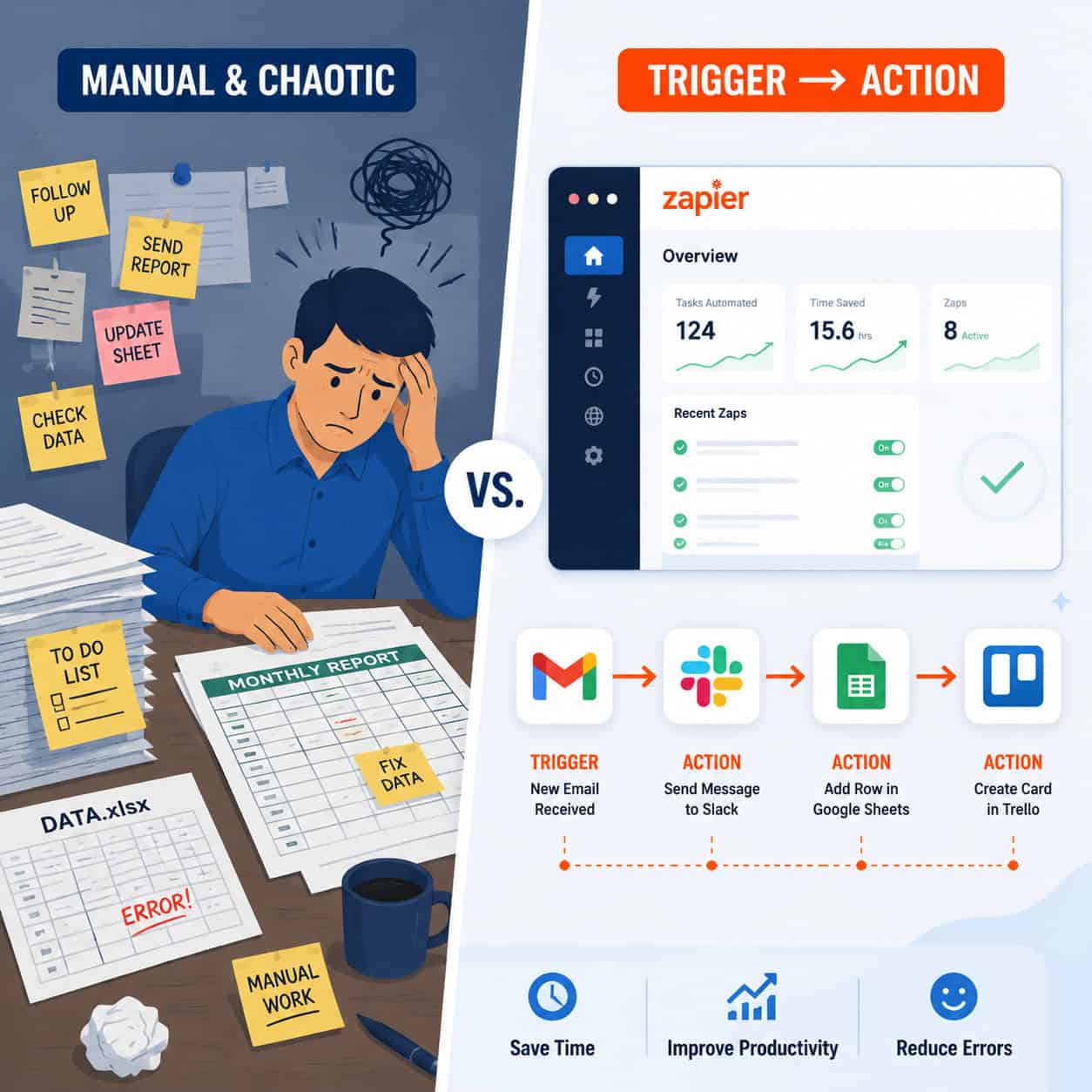
How Does the Zapier Trigger-Action Model Work?
Every Zap follows a simple two-part structure: a trigger and an action. [1] The trigger is the “when” — the event that starts the automation. The action is the “do” — what Zapier does in response.
Example from Zapier’s own documentation: [1]
“When you receive a new lead in a form, do send an email.”
Here’s how that maps to a real Zap:
| Part | Role | Example |
|---|---|---|
| Trigger | The starting event | New form submission in Typeform |
| Action | The automated response | Add row to Google Sheets + send Slack message |
You can stack multiple actions onto one trigger — these are called multi-step Zaps. For example, one new lead could simultaneously update your CRM, send a welcome email, and notify your sales team in Slack.
Common mistake: Choosing a trigger app that doesn’t support instant (webhook-based) triggers. Some apps use polling instead, meaning Zapier checks for new data every 1–15 minutes rather than reacting immediately. Check the app’s Zapier page to confirm trigger type before building.
How Do You Build Your First Zap? A Step-by-Step Guide
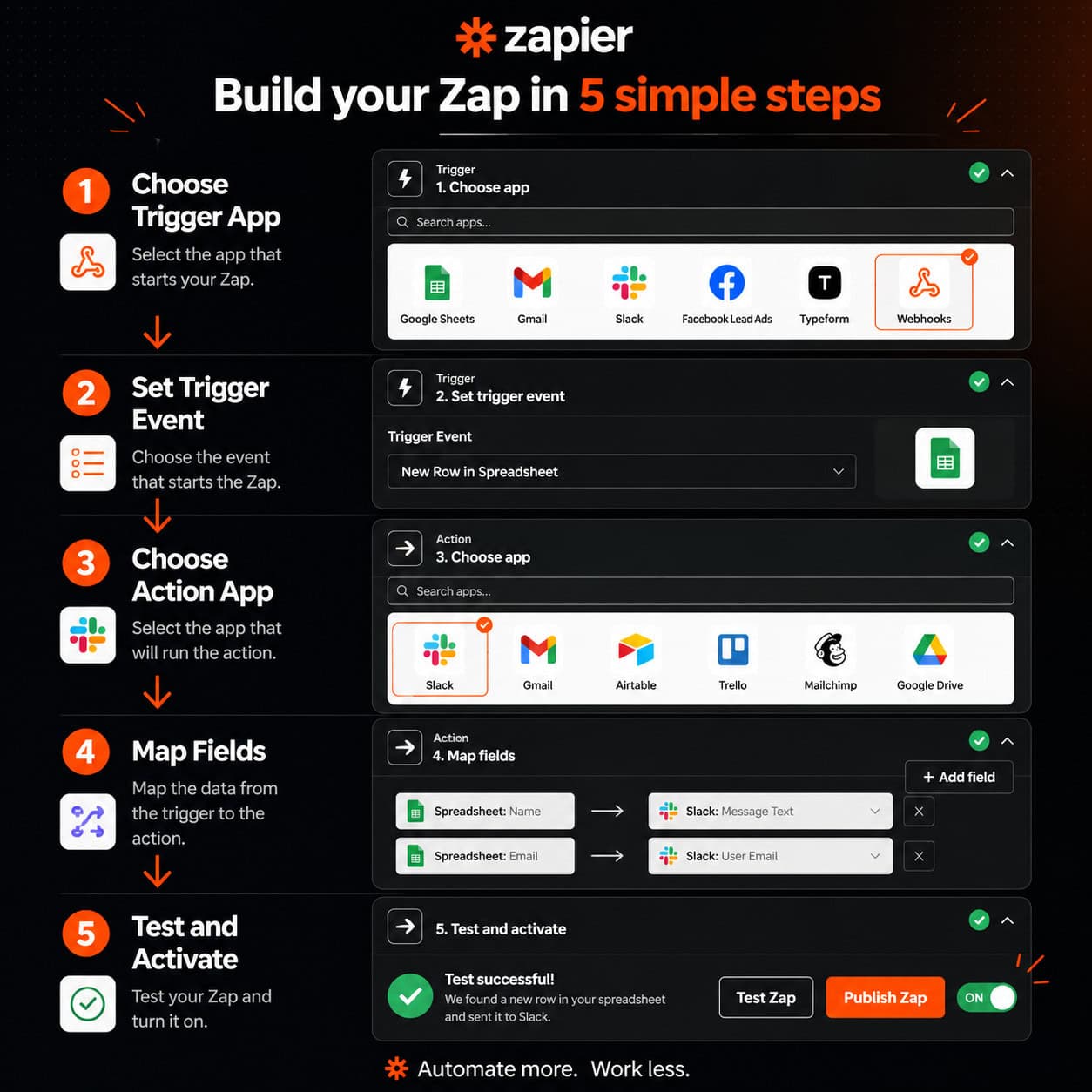
Building a Zap takes about five to ten minutes once you know the steps. Here’s the process from start to finish:
- Log in to Zapier and click “Create Zap.”
- Choose your trigger app — search for the tool where the event starts (e.g., Gmail).
- Select the trigger event — pick the specific action that kicks things off (e.g., “New Email Matching Search”).
- Connect your account — authorize Zapier to access the app.
- Set trigger conditions — add filters if you only want the Zap to run in certain situations.
- Choose your action app — pick the destination tool (e.g., Trello).
- Map the fields — tell Zapier which data from the trigger goes into which fields in the action.
- Test the Zap — run a live test to confirm data flows correctly.
- Activate the Zap — turn it on and let it run.
Pro tip: Always test with real data, not sample data, before activating. Sample data can look correct but miss edge cases that break the Zap in production.
For those pairing automation with content workflows, tools like AI-powered content generation can feed directly into Zapier-powered distribution pipelines.
What Are the Most Useful Zapier Features Beyond Basic Zaps?
Zapier offers several features that go well beyond simple one-to-one automations. [1] These tools let you add logic, handle errors, and build more sophisticated workflows without touching code.
Key features worth knowing:
- Filters: Only run the Zap when specific conditions are met (e.g., only when a deal value exceeds $1,000).
- Paths: Create branching logic so different actions happen based on different conditions — similar to an if/else statement.
- Formatter: Transform data mid-workflow (e.g., convert a date format, capitalize text, or extract a number from a string).
- Delay: Pause a workflow for a set amount of time before the next action runs.
- Sub-Zaps: Trigger one Zap from inside another, useful for reusable automation blocks.
- Zapier Tables and Interfaces: Built-in database and form tools that work natively with Zaps.
Zapier also positions itself as an AI orchestration platform, meaning you can now connect AI tools — like OpenAI or internal AI agents — directly into your workflows. [1]
If you’re managing a WordPress site alongside these workflows, see the guide on advanced WordPress strategies for power users for complementary automation ideas.
What Are the Best Use Cases for Zapier in 2026?
Zapier works best when you have a clear, repeatable process that crosses two or more apps. [1] The highest-value use cases tend to involve lead capture, internal communication, and content distribution.
Top use cases by category:
Marketing & Lead Management
- Send new form leads from Typeform or Gravity Forms to a CRM like HubSpot or Salesforce
- Add new email subscribers to a segmented list automatically
- Post new blog content to social media channels
Operations & Internal Workflows
- Create Trello or Asana tasks from Slack messages
- Log time entries from calendar events into a spreadsheet
- Alert a team channel when a support ticket is marked urgent
E-commerce
- Send order confirmation data from Shopify to a fulfillment spreadsheet
- Notify the warehouse team via email when inventory drops below a threshold
Content Teams
- Auto-share WordPress blog posts to social media (see our guide on how to auto-share WordPress blog posts to social media)
- Route new content drafts to a review queue in Notion or Airtable
For design-focused teams, pairing Zapier with tools like Figma AI workflow automation can streamline handoffs between design and development.
How Does Zapier Compare to Alternatives Like Make and n8n?
Zapier is the most widely used automation platform, but it’s not always the best fit for every team. [1] Make (formerly Integromat) and n8n are the two most common alternatives.
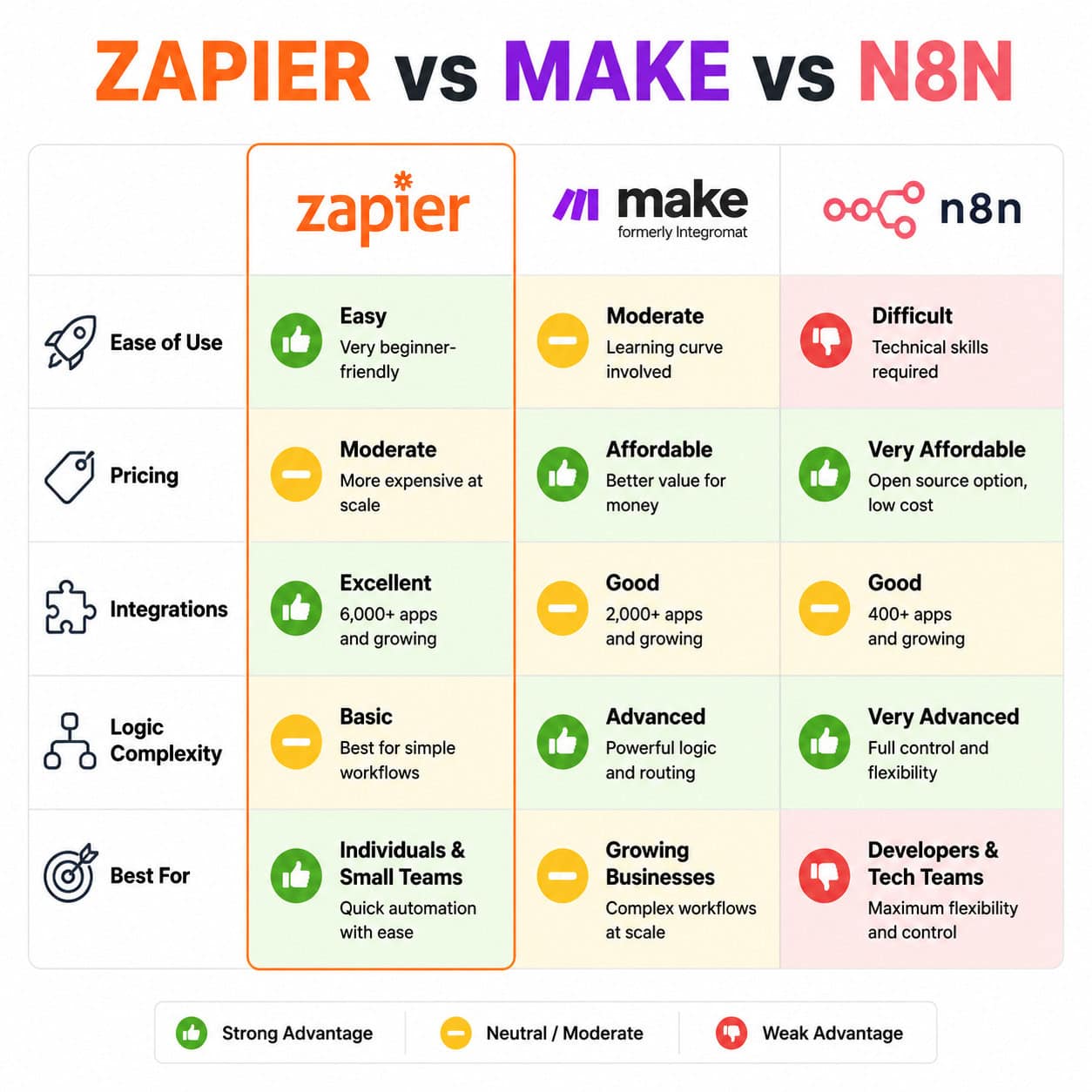
| Feature | Zapier | Make | n8n |
|---|---|---|---|
| Ease of use | ⭐⭐⭐⭐⭐ Easiest | ⭐⭐⭐ Moderate | ⭐⭐ Technical |
| Pricing | Higher at scale | More affordable | Self-hosted = free |
| App integrations | Thousands [1] | Hundreds | Hundreds + custom |
| Logic/branching | Good | Excellent | Excellent |
| Best for | Non-technical users | Visual logic builders | Developers, self-hosters |
Choose Zapier if you want the fastest setup, the largest app library, and don’t need complex branching logic.
Choose Make if you need detailed data mapping and visual workflow design at a lower cost per task.
Choose n8n if you’re technical, want full data control, and prefer to self-host for privacy or cost reasons.
For teams building no-code websites alongside their automation stack, the 11 best no-code website design platforms for 2026 is a useful companion resource.
What Are the Most Common Zapier Mistakes and How Do You Avoid Them?
Most Zapier problems come from a small set of predictable mistakes. Knowing them in advance saves hours of troubleshooting.
Mistake 1: Not testing with live data Sample data in Zapier’s test step doesn’t always reflect real-world inputs. Always trigger the Zap with a real event before going live.
Mistake 2: Forgetting to handle empty fields If a trigger sends a contact without a phone number and your action requires one, the Zap will fail. Use the Formatter step or add a filter to catch empty values.
Mistake 3: Building too many single-step Zaps Ten separate Zaps for one workflow is harder to maintain than one multi-step Zap. Consolidate where possible.
Mistake 4: Ignoring Zap history Zapier logs every run. Check the Task History regularly to catch silent failures — Zaps that ran but produced wrong results.
Mistake 5: Overlooking task limits on the free plan The free tier has a monthly task cap. If you’re automating high-volume workflows, calculate your expected task count before committing to a plan.
For teams also automating their WordPress environment, the 12 best AI plugins for WordPress covers complementary tools that pair well with Zapier.
FAQ: Mastering Zapier Workflow Automation
Q: Do I need coding skills to use Zapier? No. Zapier is designed for non-technical users. You connect apps, choose triggers and actions, and map fields using a visual interface — no code required. [1]
Q: How many apps does Zapier connect? Zapier offers thousands of app integrations, covering most major business tools including Google Workspace, Slack, Salesforce, Shopify, and hundreds more. [1]
Q: What is a “task” in Zapier? Each time a Zap successfully completes an action, it counts as one task. Multi-step Zaps use one task per action step per run.
Q: Is Zapier free to use? Zapier has a free plan that supports basic single-step Zaps with limited monthly tasks. Paid plans unlock multi-step Zaps, filters, paths, and higher task volumes.
Q: How fast do Zaps run? It depends on the trigger type. Instant (webhook) triggers fire within seconds. Polling triggers check for new data every 1–15 minutes depending on your plan.
Q: Can Zapier handle conditional logic? Yes. The Filters feature lets you stop a Zap unless conditions are met. The Paths feature lets you run different actions based on different conditions.
Q: What happens when a Zap fails? Zapier logs the failure in Task History and can send you an email alert. You can replay failed tasks once the underlying issue is fixed.
Q: Can I use Zapier with AI tools? Yes. Zapier connects with OpenAI, Anthropic, and other AI platforms, and positions itself as an AI orchestration tool for intelligent workflow automation. [1]
Q: Where can I learn Zapier as a beginner? Zapier’s official guides cover automation, AI strategy, and lead management. [4] A beginner tutorial updated for 2026 is also available on YouTube. [3]
Q: Is Zapier secure? Zapier uses OAuth for app connections, meaning it never stores your passwords. Data is encrypted in transit and at rest. For sensitive data, review Zapier’s security documentation before connecting financial or healthcare apps.
Conclusion: Your Next Steps to Mastering Zapier Workflow Automation
This complete guide to mastering Zapier workflow automation covers everything from the basics of triggers and actions to advanced features like paths, filters, and AI integrations. The core idea is simple: find a repetitive task that crosses two apps, build a Zap, test it, and activate it.
Here’s where to start:
- Audit your week — write down three tasks you do manually that involve copying data between apps.
- Pick the easiest one and search Zapier’s template library for a pre-built Zap that matches.
- Build and test using the nine-step process in this guide.
- Expand gradually — add filters, multi-step actions, and paths as you get comfortable.
- Check Task History weekly to catch failures early and refine your workflows over time.
Automation isn’t about replacing judgment — it’s about removing the friction between decisions and outcomes. Start with one Zap, and the productivity gains will show you where to build next.
For more automation resources, explore the Automation Archives at WebAiStack for ongoing guides and tool comparisons.
See also: Zapier Help Center.
References
[1] Workflow Automation – https://zapier.com/blog/workflow-automation/ [2] Blog – https://zapier.com/blog/ [3] Watch – https://www.youtube.com/watch?v=awRAuC6WRto [4] Guides – https://zapier.com/resources/guides