Last updated: May 9, 2026
Quick Answer: The 15 game-changing Zapier automation templates covered in this guide connect apps like Gmail, Slack, HubSpot, and Google Sheets to eliminate repetitive manual tasks. Each template is a pre-built “Zap” that triggers an action in one app when something happens in another — no coding required. Most take under five minutes to activate and can save several hours per week depending on your workflow volume.
Key Takeaways
- Zapier’s pre-built template library lets you start automating in minutes, not hours [5]
- Templates cover six core use cases: lead capture, notifications, document creation, CRM updates, form routing, and project tracking [3]
- You don’t need a developer — most templates require only app credentials and a few field mappings
- Combining multiple Zaps into multi-step workflows multiplies time savings significantly
- Free-tier Zapier accounts support single-step Zaps; multi-step workflows require a paid plan
- Templates from platforms like ONLYOFFICE DocSpace and Secureframe show that enterprise tools are increasingly offering ready-made Zap integrations [1] [4]
- Weather, document generation, and trust-center automation are among the more overlooked but high-value template categories [6]
- Always test a Zap with sample data before enabling it in a live environment
What Are Zapier Automation Templates and Why Do They Matter?
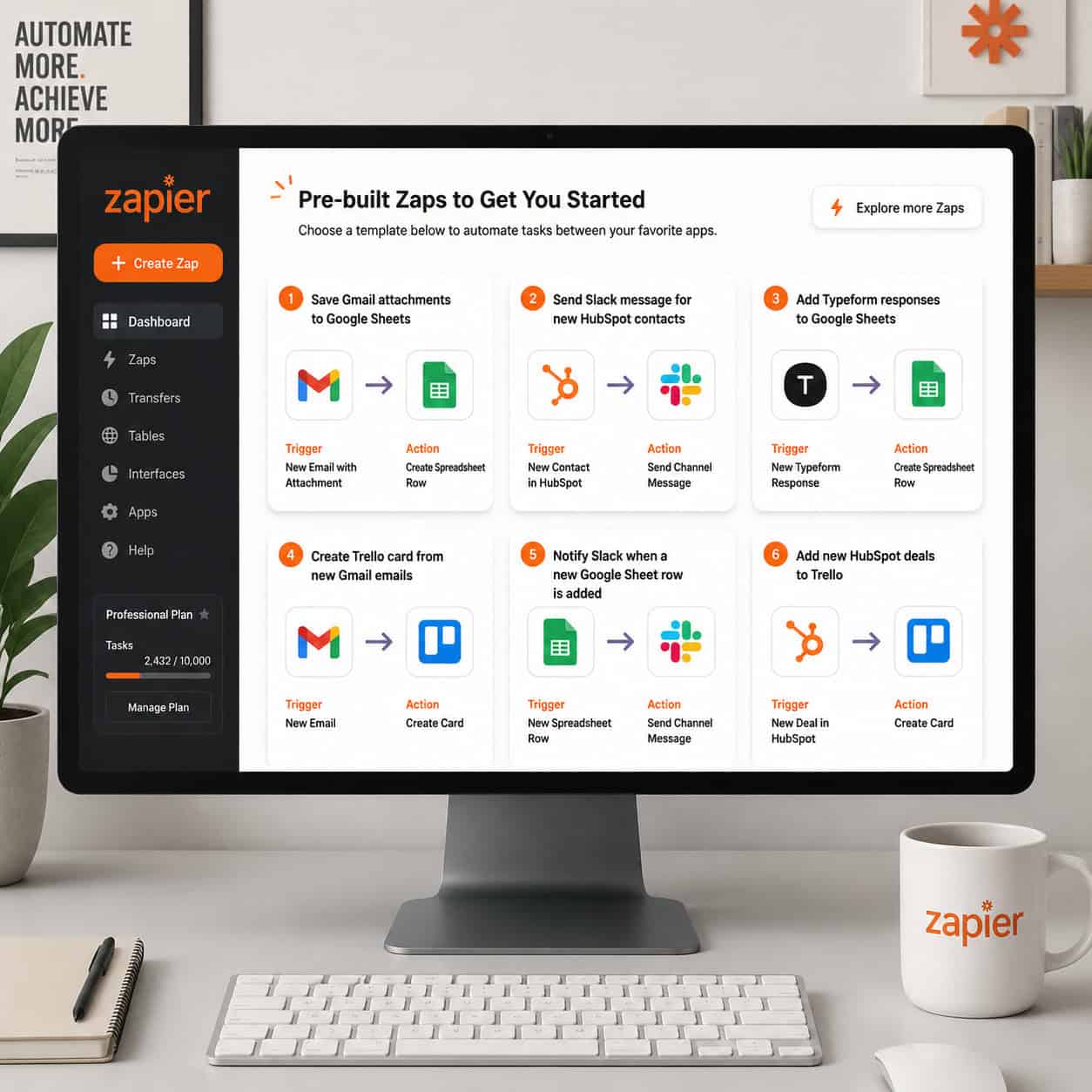
Zapier automation templates (called Zaps) are pre-configured workflows that connect two or more apps without writing a single line of code. Instead of building a workflow from scratch, you pick a template, connect your accounts, and map your data fields — often in under five minutes [5].
They matter because manual, repetitive tasks compound fast. Copying a form submission into a spreadsheet once takes 30 seconds. Doing it 40 times a day costs 20 minutes. Multiply that across a team and the numbers become significant. Templates solve this by handling the logic for you.
Who benefits most:
- Solo freelancers managing client intake and invoicing
- Marketing teams routing leads across multiple platforms
- Operations managers syncing data between project tools and CRMs
- Small businesses without a dedicated IT team
Who may not need them yet: If your workflows are highly custom, involve complex conditional logic, or require real-time API calls, you may outgrow templates quickly and need Zapier’s custom Zap builder or a more developer-friendly tool.
The 15 Zapier Templates Worth Activating Right Now
Here are the 15 templates organized by use case. Each one solves a specific, common workflow problem.
Lead Capture and CRM Sync
1. Typeform → HubSpot Contact Creation
When a lead submits a Typeform, this Zap instantly creates or updates a contact in HubSpot. No more manual CSV imports.
2. Facebook Lead Ads → Google Sheets
New Facebook lead ad submissions are logged to a Google Sheet row automatically. Useful for teams that review leads in bulk before pushing them to a CRM.
3. Feathery Form → CRM + Slack Notification
Zapier’s form automation with Feathery covers six primary use cases: submission notifications, lead routing to ad tools, newsletter subscriptions, CRM integration, support ticket creation, and submission tracking [3]. This template handles all of the above in one multi-step Zap.
4. HubSpot New Contact → Salesforce Lead
For teams running both platforms, this Zap keeps leads in sync across CRMs without duplicate data entry.
Email and Communication Automation
5. Gmail Label → Trello Card
When you apply a specific label to an email in Gmail, a Trello card is created automatically with the email subject as the card title. Useful for turning client requests into trackable tasks instantly.
6. Slack Message (Keyword) → Google Calendar Event
When a specific keyword appears in a Slack channel (e.g., “schedule call”), Zapier creates a calendar event. Good for distributed teams that coordinate through chat.
7. New Email Attachment → Google Drive Folder
Every attachment in a tagged email thread gets saved to a designated Drive folder. Eliminates the habit of losing attachments in a crowded inbox.
For teams that also auto-publish content, pairing this with a tool like WordPress blog post auto-sharing to social media can close the loop on content distribution entirely.
Document and File Management
8. Google Form Submission → PDF Generation
Using Zapier’s PDF Maker integration, form responses are converted into formatted PDF documents automatically [8]. Ideal for contracts, intake forms, and proposals.
9. ONLYOFFICE DocSpace → Automated File Routing
ONLYOFFICE completed its Zapier beta in 2024, releasing multiple ready-to-use templates for document workflow automation [1]. This template routes newly created DocSpace files to specific team folders based on document type.
10. New Dropbox File → Email Notification
When a file is added to a specific Dropbox folder, a notification email goes out to designated team members. Simple, but it eliminates a lot of “did you see the file I uploaded?” messages.
Project Management and Tracking
11. Asana Task Completed → Slack Channel Post
Completed Asana tasks trigger a Slack message in a project channel. Keeps the team updated without anyone needing to manually post status updates.
12. Google Sheets New Row → Asana Task
When a row is added to a Google Sheet (often from a form or import), an Asana task is created with mapped fields. Useful for teams that use spreadsheets as lightweight intake systems.
For more structured project workflows, Framer project management templates offer a complementary layer for visual project planning.
Notifications and Monitoring
13. Weather Forecast → Slack or Discord Alert
Zapier includes a built-in weather forecast tool that only needs latitude/longitude coordinates and a temperature unit preference [6]. Connect it to Slack or Discord to send daily weather briefings — useful for field teams, event planners, or logistics operations.
14. RSS Feed → Email Digest
New items from an RSS feed (competitor blogs, industry news, job boards) are bundled and emailed to a list. A low-effort way to stay informed without checking multiple sites.
Compliance and Security Automation
15. Secureframe Trust Center Request → Slack + CRM Update
Secureframe partnered with Zapier to offer pre-built templates that automate Trust Center document requests based on Salesforce and HubSpot data, plus Slack notifications for the security team [4]. For SaaS companies handling security reviews, this template alone can save hours per week during vendor assessments.
How to Set Up a Zapier Template in 5 Steps
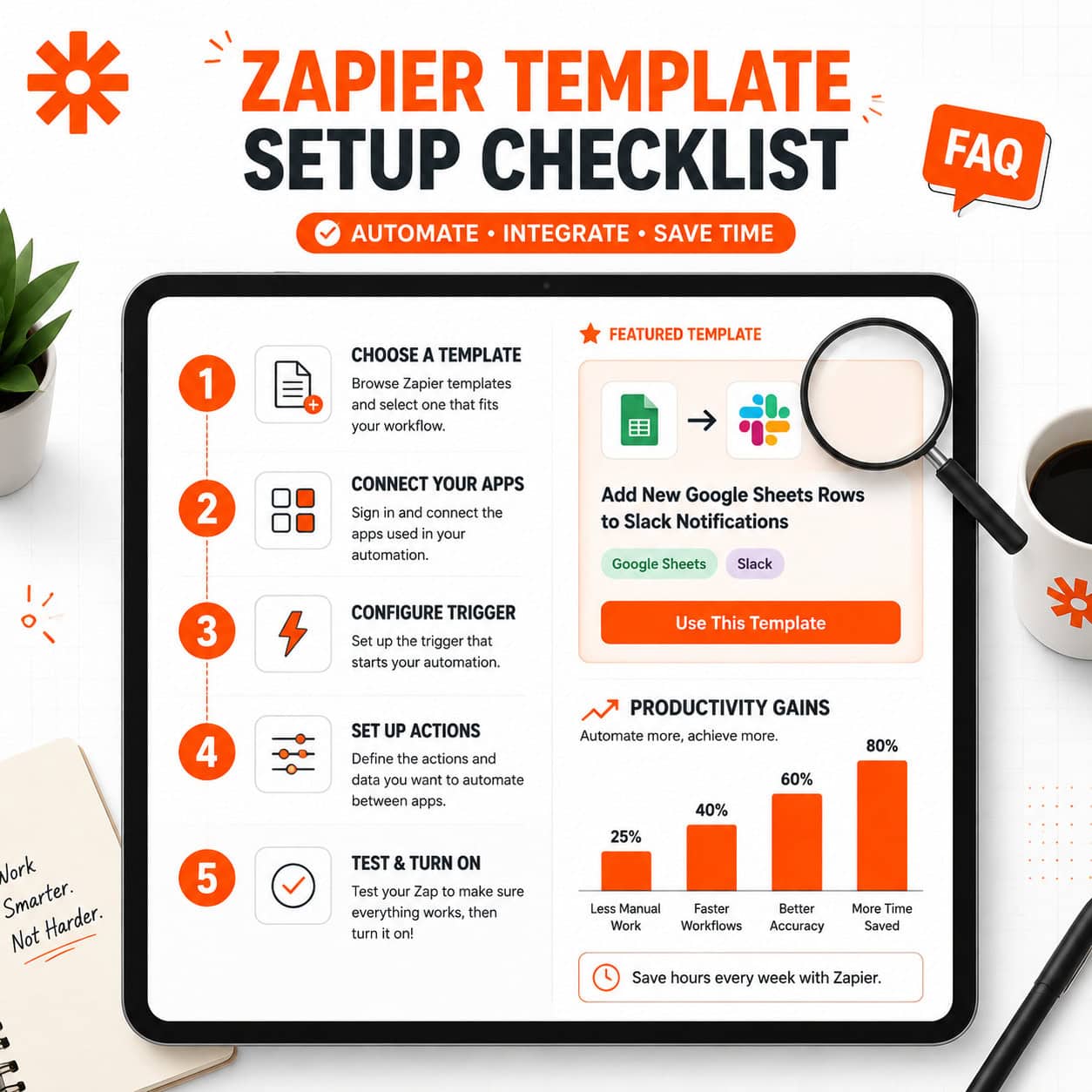
Setting up any of the 15 templates above follows the same basic process. Ready-to-use Zap templates require only a few clicks to establish connections between apps [2].
- Go to zapier.com/templates and search by app name or use case
- Click “Try this Zap” on the template you want
- Connect your accounts — Zapier will prompt you to authenticate each app
- Map your fields — match data from the trigger app to the action app
- Test with sample data — always run a test before turning the Zap on
⚠️ Common mistake: Skipping the test step. A misconfigured field mapping can create hundreds of duplicate records or send garbled notifications before you notice.
If you manage a WordPress site alongside these workflows, AI plugins for WordPress automation can extend your automation stack further without additional Zapier tasks.

Which Templates Give You the Best Return for Time Invested?
The highest-ROI templates are the ones that replace tasks you do more than 10 times per day. Based on the use cases above, here’s a quick decision guide:
| Use Case | Best Template | Best For |
|---|---|---|
| Lead capture | Typeform → HubSpot | Marketing teams |
| File management | Google Form → PDF | Freelancers, agencies |
| Team updates | Asana → Slack | Project managers |
| Security compliance | Secureframe → CRM | SaaS/startup ops teams |
| Monitoring | RSS → Email Digest | Content and research teams |
| Field operations | Weather → Slack | Events, logistics, construction |
Choose the lead capture templates if your team manually enters form data into a CRM more than 15 times per week.
Choose the document templates if you generate repetitive PDFs like contracts, quotes, or reports.
Choose the compliance template if your company handles frequent security questionnaires or vendor reviews.
For teams building content workflows, AI-powered content generation tools pair well with Zapier’s RSS and email automation templates to create a nearly hands-off content monitoring system.
What Are the Limits of Zapier Templates?
Zapier templates are not a universal solution. Knowing where they fall short saves you from wasted setup time.
Limitations to know:
- Free plan restriction: Single-step Zaps only. Multi-step workflows (like the Feathery form template covering all six use cases) require a paid plan [3]
- Polling delays: Most Zaps check for new data every 1–15 minutes depending on your plan, not in true real-time
- Complex logic: If/then branching, loops, and conditional paths need Zapier’s Paths feature, which is a paid add-on
- API rate limits: High-volume Zaps (thousands of triggers per day) can hit API limits on the connected app’s side, not Zapier’s
For teams that need tighter integration between design and development workflows, tools like Figma AI workflow automation handle use cases that Zapier’s general-purpose templates don’t cover.
FAQ
What is a Zapier template?
A Zapier template is a pre-built workflow (called a Zap) that connects two or more apps. It includes a preset trigger and action so you only need to connect your accounts and map your data — no coding required.
Are Zapier templates free?
Many templates are free to use on Zapier’s free plan, but multi-step templates require a paid subscription. Pricing starts at around $19.99/month (billed annually) as of 2026.
How long does it take to set up a Zapier template?
Most single-step templates take 3–5 minutes. Multi-step templates with several apps and field mappings may take 15–30 minutes, including testing.
Can I customize a Zapier template after activating it?
Yes. Templates are starting points. You can add steps, change field mappings, add filters, and modify triggers after the initial setup.
What’s the difference between a Zap and a template?
A template is a pre-configured Zap. Once you activate and save it with your account credentials, it becomes a live Zap running in your account.
Do Zapier templates work with all apps?
Templates only work with apps that have a Zapier integration. Zapier supports over 6,000 apps as of 2026, so most mainstream tools are covered.
What happens if a Zap fails?
Zapier logs failed tasks in your dashboard. Depending on your plan, it will retry automatically. You can also set up error notifications to alert you via email or Slack.
Is Zapier better than Make (formerly Integromat)?
Zapier is generally easier for beginners and has more pre-built templates. Make offers more complex workflow logic at a lower price point for high-volume use cases. Choose Zapier if simplicity matters; choose Make if you need advanced branching logic.
Conclusion
The 15 game-changing Zapier automation templates covered here address the most common workflow bottlenecks across lead capture, communication, document management, project tracking, and compliance. None of them require a developer, and most can be live within a single work session.
Actionable next steps:
- Identify your single most repetitive daily task (data entry, notifications, file routing)
- Search Zapier’s template library for that specific app combination
- Set up and test one template this week before adding more
- Revisit your Zap history monthly to check for failed tasks or opportunities to add steps
- Explore the Automation Archives at WebAiStack for more workflow ideas across design, content, and development tools
Start with one template. Once it runs reliably, add another. The compounding effect of even three or four well-configured Zaps can reclaim hours every week — and that time is better spent on work that actually requires a human.
References
[1] Onlyoffice Docspace Zapier Templates Available – https://www.onlyoffice.com/blog/2024/07/onlyoffice-docspace-zapier-templates-available
[2] 21746592418193 Zapier Shortcuts For My Automations – https://helpdesk.sembly.ai/hc/en-us/articles/21746592418193-Zapier-Shortcuts-for-My-Automations
[3] Automate Feathery – https://zapier.com/blog/automate-feathery/
[4] 30786809802515 Automate Trust Center Requests With Zapier Integrations – https://support.secureframe.com/hc/en-us/articles/30786809802515-Automate-Trust-Center-requests-with-Zapier-integrations
[5] Zapier Workflow Automation – https://www.ringover.co.uk/blog/zapier-workflow-automation
[6] Automate Repetitive Tasks With Zapier – https://www.xda-developers.com/automate-repetitive-tasks-with-zapier/
[8] Pdf Maker Automate Documents Ca2 – https://zapier.com/apps/email/integrations/pdf-maker-automate-documents-ca2