
Last updated: May 9, 2026
Quick Answer: Make.com and Slack integration lets teams automate multi-step workflows that connect Slack to hundreds of other apps, without writing a single line of code. You can turn Slack messages into tasks, route alerts to the right channels, and sync data across your entire tool stack automatically. Setup takes under 30 minutes for most use cases, and Make’s free tier is enough to get started.
Key Takeaways
- Make.com is an officially verified Slack app that connects Slack to hundreds of tools through a visual, no-code workflow builder [1][3]
- You can automate actions like posting messages, creating channels, updating user statuses, and converting messages into project tasks [1]
- Make’s visual scenario editor supports branching logic, routers, and error handlers, so workflows adapt to real-world conditions [3]
- Pre-built templates and detailed execution logs make it easy to start fast and debug when something goes wrong [3]
- AI Toolkit integration is available for teams that want intelligent, context-aware Slack notifications [6]
- The integration is best for teams already using Slack as their communication hub who want to reduce manual data entry across tools
- Common mistakes include over-automating too early, skipping error handlers, and forgetting to test with real data before going live
What Is Make.com and Why Does It Matter for Slack Teams?
Make.com (formerly Integromat) is a visual automation platform that connects apps through “scenarios,” which are drag-and-drop workflows that run on a schedule or in response to triggers. For Slack teams, it acts as a central automation hub that moves data between Slack and every other tool in your stack.
Unlike simpler tools that only support one-to-one app connections, Make handles multi-step, conditional workflows. A single scenario can watch a Slack channel for a specific keyword, create a Jira ticket, notify a manager in a different channel, and log the event to a Google Sheet, all without any manual input.
Make is recognized as a leading integration platform for teams that need custom, multi-step automations beyond what basic Slack apps can offer [3]. It’s officially verified by Slack, which means it stays current with the latest Slack API updates [3].

How Does the Make.com and Slack Integration Actually Work?
At its core, the integration works through triggers and actions. A trigger is an event in Slack (or another app) that starts a workflow. An action is what Make does in response, which could be posting a Slack message, updating a record, or creating a task.
Triggers available from Slack include:
- A new message posted in a channel
- A reaction added to a message
- A new user joining a workspace
- A slash command being used
Actions Make can perform in Slack include:
- Posting rich, formatted messages to any channel
- Creating or archiving channels
- Updating a user’s status
- Managing reminders and scheduled messages [1][3]
Make’s visual scenario editor adds branching logic (if/then conditions), routers that send data down different paths, and error handlers that catch failures before they break your workflow [3]. This makes it far more flexible than basic automation tools.
Choose Make.com if your team needs workflows that span three or more apps, require conditional logic, or need reliable error handling. For simple two-app automations, a lighter tool may be sufficient.
Step-by-Step: Setting Up Your First Make.com and Slack Scenario
Getting started with this integration is straightforward. Here’s the process most teams follow:
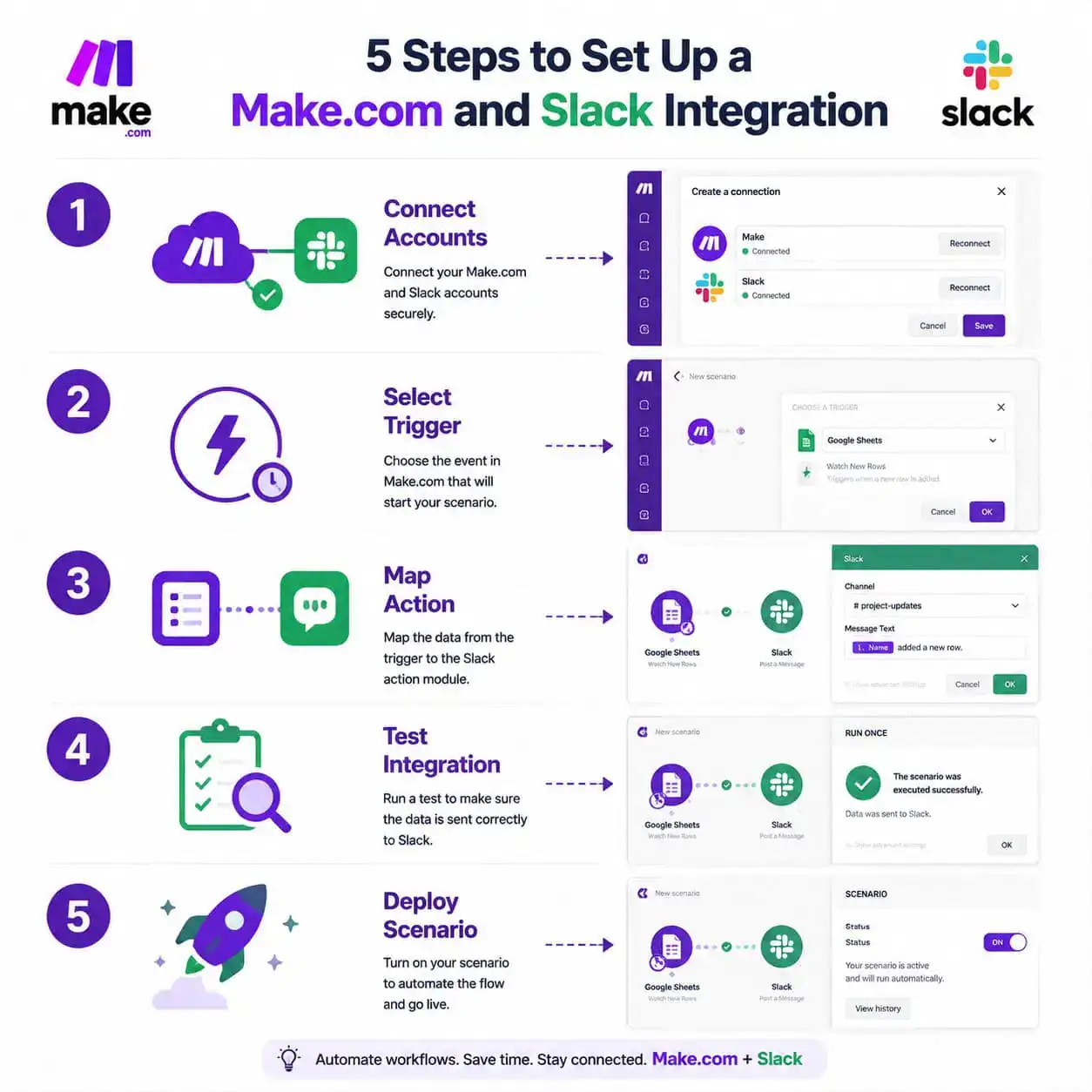
Step 1: Create a Make.com account
Go to make.com and sign up. The free plan includes 1,000 operations per month, which is enough for testing and small teams.
Step 2: Connect your Slack workspace
Inside Make, click “Create a new scenario.” Search for Slack as your first module. You’ll be prompted to authorize Make to access your Slack workspace through OAuth. This is a one-time step.
Step 3: Choose your trigger
Select what starts the workflow. Common starting points: “Watch Messages” (new message in a channel), “Watch Reactions,” or a trigger from a different app entirely (like a new row in Google Sheets).
Step 4: Add your action modules
Click the “+” icon to add the next step. Search for Slack or any other app. Map the data fields from your trigger to the action (for example, map the message text to the task description in Asana).
Step 5: Add a router or filter (optional but recommended)
Use a router to split the workflow based on conditions. For example, route messages containing “urgent” to one channel and all others to a general log.
Step 6: Add an error handler
Right-click any module and add an error handler. This prevents a single failed API call from stopping your entire scenario.
Step 7: Test with real data
Click “Run once” to test with live data. Make shows you exactly what data passed through each module, making it easy to spot mapping errors.
Step 8: Activate and schedule
Set the scenario to run on a schedule (every 15 minutes, hourly, etc.) or instantly via webhook. Click the toggle to activate.
Common mistake: Skipping the test step and activating directly. Always run at least one test with real data before going live. Dummy data often hides field-mapping issues that only appear with actual Slack messages.
What Are the Most Useful Make.com and Slack Automation Use Cases?
The most practical use cases fall into three categories: task creation, alerting, and data sync.
Task creation from Slack messages:
Make can monitor a Slack channel and automatically convert flagged messages into tasks in tools like Asana, Trello, ClickUp, or Jira. Teams use this to turn client requests or bug reports into trackable work items without leaving Slack [1]. This is one of the highest-value automations for reducing manual data entry.
Intelligent alerting pipelines:
Developers and operations teams use Make to build notification pipelines that filter, format, and route alerts from monitoring tools (like PagerDuty or Datadog) into the right Slack channels with the right context [3]. Raw alerts get transformed into readable, actionable messages.
CRM and data sync:
Sales teams connect Slack to their CRM so that when a deal stage changes or a new lead comes in, a formatted Slack message appears in the sales channel automatically. Make also supports Salesforce, and Slack’s native Sales Elevate feature further extends this by giving reps access to customer records directly in Slack [2].
Support ticket routing:
Customer support teams use Make to watch a dedicated Slack channel for incoming requests, create tickets in Zendesk or Freshdesk, and post a confirmation message back to the requester, all within seconds.
| Use Case | Trigger | Action | Apps Involved |
|---|---|---|---|
| Bug report to Jira | New Slack message with 🐛 reaction | Create Jira issue | Slack + Jira |
| New lead alert | CRM new contact | Post to #sales channel | HubSpot + Slack |
| Daily standup summary | Scheduled time | Post form link to channel | Make + Slack |
| Support ticket creation | Message in #support | Create Zendesk ticket + reply | Slack + Zendesk |
| Content approval | Google Form submission | Notify approver in Slack | Google Forms + Slack |
For teams that also want to automate content workflows, pairing this with an AI-powered content generation tool can extend automation further into your publishing pipeline.
How Does Make.com Compare to Other Slack Automation Tools?
Make.com sits in a specific tier: more powerful than Zapier for complex workflows, but less developer-intensive than building custom Slack apps.
| Feature | Make.com | Zapier | Native Slack Workflows |
|---|---|---|---|
| Visual workflow builder | ✅ Yes | ✅ Yes | ✅ Basic |
| Multi-step branching logic | ✅ Yes | Limited | ❌ No |
| Error handlers | ✅ Yes | Limited | ❌ No |
| Free tier | ✅ 1,000 ops/mo | ✅ 100 tasks/mo | ✅ Yes |
| No-code setup | ✅ Yes | ✅ Yes | ✅ Yes |
| AI Toolkit integration | ✅ Yes [6] | Limited | ❌ No |
| Execution history/logs | ✅ Detailed [3] | Basic | ❌ No |
Choose Make.com if you need conditional logic, multi-app chains, or detailed debugging. Choose Zapier if your team prefers a simpler interface and only needs linear, two-step automations. Use native Slack Workflows for basic channel automations that don’t involve external apps.
If you’re also building automated workflows for your website or content tools, the advanced WordPress automation strategies for power users guide covers similar automation logic in a different context.
What Are the Common Mistakes Teams Make with This Integration?

Most problems with Make.com and Slack integrations come from a handful of repeatable errors:
1. No error handlers on critical scenarios
If a downstream app (like your CRM) goes down, Make will retry and eventually fail silently unless you’ve added an error handler. Always add one to scenarios that feed important business data.
2. Over-automating too early
Teams sometimes automate 15 workflows in week one, then spend weeks debugging edge cases. Start with one or two high-value scenarios, run them for two weeks, then expand.
3. Using personal Slack accounts to authorize
If the person who authorized the Slack connection leaves the company, the integration breaks. Use a dedicated service account or bot user for authorization.
4. Ignoring rate limits
Slack’s API has rate limits. If your scenario fires too frequently or posts too many messages per minute, Slack will throttle it. Space out high-volume scenarios and batch messages where possible.
5. Skipping execution logs
Make provides detailed logs of every operation [3]. Teams that don’t check these regularly miss early warning signs of failing modules.
For teams also managing automated content or design workflows, the same discipline applies. The Figma AI workflow automation guide covers similar best practices for design pipeline automation.
FAQ: Make.com and Slack Integration
Q: Is Make.com free to use with Slack?
Yes. Make’s free plan includes 1,000 operations per month and supports Slack integration. Most small teams can run several useful scenarios within this limit.
Q: Do I need coding skills to set up Make.com with Slack?
No. Make’s visual scenario editor is designed for non-developers. You drag modules, map fields, and set conditions through a point-and-click interface.
Q: How long does it take to set up a basic Make.com Slack scenario?
Most users complete their first working scenario in 20 to 30 minutes. Complex multi-app workflows with branching logic may take a few hours.
Q: Is the Make.com Slack integration officially supported?
Yes. Make is an officially verified Slack app, meaning it’s maintained by Make and stays updated with the latest Slack API features [3].
Q: Can Make.com post formatted messages to Slack, not just plain text?
Yes. Make supports Slack’s Block Kit formatting, so you can post messages with buttons, sections, images, and structured layouts [1].
Q: What happens if my Slack scenario fails?
If you’ve added an error handler, Make will follow the fallback path you defined (such as sending you an alert). Without an error handler, the scenario stops and logs an error in your execution history.
Q: Can Make.com trigger Slack messages from non-Slack apps?
Yes. Any app that Make supports can trigger a Slack message. For example, a new row in Google Sheets, a form submission, or a webhook from your website can all post to Slack automatically.
Q: Does Make.com support AI-powered Slack automations?
Yes. Make offers AI Toolkit integration with Slack, which enables scenarios that use AI to classify messages, generate responses, or route content intelligently [6].
Q: How many Slack actions does Make.com support?
Make provides dozens of Slack-specific modules, including creating channels, posting messages, updating statuses, managing reminders, and more [3].
Q: Can I use Make.com to auto-share content to Slack from my website?
Yes. You can connect your CMS or website to Make and automatically post updates to Slack channels. This is similar to how teams auto-share WordPress blog posts to social media using automation tools.
Q: What’s the difference between a Make.com scenario and a Slack Workflow?
Slack Workflows are built inside Slack and handle basic, Slack-only automations. Make.com scenarios are built outside Slack and can connect to hundreds of external apps with complex logic.
Q: Is there a limit to how many apps I can connect in one Make.com scenario?
No hard limit exists on the number of modules in a scenario. Practical limits come from API rate limits of the connected apps and your Make.com plan’s operation count.
Conclusion: Your Next Steps to Supercharge Team Productivity
The Make.com and Slack integration is one of the most practical automation investments a team can make in 2026. It removes the repetitive manual work that slows teams down, from copying messages into task managers to manually routing alerts, and replaces it with reliable, auditable workflows.
Here’s how to move forward:
- Start with one scenario that solves a real, daily pain point. Task creation from Slack messages or alert routing are good starting points.
- Use a pre-built template from Make’s template library to skip the blank-canvas problem.
- Add error handlers from day one, even on simple scenarios.
- Check execution logs weekly for the first month to catch edge cases early.
- Expand gradually, adding one or two new scenarios per sprint once your first automations are stable.
For teams building broader automation ecosystems, pairing Make.com with tools like AI-powered content optimization or exploring AI plugins for WordPress automation can extend these productivity gains across your entire digital workflow.
The goal isn’t automation for its own sake. It’s giving your team back the time they currently spend on tasks that a well-built scenario can handle in seconds.
See also: Slack.
References
[1] Slack – https://www.make.com/en/integrations/slack
[2] Salesforce Slack Integration – https://slack.com/blog/news/salesforce-slack-integration
[3] 12 Best Apps For Slack To Supercharge Your Team In 2025 – https://blog.pullnotifier.com/blog/12-best-apps-for-slack-to-supercharge-your-team-in-2025
[6] Slack – https://www.make.com/en/integrations/ai-tools/slack