Last updated: May 7, 2026
Quick Answer
n8n is a free, open-source workflow automation platform that lets you connect apps, APIs, and AI models without writing much code. You build workflows visually by connecting nodes on a canvas, and you can add custom JavaScript when you need more control. This guide walks you through everything from setup to building your first AI-powered workflow.
Key Takeaways
- n8n supports 400+ integrations and combines a visual drag-and-drop builder with optional custom code, making it accessible to beginners and developers alike [2]
- You can self-host n8n for free or use the paid cloud version, giving you full control over your data
- Native AI capabilities let you build chatbots, automate document processing, and connect to models like GPT-4 directly inside your workflows [1]
- Over 9,500 community workflow templates are available to copy and customize, so you rarely start from scratch [8]
- The core building block is the “node” — each node represents one app or action, and you chain them together to create automation logic
- Beginners can build a working workflow in under 30 minutes using the template library and the visual editor
- n8n differs from Zapier and Make primarily in its self-hosting option, open-source code, and deeper developer flexibility
- AI agent workflows in n8n can reason, use tools, and loop through tasks — not just pass data from A to B
What Exactly Is n8n and Why Should Beginners Care?
n8n (pronounced “n-eight-n”) is an open-source workflow automation platform that connects apps, services, and AI models so they can talk to each other automatically [4]. For beginners, it means you can stop doing repetitive tasks by hand — things like copying data between spreadsheets, sending follow-up emails, or posting to social media — and let a workflow handle it instead.
What makes n8n stand out for someone just starting out:
- Visual canvas: You see your entire workflow as a diagram, not a wall of code
- No-code + low-code: Most tasks need zero coding; you can add JavaScript only when you want to [3]
- Free self-hosting: Run it on your own computer or server at no cost
- AI-ready: Built-in nodes for OpenAI, Anthropic, and other AI providers mean you can add intelligence to any workflow [1]
“n8n’s hybrid approach means you can start clicking and dragging on day one, then grow into writing custom logic as your confidence builds — without ever hitting a ceiling.”
Who it’s for: Freelancers, small business owners, developers, marketers, and anyone who wants to automate repetitive digital tasks without paying per-task fees.
Who might want to wait: If you need a completely zero-setup, fully managed tool with no learning curve at all, a simpler tool like Zapier might serve you better in the short term — though you’ll pay more per automation run.
How Does n8n Actually Work? Nodes, Workflows, and Triggers Explained
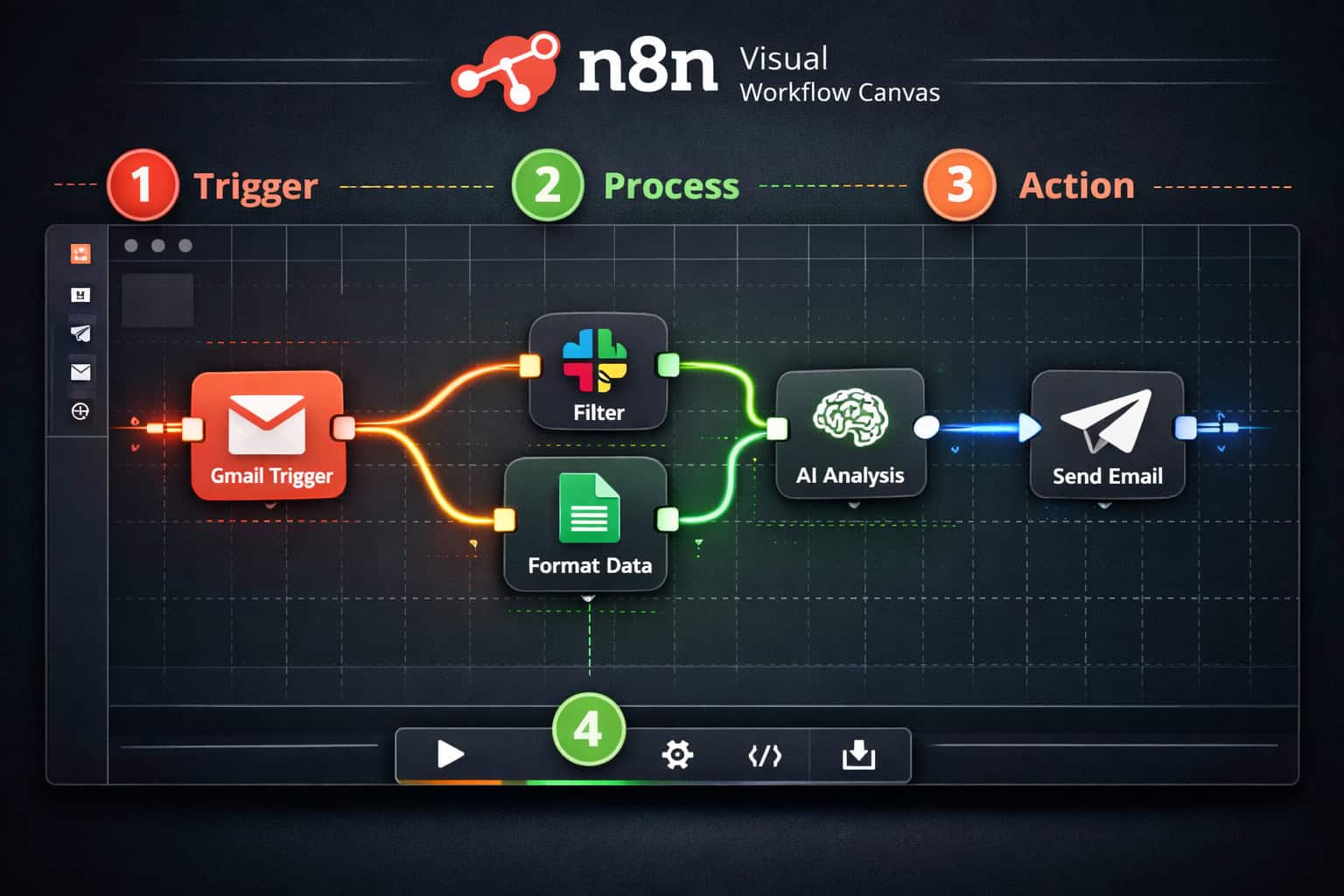
Every automation in n8n is called a workflow, and every workflow is made of nodes. Each node does one thing: fetch data, transform it, send it somewhere, or make a decision.
Here’s the basic anatomy of an n8n workflow:
| Component | What It Does | Example |
|---|---|---|
| Trigger node | Starts the workflow | New email arrives in Gmail |
| Action node | Does something with data | Add a row to Google Sheets |
| Logic node | Makes decisions | IF condition is true, go left; else go right |
| AI node | Processes data with AI | Summarize email text with GPT-4 |
| Code node | Runs custom JavaScript | Parse a complex JSON response |
How data flows: Each node passes its output to the next node as a JSON object. You don’t need to understand JSON deeply as a beginner — n8n’s interface lets you click fields and map data visually.
Common mistake: Beginners often try to build one giant workflow that does everything. A better approach is to keep workflows focused on one task, then chain workflows together using n8n’s “Execute Workflow” node.
Getting Started: How to Install and Set Up n8n in 2026
You have two main paths to get n8n running:
Option 1: n8n Cloud (Easiest)
Go to n8n.io, sign up, and you get a hosted instance. No installation needed. Paid plans start at around $20/month (verify current pricing at n8n.io, as pricing changes). Best for beginners who want to start immediately.
Option 2: Self-Hosting (Free, More Control)
Run n8n on your own machine using npm or Docker.
Using npm (simplest local install):
<code>npx n8n
</code>
Open your browser to http://localhost:5678 and you’re in.
Using Docker:
<code>docker run -it --rm --name n8n -p 5678:5678 docker.n8n.io/n8nio/n8n
</code>
Choose self-hosting if: You handle sensitive data, want zero per-execution costs, or plan to run high-volume workflows.
Choose cloud if: You’re testing n8n for the first time, don’t want to manage servers, or need reliable uptime without DevOps work.
Once you’re in, the interface shows:
- Workflow canvas — your main workspace
- Node panel — browse and search all available integrations
- Executions log — see every run, success, or error
- Templates library — 9,500+ pre-built workflows to copy [8]
Building Your First AI Workflow: A Step-by-Step Walkthrough
This section walks through a practical beginner workflow: automatically summarize incoming emails and post the summary to a Slack channel using AI.
Step 1: Create a New Workflow
Click “New Workflow” on the n8n dashboard. Give it a clear name like “Email Summarizer → Slack.”
Step 2: Add a Trigger Node
Search for “Gmail” in the node panel and select Gmail Trigger. Set it to trigger when a new email arrives in your inbox. Connect your Google account using OAuth (n8n guides you through this).
Step 3: Add an AI Node
Click the “+” button to add a new node. Search for “OpenAI” and select the OpenAI node. Choose the “Message a Model” operation. In the prompt field, type something like:
“Summarize the following email in 2-3 sentences: {{ $json.text }}”
The {{ $json.text }} part pulls the email body from the previous node automatically.
Step 4: Add a Slack Node
Add a Slack node, connect your Slack workspace, and set the message to the AI’s output: {{ $json.message.content }}. Choose which channel to post to.
Step 5: Test and Activate
Click “Test Workflow” to send a real email and watch the data flow through each node. Check each node’s output panel to confirm the data looks right. When it works, click “Activate” to turn it on permanently.
Total time to build this: 20-30 minutes on your first try. Under 10 minutes once you know the interface.
For teams managing content pipelines, pairing this kind of automation with tools covered in our comprehensive guide to AI-powered content generation tools can multiply your output significantly.
n8n vs. Zapier vs. Make: Which Tool Should Beginners Choose?
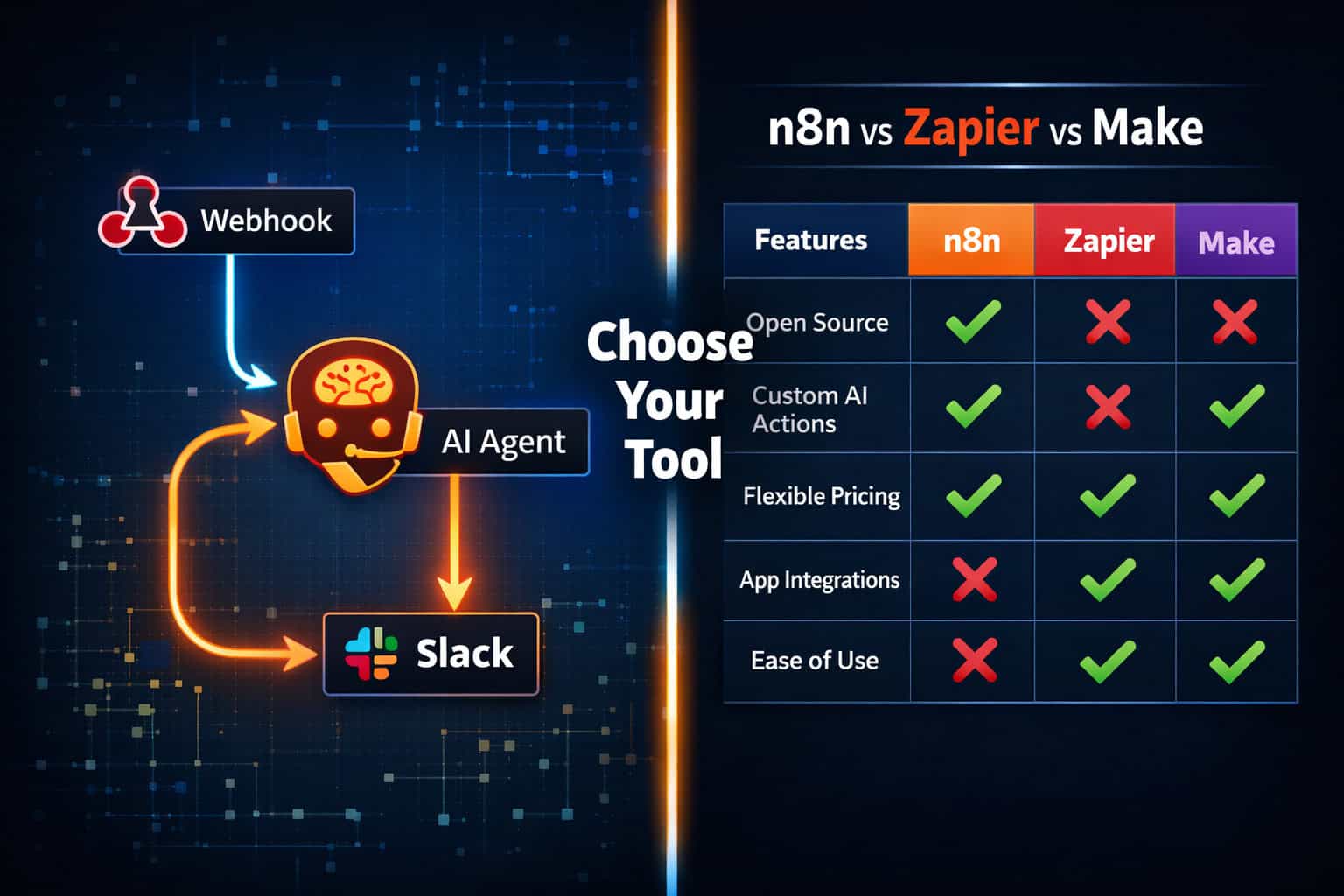
n8n, Zapier, and Make all automate workflows, but they serve different users. Here’s a direct comparison:
| Feature | n8n | Zapier | Make |
|---|---|---|---|
| Pricing model | Free (self-hosted) / paid cloud | Per-task pricing | Per-operation pricing |
| Self-hosting | ✅ Yes | ❌ No | ❌ No |
| Open source | ✅ Yes | ❌ No | ❌ No |
| Integrations | 400+ [2] | 6,000+ | 1,500+ |
| AI-native features | ✅ Built-in [1] | Limited | Limited |
| Custom code | ✅ JavaScript | ❌ No | Limited |
| Learning curve | Medium | Low | Medium |
| Best for | Developers, data-sensitive use cases, AI workflows | Non-technical users, quick setups | Visual power users |
Choose n8n if: You want to self-host, build AI agent workflows, handle sensitive data, or run high volumes without per-task fees.
Choose Zapier if: You need the widest app library and want the simplest possible setup with no technical overhead.
Choose Make if: You like a visual approach similar to n8n but prefer a fully managed cloud service with a large integration library.
If you’re already building websites or digital products, you might also find value in exploring AI website creator tools that build professional sites without code — many of which pair well with n8n automations for content and lead management.
What Are AI Agent Workflows and How Do You Build Them in n8n?
AI agent workflows go beyond simple “if this, then that” logic. An AI agent in n8n can reason through a task, decide which tools to use, and loop until it completes a goal [1].
Standard workflow: Email arrives → Extract data → Save to sheet. (Linear, predictable.)
AI agent workflow: User asks a question → Agent decides whether to search the web, query a database, or call an API → Agent loops until it has a complete answer → Agent responds.
Building a Basic AI Agent in n8n
n8n has a dedicated AI Agent node that uses the LangChain framework under the hood. Here’s the basic setup:
- Add an AI Agent node to your canvas
- Choose a language model (e.g., OpenAI GPT-4o, Claude 3.5 Sonnet)
- Attach tools — these are other n8n nodes the agent can call, like a web search node, a database query node, or a calculator
- Set a system prompt that defines the agent’s role and constraints
- Connect a trigger — a chat message, a webhook, or a scheduled run
The agent then decides on its own which tools to use and in what order, based on the user’s input.
Real example use cases for AI agents in n8n:
- A customer support bot that looks up order status in your database and drafts replies
- A research assistant that searches the web, summarizes findings, and emails you a report
- A content pipeline that pulls trending topics, generates draft posts, and schedules them
For WordPress site owners, combining n8n AI agents with the strategies in our guide on advanced WordPress automation for power users can automate your entire content publishing cycle.
What Are the Most Useful n8n Workflow Templates for Beginners?
The n8n community has published over 9,535 workflow templates you can import and customize [8]. You don’t need to build from scratch.
Top beginner-friendly template categories:
- 📧 Email automation — auto-reply, summarize, categorize, and route emails
- 📊 Data sync — keep Google Sheets, Airtable, and Notion in sync automatically
- 🤖 AI chatbots — deploy a customer-facing chatbot connected to your knowledge base
- 📱 Social media — schedule posts, monitor mentions, auto-respond to comments
- 🔔 Alerts and notifications — get Slack or email alerts when specific events happen
- 📄 Document processing — extract data from PDFs, invoices, and forms using AI
How to use templates:
- Go to n8n.io/workflows
- Search by category or use case
- Click “Use for free” to import the template into your n8n instance
- Update credentials and adjust any node settings for your specific setup
- Test and activate
If you manage a WordPress site, our guide on how to auto-share WordPress blog posts to social media shows a workflow pattern that maps directly to n8n’s social media automation templates.
Common Beginner Mistakes and How to Avoid Them
Even with a friendly interface, beginners run into predictable problems. Here are the most common ones and how to fix them fast.
Mistake 1: Not testing nodes individually Always click “Test Step” on each node before running the full workflow. This shows you exactly what data each node outputs, so you can catch mapping errors early.
Mistake 2: Using hardcoded values instead of dynamic references
If you type a specific email address directly into a node instead of referencing {{ $json.email }}, your workflow breaks the moment the data changes. Always use dynamic field references.
Mistake 3: Ignoring error handling Add an Error Trigger workflow that catches failures and sends you a notification. Without this, a broken workflow fails silently and you won’t know for hours or days.
Mistake 4: Building overly complex single workflows Break large automations into smaller sub-workflows. Use the “Execute Workflow” node to call them in sequence. This makes debugging much easier.
Mistake 5: Forgetting to handle rate limits If your workflow calls an API hundreds of times quickly, you’ll hit rate limits. Add a Wait node between batches to pace your requests.
Mistake 6: Skipping the logs The Executions panel shows every run with full input/output data for each node. Check it regularly, especially when something seems off.
For teams building automated content workflows, the principles in our guide on AI-powered content optimization apply directly to how you structure data passing between n8n nodes.
Where Should You Learn n8n Next? Best Resources in 2026
Once you’ve built your first workflow, the fastest way to level up is through structured learning and community resources.
Free learning resources:
- n8n official docs — thorough, well-organized, and updated regularly. Start with the “Getting Started” section.
- YouTube masterclass — a 12-hour beginner-to-advanced course covering setup, APIs, simple workflows, and AI agents is available on YouTube [7]. Search for “n8n complete course” to find the most current version.
- n8n community forum — active community where you can post workflow questions and get answers from experienced users
- Template library — n8n.io/workflows with 9,500+ examples to learn from [8]
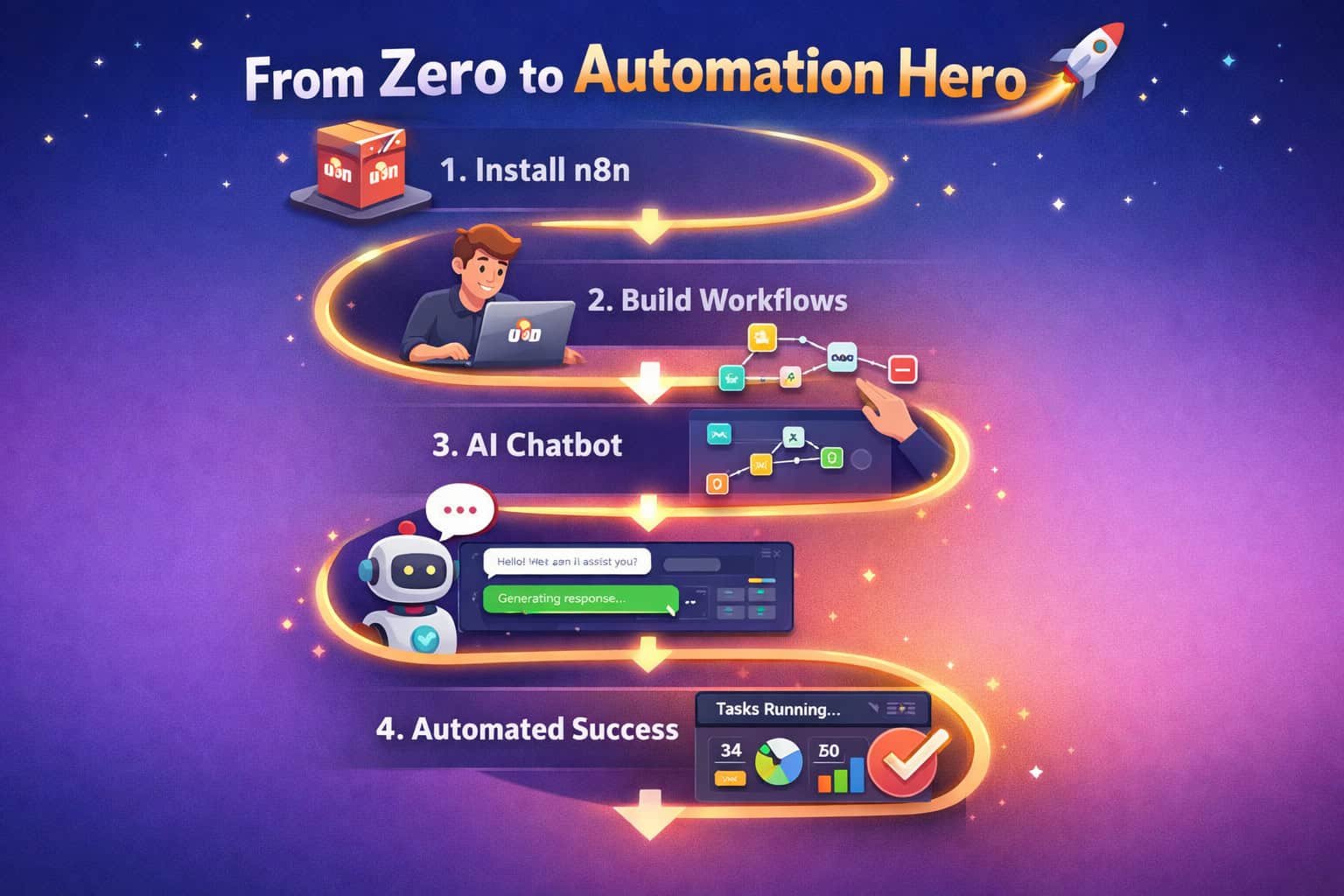
Structured learning path for beginners:
- Week 1: Install n8n, complete the official quickstart, build 2-3 simple workflows using templates
- Week 2: Build a workflow from scratch using a webhook trigger and an external API
- Week 3: Add an AI node to an existing workflow; experiment with prompts
- Week 4: Build your first AI agent workflow with at least two tools attached
Community tip: Share your workflows in the n8n community forum. You’ll get feedback, and explaining your logic to others accelerates your own understanding faster than any course.
If you’re also building websites and want to connect your n8n automations to your site’s backend, our guide on WordPress plugin development best practices covers how to create custom API endpoints that n8n can trigger directly.
FAQ: Zero to Automation Hero — Your n8n Questions Answered
Q: Do I need to know how to code to use n8n? No. Most workflows are built entirely with the visual editor. Coding knowledge helps for advanced use cases, but it’s not required to get started [3].
Q: Is n8n really free? The self-hosted version is free with no execution limits. The cloud version has a free trial, then paid plans. You pay for the cloud hosting, not per workflow run.
Q: How is n8n different from Zapier? n8n is open-source and self-hostable, supports custom JavaScript, and has native AI agent capabilities. Zapier has more integrations (6,000+) and a simpler interface, but charges per task and doesn’t offer self-hosting.
Q: Can n8n connect to any API? Yes. The HTTP Request node lets you connect to any REST API, even if there’s no dedicated n8n integration for it. This covers the vast majority of modern web services.
Q: How reliable are n8n workflows once activated? Self-hosted reliability depends on your server setup. Cloud n8n handles uptime for you. Either way, always set up error-handling workflows so you’re notified if something fails.
Q: Can I use n8n to build customer-facing chatbots? Yes. n8n’s AI agent nodes can power chatbots that respond to users via chat interfaces, email, or messaging apps like Telegram and WhatsApp [1].
Q: What’s the difference between a workflow and an AI agent in n8n? A workflow follows a fixed path: trigger → action → action. An AI agent can decide its own path, choose which tools to use, and loop until a task is complete. Agents are more flexible but harder to predict.
Q: How many workflows can I run at once? On self-hosted n8n, this depends on your server resources. The cloud plan limits vary by tier. Check n8n.io for current plan details.
Q: Is my data safe when using n8n? With self-hosting, your data never leaves your server. With cloud n8n, data is processed on n8n’s infrastructure. For sensitive data, self-hosting is the safer choice.
Q: Where can I find the 9,500+ workflow templates? At n8n.io/workflows. You can filter by category, app, or use case [8].
Conclusion: Your Path from Zero to Automation Hero
The Zero to Automation Hero: A Beginner’s Guide to AI Workflows with n8n journey is genuinely achievable in a few weeks, not months. n8n gives you a visual canvas to start clicking and building immediately, a massive template library so you’re never starting from zero, and native AI capabilities that most competing tools still bolt on as afterthoughts [1][2].
Your actionable next steps:
- Install n8n today — use
npx n8nfor a local test or sign up for the cloud trial - Import one template from n8n.io/workflows that solves a real problem you have right now
- Modify it — change one node, add one step, make it yours
- Build from scratch — once you’ve modified a template, build a simple three-node workflow without a template
- Add AI — drop an OpenAI or AI Agent node into any existing workflow and experiment with prompts
- Join the community — post your first workflow to the n8n forum and ask for feedback
The gap between “I’ve never automated anything” and “I have 10 workflows running in the background saving me hours each week” is smaller than it looks. The first workflow is the hardest. After that, you’ll start seeing automation opportunities everywhere.
For more automation resources and guides on building efficient digital workflows, visit our Automation Archives for the latest tutorials and tool comparisons.
References
[1] Advanced AI – https://docs.n8n.io/advanced-ai/ [2] n8n-io GitHub – https://github.com/n8n-io [3] The Ultimate Beginner’s Guide to n8n AI Workflows and AI Agents – https://www.getpassionfruit.com/blog/the-ultimate-beginner-s-guide-to-n8n-ai-workflows-and-ai-agents [4] n8n Introduction Video – https://www.youtube.com/watch?v=GIZzRGYpCbM [7] n8n Masterclass – https://www.youtube.com/watch?v=7_PeuTsx7UM [8] n8n Workflow Templates – https://n8n.io/workflows/