Last updated: May 8, 2026
Quick Answer
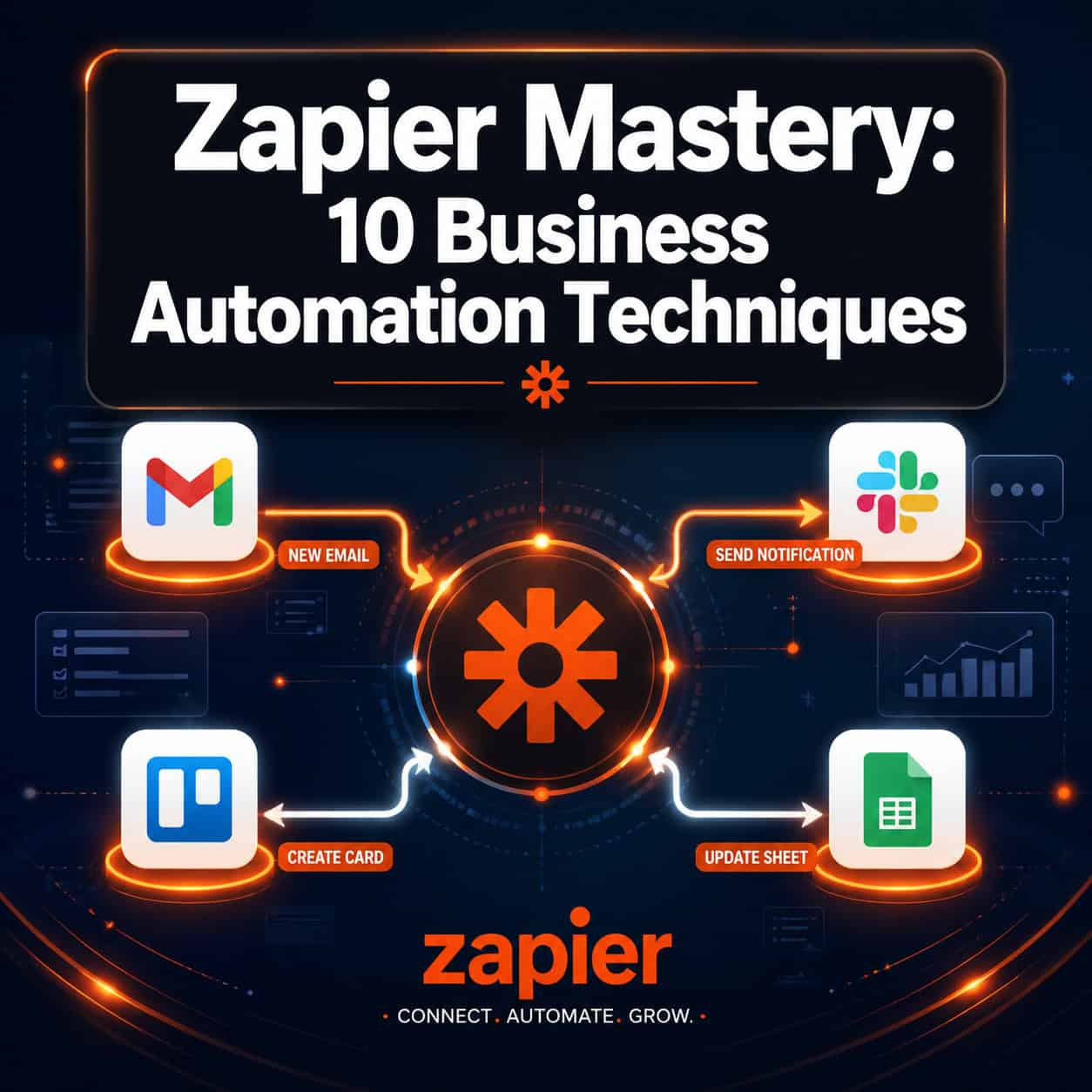
Zapier mastery means building smart, multi-step automations that connect your apps, eliminate manual work, and keep data clean without writing a single line of code. The 10 techniques in this guide cover everything from AI-powered Zap creation and conditional branching to data validation and scheduled reporting. Apply even three or four of these, and you’ll recover hours every week.
Key Takeaways
- Zaps are automated workflows with a trigger (what starts the process) and one or more actions (what happens next) [1]
- Filters and Paths let you build conditional logic so only the right data moves forward [1]
- Zapier’s AI assistant can generate a complete multi-step Zap from a plain-English description [4]
- Embedding data validation directly into workflows prevents bad records from ever entering your systems [2]
- The “Integrate, refine, repeat” framework keeps automations useful as your business changes [2]
- Formatter by Zapier cleans and reshapes data (dates, names, numbers) without external tools [4]
- Scheduled Zaps handle recurring tasks like weekly reports automatically
- Multi-step Zaps can replace entire manual processes that previously took 20–30 minutes
- Regular Zap audits every 60–90 days prevent broken automations from silently failing [1]
- Automation works best when you map the manual process first, then build the Zap
What Is Zapier and Who Should Use It?
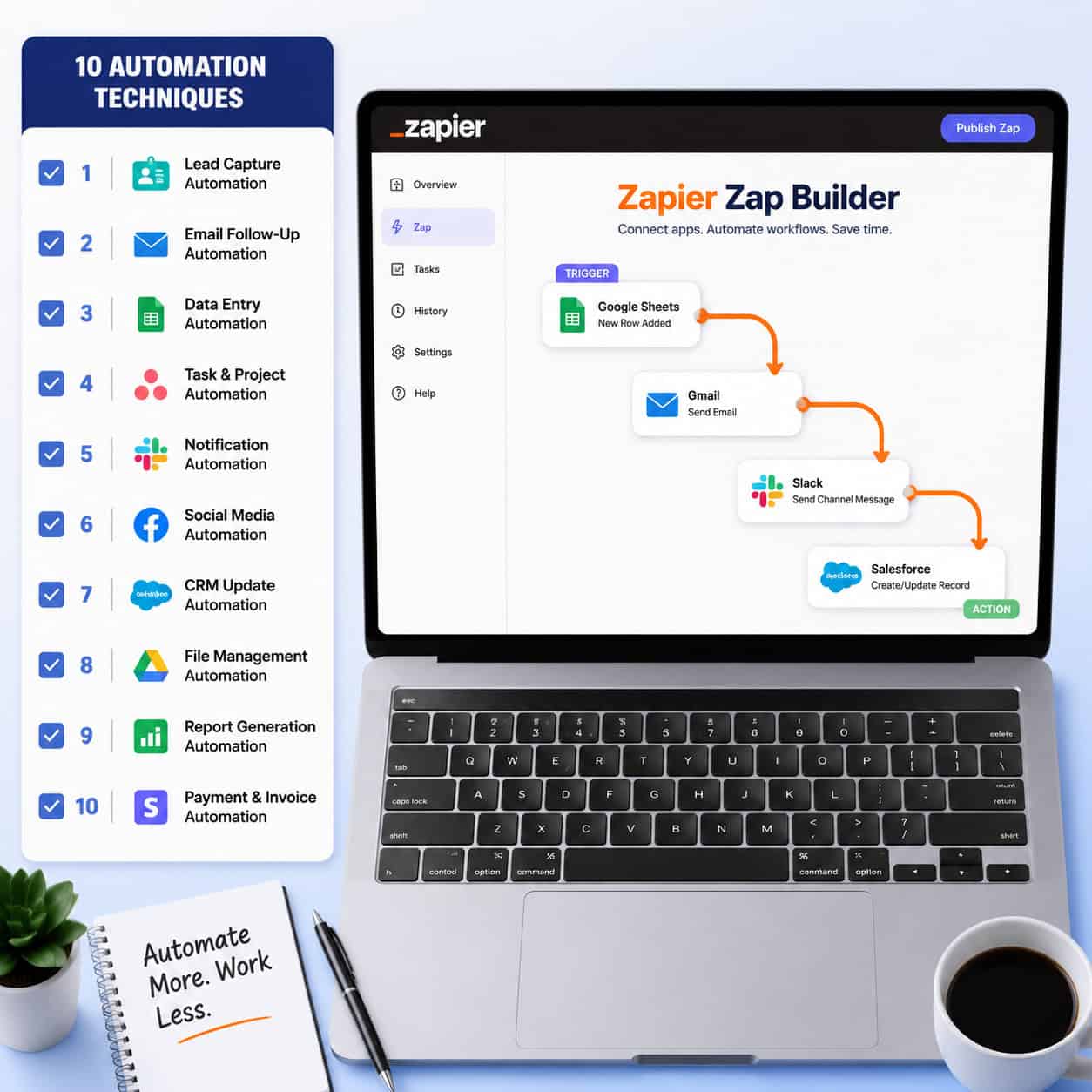
Zapier is a no-code automation platform that connects over 7,000 apps, letting you build workflows called “Zaps” that move data and trigger actions between tools automatically [1]. It’s built for business owners, marketers, operations managers, and anyone who repeats the same digital tasks daily.
Zapier is a strong fit if you:
- Use multiple SaaS tools that don’t natively talk to each other
- Spend more than 30 minutes a day on copy-paste tasks
- Run a small team where everyone wears multiple hats
It’s less suited for:
- Complex database logic requiring custom SQL queries
- Real-time data processing under one second (Zapier runs on polling intervals, typically every 1–15 minutes on paid plans)
- Workflows requiring on-premise software integration
Technique 1: Build Your First Multi-Step Zap the Right Way
A multi-step Zap chains several actions after a single trigger, replacing what would otherwise be a manual, multi-app process. For example: a new form submission triggers a CRM record creation, a Slack notification, and a follow-up email, all in one automated sequence.
Steps to build one correctly:
- Map the manual process on paper first (trigger → action 1 → action 2 → action 3)
- In Zapier, choose your trigger app and event
- Test the trigger with real sample data before adding actions
- Add each action step and map fields from the trigger data
- Run a full test with live data before turning the Zap on
Common mistake: Skipping the test step. A Zap that looks correct in setup can fail silently if field mapping is wrong. Always test with real data.
Technique 2: Use Zapier AI to Create Workflows Instantly
Zapier’s built-in AI assistant lets you describe a workflow in plain English and generates the Zap structure for you [4]. This is the fastest way to get started, especially for complex automations you’re not sure how to build manually.
How it works: Type something like “When someone fills out my Google Form, send them a personalized Gmail confirmation and add their details to a Google Sheet.” Zapier AI maps the trigger, actions, and field connections automatically [4].
Where this saves the most time: Automations involving three or more apps that would take 20+ minutes to configure manually.
Choose this approach if you’re new to Zapier or want to prototype an automation quickly before refining it.
Technique 3: Add Filters to Stop Unwanted Actions
Filters are conditions you set inside a Zap that determine whether the automation continues or stops [1]. Without filters, every trigger fires every action, which creates noise, duplicate records, and wasted API calls.
Example: You want to send a welcome email only to leads from the United States. Add a Filter step after the trigger that checks if the “Country” field equals “United States.” If it doesn’t match, the Zap stops there.
| Filter Type | Use Case |
|---|---|
| Text contains | Route leads by keyword in a form field |
| Number greater than | Trigger alerts only for orders above $500 |
| Date is before/after | Skip records outside a date range |
| Boolean is true | Only process contacts who opted in |
Technique 4: Branch Logic with Paths
Paths extend filter logic by letting one Zap follow different routes depending on the data [1]. Instead of building three separate Zaps for three customer segments, you build one Zap with three paths.
Practical example: A new support ticket comes in. Path A handles “billing” issues and notifies the finance team. Path B handles “technical” issues and creates a Jira ticket. Path C handles everything else and sends a generic acknowledgment email.
💡 Pro tip: Keep each path focused on one outcome. Paths that try to do too much become hard to debug.
Technique 5: Clean Data with Formatter by Zapier
Raw data from forms and apps is often messy: inconsistent capitalization, phone numbers in different formats, dates that don’t match your CRM’s requirements. Formatter by Zapier fixes this inside the workflow before data reaches its destination [4].
Most useful Formatter functions:
- Capitalize names from all-lowercase form entries
- Extract email addresses from a block of text
- Convert date formats (MM/DD/YYYY to YYYY-MM-DD)
- Calculate numbers (add tax, convert currency)
For teams running WordPress-based content operations, pairing Formatter with content workflows can complement tools like AI-powered content optimization strategies to keep data consistent across platforms.
Technique 6: Automate Data Validation to Keep Records Clean
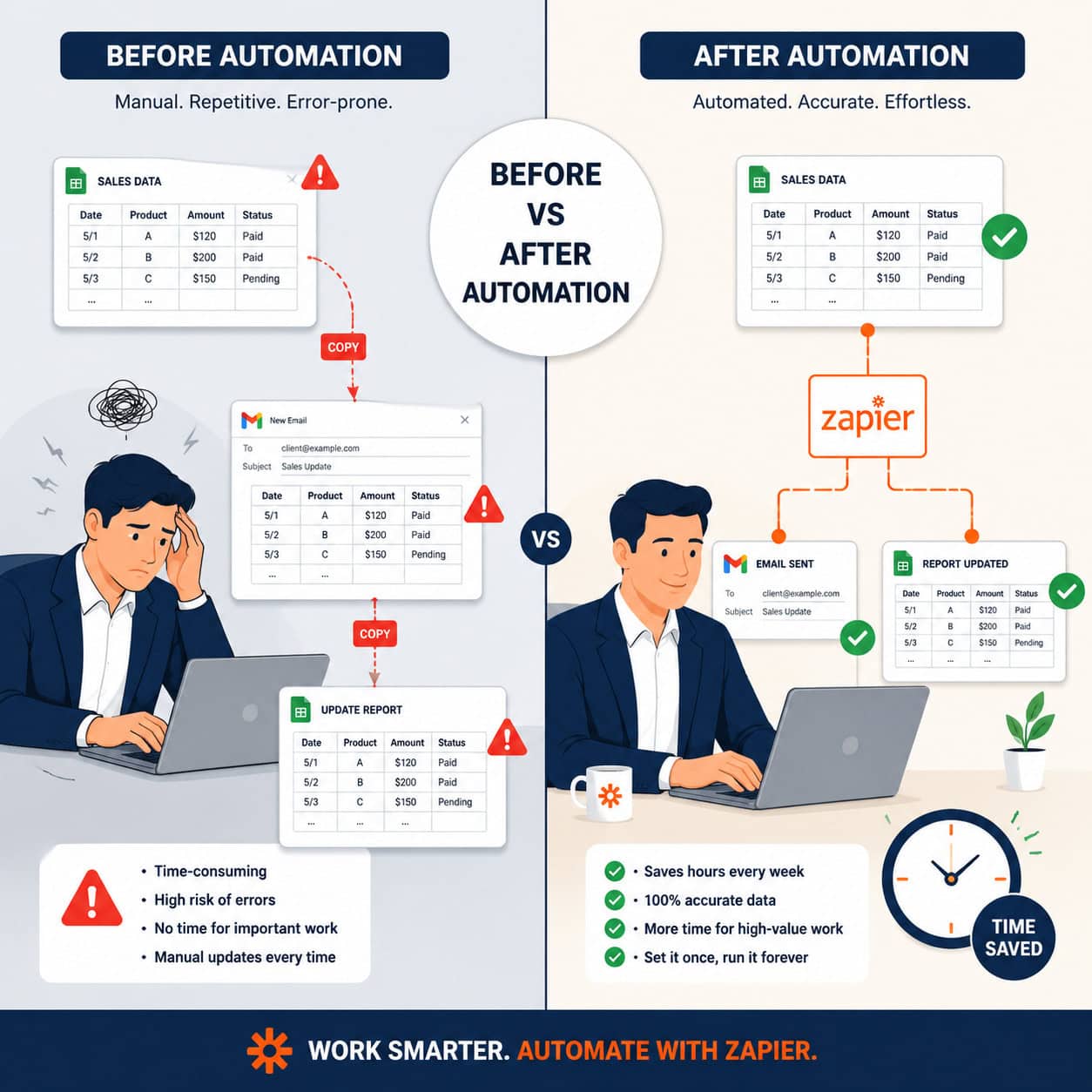
One of the most underused Zapier techniques is building data quality checks directly into workflows as non-optional steps [2]. This means a record can’t move forward unless it meets your formatting and completeness standards.
How to set this up:
- Add a Filter step after your trigger that checks required fields are not empty
- Use Formatter to standardize field formats (phone, email, date)
- Add a second Filter to verify the formatted data matches expected patterns
- If validation fails, route the record to a “review” Google Sheet instead of your CRM
This approach, part of the “Integrate, refine, repeat” framework, ensures your database stays clean over time rather than requiring periodic manual cleanup [2].
Technique 7: Use Scheduled Zaps for Recurring Reports
Zapier’s Schedule trigger fires a Zap at a set time: daily, weekly, or monthly. This replaces manually pulling reports, sending reminders, or running batch processes.
High-value scheduled automations:
- Pull last week’s sales data from your CRM every Monday morning and post a summary to Slack
- Send a weekly digest of new blog posts to your email list
- Archive completed tasks from your project management tool to a Google Sheet every Friday
For teams that publish content regularly, combining scheduled Zaps with tools that auto-share WordPress blog posts to social media creates a fully hands-off content distribution pipeline.
Technique 8: Connect Your CRM to Everything
Your CRM is only as useful as the data inside it. Most teams manually update CRM records after calls, emails, and form submissions, which means data is always slightly out of date.
Zaps that keep CRM data current automatically:
- New Typeform or Google Form submission → create or update CRM contact
- Email reply received in Gmail → log activity in HubSpot or Salesforce
- Meeting booked in Calendly → create deal in CRM with meeting notes field
- Payment received in Stripe → update contact status to “Customer”
Choose this technique first if your sales team complains that CRM data is unreliable. It solves the root cause rather than the symptom.
Technique 9: Build Internal Notification Systems
Manual status updates waste time and create communication gaps. Zapier can push the right information to the right person the moment something happens, without anyone having to check a dashboard.
Examples that work well:
- New high-value lead (above a set score) → immediate Slack DM to sales rep
- Support ticket marked “urgent” → SMS to on-call manager via Twilio
- Invoice overdue by 7 days → automated follow-up email from Gmail
Teams building client-facing websites can extend this further. For instance, pairing internal notifications with advanced WordPress automation strategies keeps development and client communication in sync without manual check-ins.
Technique 10: Audit and Maintain Your Zaps Regularly
Zaps break when apps update their APIs, field names change, or business processes shift. A broken Zap that fails silently is worse than no automation at all because you assume work is happening when it isn’t [1].
Recommended maintenance schedule:
- Monthly: Check Zapier’s Task History for errors or failed runs
- Quarterly: Review each active Zap against current business processes
- After any app update: Re-test Zaps connected to that app
“Regularly review and update Zaps to ensure they meet current business needs and adapt to changes in business processes or software updates.” [1]
For a broader look at automation tools and strategies, the Automation Archives at WebAiStack covers complementary platforms and techniques worth exploring alongside Zapier.

How Does Zapier Compare to Alternatives?
| Feature | Zapier | Make (Integromat) | n8n |
|---|---|---|---|
| App integrations | 7,000+ | 1,500+ | 400+ (self-hosted) |
| Ease of use | High | Medium | Low (technical) |
| Pricing | Higher | Lower | Free (self-hosted) |
| Visual workflow builder | Basic | Advanced | Advanced |
| Best for | Non-technical teams | Power users | Developers |
Choose Zapier if speed of setup and app breadth matter more than price. Choose Make if you need complex visual logic at lower cost. Choose n8n if you have developer resources and want full data control.
What Are Common Zapier Mistakes to Avoid?
These are the errors that cause the most wasted time and frustration:
- Not testing with real data: Sample data in Zapier often doesn’t reflect edge cases your real data will hit
- Building too many single-step Zaps: Consolidate related automations into multi-step Zaps for easier management
- Ignoring task limits: Free and Starter plans have monthly task caps; complex Zaps consume tasks faster than expected
- No error notification: Set up a Zap that emails you when another Zap fails (Zapier supports this natively)
- Skipping documentation: Write a one-line description in each Zap’s name explaining what it does and why
Conclusion: Your Next Steps with Zapier Mastery
The 10 techniques in this guide represent a practical path from basic automation to a genuinely efficient operation. You don’t need to implement all 10 at once. Start with the one that addresses your biggest daily time drain.
Actionable next steps:
- This week: Identify your most repetitive manual task and build a multi-step Zap to handle it
- This month: Add Filters and Formatter to at least two existing Zaps to improve data quality
- This quarter: Audit all active Zaps, remove unused ones, and document what each one does
- Ongoing: Set up a task history review reminder every 30 days to catch silent failures early
Zapier mastery isn’t about having the most Zaps. It’s about having the right ones, built cleanly, maintained regularly, and connected to the tools your team actually uses. Start small, test thoroughly, and expand from there.
For teams looking to extend automation beyond Zapier into their broader tech stack, exploring AI plugins for WordPress website management and AI-powered content generation tools can round out a fully automated digital operation.
FAQ
What is a Zap in Zapier?
A Zap is an automated workflow consisting of a trigger (the event that starts it) and one or more actions (what happens as a result). When the trigger fires, Zapier runs the actions automatically without any manual input [1].
How much does Zapier cost in 2026?
Zapier offers a free plan with limited tasks and a two-step Zap restriction. Paid plans start around $19.99/month (Starter) and scale up based on task volume and feature access. Pricing changes periodically, so check Zapier’s official pricing page for current rates.
Can Zapier run automations without any coding?
Yes. Zapier is designed for non-technical users. You configure triggers, actions, filters, and paths through a visual interface. The AI assistant can even build Zap structures from plain-English descriptions [4].
How often do Zaps run?
Free plan Zaps check for new triggers every 15 minutes. Paid plans reduce this to every 1–2 minutes depending on the tier. Instant triggers (webhooks) fire in real time regardless of plan.
What is Formatter by Zapier?
Formatter is a built-in Zapier tool that transforms data between steps: changing text case, extracting parts of strings, converting date formats, and performing calculations. It eliminates the need for external data-cleaning tools [4].
How do I stop a Zap from running on certain records?
Add a Filter step after your trigger. Set the condition that must be true for the Zap to continue. If the condition isn’t met, the Zap stops at that step and no further actions run [1].
What is the difference between Filters and Paths?
Filters stop or continue a Zap based on one condition. Paths branch a Zap into multiple routes, each with its own conditions and actions. Use Filters for simple yes/no logic and Paths when different data needs different handling [1].
How do I know if a Zap is failing?
Check Zapier’s Task History tab in your dashboard. You can also create a Zap that sends you an email or Slack message when another Zap encounters an error, giving you real-time failure alerts.
Is Zapier safe for sensitive business data?
Zapier uses encryption in transit and at rest, and complies with SOC 2 Type II standards. For highly sensitive data (medical, financial), review Zapier’s security documentation and consider whether a self-hosted alternative like n8n is more appropriate.
How many Zaps should I have?
There’s no ideal number. Focus on quality over quantity. Ten well-built, well-maintained Zaps deliver more value than fifty poorly documented ones that occasionally fail silently.
References
[1] How To Use Zapier – https://www.jasper.ai/blog/how-to-use-zapier
[2] Master Data Management – https://zapier.com/blog/master-data-management/
[3] Zapier Mastery – https://jimmyrose.me/zapier-mastery/
[4] Watch (Zapier AI Tutorial for Beginners) – https://www.youtube.com/watch?v=JtdUgJGI_Oo
[5] 16 Zapier Automation Ideas – https://www.nocode.mba/articles/16-zapier-automation-ideas