Last updated: May 8, 2026
Quick Answer
Zapier Gmail automation lets you connect Gmail to hundreds of other apps so that repetitive email tasks happen automatically, without you lifting a finger. You set up a “Zap” with a trigger (something that happens in Gmail) and an action (something that happens in another app, or vice versa). This guide covers the most practical workflows, step-by-step setup, and advanced techniques for getting real results.
Key Takeaways
- Zapier connects Gmail to 6,000+ apps through trigger-action workflows called Zaps, with no coding required.
- You can automate lead capture, auto-replies, task creation, team notifications, and sales funnel updates directly from your Gmail inbox.
- AI integration (ChatGPT via Zapier) can analyze, label, summarize, and draft email replies automatically [3].
- Gmail’s native labels and filters are essential for targeting the right emails inside your Zaps [7].
- Even apps without a Zapier integration can be connected to Gmail via webhooks, as long as they have an API [3].
- Instant auto-responders triggered by new leads or signups can significantly reduce response lag [3].
- Email-to-task automation (Gmail → Airtable, Asana, Trello) keeps your inbox from becoming a to-do list [5].
- Coursera offers a dedicated “ChatGPT + Zapier: AI-Powered Email Mastery” course for deeper learning [8].
What Is Zapier Gmail Automation and Who Is It For?
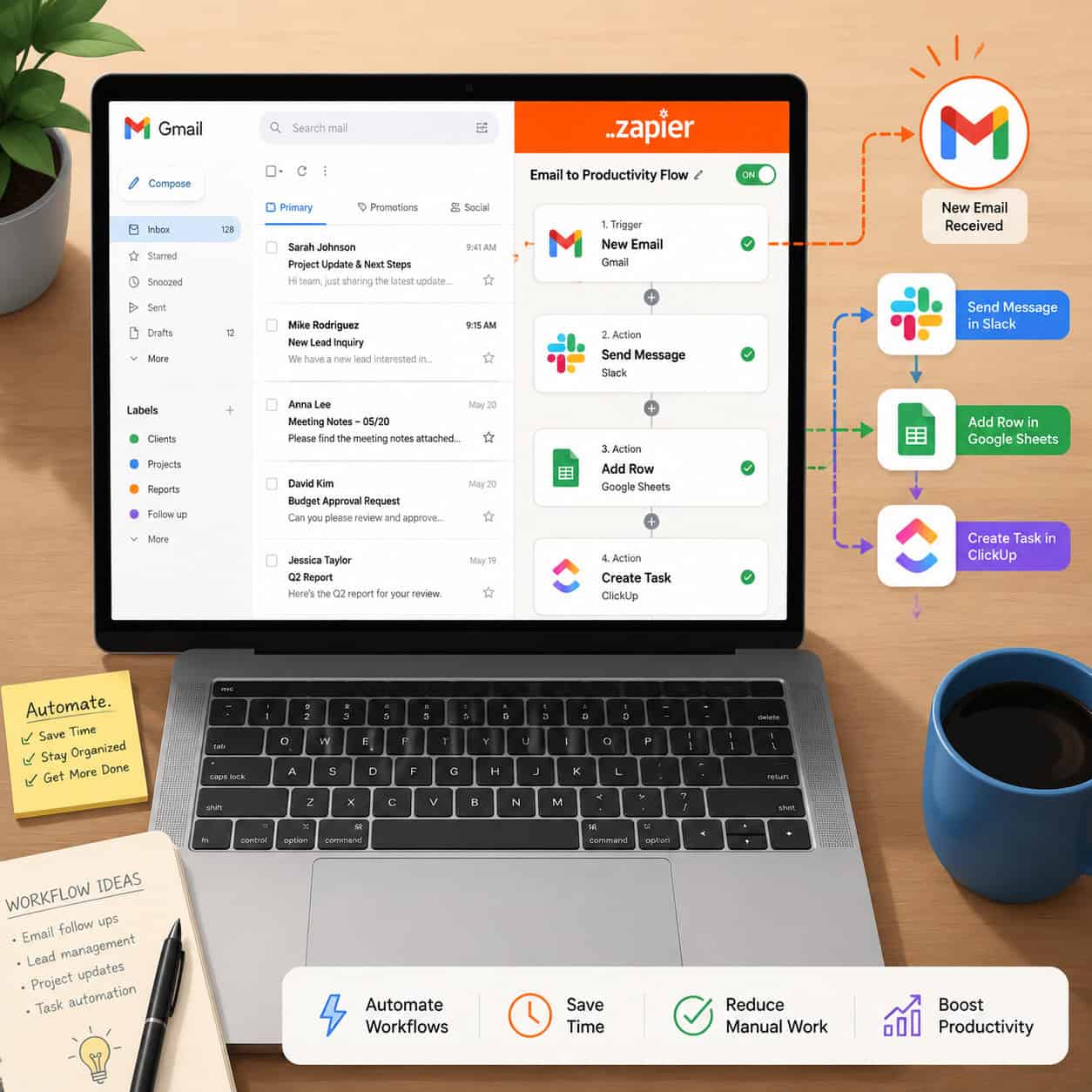
Zapier Gmail automation is a no-code method of connecting Gmail to other tools so that specific email events automatically trigger actions elsewhere. When a new email arrives with a certain label, a Zap can create a task, notify a Slack channel, or log data to a spreadsheet, all without manual input [5].
This approach works best for:
- Solopreneurs and small business owners managing high email volume
- Sales and marketing teams handling lead capture and follow-up
- Operations managers who route emails to the right team members
- Anyone whose inbox doubles as a task list or CRM
It’s less useful if you receive fewer than 20 meaningful emails per day or if your workflows are too irregular to predict.
Why Mastering Email Efficiency Matters More Than Inbox Zero
Mastering email efficiency through Zapier Gmail automation techniques isn’t just about clearing your inbox faster. It’s about removing yourself from repetitive decisions entirely.
Most professionals spend a significant portion of their workday on email-related tasks: reading, sorting, forwarding, and manually entering data from emails into other systems. Zapier eliminates the manual handoff between Gmail and the tools you already use, so your attention goes to work that actually requires judgment [9].
The real gain isn’t speed. It’s consistency. Automated workflows don’t forget to follow up, miss a lead, or skip a step when things get busy.
For teams, this also means fewer communication gaps. A Gmail-to-Slack Zap, for example, can instantly notify a channel when an email with a specific label arrives, keeping everyone aligned without forwarding threads manually [1].
How Do You Set Up Your First Zapier Gmail Zap?
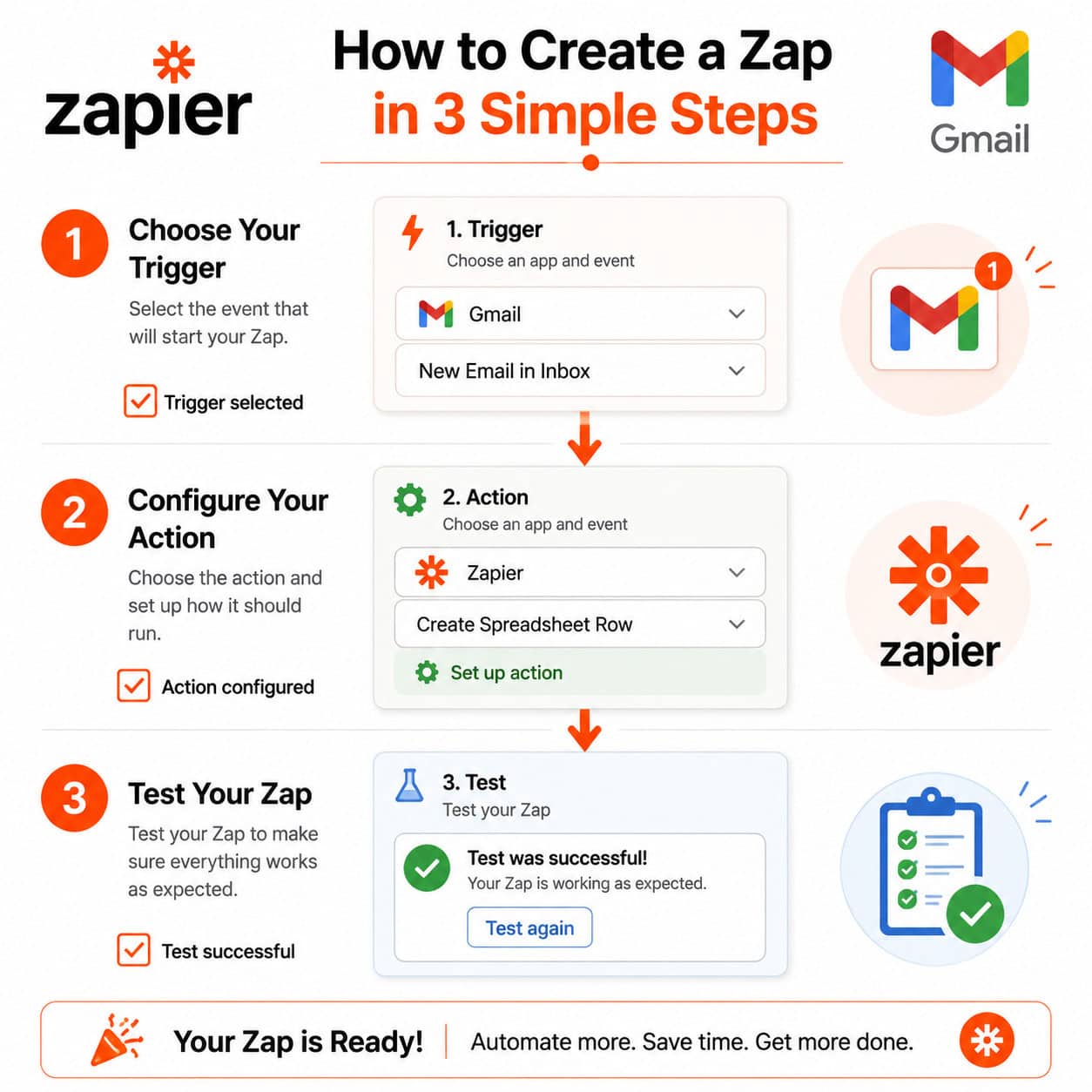
Setting up a Zap takes about 10 minutes once you understand the structure. Every Zap has two parts: a trigger and an action.
Step-by-step setup:
- Create a free Zapier account at zapier.com (free tier allows up to 100 tasks/month).
- Click “Create Zap” from your dashboard.
- Choose Gmail as your trigger app. Select a trigger event, such as “New Email,” “New Labeled Email,” or “New Attachment.”
- Connect your Gmail account and grant Zapier the required permissions.
- Set up filters (optional but recommended): specify a sender, subject keyword, or label to narrow which emails trigger the Zap [7].
- Choose your action app (Slack, Google Sheets, Trello, Airtable, etc.) and configure what happens.
- Test the Zap with a real or sample email to confirm it works.
- Turn the Zap on.
Common mistake: Skipping the filter step. Without filters, your Zap fires on every incoming email, which creates noise and wastes your monthly task quota.
For more on automating content and workflows across platforms, see our automation guides archive.
What Are the Most Useful Zapier Gmail Automation Workflows?
The most practical Zapier Gmail workflows fall into five categories. Here’s a breakdown:
| Workflow Type | Trigger | Action | Best For |
|---|---|---|---|
| Lead capture | New form submission | Send Gmail + add to CRM | Sales teams |
| Email-to-task | New labeled email | Create task in Asana/Trello | Operations |
| Team notifications | New email with label | Post to Slack channel | Team comms |
| Auto-responder | New subscriber/lead | Send personalized Gmail reply | Marketing |
| Sales funnel update | Label added to email | Update CRM stage/tag | Sales managers |
Lead capture and segmentation: When someone submits a form, Zapier can automatically log their data to your marketing database and send a personalized Gmail reply. Labels can also trigger funnel-stage updates, so a salesperson labeling an email “Interested” moves that contact forward automatically [1].
Email-to-task conversion: Emails flagged for follow-up can be sent directly to Airtable, Asana, or Trello as new records or tasks. This keeps your inbox from becoming a graveyard of action items [5].
Gmail-to-Slack notifications: Apply a Gmail label (like “Urgent” or “Client”) and Zapier posts the email content to a designated Slack channel. This is especially useful for support or account management teams [1].
Cold outreach drafts: Zapier can integrate Gmail with sales tools to pre-fill draft emails with prospect data and relevant copy based on where that lead sits in your funnel [1].
If you’re also automating your blog or content distribution, check out how to auto-share WordPress blog posts to social media for complementary workflow ideas.
How Does AI Fit Into Zapier Gmail Automation?
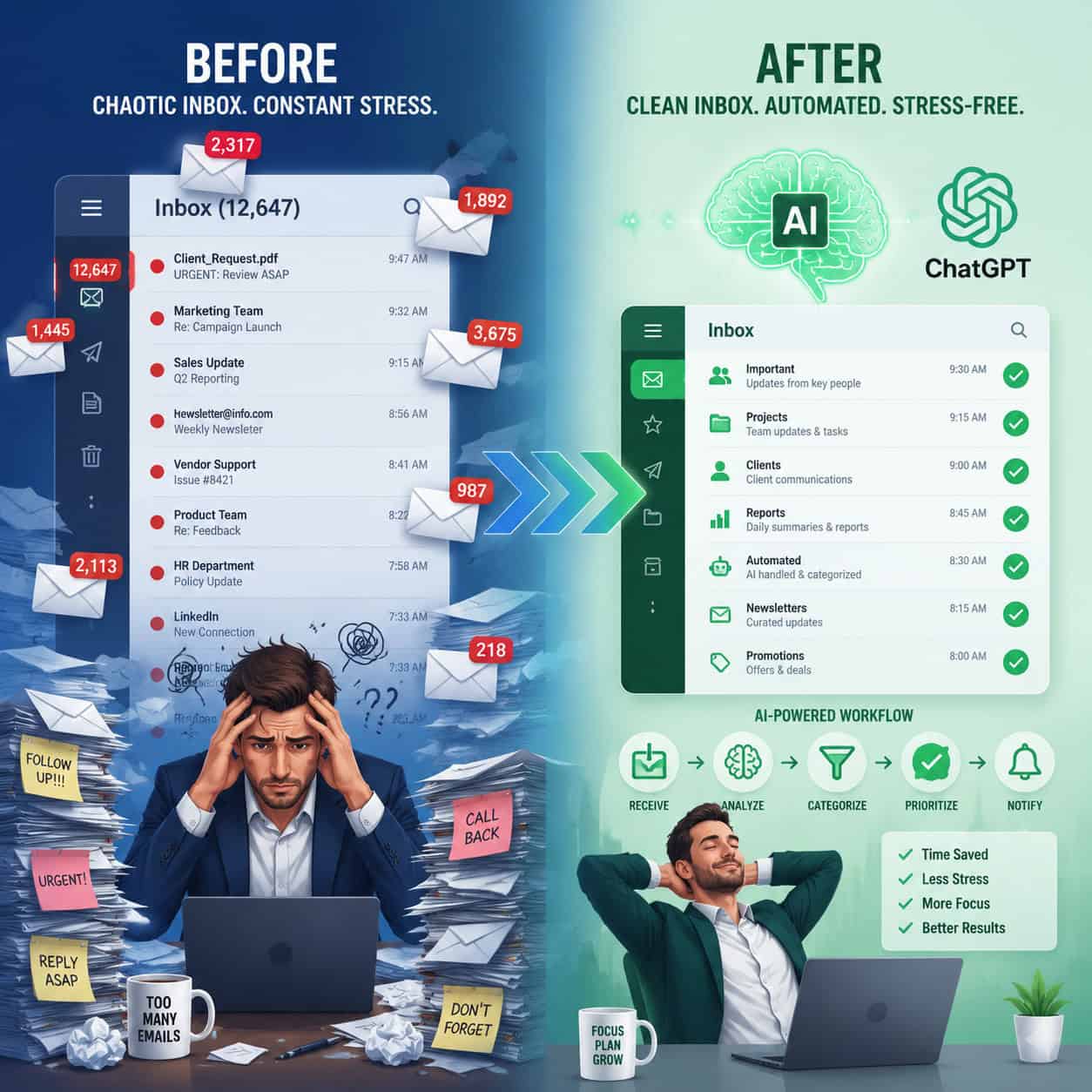
AI, particularly ChatGPT via Zapier’s OpenAI integration, adds a layer of intelligence that goes beyond simple trigger-action rules [3].
What AI-powered Gmail Zaps can do:
- Auto-label emails based on content analysis (e.g., “Support Request,” “Invoice,” “Partnership”)
- Generate draft replies that match the tone and context of the original email
- Summarize long email threads and send the summary to Slack or a Google Doc
- Analyze sentiment to flag high-priority or frustrated customer emails
- Extract key details (names, dates, amounts) and log them to a spreadsheet automatically [6]
How to set it up: Add an OpenAI (ChatGPT) step between your Gmail trigger and your final action. Write a prompt that tells ChatGPT what to do with the email content, then pass its output to your destination app [3].
Coursera offers a dedicated specialization called “ChatGPT + Zapier: AI-Powered Email Mastery” that covers these workflows in depth [8].
For a broader look at AI-driven content tools, see our comprehensive guide to AI-powered content generation tools.
How Do Gmail Labels and Filters Power Better Zaps?
Gmail’s native labeling and filtering system is the backbone of precise automation. Without it, your Zaps either fire too broadly or miss the emails that matter [7].
Best practices for label-based automation:
- Create specific labels like “Lead-Hot,” “Invoice-Received,” or “Support-Open” rather than generic ones.
- Use Gmail filters (Settings → Filters and Blocked Addresses) to auto-apply labels based on sender, subject, or keywords.
- In Zapier, use “New Labeled Email” as your trigger and select the exact label. This keeps your Zap targeted and efficient.
- Combine labels with Zapier’s built-in filter step to add a second layer of conditions before the action fires.
Edge case: If you share a Gmail account with a team, label naming conventions become critical. Inconsistent labels break Zaps silently, the Zap runs but doesn’t find matching emails.
What About Apps That Don’t Have a Zapier Integration?
Even if a tool isn’t listed in Zapier’s app directory, you can still connect it to Gmail using webhooks, as long as the app has an API [3].
How webhooks work in this context:
- Set Gmail as your trigger in Zapier.
- Choose “Webhooks by Zapier” as your action.
- Configure a POST request to your app’s API endpoint with the email data as the payload.
This approach requires some technical comfort with APIs, but it opens up automation for custom internal tools, legacy software, or niche platforms that haven’t built a Zapier integration.
For teams building custom web infrastructure, our guide on WordPress plugin development best practices covers related API and integration concepts.
What Are the Most Common Mistakes in Gmail Zapier Automation?
Even well-intentioned automations break down in predictable ways. Here are the mistakes worth avoiding:
- No filters on triggers: Every email fires the Zap, burning through your task limit and creating junk data downstream.
- Over-automating replies: Auto-responders sent to every email (including newsletters and spam) look unprofessional. Always filter by sender type or label first.
- Ignoring Zap history: Zapier logs every run. Check it weekly when you first launch a Zap to catch errors early.
- Not testing with real data: Sample data in Zapier’s test step doesn’t always reflect what live emails look like. Run a real test before turning a Zap on.
- Forgetting to reconnect accounts: Gmail OAuth tokens expire or get revoked. A disconnected account silently stops all your Zaps.
For teams using AI tools across their workflow stack, our AI-powered content optimization guide covers similar pitfalls in automation-heavy environments.
FAQ
Q: Is Zapier Gmail automation free?
Zapier’s free plan allows up to 100 tasks per month with single-step Zaps. Multi-step Zaps and higher task volumes require a paid plan, starting at around $19.99/month (billed annually) as of 2026.
Q: Does Zapier work with Google Workspace (formerly G Suite) Gmail accounts?
Yes. Zapier connects to both personal Gmail and Google Workspace accounts. You’ll need to grant Zapier access during the OAuth connection step.
Q: Can Zapier read the body of my emails?
Yes. Zapier can access email subject, body, sender, recipient, labels, and attachments, depending on the trigger type you select.
Q: How do I stop a Zap from firing on spam or newsletters?
Use Gmail filters to label only the emails you want to automate, then set your Zap trigger to “New Labeled Email” with that specific label. This keeps unwanted emails out of your automation.
Q: Can I use Zapier to send emails, not just receive them?
Yes. Gmail actions in Zapier include “Send Email,” “Create Draft,” and “Reply to Email.” You can trigger these from events in other apps.
Q: Is my email data safe with Zapier?
Zapier is SOC 2 Type II certified and uses encryption in transit and at rest. However, you should review Zapier’s data retention policies and avoid passing sensitive personal data through Zaps unless necessary.
Q: What’s the difference between a Zap and a multi-step Zap?
A basic Zap has one trigger and one action. A multi-step Zap has one trigger and two or more actions, or includes filter and formatter steps in between. Multi-step Zaps require a paid plan.
Q: Can Zapier automate Gmail for form submissions from my website?
Yes. Zapier supports triggers from Webflow, Typeform, Gravity Forms, and many other form tools. When a form is submitted, Zapier can send a personalized Gmail reply automatically [6].
Q: How do I connect Gmail to Google Sheets using Zapier?
Set Gmail as your trigger (e.g., “New Email Matching Search”), then choose Google Sheets as your action and select “Create Spreadsheet Row.” Map the email fields (sender, subject, body) to your sheet columns [7].
Conclusion: Your Next Steps for Smarter Email Automation
Mastering email efficiency through Zapier Gmail automation techniques is one of the highest-leverage investments you can make in your daily workflow. The fundamentals are straightforward: pick a repetitive email task, build a Zap with the right trigger and filters, test it carefully, and turn it on.
Actionable next steps:
- Audit your inbox this week. Identify the three most repetitive email tasks you do manually.
- Set up Gmail labels for each task category before building any Zaps.
- Build your first Zap using one of the workflow templates in this guide (email-to-task or auto-responder are the easiest starting points).
- Add an AI step once your basic Zaps are stable. ChatGPT-powered labeling or summarization adds significant value with minimal extra setup [3].
- Check Zap history weekly for the first month to catch errors and refine your filters.
If you want to go deeper, the ChatGPT + Zapier specialization on Coursera is a structured path to advanced email workflow automation [8].
For more automation strategies across your digital stack, explore our full automation resource library.
References
[1] Guide Gmail Zapier Automation – https://clickleo.com/guide-gmail-zapier-automation/
[3] Automate Gmail With Zapier – https://zapier.com/blog/automate-gmail-with-zapier/
[5] Organize Search Automate Gmail Inbox – https://zapier.com/blog/organize-search-automate-gmail-inbox/
[6] Email Automation – https://zapier.com/blog/email-automation/
[7] Gmail To Google Sheets Automation Zapier Guide – https://alicialyttle.com/gmail-to-google-sheets-automation-zapier-guide/
[8] ChatGPT Zapier Email Specialization – https://www.coursera.org/specializations/chatgpt-zapier-email
[9] Unlocking Efficiency Master The Art Of Zapier Automation – https://makeautomation.co/unlocking-efficiency-master-the-art-of-zapier-automation/