Last updated: May 7, 2026
Quick Answer: N8N is an open-source workflow automation platform that lets you build email automation pipelines by connecting triggers, logic nodes, and email services visually, without writing code. You can automate tasks like sending follow-up sequences, sorting incoming mail, syncing leads from Google Sheets, and generating AI-personalized messages. It works for solo operators and teams alike, and the self-hosted version is free.
Key Takeaways
- N8N uses a visual, node-based editor to connect email services (Gmail, SMTP, IMAP) with databases, CRMs, and AI tools [1]
- You can trigger email workflows from webhooks, Google Sheets changes, CRM events, or incoming emails via IMAP [2]
- Native connectors for OpenAI, Hugging Face, and Cohere enable AI-generated, personalized email content inside your workflows [3]
- Gmail’s daily sending limits apply inside n8n; heavy-volume senders should route through a dedicated email service instead [1]
- OAuth 2.0 is the recommended authentication method for connecting email providers securely [1]
- Complex workflows should be split into smaller, modular sub-workflows using n8n’s workflow call node [1]
- Error handling and retry logic are essential to prevent silent failures and avoid overwhelming email providers [1]
- The self-hosted version of n8n is free; n8n Cloud starts at a paid tier with managed infrastructure

What Is N8N and Why Use It for Email Automation?
N8N is an open-source automation platform with a drag-and-drop visual editor that connects apps, APIs, and services into automated workflows, no coding required [1]. For email automation specifically, it acts as the logic layer between your data sources and your email provider.
Most email marketing tools lock you into their ecosystem. N8N doesn’t. You can pull lead data from Google Sheets, enrich it with an API call, generate a personalized message using OpenAI, and send it via Gmail or any SMTP service, all in one workflow you control completely [2].
Who it’s for:
- Freelancers and small teams who want automation without expensive SaaS subscriptions
- Developers who want full control over their automation logic
- Marketers building multi-step drip sequences tied to CRM data
- Operations teams routing support emails to the right queues automatically
Who it’s NOT for:
- Teams that need enterprise-grade deliverability out of the box (use a dedicated ESP like SendGrid or Mailchimp for that)
- Non-technical users who want a fully managed, no-setup solution
For teams already exploring AI-powered workflow automation, n8n fits naturally into a broader automation stack.
How Does N8N Email Automation Actually Work?
At its core, every n8n email workflow follows the same pattern: a trigger starts the workflow, nodes process and transform data, and an action node sends or manages the email [1].
Here’s a simple breakdown of the three-layer structure:
| Layer | What It Does | Example Nodes |
|---|---|---|
| Trigger | Starts the workflow | IMAP Email Trigger, Webhook, Schedule, Google Sheets Watch |
| Logic | Filters, transforms, branches | IF node, Set node, Function node, AI node |
| Action | Sends or manages email | Gmail node, SMTP node, Email node |
Common trigger types:
- IMAP trigger: Fires when a new email arrives in a monitored inbox [6]
- Webhook: Fires when a form is submitted or an external app sends data [1]
- Google Sheets Watch: Monitors a spreadsheet for new rows, ideal for lead lists [1]
- Schedule trigger: Runs the workflow at set intervals (e.g., every morning at 8 AM)
- CRM events: HubSpot or Pipedrive contact creation triggers a welcome email [1]
Key insight: Using Google Sheets’ Watch feature instead of polling on a timer reduces unnecessary API calls and makes your workflow faster and more efficient [1].
Step-by-Step: Building Your First N8N Email Workflow
Mastering Email Automation through a comprehensive guide to N8N workflows starts with one practical build. Here’s how to set up a basic lead-nurture email workflow from scratch.
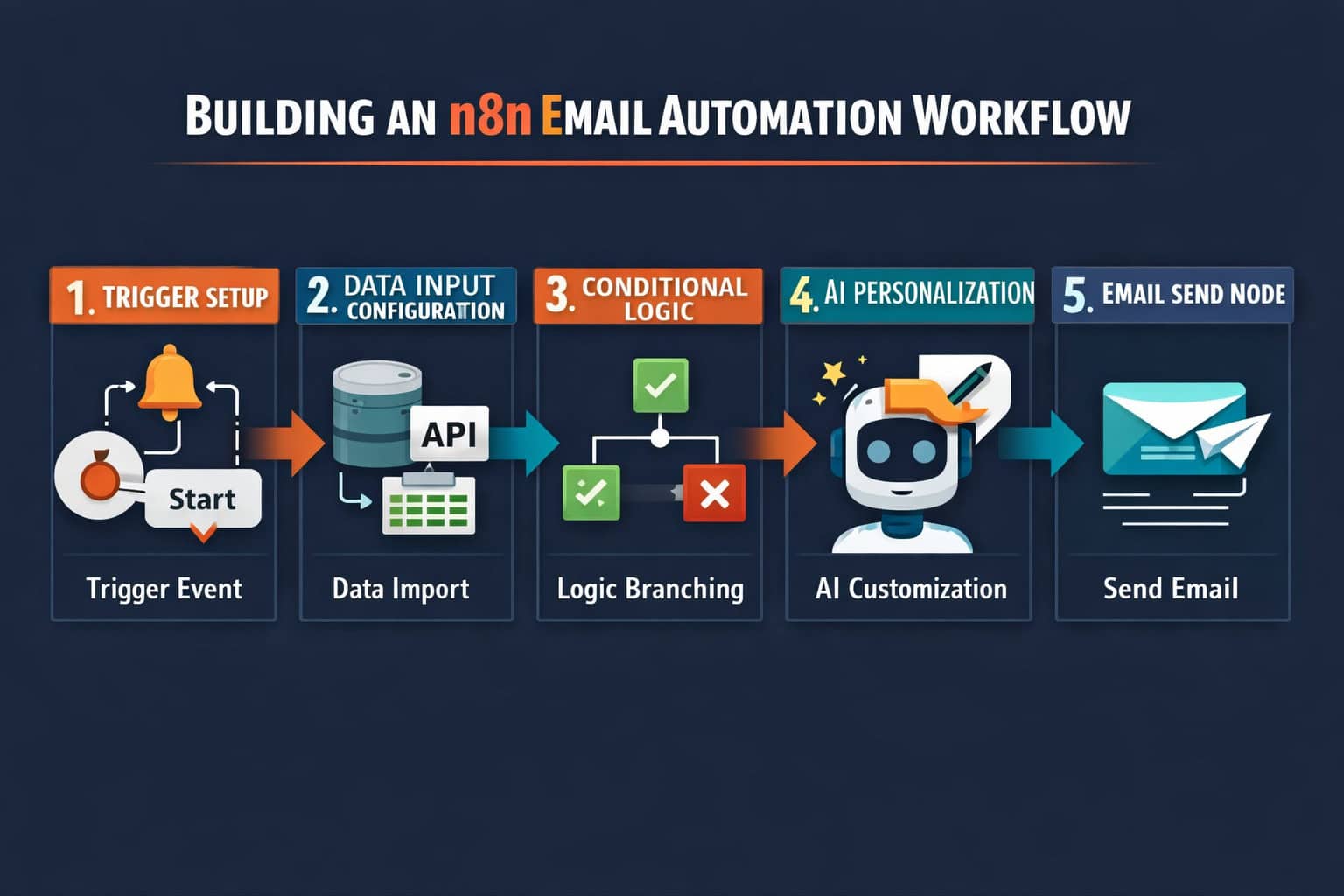
Step 1: Set Up Your N8N Instance
You have two options:
- Self-hosted: Install n8n on your own server or locally via npm (
npm install n8n -g) — free - N8N Cloud: Managed hosting with automatic updates — paid, starting around $20/month
For testing, the local install works fine. For production workflows, self-hosted on a VPS or n8n Cloud is more reliable.
Step 2: Connect Your Email Provider
- Open n8n and create a new workflow
- Add a Gmail node (or SMTP node for other providers)
- Click Credentials and authenticate using OAuth 2.0 — this is the recommended method [1]
- Avoid using basic username/password authentication; many providers will flag or block it
Step 3: Add Your Data Source
- Add a Google Sheets node set to “Watch” mode to monitor a lead list
- Or add a Webhook node to capture form submissions in real time
- Map the fields you need: name, email address, company, etc.
Step 4: Add Logic and Personalization
- Use an IF node to branch logic (e.g., send different emails based on company size)
- Add an OpenAI node to generate a personalized email body using the lead’s data [3]
- Use a Set node to format your variables cleanly before passing them to the email node
Step 5: Configure the Email Send Node
- Set the To field to the email address from your data source
- Write your subject line using an expression:
Hello {{$json["name"]}}, here's what we found - Add your message body — either static HTML or the AI-generated output from Step 4
- Enable error handling on this node so failures are logged, not silently dropped [1]
Step 6: Test and Activate
- Use n8n’s built-in test execution to run the workflow with sample data
- Check that emails arrive correctly formatted
- Activate the workflow — it will now run automatically based on your trigger
What Email Tasks Can You Automate with N8N?
The range of automatable email tasks in n8n is broader than most people expect. Here are the most practical use cases, grouped by function [2]:
Outbound email automation:
- Lead nurture sequences triggered by CRM events
- Follow-up emails sent X days after no reply (using a Schedule + IMAP check combo)
- AI-personalized cold outreach using GPT and a Google Sheets lead list [4]
- Transactional emails triggered by webhooks from your app or website
Inbound email management:
- Auto-labeling and sorting incoming emails by keyword or sender domain
- Routing support tickets to the right Slack channel or project board
- Auto-replying to common inquiries with a templated response
- Extracting data from incoming emails and logging it to a spreadsheet
Notifications and alerts:
- Sending internal alerts when a high-priority email arrives
- Daily digest emails summarizing new leads or tasks
- Billing reminders triggered by invoice due dates in a database
For teams managing content workflows, pairing email automation with AI-powered content generation tools can further reduce manual work across the pipeline.
How Do You Add AI Personalization to N8N Email Workflows?
N8N connects natively to LLM providers including OpenAI, Hugging Face, and Cohere, which means you can generate personalized email content inside the workflow itself, not as a separate step [3].
A practical AI email workflow looks like this:
- Google Sheets Watch node detects a new lead row
- Set node extracts name, company, and pain point fields
- OpenAI node receives a prompt: “Write a 3-sentence outreach email to [name] at [company] focused on [pain point]. Keep it conversational and under 80 words.”
- The AI output is passed directly to the Gmail node as the email body
- Gmail sends the email and logs the timestamp back to Google Sheets [4]
Tips for better AI email output:
- Be specific in your prompt — include tone, word count, and goal
- Use n8n’s Function node to clean up the AI output before sending (strip extra whitespace, fix capitalization)
- Test with 5-10 sample records before activating at scale
- Add a human review step for high-stakes emails by routing output to a Slack message for approval first
This approach is explored in detail in community tutorials, including video walkthroughs showing end-to-end GPT-powered email sends via Gmail [4].
What Are the Most Common N8N Email Automation Mistakes?
Even experienced users run into the same set of problems. Knowing them in advance saves hours of debugging.
Mistake 1: Ignoring Gmail sending limits Gmail has daily sending limits (around 500/day for personal accounts, 2,000/day for Google Workspace). If your workflow hits these limits, emails will fail silently unless you’ve set up error handling. For high-volume sends, route through SendGrid, Mailchimp, or Amazon SES instead [1].
Mistake 2: Using basic authentication Many email providers now block or flag connections that use plain username/password. Always use OAuth 2.0 when available [1].
Mistake 3: Building one massive workflow A single workflow with 30+ nodes becomes hard to debug and maintain. Split complex processes into smaller, modular workflows and connect them using n8n’s workflow call node [1].
Mistake 4: No error handling Without error handling on your email send node, a failed API call or malformed email address will silently break the workflow. Add a Try/Catch structure or use n8n’s built-in error trigger to get notified when something fails [1].
Mistake 5: Polling instead of watching Using a Schedule trigger to check Google Sheets every 5 minutes creates unnecessary API calls. Use the Google Sheets Watch feature instead — it only fires when data actually changes [1].
How Does N8N Compare to Other Email Automation Tools?
Understanding where n8n fits helps you choose the right tool for your situation.
| Feature | N8N | Zapier | Make (Integromat) | Mailchimp |
|---|---|---|---|---|
| Pricing | Free (self-hosted) | From $19.99/mo | From $9/mo | From $13/mo |
| Code required | No (optional) | No | No | No |
| Self-hostable | Yes | No | No | No |
| AI integration | Native (OpenAI, etc.) | Via Zapier AI | Via modules | Limited |
| Email-specific features | Flexible, build your own | Basic | Moderate | Full ESP |
| Custom logic | Full (JS functions) | Limited | Moderate | No |
| Best for | Developers, power users | Non-technical users | Mid-complexity | Email marketers |
Choose n8n if: you want full control, self-hosting, and complex multi-step logic with AI. Choose Zapier if: you need something running in 10 minutes with no setup. Choose Mailchimp if: your primary need is broadcast email marketing with built-in templates and analytics.
For teams also managing website automation, the advanced WordPress automation strategies guide covers how n8n-style workflows can connect to WordPress for end-to-end content and email pipelines.
How Do You Handle Security and Authentication in N8N Email Workflows?
Security in n8n email workflows comes down to three areas: credential management, authentication method, and data handling.
Authentication:
- Always use OAuth 2.0 for Gmail, Outlook, and other major providers [1]
- Store credentials in n8n’s encrypted credential store, not hardcoded in nodes
- Rotate credentials periodically, especially for production workflows
Data handling:
- Avoid logging full email content to external services unless necessary
- Use n8n’s environment variables for sensitive values like API keys
- If self-hosting, ensure your n8n instance is behind HTTPS and access-controlled
Preventing provider flagging:
- Don’t send bulk emails through a personal Gmail account — providers flag unusual volume spikes
- Add delays between sends using a Wait node when sending to multiple recipients in a loop
- Use a reputable SMTP relay for outbound bulk email
For teams building automated content workflows, also see how to auto-share WordPress blog posts to social media — a complementary automation that pairs well with email notification workflows.
Troubleshooting Common N8N Email Workflow Problems
Even well-built workflows break. Here are the most frequent issues and how to fix them.
Emails not sending:
- Check OAuth credentials haven’t expired — re-authenticate in n8n’s credential manager
- Verify the email address field is correctly mapped (not empty or undefined)
- Check Gmail sending limits in your Google account dashboard [1]
Workflow not triggering:
- For IMAP triggers, confirm the email provider allows IMAP access (Gmail requires enabling it in settings) [6]
- For Google Sheets Watch, ensure the sheet is shared with the correct Google account
- For webhooks, test the endpoint URL using a tool like Postman before connecting to n8n
AI output is malformed:
- Add a Function node after the OpenAI node to trim whitespace and validate output length
- If the model returns JSON instead of plain text, parse it explicitly in the Function node
- Lower the OpenAI temperature setting (try 0.5–0.7) for more consistent output
Workflow runs but no errors logged:
- Add a dedicated Error Trigger workflow in n8n that sends you an email or Slack message when any workflow fails
- Enable execution logging in n8n settings to retain run history for debugging
For teams managing multiple automated workflows alongside content publishing, the guide on how to auto-share WordPress blog posts to social media shows a parallel automation approach worth reviewing.
Frequently Asked Questions
Q: Is n8n free to use for email automation? Yes. The self-hosted version of n8n is free and open-source. You pay for your own server hosting (a basic VPS costs around $5–10/month). N8N Cloud is a managed paid option starting around $20/month.
Q: Do I need to know how to code to use n8n? No. The visual node editor handles most workflows without code. For advanced logic, n8n supports JavaScript in Function nodes, but it’s optional.
Q: Can n8n send bulk marketing emails? It can, but it’s not optimized for broadcast email marketing. For bulk sends, connect n8n to a dedicated ESP like SendGrid or Mailchimp via their APIs. Use n8n as the logic layer, not the delivery layer [1].
Q: How do I avoid my emails going to spam when using n8n? Use a reputable SMTP relay, authenticate your domain with SPF/DKIM/DMARC records, avoid spam trigger words in subject lines, and don’t send to unverified lists. N8N itself doesn’t affect deliverability — your sending domain and infrastructure do.
Q: Can n8n handle email sequences with delays between messages? Yes. Use the Wait node between email send nodes to pause the workflow for a defined period (hours, days, or until a condition is met).
Q: What’s the difference between the Gmail node and the SMTP node in n8n? The Gmail node uses Google’s API and OAuth 2.0, making it easier to set up and more secure for Gmail accounts. The SMTP node works with any email provider that supports SMTP and is more flexible but requires manual credential setup.
Q: Can n8n read incoming emails, not just send them? Yes. The Email Trigger (IMAP) node monitors an inbox and fires the workflow when new emails arrive, enabling inbound automation like ticket routing and auto-replies [6].
Q: How many workflows can I run simultaneously in n8n? The self-hosted version has no hard limit on workflow count. Concurrent execution limits depend on your server resources and n8n’s queue mode configuration.
Q: Is it safe to store email credentials in n8n? N8N encrypts credentials at rest using an encryption key. For production use, ensure your n8n instance uses HTTPS, restrict access, and back up your encryption key securely.
Q: Can I use n8n with Outlook or Office 365? Yes. N8N supports Microsoft Outlook via its Microsoft node, which uses OAuth 2.0 for authentication. You can send and receive emails through Outlook the same way as Gmail.
Conclusion: Your Next Steps with N8N Email Automation
Mastering Email Automation through a comprehensive guide to N8N workflows isn’t about learning every node on day one. It’s about building one workflow that solves a real problem, then expanding from there.
Here’s a practical starting path:
- Start small: Build a single workflow that sends a welcome email when a new row appears in Google Sheets. Get it working end-to-end.
- Add AI: Once your basic workflow runs reliably, add an OpenAI node to personalize the email body using the lead’s data.
- Add error handling: Set up an Error Trigger workflow that notifies you by email or Slack when anything breaks.
- Modularize: As your workflows grow, split them into sub-workflows connected by the workflow call node.
- Scale carefully: When volume exceeds Gmail’s limits, switch to a dedicated SMTP relay and keep n8n as the orchestration layer.
For teams building broader automation ecosystems, explore the Automation Archives on WebAiStack for related guides on connecting n8n with content, design, and publishing workflows.
The tools are free, the documentation is strong, and the community is active. The main thing between you and a fully automated email operation is building that first workflow.
References
[1] Build Email Workflow Automation – https://n8n.expert/marketing/build-email-workflow-automation/ [2] Email Automation – https://n8n-automation.com/2024/07/26/email-automation/ [3] N8n Guide – https://hatchworks.com/blog/ai-agents/n8n-guide/ [4] How I Automated Emails with AI in n8n – https://www.youtube.com/watch?v=BsTeNxToNeQ [5] N8N Official – https://n8n.io [6] Email Trigger IMAP – https://n8n.io/integrations/email-trigger-imap/