Last updated: May 17, 2026
Quick Answer: app.superdesign.dev is an AI-powered design platform that generates UI mockups, wireframes, and full interface screens from natural language prompts [1]. It works as both a web-based design workspace and an open-source design agent that integrates with code editors like Cursor and Claude Code [9][10]. You type what you want, and SuperDesign builds it visually, then lets you export the results into your development workflow.
Key Takeaways
- SuperDesign generates UI designs from text prompts. Describe a dashboard, landing page, or mobile app screen in plain English, and the AI builds it [9].
- It runs in your browser at app.superdesign.dev and also works inside IDEs through its design agent [1][10].
- A Chrome extension lets you import live webpages into your project for reference, cloning, or design token extraction [2].
- You can create reusable components, not just full screens, making it useful for design systems and component libraries.
- Export paths include Cursor, Claude Code, and code/style guide workflows, bridging the gap between design and development [10].
- The canvas supports responsive previews across desktop, tablet, and mobile views [9].
- It’s free to start with, and the platform hosts a public component library you can browse and fork [2].
- Best suited for developers, solo designers, and small teams who want to move from idea to interface fast without mastering traditional design tools.
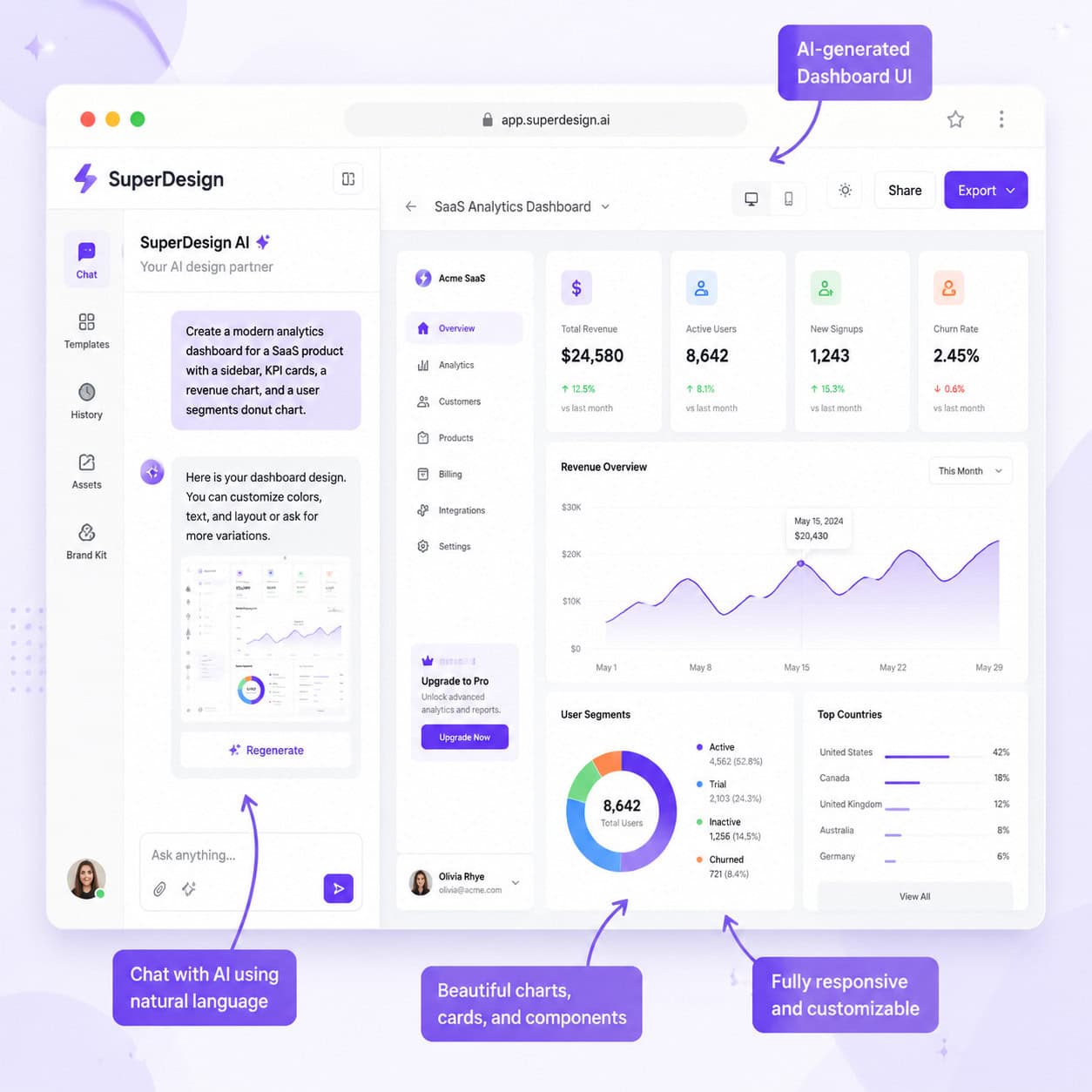
What Is app.superdesign.dev and Why Does It Matter?
A single developer shipped a complete SaaS dashboard UI in under 12 minutes using nothing but text prompts. That’s the kind of speed shift that app.superdesign.dev represents.
SuperDesign is an AI-powered design platform where you describe interfaces in natural language and receive generated UI mockups, wireframes, and polished screens in return [1]. It’s not a traditional drag-and-drop design tool like Figma or Canva. Instead, it acts as a design agent: you tell it what you need, it builds the visual output, and you refine from there.
The platform lives at app.superdesign.dev as a browser-based workspace [1]. But it also functions as an open-source design agent that can run inside code editors, which makes it especially interesting for developers who think in code but need visual design output [10].
Here’s what makes it different from other AI design tools:
- Prompt-driven design. No need to manually place rectangles and text boxes. You write “design a pricing page with three tiers” and get a visual result.
- Developer-first export. The output isn’t just a pretty picture. It connects to coding environments like Cursor and Claude Code, so you can turn designs into working code [10].
- Website import. The Chrome extension lets you pull in live webpages, extract their design tokens (colors, fonts, spacing), and use them as a starting point [2].
- Component library. Public components are hosted on the platform, so you can browse, fork, and adapt existing designs [2][3].
If you’ve been exploring the best AI graphic design tools for creative workflows, SuperDesign fits into a specific niche: it’s built for interface design, not marketing graphics or social media posts.
Who is it for? Developers who need UI mockups fast, solo founders prototyping products, and small design teams who want to accelerate their early-stage design process.
Who is it not for? Illustrators, print designers, or teams that need pixel-perfect brand design with full manual control. Traditional tools like Figma still handle those needs better.
How Does SuperDesign Work? Core Features Explained
SuperDesign combines a conversational AI interface with a visual canvas. You talk to it, it designs for you, and you edit the results on a canvas that supports standard design operations [9].
The AI Chat Interface
The primary way you interact with SuperDesign is through a chat panel. You type prompts like:
- “Design a calculator UI with a dark theme”
- “Create a dashboard for a fitness tracking app”
- “Build a landing page hero section with a signup form”
The AI interprets your request and generates a visual mockup directly on the canvas [9]. You can then follow up with refinement prompts like “make the buttons larger” or “switch to a light color scheme.”
A useful feature: you can mention specific frames on the canvas using the @ symbol in chat, which tells the AI exactly which part of your design you’re referring to when requesting changes.
The Visual Canvas
The canvas is where your generated designs live. Core actions include:
- Duplicating components to create variations
- Switching between desktop, tablet, and mobile views for responsive design
- Opening any frame in a new tab for a full-screen preview
- Hiding frames you don’t need right now
- Renaming the project for organization
These are documented in SuperDesign’s own canvas guides and confirmed in community walkthroughs [9].
The Chrome Extension and Website Import
This is one of SuperDesign’s standout features. After installing the Chrome extension, you can use the “Website Import” function to pull a live webpage into your project [2]. The tool extracts:
- Colors and color palettes
- Typography (fonts, sizes, weights)
- Spacing and layout patterns
- Component structures
Use this when you want to prototype from an existing product UI, clone a landing page for reference, extract design tokens for a new project, or convert an existing UI into editable components.
For teams already working with design-to-code pipelines, this pairs well with workflows like Figma to code plugins or Figma to Webflow conversion.
Image References
You’re not limited to text. You can add image references to your prompts, which helps the AI understand the visual style you’re aiming for [10]. Upload a screenshot of a design you like, and SuperDesign uses it as context when generating your mockup.
How to Use app.superdesign.dev: Step-by-Step Guide
Getting started takes about five minutes. Here’s the process from zero to your first generated design.
Step 1: Open the App
Go to app.superdesign.dev in your browser [1]. Create an account or sign in. The interface loads with a canvas and a chat panel.
Step 2: Install the Chrome Extension (Optional but Recommended)
If you want to import live webpages, install the SuperDesign Chrome extension. This adds a browser button that lets you capture any webpage and bring it into your project as editable design elements [2].
Step 3: Write Your First Prompt
In the chat panel, describe the UI you want. Be specific. Instead of “make me an app,” try something like:
“Design a mobile banking app home screen with account balance at top, recent transactions list, and quick action buttons for send, receive, and pay bills.”
The more detail you provide, the better the output. Include information about:
- Layout structure (what goes where)
- Color preferences (dark theme, brand colors, etc.)
- Content type (charts, lists, forms, images)
- Device target (mobile, tablet, desktop)
Step 4: Review and Refine on the Canvas
The AI generates your design on the canvas. From here, you can:
- Duplicate the frame to create an alternative version
- Switch viewport sizes to see how it looks on different devices
- Use @ mentions in chat to reference specific frames when asking for changes
- Add image references if you want the AI to match a particular visual style [10]
Step 5: Iterate with Follow-Up Prompts
This is where the conversational aspect shines. After reviewing the initial output, send follow-up messages:
- “Move the navigation to the bottom”
- “Use a blue and white color scheme instead”
- “Add a sidebar with user profile information”
- “Make this more minimal, reduce visual clutter”
Each prompt refines the existing design rather than starting from scratch.
Step 6: Export to Your Development Workflow
When you’re satisfied with the design, export it into your preferred coding environment. SuperDesign supports bridging into:
- Cursor (AI-powered code editor)
- Claude Code (Anthropic’s coding assistant)
- Code/style guide workflows for handoff to developers [10]
Community tutorials show that a common workflow is to initialize SuperDesign in Cursor, generate designs through prompts, and then refine the generated screens directly in the SuperDesign panel before converting to code [9].
Quick Checklist: Your First SuperDesign Project
| Step | Action | Time Estimate |
|---|---|---|
| 1 | Open app.superdesign.dev and sign in | 1 minute |
| 2 | Install Chrome extension | 2 minutes |
| 3 | Write your first design prompt | 1 minute |
| 4 | Review the generated mockup | 1 minute |
| 5 | Send 2-3 refinement prompts | 3 minutes |
| 6 | Export to code editor or save | 1 minute |
| Total | ~9 minutes |
What Can You Do with app.superdesign.dev? Real Use Cases and Examples
SuperDesign isn’t a one-trick tool. The range of what you can create spans from quick wireframes to polished interface screens. Here are the primary use cases, each with concrete examples.
Generate Full UI Screens from Prompts
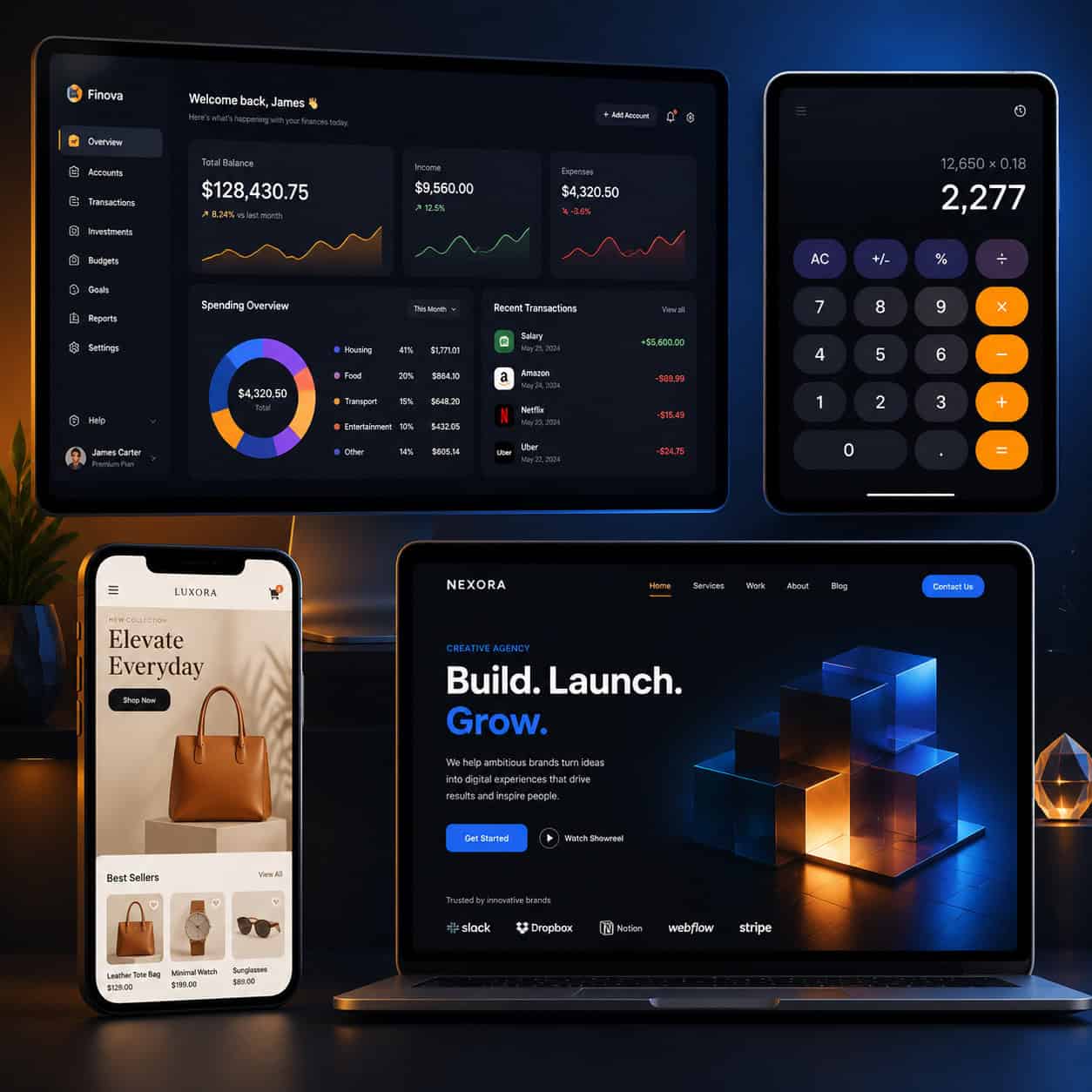
This is the core use case. You describe a screen, and SuperDesign builds it. Examples that community members and tutorials have demonstrated include [9]:
- Dashboards with charts, KPI cards, and data tables
- Calculator apps with button grids and display areas
- Landing pages with hero sections, feature grids, and CTAs
- App layouts for mobile and desktop, including navigation, content areas, and footers
The public component gallery on the platform shows examples like “Digital Renaissance” and other AI-generated design artifacts, confirming that the tool produces varied and detailed outputs [3].
Choose this approach if: You’re starting a new project and need a visual direction fast, or you’re a developer who wants to see the UI before writing code.
Create Reusable UI Components
Beyond full screens, you can generate individual components that drop into existing codebases:
- Navigation bars and headers
- Card layouts for content display
- Form elements (login forms, signup flows, search bars)
- Data visualization components (charts, graphs, stat blocks)
- Modal dialogs and notification panels
The component library at app.superdesign.dev/library hosts public examples you can browse and fork [2]. This is useful when you need a specific piece rather than a whole page.
Turn Wireframes into Polished Screens
If you already have a rough wireframe, whether it’s a sketch on paper or a basic layout, SuperDesign can take that structure and generate a polished version [10]. Upload an image of your wireframe as a reference, describe what you want in the prompt, and the AI fills in visual details like:
- Typography choices
- Color application
- Spacing and alignment
- Icon and image placement
- Shadow and depth effects
This workflow is especially valuable for teams that do rapid wireframing in tools like Figma. If you’re already familiar with Figma mobile wireframe design, SuperDesign can serve as the next step in your pipeline.
Import and Adapt Existing Websites
Using the Chrome extension’s Website Import feature, you can [2]:
- Clone a competitor’s landing page as a starting point for your own design
- Extract design tokens (colors, fonts, spacing) from any live website
- Reverse-engineer a UI pattern you admire and adapt it to your brand
- Capture a dashboard or app interface for reference during your own design process
Common mistake: Don’t import a webpage and use it as-is. The point is to extract patterns and tokens, then adapt them into something original. Copying designs directly creates legal and ethical issues.
Bridge Design to Code
This is where SuperDesign separates itself from tools like Canva or basic mockup generators. The platform is built to feed into development workflows [10]:
- Export to Cursor: Generate a UI in SuperDesign, then push it into Cursor where AI helps convert the design into React, HTML/CSS, or other code
- Export to Claude Code: Similar workflow but using Anthropic’s Claude as the coding assistant
- Style guide generation: Extract the design decisions (colors, typography, spacing) as a structured style guide for developers
For teams using AI-powered website builders or no-code platforms, SuperDesign can serve as the design ideation layer before building in your platform of choice.
Example Walkthrough: Building a Calculator UI
Based on a community walkthrough [9], here’s what a real session looks like:
- Open SuperDesign in Cursor (or the web app)
- Prompt: “Design a calculator UI with a clean, modern look. Include number pad, basic operations, and a display area at the top.”
- AI generates a calculator interface with buttons arranged in a grid, a result display, and appropriate styling
- Refine: “Make the buttons rounder and add a dark mode option”
- AI updates the design with rounded buttons and a dark color scheme
- Export the result into Cursor for code generation
The entire process, from prompt to exportable design, took under 10 minutes in the walkthrough.
How Does SuperDesign Compare to Other Design Tools?
SuperDesign occupies a unique position. It’s not trying to replace Figma for detailed design work or Canva for marketing graphics. Here’s how it stacks up.

| Feature | SuperDesign | Figma | Canva | Relume |
|---|---|---|---|---|
| AI prompt-to-UI | Yes (core feature) | Limited (plugins) | No (AI for graphics only) | Yes (wireframes) |
| Full design editing | Basic canvas | Advanced | Template-based | Wireframe-focused |
| Code export | Yes (Cursor, Claude Code) | Via plugins | No | Webflow/Figma export |
| Website import | Yes (Chrome extension) | No | No | No |
| Component library | Yes (public) | Yes (community) | Yes (templates) | Yes (sections) |
| Price to start | Free tier available | Free tier | Free tier | Free tier |
| Best for | Developers, rapid prototyping | Designers, teams | Marketing, social media | Wireframing, sitemaps |
Choose SuperDesign if:
- You’re a developer who thinks in code but needs visual mockups
- You want to go from idea to UI to code in one workflow
- You need to prototype fast without learning complex design tools
- You want to import existing websites as design references
Choose Figma if:
- You need pixel-perfect design control
- You’re working in a large design team with complex collaboration needs
- You need advanced prototyping with interactions and animations
- You’re building a comprehensive design system
If you’re already invested in Figma, you might benefit from automating your Figma workflow with AI rather than switching tools entirely.
Choose Relume if:
- Your primary need is wireframing and sitemap generation
- You’re building websites in Webflow specifically
- You want AI-generated copy alongside your wireframes
For a deeper comparison, see our Relume review covering features, pricing, and alternatives.
Choose Canva if:
- You’re creating marketing materials, social media posts, or presentations
- You need templates for non-UI design work
- You’re not building software interfaces
Tips for Getting Better Results from SuperDesign
The quality of your output depends heavily on how you prompt the AI. Here are practical tips based on community experience and tutorial walkthroughs [9][10].
Write Specific Prompts
Bad prompt: “Make me an app” Good prompt: “Design a mobile fitness tracking app home screen. Include a circular progress ring showing daily step count at the top, a horizontal scrollable section for workout categories below it, and a vertical list of recent activities at the bottom. Use a dark background with green accent colors.”
The difference in output quality between vague and specific prompts is dramatic.
Use Image References
When words aren’t enough, upload a screenshot or image that shows the visual style you want [10]. This works well for:
- Matching a specific aesthetic (minimalist, glassmorphism, brutalist)
- Replicating a layout pattern from an app you admire
- Showing the AI what “modern” or “clean” means to you specifically
Iterate in Small Steps
Don’t try to get everything perfect in one prompt. Start with the overall layout, then refine:
- First prompt: overall structure and layout
- Second prompt: color scheme and typography
- Third prompt: specific component details
- Fourth prompt: responsive adjustments
Use the @ Mention Feature
When your canvas has multiple frames, use @ to reference a specific one in your chat message. This prevents the AI from modifying the wrong frame or creating a new one when you wanted to edit an existing design.
Fork Before Major Changes
Before asking for a big change, duplicate your current frame. This gives you a version to fall back to if the AI’s interpretation doesn’t match your intent. It’s the design equivalent of version control.
Common Mistakes to Avoid
| Mistake | Why It’s a Problem | What to Do Instead |
|---|---|---|
| Prompts that are too vague | AI guesses wrong, wastes iterations | Include layout, colors, content type |
| Skipping image references | AI defaults to generic styles | Upload examples of your target aesthetic |
| Not using responsive preview | Design breaks on other screen sizes | Check all three viewports before export |
| Importing websites without adapting | Legal/ethical issues, unoriginal work | Extract tokens and patterns, design fresh |
| Exporting too early | Design needs more refinement | Do at least 3-4 iteration rounds first |
Pros and Cons of Using app.superdesign.dev
Pros
- Speed. Going from idea to visual mockup in minutes instead of hours changes how fast you can explore design directions.
- Low learning curve. If you can describe what you want in words, you can use this tool. No need to learn complex design software.
- Developer-friendly export. The integration with Cursor and Claude Code means designs don’t sit in a vacuum; they flow into code [10].
- Website import is genuinely useful. Extracting design tokens from live sites saves significant research time [2].
- Open-source roots. The project has an open-source design agent component, which means community contributions and transparency.
- Public component library. Browse and fork existing designs to jumpstart your projects [2][3].
Cons
- Less control than traditional design tools. You can’t manually adjust every pixel the way you can in Figma.
- AI output quality varies. Some prompts produce great results; others need multiple rounds of refinement.
- Relatively new platform. The ecosystem, community, and documentation are still growing compared to established tools.
- Not suited for all design types. Illustrations, print design, and complex brand work are better handled elsewhere.
- Dependency on prompt quality. Users who struggle to articulate design requirements in words may find the tool frustrating.
Privacy and Data Considerations
SuperDesign has a published privacy policy available at app.superdesign.dev/privacy-policy [5]. Before using any AI design tool with client work or proprietary designs, review the privacy policy to understand:
- What data is collected during your sessions
- Whether your designs are used to train AI models
- How uploaded images and references are stored
- Data retention and deletion policies
This is especially important if you’re importing client websites or working on confidential product designs.
Frequently Asked Questions
Is app.superdesign.dev free to use?
SuperDesign offers a free tier that lets you start creating designs immediately [1]. The platform also has a public component library you can browse without an account [2]. Specific pricing details for premium features may vary, so check the current pricing on the site.
Can I use SuperDesign without knowing how to code?
Yes. The web app at app.superdesign.dev works entirely through a visual canvas and chat interface [1]. You don’t need any coding knowledge to generate and refine designs. The code export features are optional and aimed at developers.
What types of designs can SuperDesign create?
SuperDesign generates UI-focused designs: dashboards, mobile app screens, landing pages, calculator interfaces, e-commerce layouts, form designs, and individual components like navigation bars and cards [9][3]. It’s not designed for illustrations, logos, or print materials.
How does the Chrome extension work?
After installing the extension, click the SuperDesign icon on any webpage to import it into your project [2]. The tool extracts the page’s design tokens, including colors, fonts, spacing, and layout patterns, and makes them available as editable elements on your canvas.
Can I export designs to Figma?
SuperDesign’s primary export paths are to code editors like Cursor and Claude Code [10]. Direct Figma export isn’t a highlighted feature, but you can use the generated designs as references or recreate them in Figma. If you’re working between tools, our guide on creating and organizing Figma components may help with that workflow.
Is SuperDesign better than Figma?
They serve different purposes. SuperDesign excels at rapid AI-generated prototyping and developer-focused workflows. Figma excels at detailed manual design, team collaboration, and comprehensive design systems. Many users will benefit from using both: SuperDesign for speed and exploration, Figma for refinement and production.
What is the component library?
The component library at app.superdesign.dev/library is a collection of publicly available UI components and design examples [2]. You can browse these, see how they’re structured, and fork them into your own projects as starting points.
Does SuperDesign support responsive design?
Yes. The canvas lets you switch between desktop, tablet, and mobile views to see how your generated designs adapt to different screen sizes [9].
Can I collaborate with team members?
SuperDesign is primarily designed as an individual design tool at this stage. For team collaboration on designs, tools like Figma remain the standard. Check the platform for updates on collaboration features.
How accurate are the AI-generated designs?
Accuracy depends on prompt specificity. Detailed prompts with clear layout descriptions, color preferences, and content types produce significantly better results than vague requests [9]. Using image references also improves accuracy [10].
Can I use SuperDesign for client work?
You can use the designs you create for client projects. However, review the privacy policy [5] and terms of service before using the tool with confidential client information or proprietary designs.
What makes SuperDesign different from other AI design tools?
Three things stand out: the website import feature via Chrome extension [2], the direct code editor integration with Cursor and Claude Code [10], and the conversational refinement approach where you iterate on designs through chat rather than manual editing [9].
Conclusion
app.superdesign.dev fills a real gap in the design tool landscape: the space between having an idea and having a visual interface to show for it. For developers, solo founders, and small teams, the ability to describe a UI in plain language and get a workable mockup in minutes is a genuine time-saver.
Here are your actionable next steps:
- Visit app.superdesign.dev and create an account [1]
- Browse the component library at app.superdesign.dev/library to see what’s possible [2]
- Install the Chrome extension if you want to import existing websites as design references
- Start with a specific prompt for a project you’re currently working on. Describe layout, colors, and content type
- Iterate at least 3-4 times before judging the output quality
- Try the code export workflow if you’re using Cursor or Claude Code [10]
- Explore complementary tools like Figma for detailed design work or AI-powered content tools for the content side of your projects
SuperDesign won’t replace your entire design toolkit, and it shouldn’t. But as the first step in turning ideas into interfaces, it’s fast, accessible, and increasingly capable. The best way to understand what it can do is to open it up and type your first prompt.
References
[1] app.superdesign.dev – https://app.superdesign.dev [2] Library – https://app.superdesign.dev/library [3] E63ae3e4 7843 4da5 95c7 5d6e25830082 – https://app.superdesign.dev/components/e63ae3e4-7843-4da5-95c7-5d6e25830082 [5] Privacy Policy – https://app.superdesign.dev/privacy-policy [6] Item – https://news.ycombinator.com/item?id=44376003 [9] Watch – https://www.youtube.com/watch?v=_i90wSLxDcY [10] Watch – https://www.youtube.com/watch?v=gcOMbHXOpPE
See also: Mastering Elementor v4: The Ultimate Step-by-Step Web Design Guide for 2026