Last updated: May 12, 2026
Quick Answer
Cursor is an AI-powered code editor built on VS Code that lets you write, edit, and debug code through natural language conversations with an AI assistant. This Cursor AI tutorial covers installation, core features (Tab autocomplete, Chat, Composer, and the new Agent mode), pricing, and practical workflows. Cursor costs $20/month for the Pro plan, supports all major programming languages, and reached over 1 million users within 16 months of launch.
Key Takeaways
- Cursor is a standalone editor, not a VS Code extension. It’s a fork of VS Code, so your extensions and settings transfer directly.
- Three core AI features drive productivity: Tab (autocomplete), Chat (ask questions about your code), and Composer (multi-file edits from a single prompt).
- Version 3.3 (released May 2026) introduced parallel plan execution via
/multitask, PR review with inline threads, and pinnable quick-action skills [1][6]. - Pricing starts at $0 with a free tier (2,000 completions/month), $20/month for Pro, and $40/month for Business plans.
- Security matters: A critical Git vulnerability was patched in version 2.5 in May 2026. Always keep Cursor updated [7].
- You don’t need to be an expert coder to use Cursor effectively. Beginners can build functional projects by describing what they want in plain English.
- Cursor works with any language or framework: Python, JavaScript, TypeScript, Rust, Go, HTML/CSS, and more.
- Context is everything: The quality of Cursor’s output depends on how well you provide context through file references, documentation, and clear prompts.
What Is Cursor AI and Who Should Use It?
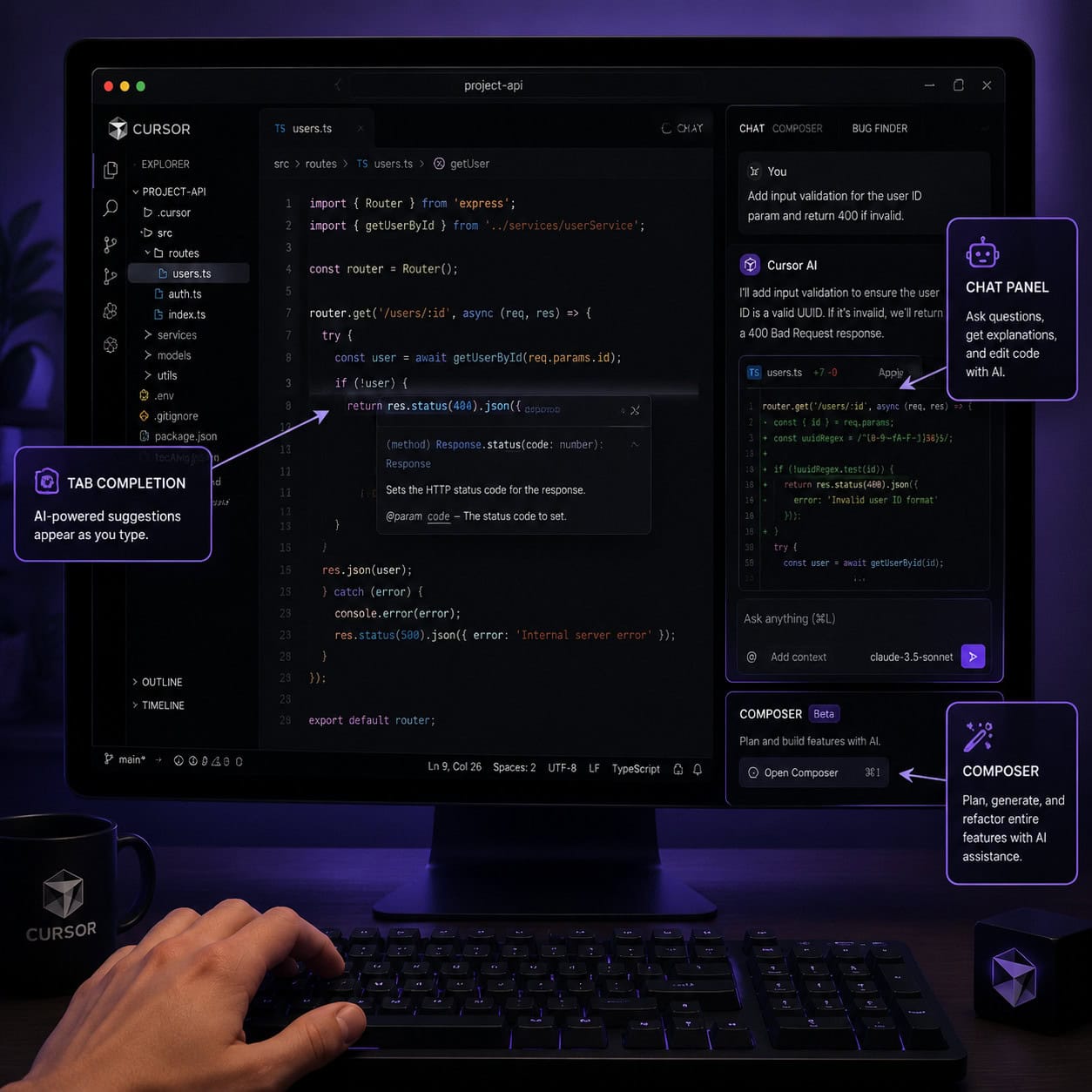
Cursor is a code editor with AI built directly into the editing experience. Unlike plugins that bolt AI onto an existing editor, Cursor was designed from the ground up to make AI a first-class citizen in your coding workflow.
Who it’s for:
- Developers who want faster code completion and multi-file refactoring
- Beginners learning to code who need an AI guide alongside them
- Solo founders and indie hackers building MVPs quickly
- Teams that want AI-assisted code review and generation
Who it’s not for:
- Developers who need fully offline editing (Cursor requires internet for AI features)
- Anyone locked into JetBrains IDEs with no interest in switching
- Teams with strict policies against sending code to cloud AI models (though Cursor offers privacy mode)
Cursor was valued at $29.3 billion after its Series D funding round backed by Google and NVIDIA, and SpaceX announced a $60 billion option to acquire the company in April 2026 [8]. That level of investment signals where the industry believes AI-assisted coding is heading.
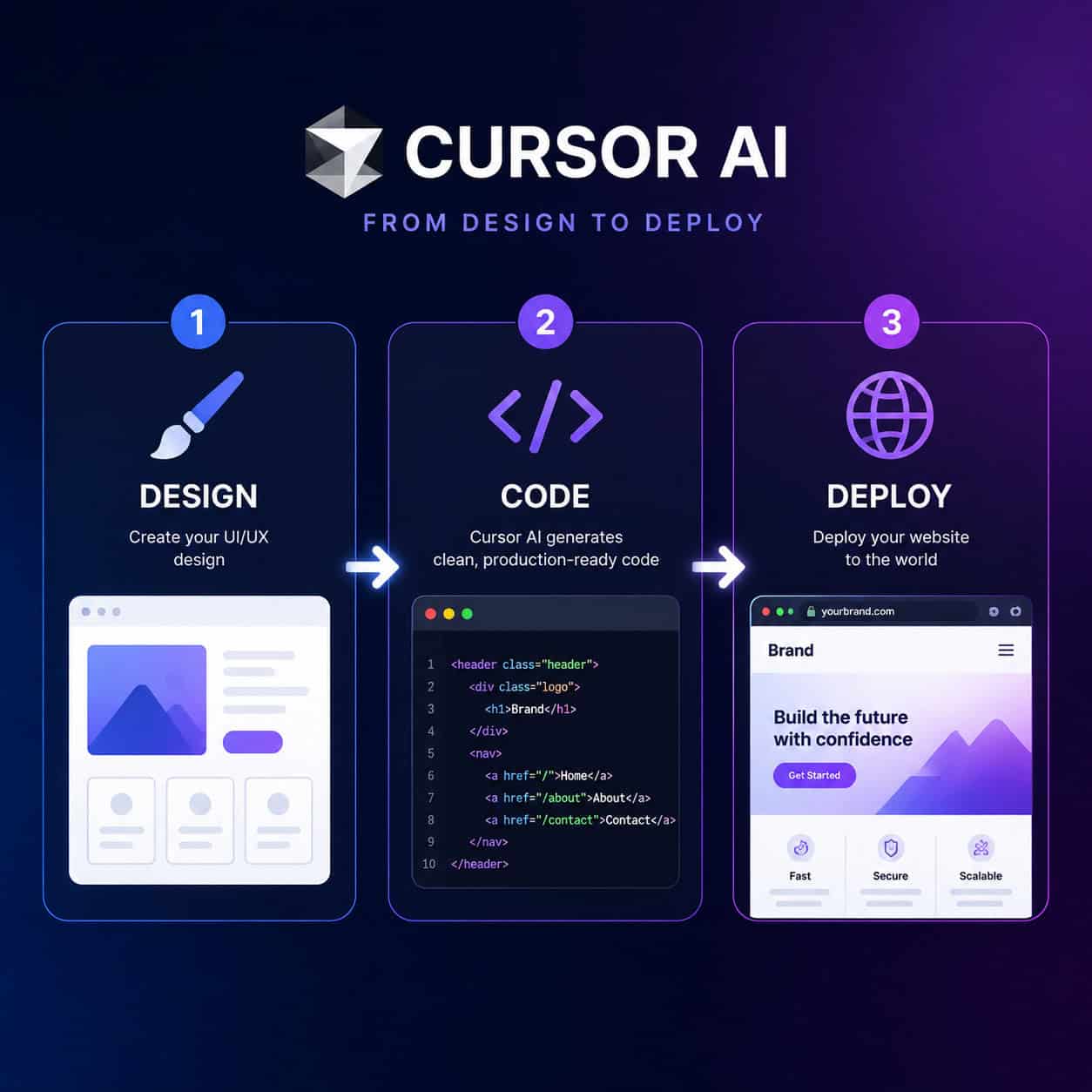
If you’re building websites or web applications, Cursor pairs well with design-to-code workflows. For example, you can take designs from Figma and use Cursor to streamline your design-to-development workflow with AI assistance.
How Do You Install and Set Up Cursor? (Step-by-Step Cursor AI Tutorial)
Setting up Cursor takes about five minutes. Here’s the process:
Step 1: Download and Install
- Go to cursor.com and download the installer for your OS (macOS, Windows, or Linux).
- Run the installer. On macOS, drag Cursor to your Applications folder. On Windows, follow the setup wizard.
- Launch Cursor.
Step 2: Import Your VS Code Settings
On first launch, Cursor asks if you want to import settings from VS Code. Say yes. This brings over:
- All your extensions
- Keyboard shortcuts
- Theme preferences
- Workspace settings
Step 3: Sign In and Choose a Plan
Create an account or sign in. The free tier gives you:
- 2,000 code completions per month
- 50 slow premium requests
- Access to basic AI features
For serious use, the $20/month Pro plan removes most limits and gives access to faster models.
Step 4: Configure Your AI Preferences
Go to Settings > Cursor and configure:
- Model selection: Choose between Claude, GPT-4, or other available models
- Privacy mode: Enable if you don’t want your code stored on Cursor’s servers
- Codebase indexing: Turn this on so Cursor can understand your entire project
Common mistake: Skipping codebase indexing. Without it, Cursor only sees the files you explicitly reference. With indexing enabled, it understands your project structure, imports, and dependencies.
Step 5: Open a Project
Open any folder or clone a repository. Cursor indexes it automatically in the background.
What Are Cursor’s Core Features and How Do You Use Them?
This section of the Cursor AI tutorial covers the four main features you’ll use daily.
Tab: Intelligent Autocomplete
Press Tab to accept AI-generated code suggestions as you type. Cursor predicts not just the next few characters but entire blocks of logic based on context.
How it differs from basic autocomplete:
- It reads surrounding files, not just the current one
- It understands your coding patterns and adapts
- It can complete multi-line blocks, not just single lines
Tips for better Tab completions:
- Write clear variable names and function signatures
- Add a brief comment above complex functions describing intent
- Keep related code in nearby files so Cursor has context
Chat: Ask Questions About Your Code
Open Chat with Cmd+L (macOS) or Ctrl+L (Windows/Linux). You can:
- Ask “What does this function do?”
- Request “Find all places where this API is called”
- Say “Explain this error message”
- Ask “How should I structure this feature?”
Key feature: Use @ symbols to reference specific files, functions, or documentation. For example, typing @utils.ts tells Cursor to focus on that file when answering.
Composer: Multi-File Editing
Composer is where Cursor truly separates from competitors. Open it with Cmd+I (macOS) or Ctrl+I (Windows/Linux).
With Composer, you can:
- Describe a feature in plain English and have Cursor create or modify multiple files
- Refactor code across your entire project
- Add new endpoints, components, or pages with a single prompt
Example prompt: “Add a user authentication system using JWT tokens. Create the auth middleware, login route, and signup route in separate files.”
Composer will generate all the files, wire up the imports, and handle the boilerplate.
Agent Mode (New in 2026)
Agent mode lets Cursor autonomously plan and execute multi-step tasks. It can:
- Run terminal commands
- Read error output and fix issues
- Install dependencies
- Create and modify files in sequence
With version 3.3’s /multitask command, you can now run parallel agents on independent tasks [1]. For example, one agent builds the frontend component while another sets up the API endpoint.
Decision rule: Use Chat for questions and quick edits. Use Composer for multi-file changes you want to review. Use Agent mode for end-to-end tasks where you trust the AI to execute multiple steps.
How Does Cursor Compare to GitHub Copilot and Other Alternatives?
This is one of the most common questions in any Cursor AI tutorial, so here’s a direct comparison.
| Feature | Cursor Pro | GitHub Copilot | Replit AI | JetBrains AI |
|---|---|---|---|---|
| Price/month | $20 | $10 | $20/user | $10-20 |
| Multi-file editing | Yes (Composer) | Limited | Yes | Limited |
| Chat with codebase | Yes | Yes (with workspace) | Yes | Yes |
| Agent mode | Yes | Yes (preview) | Yes | No |
| Editor base | VS Code fork | VS Code extension | Browser-based | JetBrains native |
| Offline support | No | Partial | No | Yes (local models) |
| Privacy mode | Yes | Yes (Business) | No | Yes |
Choose Cursor if: You want the deepest AI integration in a familiar VS Code environment, especially multi-file editing and agent capabilities.
Choose GitHub Copilot if: You’re already in the GitHub ecosystem, want lower cost, and primarily need autocomplete plus chat.
Choose Replit if: You want browser-based development with built-in hosting and deployment.
Choose JetBrains AI if: You’re committed to IntelliJ/PyCharm and need offline local model support.
Cursor’s G2 and Reddit ratings hover around 4.6-4.8 out of 5, with users praising Composer for refactoring but noting complaints about the credit system introduced after August 2025.
If you’re exploring AI tools beyond coding, our guide to AI-powered content generation tools covers the broader landscape.

What Can You Build With Cursor? (Practical Project Walkthrough)
Let me walk through a real example: building a personal portfolio website from scratch using Cursor.
The Setup
I opened Cursor, created a new folder called portfolio, and started a conversation in Composer:
“Create a modern portfolio website using Next.js and Tailwind CSS. Include a hero section, projects grid, about page, and contact form. Use a dark theme with purple accent colors.”
What Cursor Generated
Within 30 seconds, Cursor created:
package.jsonwith all dependenciesapp/page.tsx(home page with hero and projects)app/about/page.tsx(about page)app/contact/page.tsx(contact form)components/folder with reusable componentstailwind.config.tswith the color scheme- Basic responsive layouts
The Iteration Process
The first output wasn’t perfect. I followed up with:
- Make the projects grid responsive: 1 column on mobile, 2 on tablet, 3 on desktop
- “Add smooth scroll animations when sections come into view”
- “Connect the contact form to a serverless function that sends emails”
Each iteration took seconds. Cursor modified the right files, maintained consistency, and didn’t break existing functionality.
What I Learned
- Start broad, then refine. Give Cursor the big picture first, then drill into details.
- Reference existing files. When asking for changes, use
@filenameso Cursor knows the context. - Review every change. Cursor shows diffs before applying. Read them. I caught a few issues (like a missing null check) that would have caused bugs.
This workflow connects well with broader no-code and low-code approaches. If you’re interested in building sites without traditional coding, check out our roundup of the best no-coding website design software platforms for 2026.
What Are the Best Practices for Writing Effective Prompts in Cursor?
The quality of Cursor’s output is directly proportional to the quality of your prompts. Here’s what works:
Be Specific About Requirements
Weak prompt: “Add authentication”
Strong prompt: “Add email/password authentication using NextAuth.js with a PostgreSQL database. Include signup, login, and password reset flows. Store sessions in JWT tokens with a 7-day expiry.”
Provide Context With @ References
@file.ts— reference a specific file@folder/— reference an entire directory@docs— reference indexed documentation@codebase— search across your whole project
Use Cursor Rules Files
Create a .cursorrules file in your project root to set persistent instructions:
<code>You are working on a Next.js 14 app with TypeScript.
Use the App Router, not Pages Router.
Follow the project's existing naming conventions.
Always add error handling and loading states.
Use Zod for input validation.
</code>
This file is automatically included in every AI interaction, saving you from repeating context.
Break Complex Tasks Into Steps
Instead of asking Cursor to build an entire feature at once, break it down:
- “Create the database schema for a blog post system”
- “Build the API routes for CRUD operations on blog posts”
- “Create the frontend components for listing and viewing posts”
- “Add the create/edit form with validation”
Each step builds on the previous one, and you can course-correct between steps.
Common Prompt Mistakes
| Mistake | Why It Fails | Better Approach |
|---|---|---|
| Too vague | Cursor guesses, often wrong | Include tech stack, constraints, expected behavior |
| Too long | Key details get lost | Use bullet points, put the most important requirement first |
| No file references | Cursor lacks context | Always reference relevant files with @ |
| Ignoring errors | Bugs compound | When something breaks, paste the error into Chat immediately |
How Do You Use Cursor’s New 2026 Features?
Version 3.3, released May 6, 2026, brought several significant updates worth understanding [1][6].
Parallel Plan Execution (/multitask)
Type /multitask in Composer or Agent mode to split independent tasks across parallel agents. For example:
<code>/multitask
1. Build the user profile component with avatar upload
2. Create the notification system backend
3. Write unit tests for the payment module
</code>
Cursor identifies which tasks are independent and runs them simultaneously. Tasks with dependencies still execute in order [1].
When to use it: Large features with clearly separable parts. Don’t use it for tightly coupled changes where one file depends on another’s output.
PR Review Experience
Cursor 3.3 added inline review threads directly in the editor [6]. You can:
- View commit history without leaving Cursor
- Add comments on specific lines
- Use quick-action pills to approve, request changes, or suggest edits
- Run the Security Reviewer (Teams/Enterprise) to check for vulnerabilities automatically [1]
Security Review (Teams/Enterprise Beta)
Two new security tools launched in May 2026 [1]:
- Security Reviewer: Automatically scans pull requests for common vulnerabilities (SQL injection, XSS, auth bypasses)
- Vulnerability Scanner: Runs scheduled scans across your entire codebase
Important: Update to at least version 2.5 to patch the critical Git RCE vulnerability discovered in early May 2026. This affected Git interactions with malicious repositories, though no in-the-wild exploits were reported [7].
For teams using WordPress, these security practices complement AI plugins for WordPress automation that help manage site security.
What Are Common Problems With Cursor and How Do You Fix Them?

Problem: Cursor Generates Incorrect or Outdated Code
Fix: Update your .cursorrules file with version-specific instructions. For example: “Use React 19 syntax. Do not use useEffect for data fetching; use React Server Components instead.”
Also, index relevant documentation by adding docs URLs in Cursor settings under Docs > Add new doc.
Problem: AI Suggestions Are Slow or Unresponsive
Possible causes and fixes:
- Large project without indexing: Enable codebase indexing in settings
- Network issues: Check your internet connection; Cursor needs stable connectivity
- Model overload: During peak times, switch to a faster model (like GPT-4o-mini) for quick completions
- Too many open files: Close unused tabs to reduce context window noise
Problem: Cursor Breaks Existing Code When Making Changes
Fix: Always review diffs before accepting. Use Composer’s “Apply” button (which shows changes) rather than letting Agent mode auto-apply everything.
Prevention: Add to your .cursorrules: “Before modifying any existing function, check all callers of that function and update them if the signature changes.”
Problem: Credit/Usage Limits Hit Too Quickly
The Pro plan includes a generous allocation, but heavy users can hit limits. Strategies:
- Use Tab completions (cheaper) for simple tasks instead of Chat/Composer
- Batch related questions into single Chat messages
- Use
/multitaskto reduce back-and-forth on complex features
Problem: Privacy Concerns With Sending Code to AI
Fix: Enable Privacy Mode in settings. With Privacy Mode on:
- Your code is not stored on Cursor’s servers
- It’s not used for training AI models
- Requests are processed and immediately discarded
For enterprise teams, Cursor offers self-hosted options and SOC 2 compliance.
How Do Beginners Get Started With Their First Cursor AI Tutorial Project?
If you’ve never coded before, Cursor is one of the most approachable ways to start. Here’s a beginner-friendly path:
Week 1: Learn the Interface
- Install Cursor (follow the setup steps above)
- Open the built-in tutorial (Help > Getting Started)
- Practice using Chat to ask questions: “What is a variable in JavaScript?”
- Try Tab completions by starting to type simple functions
Week 2: Build Something Simple
Start with a static HTML page:
Prompt: “Create a simple personal webpage with my name, a short bio, and links to my social media. Use HTML and CSS only. Make it look modern with a centered layout.”
Then iterate:
“Add a dark mode toggle button”
“Make it responsive for mobile”
“Add a section for my favorite books with cover images”
Week 3: Add Interactivity
Move to JavaScript:
“Add a to-do list feature to my page. Users should be able to add items, mark them complete, and delete them. Store the data in localStorage.”
Week 4: Build a Full Project
Try a complete application:
“Create a weather app that uses the OpenWeatherMap API. Show current weather and a 5-day forecast for any city the user searches.”
Key mindset for beginners: You’re not just generating code. You’re learning by reading what Cursor produces, asking it to explain parts you don’t understand, and gradually building intuition for how code works.
This approach works well alongside visual design tools. If you’re designing your project’s look first, our guide on Figma UI/UX design for beginners can help you create mockups before coding.
What Does Cursor Cost and Is It Worth the Price?
Pricing Breakdown (as of May 2026)
| Plan | Monthly Cost | Key Inclusions |
|---|---|---|
| Hobby | Free | 2,000 completions, 50 slow premium requests |
| Pro | $20/month | Unlimited completions, 500 fast premium requests, all models |
| Business | $40/month | Everything in Pro + admin controls, SAML SSO, audit logs |
| Enterprise | Custom | Self-hosted options, dedicated support, custom models |
Is It Worth $20/Month?
For professional developers, the math is straightforward. If Cursor saves you even 30 minutes per day (which most users report it does), that’s roughly 10 hours per month. At any reasonable hourly rate, $20 is a trivial investment.
For hobbyists and learners, the free tier is genuinely usable. You can build small projects and learn coding basics without paying anything.
Edge case: If you primarily write in a niche language with limited training data (like COBOL or Fortran), Cursor’s suggestions will be less accurate. You’ll still get value from Chat and general coding assistance, but autocomplete won’t feel as magical.
The Mean CEO blog recommends treating Cursor agents as “semi-autonomous teammates” rather than fully autonomous replacements, especially for startups working on critical infrastructure [7]. This framing helps set realistic expectations about what the $20/month actually buys you.
How Does Cursor Fit Into a Broader Development Workflow?
Cursor doesn’t exist in isolation. Here’s how it connects to other tools:
Design to Code
- Design in Figma or a similar tool
- Export assets and reference designs in Cursor using
@references or pasted screenshots - Prompt Cursor to build components matching the design
- Iterate until pixel-perfect
For WordPress projects specifically, you can use Cursor to develop custom WordPress themes faster by generating theme files, template parts, and custom block code through AI prompts.
Version Control
Cursor integrates with Git natively. The new PR review features in v3.3 mean you can:
- Create branches and commits from within Cursor
- Review PRs with inline comments
- Use AI to summarize changes and suggest improvements [6]
Deployment
Pair Cursor with deployment platforms:
- Vercel: For Next.js and frontend projects
- Railway/Render: For backend services
- AWS/GCP: For enterprise deployments
Cursor can generate deployment configurations (Dockerfiles, CI/CD pipelines, infrastructure-as-code) through prompts.
Testing
Ask Cursor to generate tests alongside your code:
“Write unit tests for the auth module using Jest. Cover happy paths, invalid inputs, and edge cases like expired tokens.”
This integrates naturally into the development loop: write code, generate tests, run tests, fix failures (with Cursor’s help), repeat.
If you’re working with AI-enhanced design workflows, our article on Figma AI workflow automation shows how to connect design automation with development tools like Cursor.
Conclusion
Cursor has moved from an interesting experiment to a production-ready development environment used by over a million developers. This Cursor AI tutorial covered the essentials: installation, core features (Tab, Chat, Composer, Agent), the latest v3.3 updates with parallel execution and PR review, pricing, troubleshooting, and practical workflows.
Your next steps:
- Download Cursor from cursor.com and import your VS Code settings
- Start with Chat: Ask questions about an existing project to get comfortable
- Try Composer on a small feature: describe what you want and review the output
- Create a
.cursorrulesfile with your project’s conventions and tech stack - Build something real: Pick a project you’ve been putting off and use Cursor to accelerate it
- Stay updated: Keep Cursor on version 2.5+ for security patches [7], and watch the changelog for new features [6]
The developers who get the most from Cursor aren’t the ones who blindly accept every suggestion. They’re the ones who treat it as a highly capable pair programmer: always reviewing, always providing context, and always learning from the code it generates.
FAQ
How much does Cursor AI cost? The free Hobby plan includes 2,000 completions and 50 slow premium requests per month. Pro costs $20/month with unlimited completions and 500 fast requests. Business is $40/month with team admin features.
Can I use Cursor without knowing how to code? Yes. Beginners can describe what they want in plain English and Cursor generates the code. However, you’ll learn faster and get better results if you gradually build understanding of what the code does.
Is Cursor just a VS Code extension? No. Cursor is a standalone editor that’s a fork of VS Code. It looks and feels like VS Code, and your extensions work in it, but the AI features are built into the core rather than bolted on as a plugin.
Does Cursor send my code to external servers? By default, yes, code context is sent to AI model providers for processing. Enable Privacy Mode in settings to prevent code storage and training use. Enterprise plans offer self-hosted options.
What programming languages does Cursor support? All of them. Since it’s based on VS Code, it supports any language VS Code supports. AI suggestions are strongest for popular languages (Python, JavaScript, TypeScript, Go, Rust) but work for any language.
How does Cursor compare to GitHub Copilot? Cursor offers deeper integration with multi-file editing (Composer), agent mode, and codebase-wide chat. Copilot costs less ($10/month) and integrates into existing VS Code/JetBrains setups without switching editors. Choose Cursor for more powerful AI features; choose Copilot for lower cost and editor flexibility.
What is the /multitask command?
Introduced in Cursor 3.3 (May 2026), /multitask lets you run parallel AI agents on independent tasks simultaneously. It speeds up large features by splitting work across multiple agents while respecting dependencies between tasks [1].
Is Cursor safe to use after the Git vulnerability? Yes, if you’re on version 2.5 or later. A critical Git RCE vulnerability was patched in early May 2026. No in-the-wild exploits were reported, but update immediately if you’re on an older version [7].
Can I use Cursor for web design projects? Absolutely. Cursor excels at generating HTML, CSS, JavaScript, and framework code (React, Next.js, Vue, Svelte). You can describe layouts, paste design screenshots, or reference Figma files to generate matching code.
What are Cursor Rules and why should I use them?
A .cursorrules file in your project root provides persistent context to every AI interaction. It tells Cursor your tech stack, coding conventions, and preferences so you don’t repeat yourself in every prompt.
Does Cursor work offline? No. AI features require an internet connection to communicate with model providers. Basic editing (syntax highlighting, file management) works offline, but completions, chat, and composer need connectivity.
References
[1] Learn – https://cursor.com/en-US/learn [6] Changelog – https://cursor.com/changelog [7] Cursor News May 2026 – https://blog.mean.ceo/cursor-news-may-2026/ [8] 2026 04 Spacex Partners Ai Startup Cursor – https://phys.org/news/2026-04-spacex-partners-ai-startup-cursor.html [9] Cursor Ai Code Editor – https://www.datacamp.com/tutorial/cursor-ai-code-editor [10] Cursor Announces Major Update As Ai Coding Agent Battle Heats Up – https://www.cnbc.com/2026/02/24/cursor-announces-major-update-as-ai-coding-agent-battle-heats-up.html