Last updated: May 13, 2026
Quick Answer
MCP WordPress Remote is an open-source tool by Automattic that connects AI assistants like Claude directly to your WordPress site through the Model Context Protocol (MCP). It lets AI agents create posts, install plugins, run diagnostics, and manage content via the WordPress REST API — all from a chat interface. The tool uses OAuth 2.1 authentication and runs on Node.js, making it best suited for developers and technical WordPress users who want to automate routine site management tasks [1].
Key Takeaways
- MCP WordPress Remote bridges AI assistants (Claude, Cursor, etc.) and your WordPress site using the standardized Model Context Protocol [1]
- It supports creating/editing posts, managing plugins, reading debug logs, and executing admin tasks through natural language prompts [3]
- Authentication uses OAuth 2.1 with PKCE and dynamic client registration for secure access [1]
- You need Node.js installed and a self-hosted or managed WordPress site with REST API access
- The GitHub repo has roughly 90 stars and active development as of 2026, though no formal versioned releases yet [1]
- Alternatives include InstaWP MCP Server (zero-config), WP Engine Smart Search AI MCP (search-focused), and Pressable MCP (hosting-level)
- Setup takes 15–30 minutes for someone comfortable with the command line
- It’s developer-focused — non-technical users should consider InstaWP or FlowMattic instead

What Is MCP WordPress Remote and How Does It Work?
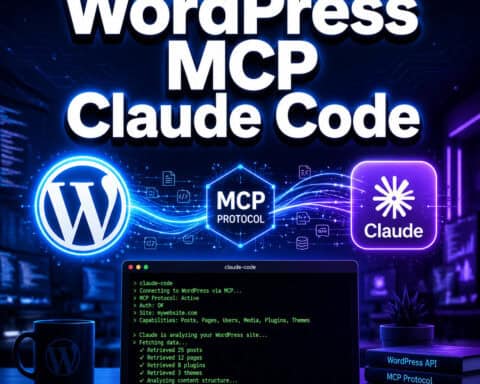
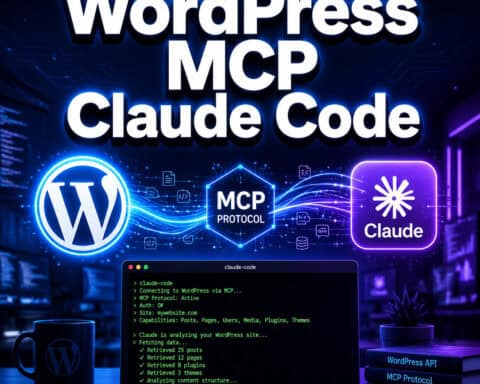
MCP WordPress Remote is an open-source Node.js package maintained by Automattic that acts as a bridge between AI assistants and WordPress sites [1]. It implements the Model Context Protocol, a standard created by Anthropic that defines how AI models interact with external tools and data sources.
Here’s the flow in plain terms:
- You type a prompt in your AI assistant (e.g., “Create a draft post about summer recipes”)
- The MCP client inside your AI tool sends a structured request to the MCP WordPress Remote server
- The server translates that request into WordPress REST API calls
- WordPress processes the action and returns a structured response
- The AI assistant presents the result back to you in natural language
This architecture was clearly diagrammed by a Reddit user who mapped the entire chain: AI prompt → MCP Client → WordPress REST API → structured response [2]. The key benefit is that permissions are enforced at every step — the AI can only do what your WordPress user role allows.
The tool exposes WordPress “tools” to the AI, including:
- Post management — create, edit, publish, or delete posts and pages
- Plugin operations — install, activate, deactivate, or update plugins
- Debug log reading — summarize error logs without manual SSH access
- Site diagnostics — check site health, review configurations
- Media handling — upload and attach media files
For developers looking to extend WordPress with AI capabilities, this pairs well with advanced WordPress automation strategies and existing AI integration plugins.
How Do You Set Up MCP WordPress Remote Step by Step?
Setup requires three components: Node.js on your local machine, the MCP WordPress Remote package, and a WordPress site with REST API access. Plan for about 15–30 minutes.

Prerequisites
- Node.js v18 or higher installed locally
- A WordPress site (self-hosted or managed) with REST API enabled (enabled by default since WordPress 4.7)
- An AI client that supports MCP (Claude Desktop, Cursor, or similar)
- A WordPress user account with appropriate permissions (Administrator for full access)
Installation Steps
Step 1: Install the package
<code class="language-bash">npm install -g @anthropic/mcp-wordpress-remote
</code>
Or clone directly from the Automattic GitHub repository [1].
Step 2: Configure WordPress authentication
The tool now uses OAuth 2.1 with PKCE for authentication [1]. You’ll need to:
- Install and activate the companion WordPress plugin on your site
- Configure the OAuth client in your WordPress admin under Settings → MCP Remote
- Note your site URL and generated client credentials
Step 3: Configure your AI client
For Claude Desktop, add this to your claude_desktop_config.json:
<code class="language-json">{
  "mcpServers": {
    "wordpress": {
      "command": "mcp-wordpress-remote",
      "args": ["--url", "https://yoursite.com"]
    }
  }
}
</code>
Step 4: Authenticate
On first connection, a browser window opens for OAuth authorization. Grant permissions, and the tool stores tokens persistently for future sessions [1].
Step 5: Test the connection
Ask your AI assistant something like: “List my recent WordPress posts.” If it returns your posts, you’re connected.
Common Setup Mistake
Forgetting to enable the REST API or having a security plugin that blocks it. If you get connection errors, check that https://yoursite.com/wp-json/wp/v2/ returns valid JSON in your browser. Also verify that your WordPress user role matches the actions you want the AI to perform — an Editor role can’t install plugins, for example.
For those building custom solutions, our guide to WordPress plugin development best practices covers the fundamentals of extending WordPress functionality.
What Can You Actually Do with MCP WordPress Remote?
The practical use cases fall into three categories: content operations, development workflows, and site maintenance.
Content Operations
A WebDevStudios developer described using MCP WordPress Remote to create draft posts, format content, and manage editorial workflows entirely through AI prompts [3]. Specific content tasks include:
- Drafting posts with specific categories, tags, and featured images
- Bulk-editing metadata across multiple posts
- Generating and scheduling content (when paired with AI content tools)
- Reviewing and summarizing existing content for audits
If you also want to automate content distribution, check out how to auto-share WordPress blog posts to social media.
Development Workflows
This is where the tool shines brightest. Developers use it to:
- Install and test plugins without leaving their IDE
- Read and summarize debug logs — ask “What errors occurred in the last 24 hours?” and get a plain-English summary
- Run site diagnostics — check PHP version, active theme, plugin conflicts
- Prototype changes — quickly create test pages or modify content during development
Site Maintenance
- Check site health scores and identify issues
- Review and update outdated plugins
- Monitor error patterns in debug logs
- Audit content for SEO issues (especially useful alongside AI SEO tools for WordPress)
“MCP WordPress Remote enables AI to create draft posts, install plugins, and summarize debug logs without manual intervention.” — WebDevStudios [3]
How Does MCP WordPress Remote Compare to Alternatives?
Several MCP servers now target WordPress. Here’s how they differ:

| Feature | Automattic Remote [1] | InstaWP MCP | WP Engine Smart Search | Pressable MCP | FlowMattic |
|---|---|---|---|---|---|
| Setup complexity | Medium (Node.js + OAuth) | Low (zero-config) | Medium | Low (hosting panel) | Medium |
| Post creation/editing | Yes | Yes | No | No (read-only) | Yes |
| Plugin management | Yes | Yes | No | No | Limited |
| Search/retrieval | Basic | Basic | Advanced (vector DB) | Basic | Basic |
| Hosting-level actions | No | No | No | Yes (PHP version, etc.) | No |
| Best for | Developers | Quick setup | Search-heavy sites | Hosting management | Business automation |
| Cost | Free (open source) | Free tier available | Paid (WP Engine plans) | Paid (Pressable plans) | Paid |
Choose Automattic Remote if you want the most complete set of WordPress admin tools exposed to AI and you’re comfortable with Node.js setup.
Choose InstaWP if you want the fastest path to a working MCP connection without configuring authentication or installing Node.js locally.
Choose WP Engine Smart Search if your primary need is AI-powered content retrieval and search, not site administration.
Choose Pressable if you manage multiple WordPress sites and need hosting-level operations like PHP version updates across environments.
For broader AI integration with WordPress, including chatbots and content tools, see our guide on integrating AI-powered chatbots into WordPress.
Is MCP WordPress Remote Secure?
Yes, but security depends on proper configuration. The tool’s OAuth 2.1 implementation with PKCE (Proof Key for Code Exchange) is the current industry standard for authorization [1]. Here’s what that means in practice:
- No passwords stored locally — tokens are used instead, and they expire
- Permission scoping — the AI can only perform actions your WordPress user role permits
- Dynamic client registration — each connection gets unique credentials
- HTTPS required — all communication is encrypted in transit
Security Best Practices
- Use a dedicated WordPress user account for MCP with only the permissions needed
- Don’t grant Administrator access unless the AI genuinely needs plugin management
- Review the MCP server logs periodically for unexpected actions
- Keep the MCP package and WordPress plugin updated
- Avoid running MCP connections over public Wi-Fi without a VPN
Known Limitations
A reliability analysis of 2,181 MCP endpoints found that remote MCP servers can experience timeouts, particularly under heavy load. If you’re running time-sensitive operations, build in retry logic or use the tool for non-critical workflows first.
Who Should (and Shouldn’t) Use MCP WordPress Remote?
Good fit:
- WordPress developers managing multiple sites
- Technical content teams comfortable with command-line tools
- Agencies building AI-assisted WordPress workflows
- DevOps teams wanting to automate routine WordPress maintenance
Not a good fit:
- Non-technical WordPress users (consider InstaWP or FlowMattic instead)
- Sites without REST API access (some enterprise lockdowns disable it)
- Production-critical workflows where you can’t tolerate occasional timeouts
- Users who need a polished GUI — this is a developer tool
Conclusion
MCP WordPress Remote gives developers a direct, secure channel between AI assistants and WordPress. It’s the most feature-complete open-source option available in 2026 for AI-powered WordPress management, covering everything from post creation to plugin installation to debug log analysis [1][3].
Your next steps:
- Check your prerequisites — make sure you have Node.js v18+ and a WordPress site with REST API access
- Install the package from the Automattic GitHub repository [1]
- Start small — begin with read-only tasks like listing posts or checking site health before moving to write operations
- Explore complementary tools — pair MCP with AI-powered content generation tools for a more complete workflow
- Join the community — the GitHub repo and r/WordPress subreddit are the most active discussion spaces [2]
The MCP ecosystem for WordPress is still maturing, but the foundation is solid. Getting comfortable with MCP WordPress Remote now positions you well as AI-assisted development becomes standard practice.
FAQ
What does MCP stand for in MCP WordPress Remote? MCP stands for Model Context Protocol, an open standard created by Anthropic that defines how AI models communicate with external tools and data sources [4].
Is MCP WordPress Remote free to use? Yes. It’s open source and available on GitHub under the Automattic organization. You need your own WordPress hosting and an MCP-compatible AI client [1].
Which AI assistants work with MCP WordPress Remote? Claude Desktop, Cursor, and other AI tools that support the MCP standard. Claude Desktop is the most commonly used client for this setup [2][3].
Does MCP WordPress Remote work with WordPress.com sites? It works best with self-hosted WordPress (WordPress.org) sites where you have full REST API access. WordPress.com Business or higher plans may work, but free or Personal plans restrict API access.
Can MCP WordPress Remote break my site? It can only perform actions your WordPress user role allows. Using a limited user role (Editor instead of Administrator) reduces risk. Always test on a staging site first.
How is this different from the WordPress MCP Adapter? The MCP Adapter (announced by WordPress.org in February 2026) is a complementary tool focused on structured task exposure with explicit MCP-public flagging [4]. Automattic’s remote tool is more developer-oriented with broader admin capabilities [1].
Do I need to know how to code to use it? You need basic command-line comfort for installation and configuration. Once set up, you interact through natural language prompts in your AI assistant.
What happens if the MCP connection drops mid-task? WordPress REST API calls are atomic — each action either completes or doesn’t. A dropped connection won’t leave your site in a half-modified state.
Can multiple team members use MCP WordPress Remote on the same site? Yes. Each team member configures their own local MCP client with their own WordPress user credentials and OAuth tokens.
Is there a WordPress plugin required on the server side? Yes. A companion plugin handles OAuth authentication and exposes the necessary REST API endpoints for MCP communication [1].
References
[1] Mcp WordPress Remote – https://github.com/Automattic/mcp-wordpress-remote [2] Claude Takes Over WordPress With Mcp – https://www.reddit.com/r/Wordpress/comments/1kbdrji/claude_takes_over_wordpress_with_mcp/ [3] Using WordPress Mcp As A Development Tool – https://webdevstudios.com/2025/06/11/using-wordpress-mcp-as-a-development-tool/ [4] From Abilities To Ai Agents Introducing The WordPress Mcp Adapter – https://developer.wordpress.org/news/2026/02/from-abilities-to-ai-agents-introducing-the-wordpress-mcp-adapter/ [8] Automattic WordPress Remote – https://www.pulsemcp.com/servers/automattic-wordpress-remote