Last updated: May 13, 2026
Quick Answer
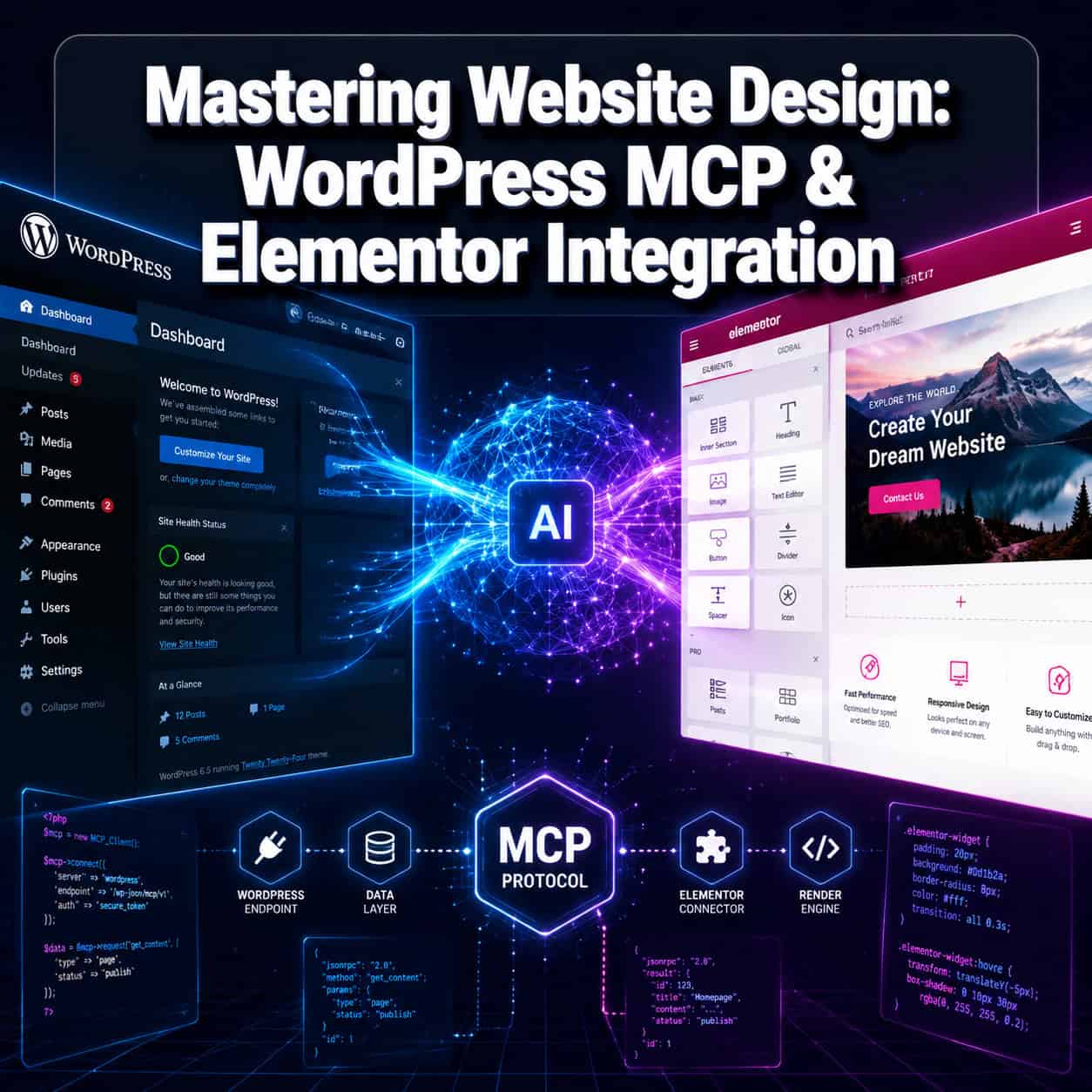
WordPress MCP (Model Context Protocol) and Elementor integration lets AI tools like Claude and Cursor directly create, edit, and manage Elementor page designs through natural language commands. The WordPress MCP Adapter launched in February 2026, and Elementor-specific MCP servers followed in May 2026, exposing over 60 design tools to AI clients [1][5]. This combination allows designers and developers to build full WordPress pages by describing what they want in plain English, rather than manually dragging and dropping every element.
Key Takeaways
- MCP is a universal protocol that connects AI assistants to external tools like WordPress and Elementor, functioning like a USB-C port for AI communication [2].
- The WordPress MCP Adapter (released February 2026) enables AI clients to discover and call WordPress capabilities directly from tools like Claude Desktop and VS Code [1].
- Elementor MCP servers expose 60+ Elementor-specific tools to AI agents, covering page creation, widget placement, styling, and template management [5].
- WordPress powers roughly 43% of all websites in 2026, and Elementor runs on over 16 million active installations, making this integration relevant to a massive user base [9][10].
- You still need human oversight. MCP clients act as logged-in WordPress users, so security permissions and staging environments are essential [1].
- Gutenberg remains a viable alternative for performance-focused sites, producing lighter HTML and faster load times than Elementor.
- Elementor’s upcoming “Angie” AI plugin will deepen MCP integration with agentic capabilities across the full WordPress stack [2].
- Setup requires basic technical comfort with Node.js, JSON configuration, and WordPress admin, but no traditional coding skills.

What Is MCP and Why Does It Matter for WordPress Design?
MCP (Model Context Protocol) is an open standard created by Anthropic that lets AI assistants communicate with external software through a consistent interface. Think of it as a universal translator between AI tools and the applications they need to control.
Before MCP, connecting an AI assistant to WordPress required custom API integrations for every tool and every task. Each connection was a one-off project. MCP changes that by providing a single protocol that any AI client can use to discover what a tool can do and then execute those actions.
Here’s why this matters for website design:
- Speed: Describe a page layout in words, and the AI builds it in Elementor within seconds.
- Consistency: MCP standardizes how AI tools interact with WordPress, so the same workflow works across Claude Desktop, Cursor, and VS Code [1].
- Ecosystem momentum: OpenAI, Google DeepMind, and Microsoft are all integrating MCP into their platforms, making it the emerging standard for AI-tool communication [2].
For WordPress specifically, the Core AI team released the official WordPress MCP Adapter in February 2026. This adapter lets any MCP-compatible AI client discover WordPress “Abilities” (read posts, create pages, manage media, etc.) and call them directly [1].
Common mistake: Assuming MCP replaces your page builder. It doesn’t. MCP is the communication layer. Elementor (or Gutenberg) still does the actual page building. MCP just lets AI drive the controls.
If you’re exploring how AI is changing WordPress workflows more broadly, our guide to AI plugins for WordPress automation covers additional tools worth considering.
How Does the Elementor MCP Server Work?
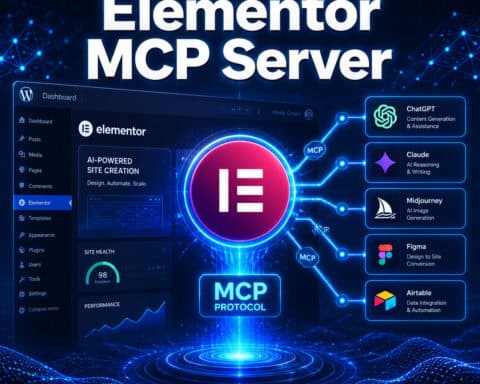
The Elementor MCP server is a Node.js-based bridge that translates AI commands into Elementor-specific actions inside WordPress. It exposes over 60 tools that cover nearly everything you’d do manually in the Elementor editor [5].
What the Elementor MCP server can do:
| Category | Example Tools | What They Do |
|---|---|---|
| Page Management | create_page, update_page, delete_page | Create and manage WordPress pages with Elementor data |
| Widget Operations | add_heading, add_image, add_button, add_form | Place and configure individual Elementor widgets |
| Layout Control | add_section, add_column, set_column_width | Build page structure with sections and columns |
| Styling | set_background, set_typography, set_spacing | Apply visual styles to any element |
| Templates | save_template, load_template, list_templates | Work with Elementor’s template library |
| Global Widgets | create_global_widget, update_global_widget | Manage reusable widget instances |
The server communicates with WordPress through the REST API, using application passwords or JWT tokens for authentication. When you tell Claude “Create a three-column pricing section with a highlighted middle tier,” the MCP server translates that into a sequence of Elementor API calls that build the actual page structure [1][4].
Choose the Elementor MCP server if: you’re already using Elementor on your sites and want to accelerate repetitive design tasks like building landing pages, product pages, or blog layouts.
Skip it if: your site uses Gutenberg exclusively or you need pixel-perfect control over every design decision (AI-generated layouts still need manual refinement).
How to Set Up WordPress MCP and Elementor Integration Step by Step
Setting up this integration takes about 30 to 45 minutes if you’re comfortable with WordPress admin and basic command-line tools. Here’s the complete process.
Prerequisites
Before you start, confirm you have:
- WordPress 6.5+ installed (WordPress 7.0 recommended for latest API improvements)
- Elementor Pro (free Elementor works for basic operations, but Pro unlocks full widget access)
- Node.js 18+ installed on your local machine
- An MCP-compatible AI client: Claude Desktop, Cursor, or VS Code with an MCP extension
- A staging environment (never test MCP on a live production site first)
Step 1: Install the WordPress MCP Adapter
- Log into your WordPress admin panel.
- Go to Plugins > Add New and search for “WordPress MCP Adapter.”
- Install and activate the plugin.
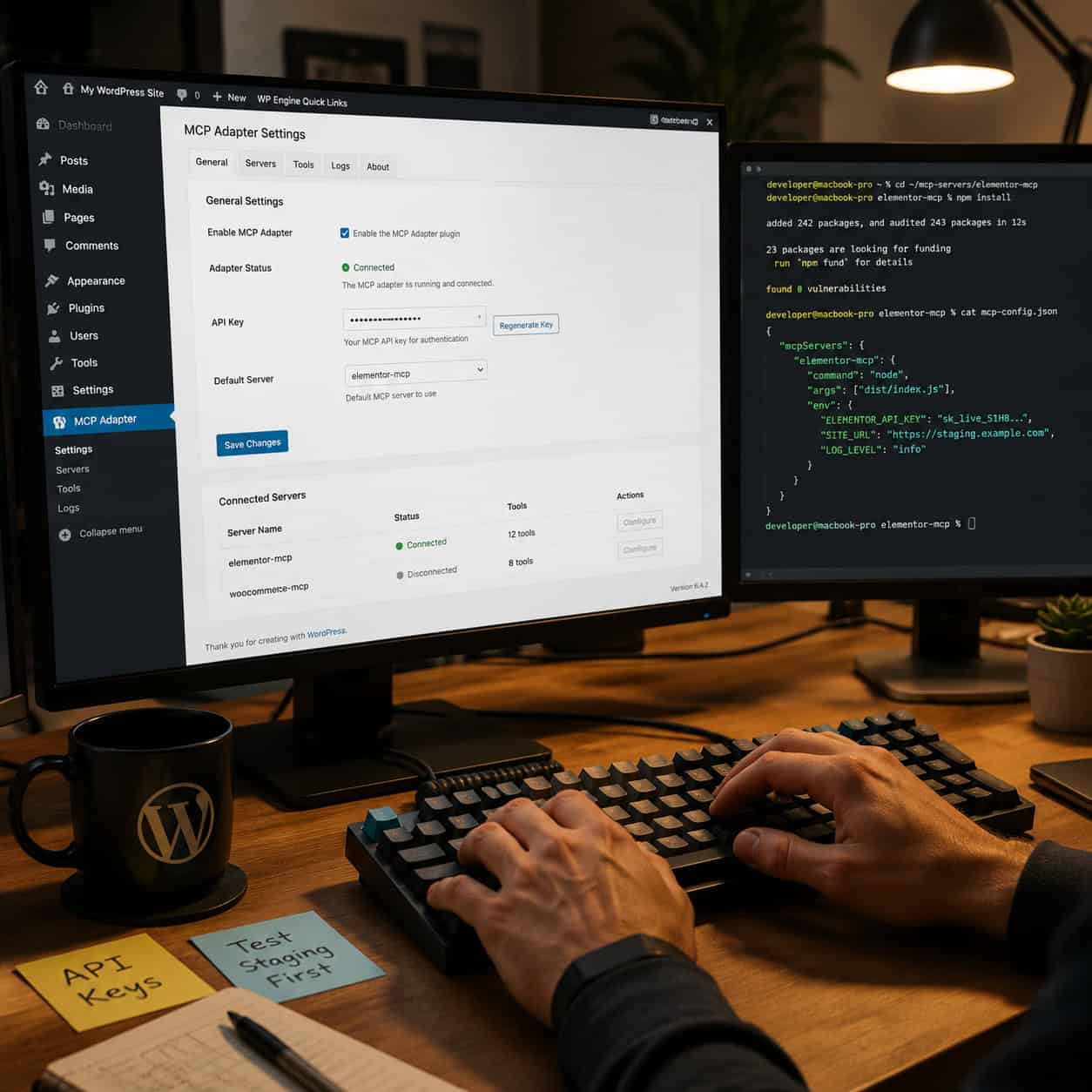
- Navigate to Settings > MCP Adapter and generate an application password for MCP access.
- Note your site URL and the generated credentials.
Step 2: Install the Elementor MCP Server
Open your terminal and run:
<code class="language-bash">git clone https://github.com/msrbuilds/elementor-mcp.git
cd elementor-mcp
npm install
</code>
Create a .env file in the project root:
<code>WORDPRESS_URL=https://your-staging-site.com
WORDPRESS_USERNAME=mcp-user
WORDPRESS_APP_PASSWORD=your-generated-password
</code>
Step 3: Configure Your AI Client
For Claude Desktop, edit your MCP configuration file (typically at ~/Library/Application Support/Claude/claude_desktop_config.json on macOS):
<code class="language-json">{
  "mcpServers": {
    "elementor": {
      "command": "node",
      "args": ["/path/to/elementor-mcp/index.js"],
      "env": {
        "WORDPRESS_URL": "https://your-staging-site.com",
        "WORDPRESS_USERNAME": "mcp-user",
        "WORDPRESS_APP_PASSWORD": "your-generated-password"
      }
    }
  }
}
</code>
Step 4: Create a Dedicated MCP User
This is a security step many people skip, and it’s a mistake.
- In WordPress, create a new user with the Editor role (not Administrator).
- Generate an application password specifically for this user.
- Use these credentials in your MCP configuration.
- This limits what the AI can do if something goes wrong [1].
Step 5: Test the Connection
Restart your AI client, then try a simple command like: “List all pages on my WordPress site.” If the connection works, you’ll see your pages listed. Then try: “Create a new page called ‘Test Page’ with a hero section containing a heading and a button.”
Edge case: If you’re behind a firewall or using a local development environment like LocalWP, you may need to expose your site via a tunnel service (like ngrok) for the MCP server to reach it.
For deeper guidance on WordPress development workflows, check out our guide to custom WordPress theme development.
What Can You Actually Build with AI-Driven Elementor Design?
Once the connection is live, you can build complete page layouts through conversation. Here are practical workflows I’ve seen work well in real projects.
Landing Pages
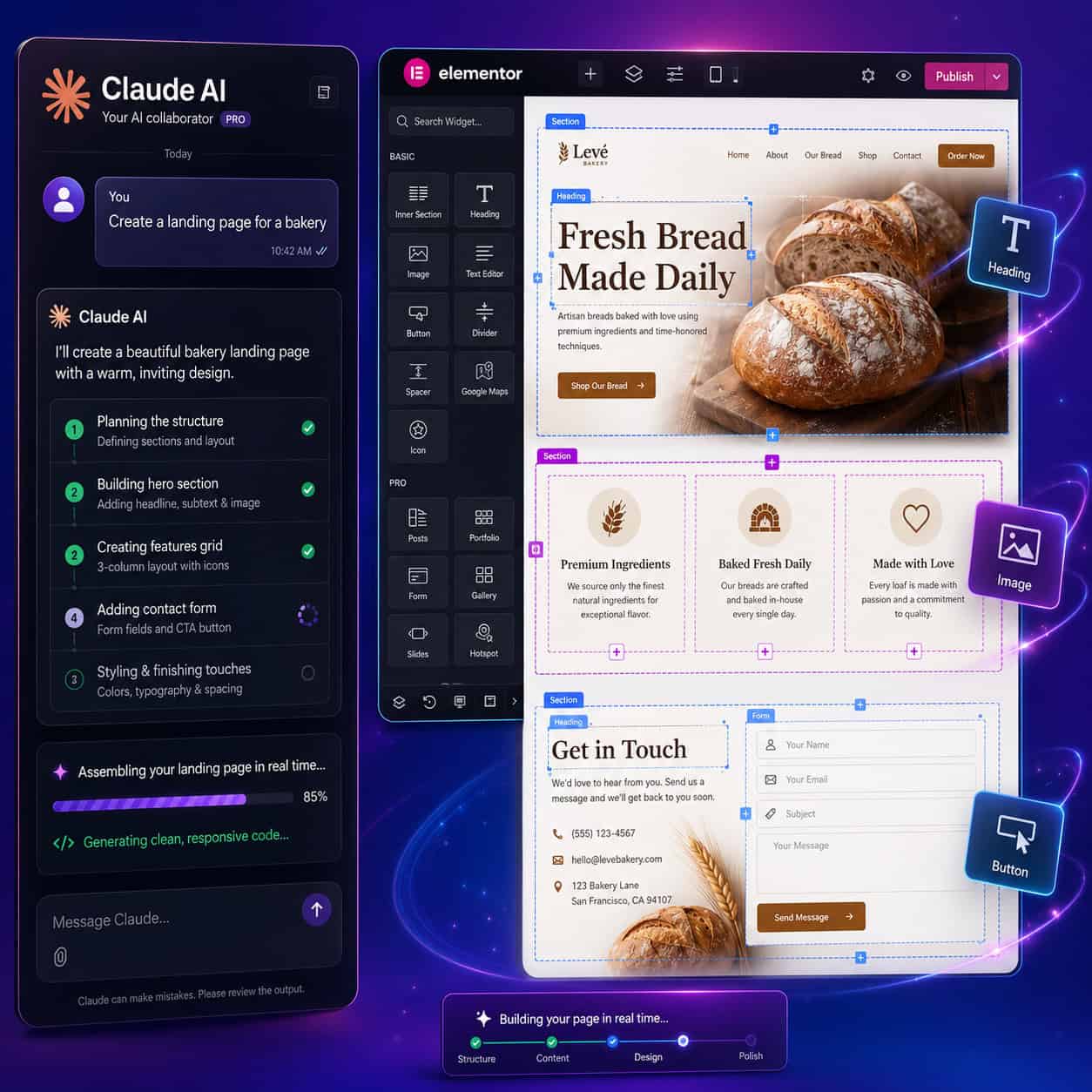
Tell your AI client: “Build a landing page for a local bakery. Include a hero section with a background image placeholder, a three-column features section highlighting fresh bread, pastries, and custom cakes, a testimonials carousel, and a contact form at the bottom.”
The AI will create the page structure, add appropriate Elementor widgets, set basic styling, and publish a draft. You then refine colors, swap in real images, and adjust spacing.
Realistic time savings: A landing page that takes 45 to 90 minutes to build manually can be scaffolded in 5 to 10 minutes through MCP. Refinement still takes 20 to 30 minutes.
Blog Post Templates
Create a blog post template with a featured image header, author bio section, table of contents sidebar, and related posts grid at the bottom.” The AI generates the Elementor template, which you can then save and reuse across your site.
WooCommerce Product Pages
If you’re running WooCommerce with Elementor, MCP can help scaffold product page layouts: “Design a product page template with a two-column layout, product gallery on the left, details and add-to-cart on the right, tabbed description section below, and a related products carousel.”
Common Mistake: Expecting Pixel-Perfect Output
AI-generated Elementor layouts are best thought of as 70-80% complete drafts. The structure and content placement will be solid, but you’ll almost always need to:
- Adjust responsive breakpoints for tablet and mobile
- Fine-tune typography sizes and line heights
- Replace placeholder content with real copy and images
- Check color contrast for accessibility
This workflow pairs well with no-code website design platforms if you’re evaluating different approaches to rapid site building.
How Does Elementor Compare to Gutenberg for MCP Integration?
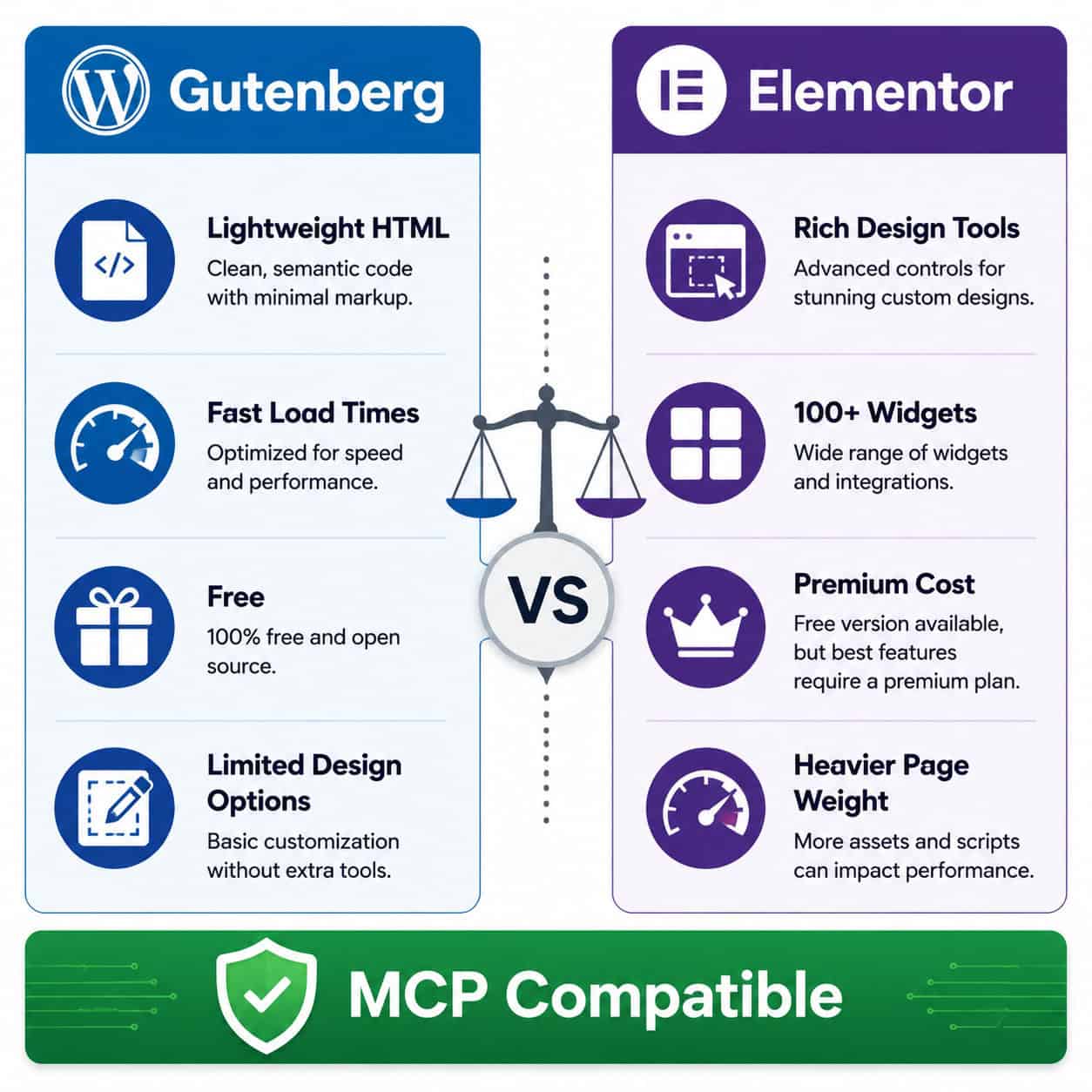
Both Elementor and Gutenberg work with the WordPress MCP Adapter, but they serve different needs and produce different results.
| Factor | Gutenberg + MCP | Elementor + MCP |
|---|---|---|
| Page speed | Faster (lighter HTML output, under 2.5s load times when optimized) | Slightly heavier (typical 2.1s load time, but adds more DOM elements) |
| Design flexibility | Limited to block patterns and theme.json styling | 100+ widgets, advanced animations, custom CSS per element |
| Cost | Free (built into WordPress core) | Free version available; Pro starts at $59/year |
| MCP tool coverage | Basic (page/post CRUD, block insertion) | 60+ specialized tools for widgets, sections, and styling [5] |
| Learning curve | Lower for simple sites | Higher, but more powerful for complex layouts |
| Code output | Clean, semantic HTML | Heavier markup with Elementor-specific classes |
Choose Gutenberg + MCP if: performance is your top priority, your design needs are straightforward, or you want to stay within WordPress core without third-party dependencies.
Choose Elementor + MCP if: you need advanced design capabilities, your clients expect visually complex layouts, or you’re already invested in the Elementor ecosystem.
Performance note: Both builders produce pages within acceptable Core Web Vitals ranges. The performance difference matters most for high-traffic sites where every fraction of a second affects conversion rates [9].
WordPress 7.0’s continued investment in Gutenberg and Full Site Editing means the native editor keeps getting more capable. For a deeper look at customizing WordPress themes to work with either builder, see our complete guide to WordPress theme customization.
What Security Risks Should You Know About?
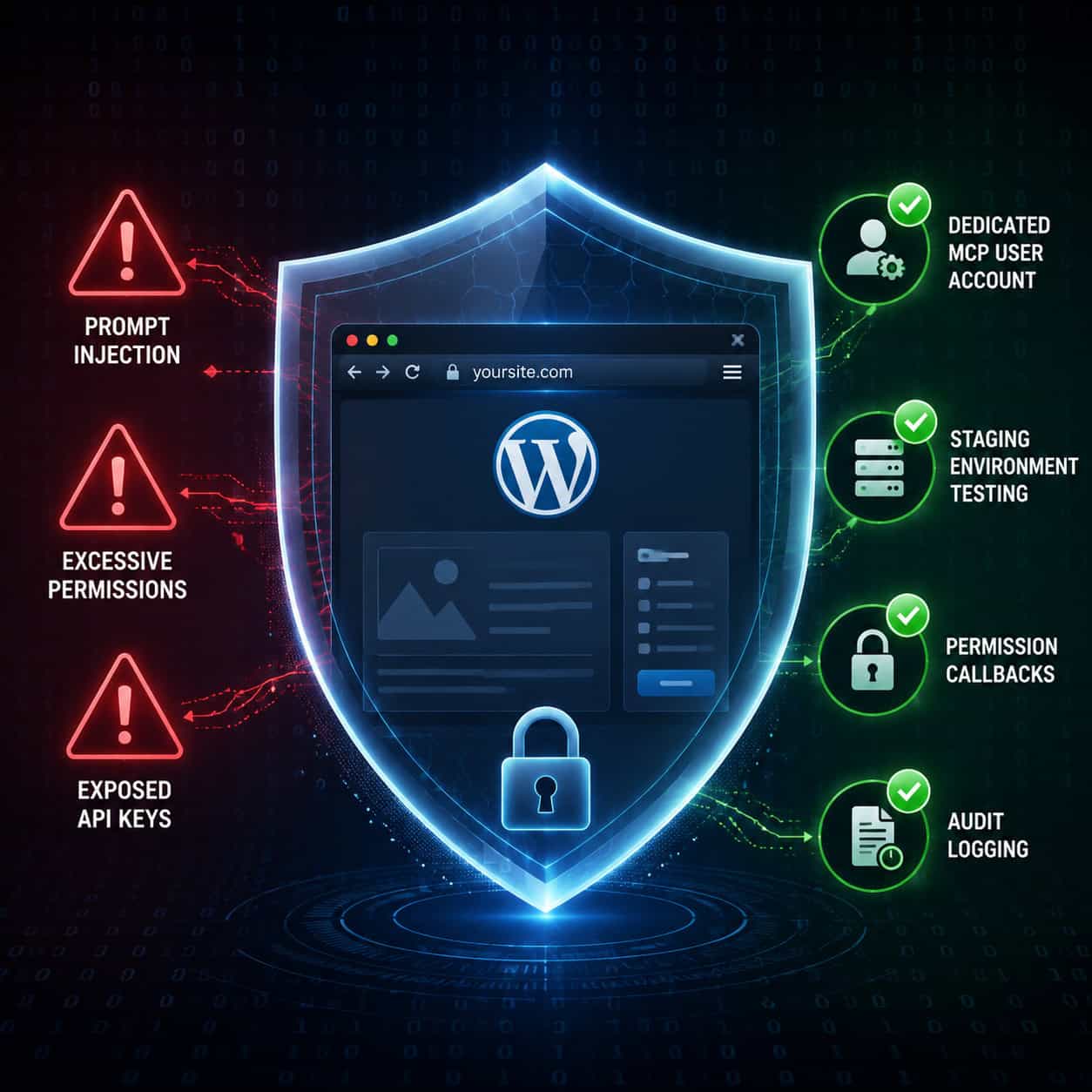
MCP integration introduces real security considerations that you can’t ignore. An MCP client acts as a logged-in WordPress user, meaning it has the same permissions as whatever account you configure [1].
Key risks:
- Excessive permissions: If your MCP user has Administrator access, the AI can install plugins, change settings, or delete content. Always use the minimum required role.
- Prompt injection: A malicious prompt could theoretically instruct the AI to perform destructive actions. This is why staging environments and permission callbacks matter.
- Exposed credentials: API keys and application passwords stored in configuration files need proper protection. Never commit
.envfiles to version control. - Unaudited changes: Without logging, you won’t know exactly what the AI modified on your site.
Security Checklist
- Create a dedicated MCP user with Editor role (not Administrator)
- Use application passwords instead of your main account credentials
- Test on staging first, always
- Enable audit logging (plugins like WP Activity Log track all changes)
- Set up permission callbacks so the MCP adapter asks for confirmation before destructive actions [1]
- Rotate application passwords regularly
- Keep the MCP server and WordPress updated to patch known vulnerabilities
Edge case: If multiple team members use MCP with different AI clients, create separate WordPress users for each person. This makes audit trails meaningful and lets you revoke access individually.
For more on securing and extending WordPress with plugins, our guide to WordPress plugin development best practices covers the fundamentals.
What’s Coming Next for WordPress MCP and Elementor?
The integration between AI, WordPress, and Elementor is evolving fast. Here’s what’s on the horizon.
Elementor “Angie” AI Agent
Elementor has announced an upcoming agentic AI plugin called Angie, purpose-built for WordPress and deeply integrated with MCP technology [2]. Unlike current MCP implementations that respond to individual commands, Angie is designed to execute multi-step tasks autonomously across the WordPress stack. Think: “Redesign my homepage to improve conversion rates” as a single instruction that triggers layout changes, copy adjustments, and A/B test setup.
Broader MCP Ecosystem Growth
MCP adoption is accelerating across the tech industry. With OpenAI, Google DeepMind, and Microsoft all supporting the protocol, the number of MCP-compatible tools will keep growing [2]. For WordPress users, this means more AI clients to choose from and more sophisticated workflows.
WordPress Core AI Integration
WordPress 7.0’s developer updates signal continued investment in making the core platform AI-friendly. As Gutenberg matures and Full Site Editing becomes more capable, expect native MCP support to expand beyond third-party adapters [9].
What This Means for You
If you’re building websites professionally in 2026, learning MCP workflows now puts you ahead. The designers and developers who can effectively direct AI assistants to build and modify WordPress sites will have a significant productivity advantage.
For those exploring broader AI-driven approaches to web design, our overview of AI-powered website creation without code provides additional context on where the industry is heading.
Practical Tips for Mastering Website Design with WordPress MCP and Elementor Integration
Here are concrete recommendations based on what works in real projects:
Start with templates, not blank pages. Ask the AI to modify existing Elementor templates rather than building from scratch. The results are more polished.
Be specific in your prompts. “Create a hero section” produces generic output. “Create a hero section with a dark gradient overlay, white 48px heading, 18px subtitle, and a green CTA button aligned left” produces something usable.
Build a prompt library. Save prompts that produce good results. Reuse and refine them across projects.
Use MCP for repetitive tasks. Creating 20 similar product pages? That’s where MCP shines. One-off creative designs still benefit from manual work.
Pair MCP with design systems. If you use Figma for design, create your layouts there first, then use MCP to translate them into Elementor. Our Figma UI/UX design guide can help you establish that workflow.
Always review responsive layouts. AI-generated pages often look great on desktop but need manual adjustment for tablet and mobile breakpoints.
Version control your MCP configurations. As you refine server settings and environment variables, track changes so you can roll back if something breaks.
Conclusion
Mastering website design through WordPress MCP and Elementor integration is no longer a futuristic concept. It’s a practical workflow available right now in 2026. The combination of WordPress’s 43% market dominance, Elementor’s 16 million active installations, and MCP’s emergence as the industry standard for AI communication creates a powerful foundation for faster, more efficient web design [9][10].
Your actionable next steps:
- Set up a staging environment and install the WordPress MCP Adapter and Elementor MCP server this week.
- Create a dedicated MCP user with appropriate permissions before connecting any AI client.
- Start with one simple project, like scaffolding a landing page, to learn the workflow before applying it to client work.
- Build your prompt library as you discover what instructions produce the best Elementor output.
- Watch for Elementor’s Angie release, which will push AI-driven design capabilities significantly further [2].
The designers and developers who invest time in these workflows now will be the ones delivering faster results and better client experiences as MCP adoption accelerates across the industry.
FAQ
What is WordPress MCP? WordPress MCP (Model Context Protocol) is an adapter that lets AI tools like Claude Desktop and Cursor communicate directly with a WordPress site. It was released by the WordPress Core AI team in February 2026 and allows AI clients to discover and execute WordPress actions through a standardized protocol [1].
Do I need coding skills to use Elementor MCP? You need basic comfort with the command line (installing Node.js packages, editing JSON files), but you don’t need to write code. The actual page building happens through natural language conversations with your AI client.
Is Elementor MCP free? The Elementor MCP server itself is open source and free [1]. However, you’ll need Elementor (free version works for basics, Pro recommended for full functionality) and an MCP-compatible AI client (Claude Desktop is free for limited use, Cursor and others have their own pricing).
Can MCP break my live website? Yes, if configured carelessly. MCP clients act as logged-in users and can create, modify, or delete content. Always use a staging environment for testing and a dedicated user account with limited permissions [1].
How does Elementor MCP differ from Elementor AI? Elementor AI is Elementor’s built-in AI feature for generating text and images within the editor. Elementor MCP is an external server that lets third-party AI clients (Claude, Cursor) control Elementor programmatically. MCP offers broader automation capabilities, while Elementor AI is simpler to use for quick content generation [2].
What AI clients work with WordPress MCP? Claude Desktop, Cursor, VS Code (with MCP extensions), and any other client that supports the Model Context Protocol. As MCP adoption grows, more clients are adding support [1][2].
Can I use MCP with Gutenberg instead of Elementor? Yes. The WordPress MCP Adapter works with Gutenberg’s block editor for basic page and post operations. However, the dedicated Elementor MCP server provides far more granular control over design elements [5].
How many Elementor tools does the MCP server expose? The current Elementor MCP server exposes over 60 tools covering page management, widget operations, layout control, styling, templates, and global widgets [5].
What is Elementor’s Angie AI plugin? Angie is Elementor’s upcoming agentic AI plugin that integrates deeply with MCP technology. Unlike current tools that respond to individual commands, Angie is designed to execute complex multi-step tasks across the entire WordPress stack autonomously [2].
Is WordPress still relevant for web design in 2026? Yes. WordPress powers approximately 43% of all websites and continues to evolve with Full Site Editing, improved developer APIs, and AI integration through MCP. Elementor’s own analysis confirms WordPress remains the dominant CMS platform [9][10].
References
[1] Elementor MCP – https://github.com/msrbuilds/elementor-mcp [2] Elementor MCP Features 420 Preview – https://www.reddit.com/r/elementor/comments/1t97233/elementor_mcp_features_420_preview/ [4] Elementor – https://mcpmarket.com/server/elementor [5] Elementor MCP – https://skillsllm.com/skill/elementor-mcp [9] Is WordPress – https://elementor.com/blog/is-wordpress/ [10] Ultimate List of WordPress Stats Facts and Other Research – https://www.wpbeginner.com/research/ultimate-list-of-wordpress-stats-facts-and-other-research/