Last updated: May 1, 2026
Quick Answer: The best AI tools for web designers in 2024 include Figma AI, Adobe Sensei, Uizard, Canva AI, Framer, Wix ADI, and Relume. Each tool targets a different part of the design workflow — from wireframing and layout generation to code handoff and content creation. Choosing the right one depends on your role, team size, and whether you prioritize design, development, or both.
Key Takeaways
AI tools for web designers reduce repetitive work like resizing, color matching, and layout adjustments, freeing time for creative decisions.
Figma’s AI features (launched 2023) include smart layout generation, design suggestions, and accessible design production. [6]
Adobe Sensei automates repetitive drawing tasks and predicts customer behavior across Photoshop, Illustrator, and the wider Adobe Suite. [2]
Uizard converts hand-drawn sketches into polished digital mockups, making it accessible to non-designers. [3]
Wix ADI generates full personalized websites from user input and can export designs for WordPress. [3]
Framer and Relume both bridge the gap between design and live website deployment with AI-assisted workflows. [2]
The right AI tool depends on your workflow stage: ideation, prototyping, development, or content creation.
AI tools don’t replace designers — they handle the mechanical work so designers can focus on strategy and creativity.
What Are AI Tools for Web Designers and Why Do They Matter?
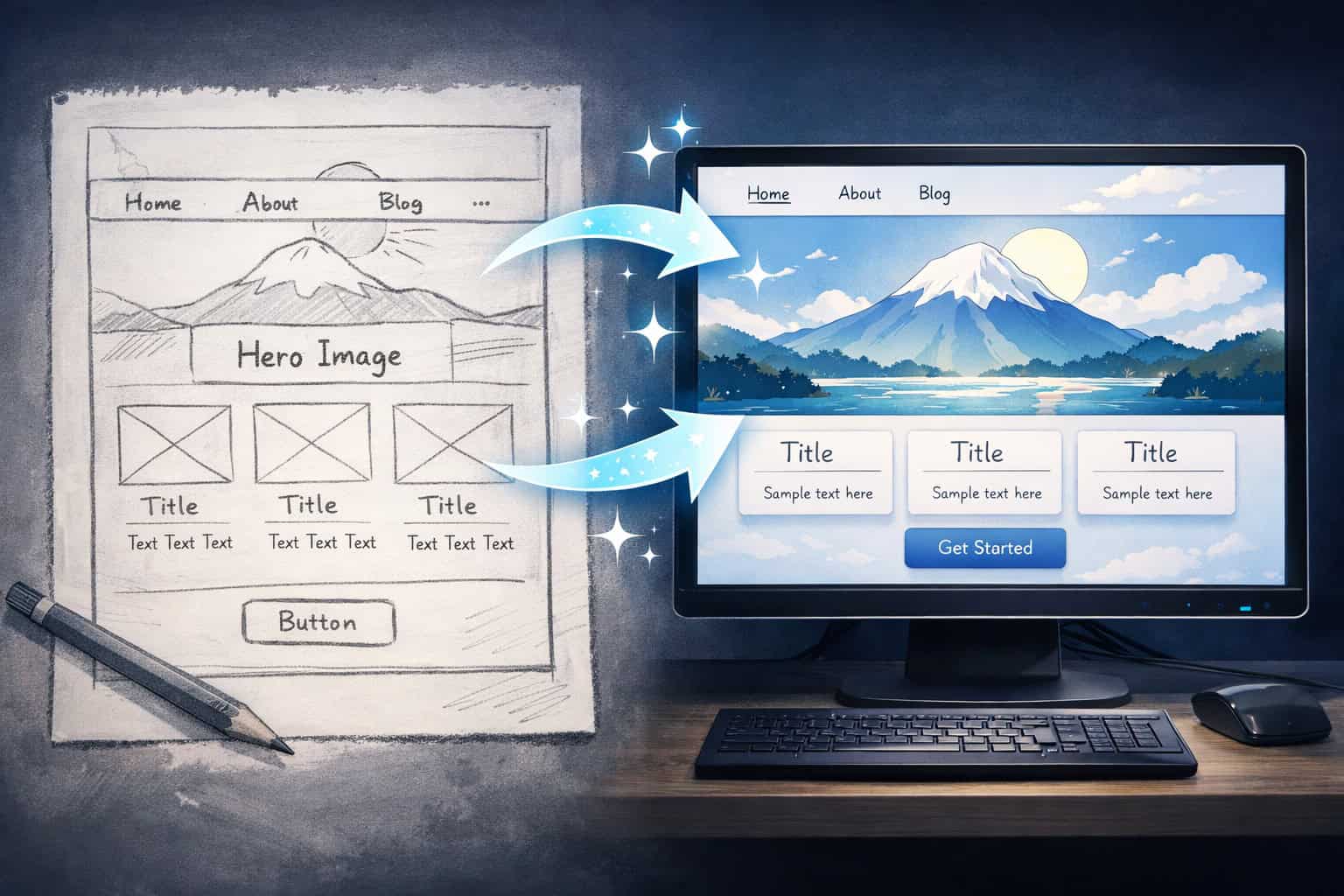
AI tools for web designers are software applications that use machine learning and generative models to automate, suggest, or accelerate design tasks. They matter because they reduce the time spent on mechanical work — resizing assets, generating color palettes, writing placeholder copy — so designers can spend more energy on decisions that actually require human judgment.
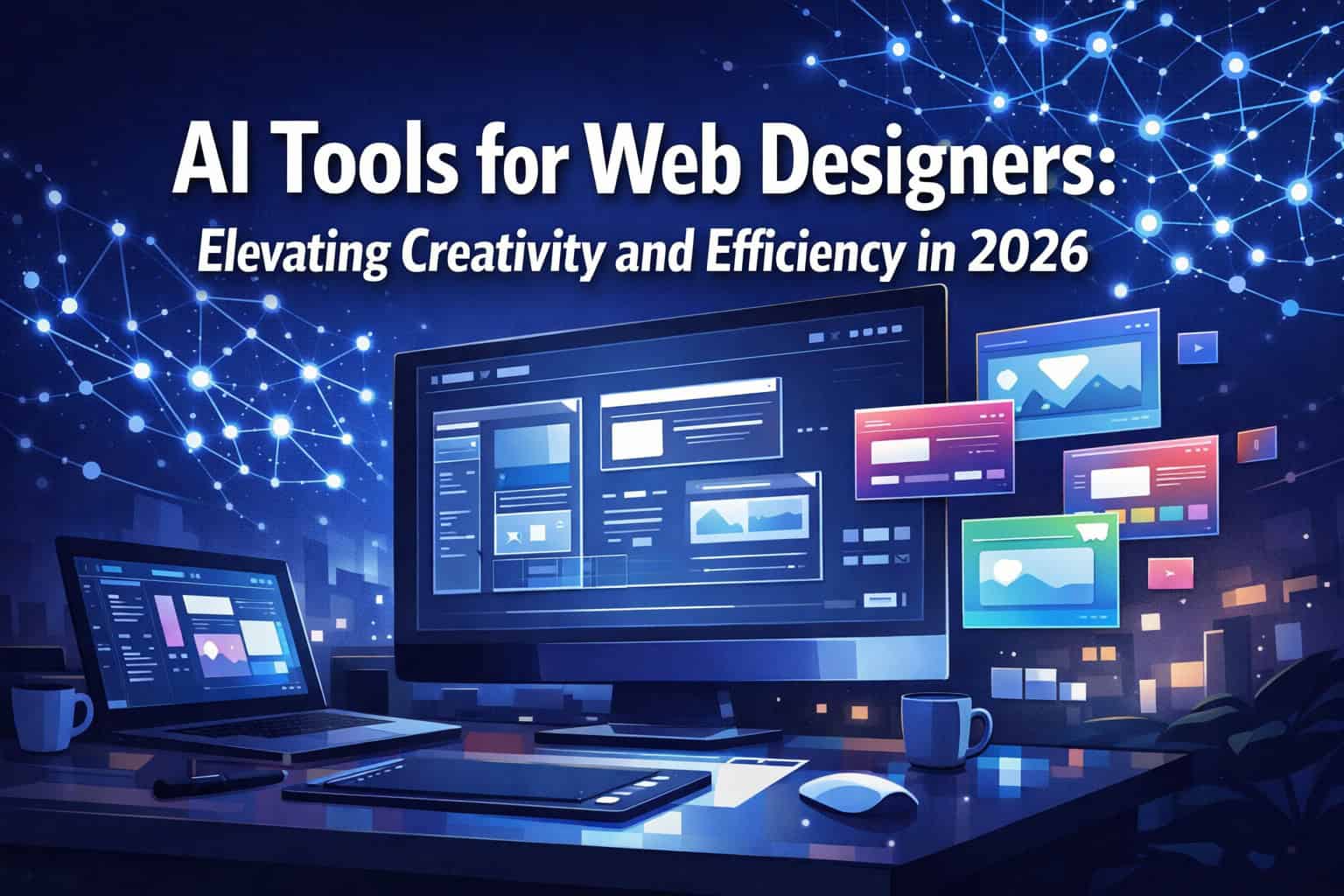
The topic of AI Tools for Web Designers: Elevating Creativity and Efficiency in 2024 became a major conversation point as tools matured from novelty features to genuinely useful workflow components. [4] By 2026, most professional design platforms have baked AI into their core product, so understanding what each tool actually does (and doesn’t do) is now a baseline skill for any working designer.
Who benefits most:
Freelance designers managing multiple client projects simultaneously
Small agency teams without dedicated developers
UX/UI designers who need to prototype fast and iterate often
Non-designers (marketers, founders) who need professional-looking output without hiring help
Who may find AI tools less impactful:
Designers working on highly bespoke, brand-critical projects where every pixel is deliberate
Teams with strict IP or data privacy requirements that restrict cloud-based AI tools
Which AI Design Tools Are Worth Using in 2024?
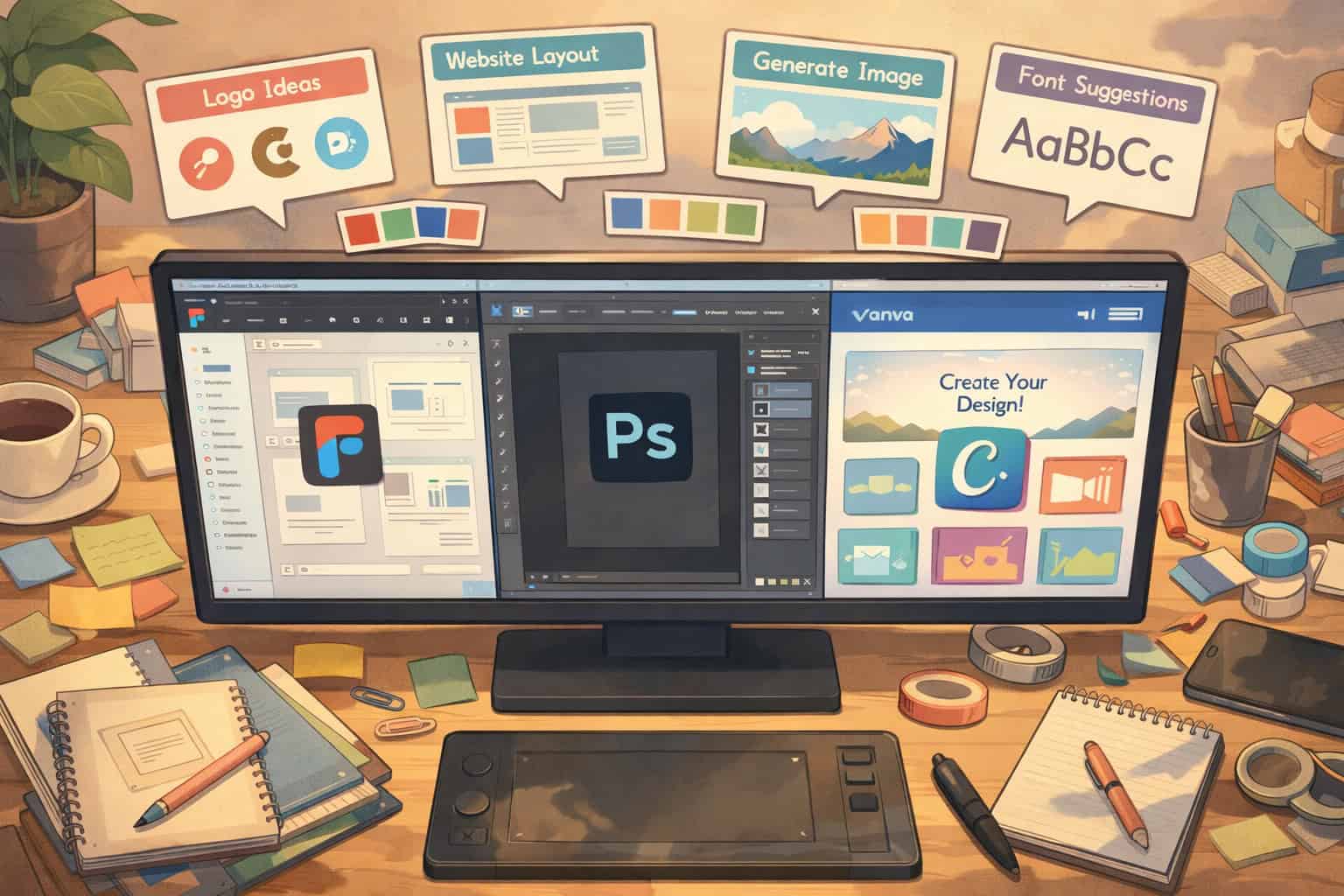
The most widely used and well-reviewed AI tools for web designers in 2024 fall into four categories: design and prototyping, visual creation, development handoff, and content generation. Here’s a breakdown of the tools that consistently appear in professional workflows. [2][3][4]
Design and Prototyping Tools
Figma AI
Figma introduced AI features in 2023 that include smart layout generation, automatic design suggestions based on user preferences, data-driven design insights, and visual mind mapping. [6] It also supports accessible design production, which helps teams meet WCAG standards without manual auditing. For teams already using Figma, these features integrate directly into existing files — no new software required.
For deeper guidance on getting started, the Figma for web design: tools and principles for collaborative projects guide covers the full collaborative workflow.
Uizard
Uizard lets designers (and non-designers) upload a photo of a hand-drawn sketch and receive a clean digital wireframe in return. [3] It’s particularly useful in early ideation phases when you want to test layout ideas quickly without committing to a full design system. It’s not a replacement for Figma in production, but it’s a strong starting point.
Framer
Framer uses AI to help designers build optimized, responsive websites with minimal code. [2] It sits between a design tool and a website builder, making it a good choice for designers who want to ship sites directly without a separate development handoff. See the Framer project management templates for optimizing professional workflows resource for practical workflow examples.
Visual Creation Tools
Adobe Sensei
Adobe Sensei powers AI features across Photoshop, Illustrator, and other Adobe Suite applications. Its capabilities include creative intelligence (automating repetitive drawing tasks), experience intelligence (predicting customer behavior for UX decisions), video intelligence (simplifying editing workflows), and intuitive search for design assets. [2] For designers already embedded in the Adobe ecosystem, Sensei adds value without requiring a platform switch.
Canva AI
Canva’s AI features — including Magic Design, text-to-image generation, and background removal — make it a practical tool for web designers who also handle social media, marketing materials, or client presentations. The Canva AI design assistant: Create stunning visuals with AI tools guide covers these features in detail.
Website Building Tools
Wix ADI (Artificial Design Intelligence)
Wix ADI generates a complete, personalized website based on answers to a short questionnaire. [3] It handles layout, imagery, and copy automatically. Designers can then customize the output or export it for WordPress adaptation, which adds flexibility for client handoffs.
Divi by Elegant Themes
Divi uses AI to provide smart layout recommendations, generate content from existing material, create design variations, and run A/B tests for optimization. [3] It’s built for WordPress, making it a strong option for designers who primarily work in that ecosystem.
ToolBest ForAI CapabilityPricing ModelFigma AIPrototyping & collaborationLayout gen, design suggestionsSubscription (free tier available)Adobe SenseiCreative automationAsset search, task automationAdobe CC subscriptionUizardSketch-to-digital conversionImage-to-wireframeFreemiumCanva AIVisual content creationText-to-image, Magic DesignFreemiumFramerDesign-to-live-siteResponsive layout AISubscriptionWix ADIQuick site generationFull site generationFreemiumDiviWordPress designLayout recommendations, A/B testingOne-time or subscription
How Do AI Tools Fit Into a Web Design Workflow?
AI tools slot into specific stages of the design process rather than replacing the entire workflow. Understanding where each tool fits helps you avoid over-relying on AI in areas where human judgment is still essential.
Stage 1: Research and ideation
Tools like Uizard and Figma AI help at this stage by generating rough layouts from sketches or text prompts. This speeds up the ideation phase without locking you into a direction too early.
Stage 2: Wireframing and prototyping
Figma AI’s smart layout generation and design suggestions are most useful here. [6] Relume also plays a role — it generates website sitemaps and wireframes from a text description, which you can then export directly to Figma for further refinement.
Stage 3: Visual design
Adobe Sensei and Canva AI handle repetitive visual tasks — background removal, color matching, asset resizing — so designers can focus on brand-level decisions. [2]
Stage 4: Development handoff
This is where tools like Framer and Figma’s code export features add the most value. Figma’s design-to-code plugins and the Figma to Webflow conversion workflow reduce the friction between design files and live websites significantly.
Stage 5: Content and copy
ClickUp’s AI content assistance handles idea generation, SEO optimization, and grammar enhancement. [1] It also generates automatic SEO briefs, which is useful for designers who also manage content strategy for clients.
Common mistake: Designers often try to use one AI tool for the entire workflow. In practice, a combination of two or three specialized tools — one for prototyping, one for visual creation, one for development — produces better results than a single all-in-one platform.
What Should You Look for When Choosing an AI Web Design Tool?
The right AI tool depends on four factors: your workflow stage, your technical comfort level, your team size, and your budget.
Choose based on workflow stage:
Early ideation: Uizard, Figma AI
Visual production: Adobe Sensei, Canva AI
Site building: Wix ADI, Framer, Divi
Development handoff: Figma + code plugins, Framer
Choose based on technical comfort:
Non-technical designers or clients: Wix ADI, Canva AI, Uizard
Mid-level designers: Figma AI, Divi, Framer
Designer-developer hybrids: Adobe Sensei, Framer, CodeWP (for WordPress AI support) [2]
Choose based on team size:
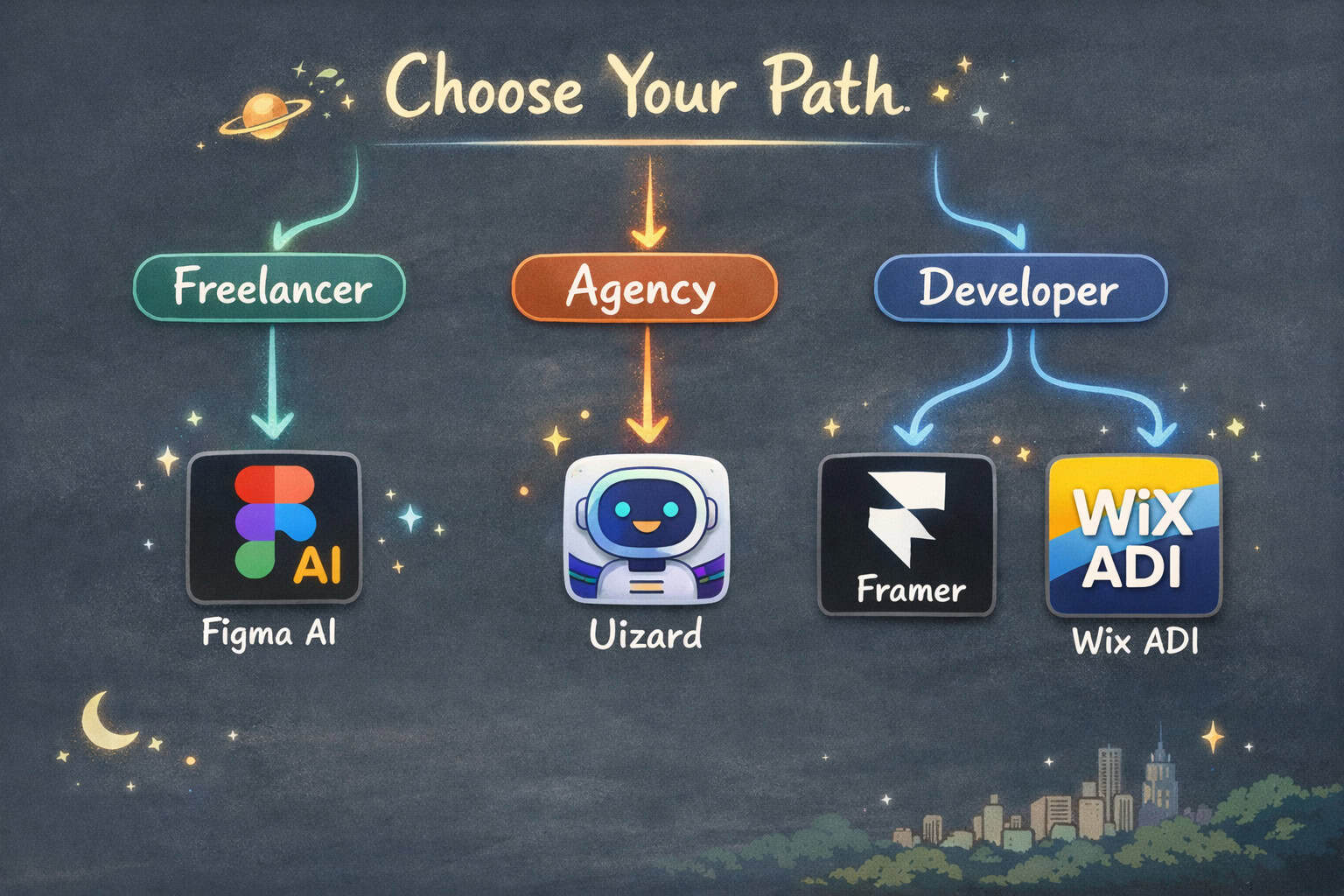
Solo freelancers: Canva AI, Uizard, Wix ADI (low cost, fast output)
Small agencies: Figma AI, Framer, Relume (collaboration features matter)
Larger teams: Adobe Sensei, Figma AI (enterprise integrations, access controls)
Budget considerations:
Most tools offer a freemium tier that covers basic AI features. Paid tiers typically unlock higher generation limits, team collaboration, and advanced export options. Adobe Sensei requires an active Adobe Creative Cloud subscription, which is the highest ongoing cost on this list.
For teams building on WordPress specifically, the 12 best AI plugins for WordPress to automate your website management guide covers AI-powered options that integrate directly with the CMS.
How Are AI Tools Changing the Role of Web Designers?
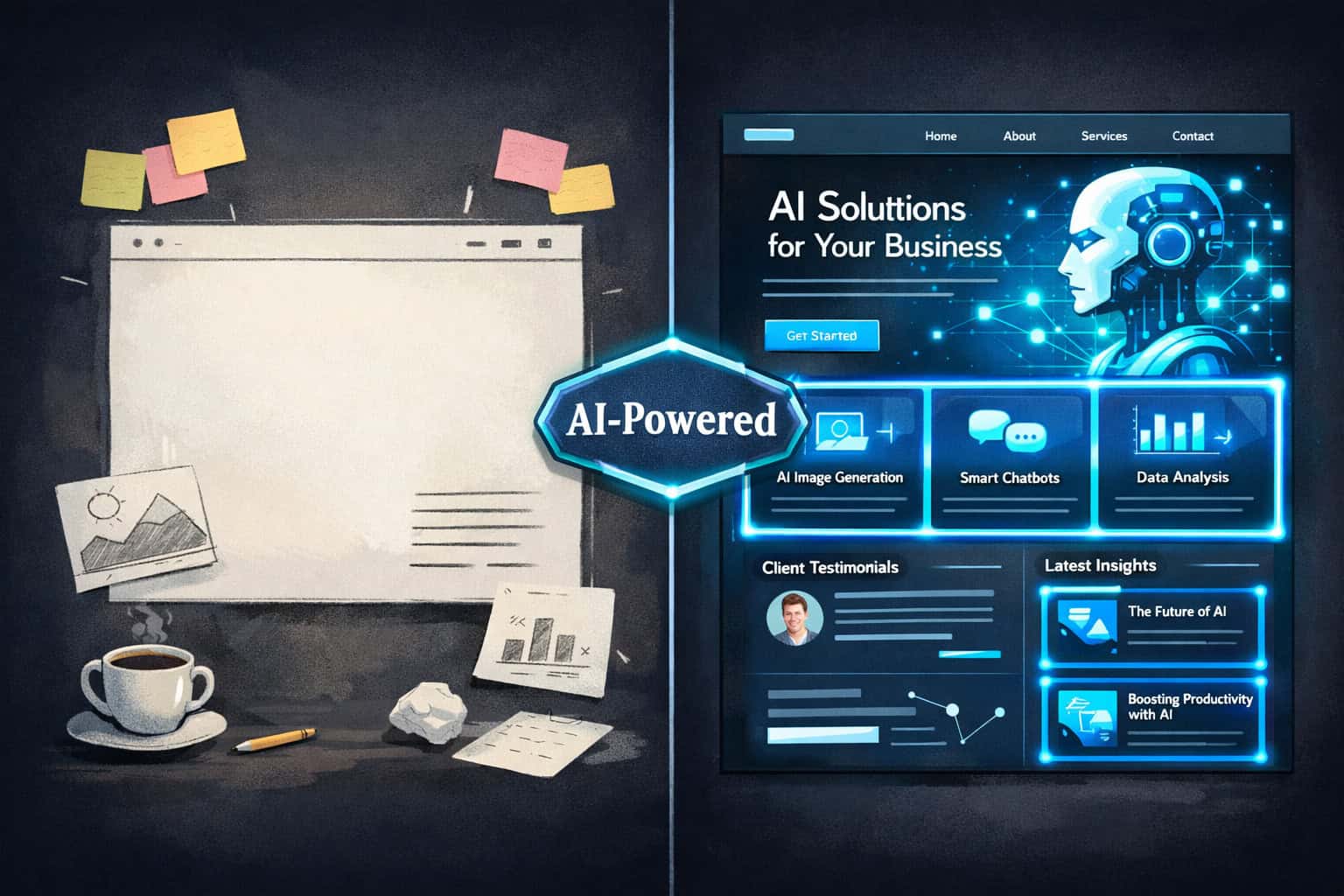
AI tools are shifting the web designer’s role from executor to director. Instead of spending hours on tasks like resizing images, generating placeholder text, or manually adjusting layouts for different screen sizes, designers are increasingly focused on making higher-level decisions about user experience, brand direction, and content strategy.
This shift has a few practical implications:
Skills that are becoming more valuable:
Prompt writing and AI output evaluation (knowing when AI-generated work is good enough vs. needs revision)
Design systems thinking (AI tools work best when fed consistent component libraries and style guides)
Cross-functional communication (translating AI-generated prototypes into client-ready presentations)
Skills that are becoming less time-intensive:
Manual asset resizing and format conversion
Basic layout generation from scratch
Repetitive copy editing and placeholder content creation
What hasn’t changed:
Strategic UX decisions still require human judgment
Brand identity work — particularly for established brands — still demands a designer’s eye
Client communication and project management remain human-driven
The best AI graphic design tools for creative workflows resource covers how these shifts are playing out across different design disciplines.
What Are the Limitations of AI Tools for Web Designers?
AI tools for web designers are genuinely useful, but they come with real constraints that are worth knowing before you commit to a tool or workflow.
Output quality varies by input quality. Most AI design tools produce better results when given specific, well-structured prompts or reference materials. Vague inputs produce generic outputs. This is especially true for layout generators and text-to-image tools.
AI-generated designs can look similar. Because these tools are trained on existing design patterns, their outputs can trend toward the same visual styles. Designers using AI heavily without customization risk producing work that looks indistinguishable from competitors using the same tools. [4]
Data privacy is a real concern. Cloud-based AI tools process your design files and inputs on external servers. For client work involving sensitive brand assets or unreleased products, check each tool’s data retention and privacy policies before uploading anything.
AI tools don’t understand context. A layout that looks good visually might be completely wrong for a specific user base, accessibility requirement, or brand guideline. AI doesn’t know your client’s history, their audience’s behavior, or the nuances of their market. That context still has to come from you.
Integration gaps exist. Not all AI tools play well together. Moving from an AI-generated wireframe in Uizard to a production file in Figma, for example, often requires manual cleanup. Plan for this in your project timelines.
What Does a Practical AI-Assisted Web Design Stack Look Like?

A practical AI-assisted design stack for 2026 typically combines three to four tools that cover different stages of the workflow without significant overlap. Here’s an example setup for a freelance web designer working primarily with small business clients:
Example stack: Freelance web designer
Relume — Generate sitemap and wireframe from a text brief
Figma AI — Refine wireframes, build components, and create the full design system
Canva AI — Produce supporting visuals, social assets, and marketing materials for the client
Framer or Wix ADI — Build and publish the live site with minimal code
Example stack: Small design agency
Figma AI — Primary design and prototyping tool for the whole team
Adobe Sensei — Asset production and image editing within the Adobe Suite
ClickUp AI — Content generation, SEO briefs, and project management [1]
Figma-to-code plugins — Streamline handoff to developers
The Figma AI workflow automation guide covers how to set up automated design processes within Figma specifically.
Checklist before adding a new AI tool to your stack:
Does it solve a specific, recurring problem in your current workflow?
Does it integrate with tools you already use?
Have you tested the free tier on a real project (not just a demo)?
Is the pricing sustainable at your current project volume?
Does it meet your data privacy requirements for client work?
Frequently Asked Questions
Q: Are AI tools for web designers suitable for beginners?
Yes, several tools — including Canva AI, Wix ADI, and Uizard — are specifically designed for users without formal design training. They handle layout and visual decisions automatically, so beginners can produce professional-looking output quickly. [3][8]
Q: Do AI design tools replace Figma or Adobe?
No. Most AI tools either integrate with Figma and Adobe or handle a narrow part of the workflow. Figma and Adobe remain the industry-standard platforms; AI features are additions to them, not replacements. [6]
Q: How much do AI web design tools cost?
Most tools offer free tiers with limited AI generation credits. Paid plans typically range from $10 to $50 per month for individual users. Adobe Sensei is only available through an Adobe Creative Cloud subscription, which starts around $55/month for the full suite (pricing varies by region and plan).
Q: Can AI tools generate production-ready code?
Some can. Framer generates live, deployable websites. Figma’s code export and plugins like the Figma to code workflow produce HTML/CSS that developers can use as a starting point. Full production-ready code still typically requires developer review. [2]
Q: Is Wix ADI good for professional client work?
It’s a solid starting point for small business websites with standard requirements. For complex, custom, or brand-critical projects, it’s better used as a rapid prototype tool rather than a final deliverable. [3]
Q: What’s the difference between Framer and Webflow for AI-assisted design?
Framer has more native AI features built into its design interface. Webflow is more powerful for complex custom builds but relies more on manual design work. Choose Framer if you want AI-assisted speed; choose Webflow if you need granular control over interactions and CMS.
Q: Can AI tools help with accessibility in web design?
Yes. Figma AI includes accessible design production features that flag potential WCAG issues. [6] Adobe Sensei also assists with contrast checking and asset tagging. These tools don’t guarantee compliance, but they surface issues earlier in the process.
Q: How do I evaluate whether an AI tool’s output is good enough to use?
Check it against three criteria: Does it match the brand guidelines? Does it meet accessibility standards? Would a target user find it intuitive? If the answer to all three is yes, the output is usable. If not, treat it as a draft and refine manually.
Q: Are there AI tools specifically for WordPress web designers?
Yes. Divi by Elegant Themes, CodeWP, and various AI plugins integrate directly with WordPress. [1][3] The 12 best AI plugins for WordPress guide covers the most useful options.
Q: What’s the fastest way to get started with AI tools for web design?
Pick one tool that addresses your biggest current bottleneck. If ideation is slow, try Uizard. If visual production takes too long, try Canva AI. If you’re spending too much time on layout, try Figma AI or Relume. Start with the free tier on a real project before committing to a paid plan.
Conclusion: How to Move Forward with AI in Your Design Practice
The conversation around AI Tools for Web Designers: Elevating Creativity and Efficiency in 2024 has moved well past hype. By 2026, these tools are standard parts of professional workflows — the question isn’t whether to use them, but which ones to use and when.
Here are the actionable next steps to take this week:
Audit your current workflow. Identify the two or three tasks that take the most time and add the least creative value. Those are your best candidates for AI automation.
Test one new tool on a low-stakes project. Pick a tool from the table above that matches your workflow stage and try it on an internal project or a small client job before relying on it for major work.
Build a reusable prompt library. The quality of AI output depends heavily on the quality of your inputs. Start documenting the prompts and reference materials that produce good results for your specific use cases.
Review your data privacy settings. Check which tools you’re already using have AI features enabled by default, and confirm their data handling policies align with your client agreements.
Stay current. AI design tools are updating faster than almost any other software category. Following resources like WebAiStack’s design archive will help you stay informed without spending hours on research.
The designers who will get the most out of AI tools are the ones who treat them as collaborators rather than shortcuts — using them to handle the mechanical work while keeping their own judgment at the center of every creative decision.
References
[1] Top AI Tools Revolutionizing Web Development – https://artjoker.net/blog/top-ai-tools-revolutionizing-web-development/
[2] AI Web Design Tools – https://www.ceros.com/blog/ai-web-design-tools/
[3] 15 Best AI Tools For Web Designers In 2024 Leveraging Businesses With Stunning Websites – https://www.sophisticatedcloud.com/all-blogs/15-best-ai-tools-for-web-designers-in-2024-laveraging-businesses-with-stunning-websites
[4] 15 AI Tools For Designers In 2024 – https://webdesignernews.com/15-ai-tools-for-designers-in-2024/
[6] AI Design Tools – https://www.figma.com/resource-library/ai-design-tools/
[8] Best AI Website Builders – https://titan.email/best-ai-website-builders/