Last updated: May 14, 2026This article provides an in-depth elmentor v4 guide to atomic editor features and migration tips.
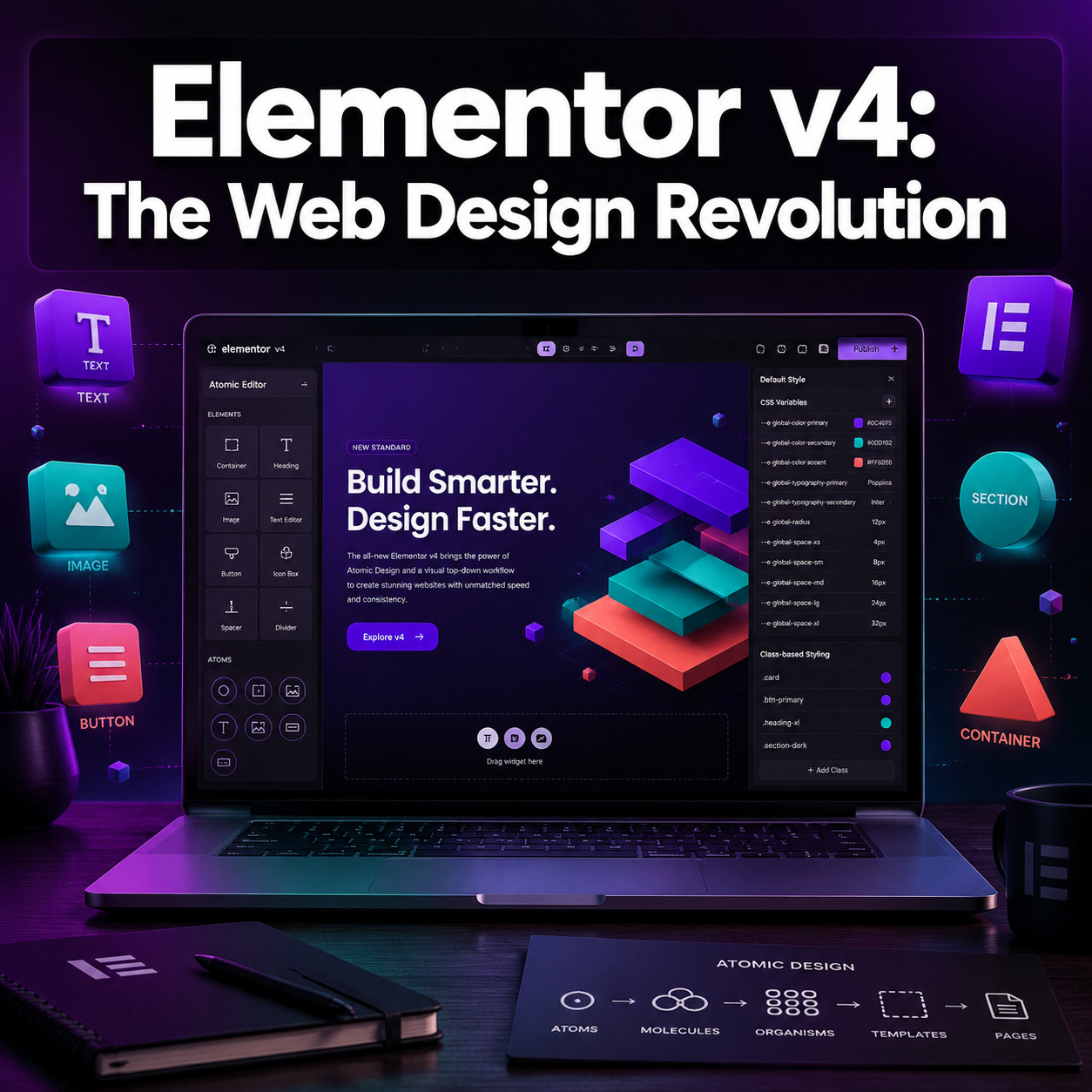
Quick Answer: Elementor v4, officially called the Atomic Editor, launched in April 2026 as a ground-up rebuild of Elementor’s editing architecture. It replaces the old nested-div approach with a CSS-first system built around four pillars: Variables, Classes, Components, and Atomic Elements [1][3]. New Elementor installations get v4 by default, while existing sites must opt in manually, so nothing breaks without your permission [6].
Key Takeaways
- Elementor v4 is not a simple update. It’s a new architecture (the “Atomic Editor”) that fundamentally changes how Elementor generates HTML and CSS [3].
- Four core pillars define the system: Variables for global tokens, Classes for reusable styles, Components for master/instance design patterns, and Atomic Elements that output minimal markup [7].
- Existing sites are safe. Upgrading to Elementor 4.0 does not auto-enable the Atomic Editor. You must toggle it on manually in WordPress admin settings [1][6].
- v3 and v4 elements can coexist on the same page, allowing gradual adoption rather than a risky all-or-nothing migration [10].
- Performance improves measurably. v4 replaces deeply nested div wrappers with single-div elements, producing cleaner DOM output that benefits Core Web Vitals [5][10].
- The third-party ecosystem is catching up. Major addon suites like The Plus Addons have already shipped v4 compatibility updates [5].
- Production readiness is debated. Independent reviewers recommend using v4 for new projects and internal experiments, but caution against migrating complex client sites immediately.
- Elementor’s roadmap treats v4 as a foundation, not a finished product. Features like atomic forms and Pro Interactions are being rolled out continuously [8].
What Is Elementor v4 and Why Does It Matter?
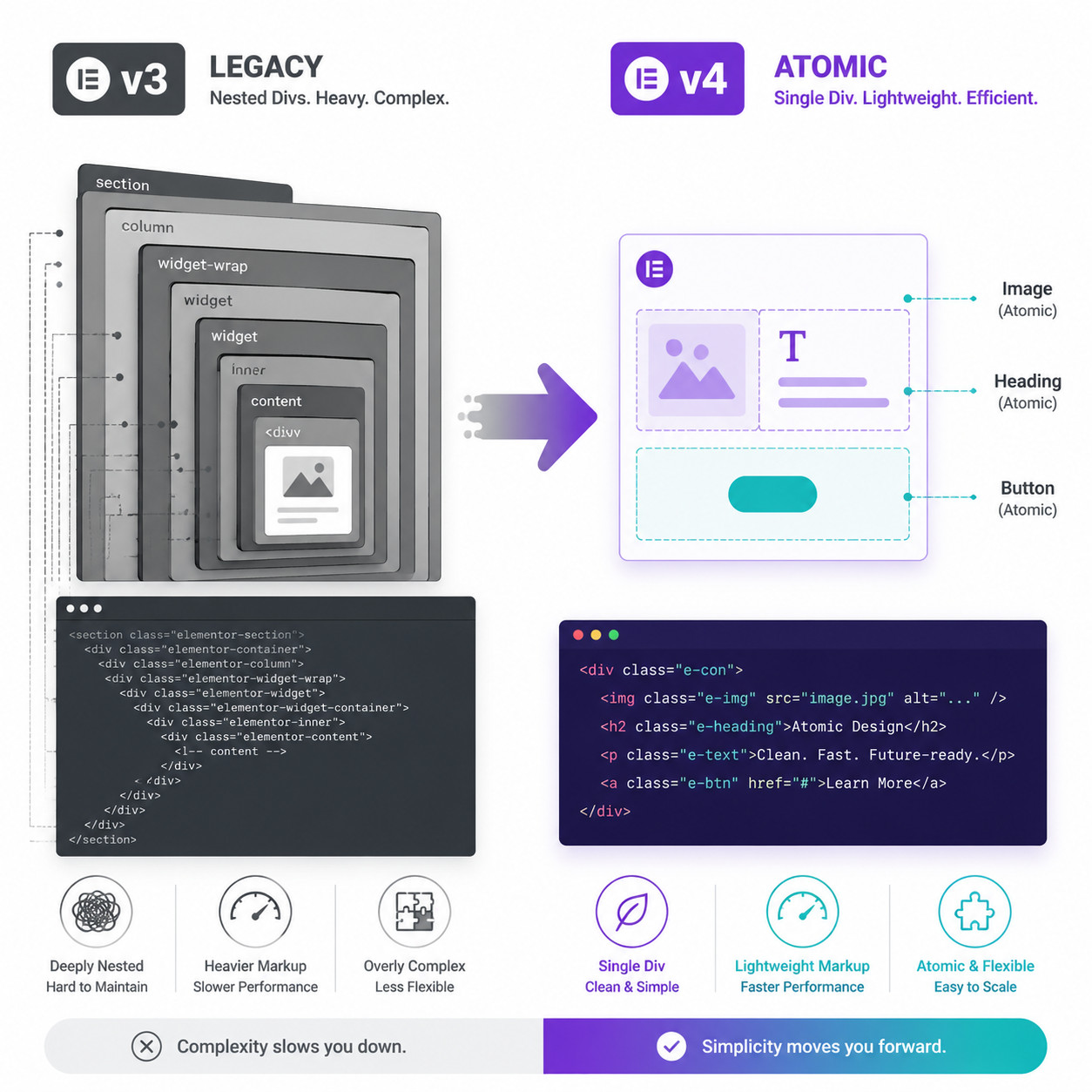
Elementor v4 is a rebuilt editing engine for the world’s most popular WordPress page builder. It matters because it addresses the core technical debt that accumulated over five years of v3 development: excessive DOM nesting, inline styling bloat, and a widget-centric architecture that made site-wide design consistency difficult to maintain [3].
The Elementor team describes v4 as a “major milestone” in a multi-year effort to align their builder with modern front-end practices [3]. Instead of large, monolithic widgets that each carry their own styling and markup overhead, v4 introduces small, composable “Atomic Elements” that output a single div wrapper with class-based CSS. This is closer to how professional developers hand-code websites.
Why this shift happened:
- v3 sites often generated 3-5x more HTML markup than necessary for the same visual output
- Inline styles on every element made global design changes tedious
- Core Web Vitals became a ranking factor, and v3’s DOM depth hurt Largest Contentful Paint (LCP) and Cumulative Layout Shift (CLS) scores
- Competing builders like Webflow already offered class-based, system-driven design workflows
If you’re building WordPress sites professionally in 2026, understanding this architecture change isn’t optional. It affects your workflow, your site performance, and your clients’ SEO outcomes. For broader context on no-code building platforms, see our roundup of the best no-coding website design software platforms.
What Are the Four Pillars of Elementor v4’s Atomic Architecture?
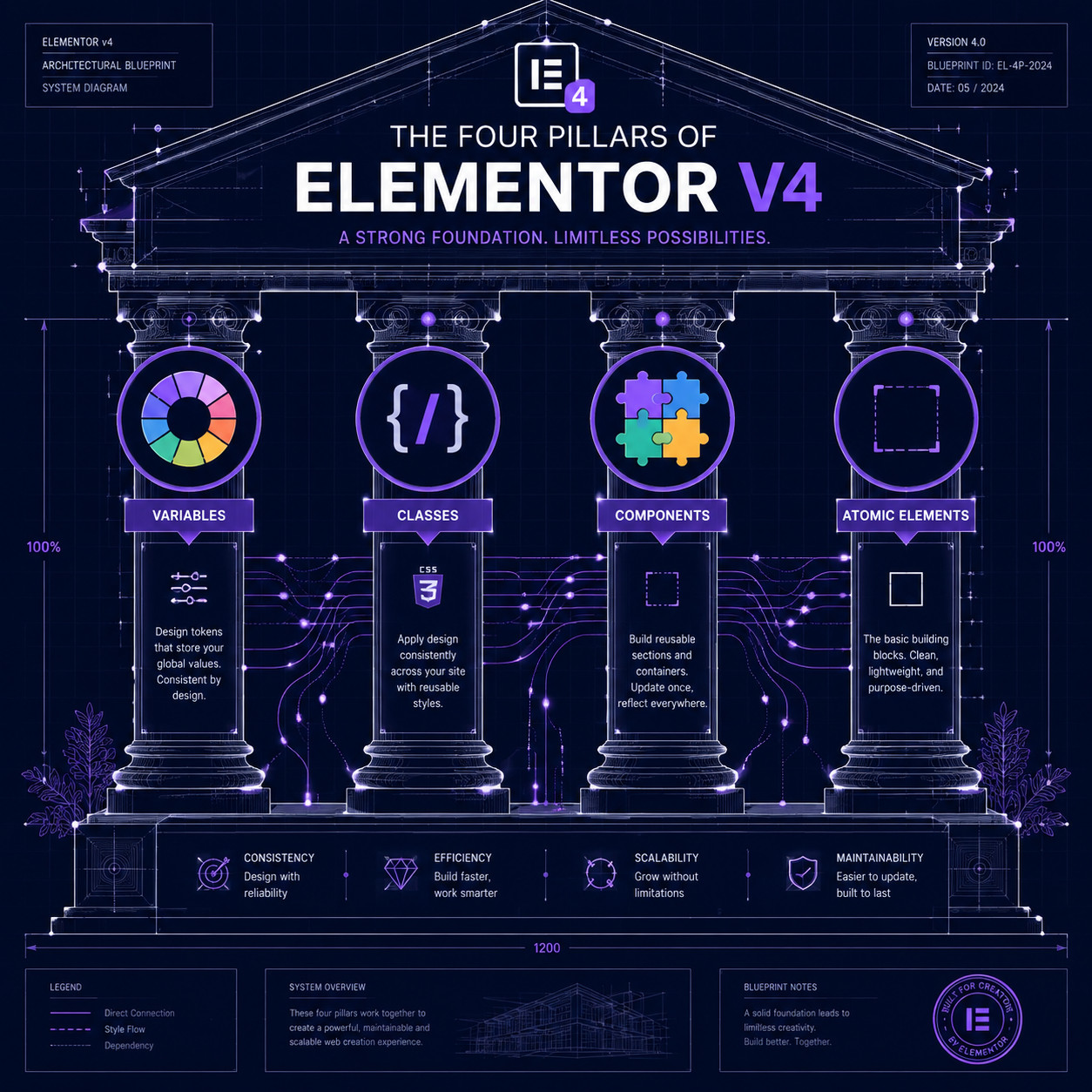
Elementor v4’s architecture rests on four interconnected systems: Variables, Classes, Components, and Atomic Elements [7]. Each solves a specific design-system problem that v3 handled poorly or not at all.
Variables
Variables are global design tokens. Think of them as a single source of truth for colors, font sizes, spacing values, and other recurring properties. Change a variable once, and every element referencing it updates instantly across your entire site.
- Use case: You define a brand color as
--brand-primary: #6C3CE1. Every button, heading, and link using that variable updates when you change it. - v3 comparison: In v3, you’d set colors per widget or use Global Colors, which were limited in scope and couldn’t handle spacing or custom properties.
Classes
Classes bring CSS-class-based styling to Elementor for the first time. Instead of styling each element individually, you create a class (like .card-title), define its properties once, and apply it to any element.
- Use case: Style 50 card titles identically by applying one class, then update all 50 by editing the class definition.
- Common mistake: Don’t confuse Elementor Classes with WordPress’s “Additional CSS Class” field. Elementor Classes are managed visually inside the editor with full property controls [10].
Components
Components work like master templates. You create a master component (say, a pricing card), and every instance across your site inherits from it. Edit the master, and all instances update. Individual instances can override specific properties without breaking the link.
WP Odyssey’s developer review compares this to component-based frameworks like React, where a parent component propagates changes to all children [10]. This is a big deal for agencies managing sites with dozens of repeated sections.
Atomic Elements
Atomic Elements are the building blocks themselves. Unlike v3 widgets that output multiple nested divs, atomic elements render as a single div with Flexbox-based layout [7]. This dramatically reduces DOM complexity.
| Feature | v3 Widgets | v4 Atomic Elements |
|---|---|---|
| HTML output | Multiple nested divs | Single div wrapper |
| Styling method | Inline styles + limited global | Class-based CSS |
| Layout system | Mixed (some Flexbox, some legacy) | Flexbox-first throughout |
| Reusability | Copy/paste or templates | Component instances with inheritance |
| DOM depth | Deep nesting | Flat structure |
If you’re coming from a design-tool background, this system will feel familiar. It mirrors how Figma handles components and design systems, where master components propagate changes to instances.
How Does Elementor v4 Improve Website Performance?
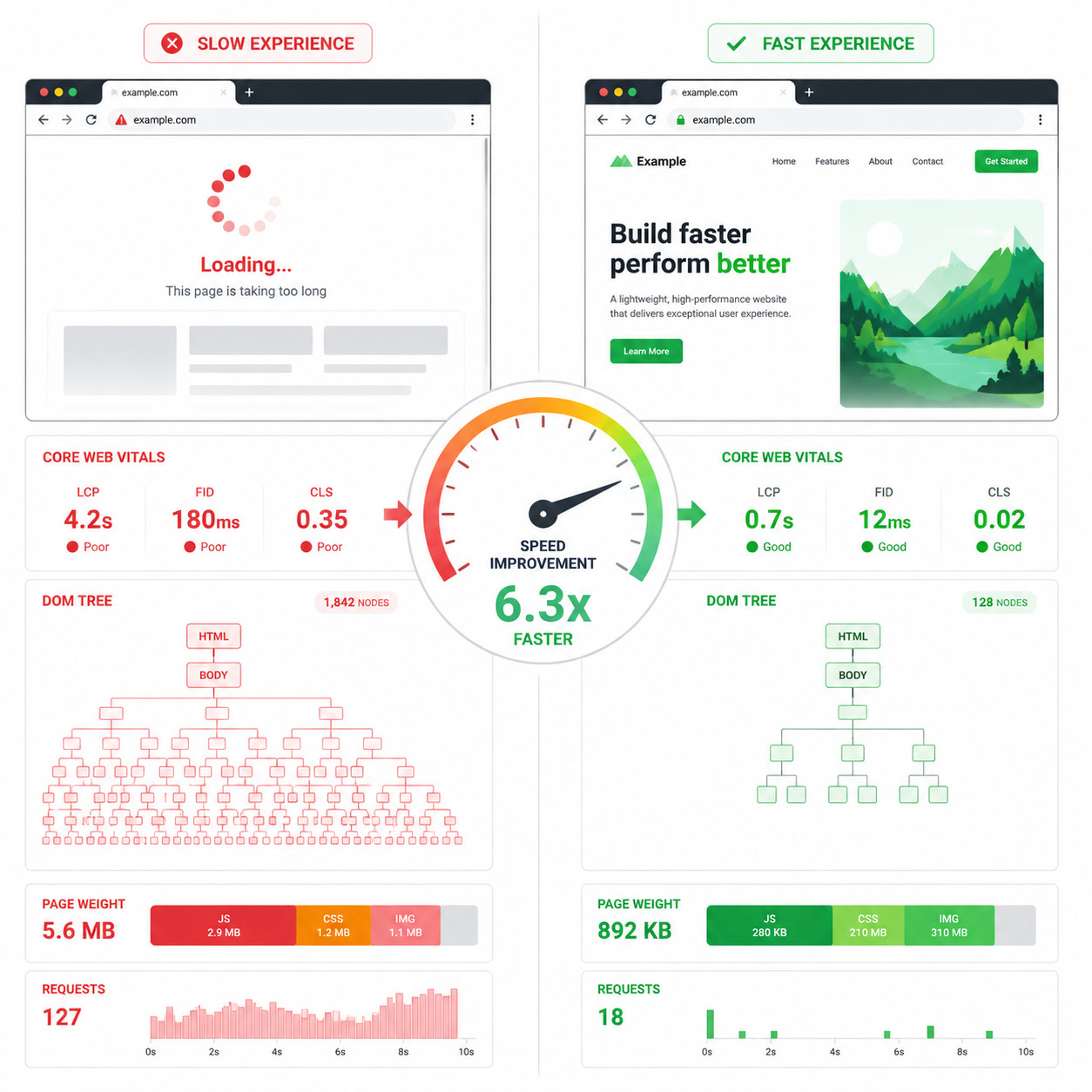
Elementor v4 improves performance primarily by reducing HTML markup and moving from inline styles to external, cacheable CSS. The result is a lighter DOM, faster paint times, and better Core Web Vitals scores [5][10].
Specific performance gains:
- Cleaner DOM: v4’s single-div elements eliminate the wrapper-within-wrapper pattern that inflated v3’s DOM tree. Less DOM depth means the browser parses and renders pages faster.
- CSS-first approach: Styles defined through Classes and Variables compile into efficient external CSS rather than being injected inline on every element. External CSS is cacheable, inline CSS is not.
- Reduced JavaScript dependency: Many visual effects that required JavaScript in v3 are now handled through CSS animations and transitions.
The Plus Addons team confirmed in their v4 compatibility update that the cleaner DOM and CSS-first system “improves Core Web Vitals and animation performance,” particularly for scroll-based animations using GSAP [5].
What this means for SEO: Google uses Core Web Vitals (LCP, CLS, INP) as ranking signals. A site that loads faster and shifts less during load has a measurable advantage. If you’re working on WordPress SEO optimization, v4’s architecture changes directly support those goals.
Edge case to watch: Performance gains are most noticeable on content-heavy pages with many repeated elements. A simple landing page with five sections won’t show dramatic differences. But a WooCommerce product archive or a blog with complex layouts will benefit significantly.
How Do You Enable Elementor v4 on an Existing Site?
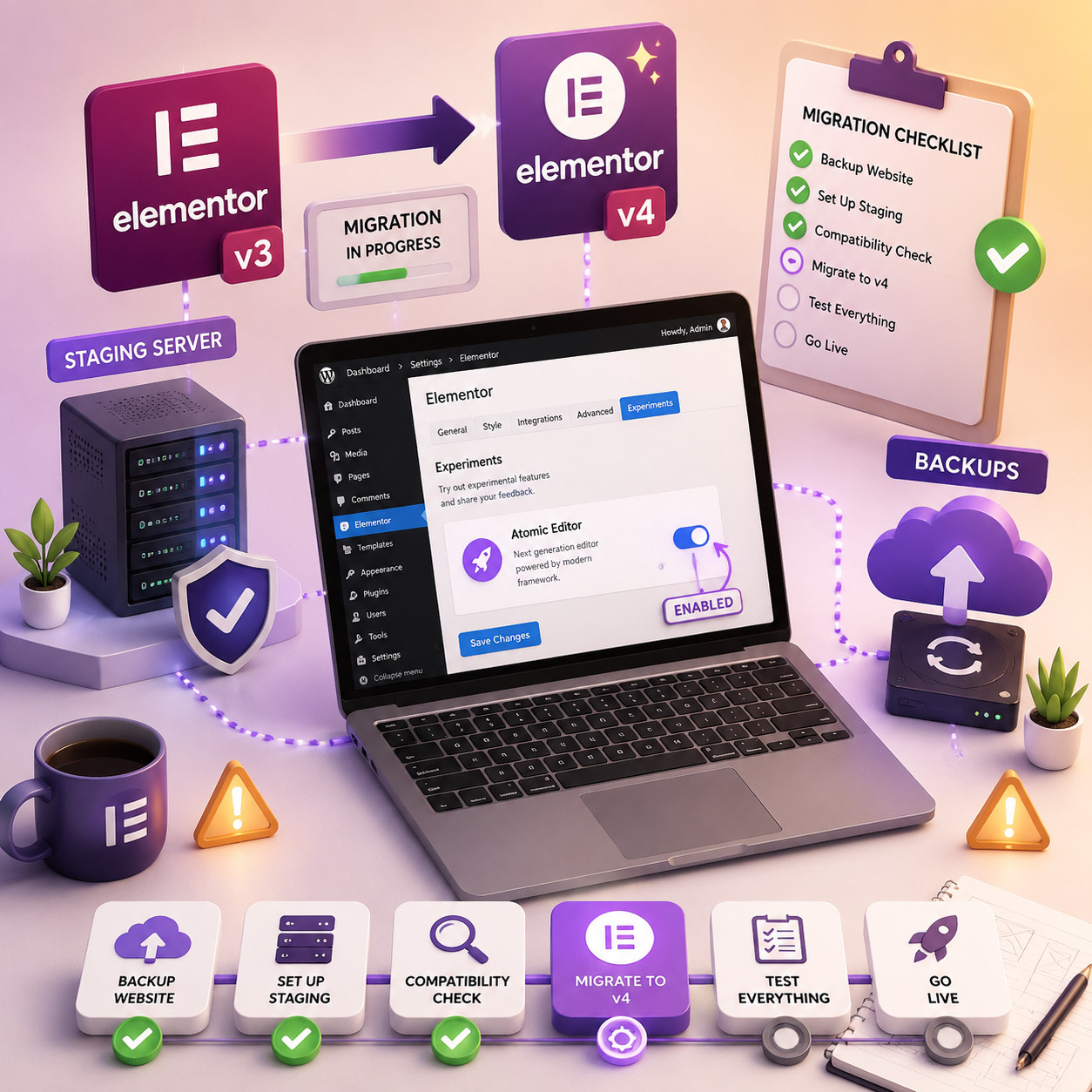
Enabling v4 on an existing site requires a manual toggle in your WordPress admin. Elementor deliberately designed this as an opt-in process to prevent breaking changes on live sites [1][6].
Step-by-Step Activation
- Back up your site. Use a backup plugin or your host’s snapshot feature. This is non-negotiable.
- Update Elementor to version 4.0 or later (and Elementor Pro if applicable).
- Navigate to WordPress Admin → Elementor → Settings → Editor tab.
- Find the “Atomic Editor” toggle and enable it.
- Save changes and open the Elementor editor on a test page.
- Verify that the new editor interface loads with the Variables, Classes, and Components panels visible.
Critical Migration Notes
- v3 pages don’t auto-convert. Your existing pages remain in v3 mode. You can edit them normally. New pages and elements will use the v4 system [6][10].
- v3 and v4 elements coexist. You can have v3 widgets and v4 atomic elements on the same page. This lets you migrate gradually [10].
- Test in staging first. Big Red SEO and multiple independent reviewers strongly recommend testing v4 in a staging environment before enabling it on production, especially for complex sites with custom CSS or third-party integrations.
- Check addon compatibility. Not all third-party addons support v4 yet. Verify with each addon developer before enabling.
Choose staging-first if: You have a client site with custom code, WooCommerce integration, or heavy use of third-party Elementor addons. Choose direct activation if: You’re starting a brand new site with no legacy content.
For those building WordPress sites from scratch, our guide to WordPress theme customization covers foundational concepts that pair well with v4’s new styling system.
Is Elementor v4 Production-Ready in 2026?
This is the question every agency and freelancer is asking, and the honest answer is: it depends on your use case.
For new projects: Yes. v4 is the default for all new Elementor installations as of April 2026 [6]. The core architecture is stable, and Elementor’s team is shipping rapid point releases (e.g., Pro 4.0.4 on April 28, 2026) to fix early bugs [9].
For existing complex sites: Not yet, for most cases. Independent reviewer Living with Pixels tested v4 extensively and concluded it’s “honestly: No” not fully ready for mission-critical client work due to feature gaps encountered during testing. Their recommendation: use v4 for experimentation and new internal projects, but hold off on large client migrations until the feature set matures.
The nuanced view:
| Scenario | Recommendation |
|---|---|
| New personal or portfolio site | Enable v4 immediately |
| New client site (simple) | Enable v4, test thoroughly |
| New client site (complex/ecommerce) | Enable v4 in staging, evaluate addon compatibility |
| Existing client site (stable) | Wait for 2-3 more point releases before migrating |
| Existing site with heavy custom CSS | Test extensively in staging; custom CSS selectors may break with new DOM structure |
Elementor’s roadmap positions v4 as a long-term foundation with features rolling out continuously rather than as a single finished release [8]. Over 45,000 sites activated v4 shortly after launch [8], which means the feedback loop is active and fixes are arriving quickly.
Common mistake: Enabling v4 on a live client site without testing, then discovering that a critical third-party addon doesn’t support the new architecture. Always check the addon developer’s changelog or support forum first.
How Does Elementor v4 Compare to Other Website Builders?
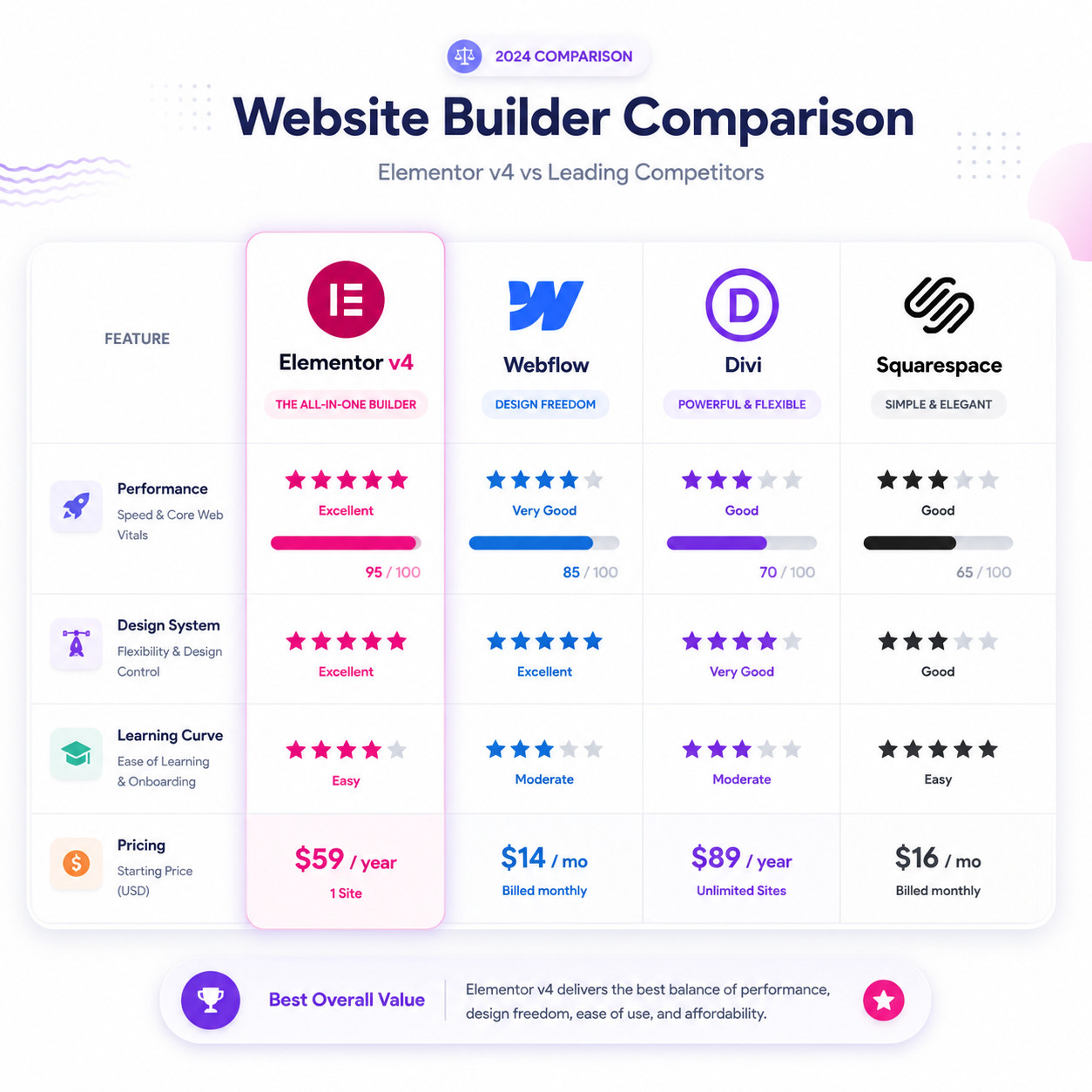
With v4, Elementor moves closer to the design-system approach that Webflow has offered for years, while retaining its WordPress foundation and massive plugin ecosystem.
Elementor v4 vs. Webflow
Webflow has long been the gold standard for class-based, visual web design. Elementor v4 narrows that gap significantly:
- Classes and Variables in v4 mirror Webflow’s class system, though Webflow’s implementation is more mature.
- WordPress advantage: Elementor runs on WordPress, giving you access to thousands of plugins, WooCommerce, and a hosting provider of your choice. Webflow is a closed platform.
- Learning curve: Webflow’s class system has a steeper initial learning curve. Elementor v4’s visual interface makes classes more approachable for beginners.
For teams considering Webflow, our guide to Webflow SEO optimization provides a useful comparison point.
Elementor v4 vs. Divi
Divi remains popular but hasn’t undergone the same architectural overhaul. Divi still relies on shortcodes and a heavier DOM structure. v4’s Atomic Elements produce significantly cleaner output.
Elementor v4 vs. Squarespace/Wix
These hosted platforms prioritize simplicity over flexibility. v4 is for users who want full control over their design system while still using a visual editor. If you need something simpler, these platforms remain valid options. We’ve covered how to build professional Wix websites for those evaluating alternatives.
| Criteria | Elementor v4 | Webflow | Divi | Squarespace |
|---|---|---|---|---|
| Class-based styling | Yes (new in v4) | Yes (mature) | No | No |
| Design tokens/variables | Yes | Yes | Limited | No |
| Component system | Yes | Yes (symbols) | No | No |
| WordPress integration | Native | No | Native | No |
| Self-hosted option | Yes | No | Yes | No |
| Plugin ecosystem | Massive | Limited | Large | Minimal |
| Pricing (annual, basic) | ~$59/yr (Pro) | ~$228/yr | ~$89/yr | ~$192/yr |
What Are the Biggest Mistakes to Avoid with Elementor v4?
Adopting a new architecture always comes with pitfalls. Here are the most common ones I’ve seen discussed across developer forums and reviews:
Enabling v4 on production without staging. This is the number one risk. Even though v3 and v4 coexist, addon conflicts and custom CSS issues can surface unexpectedly [10].
Ignoring the class system. If you keep styling elements individually (the v3 habit), you’re using v4 but missing its primary benefit. Force yourself to create and reuse classes from day one.
Not updating third-party addons. Some addons need specific v4 compatibility updates. The Plus Addons shipped theirs proactively [5], but not every developer moves that fast. Check before you enable.
Expecting instant performance miracles. v4’s cleaner DOM helps, but performance also depends on image optimization, hosting quality, and plugin count. v4 is one piece of the puzzle, not a magic fix.
Mixing v3 and v4 elements carelessly. While coexistence is supported, having both paradigms on the same page increases complexity. Plan your migration page by page rather than element by element [10].
Skipping the documentation. Elementor’s developer relations team published a thorough developers update for v4 [3]. Read it before building. The mental model is different enough from v3 that assumptions will trip you up.
For WordPress power users looking to combine v4 with automation and AI tools, our guide to advanced WordPress strategies for 2026 covers complementary techniques.
What Does Elementor’s Roadmap Look Like After v4?
Elementor’s public roadmap lists v4.0 as the “current version” and frames it as a foundation for continuous feature releases rather than a one-time launch [8].
Confirmed upcoming features include:
- Atomic Forms: A rebuilt form system using the new atomic architecture, designed to be lighter and more customizable than v3 forms [1].
- Pro Interactions: Advanced animation and interaction capabilities built on the v4 engine, likely leveraging CSS animations and GSAP for scroll-triggered effects [1][5].
- Expanded Component Library: More pre-built atomic components to speed up common design patterns.
- Continued v3 compatibility: Elementor has committed to maintaining v3 support for the foreseeable future. No forced migration timeline has been announced [6].
The roadmap also notes that the team is actively collecting feedback from the 45,000+ early activations to prioritize bug fixes and feature requests [8]. Point releases like Pro 4.0.4 (April 28, 2026) show this feedback loop in action, with fixes for Flexbox and Div Block display issues already shipped [9].
If you’re interested in how AI is shaping web design workflows alongside tools like Elementor, our overview of AI-powered content generation tools provides additional context.
FAQ
Q: Does updating to Elementor 4.0 automatically change my existing site? A: No. Updating to version 4.0 installs the new code but does not enable the Atomic Editor. You must manually toggle it on in WordPress Admin → Elementor → Settings → Editor [1][6].
Q: Can I use v3 widgets and v4 Atomic Elements on the same page? A: Yes. Elementor supports coexistence of both systems on the same page, allowing gradual migration [10].
Q: Is Elementor v4 free or only for Pro users? A: The core Atomic Editor architecture is available in the free version of Elementor. Pro features like advanced interactions and forms require an Elementor Pro subscription [7].
Q: Will my third-party Elementor addons work with v4? A: It depends on the addon. Some, like The Plus Addons, have already shipped v4 compatibility updates [5]. Check each addon’s changelog or contact their support before enabling v4.
Q: Is Elementor v4 ready for client projects? A: For new, simple-to-moderate sites, yes. For complex existing sites or mission-critical projects, independent reviewers recommend waiting for a few more point releases and testing thoroughly in staging.
Q: How does v4 affect my site’s SEO? A: v4’s cleaner DOM and CSS-first approach can improve Core Web Vitals scores (LCP, CLS, INP), which are Google ranking signals. The performance benefits are most noticeable on content-heavy pages [5][10].
Q: Do I need to rebuild my entire site for v4? A: No. Existing pages remain in v3 mode. You can create new pages with v4 and migrate old pages at your own pace [6].
Q: What happens if I enable v4 and something breaks? A: You can disable the Atomic Editor toggle in settings to revert to v3 behavior. This is why backing up before enabling is essential.
Q: How is Elementor v4’s class system different from adding CSS classes manually? A: Elementor Classes are managed visually inside the editor with full property controls. WordPress’s “Additional CSS Class” field just adds a class name without visual management [10].
Q: Can I use Elementor v4 with WooCommerce? A: Yes, but test thoroughly. WooCommerce templates and product pages may need adjustment due to the new DOM structure. Check for compatibility updates from both Elementor and any WooCommerce-specific addons you use.
Conclusion
Elementor v4 represents the most significant architectural change in the builder’s history. By shifting to a CSS-first, class-based, component-driven system, it addresses the performance and maintainability issues that plagued v3 for years [3][7].
Here’s what to do next:
- If you’re starting a new site: Use v4 from day one. It’s the default for new installations and the foundation for all future Elementor development [6].
- If you have existing sites: Set up a staging environment, enable the Atomic Editor, and test your critical pages and addons before going live.
- Invest time in learning Classes and Components. These are the features that deliver the biggest workflow improvements. Styling elements individually defeats the purpose of v4.
- Monitor the roadmap and changelog. Elementor is shipping updates rapidly [8][9]. Features and fixes are arriving weekly.
- Don’t rush complex migrations. The v3/v4 coexistence model exists for a reason. Use it.
Elementor v4 isn’t perfect yet, but it’s a strong foundation. For WordPress users who want design-system-level control without leaving the visual editor, it’s the most capable option available in 2026.
References
[1] Editor 40 Atomic Forms Pro Interactions – https://elementor.com/blog/editor-40-atomic-forms-pro-interactions/ [3] Elementor Editor 4 0 Developers Update – https://developers.elementor.com/elementor-editor-4-0-developers-update/ [5] March 2026 Update The Plus Addons For Elementor Is Ready For Elementor V4 – https://theplusaddons.com/blog/march-2026-update-the-plus-addons-for-elementor-is-ready-for-elementor-v4/ [6] V4 Faq – https://elementor.com/products/website-builder/v4-faq/ [7] Website Builder – https://elementor.com/products/website-builder/ [8] Roadmap – https://elementor.com/roadmap/ [9] Changelog – https://elementor.com/pro/changelog/ [10] Elementor V4 Explained – https://blog.wpodyssey.com/plugins-tools/elementor-v4-explained/