
Last updated: May 13, 2026
Quick Answer: Elementor offers an HTML Sitemap widget (available in Pro) that creates user-facing page directories, but it does not generate the XML sitemaps that search engines need for crawling. To fully cover your sitemap needs on an Elementor-built WordPress site, you should pair Elementor’s HTML widget with an SEO plugin like Rank Math or Yoast that auto-generates XML sitemaps and submits them to Google Search Console.
Key Takeaways
- Elementor’s built-in Sitemap widget creates HTML sitemaps for human visitors, not XML sitemaps for search engine crawlers.
- You need a dedicated SEO plugin (Rank Math, Yoast, or All in One SEO) to generate and manage XML sitemaps on Elementor sites.
- HTML sitemaps improve user navigation and internal linking, which indirectly supports SEO through better engagement signals.
- Elementor Pro ($59/year as of 2026) is required to access the Sitemap widget; free alternatives exist through plugins [10].
- XML sitemaps help search engines index content faster, and sites with properly configured XML sitemaps tend to get indexed more efficiently, according to Google’s own documentation.
- Elementor powers over 10 million active WordPress installations as of early 2026, making sitemap configuration a widespread concern [10].
- Performance matters more than sitemaps alone: Core Web Vitals require under 2.5 seconds LCP for strong rankings.
What Are Sitemaps, and Why Do They Matter for Elementor Sites?
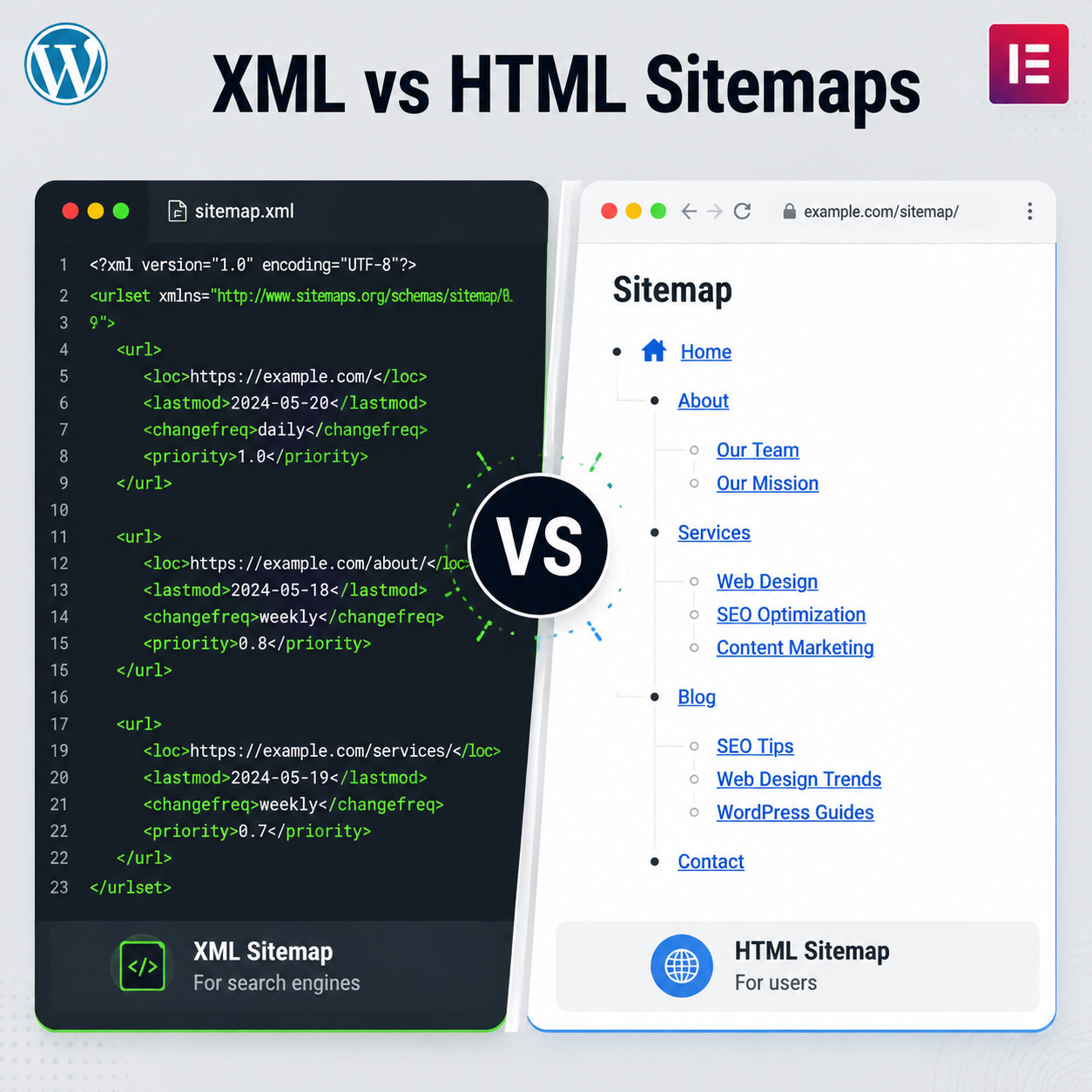
A sitemap is a file or page that lists the URLs on your website so that search engines and users can find your content. There are two types that matter: XML sitemaps (machine-readable files for crawlers) and HTML sitemaps (human-readable pages for visitors).
Here’s why this distinction is critical for Elementor users: Elementor itself only provides an HTML sitemap widget. It does not generate XML sitemaps. Many site owners confuse the two and assume the Elementor widget handles their crawling needs. It doesn’t.
XML Sitemaps vs. HTML Sitemaps
| Feature | XML Sitemap | HTML Sitemap (Elementor Widget) |
|---|---|---|
| Audience | Search engine bots | Human visitors |
| Format | Machine-readable XML file | Visual webpage with links |
| Generated by | SEO plugins (Rank Math, Yoast) | Elementor Pro Sitemap widget |
| Submitted to Google | Yes, via Search Console | No |
| SEO impact | Direct (crawl efficiency) | Indirect (UX and internal linking) |
| Auto-updates | Yes, when new content is published | Depends on widget settings |
For Elementor-built WordPress sites, you need both. The XML sitemap tells Google what to crawl. The HTML sitemap helps visitors find pages they might otherwise miss. Together, they form the foundation of mastering Elementor sitemaps: a complete guide to boosting your WordPress site’s SEO performance starts with understanding this dual approach.
Itamar Haim, SEO Team Lead at Elementor, specifically recommends using XML sitemaps through plugins like Rank Math or Yoast for crawling efficiency, while using Elementor’s HTML Sitemap widget for user-friendly navigation [6].
How Do You Set Up Elementor’s HTML Sitemap Widget?
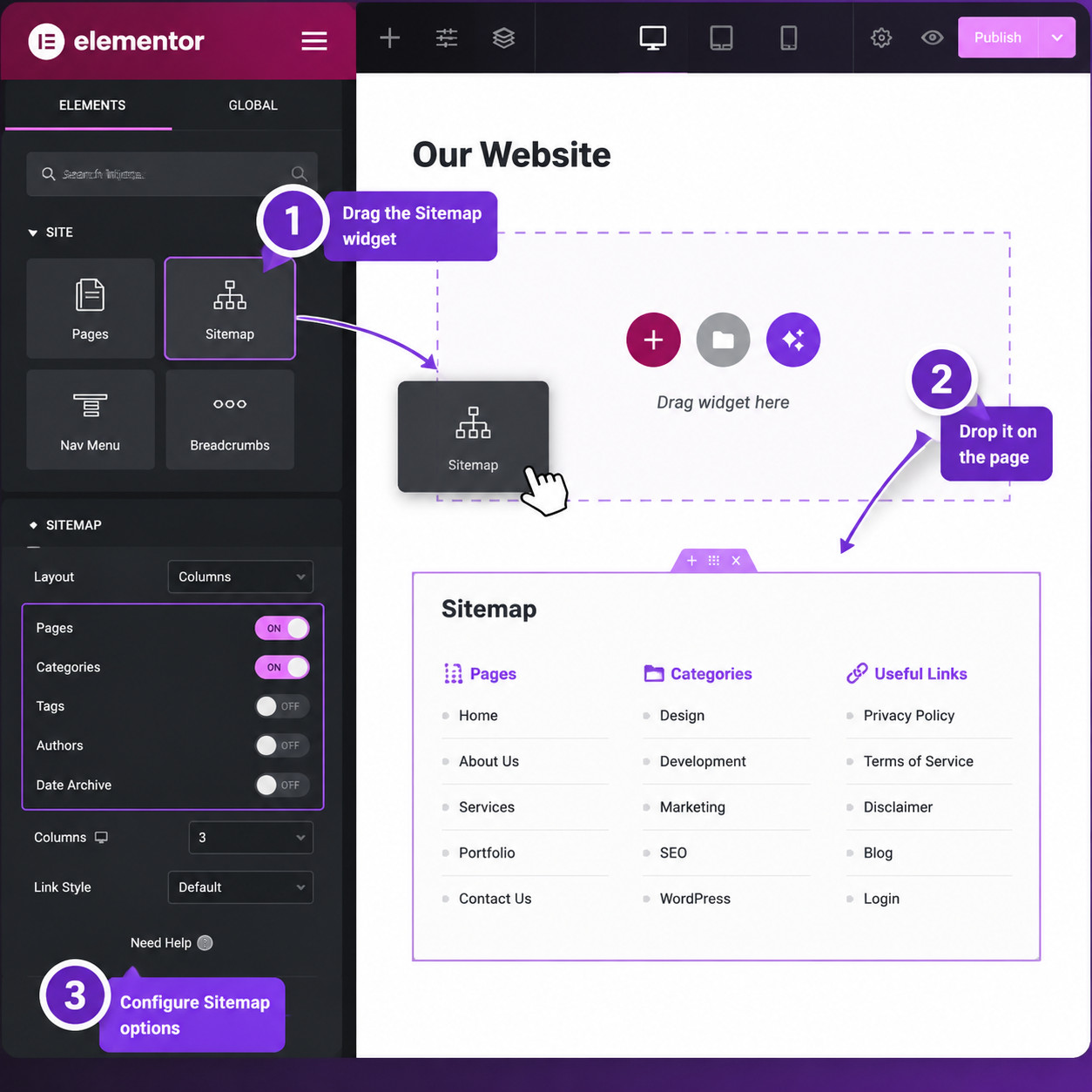
The Elementor Sitemap widget is a drag-and-drop element available in Elementor Pro that displays a hierarchical list of your site’s pages, posts, and custom post types. Setup takes about five minutes.
Step-by-Step Setup
- Open any page in Elementor Editor — create a new page called “Sitemap” or add the widget to an existing page.
- Search for “Sitemap” in the widget panel on the left side.
- Drag the Sitemap widget onto your page canvas.
- Configure content settings:
- Choose which post types to display (Pages, Posts, Custom Post Types)
- Set hierarchical depth (up to 6 levels)
- Exclude specific pages by ID (useful for landing pages, thank-you pages, or staging content)
- Add nofollow attributes to specific links if needed
- Adjust layout options:
- Set the number of columns (1-4)
- Customize typography, colors, and spacing
- Publish the page.
Common Mistake: Displaying Everything
Don’t list every single URL. Exclude thin content pages, duplicate landing pages, and any pages with a “noindex” directive. Showing noindexed pages on your HTML sitemap sends mixed signals. If you tell Google not to index a page but then link to it from your sitemap, you’re creating confusion.
Choose this approach if: You have a content-heavy site with 50+ pages and visitors struggle to find older or deeper content. Skip it if your site has fewer than 20 pages — your main navigation should handle discovery just fine.
For sites built with custom WordPress themes, the Sitemap widget integrates directly with your theme’s post types and taxonomies without additional configuration.
How Do You Generate XML Sitemaps for an Elementor WordPress Site?
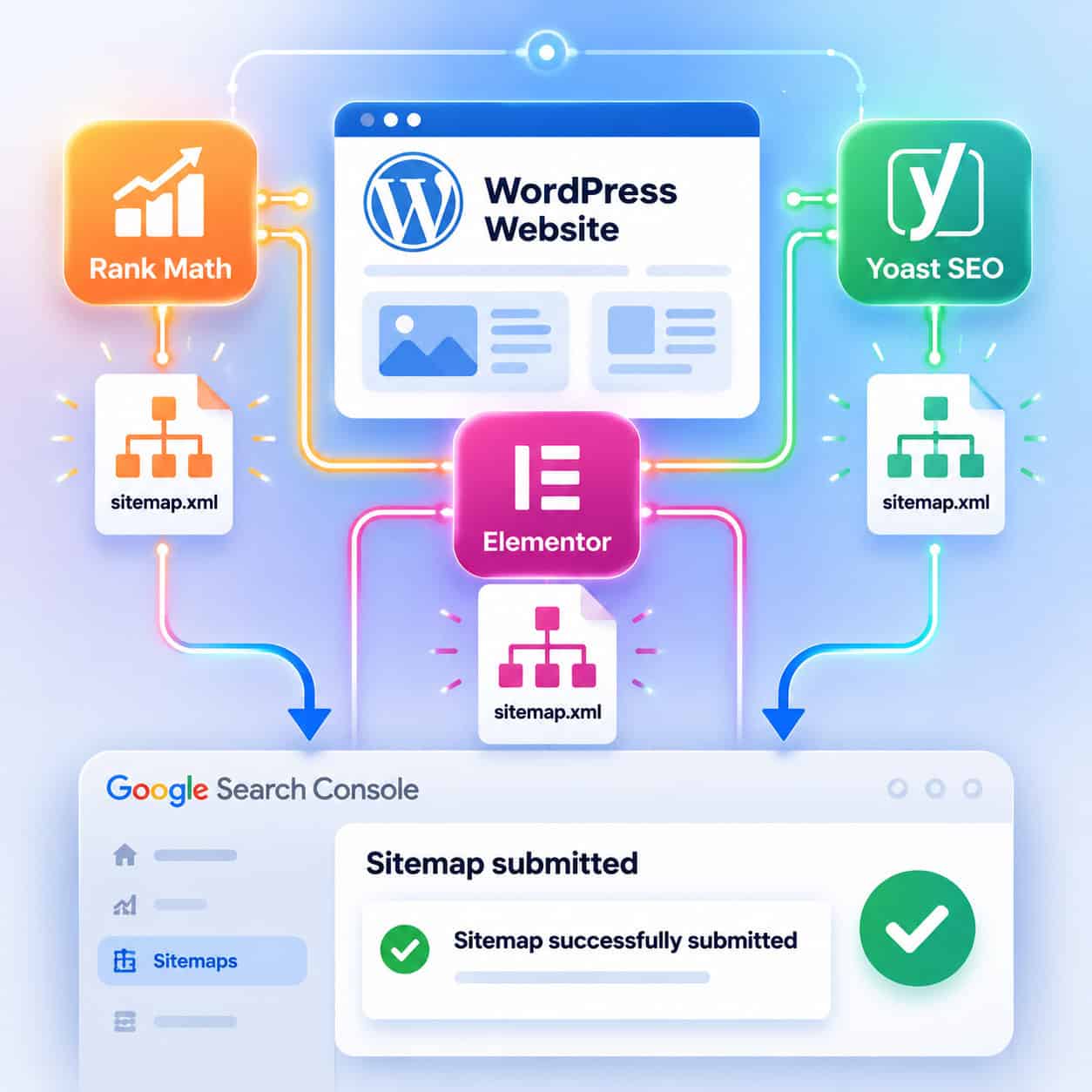
Since Elementor doesn’t create XML sitemaps, you need an SEO plugin. The two most popular options are Rank Math and Yoast SEO. Both auto-generate XML sitemaps and update them whenever you publish or modify content.
Using Rank Math (Recommended for Elementor)
Rank Math integrates directly with Elementor’s editor panel, letting you manage SEO settings without leaving the page builder [6]. Here’s how to set up XML sitemaps:
- Install and activate Rank Math (free version includes sitemaps).
- Go to Rank Math > Sitemap Settings.
- Enable sitemaps for each post type you want indexed.
- Set the maximum number of URLs per sitemap file (default: 200; increase to 1000 for large sites).
- Exclude specific posts or pages by toggling “noindex” in the Rank Math meta box within Elementor.
- Copy your sitemap URL (typically
yoursite.com/sitemap_index.xml). - Submit it in Google Search Console > Sitemaps.
Using Yoast SEO
- Install and activate Yoast SEO.
- Go to Yoast SEO > Settings > Site Features > XML Sitemaps and toggle it on.
- Your sitemap is auto-generated at
yoursite.com/sitemap_index.xml. - Submit to Google Search Console.
Decision Rule
- Choose Rank Math if you want tighter Elementor integration and a free feature set that covers sitemaps, schema, and redirects.
- Choose Yoast if you’re already using it and don’t want to migrate settings. Yoast Premium ($99/year) adds redirect management.
If you’re looking to further enhance your WordPress SEO workflow, consider exploring AI SEO tools for WordPress that can automate keyword research and content optimization alongside your sitemap strategy.
What Are the Most Common Sitemap Problems on Elementor Sites (and How to Fix Them)?
Sitemap issues on Elementor sites usually fall into four categories: missing sitemaps, bloated sitemaps, conflicting plugins, and performance-related problems.
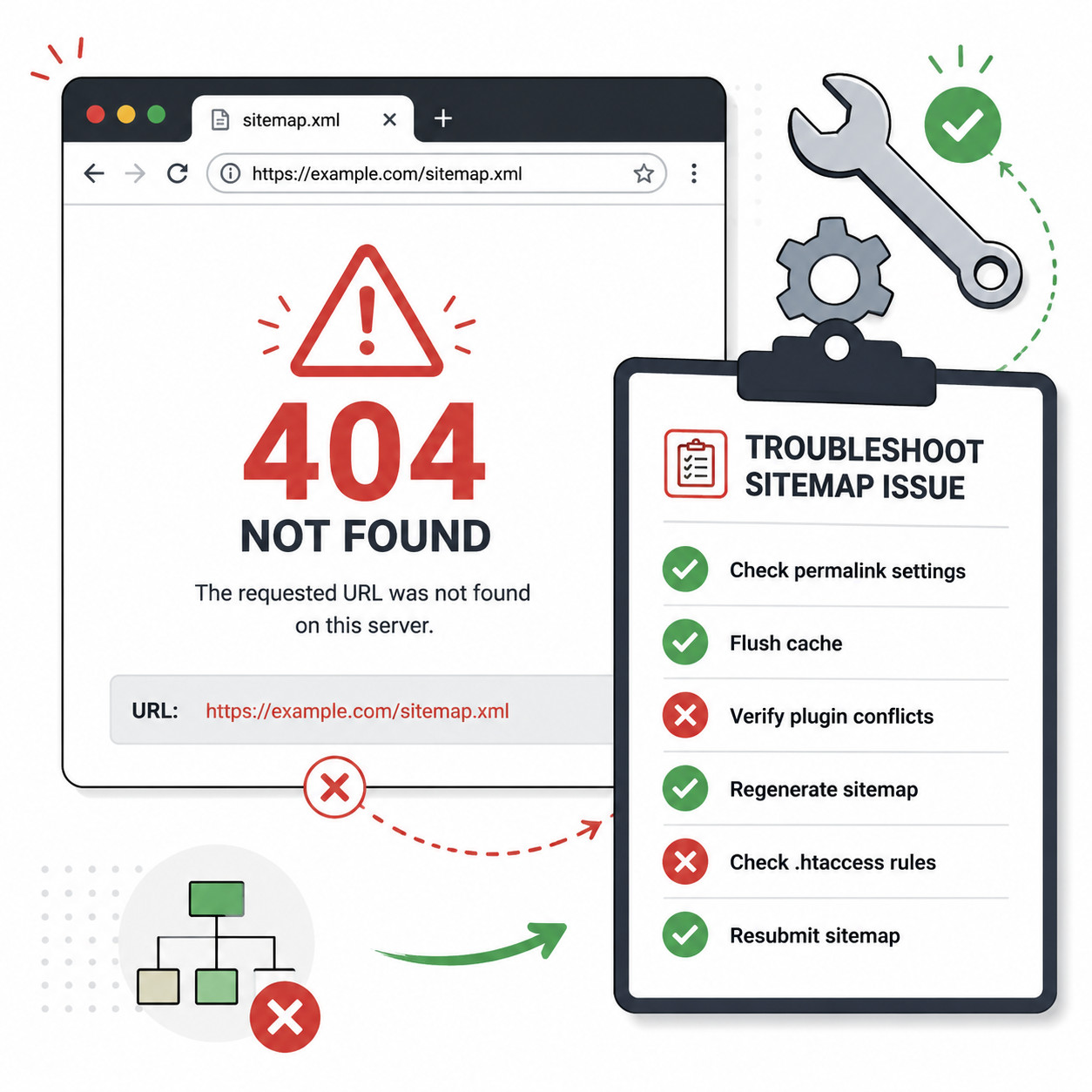
Problem 1: Sitemap Returns a 404 Error
Fix: Go to Settings > Permalinks in WordPress and click “Save Changes” without changing anything. This flushes your rewrite rules. If the 404 persists, deactivate your SEO plugin, reactivate it, and resave permalinks again.
Problem 2: Duplicate Sitemap Entries
This happens when multiple SEO plugins are active simultaneously. For example, running both Rank Math and Yoast will generate two separate sitemaps with overlapping URLs.
Fix: Use only one SEO plugin for sitemap generation. Deactivate or disable the sitemap feature in the plugin you’re not using as your primary.
Problem 3: Elementor Template Pages Appearing in Sitemaps
Elementor creates template pages (headers, footers, popups) that shouldn’t be indexed. These sometimes slip into XML sitemaps.
Fix: In your SEO plugin, set all Elementor template post types (elementor_library) to “noindex” and exclude them from sitemaps. In Rank Math: Sitemap Settings > Post Types > Elementor Library > Toggle off.
Problem 4: Slow Page Load Times Affecting Crawl Budget
Some users report that Elementor sites average 3-5 seconds load time without proper optimization [8]. While sitemaps themselves don’t cause slowdowns, a slow site means Google allocates less crawl budget, and your sitemap URLs get crawled less frequently.
Fix: Address performance first:
- Use a caching plugin (WP Rocket, LiteSpeed Cache)
- Compress images before uploading
- Minimize unused CSS from Elementor
- Consider advanced WordPress optimization strategies for better performance
Problem 5: HTML Sitemap Flagged as Thin Content
If your HTML sitemap page contains only links and no contextual content, Google may view it as low-value.
Fix: Add a brief introductory paragraph explaining the sitemap’s purpose. Group links by category with descriptive headings. This gives the page enough context to avoid thin content penalties.
How Do Sitemaps Fit Into a Broader Elementor SEO Strategy?
Sitemaps are one piece of a larger SEO puzzle. On their own, they won’t move your rankings. But combined with proper site structure, schema markup, and performance optimization, they ensure search engines can find and understand every page you want ranked.
The Elementor SEO Stack
Here’s what a complete SEO setup looks like for an Elementor site in 2026:
- XML Sitemap (via Rank Math or Yoast) — ensures crawl coverage
- HTML Sitemap (via Elementor Pro widget) — improves user navigation and internal linking
- Schema Markup — use your SEO plugin or Elementor’s integration to add structured data [1]
- Core Web Vitals Optimization — target under 2.5s LCP
- Internal Linking Strategy — connect related content naturally
- Robots.txt Configuration — reference your XML sitemap URL
The WordPress Full Site Editing guide updated in May 2026 emphasizes semantic HTML and schema as key ranking factors [1]. Elementor sites should pay extra attention to these because page builders can sometimes output non-semantic markup.
Edge Case: Large WooCommerce Sites
If you’re running WooCommerce with Elementor and have thousands of products, your XML sitemap can balloon to hundreds of thousands of URLs. In this case:
- Split sitemaps by post type (products, categories, pages)
- Set a maximum of 1,000 URLs per sitemap file
- Prioritize in-stock products and active categories
- Use your SEO plugin’s “last modified” date to signal freshness
For sites that rely heavily on AI-powered content optimization, sitemaps become even more important because you’re likely publishing content at a higher volume and need Google to discover it quickly.
What About Alternatives to Elementor?
Some developers argue that Elementor’s code output can hurt performance compared to lighter builders [8]. If you’re evaluating alternatives:
- Bricks Builder produces cleaner HTML and works with the same SEO plugins for sitemaps
- Gutenberg (Block Editor) is native to WordPress and has the smallest performance footprint
- Beaver Builder offers similar sitemap plugin compatibility with slightly lighter output
That said, Elementor’s ecosystem and plugin support (including the “Better Sitemap for Elementor” add-on for enhanced customization) make it a practical choice for most users who prioritize design flexibility.
If you’re exploring other platforms entirely, our guide on WordPress theme customization covers how theme choice affects SEO and sitemap behavior.
How Do You Monitor and Maintain Your Sitemaps Over Time?
Setting up sitemaps is not a one-time task. You need to monitor them regularly to catch errors before they affect your indexing.
Monthly Sitemap Maintenance Checklist
- Check Google Search Console for sitemap errors (go to Sitemaps > See index coverage)
- Verify new pages are appearing in your XML sitemap within 24 hours of publishing
- Confirm removed or redirected pages are no longer in the sitemap
- Review your HTML sitemap page for broken links
- Check that Elementor template pages haven’t leaked into the XML sitemap
- Monitor indexed page count — a sudden drop may indicate sitemap issues
- Test sitemap URL directly in browser (
yoursite.com/sitemap_index.xml) to confirm it loads
Google Search Console Sitemap Submission
After your initial submission, Google Search Console will show:
- Discovered URLs — total URLs found in your sitemap
- Indexed URLs — URLs Google has actually added to its index
- Errors — URLs that couldn’t be indexed (404s, redirects, noindex conflicts)
A healthy site should have its indexed count close to its discovered count. If there’s a large gap, investigate the excluded URLs.
For WordPress users who want to automate more of their site management, AI plugins for WordPress can help monitor sitemap health and flag issues automatically.
Mastering Elementor Sitemaps: A Complete Guide to Boosting Your WordPress Site’s SEO Performance — Putting It All Together
The path to mastering Elementor sitemaps: a complete guide to boosting your WordPress site’s SEO performance comes down to three actions. First, install an SEO plugin and configure your XML sitemap. Second, use Elementor Pro’s Sitemap widget to create an HTML sitemap for visitors. Third, monitor both through Google Search Console and fix issues monthly.
Sitemaps won’t single-handedly improve your rankings. But without them, you’re leaving pages undiscovered and making Google work harder to understand your site. That’s an unnecessary disadvantage, especially when setup takes less than 30 minutes.
Your Next Steps
- Today: Check if your site has an XML sitemap at
yoursite.com/sitemap_index.xml. If not, install Rank Math and enable it. - This week: Create an HTML sitemap page using Elementor’s widget. Exclude noindexed pages and templates.
- This month: Submit your XML sitemap to Google Search Console and review the coverage report.
- Ongoing: Add sitemap review to your monthly SEO maintenance routine.
For those looking to expand their WordPress knowledge further, explore our WordPress category for more guides on development, automation, and SEO best practices. And if you’re also working with plugin development, understanding how sitemaps interact with custom post types is essential knowledge.
Frequently Asked Questions
Does Elementor generate XML sitemaps automatically? No. Elementor only provides an HTML Sitemap widget in its Pro version. For XML sitemaps, you need a separate SEO plugin like Rank Math or Yoast SEO [6].
Is the Elementor Sitemap widget available in the free version? No. The Sitemap widget requires Elementor Pro, which starts at $59/year as of 2026 [10].
Can I use both Rank Math and Yoast SEO at the same time for sitemaps? You shouldn’t. Running two SEO plugins simultaneously creates duplicate sitemaps and can cause conflicts. Pick one and disable sitemap generation in the other.
How many levels deep can the Elementor Sitemap widget display? The widget supports up to 6 levels of hierarchical depth, which covers most site structures including deeply nested page architectures.
Will an HTML sitemap hurt my SEO? Only if it’s a thin page with nothing but links. Add introductory text, organize links by category, and exclude noindexed pages to avoid thin content issues.
How often should I update my sitemap? XML sitemaps update automatically when you publish or modify content (if you’re using Rank Math or Yoast). HTML sitemaps via Elementor also update dynamically based on your widget settings. Manual intervention is only needed when you change site structure significantly.
Does having a sitemap guarantee my pages will be indexed? No. A sitemap is a request, not a guarantee. Google decides what to index based on content quality, crawl budget, and other factors. But having a sitemap significantly improves the chances of discovery.
Should I include images and videos in my XML sitemap? Yes, if you have significant media content. Both Rank Math and Yoast can generate separate image and video sitemaps, which help Google discover media assets for image and video search results.
How do I exclude specific pages from Elementor’s HTML sitemap? In the Sitemap widget settings, use the “Exclude” field and enter the page IDs you want to hide. You can find a page’s ID in the WordPress admin URL when editing it.
Can I style the Elementor Sitemap widget to match my theme? Yes. The widget offers typography, color, spacing, and column controls. For more advanced customization, the “Better Sitemap for Elementor” plugin extends styling options beyond what the core widget provides.
What’s the maximum number of URLs I should include in one XML sitemap file? Google supports up to 50,000 URLs per sitemap file, but best practice is to keep it under 1,000-2,000 for faster processing. Use a sitemap index file to organize multiple sitemaps by post type.
Does Elementor’s page builder code affect how Google reads my sitemap? The HTML sitemap widget output is standard HTML that Google can read without issues. However, Elementor’s general page markup can affect page speed, which indirectly impacts crawl budget and how frequently Google processes your sitemap URLs [8].
See also: Yoast SEO Plugin.
References
[1] WordPress Full – https://elementor.com/blog/wordpress-full/ [6] How To Add A Sitemap To Your WordPress Website – https://elementor.com/academy/how-to-add-a-sitemap-to-your-wordpress-website/ [8] Elementor Is Holding WordPress Back And I’m Tired – https://www.reddit.com/r/elementor/comments/1rzo53h/elementor_is_holding_wordpress_back_and_im_tired/ [10] Elementor – https://elementor.com