Last updated: May 14, 2026
Quick Answer
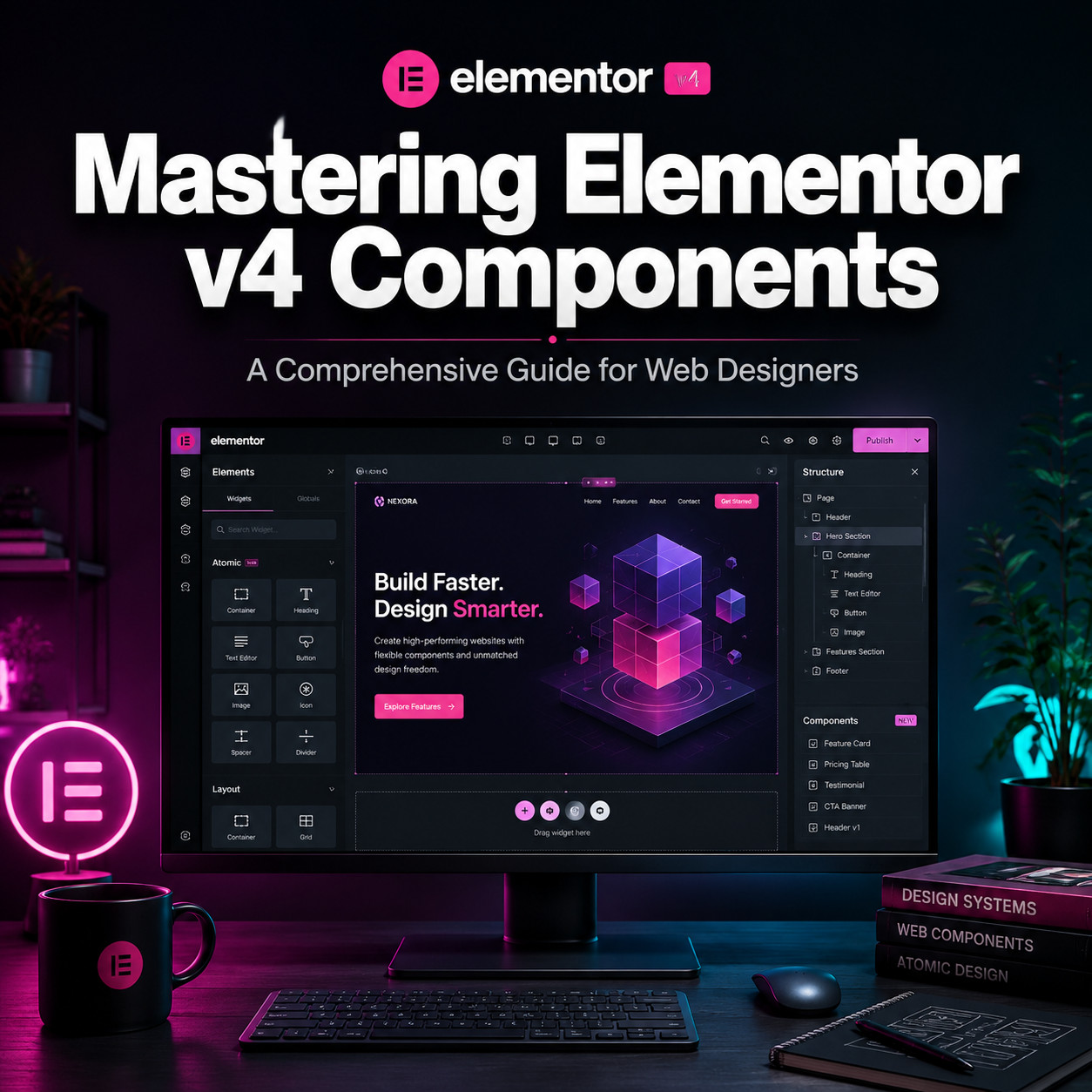
Elementor v4 (the “Atomic Editor”) replaces the old widget-and-column architecture with a CSS-first system built on three pillars: Atomic Elements, Classes and Variables, and Components. Components are reusable, synced layout modules that propagate structural and styling changes across every page where they appear, similar to Figma components or Webflow Symbols. For web designers building multi-page sites or managing client projects, mastering Elementor v4 Components means faster builds, cleaner code output, and a genuine design-system workflow inside WordPress.
Key Takeaways
- Elementor 4.0 shipped in mid-March 2026 with Atomic Elements, Variables, Classes, and Components enabled by default for new installations [1][8].
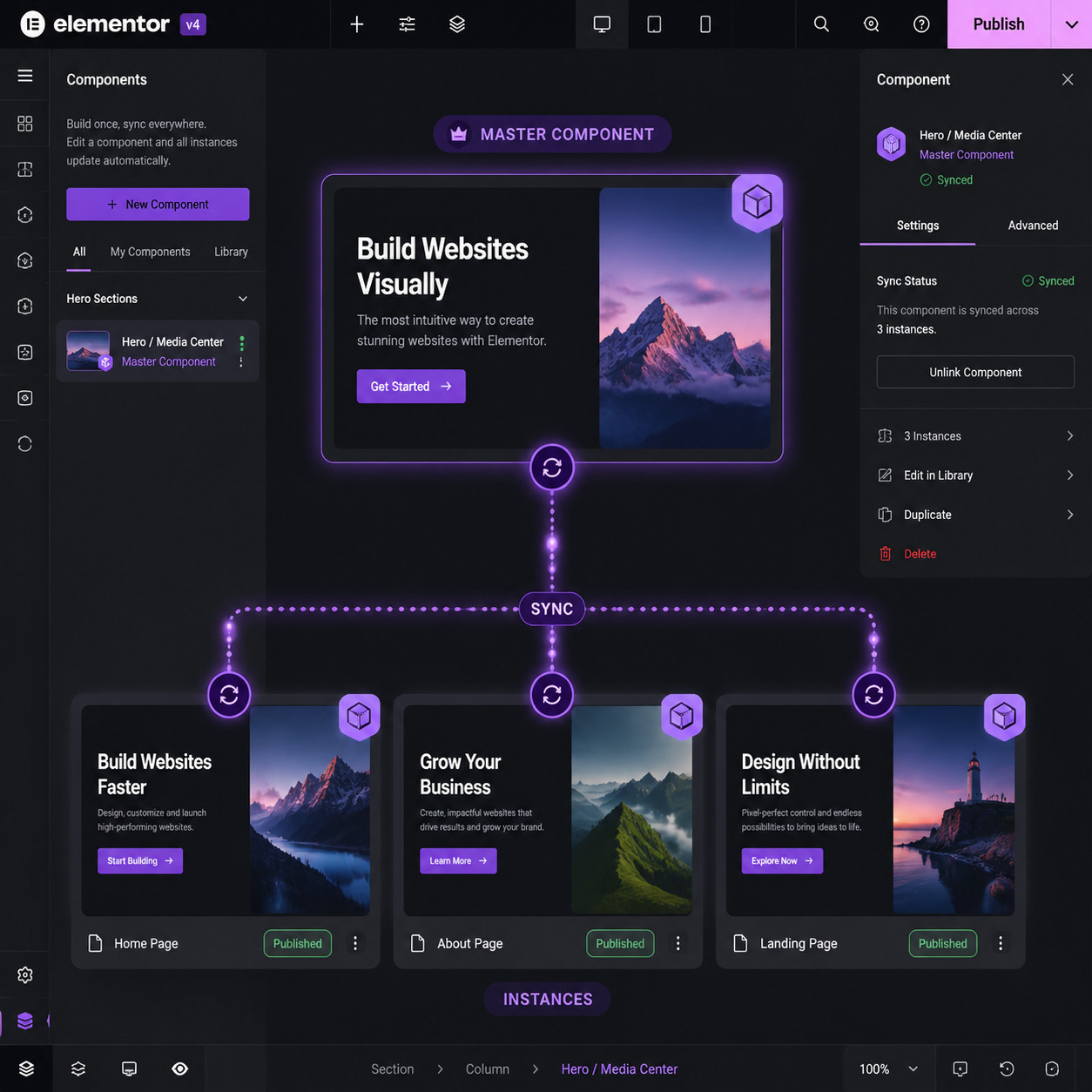
- Components are globally synced layout modules. Edit the master, and every instance updates automatically.
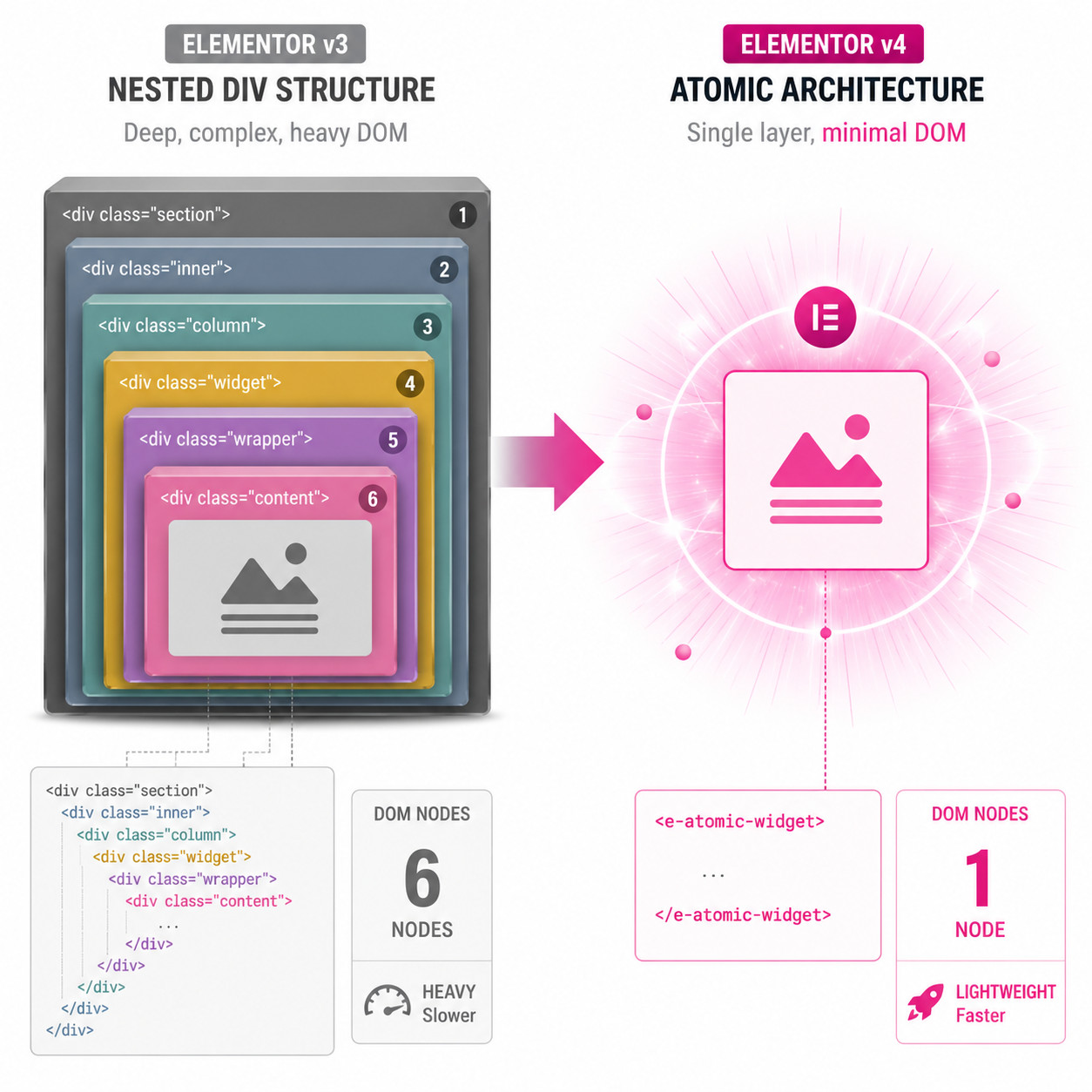
- The DOM is dramatically cleaner. The old six-nested-div structure is replaced by a container-driven, minimal-wrapper approach [3].
- Variables control design tokens (colors, fonts, spacing) at the system level, so a single change cascades everywhere.
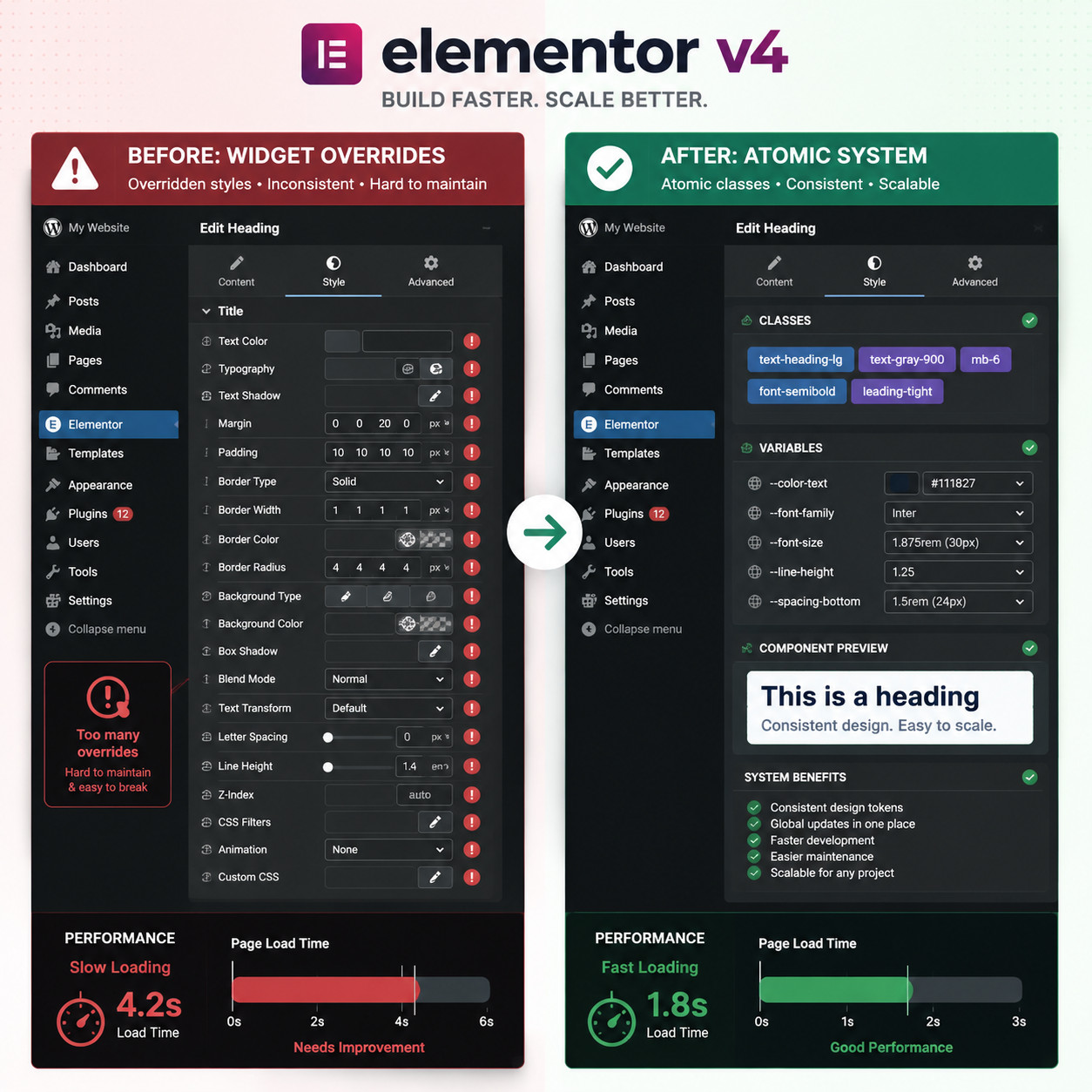
- Classes replace per-widget style overrides, letting you apply and reuse CSS-like styling across any Atomic Element.
- A “Detach” action lets you break a Component instance away from its master for one-off customization without affecting other instances [3].
- Existing v3 sites can opt in via Elementor → Editor → Settings → Atomic Editor, but should test on staging first [8].
- Rapid point releases (4.0.7 and 4.0.8 in early May 2026) confirm active stabilization and WordPress 7.0 compatibility.
- Legacy third-party addons may need updates before they work correctly with the Atomic Editor [4].
What Changed in Elementor v4 and Why Should Designers Care?
Elementor v4 is the biggest architectural shift since the builder launched. It moves from a widget-centric page builder to an atomic, system-based design tool.
The core problem v4 solves: In Elementor v3, every widget came wrapped in multiple nested divs (section, inner section, column, widget wrapper, widget content). This created bloated HTML, made global styling difficult, and forced designers to override styles widget by widget. According to agency 365i Web Design, the old structure often produced six or more nested wrapper divs for a single element.
What v4 introduces:
- Atomic Elements — Lightweight, single-purpose building blocks (buttons, headings, images, form fields, video embeds) that output minimal HTML [1][3].
- Classes — Reusable style definitions you attach to any Atomic Element, similar to CSS classes. Change the class once, and every element using it updates.
- Variables — Design tokens for colors, typography, spacing, and other values. They feed into classes and Components, creating a single source of truth [8].
- Components — Multi-element, synced layout modules. Think of a hero section or a pricing card that you define once and reuse across your entire site.
Elementor positions v4 as a shift from “page builder” to “system-based web creation [1]. For designers who’ve worked with Figma components and design systems, this mental model will feel familiar.
Choose v4 if you’re starting a new project or building for a client who needs long-term maintainability. Stay on v3 temporarily if your site relies heavily on third-party addons that haven’t been updated yet.
How Do Elementor v4 Components Actually Work?
Components are reusable, globally synced layout modules that contain multiple Atomic Elements, classes, and variables in a single package. When you edit the master Component, every instance across your site updates automatically.
Creating a Component
- Build your layout using Atomic Elements inside a container. For example, a card with a heading, paragraph, image, and button.
- Apply classes to each element for consistent styling.
- Right-click the container and select “Save as Component.”
- Name it clearly (e.g.,
Card - Service Overview) so your team can find it later. - The Component now appears in your Components panel alongside Atomic Elements [8].
Using Component Instances
When you drag a Component onto a page, you’re placing an instance, not a copy. Instances stay linked to the master. If you update the master’s structure or styling, all instances reflect the change.
The Detach Action
Sometimes you need a one-off variation. Elementor v4 includes a Detach action that breaks an instance’s link to its master Component [3]. After detaching:
- The instance becomes independent.
- Future master edits won’t affect it.
- You can customize structure and styling freely.
Common mistake: Detaching too many instances defeats the purpose of Components. If you find yourself detaching frequently, it’s usually a sign you need a second Component variant rather than ad-hoc overrides.
Components vs. Global Widgets (v3)
| Feature | v3 Global Widgets | v4 Components |
|---|---|---|
| Scope | Single widget only | Multi-element layouts |
| Styling system | Per-widget overrides | Classes + Variables |
| HTML output | Multiple nested divs | Minimal, clean DOM |
| Detach option | No | Yes [3] |
| Design-system integration | Limited | Full (Variables, Classes) |
| Interaction support | Basic | Interactions + Transitions [1] |
Components are not just renamed Global Widgets. They represent a fundamentally different approach to reuse and consistency.
How Do Variables, Classes, and Components Work Together?
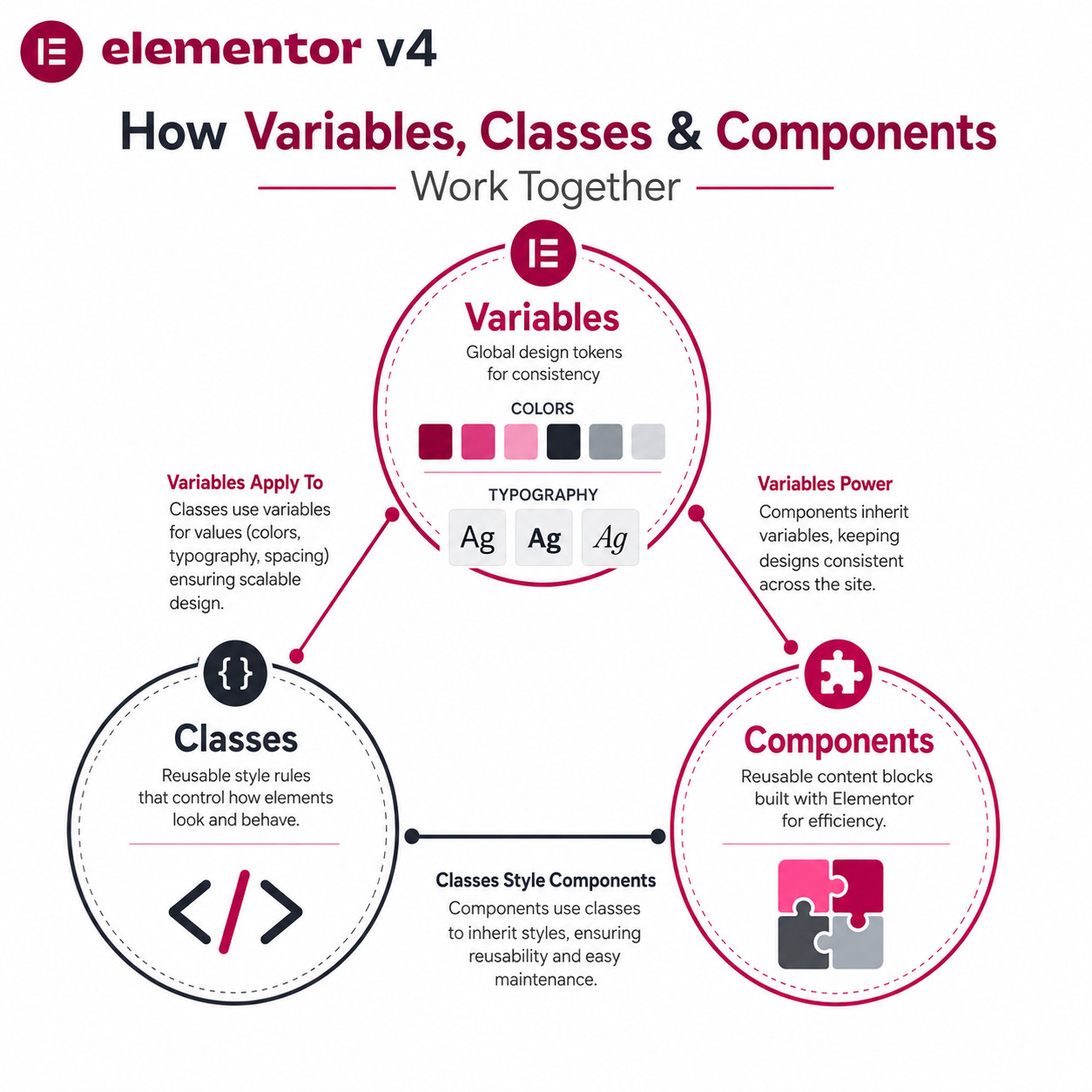
Variables, Classes, and Components form a three-layer design system inside Elementor v4. Understanding how they connect is the key to mastering Elementor v4 Components as a web designer.
Variables: Your Design Tokens
Variables store raw values — a hex color, a font family, a pixel value for spacing. They’re defined globally and referenced by classes and Components.
Example: You create a variable called --brand-primary set to #E91E63. Every class and Component that references this variable uses that color. Change it once, and the entire site updates.
Classes: Your Style Recipes
Classes bundle multiple CSS properties into a reusable style definition. You can attach a class to any Atomic Element.
Example: A class called .btn-primary might set:
- Background color →
var(--brand-primary) - Padding →
12px 24px - Border radius →
8px - Font →
var(--font-body), 16px, bold
Apply .btn-primary to any Atomic Button, and it inherits all those styles instantly.
Components: Your Layout Patterns
Components use Atomic Elements styled with classes (which reference variables) to create full layout modules. This creates a clear hierarchy:
Variables → Classes → Components → Pages
When a client asks you to change the brand color across 40 pages, you update one variable. That’s it. No hunting through widgets, no find-and-replace, no missed buttons in the footer.
This workflow mirrors how professional design tools like Figma handle component organization and reuse, making the handoff between design and build much smoother.
Edge case: Variables currently support colors, typography, and spacing values. If you need more complex conditional logic (show/hide based on user role, for example), you’ll still need custom code or a dedicated plugin.
What Are the Real Performance Benefits of the Atomic Architecture?
The cleaner DOM and CSS-first approach in v4 produce measurable improvements in page weight and rendering speed.
Reduced HTML Bloat
In v3, a simple two-column layout with a heading and button could generate 15+ div wrappers. In v4, the same layout uses containers with Atomic Elements that output far fewer nodes [3]. Community reports on Reddit confirm noticeable DOM simplification after migrating.
CSS-First Styling
Because classes and variables handle styling at the CSS level rather than through inline styles on each widget, browsers can cache and reuse stylesheets more efficiently. This matters most on pages with many repeated elements (product grids, blog archives, pricing tables).
Fewer Script Dependencies
Atomic Elements are lighter than v3 widgets, which often loaded their own JavaScript for basic functionality. The result is fewer HTTP requests and less render-blocking script.
What This Means in Practice
- Faster Largest Contentful Paint (LCP) due to less DOM depth.
- Better Cumulative Layout Shift (CLS) because CSS-driven layouts are more predictable.
- Easier debugging since the HTML output is readable and logical.
If you’re building sites where performance directly affects rankings, these improvements matter. For broader context on no-code performance considerations, see our roundup of the best no-coding website design platforms for 2026.
Decision rule: If your site scores below 75 on Core Web Vitals and you’re using Elementor v3, migrating to v4’s atomic architecture is one of the highest-impact changes you can make without switching builders entirely.
How Should You Migrate an Existing Site from v3 to v4?
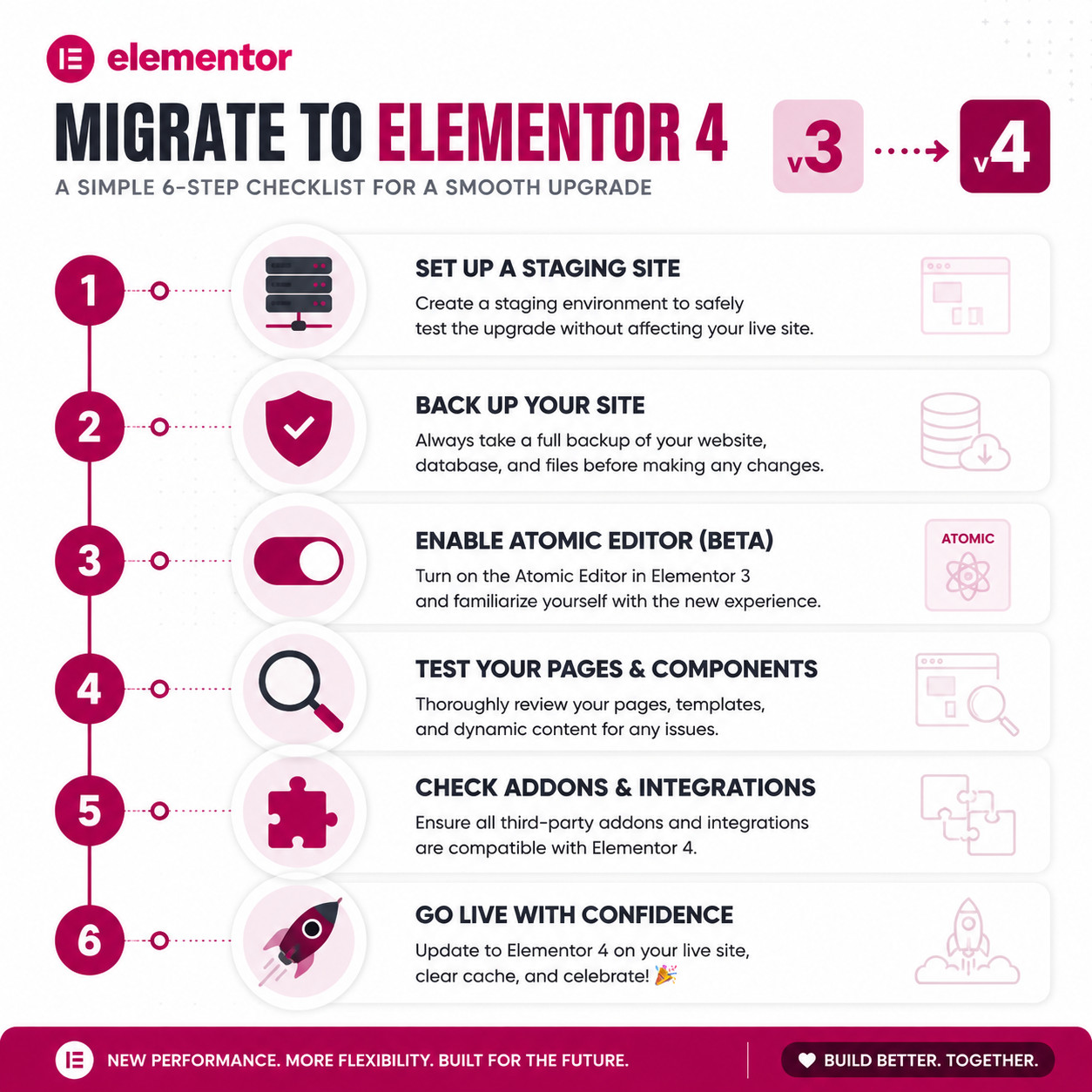
Existing sites can enable the Atomic Editor through Elementor → Editor → Settings → Atomic Editor [8]. But flipping a switch without preparation is risky, especially for sites with many pages or third-party addons.
Step-by-Step Migration Checklist
- Create a staging environment. Never test on production. Use your host’s staging tool or a plugin like WP Staging.
- Back up everything. Database and files. Verify the backup restores correctly before proceeding.
- Update Elementor and Elementor Pro to the latest 4.0.x release. As of May 2026, version 4.0.8 includes WordPress 7.0 compatibility fixes.
- Enable the Atomic Editor in Settings. On new installs, it’s already on by default [8].
- Audit third-party addons. Check each addon’s changelog or support forum for v4 compatibility. Common addons like Essential Addons, JetEngine, and Dynamic.ooo have been releasing v4-compatible updates, but timing varies [4][5].
- Test page by page. Start with your most complex templates. Look for layout breaks, missing styles, or JavaScript errors.
- Rebuild key templates using Components. Rather than converting every v3 widget immediately, start with your header, footer, and most-reused sections.
- Monitor performance. Run Lighthouse or PageSpeed Insights before and after to quantify improvements.
- Go live once you’re confident everything works. Keep the staging backup available for rollback.
Common mistake: Assuming all v3 widgets automatically become Atomic Elements. They don’t. V3 widgets still function in v4 (backward compatibility is maintained), but you won’t get the DOM and performance benefits until you rebuild sections using Atomic Elements and Components [8].
For designers managing WordPress sites more broadly, our complete guide to WordPress theme customization covers additional considerations when updating your site’s foundation.
What Are the Best Practices for Organizing Components at Scale?
For freelancers building a five-page site, Component organization is straightforward. For agencies managing dozens of client sites, it requires discipline.
Naming Conventions
Use a consistent naming pattern that communicates purpose and hierarchy:
Hero - HomepageCard - ServiceCard - TestimonialCTA - BannerForm - ContactNav - Main Header
Prefix with the component type, then add a descriptor. This makes the Components panel scannable.
Variable Naming
Follow a similar pattern for variables:
--color-brand-primary--color-brand-secondary--color-neutral-900--font-heading--font-body--spacing-section
Class Naming
Adopt a lightweight BEM-inspired approach:
.btn-primary.btn-secondary.card-title.section-padding-lg
Documentation
Keep a simple reference document (even a shared Google Doc) listing your Components, their intended use, and which variables/classes they depend on. This is especially important when handing off to other designers or developers.
If you’re working from Figma designs, maintaining parallel naming between your Figma components and Elementor Components reduces confusion during implementation.
When to Create a New Component vs. Modify an Existing One
- Create new when the layout structure is fundamentally different (different number of elements, different hierarchy).
- Modify existing when only styling or content changes (different colors, different text, different image).
- Detach only when a single instance needs a structural change that doesn’t warrant a new Component.
How Do Interactions and Transitions Work with Components?
Elementor v4 ties its Transform, Transitions, and Interactions features directly into the atomic system [1]. This means you can define hover states, scroll-triggered animations, and micro-interactions at the Component level, and they’ll propagate to every instance.
Practical Examples
- Button hover effect: Define a class with a hover state (background color shift, slight scale transform). Apply it to the button inside your CTA Component. Every CTA across the site gets the same interaction.
- Card entrance animation: Set a scroll-triggered fade-up on your Service Card Component. Every service card on every page animates consistently.
- Form field focus states: Style focus states through classes on Atomic Form elements inside a Form Component.
Elementor’s 2026 web design trends article explicitly connects these features to the broader industry shift toward purposeful motion and micro-interactions. The key insight is that Components and Interactions are designed to work together as reusable “interactive patterns,” not just static layouts.
For designers exploring animation workflows, our guide on cart animation techniques in Figma covers related principles that translate well to Elementor’s interaction model.
Mastering Elementor v4 Components: Common Mistakes and How to Avoid Them
Even experienced designers stumble when transitioning to the atomic workflow. Here are the most frequent pitfalls:
Over-detaching instances. Every detach creates an orphan that won’t receive future updates. Track detached instances and consider whether a new Component variant is a better solution.
Skipping variables and applying direct values. If you set a color directly on a class instead of referencing a variable, you lose the cascading benefit. Always route through variables for values that might change.
Mixing v3 widgets and Atomic Elements on the same page. This works technically but creates inconsistent DOM output and makes maintenance harder. Commit to one approach per page, ideally per site.
Not testing addon compatibility. Some popular third-party Elementor addons haven’t fully adapted to the atomic architecture yet [4]. Test before deploying.
Ignoring the learning curve. Community feedback highlights that experienced v3 users need to unlearn widget-centric habits. Budget time for your team to practice the new workflow on a non-critical project first.
Creating too many variables. A design system with 200 variables is as hard to maintain as no system at all. Start with 15-25 core variables covering colors, fonts, and spacing, then expand only as needed.
Elementor v4 vs. Other Design-System Builders: How Does It Compare?
Designers evaluating their toolset in 2026 often compare Elementor v4 against Webflow, Framer, and traditional WordPress theme development.
| Criteria | Elementor v4 | Webflow | Framer | Custom WP Theme |
|---|---|---|---|---|
| Component/Symbol system | Yes (new in v4) | Yes (mature) | Yes (mature) | Manual (PHP templates) |
| CSS-first styling | Yes [3] | Yes | Yes | Yes |
| WordPress integration | Native | Requires export/plugin | No | Native |
| Plugin ecosystem | Massive | Limited | Limited | Massive |
| Learning curve | Moderate | Moderate-High | Moderate | High |
| Pricing (annual, basic) | ~$59/yr (Pro) | ~$228/yr (Basic) | ~$60/yr (Mini) | Free (dev time cost) |
| Design token support | Variables [8] | Variables | Variables | Custom (CSS custom properties) |
Choose Elementor v4 if you need WordPress’s plugin ecosystem, your team already knows Elementor, or your clients need to edit content themselves through a familiar interface.
Choose Webflow if you want a more mature design-system tool and don’t need WordPress-specific features. Our Figma to Webflow conversion guide covers that workflow in detail.
Choose custom theme development if you need maximum control and your team includes experienced PHP developers. See our guide to custom WordPress theme development for that path.
Frequently Asked Questions
Is Elementor v4 free or Pro-only?
The Atomic Editor, including Atomic Elements, Classes, and Variables, is available in the free version of Elementor. Components and advanced Interactions require Elementor Pro [8].
Can I use v3 widgets alongside v4 Atomic Elements?
Yes. Backward compatibility is maintained. However, v3 widgets won’t benefit from the cleaner DOM or design-system features. Elementor recommends gradually rebuilding with Atomic Elements [8].
Will my existing site break if I enable the Atomic Editor?
Enabling the Atomic Editor doesn’t automatically convert your existing pages. Your v3 content remains intact. New content you create will use the atomic system. Always test on staging first [8].
How are Components different from Elementor’s old Global Widgets?
Global Widgets were single widgets synced across pages. Components are multi-element layout modules that integrate with Classes and Variables, support the Detach action, and output cleaner HTML [3].
Do third-party Elementor addons work with v4?
It depends on the addon. Major addons are releasing v4-compatible updates, but smaller or abandoned addons may have issues. Check each addon’s compatibility before migrating [4][5].
Can I nest Components inside other Components?
Yes. You can place a Component instance inside another Component’s layout. This is useful for building complex sections from smaller, reusable parts.
What happens when I Detach a Component instance?
The instance becomes independent. It no longer receives updates from the master Component. You can freely modify its structure and styling without affecting other instances [3].
Is Elementor v4 compatible with WordPress 7.0?
Yes. The 4.0.7 and 4.0.8 releases in May 2026 include WordPress 7.0 compatibility updates.
How many Components should a typical site have?
There’s no fixed number. A simple business site might use 8-12 Components (header, footer, hero, cards, CTA, forms, etc.). A large agency site might use 30-50. Focus on reuse: if a layout pattern appears on more than two pages, it’s a good candidate.
Can I export Components to use on other sites?
As of May 2026, Elementor supports exporting and importing templates, which can include Components. The workflow is similar to v3’s template export, but now includes the associated classes and variable references.
Does the Atomic Editor affect SEO?
Indirectly, yes. Cleaner DOM output, faster page loads, and better Core Web Vitals scores can positively influence search rankings [10]. The semantic HTML improvements also make it easier for search engines to parse your content.
Conclusion
Elementor v4’s Component system represents a genuine shift in how WordPress sites get built. It’s not just a UI refresh; it’s a new architecture that brings design-system thinking to the world’s most popular page builder.
Your actionable next steps:
- Set up a staging site and enable the Atomic Editor today. Spend an hour building a simple page using only Atomic Elements, Classes, and Variables.
- Create your first Component — start with something you reuse often, like a CTA section or testimonial card.
- Define 15-20 core Variables for your brand colors, fonts, and spacing values before building anything else.
- Audit your third-party addons for v4 compatibility. Replace any that aren’t being updated.
- Commit to the CSS-first mindset. Resist the urge to apply one-off style overrides. Route everything through Variables and Classes.
The designers who invest time in mastering Elementor v4 Components now will build faster, maintain easier, and deliver cleaner sites than those who cling to v3 habits. The learning curve is real but manageable, and the payoff compounds with every project.
References
[1] Editor 40 Atomic Forms Pro Interactions – https://elementor.com/blog/editor-40-atomic-forms-pro-interactions/ [3] Elementor Editor 4 0 Developers Update – https://developers.elementor.com/elementor-editor-4-0-developers-update/ [4] WPTuts Elementor v4 Review – https://www.youtube.com/watch?v=BcwvfiIiuvU [5] Elementor Version 4 The Atomic Editor – https://essential-addons.com/elementor-version-4-the-atomic-editor/ [8] V4 Faq – https://elementor.com/products/website-builder/v4-faq/ [10] Responsive Web Design – https://elementor.com/blog/responsive-web-design/
See also: Mastering Elementor v4: The Ultimate Step-by-Step Web Design Guide for 2026