Last updated: May 16, 2026
Quick Answer
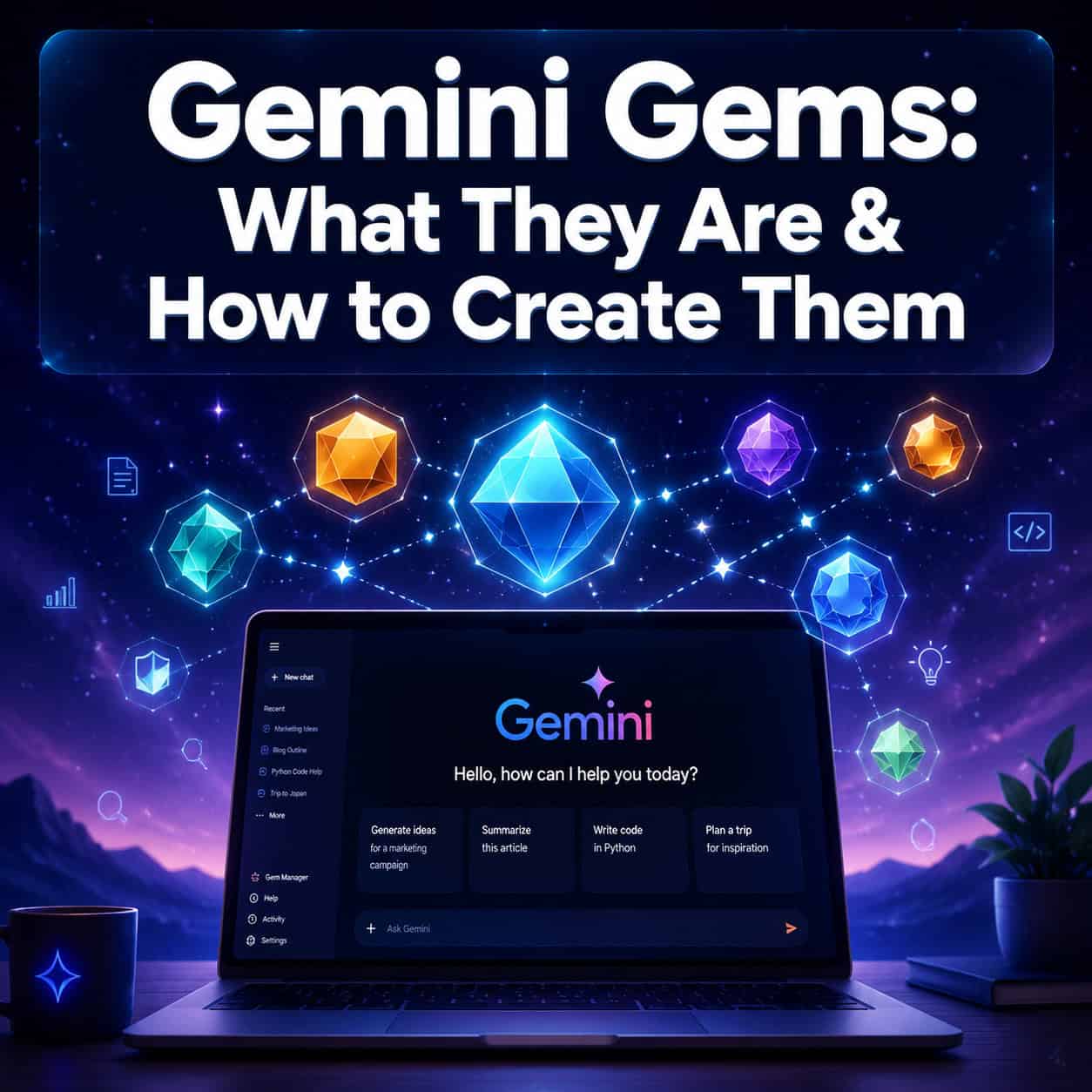
A Gemini Gem is a custom AI assistant you build inside Google’s Gemini app by writing specific instructions that define its persona, tone, goals, and response format. Think of it as a reusable preset that eliminates the need to retype the same detailed prompts every session. Gems are available to Gemini Advanced, Business, and Enterprise subscribers, and creating one takes under five minutes with no coding required [3][4].
Key Takeaways
- A Gemini Gem is a customized version of Gemini designed for a single, specific task or role — like a writing editor, coding tutor, or meal planner [3].
- You create a Gem by describing what you want in plain language; Gemini can then auto-enhance your instructions [4].
- Gems accept uploaded knowledge files (PDFs, docs, style guides) so the assistant has context about your brand, project, or workflow [4].
- They’re available on web, Android, iOS, and the new macOS desktop app as of 2026.
- Gems save time on repetitive tasks where you need consistent output structure and tone across multiple sessions [3].
- The closest competitor is OpenAI’s Custom GPTs, which offer similar functionality plus a public marketplace [4].
- For Google Workspace users, Gem conversations are not used to train Google’s models, making them viable for institutional and business use [5].
- You don’t need technical skills to build one — if you can write a clear paragraph of instructions, you can create a Gem.

What Exactly Is a Gemini Gem?
A Gemini Gem is a custom AI assistant you configure once and reuse whenever you need it. Google’s own description calls Gems “custom AI helpers you can create for any task” [3]. In practical terms, a Gem stores a set of instructions — persona, goals, tone, constraints, and formatting rules — so you don’t have to paste the same long prompt at the start of every conversation.
Here’s a simple way to think about it: regular Gemini is a general-purpose assistant. A Gem is that same assistant wearing a specific hat. You might create a Gem that acts as a strict grammar editor, another that functions as a Python debugging partner, and a third that plans weekly meals based on dietary restrictions.
What makes a Gem different from just saving a prompt?
A saved prompt is static text you copy and paste. A Gem is an active configuration layer. When you open a Gem, Gemini already “knows” its role, rules, and reference materials before you type a single word. It also maintains that behavior throughout the entire conversation, which matters when you’re working through multi-step tasks.
Community users on Reddit describe Gems as especially valuable when you “need a very specific structure for a response and need to be able to revisit it multiple times” [1]. That consistency across sessions is the core value proposition.
Who are Gems for?
- Content creators who need consistent brand voice across dozens of pieces
- Students and educators building study aids or lesson plan generators
- Developers who want a coding assistant pre-loaded with their project’s conventions
- Small business owners automating repetitive tasks like email drafting or customer FAQ responses
- Anyone tired of rewriting the same instructions every time they open Gemini
Who are Gems NOT for?
If you only use Gemini occasionally for one-off questions, a Gem adds unnecessary overhead. They shine when you have a recurring task with specific requirements. Also, if you’re on the free Gemini plan, you currently can’t create custom Gems — you’ll need a paid subscription [6].
The growing trend in early 2026 is to think of Gems less as “prompt presets” and more as “mini-agents.” Google’s April 2026 AI update introduced the Gemini Enterprise Agent Platform and emphasized agentic AI capabilities [8]. While that update focused on enterprise tools, the underlying philosophy applies to Gems too: they’re the consumer-grade version of configurable AI agents.
How to Create a Gemini Gem: Step-by-Step Guide
Creating a Gem takes about 3-5 minutes. Here’s the exact process as of 2026.

Prerequisites
Before you start, confirm you have:
- A Gemini Advanced, Google One AI Premium, Workspace Business, or Enterprise subscription
- Access to the Gemini app (web at gemini.google.com, mobile app, or macOS desktop app)
- A clear idea of what you want the Gem to do
Step 1: Open the Gem Manager
Go to the Gemini app. In the left sidebar, look for “Gem manager” or click the “Create a Gem” option. On mobile, tap the menu icon and find the Gems section [6].
Step 2: Name Your Gem
Give it a short, descriptive name. Examples:
- “Blog Post Editor”
- “Python Code Reviewer”
- “Weekly Meal Planner”
- “Customer Email Drafter”
The name helps you find it later, so be specific. “Helper” is too vague. “SEO Blog Outline Generator” tells you exactly what it does.
Step 3: Write Your Instructions
This is the most important step. In the instructions field, describe:
- Who the Gem is (persona/role)
- What it should do (primary task)
- How it should respond (tone, format, length)
- What it should avoid (constraints and guardrails)
Here’s an example instruction set for a blog editing Gem:
You are a senior content editor with 10 years of experience in SEO writing. When I share a draft blog post, you will:
Respond in a structured format with sections for each category. Use a professional but friendly tone. Never rewrite the entire post — only suggest specific changes with explanations.
Step 4: Use the “Enhance” Button (Optional)
After writing your instructions, Gemini offers an option to auto-enhance them. Click it, and the AI will expand your description into more detailed instructions. Review the enhanced version carefully — sometimes it adds things you don’t want or changes your intent [4].
My recommendation: Write your own instructions first, try the enhance feature, then edit the result. The enhanced version often adds useful structure, but it can also introduce generic filler.
Step 5: Upload Knowledge Files (Optional)
You can attach reference documents to give your Gem additional context. Common uploads include:
- Brand style guides
- Product documentation
- Sample outputs you want it to mimic
- Data sheets or research papers
- Standard operating procedures
This is where Gems pull ahead of simply retyping prompts. A Gem loaded with your company’s 20-page brand guide will produce more on-brand content than one working from a two-sentence description [4].
Step 6: Test and Iterate
Save your Gem and start a conversation with it. Ask it to perform the task you designed it for. If the output isn’t right:
- Go back and refine the instructions
- Add constraints you missed (e.g., “always use bullet points for lists”)
- Remove instructions that cause confusion
- Test edge cases (what happens if you give it unusual input?)
Common mistake: Writing instructions that are too vague. “Be helpful and write well” gives the Gem almost nothing to work with. “Write in active voice, keep paragraphs under 4 sentences, and always include a one-sentence summary at the top” gives it clear rules.
Quick Creation Checklist
| Step | Action | Time |
|---|---|---|
| 1 | Open Gem Manager | 10 seconds |
| 2 | Name your Gem | 30 seconds |
| 3 | Write instructions | 2-3 minutes |
| 4 | Enhance (optional) | 30 seconds |
| 5 | Upload files (optional) | 1 minute |
| 6 | Test and refine | 2-5 minutes |
If you’re someone who regularly creates content with AI tools, this process is similar to setting up templates in other platforms. For instance, creating effective email templates in Canva follows the same principle: define the structure once, reuse it many times.
What Can You Actually Do With a Gemini Gem?
The practical applications span nearly every domain where you’d use an AI assistant repeatedly. Here are the most proven use cases based on community feedback and tutorial content from early 2026 [2][3].

Content Creation and Editing
- Blog post outliner that follows your specific heading structure and SEO requirements
- Social media caption writer trained on your brand voice and hashtag strategy
- Proofreading assistant that catches grammar issues and flags readability problems
If you’re already using tools like Canva for visual content, pairing a writing Gem with your graphic design workflow creates a more complete content pipeline.
Education and Research
- Study tutor that quizzes you on uploaded course materials
- Research summarizer that condenses academic papers into key findings
- Lesson plan generator for teachers who need consistent formatting across units
A university IT office at UNC Charlotte describes Gems as “specialized AI assistants” comparable to “a highly effective virtual co-worker” for recurring academic tasks [5].
Business and Productivity
- Meeting notes formatter that turns raw notes into structured action items
- Customer email drafter that maintains your company’s communication style
- Project status reporter that takes bullet-point updates and produces formatted reports
Technical and Development
- Code reviewer pre-loaded with your team’s coding standards
- Documentation writer that generates API docs in your preferred format
- Bug report analyzer that categorizes and prioritizes issues
Creative and Personal
- Recipe modifier that adapts dishes to dietary restrictions
- Workout planner that builds routines based on your equipment and goals
- Travel itinerary builder with your budget and preference constraints
Advanced Use Cases
YouTube creators in early 2026 have showcased more sophisticated applications. One notable example is an “AI Prompt Extractor” Gem that analyzes YouTube video links and generates prompt templates from the content [2]. Another combines Gems with Gemini’s screen recording feature (now supporting up to 3-minute recordings) to build instruction-following helpers for specific visual workflows.
These advanced applications push Gems closer to the “mini-agent” concept that Google’s agentic AI strategy envisions [8]. When you pair a Gem with tools like Deep Research Max or Google Vids, you can build multi-step workflows that go well beyond simple text generation.
For those building websites alongside their AI workflows, AI-powered content generation tools can complement your Gems by handling different parts of the production process.
How to Write Better Gemini Gem Instructions
The quality of your Gem depends almost entirely on how well you write its instructions. Here’s a framework that consistently produces better results.
The PGTF Framework
| Element | What It Means | Example |
|---|---|---|
| Persona | Who is the Gem? | “You are a senior UX designer with expertise in mobile app interfaces” |
| Goal | What should it accomplish? | “Help me critique wireframe screenshots and suggest improvements” |
| Tone | How should it communicate? | “Direct and constructive. No fluff. Use specific, actionable language” |
| Format | How should responses look? | “Use numbered lists for suggestions. Start each with the issue, then the fix” |
A Google Workspace partner (Refractiv) frames Gem design as similar to writing a good internal SOP: you codify how the assistant should behave, what it should prioritize, and what it must avoid.
Instruction Writing Tips
Be specific about what you DON’T want. Negative constraints are often more useful than positive ones. “Never use jargon” is clearer than “use simple language.”
Include example outputs. If you want your Gem to produce a specific format, paste an example in the instructions. Show it a sample email, outline, or report structure.
Set boundaries on length. Without length constraints, Gems tend to produce long responses. Add rules like “keep responses under 200 words” or “use no more than 5 bullet points per section.”
Define how it should handle uncertainty. Should it ask clarifying questions? Make assumptions and state them? Flag areas where it’s unsure? Specify this upfront.
Common Instruction Mistakes
- Too vague: “Help me write better” gives the Gem no direction
- Too rigid: Overly prescriptive instructions leave no room for the Gem to be useful across different inputs
- Contradictory rules: “Be concise” plus “always provide detailed explanations” creates confusion
- No format guidance: Without structure rules, every response will look different
- Ignoring edge cases: What should the Gem do if it receives input outside its scope?
If you’re familiar with AI-powered content optimization, the same principles of clear direction and measurable criteria apply when crafting Gem instructions.
Gemini Gem vs. OpenAI Custom GPTs: How Do They Compare?
Since both Google and OpenAI offer custom AI assistants, the comparison is inevitable. Here’s an honest breakdown as of 2026.

| Feature | Gemini Gem | OpenAI Custom GPT |
|---|---|---|
| Subscription required | Gemini Advanced ($19.99/mo) or Workspace plan | ChatGPT Plus ($20/mo) or Team/Enterprise |
| Custom instructions | Yes | Yes |
| Knowledge file uploads | Yes | Yes |
| Code interpreter | Through Gemini’s built-in capabilities | Dedicated code interpreter tool |
| Web browsing | Yes (Gemini has built-in search) | Yes (with Bing) |
| Public marketplace | No — Gems are account-scoped | Yes — GPT Store available |
| Sharing | Limited (link sharing within organization) | Public or private sharing |
| API/automation integration | Through Google ecosystem | Through OpenAI API + third-party tools |
| Image generation | Through Imagen integration | Through DALL-E integration |
| Platform availability | Web, Android, iOS, macOS | Web, Android, iOS, macOS, Windows |
Choose a Gemini Gem if:
- You’re already in the Google ecosystem (Gmail, Docs, Drive, Workspace)
- You want tight integration with Google Search for real-time information
- Privacy matters and you’re on a Workspace plan (conversations aren’t used for model training) [5]
- You prefer simplicity over marketplace features
- You use other Google AI tools like NotebookLM or Google Vids
Choose a Custom GPT if:
- You want to share your creation publicly or browse what others have built
- You need the GPT Store’s distribution and discovery features
- Your workflow relies on OpenAI’s specific API ecosystem
- You want more granular control over tool selection (code interpreter, DALL-E, browsing as separate toggleable features)
Many tutorials in 2026 explicitly note that “you can use this method for creating a custom GPT or a custom Gem,” because the basic workflow is nearly identical [4]. The real differentiator is ecosystem integration, not the Gem/GPT creation process itself.
For people building websites and digital products, the choice often depends on which AI tools integrate best with your existing stack. If you’re working with no-code website builders, Google’s ecosystem tends to offer smoother connections through Workspace.
How Much Does a Gemini Gem Cost?
Creating and using Gems is included in your Gemini Advanced subscription at no additional charge. There’s no per-Gem fee and no usage cap specifically for Gems (though your overall Gemini usage is subject to the plan’s rate limits).
Pricing Breakdown
| Plan | Gem Access | Monthly Cost |
|---|---|---|
| Gemini Free | Pre-made Gems only (no custom creation) | $0 |
| Gemini Advanced (Google One AI Premium) | Full creation and customization | $19.99/month |
| Google Workspace Business | Full creation + enterprise privacy controls | Varies by plan |
| Google Workspace Enterprise | Full creation + admin controls + compliance | Varies by plan |
Important note for free users: You can interact with some pre-built Gems that Google provides, but you cannot create your own custom Gems on the free tier [6]. If you only need one or two custom assistants, the $19.99/month subscription pays for itself quickly if it saves you even an hour of repetitive prompt writing per month.
Can You Share Gemini Gems With Others?
As of 2026, sharing capabilities for Gems remain limited compared to OpenAI’s GPT Store. Here’s what you can and can’t do:
What works:
- Within a Google Workspace organization, admins can make certain Gems available to team members
- You can share the instructions text manually (copy-paste) so someone else can recreate your Gem
- Some organizations create internal documentation of their best Gem configurations
What doesn’t work (yet):
- There’s no public Gem marketplace or store
- You can’t generate a shareable link that lets anyone outside your organization use your Gem directly
- Cross-account Gem transfer isn’t natively supported
This limitation is actually a feature for enterprise users. Without a public marketplace, there’s less risk of employees accidentally using poorly configured or malicious third-party Gems [5]. For individual users, though, it means you’ll need to build your own Gems from scratch rather than browsing a library of community-created options.
If you’re looking to share templates and assets across teams in other tools, the same organizational principles apply — for example, sharing Canva templates between accounts follows a similar logic of balancing accessibility with control.
Tips for Getting the Most Out of Your Gemini Gem
After creating dozens of Gems and testing them across different workflows, here are the practices that consistently produce the best results.
1. Start Narrow, Then Expand
Build your first Gem for one very specific task. A “General Writing Assistant” will underperform compared to a “LinkedIn Post Writer for B2B SaaS.” Once you’ve nailed the narrow version, you can gradually broaden its scope.
2. Use Knowledge Files Strategically
Don’t dump every document you have into a Gem. Upload only the most relevant reference materials. A Gem with a focused 5-page style guide will outperform one loaded with 50 pages of loosely related content.
Best knowledge file types:
- Brand voice and style guides
- Product/service documentation
- Sample outputs you want the Gem to emulate
- Frequently asked questions and their approved answers
- Templates and formatting examples
3. Version Your Instructions
Keep a separate document (Google Doc, Notion page, whatever you prefer) where you track different versions of your Gem’s instructions. When you make changes, note what you changed and why. This makes it easy to roll back if a revision makes things worse.
4. Test With Edge Cases
Don’t just test with your ideal input. Try:
- Extremely short prompts
- Ambiguous requests
- Topics outside the Gem’s intended scope
- Requests that conflict with the Gem’s instructions
How the Gem handles these edge cases tells you where your instructions need tightening.
5. Combine Gems With Other Tools
Gems become more powerful when integrated into larger workflows. Zapier and similar automation platforms can trigger Gem interactions as part of multi-step processes [4]. For example:
- New form submission → Gem drafts a response → Human reviews → Email sends
- Blog post published → Gem generates social media captions → Scheduled for posting
This kind of workflow automation is where Gems start to feel like the “mini-agents” that Google’s 2026 AI strategy envisions [8].
6. Review and Update Regularly
Your needs change. Your brand voice evolves. New products launch. Set a reminder to review your Gems quarterly and update their instructions and knowledge files. A stale Gem produces stale output.
For those managing broader digital workflows, AI-powered tools for boosting site rankings can work alongside your Gems to create a more connected content strategy.
Troubleshooting Common Gemini Gem Problems
Even well-designed Gems can behave unexpectedly. Here are the most common issues and how to fix them.
Problem: The Gem Ignores Some Instructions
Cause: Instruction overload. When you pack too many rules into a Gem, it may prioritize some and drop others.
Fix: Reduce your instructions to the most essential rules. If you have more than 15-20 distinct instructions, consolidate related ones. Put the most critical rules at the top of your instructions — AI models tend to weight earlier instructions more heavily.
Problem: Responses Are Too Generic
Cause: Vague instructions or missing context.
Fix: Add specific examples of what good output looks like. Include a “respond like this” section in your instructions with a sample response. Upload knowledge files that give the Gem domain-specific context.
Problem: The Gem’s Tone Drifts Over Long Conversations
Cause: Context window limitations. In very long conversations, earlier instructions can lose influence.
Fix: For long sessions, periodically remind the Gem of its role. Or better yet, start a new conversation with the same Gem for each distinct task rather than running everything in one thread.
Problem: Knowledge Files Don’t Seem to Affect Output
Cause: The files may be too large, poorly formatted, or not relevant enough to the query.
Fix: Use well-structured documents with clear headings. PDFs with good text extraction work better than scanned images. Keep files focused — a 3-page document on exactly the right topic beats a 30-page document that’s only tangentially related.
Problem: The Gem Produces Different Quality on Mobile vs. Desktop
Cause: This is sometimes reported but hard to confirm. The underlying model should be the same, though interface differences may affect how you interact with the Gem.
Fix: If you notice quality differences, test the same prompt on both platforms. Some users on Reddit have discussed whether Gems use different model versions [9], but Google hasn’t confirmed platform-specific model differences.
The Future of Gemini Gems in 2026 and Beyond
Google’s direction is clear: AI assistants are moving from conversational tools to action-taking agents. The April 2026 announcement of the Gemini Enterprise Agent Platform signals that the technology powering Gems will become more capable over time [8].
What this likely means for Gems:
- Deeper integration with Google Workspace apps — Gems that can directly edit your Docs, manage your Calendar, or organize your Drive
- More sophisticated knowledge handling — better understanding of uploaded files, possibly including spreadsheets, databases, and multimedia
- Improved sharing and collaboration — some form of Gem marketplace or team library seems inevitable given competitor pressure from OpenAI’s GPT Store
- Agentic capabilities — Gems that can take multi-step actions autonomously, not just generate text responses
The new Gemma 4 models announced alongside the enterprise platform [8] suggest that the underlying AI powering Gems will continue to improve in reasoning, instruction-following, and domain expertise.
For creators and businesses investing time in building Gems now, the effort compounds. Well-crafted instructions and knowledge bases will become more valuable as the underlying model gets better at following them.
Frequently Asked Questions
Are Gemini Gems free to use?
Pre-built Gems from Google are accessible on the free tier, but creating custom Gems requires a Gemini Advanced subscription ($19.99/month) or a Google Workspace Business/Enterprise plan [6].
How many Gems can I create?
Google hasn’t published a hard limit on the number of custom Gems per account. Users in 2026 report creating dozens without hitting a cap. If you’re on a Workspace plan, your admin may set organizational limits.
Do Gems remember previous conversations?
Each conversation with a Gem is a separate session. The Gem always starts with its configured instructions and knowledge files, but it doesn’t carry over context from past conversations. This is actually useful for consistency — every session starts fresh with the same baseline.
Can I use Gems on my phone?
Yes. Gems are available in the Gemini mobile app on both Android and iOS. They’re also accessible through the macOS desktop app released in 2026 and through the web interface at gemini.google.com.
What’s the difference between a Gem and a regular Gemini conversation?
A regular conversation starts with no predefined context — you’re talking to default Gemini. A Gem starts with your custom instructions, persona, and knowledge files already loaded. It’s the difference between hiring a general assistant and hiring a specialist [3].
Can Gems access the internet?
Yes. Gems can use Gemini’s built-in Google Search integration to pull real-time information. This makes them useful for tasks that require current data, like market research or news summarization.
Are my Gem conversations private?
For Google Workspace for Education and Business/Enterprise users, conversations with Gems are not used to train Google’s AI models [5]. For individual Gemini Advanced subscribers, check the current data usage policy, as it may differ from Workspace terms.
Can I delete a Gem?
Yes. You can delete any custom Gem you’ve created through the Gem Manager. This removes the Gem and its configuration permanently.
Do Gems work with Google Docs and other Workspace apps?
Gemini’s integration with Workspace apps continues to expand. While Gems primarily operate within the Gemini app interface, the outputs can be easily copied into Docs, Sheets, and other Workspace tools. Direct in-app Gem access is part of Google’s broader agentic AI roadmap [8].
What file types can I upload as knowledge files?
Gems accept common document formats including PDFs, Google Docs, and text files. The specific supported formats may expand over time. For best results, use well-structured text documents rather than image-heavy files.
How is a Gemini Gem different from a ChatGPT Custom GPT?
Both are custom AI assistants with instructions and knowledge files. The main differences: GPTs have a public marketplace for sharing and discovery; Gems are account-scoped and more private. Gems integrate natively with Google’s ecosystem; GPTs integrate with OpenAI’s. The creation process is nearly identical [4].
Can I use Gems for business purposes?
Yes, and this is one of their strongest use cases. Workspace Business and Enterprise plans include Gem access with additional privacy controls and admin management features. Many organizations use Gems to standardize how teams interact with AI for tasks like drafting communications, analyzing data, and generating reports [5].
Conclusion
A Gemini Gem is one of the most practical AI features available in 2026 for anyone who uses Gemini regularly. By investing a few minutes upfront to configure a custom assistant, you eliminate the repetitive work of rewriting prompts and get more consistent, higher-quality output every time.
Here’s what to do next:
- Identify your most repetitive AI task. What do you ask Gemini to do over and over? That’s your first Gem.
- Write clear instructions using the PGTF framework (Persona, Goal, Tone, Format). Be specific about what you want and what you don’t want.
- Upload relevant knowledge files — even one well-chosen document dramatically improves output quality.
- Test thoroughly with both typical and edge-case inputs, then refine your instructions based on what you see.
- Build a small library of 3-5 Gems covering your core workflows before expanding further.
The barrier to entry is low, the time investment is minimal, and the payoff compounds with every use. Whether you’re a content creator, developer, educator, or business professional, a well-built Gem turns Gemini from a general chatbot into a specialized tool that actually fits how you work.
Start with one Gem today. You’ll wonder why you spent so long retyping the same instructions.
References
[1] What Are Gems Actually Good For – https://www.reddit.com/r/GoogleGeminiAI/comments/1l81k9n/what_are_gems_actually_good_for/
[2] Watch – https://www.youtube.com/watch?v=QqwNue_KL-4
[3] Google Gems Tips – https://blog.google/products-and-platforms/products/gemini/google-gems-tips/
[4] Gemini Gems – https://zapier.com/blog/gemini-gems/
[5] AI Helpful Tips Understanding Google Gems – https://oneit.charlotte.edu/2025/11/05/ai-helpful-tips-understanding-google-gems/
[6] Google Support: Gems – https://support.google.com/gemini/answer/15235603?hl=en
[8] Google AI Updates April 2026 – https://blog.google/innovation-and-ai/technology/ai/google-ai-updates-april-2026/
[9] Do Gems Use 1.5 Pro-002 Or Something Else – https://www.reddit.com/r/Bard/comments/1gaf6dw/do_gems_use_15_pro002_or_something_else/