Last updated: May 8, 2026
Quick Answer: Zapier for email automation connects your email tools (Gmail, Mailchimp, Outlook, and others) to thousands of apps so emails send, sort, and follow up automatically, without you writing a single line of code. You set up a trigger (like a new form submission), define an action (like send a welcome email), and Zapier handles the rest every time the condition is met.
Key Takeaways
- Zapier connects 7,000+ apps, making it one of the most flexible no-code email automation platforms available in 2026.
- You can automate welcome emails, follow-ups, lead nurturing sequences, and email labeling without touching code.
- Gmail, Mailchimp, Outlook, and ActiveCampaign all integrate directly; apps without native integration can connect via webhooks [3].
- AI tools like ChatGPT and Claude can be added inside Zapier workflows to draft personalized email copy automatically [4].
- Integration quality varies by email tool: some offer only 3 triggers and 2 actions, while others provide 20+ triggers with multi-step support [5].
- Zapier’s free plan supports single-step Zaps; multi-step email workflows require a paid plan.
- Common use cases include new subscriber welcome emails, webinar follow-ups, CRM-triggered outreach, and automated reply triage.
- Mistakes like missing filters or skipping test runs cause the most Zap failures in email workflows.
What Is Zapier for Email Automation, and How Does It Work?
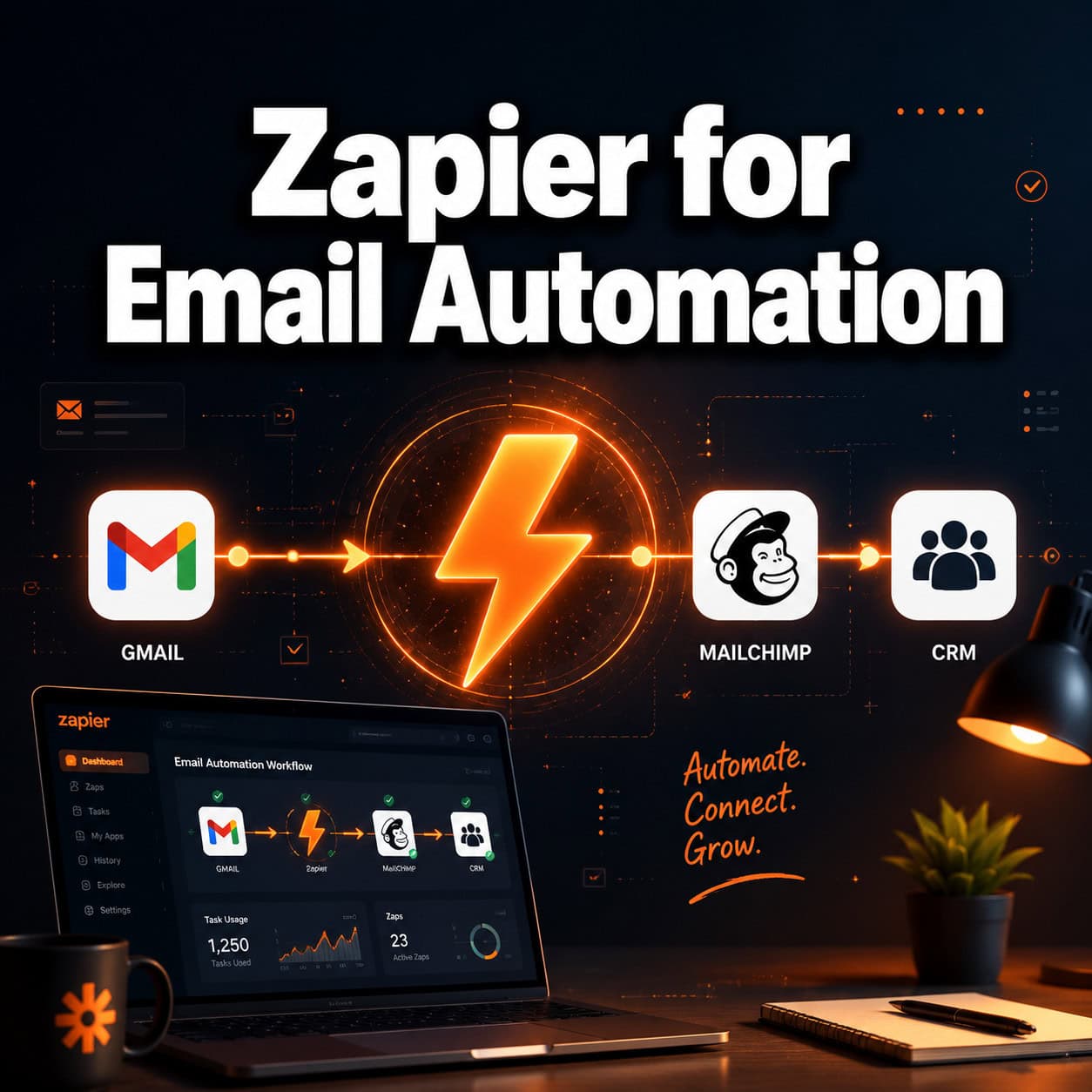
Zapier is a no-code automation platform that connects apps through “Zaps,” each consisting of a trigger and one or more actions. For email automation specifically, a trigger might be a new row added to a Google Sheet, and the action is Zapier sending a personalized email through Gmail [1].
Here’s the basic structure of any email Zap:
- Trigger: Something happens in App A (new lead, form fill, purchase, etc.)
- Action: Zapier sends, labels, or routes an email in App B
- Optional steps: Filter conditions, AI drafting, CRM updates, Slack notifications
Zapier supports direct Gmail integration, meaning you can select Gmail as your sending service and configure recipient addresses, subject lines, and body text directly inside the Zap editor [2]. For apps without native Zapier support, webhooks bridge the gap as long as the tool has an API [3].
Who it’s for: Small business owners, marketers, and operations teams who need reliable email automation without hiring a developer.
Who it’s NOT for: Teams needing deep email deliverability management or highly complex branching sequences (dedicated platforms like ActiveCampaign or Klaviyo serve those needs better).

What Can You Actually Automate with Zapier for Email Automation?
Zapier covers a wide range of email tasks. The most practical use cases in 2026 include:
Triggered sends:
- Welcome emails to new course registrants or newsletter subscribers [1]
- Follow-up emails when a prospect visits a pricing page (via CRM trigger)
- Webinar confirmation and reminder emails when someone signs up [3]
AI-assisted drafting:
Zapier can route incoming data through ChatGPT, Claude, or Gemini to generate personalized email copy for specific lead segments before sending. It also cleans and enriches contact data in real time [4]. This means a new lead from a Facebook ad can receive a tailored email referencing their industry, all without manual input.
Organization and triage:
- Automatically label incoming emails by content category using AI inside the workflow [1]
- Route customer inquiries to the right team member based on keywords
- Summarize email campaign results across multiple platforms for reporting [4]
Sales and outreach:
Zapier pairs well with outbound platforms like Instantly AI for full sales automation, including lead enrichment, CRM sync, and automated reply triage [10]. If you’re building content workflows alongside your email strategy, tools like automation-focused platforms can complement your Zapier setup.
“The real power of Zapier for email automation isn’t any single Zap — it’s chaining triggers, AI steps, and multi-app actions into workflows that run 24/7.”
How Do You Set Up Your First Email Automation in Zapier?
Setting up a basic email Zap takes under 15 minutes. Here’s a step-by-step process:
Step 1: Create a Zapier account
Start on Zapier’s free plan if you only need single-step Zaps. Multi-step workflows require a paid tier.
Step 2: Click “Create Zap”
Name your Zap something descriptive, like “New Mailchimp Subscriber → Welcome Email via Gmail.”
Step 3: Set your trigger
Choose your trigger app (e.g., Mailchimp) and the trigger event (e.g., “New Subscriber”). Connect your account and test the trigger to pull in sample data.
Step 4: Add your action
Select Gmail (or your email tool) as the action app. Choose “Send Email.” Fill in the recipient field using data from the trigger (e.g., the subscriber’s email address pulled automatically) [2].
Step 5: Personalize the email body
Use Zapier’s field mapping to insert the subscriber’s name, company, or any other data point into the subject line and body. You can also insert survey links or CTAs directly into the template [1].
Step 6: Add filters (optional but recommended)
Add a filter step before the send action so emails only go out when specific conditions are met (e.g., only send if the subscriber opted into a specific list).
Step 7: Test and activate
Run a test send, verify the email arrives correctly formatted, then turn the Zap on.
Common mistake: Skipping the test step. A missing comma in a field mapping or an empty variable can cause every automated email to send with a blank subject line or broken personalization.
For inspiration on pairing great email content with your automation, see this guide on how to create effective email templates in Canva.

Which Email Tools Integrate Best with Zapier?
Not all email integrations are equal. Integration quality varies significantly across platforms [5].
| Email Tool | Triggers Available | Actions Available | Multi-Step Support | Best For |
|---|---|---|---|---|
| Gmail | 10+ | 10+ | ✅ Yes | Personal outreach, follow-ups |
| Mailchimp | 15+ | 10+ | ✅ Yes | Newsletter + list management |
| ActiveCampaign | 20+ | 15+ | ✅ Yes | CRM-driven sequences |
| Outlook | 8+ | 6+ | ✅ Yes | Enterprise/Office 365 teams |
| ConvertKit | 10+ | 8+ | ✅ Yes | Creator email marketing |
| Smaller tools | 2–3 | 2–3 | ⚠️ Limited | Basic sends only |
Choose Gmail if you need fast setup and direct integration with Google Workspace tools.
Choose ActiveCampaign if you need CRM-triggered sequences with deep segmentation.
Choose Mailchimp if your primary goal is list-based newsletter automation.
Apps without native Zapier support can still connect via webhooks, as long as they expose an API endpoint [3]. This is useful for niche tools or custom-built platforms.
If you’re also automating content publishing alongside email, the guide on how to auto-share WordPress blog posts to social media shows how to build complementary cross-channel workflows.
What Does Zapier Email Automation Cost?
Zapier’s pricing in 2026 follows a task-based model. Here’s what that means practically:
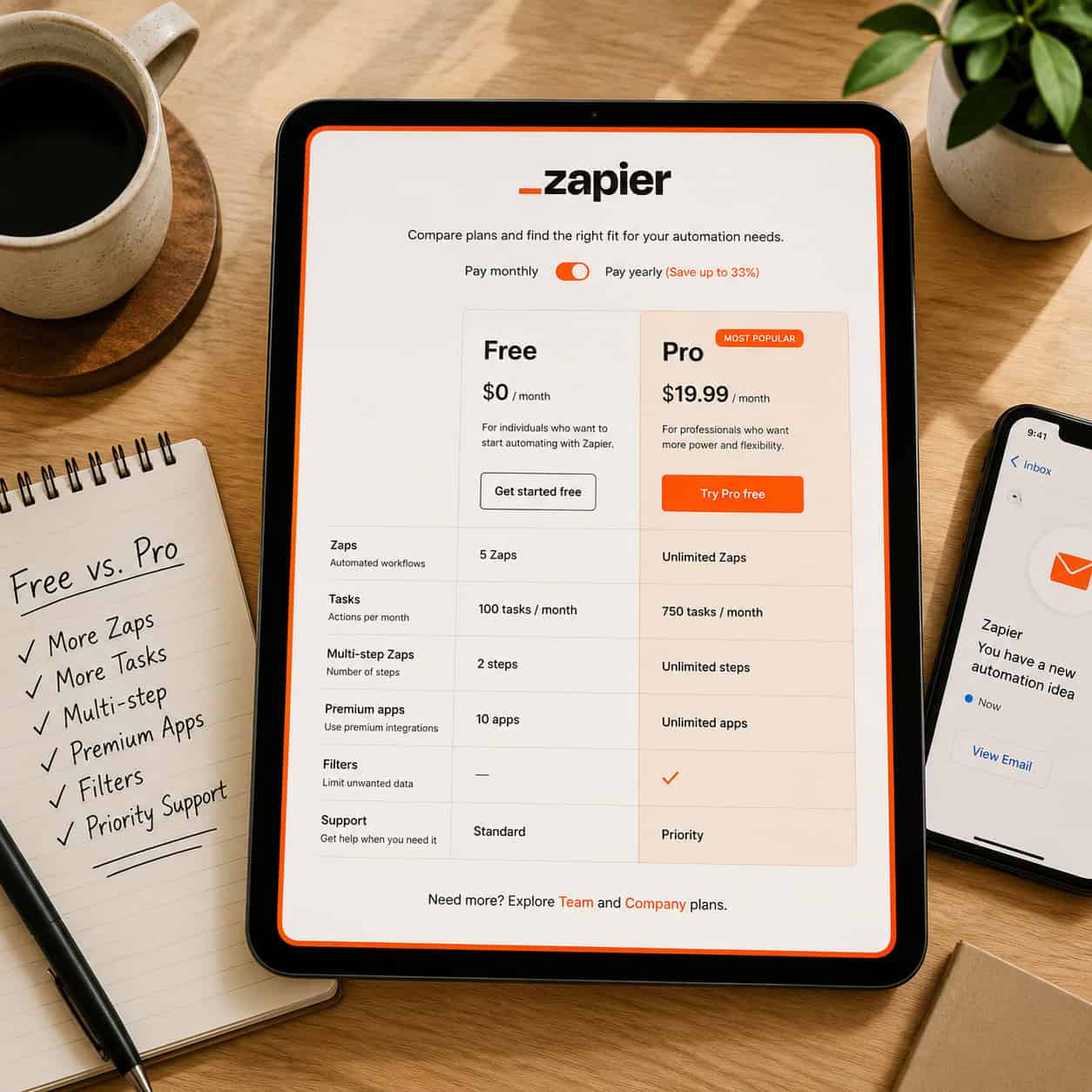
- Free plan: 100 tasks/month, single-step Zaps only. Sufficient for testing or very low-volume sends.
- Starter (~$19.99/month): 750 tasks/month, multi-step Zaps, filters. Good for small teams.
- Professional (~$49/month): 2,000 tasks/month, unlimited Zaps, premium app access.
- Team and Company tiers: Higher task volumes, shared workspaces, SSO.
One task = one action completed. Sending one email counts as one task. A Zap with three actions (enrich lead, draft with AI, send email) uses three tasks per trigger.
Edge case: If you’re sending high-volume email campaigns (thousands per day), Zapier’s task costs can add up quickly. In that scenario, a dedicated email platform with native automation handles volume more cost-efficiently, and Zapier works better as the connector between tools rather than the sender.
For teams building broader automation stacks, the 12 best AI plugins for WordPress article covers complementary tools worth pairing with Zapier.
What Are the Most Common Mistakes in Zapier Email Automation?
1. No filter conditions
Without filters, every trigger fires an email. A new row added to a spreadsheet for internal tracking shouldn’t send a customer email. Always add a filter step.
2. Hardcoded email addresses
Typing a recipient address directly instead of mapping it from trigger data means every email goes to the same person. Use dynamic field mapping.
3. Ignoring task limits
Hitting your monthly task cap mid-month pauses all active Zaps. Monitor task usage in the Zapier dashboard weekly.
4. Skipping error notifications
Zapier can email you when a Zap fails. Enable this in settings so broken workflows don’t go unnoticed for days.
5. Over-relying on Zapier for deliverability
Zapier sends through your connected email account. If that account gets flagged for spam, your automation stops working. Use a warmed-up sending domain and follow email best practices.
If you’re building AI-assisted workflows alongside email, the comprehensive guide to AI-powered content generation tools covers tools that pair well with Zapier’s AI steps.
How Does Zapier Compare to Built-In Email Automation?
Most email platforms (Mailchimp, ActiveCampaign, HubSpot) include native automation builders. Here’s when Zapier adds value versus when it’s redundant:
Use Zapier when:
- You need to connect email actions to apps outside your email platform (Slack, Airtable, Salesforce, etc.)
- Your trigger lives in a different tool than your email sender
- You want to add AI drafting or data enrichment before sending
Stick with native automation when:
- Your entire workflow lives inside one email platform
- You need advanced branching logic, A/B testing, or behavioral triggers that the platform already handles
- Volume is high enough that per-task costs become a concern
The two approaches aren’t mutually exclusive. Many teams use native automation for campaign sequences and Zapier for cross-app triggers and notifications. For teams also managing website workflows, advanced WordPress automation strategies covers how to extend automation beyond email.
FAQ
Q: Can Zapier send emails automatically without Gmail?
Yes. Zapier supports Outlook, SendGrid, Mailchimp, ActiveCampaign, and many other email services as sending options. Gmail is the most commonly used for personal and small business workflows [3].
Q: Does Zapier work with email marketing platforms like Klaviyo?
Klaviyo has a Zapier integration, though the number of available triggers and actions is more limited than platforms like ActiveCampaign. Check the Zapier app directory for current trigger counts before committing [5].
Q: Can I use Zapier to send bulk email campaigns?
Zapier is designed for triggered, one-to-one or one-to-few emails rather than bulk broadcast campaigns. For mass sends, use your email platform’s campaign feature and use Zapier to trigger list additions or tag updates.
Q: How do I add personalization to Zapier emails?
Use Zapier’s field mapping in the email action step. Pull in data from the trigger (name, company, purchase item, etc.) and insert it into the subject line or body using the variable picker.
Q: Can Zapier handle email replies and inbound email processing?
Yes. Gmail’s Zapier integration includes triggers for new emails matching specific criteria, allowing you to route, label, or respond to inbound emails automatically [1].
Q: Is Zapier GDPR compliant for email automation?
Zapier itself is GDPR compliant and offers a Data Processing Agreement. However, compliance also depends on how you collect, store, and use contact data in the connected apps. Consult your legal team for full compliance review.
Q: What happens if a Zap fails mid-workflow?
Zapier logs the error in your Zap history and can notify you by email. Most errors are recoverable by replaying the failed task once the issue is fixed.
Q: Can I use AI to write emails inside Zapier?
Yes. You can add a ChatGPT, Claude, or Gemini step before your send action. The AI step receives trigger data (lead info, inquiry content) and returns a drafted email body, which Zapier then sends [4].
Q: How many emails can Zapier send per month?
There’s no hard email send limit, but each email sent counts as one task against your monthly task quota. The free plan allows 100 tasks/month; paid plans scale from 750 to millions of tasks.
Q: Do I need coding skills to set up Zapier email automation?
No. Zapier is a no-code platform. The Zap editor uses a point-and-click interface. The only exception is webhook-based integrations, which require knowing the API endpoint URL of your target app [3].
Conclusion
Zapier for email automation is one of the most practical no-code tools available for teams that need emails to send, sort, and follow up automatically across multiple platforms. The core value is connectivity: it bridges the gap between where your triggers live (forms, CRMs, spreadsheets) and where your emails send.
Actionable next steps:
- Identify one repetitive email task you do manually today (welcome emails, follow-ups, inquiry responses).
- Map the trigger and action: What causes the email? Where does it send from?
- Build a single Zap using Zapier’s free plan to test the workflow end-to-end.
- Add a filter step to prevent accidental sends before going live.
- Monitor task usage for the first two weeks and upgrade your plan if needed.
- Layer in AI steps once the basic workflow is stable, to add personalization at scale.
Start simple, test thoroughly, and expand from there. The best email automation is the one that actually runs reliably, not the most complex one you can design.
References
[1] Email Automation – https://zapier.com/blog/email-automation/
[2] Watch – https://www.youtube.com/watch?v=k5KDB8JXObw
[3] Automate Gmail With Zapier – https://zapier.com/blog/automate-gmail-with-zapier/
[4] Email Marketing Automation Tools – https://zapier.com/blog/email-marketing-automation-tools/
[5] Best Email Tools With Zapier Integration – https://www.sequenzy.com/blog/best-email-tools-with-zapier-integration
[10] Zapier Automation Guide – https://instantly.ai/blog/zapier-automation-guide/