Last updated: May 8, 2026
Quick Answer: Zapier is an automation platform that connects 8,000+ apps and uses built-in AI tools to run workflows without code. By combining triggers, AI actions, and conditional logic, teams can automate repetitive tasks, reduce manual errors, and free up hours every week. This guide covers everything from your first Zap to advanced AI agent strategies.
Key Takeaways
- Zapier connects over 8,000 apps and acts as a central hub for AI-powered workflow automation [1]
- The Copilot feature lets you describe a workflow in plain English and auto-builds it for you [1]
- Built-in AI by Zapier gives you ChatGPT access inside workflows without needing an API key [1]
- Triggers, actions, filters, and conditional logic are the four building blocks of every Zap
- AI agents in Zapier (rolled out in 2026) can make decisions and run multi-step tasks autonomously [5]
- Automation works best for repetitive, rule-based tasks with clear inputs and outputs
- Data integrity matters: always map fields carefully when connecting to databases or CRMs [2]
- Start with one high-frequency, low-risk workflow before scaling to complex automations
- Zapier’s guide library covers lead management, marketing, and AI workflows for all skill levels [4]

What Is Zapier AI Automation and Why Does It Matter in 2026?
Zapier is a no-code automation platform that connects apps and runs tasks automatically based on rules you set. In 2026, it’s evolved well beyond simple “if this, then that” logic into a full AI orchestration layer that can reason, draft content, and manage multi-step business processes.
The core idea is simple: when something happens in one app (a trigger), Zapier performs one or more actions in other apps. Add AI into that chain, and those actions can include generating text, classifying data, summarizing information, or making routing decisions.
Why it matters now: Most knowledge workers still spend significant time on tasks that follow predictable patterns — forwarding emails, updating spreadsheets, notifying teammates, logging leads. Zapier AI automation handles those patterns automatically, so people focus on work that actually needs human judgment.
Who it’s for:
- Solopreneurs and small teams with no developer resources
- Marketing, sales, and ops teams running repetitive processes
- Agencies managing workflows across multiple client tools
Who should wait: If your processes change daily or require complex custom logic, a developer-built solution may serve you better than a no-code tool.
How Does the Zapier AI Ecosystem Actually Work?
Zapier functions as an AI productivity control center that orchestrates AI models with real-world data across your entire operation [1]. The platform has three core layers working together.
Layer 1 — The Zap (core automation unit)
A Zap has at minimum one trigger and one action. For example: “When a new row is added to Google Sheets → send a Slack message.” Every workflow starts here.
Layer 2 — AI Actions
This is where Zapier AI automation strategies get powerful. The “AI by Zapier” step gives you built-in access to ChatGPT without requiring your own API key [1]. You can insert this step anywhere in a workflow to summarize, classify, translate, or generate text.
Layer 3 — AI Agents and Copilot
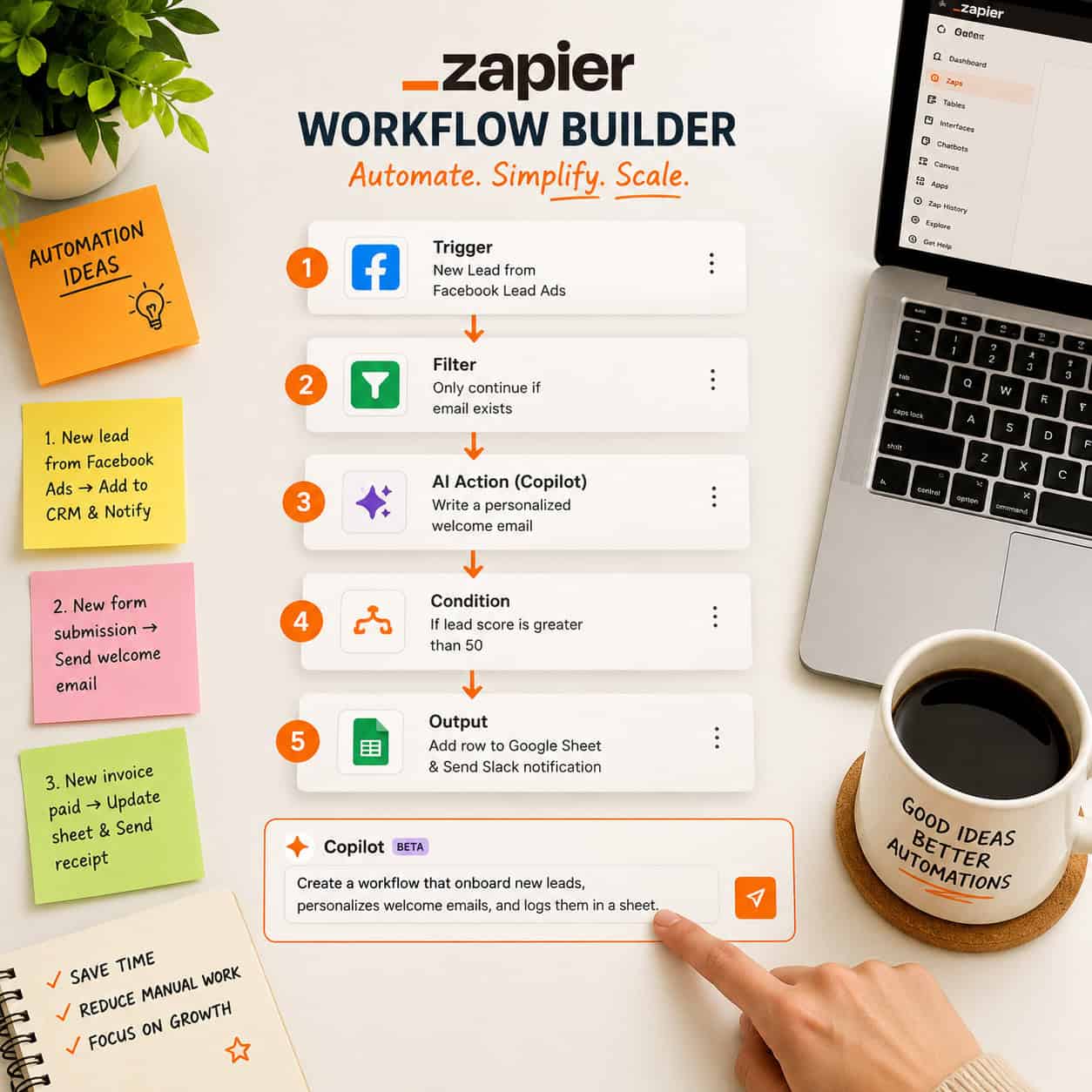
- Copilot: Describe what you want in plain language (“summarize new leads in Slack every morning”) and Copilot drafts the full workflow, connects your accounts, maps data fields, and tests each step [1]
- AI Agents: Introduced in the 2026 feature rollout, agents can run multi-step tasks autonomously, make conditional decisions, and loop through data without you intervening [5]
For teams already using AI tools for content, check out this comprehensive guide to AI-powered content generation tools to see how Zapier can connect those tools to your broader workflow.
What Are the Most Effective Zapier AI Automation Strategies?
The most effective strategies combine AI actions with well-structured triggers and filters to create workflows that handle real business decisions, not just data transfer.
Here are the highest-ROI automation categories to target first:
| Use Case | Trigger App | AI Action | Output |
|---|---|---|---|
| Lead summarization | CRM / Form | Summarize lead data | Slack or email digest |
| Content drafting | RSS / Google Sheets | Generate copy draft | Google Docs or Notion |
| Support ticket routing | Help desk | Classify urgency | Assign to team member |
| Social post scheduling | Google Sheets | Draft caption | Buffer or social tool |
| Invoice follow-up | Stripe | Draft reminder email | Gmail |
Content creation automation is one of the fastest wins. Integrating generative AI tools with Zapier lets you draft marketing copy, outline articles, and generate ad text variations directly inside existing workflows [2]. A new blog idea in Notion can automatically trigger a ChatGPT draft, which lands in Google Docs ready for editing.
Common mistake: Building automations that are too broad. A Zap that tries to handle every type of customer email will break on edge cases. Instead, build narrow workflows for specific, well-defined scenarios and add more Zaps as you learn.
For more on automating content publishing, see how to auto-share WordPress blog posts to social media as a practical companion workflow.
How Do You Build Your First AI-Powered Zap Step by Step?
Building your first Zap takes about 10 minutes if you know what you want to automate. Here’s the process:
- Log into Zapier and click “Create Zap”
- Use Copilot — type your goal in plain English. Example: “When someone fills out my Typeform, add them to Mailchimp and send me a Slack notification with a ChatGPT summary of their answers”
- Review the draft workflow Copilot generates. It will have your trigger, AI step, and actions pre-mapped
- Connect your accounts — authorize each app (Typeform, Mailchimp, Slack)
- Map your data fields — confirm that the right form fields feed into the right places
- Add the AI by Zapier step — write a prompt like: “Summarize this lead’s answers in 2 sentences, noting their biggest challenge”
- Test each step — Zapier lets you run a test with real data before going live
- Turn it on — your Zap is now live and running automatically
Edge case to watch: If your trigger app sends inconsistent data formats (for example, phone numbers with or without country codes), add a Formatter step before your AI action to clean the data first [2].
For teams building on WordPress, pairing Zapier with AI plugins for WordPress creates a powerful end-to-end automation stack.
What Are Zapier’s 2026 AI Features You Should Know About?
The 2026 feature rollout significantly expanded what Zapier can do beyond basic app connections [5]. Here’s what’s new and worth using:
AI Agents
Agents can run tasks autonomously across multiple steps, loop through lists, and make branching decisions. For example, an agent can check a CRM for all leads tagged “hot,” draft a personalized follow-up email for each one, and send them — all without a human in the loop.
Canvas
A visual workspace for mapping out complex automation logic before building it. Useful for teams planning multi-department workflows.
Tables
A built-in database inside Zapier. You can store, filter, and trigger automations directly from Tables without needing an external spreadsheet.
Interfaces
Custom internal tools (forms, dashboards, portals) that non-technical team members can use to interact with your automations.
Chatbots
Build AI chatbots that connect to your data and run Zaps in response to user messages — useful for internal help desks or client-facing support.
💡 Pro tip: Start with AI Agents for tasks that currently require you to manually review a list and take action on each item. That’s exactly what agents are built for.
These features are covered in Zapier’s guide library, which includes resources on lead management, marketing automation, and AI workflows [4]. For a parallel look at AI-driven design workflows, the guide to Figma AI workflow automation shows how AI automation principles apply across creative tools too.
How Do You Protect Data Integrity When Automating at Scale?
Data integrity is the most overlooked risk in automation. When workflows move data between apps at speed, small mapping errors compound fast [2].
Key rules to follow:
- Always test with real data before activating a Zap that writes to a CRM or database
- Use Zapier’s built-in Formatter to standardize date formats, phone numbers, and text case before data reaches its destination
- Add error notifications — set up a separate Zap that alerts you via email or Slack when any workflow fails
- Limit write permissions — connect apps with the minimum permissions needed. Don’t authorize full admin access if a Zap only needs to create records
- Version your Zaps — before editing a live workflow, duplicate it first so you can roll back
Choose Zapier’s Tables if: you need a central data store that your automations read from and write to, without risking data chaos in your primary CRM or ERP [2].
For teams managing WordPress-based operations, advanced WordPress automation strategies cover similar data integrity principles in a CMS context.
What Are the Costs and Realistic Timeframes for Zapier Automation?
Zapier pricing scales with the number of tasks (actions) your Zaps run per month and the features you need.
Plan overview (as of 2026):
- Free: 100 tasks/month, single-step Zaps only
- Starter: ~$19.99/month, multi-step Zaps, filters
- Professional: ~$49/month, AI steps, Copilot, unlimited Zaps
- Team: ~$69/month, shared workspaces, collaboration
- Enterprise: Custom pricing, SSO, advanced admin controls
Realistic timeframes:
- First simple Zap: 10–20 minutes to build and test
- A complete lead management workflow (form → CRM → Slack → email): 1–2 hours
- Full department automation audit and build-out: 1–2 weeks
Choose the Professional plan if: you want AI by Zapier, Copilot, and multi-step workflows. The Free plan is genuinely useful for learning but too limited for business use.
For teams also investing in their web presence, pairing Zapier with AI-powered content optimization creates compounding productivity gains across both content creation and distribution.

FAQ: Zapier AI Automation Strategies
Q: Do I need coding skills to use Zapier?
No. Zapier is built for non-technical users. The Copilot feature lets you describe workflows in plain English, and most setup involves clicking and selecting from menus.
Q: What’s the difference between a Zap and an AI Agent?
A Zap runs a fixed sequence of steps when triggered. An AI Agent can make decisions, loop through data, and adapt its actions based on context — it’s more autonomous and better for variable tasks.
Q: Can Zapier replace a dedicated developer?
For standard business automations (lead routing, notifications, data syncing, content drafting), yes. For complex custom integrations or proprietary systems, a developer will still be needed.
Q: How many apps does Zapier connect?
Over 8,000 apps as of 2026, including Google Workspace, Slack, Salesforce, HubSpot, Notion, Airtable, and most major SaaS tools [1].
Q: Is my data safe inside Zapier workflows?
Zapier uses encryption in transit and at rest. For sensitive data (health records, financial data), review Zapier’s compliance documentation and consider whether a self-hosted solution is more appropriate.
Q: Can I use Zapier with ChatGPT without paying for OpenAI separately?
Yes. AI by Zapier provides built-in ChatGPT access without requiring your own OpenAI API key [1].
Q: What’s the biggest mistake beginners make?
Automating a process they haven’t fully mapped manually first. If you don’t understand every step of a workflow by hand, the automation will have gaps. Document the process first, then automate it.
Q: How do I know which tasks to automate first?
Target tasks that are: high-frequency (done daily or weekly), rule-based (same steps every time), and low-risk if something goes wrong. Lead notifications and data entry are ideal starting points.
Q: Can Zapier handle conditional logic?
Yes. Filters and Paths let you build branching logic — for example, routing a lead to one team if their budget is above $10,000 and to another team if it’s below.
Q: What happens when a Zap fails?
Zapier logs all errors and can send you an alert. Most failures are caused by authentication expiring or a data field being empty. The error log shows exactly which step failed and why.
Conclusion: Your Next Steps for Zapier AI Automation
Unleashing Productivity: A Complete Guide to Zapier AI Automation Strategies comes down to one principle: start small, learn fast, and scale what works. The platform gives you everything you need to automate repetitive work, connect AI tools to real business data, and build workflows that run while you focus on higher-value tasks.
Your action plan:
- Audit your week — write down every task you repeat more than twice. Those are your automation candidates
- Pick one workflow — choose the highest-frequency, clearest-process task from your list
- Build it with Copilot — describe it in plain English and let Copilot draft the Zap
- Test with real data — run it live for one week and check the output daily
- Add AI actions — once the base Zap works, add an AI by Zapier step to summarize, classify, or generate content
- Explore AI Agents — once you’re comfortable with basic Zaps, move to agents for tasks that require decision-making
- Review the Zapier guide library for templates and advanced strategies specific to your industry [4]
The teams getting the most from Zapier aren’t the ones who built the most complex workflows. They’re the ones who automated the right things consistently. Start there.
See also: Zapier App Directory.
References
[1] Best AI Productivity Tools – https://zapier.com/blog/best-ai-productivity-tools/
[2] AI Automation – https://zapier.com/blog/ai-automation/
[4] Guides – https://zapier.com/resources/guides
[5] Watch (Zapier 2026 Feature Walkthrough) – https://www.youtube.com/watch?v=AqVB9ZU9cGg