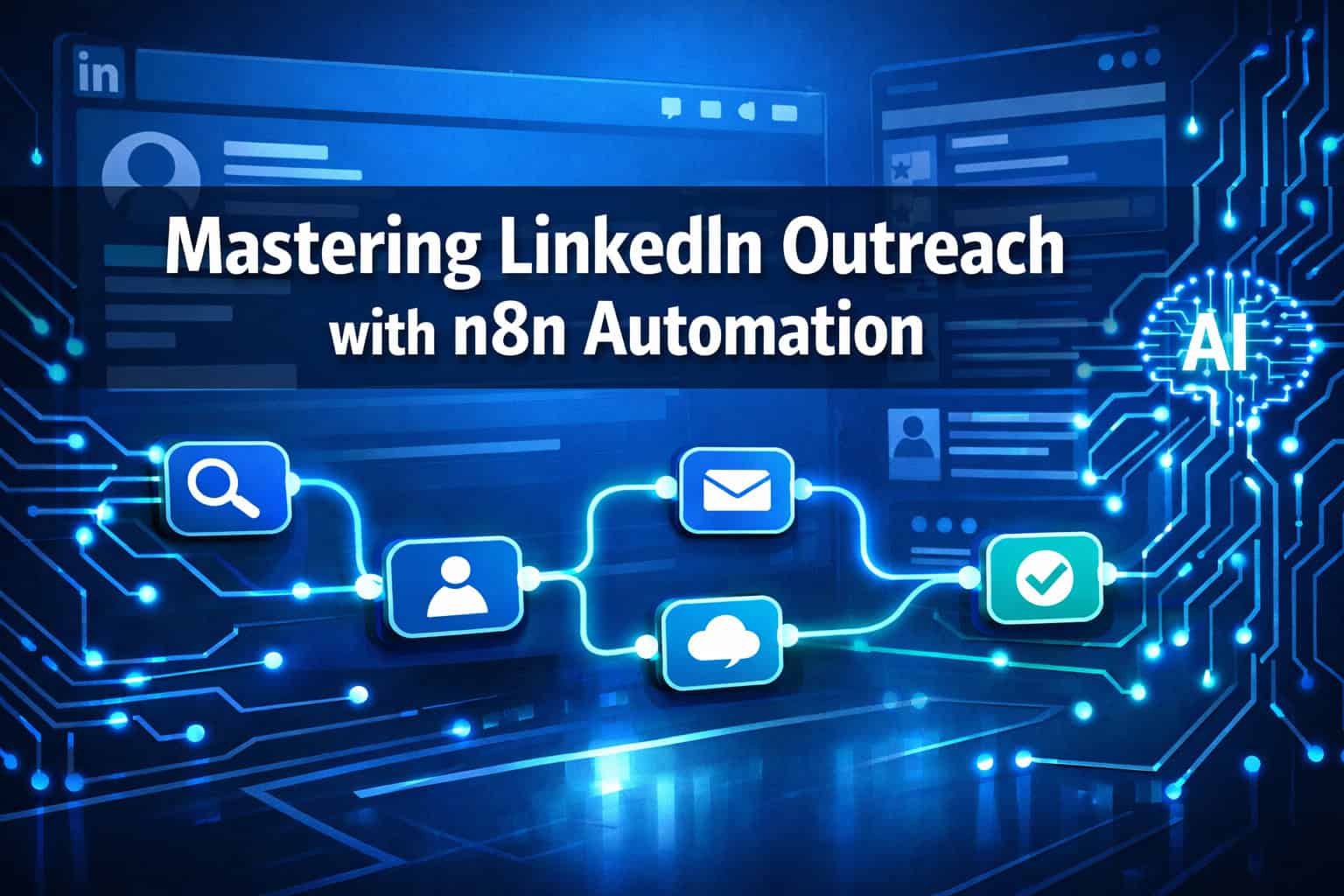
Last updated: May 7, 2026
Quick Answer: n8n is an open-source workflow automation tool that connects LinkedIn to hundreds of other apps, letting you automate connection requests, personalized messages, lead enrichment, CRM syncing, and content posting — all without writing complex code. This guide covers everything from setting up your first workflow to staying within LinkedIn’s safety limits.
Key Takeaways
- n8n connects LinkedIn to over 1,000 other services, making it one of the most flexible automation platforms available [1]
- Standard LinkedIn accounts can send up to 2,500 connection requests; Sales Navigator accounts allow higher volumes [2]
- AI models like OpenAI and Anthropic can be wired into n8n to draft personalized outreach messages at scale [2]
- LinkedIn messages bypass spam filters that regularly block cold emails, making them more reliable for direct outreach [2]
- The Unipile API is the recommended bridge for LinkedIn automation within n8n, helping maintain compliance and reduce ban risk [7]
- Human-in-the-loop approval steps (via Telegram or Slack) prevent poorly drafted messages from going out automatically [5]
- n8n can cross-reference leads against HubSpot or other CRMs to avoid contacting existing clients [4]
- Combining n8n with tools like Airtable, Google Sheets, and Prospera creates a full-stack lead generation system [3]
What Is n8n and Why Use It for LinkedIn Outreach?
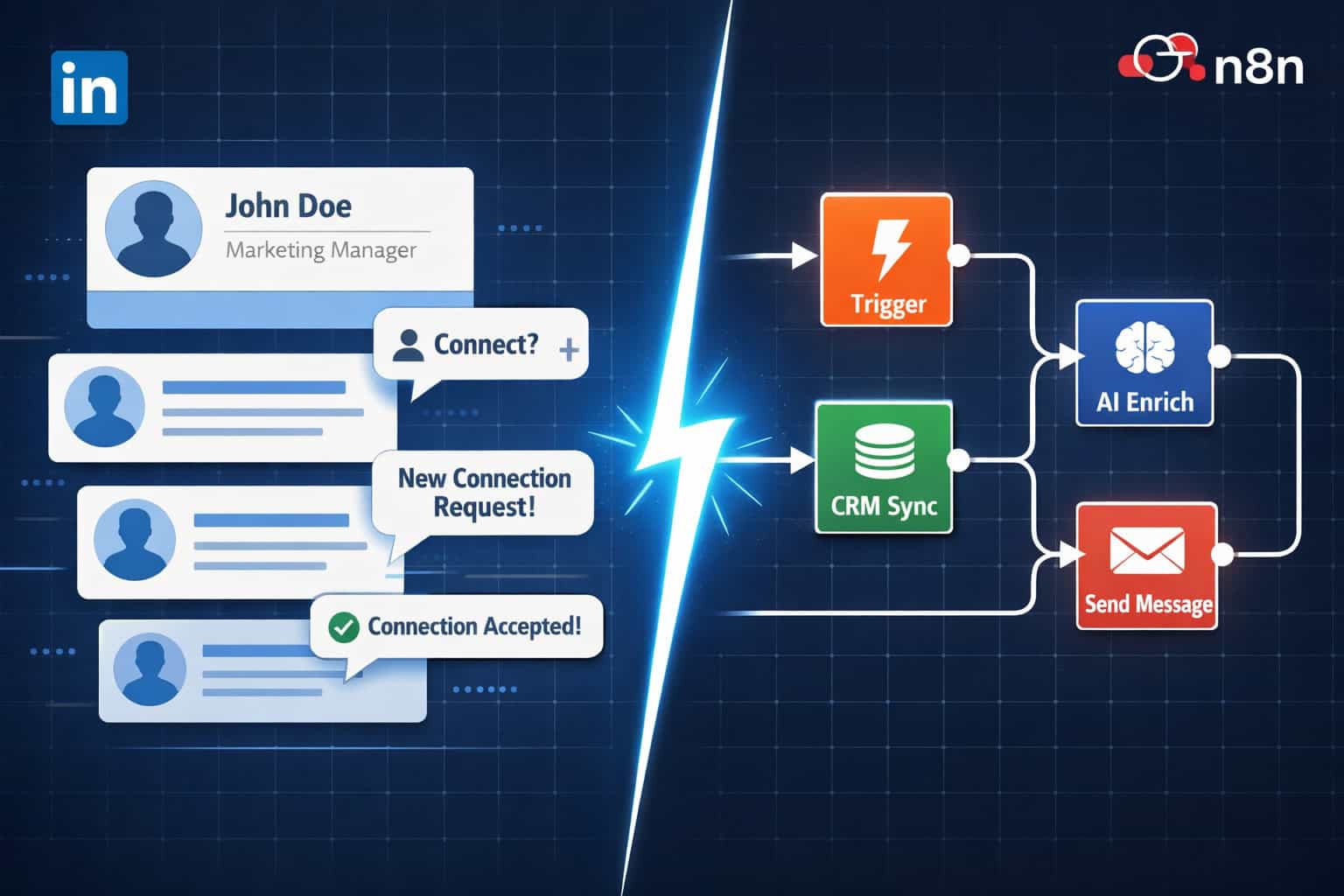
n8n is a self-hostable, open-source workflow automation platform that lets you build multi-step automations by connecting apps through a visual node editor. For LinkedIn outreach specifically, it acts as the central logic layer that decides when to send a message, who to contact, what to say, and where to log the result.
Why n8n over other automation tools?
- Self-hosted option: Your data stays on your server, which matters when handling prospect data
- 1,000+ integrations: Connect LinkedIn to your CRM, emAIl, spreadsheets, AI models, and more in one workflow [1]
- AI-native: n8n natively supports OpenAI, Anthropic, DALL-E 3, and Perplexity AI nodes for intelligent message generation [5]
- Cost structure: The community edition is free; cloud plans start at a flat monthly fee rather than per-task pricing
Choose n8n if you want full control over your automation logic, need to combine LinkedIn with CRM data, or want to run AI-generated personalization at scale without paying per-message fees.
Skip n8n if you need a plug-and-play tool with zero technical setup. In that case, a dedicated LinkedIn outreach tool with a simpler UI may suit you better.
How Does LinkedIn Automation with n8n Actually Work?
At its core, mastering LinkedIn outreach with n8n means building a chain of nodes that move data from a lead source, through enrichment and filtering steps, and finally to a LinkedIn action like sending a connection request or a direct message.
Here’s the basic flow:
- Trigger node — A scheduled timer, webhook, or new row in Google Sheets kicks off the workflow
- Lead source node — Pulls prospect data from Airtable, a CSV, or a scraping tool like Prospera or RB2B [3]
- Enrichment node — An AI model reads the prospect’s profile data and drafts a personalized message [2]
- Filter/deduplication node — Cross-references the lead against your CRM (e.g., HubSpot) to skip existing clients [4]
- Approval node (optional) — Sends a Telegram or Slack message asking a human to approve before sending [5]
- LinkedIn action node — Sends the connection request or message via the Unipile API [7]
- Logging node — Writes the outcome back to Google Sheets, Notion, or your CRM
“LinkedIn messages avoid spam filtering unlike email, making them more reliable for direct outreach at scale.” [2]
This modular structure means you can swap out any piece — change the lead source, swap the AI model, or add a new CRM — without rebuilding the whole workflow.
What Are the Most Useful n8n LinkedIn Workflow Templates?
Several proven workflow patterns cover the majority of LinkedIn outreach use cases. Rather than building from scratch, start with one of these and customize it.
| Workflow Type | What It Does | Best For |
|---|---|---|
| Connection + Welcome Message | Sends a request, then a message after acceptance | Cold outreach, new partnerships |
| AI-Personalized Outreach | Uses GPT to write unique intros per profile | High-value B2B prospects |
| Lead Scrape to CRM | Extracts profiles, enriches data, logs to HubSpot | Sales teams building pipeline |
| Scheduled Content Posting | Posts LinkedIn content on a set schedule | Founders, marketers, creators |
| Inbound Lead Response | Detects profile visits or form fills, triggers outreach | Warm lead follow-up |
| Multi-Channel Sequence | Coordinates LinkedIn + email + WhatsApp outreach | Full sales sequences [10] |
The multi-channel approach is worth highlighting. n8n workflows can generate personalized outreach across LinkedIn, email, and WhatsApp simultaneously using GPT, creating a coordinated sequence from a single trigger [10]. For teams running outbound sales, this removes the manual coordination between channels.
For teams already using content automation across other platforms, the same logic applies here — if you’re already auto-sharing WordPress blog posts to social media, adding LinkedIn to that workflow is a natural extension.
How Do You Build Your First LinkedIn Outreach Workflow in n8n?
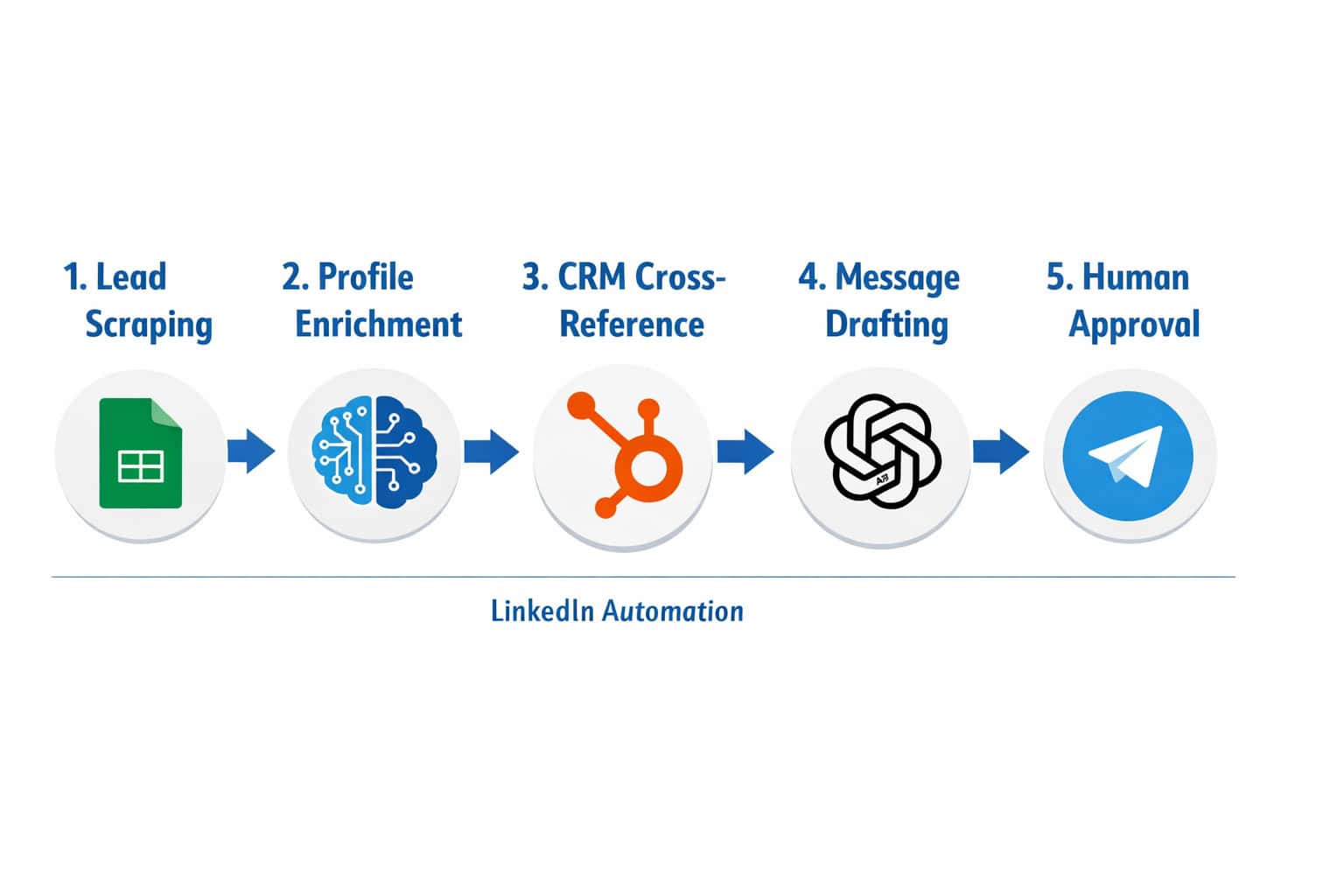
Building your first workflow takes about 2 to 3 hours if you follow a clear sequence. Here’s a practical starting point for a connection request workflow with AI-personalized messages.
Step 1: Set Up n8n
- Cloud: Sign up at n8n.io and use the hosted version (fastest start)
- Self-hosted: Deploy via Docker on a VPS for full data control
Step 2: Connect Your Lead Source
Add a Google Sheets or Airtable node as your trigger. Your spreadsheet should include columns for: first name, last name, LinkedIn URL, company, and job title.
Step 3: Add the Unipile API Node
Unipile acts as the compliant bridge between n8n and LinkedIn. Set up your Unipile account, grab the API key, and add an HTTP Request node in n8n pointing to Unipile’s endpoints for sending connection requests or messages [7].
Why Unipile instead of direct LinkedIn API? LinkedIn’s official API has strict restrictions on messaging automation for non-approved partners. Unipile handles the session management and rate limiting that keeps your account safe.
Step 4: Add an AI Personalization Node
Drop in an OpenAI node. Feed it the prospect’s name, title, and company, then write a prompt like:
<code>Write a 2-sentence LinkedIn connection request for {{firstName}},
a {{jobTitle}} at {{company}}. Be conversational, reference their
role specifically, and avoid generic phrases.
</code>
The output feeds directly into your Unipile send-message node.
Step 5: Add a CRM Filter
Before sending, add a HubSpot or Airtable lookup node. If the prospect’s email already exists in your CRM as a client or active deal, route them to a “skip” branch [4].
Step 6: Add a Human Approval Step (Recommended)
Wire a Telegram Bot node to send you the drafted message before it goes out. You reply “approve” or “reject.” This is especially important when you’re first testing a new AI prompt [5].
Step 7: Log the Result
After the LinkedIn action, add a Google Sheets node that writes: prospect name, message sent, date/time, and response status.
What Are LinkedIn’s Automation Limits and How Do You Stay Safe?
LinkedIn actively detects and penalizes accounts that send too many requests or messages in a short time. Understanding the limits is non-negotiable before running any automation.
Known limits (as of 2026):
- Standard accounts: up to 2,500 connection requests in a rolling period [2]
- Daily connection request recommendations: stay under 20 per day to minimize detection risk
- Sales Navigator accounts: higher limits, but exact numbers vary by account age and activity
Safety practices to build into every workflow:
- Add delays: Use n8n’s Wait node to space requests 5 to 15 minutes apart, not seconds
- Randomize timing: Avoid sending at exactly the same interval every time — it looks robotic
- Use Unipile: It implements safety protocols specifically designed to reduce ban risk [7]
- Warm up new accounts: Start with 5 requests per day and increase gradually over 2 to 4 weeks
- Monitor acceptance rates: If your acceptance rate drops below 20%, pause and review your message copy
Common mistake: Running a workflow that sends 50 connection requests in one hour. Even if each message is personalized, the velocity alone triggers LinkedIn’s detection systems.
The compliance layer is where many automation setups fail. Treat it as seriously as the message copy itself.
How Do You Use AI to Personalize LinkedIn Messages at Scale?
AI personalization is what separates effective LinkedIn automation from the generic “I’d like to add you to my professional network” messages that everyone ignores.
n8n supports multiple AI models within the same workflow [5]:
- OpenAI GPT-4o — Best for natural, conversational message drafts
- Anthropic Claude — Strong for longer, more nuanced outreach copy
- Perplexity AI — Useful for researching a prospect’s recent activity or company news before drafting
A practical personalization formula:
- Pull the prospect’s job title, company, and LinkedIn headline
- Use Perplexity to find one recent public fact about their company (funding round, product launch, job posting trend)
- Feed both into GPT with a prompt that references the specific fact
- Output a 2-to-3 sentence message that feels hand-written
This approach produces messages like: “Saw that [Company] just expanded into the EU market — congrats on the growth. I work with SaaS teams navigating that exact transition and thought it might be worth connecting.”
That’s specific, relevant, and short. It doesn’t sound automated.
For teams building broader AI-powered content workflows, the same principles covered in AI-powered content generation tools apply here — specificity and context always outperform generic prompts.
You can also explore AI-powered content optimization techniques to refine your message copy over time based on acceptance and reply rates.

How Do You Automate LinkedIn Content Posting with n8n?
Beyond outreach, n8n can handle your LinkedIn content calendar entirely. This is useful for founders, consultants, and marketers who want consistent posting without manual effort.
A basic content posting workflow:
- Google Sheets trigger — A new row with post content and a scheduled date triggers the workflow
- AI enhancement node — GPT rewrites or improves the draft, adds relevant hashtags
- Image generation (optional) — DALL-E 3 creates a visual to accompany the post [5]
- Human approval via Telegram — You review the final post before it goes live [5]
- LinkedIn post node — Publishes via the LinkedIn API or Unipile at the scheduled time
The human-in-the-loop step is particularly important for content. Automated posts that go out with errors or tone-deaf copy can damage your professional brand quickly. A 60-second Telegram review prevents that.
For teams already managing multi-platform content distribution, this connects naturally with broader social media automation strategies that cover scheduling across multiple networks simultaneously.
What Tools Work Best Alongside n8n for LinkedIn Outreach?
n8n handles the logic, routing, and timing. It works best when paired with specialized tools for specific tasks.
| Tool | Role in the Stack | Why It Fits |
|---|---|---|
| Unipile API | LinkedIn session management | Compliance + anti-ban protection [7] |
| HubSpot / Pipedrive | CRM deduplication and logging | Prevents contacting existing clients [4] |
| Airtable | Lead database and status tracking | Flexible, easy to update mid-campaign [3] |
| Google Sheets | Simple lead lists and result logging | Zero cost, fast to set up |
| Prospera / RB2B | Lead scraping and profile enrichment | Feeds qualified leads into the workflow [3] |
| Telegram Bot | Human approval notifications | Real-time review before sending [5] |
| Salesforge | Message quality and deliverability | Focuses on copy while n8n handles logic [6] |
The key principle: n8n is the orchestrator, not the specialist. Let dedicated tools handle what they’re best at — scraping, CRM management, message deliverability — and use n8n to connect them all.
This is the same philosophy behind effective WordPress automation for power users, where the platform coordinates multiple plugins rather than doing everything itself.
For teams exploring broader automation workflows, LinkedIn outreach is often one component of a larger multi-channel system that includes email, content, and CRM updates.
What Are the Biggest Mistakes to Avoid in LinkedIn Automation?
Even well-built workflows fail when these common errors aren’t addressed upfront.
1. Skipping the deduplication step Sending a connection request to someone already in your CRM as a paying client is embarrassing and damages trust. Always filter against your existing contact database [4].
2. Using the LinkedIn official API for messaging automation LinkedIn’s official API does not support direct message automation for most use cases. Use Unipile or a similar compliant intermediary [7].
3. No rate limiting A workflow without delays will exhaust your daily limits in minutes and flag your account. Build Wait nodes in from the start.
4. Generic AI prompts Prompts like “write a LinkedIn message to {{name}}” produce generic output. Include job title, company context, and a specific angle in every prompt.
5. No monitoring Set up a simple error notification (Telegram or email) so you know immediately when a workflow fails. Silent failures mean missed leads and wasted time.
6. Automating too early New LinkedIn accounts should not run automation. Accounts need at least 3 to 6 months of organic activity before automation is layered in, or ban risk increases significantly.
Frequently Asked Questions
Q: Is LinkedIn automation with n8n against LinkedIn’s terms of service? LinkedIn’s terms prohibit scraping and automated messaging that violates their policies. Using compliant intermediaries like Unipile and staying within rate limits reduces risk, but no automation is entirely without risk. Always review LinkedIn’s current terms before deploying.
Q: Do I need coding skills to use n8n for LinkedIn outreach? No. n8n’s visual node editor requires no coding for most workflows. Basic familiarity with APIs and JSON helps when customizing HTTP Request nodes, but the core setup is drag-and-drop.
Q: How much does n8n cost for LinkedIn automation? The self-hosted community edition is free. n8n Cloud plans start at around $20 per month. Unipile, which is required for compliant LinkedIn messaging, has its own separate pricing based on usage volume.
Q: How many LinkedIn messages can I send per day safely? A conservative estimate for standard accounts is 15 to 20 connection requests per day and a similar volume of direct messages. Staying under these numbers significantly reduces detection risk [2].
Q: Can n8n automate LinkedIn Sales Navigator? Yes. Sales Navigator accounts have higher connection limits and n8n workflows can use Unipile to interact with Sales Navigator features. The setup is similar to standard account automation.
Q: What happens if my LinkedIn account gets restricted? LinkedIn typically issues a temporary restriction first, lasting 24 to 72 hours. Repeated violations lead to permanent account suspension. If restricted, stop all automation immediately, appeal through LinkedIn’s support, and rebuild your workflow with stricter rate limits.
Q: Can I use n8n to automate LinkedIn content AND outreach in the same workflow? Yes. A single n8n workflow can branch to handle both posting and outreach, or you can build separate workflows that share a common lead database. Separate workflows are easier to debug.
Q: How do I measure whether my LinkedIn automation is working? Track acceptance rate (connection requests accepted / sent), reply rate (replies / messages sent), and meeting booked rate. Log these in Google Sheets via n8n and review weekly.
Q: Is n8n better than Zapier for LinkedIn automation? For LinkedIn specifically, n8n offers more flexibility, self-hosting, and native AI model support. Zapier is simpler but more limited in workflow logic and more expensive at scale. Choose n8n if you need complex multi-step logic or AI personalization.
Q: Can I run multiple LinkedIn outreach campaigns simultaneously in n8n? Yes. Build separate workflows for each campaign, each with its own lead list, message template, and rate limits. Use tags or folders in n8n to keep them organized.
Conclusion: Your Next Steps for LinkedIn Automation with n8n
Mastering LinkedIn outreach through n8n automation is a practical skill that compounds over time. The first workflow you build will be imperfect — that’s expected. What matters is getting the core loop working: pull a lead, enrich it, filter duplicates, draft a personalized message, get human approval, send, and log the result.
Actionable next steps:
- Start small. Build a single workflow that sends 5 connection requests per day with AI-personalized messages before scaling
- Set up Unipile first. Don’t attempt LinkedIn automation without a compliant API layer
- Add deduplication immediately. Connect your CRM before your first campaign runs
- Review your first 50 messages manually. Check what the AI is actually writing before trusting it fully
- Track acceptance and reply rates weekly. Adjust your message prompts based on what’s working
- Explore multi-channel sequences. Once LinkedIn automation is stable, extend the workflow to coordinate email and other channels [10]
The goal isn’t to remove humans from outreach entirely. It’s to remove the repetitive, low-value tasks so you can focus on the conversations that actually move deals forward.
References
[1] LinkedIn Integrations – https://n8n.io/integrations/linkedin/ [2] LinkedIn Outreach Strategy with n8n – https://www.youtube.com/watch?v=GtWVz5YOzJk [3] AI System for LinkedIn Outreach – https://www.youtube.com/watch?v=ofXpbwy1Fi4 [4] Automated LinkedIn Outreach with AI Agent – https://www.youtube.com/watch?v=hLZJRqnUDDU [5] Automate LinkedIn Posts Using N8N – https://www.youtube.com/watch?v=sSW3NFs4IQ4 [6] 10 n8n LinkedIn Automation Workflow Examples Templates – https://www.salesforge.ai/blog/10-n8n-linkedin-automation-workflow-examples-templates [7] Ultimate LinkedIn Lead Generation System – https://www.youtube.com/watch?v=ssxkNEnfJ2g [8] Watch – https://www.youtube.com/watch?v=wbELzx8JPZI [9] Automate LinkedIn Posting With n8n – https://aiblewmymind.substack.com/p/automate-linkedin-posting-with-n8n [10] Generate Personalized Sales Outreach With GPT Across LinkedIn, Email and WhatsApp – https://n8n.io/workflows/9813-generate-personalized-sales-outreach-with-gpt-across-linkedin-email-and-whatsapp/