Last updated: May 22, 2026
Quick Answer: Gemini Notebook LM (NotebookLM) is Google’s source-grounded AI research assistant that answers questions strictly from documents you upload, not from the open web. As of April 2026, it syncs directly with the Gemini app, creating a shared knowledge layer across Google products. It’s free for individual users, with expanded features available to Google AI Ultra, Pro, and Plus subscribers [1].
Key Takeaways
- NotebookLM generates answers, summaries, and study aids grounded only in your uploaded sources, reducing hallucination risk.
- Google merged NotebookLM and Gemini notebooks in April 2026, so sources sync between both apps automatically [1].
- The tool is free for personal use; premium features require a Google AI Plus, Pro, or Ultra subscription.
- No special hardware is needed — it runs entirely in your browser via Google’s cloud infrastructure.
- Recent updates added EPUB support, persistent flashcards/quizzes, bulk sharing, and auto-labeled sources [9].
- It works well for researchers, students, educators, content creators, and legal/compliance professionals.
- NotebookLM is not open source; it’s a proprietary Google product.
- Main alternatives include ChatGPT, Claude, Obsidian with AI plugins, and AnythingLLM [7].
What Exactly Is Gemini Notebook LM and How Does It Work?
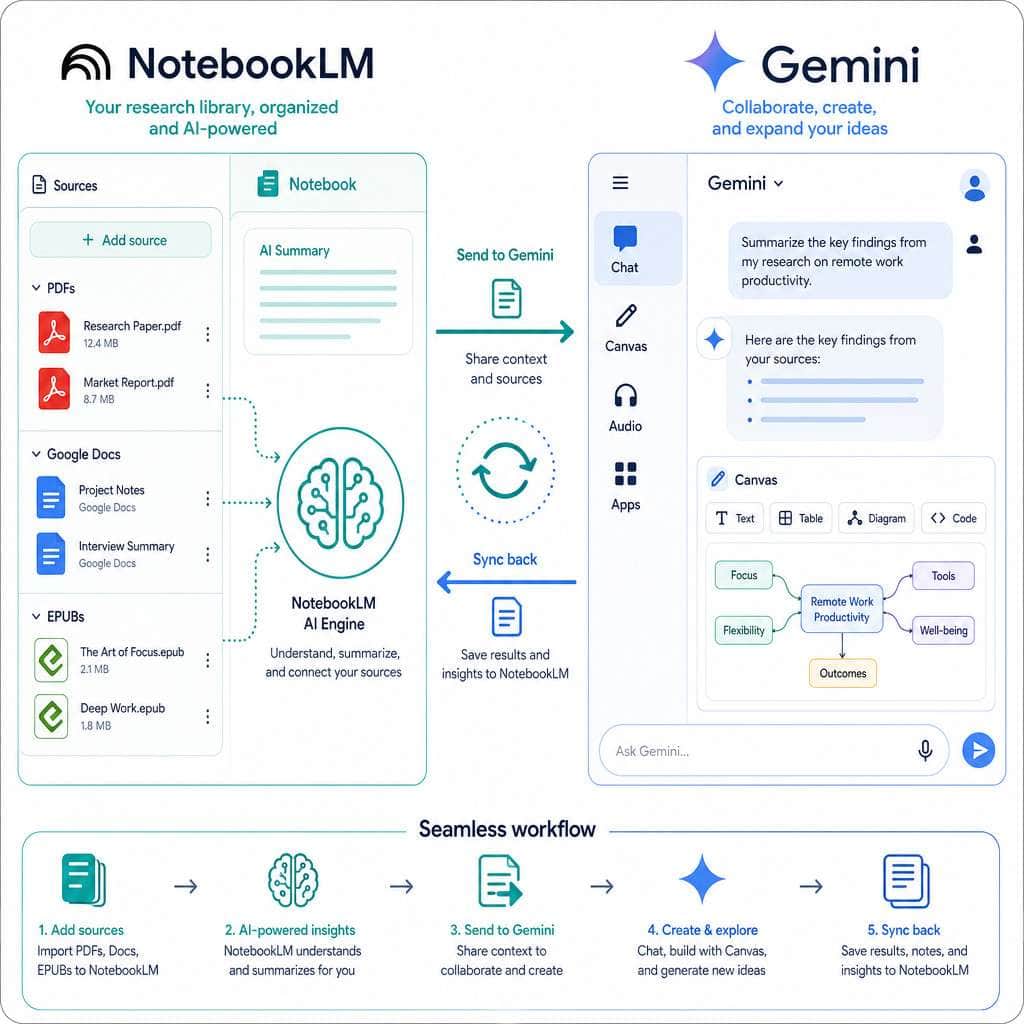
NotebookLM is a free, web-based AI tool from Google that acts as a research assistant grounded in your own documents. You upload sources — PDFs, Google Docs, Slides, websites, YouTube videos, and now EPUB files — and the AI answers questions, generates summaries, and creates study materials using only those sources [9].
Here’s how the workflow operates in 2026:
- Create a notebook in NotebookLM or the Gemini app.
- Add sources — up to 50 per notebook, including documents, audio, and web links.
- Ask questions in the chat panel. Every response includes inline citations pointing back to specific passages in your sources.
- Generate outputs like Audio Overviews (podcast-style summaries), Video Overviews, Infographics, flashcards, and quizzes [9].
The April 2026 update was significant. Google announced “notebooks in Gemini,” which means a source added in NotebookLM automatically appears in Gemini, and vice versa [1]. This turns NotebookLM from a standalone app into what Google calls a “personal knowledge base” that works across its AI ecosystem [1][2].
Experts and educators consistently describe NotebookLM as a structured research assistant rather than a general chatbot, because it refuses to answer from information outside your uploaded sources [3]. That constraint is actually its biggest strength — it keeps outputs trustworthy and citation-backed.
How Is Gemini Notebook LM Different from Other AI Development Platforms?
The core difference is source grounding. While ChatGPT, Claude, and standard Gemini chat pull answers from their training data and the open web, NotebookLM restricts itself to your uploaded documents. This makes it fundamentally different in three ways:
| Feature | NotebookLM | ChatGPT / Claude | Obsidian + AI |
|---|---|---|---|
| Source grounding | Yes — answers only from your uploads | No — uses training data + web | Partial — depends on plugin |
| Inline citations | Yes, linked to specific passages | No built-in source linking | No |
| Audio/Video Overviews | Yes | No | No |
| Flashcards & quizzes | Yes (persistent) [9] | Manual only | No |
| Sync with Gemini app | Yes [1] | N/A | N/A |
| Offline/local-first | No | No | Yes |
| Open source | No | No | Yes (Obsidian core) |
Choose NotebookLM if you need citation-grounded research from specific documents. Choose ChatGPT or Claude if you need broad knowledge, code generation, or creative writing from general training data. Choose Obsidian or AnythingLLM if you need local-first, privacy-focused document management [7].
If you’re exploring other AI-powered tools for content work, our guide to AI-powered content generation tools covers the broader landscape.
How Much Does a Gemini Notebook LM License or Subscription Cost?
NotebookLM is free for individual Google account holders. You can create notebooks, upload sources, and use core features at no cost.
Premium access comes through Google’s AI subscription tiers:
- Google AI Plus (~$19.99/month, based on publicly listed pricing): Access to notebooks in Gemini, priority processing.
- Google AI Pro / Ultra: Higher usage limits, early access to new features like Video Overviews.
- Google Workspace Enterprise and Education: NotebookLM notebooks can be used as sources within Gemini for organizational accounts [2][8].
Google rolled out access to paid subscribers on web first, with plans to expand to mobile, more European countries, and free users over time [1].
Common mistake: Assuming you need a paid plan to use NotebookLM at all. The free tier covers most individual research needs. You only need a subscription for the Gemini integration features and higher usage caps.
Is Gemini Notebook LM Good for Machine Learning Beginners or Just Advanced Engineers?
NotebookLM is not a machine learning development platform. It doesn’t train models, run code, or deploy algorithms. It’s a research and knowledge management tool powered by Google’s Gemini models behind the scenes.
That said, it’s excellent for ML beginners who want to learn:
- Upload ML textbooks, research papers, or course materials as sources.
- Ask the AI to explain concepts in simple terms, grounded in those specific materials.
- Generate flashcards and quizzes to test your understanding [9].
For advanced engineers, NotebookLM is useful as a literature review tool — upload a batch of papers and get citation-grounded summaries. But it won’t replace Jupyter notebooks, Google Colab, or actual ML development environments.
Decision rule: If you want to learn about or research machine learning, NotebookLM is great. If you want to build and train models, you need a different tool entirely.

What Kind of Hardware Do I Need to Run Gemini Notebook LM Effectively?
You need a modern web browser and an internet connection. That’s it. NotebookLM runs entirely on Google’s cloud infrastructure, so there are no local compute requirements — no GPU, no special RAM, no installations.
It works on:
- Chrome, Firefox, Safari, Edge (latest versions)
- Chromebooks, Windows PCs, Macs
- Mobile browsers (with the Gemini app integration expanding to mobile in 2026) [1]
Edge case: If you’re uploading very large files (100+ page PDFs, lengthy videos), processing may take longer, but that’s a server-side delay, not a hardware limitation on your end.
Can Gemini Notebook LM Integrate with My Existing Machine Learning Workflows?
Yes, but with clear boundaries. The April 2026 integration means NotebookLM now syncs with the Gemini app and Google Workspace tools [1][2]. Specifically:
- Workspace users can add NotebookLM notebooks as a source in Gemini, then use Gemini’s broader chat and canvas tools for drafting, brainstorming, and content creation [2].
- Sources added in one app automatically appear in the other [1].
- You can move from NotebookLM’s specialized outputs (Audio Overviews, Infographics) into Gemini for follow-up work [1].
However, there’s no direct API for piping NotebookLM into custom ML pipelines, CI/CD systems, or third-party platforms like Hugging Face or AWS SageMaker. It’s designed for knowledge work, not programmatic integration.
For teams building AI-enhanced websites, our guide to AI plugins for WordPress covers practical integration options.
What Are the Top Alternative Platforms to Gemini Notebook LM?
The alternatives fall into two categories: general AI assistants and local-first knowledge tools [7].
General AI assistants:
- ChatGPT (OpenAI): Broader capabilities, code execution, image generation, but no source-grounded citation system.
- Claude (Anthropic): Strong at long document analysis, but answers from training data, not exclusively your uploads.
- Microsoft Copilot: Integrated with Office 365, good for enterprise workflows.
Local-first knowledge tools:
- Obsidian + AI plugins: Open source, local storage, full privacy control, but requires manual setup.
- AnythingLLM: Self-hosted, lets you chat with documents using local or cloud LLMs.
- Notion AI: Good for teams already in Notion, but less research-focused than NotebookLM.
If you’re evaluating AI tools for creative and design work specifically, check out our roundup of the best AI graphic design tools and our AI-powered content optimization guide.
What Specific Industries or Use Cases Is Gemini Notebook LM Best Suited For?
NotebookLM works best in any field where people need to synthesize information from multiple documents and produce grounded, citable outputs.
Top use cases by industry:
- Education: The University of Utah rolled out NotebookLM campus-wide in May 2026 as a source-grounded research assistant for faculty, staff, researchers, and students [4]. Flashcards and quizzes make it a study tool, not just a search tool [9].
- Legal and compliance: Upload contracts, regulations, or case law and get answers tied to specific clauses.
- Content creation and journalism: Upload interview transcripts, research reports, and background materials. Generate summaries with citations. Our guide to AI-powered content generation covers adjacent tools.
- Healthcare research: Upload clinical papers and get literature reviews grounded in the actual studies.
- Business strategy: Upload market reports, earnings calls, and competitive analyses into a single notebook.
Who it’s not for: Teams needing real-time collaboration on code, anyone requiring offline access, or users who need answers from the open web rather than specific documents.
What Are Common Mistakes Developers Make When First Using Gemini Notebook LM?
Most first-time users make the same handful of errors. Here’s what to avoid:
- Uploading too many irrelevant sources. More sources doesn’t mean better answers. Each source adds noise. Be selective — include only documents directly relevant to your research question.
- Expecting open-web answers. NotebookLM will say “I don’t have information about that” if the answer isn’t in your sources. That’s a feature, not a bug.
- Ignoring the source toggle. The April 2026 update lets you toggle individual sources on and off while chatting [9]. Use this to narrow the AI’s focus.
- Not checking citations. Always click the inline citations to verify the AI’s interpretation matches the original passage.
- Treating it like ChatGPT. NotebookLM is a research tool, not a general assistant. Don’t ask it to write code, generate images, or answer trivia.
Jeff Su’s March 2026 analysis highlights that the evolving source panel and workflow changes specifically reduce friction for people managing many files and references [3].
Are There Limitations or Edge Cases Where Gemini Notebook LM Might Not Perform Well?
Yes. NotebookLM has clear boundaries:
- Source limit: 50 sources per notebook. For large research projects spanning hundreds of documents, you’ll need multiple notebooks.
- File size constraints: Very large files may process slowly or incompletely.
- No real-time data: It can’t pull live information from the web, databases, or APIs.
- Language limitations: Performance is strongest in English; other languages may produce less accurate summaries.
- No code execution: Unlike Google Colab or Jupyter, you can’t run code within NotebookLM.
- Privacy considerations: Your documents are uploaded to Google’s servers. Organizations with strict data residency requirements should review Google’s data handling policies.
- Hallucination isn’t zero: While source grounding dramatically reduces fabrication, the AI can still misinterpret or oversimplify complex passages. Always verify citations.
How Do I Troubleshoot Performance Issues in Gemini Notebook LM?
If NotebookLM is running slowly or producing poor results, work through this checklist:
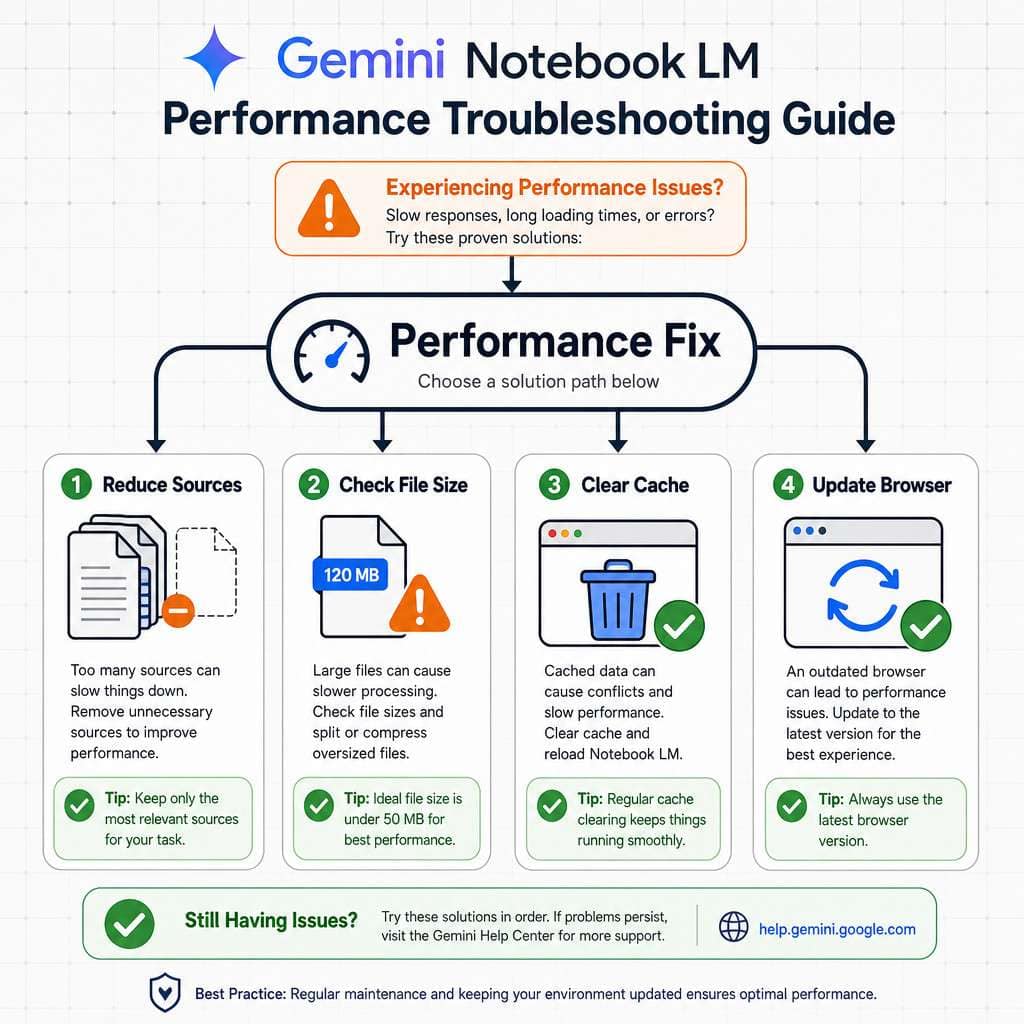
- Reduce active sources. Toggle off sources you don’t need for the current question [9].
- Check file formats. Corrupted PDFs or scanned images without OCR text won’t process well. Re-export or use a clean digital copy.
- Clear browser cache. NotebookLM is a web app, and stale cache can cause UI issues.
- Try a different browser. Chrome typically works best with Google products.
- Simplify your query. Long, multi-part questions sometimes produce weaker results. Break them into separate, focused questions.
- Check Google’s status dashboard. Occasional outages affect all Google AI services.
- Re-upload problematic sources. If a specific source seems to cause errors, remove it, re-export the file, and upload again.
What Machine Learning Models Can I Build Using Gemini Notebook LM?
You cannot build machine learning models in NotebookLM. It’s a research and knowledge management tool, not a model training environment. The “ML” confusion sometimes arises from the name, but NotebookLM stands for “Notebook Language Model” — it uses Google’s Gemini language models to process your documents.
For actual ML model building, use Google Colab, Vertex AI, or similar platforms. NotebookLM’s role is upstream: helping you research, understand, and organize the knowledge you need before you start building.
Is Gemini Notebook LM Open Source or Proprietary?
NotebookLM is a proprietary Google product. Its source code is not publicly available, and there’s no self-hosted option. It runs on Google’s infrastructure and requires a Google account.
If you need an open-source alternative for document-grounded AI chat, consider AnythingLLM (self-hosted) or Obsidian with community AI plugins [7]. These give you more control over data privacy and customization, but require more technical setup.
For those interested in building AI-enhanced web experiences with more control, our AI website creator guide and AI chatbot integration tutorial cover practical approaches.
Frequently Asked Questions
Is NotebookLM the same as Gemini? No. NotebookLM is a specialized research tool that answers from your uploaded sources. Gemini is Google’s general AI assistant. As of April 2026, they share a notebook system so sources sync between them [1].
Can I use NotebookLM for free? Yes. Core features are free with a Google account. Premium features like Gemini app integration require a Google AI Plus, Pro, or Ultra subscription [1].
What file types does NotebookLM support? Google Docs, PDFs, Google Slides, web URLs, YouTube videos, audio files, and EPUB files (added in 2026) [9].
How many sources can I add to one notebook? Up to 50 sources per notebook, as of May 2026.
Does NotebookLM work on mobile? The Gemini app integration is expanding to mobile in 2026. Currently, the full NotebookLM experience works best on desktop web browsers [1].
Can NotebookLM access the internet for answers? No. It only answers from the sources you upload. This is by design to keep responses grounded and verifiable.
Is my data safe in NotebookLM? Your documents are processed on Google’s servers. Review Google’s AI data usage policies, especially for sensitive or proprietary content.
What are Audio Overviews? A feature that generates podcast-style audio summaries of your sources, with two AI hosts discussing the material.
Can I share notebooks with my team? Yes. The April 2026 update added bulk sharing capabilities [9].
Does NotebookLM support languages other than English? It works in multiple languages, but English produces the most reliable results.
Conclusion
Gemini Notebook LM fills a specific and valuable gap: it’s the best tool available in 2026 for turning your own documents into a searchable, citable knowledge base. The April 2026 integration with Gemini means it’s no longer a standalone app but part of Google’s broader AI ecosystem [1].
Your next steps:
- Start small. Create one notebook with 5-10 sources on a topic you’re actively researching.
- Test the outputs. Generate an Audio Overview, create flashcards, and ask specific questions to see how citation grounding works [9].
- Connect to Gemini. If you have a paid subscription, try the notebook sync to see how sources flow between apps [1].
- Evaluate alternatives. If you need open-source control or offline access, test AnythingLLM or Obsidian alongside NotebookLM [7].
- Stay current. Google’s feature cadence is fast — check for updates monthly, especially around source format support and collaboration features.
For more AI and productivity tool guides, explore our AI content and tools archive.
References
[1] Notebooks Gemini Notebooklm – https://blog.google/innovation-and-ai/products/gemini-app/notebooks-gemini-notebooklm/ [2] Watch – https://www.youtube.com/watch?v=dLLFeV-Gvgs [3] Notebooklm Changed Completely Heres What Matters In 2026 – https://www.jeffsu.org/notebooklm-changed-completely-heres-what-matters-in-2026/ [4] U Expands Ai Toolkit With Google Gemini Notebooklm – https://attheu.utah.edu/announcements/u-expands-ai-toolkit-with-google-gemini-notebooklm/ [7] Notebooklm Alternatives Research Documents – https://dust.tt/blog/notebooklm-alternatives-research-documents [8] Take Notebooks Further Notebooklm Gemini – https://workspaceupdates.googleblog.com/2026/01/take-notebooks-further-notebooklm-gemini.html [9] Google Notebook Lm Updates April 2026 – https://teachercast.net/edtech/google-notebook-lm-updates-april-2026/