Last updated: May 9, 2026
Quick Answer: Make.com and Google Gemini AI integrate through a no-code visual workflow builder, letting you automate tasks like content generation, email analysis, and data processing without writing a single line of code. You connect the two platforms using a Google AI Studio API key, then build scenarios that trigger Gemini AI actions across hundreds of connected apps. Setup takes under 15 minutes for most users.
Key Takeaways
- Make.com connects to Google Gemini AI through a five-step setup process using a Google AI Studio API key [2]
- No coding is required — the visual scenario builder handles all logic through drag-and-drop modules
- Gemini AI can generate multimodal content, analyze datasets, and summarize information inside automated workflows [1]
- The integration supports hundreds of connected apps including CRMs, email tools, spreadsheets, and communication platforms [2]
- Common use cases include AI email agents, YouTube metadata automation, and sales forecasting [1][4]
- Workflows can run 24/7 as virtual assistants, logging results to tools like Google Sheets automatically [5]
- Proper API key security and custom connection naming keep multi-project setups organized [2]
What Is the Make.com and Gemini AI Integration?
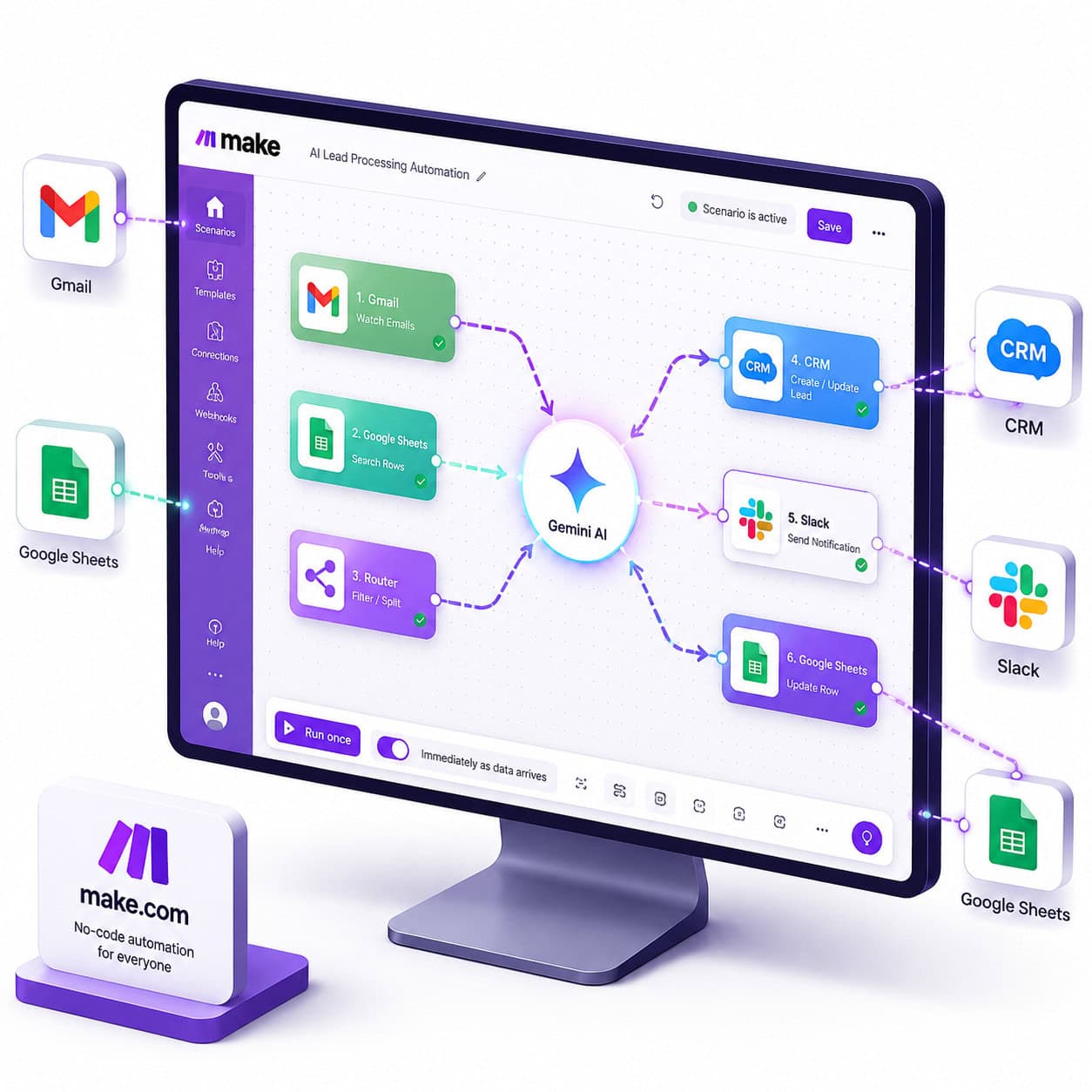
Make.com (formerly Integromat) is a visual automation platform where you build “scenarios” — chains of triggers and actions connecting different apps. Google Gemini AI is Google’s multimodal large language model capable of generating text, analyzing data, and processing multiple content types.
When combined, Make.com acts as the orchestration layer while Gemini AI provides the intelligence. You can trigger a Gemini AI action based on an event in another app (a new email arrives, a form is submitted, a spreadsheet row is added), and Gemini processes that data and sends results wherever you need them. [1][2]
This is the core of what makes the Supercharge Your Workflows: Ultimate Guide to Make.com and Gemini AI Integration approach so practical for businesses in 2026: you get AI-powered reasoning inside automated pipelines, without needing a developer.
Who Should Use This Integration?
This integration works best for: small business owners, marketing teams, content creators, customer support managers, and operations leads who handle repetitive information tasks daily.
It’s less suited for: teams needing real-time sub-second processing, highly regulated industries where AI-generated outputs require strict audit trails, or users who need fine-tuned models trained on proprietary data.
Choose this setup if:
- You spend significant time summarizing, categorizing, or drafting repetitive content
- You manage data across multiple platforms (CRM, email, spreadsheets, project tools)
- You want AI assistance but don’t have engineering resources
- You need workflows that run overnight or on a schedule without supervision [5]
How Do You Set Up the Make.com and Gemini AI Connection?
Setting up the connection takes five main steps, all documented in Make’s official integration guide [2]:
- Create a Google Cloud project — Go to the Google Cloud Console and create a new project to house your API credentials
- Generate an API key in Google AI Studio — Visit aistudio.google.com, create an API key tied to your project, and copy it immediately
- Store the API key securely — Paste it into a password manager or secure note before proceeding; you won’t be shown it again
- Open Make.com and add a Gemini AI module — In your scenario builder, search for “Google Gemini AI” and select the relevant action module
- Paste your API key into the connection setup — Make will verify the connection; optionally assign a custom name if you’re managing multiple projects
Common mistake: Skipping the custom connection name when you have multiple Google accounts or projects. Naming each connection (e.g., “Gemini – Marketing Project” vs. “Gemini – Support Bot”) saves significant confusion later. [2]
What Can You Actually Automate with Gemini AI in Make?
The integration supports a wide range of practical automation scenarios. Here’s a comparison of the most common use cases:
| Use Case | Trigger | Gemini AI Action | Output Destination |
|---|---|---|---|
| Email agent | New email in Gmail | Sentiment analysis + draft reply | Gmail, Google Sheets log |
| YouTube metadata | New video uploaded | Generate title, description, tags | YouTube Studio |
| Support ticket summary | New ticket in helpdesk | Summarize + categorize | CRM or Slack |
| Sales forecasting | New CRM data row | Analyze trends + predict | Dashboard or email |
| Content brief generation | Form submission | Generate structured brief | Google Docs or Notion |
According to Make’s integration documentation, Gemini AI can generate multimodal content and analyze complex datasets across all of these scenarios [1]. The YouTube automation use case specifically enables automatic updating of video metadata and SEO optimization without manual intervention [4]. For teams already working on AI-powered content optimization, this adds a direct automation layer on top of existing content strategies.
How Do You Build an AI Email Agent in Make.com?
An AI email agent is one of the fastest workflows to build and one of the highest-value for most teams. A documented tutorial shows this can be built in under 8 minutes [5].
Here’s the basic structure:
- Trigger: Gmail module watches for new emails in a specified label or inbox
- Gemini AI module: Passes email subject and body to Gemini with a prompt like: “Analyze the sentiment of this email, categorize it as [billing/support/sales/other], and draft a professional reply”
- Conditional router: Make’s router module sends different email types to different paths
- Action modules: Send the drafted reply via Gmail, log the result to Google Sheets, or post a Slack notification for urgent items
- Scheduler: Set the scenario to run every 15 minutes, 24/7 [5]
The Google Sheets logging step is especially useful — it builds a searchable record of every AI-processed email, which helps with quality auditing and team handoffs.
This same pattern applies to other communication tools. If you’re already automating WordPress content publishing, pairing this with auto-sharing WordPress blog posts to social media creates a full content distribution pipeline.

What Are the Best Practices for Supercharging Your Workflows with This Integration?
Following the Supercharge Your Workflows: Ultimate Guide to Make.com and Gemini AI Integration approach means more than just connecting the apps — it means designing scenarios that are reliable, maintainable, and scalable.
Prompt engineering inside Make modules:
- Be specific in your Gemini prompts — include output format instructions (e.g., “respond only in JSON with keys: category, sentiment, draft_reply”)
- Use Make’s text parser modules to extract structured data from Gemini’s responses before passing them downstream
- Test prompts manually in Google AI Studio before embedding them in scenarios
Scenario design principles:
- Keep individual scenarios focused on one job (don’t build a 20-module mega-scenario)
- Use Make’s error handling modules to catch Gemini API timeouts or rate limit errors
- Add filters before the Gemini module to avoid sending irrelevant data (and wasting API quota)
Security and organization:
- Name connections clearly when managing multiple projects [2]
- Restrict your Google AI Studio API key to specific IP ranges or referrer domains where possible
- Review Make’s scenario execution logs weekly to catch unexpected behavior
For teams building broader no-code automation stacks, the no-code automation archives cover complementary tools that pair well with Make.com scenarios.
What Are the Limitations and Common Pitfalls?
Even a well-designed Make.com and Gemini AI workflow has real constraints worth knowing upfront.
Rate limits: Google AI Studio API keys have usage quotas. High-volume scenarios (processing thousands of emails per day) may hit limits and require a paid Google Cloud billing setup.
Output consistency: Gemini’s responses can vary slightly between runs. If downstream modules depend on exact string matching, use structured output prompts (JSON format) and Make’s JSON parse module to extract values reliably.
Latency: Gemini AI API calls add processing time to each scenario run. For time-sensitive workflows (under 2 seconds), this integration isn’t the right fit.
Cost management: Make.com charges per operation, and each Gemini API call counts as one operation. Complex scenarios with multiple Gemini modules can consume operations faster than expected. Monitor your Make.com dashboard and set operation alerts.
Edge case: If Gemini returns an empty response (which can happen with ambiguous prompts), Make will continue executing the scenario with a null value. Always add a filter after the Gemini module to check that the response isn’t empty before proceeding.
For teams also managing AI tools across WordPress, the guide to AI plugins for WordPress automation covers how to layer AI capabilities across your full tech stack.
How Does This Compare to Other AI Automation Options?
| Platform | AI Model Options | No-Code | App Integrations | Best For |
|---|---|---|---|---|
| Make.com + Gemini AI | Gemini (Google) | ✅ Yes | 1,000+ apps | Multi-app workflows, content automation |
| Zapier + OpenAI | GPT-4o | ✅ Yes | 6,000+ apps | Simpler two-step automations |
| n8n + any LLM | Multiple | ⚠️ Partial | 400+ apps | Self-hosted, developer-friendly |
| Power Automate + Copilot | Microsoft Copilot | ✅ Yes | Microsoft ecosystem | Microsoft 365 heavy users |
Make.com’s visual scenario builder is more flexible than Zapier for complex multi-branch logic, while n8n requires more technical setup. For teams already in the Google ecosystem, the Gemini integration is a natural fit. [1]
If your workflows involve content creation at scale, pairing this with a broader AI-powered content generation strategy gives you both the generation layer and the distribution automation.

FAQ
Q: Do I need a paid Make.com plan to use Gemini AI? A: The free Make.com plan supports Gemini AI modules, but it limits you to 1,000 operations per month. Most real workflows need a paid plan for sufficient operation volume.
Q: Is Google AI Studio free to use? A: Google AI Studio offers a free tier with rate-limited API access. For production workflows with higher volume, you’ll need a Google Cloud billing account with Gemini API enabled.
Q: Can I use Gemini 1.5 Pro or Gemini 2.0 in Make.com? A: Make.com’s Gemini AI module lets you select the model version in the module settings. Available models depend on what Google has released to the API at the time of your setup.
Q: How do I handle errors when Gemini doesn’t respond as expected? A: Add an error handler route in Make using the “Break” or “Resume” error handling options, and log failed runs to a Google Sheet for manual review.
Q: Can Gemini AI analyze images or files in Make workflows? A: Yes — Gemini’s multimodal capabilities allow image and document analysis through the API. You’d pass the file URL or base64 data to the Gemini module with an appropriate prompt. [1]
Q: How do I keep my API key secure in Make.com? A: Make stores connection credentials encrypted. Avoid hardcoding API keys in scenario notes or module descriptions. Use Make’s connection manager exclusively. [2]
Q: Can I run the same scenario for multiple clients or projects? A: Yes. Use Make’s custom connection naming to create separate Gemini connections per client, and use scenario templates to replicate the structure across projects. [2]
Q: What’s the fastest workflow to build as a first project? A: The AI email agent is the most commonly recommended starting point — it’s high-value, low-complexity, and demonstrates the core trigger-action-AI pattern clearly. [5]
Conclusion
The Make.com and Gemini AI integration is one of the most practical AI automation setups available in 2026 for non-technical teams. The five-step connection process is straightforward, the use cases are concrete (email agents, content automation, data analysis), and the no-code builder means you can iterate quickly without engineering support.
Your next steps:
- Start with one workflow — the AI email agent is the best first build
- Generate your API key in Google AI Studio and connect it to Make.com following the official setup guide [2]
- Use structured output prompts (JSON format) from day one to keep downstream modules reliable
- Monitor operations and API usage in the first two weeks before scaling
- Expand to multi-app scenarios once your first workflow runs cleanly for 7+ days
The goal isn’t to automate everything at once. Build one scenario, validate it, then layer in additional workflows. That’s how you genuinely supercharge your workflows with Make.com and Gemini AI — methodically, not all at once.
References
[1] Gemini AI – https://www.make.com/en/integrations/gemini-ai [2] Gemini AI – https://www.make.com/en/integrations/make/gemini-ai [3] Gemini AI – https://www.make.com/en/integrations/news/gemini-ai [4] YouTube – https://www.make.com/en/integrations/gemini-ai/youtube [5] Watch – https://www.youtube.com/watch?v=Dh6nivNPy_M [6] Ep 658 5 Simple AI Strategies To Supercharge Your Workflow With Google – https://www.youreverydayai.com/ep-658-5-simple-ai-strategies-to-supercharge-your-workflow-with-google/