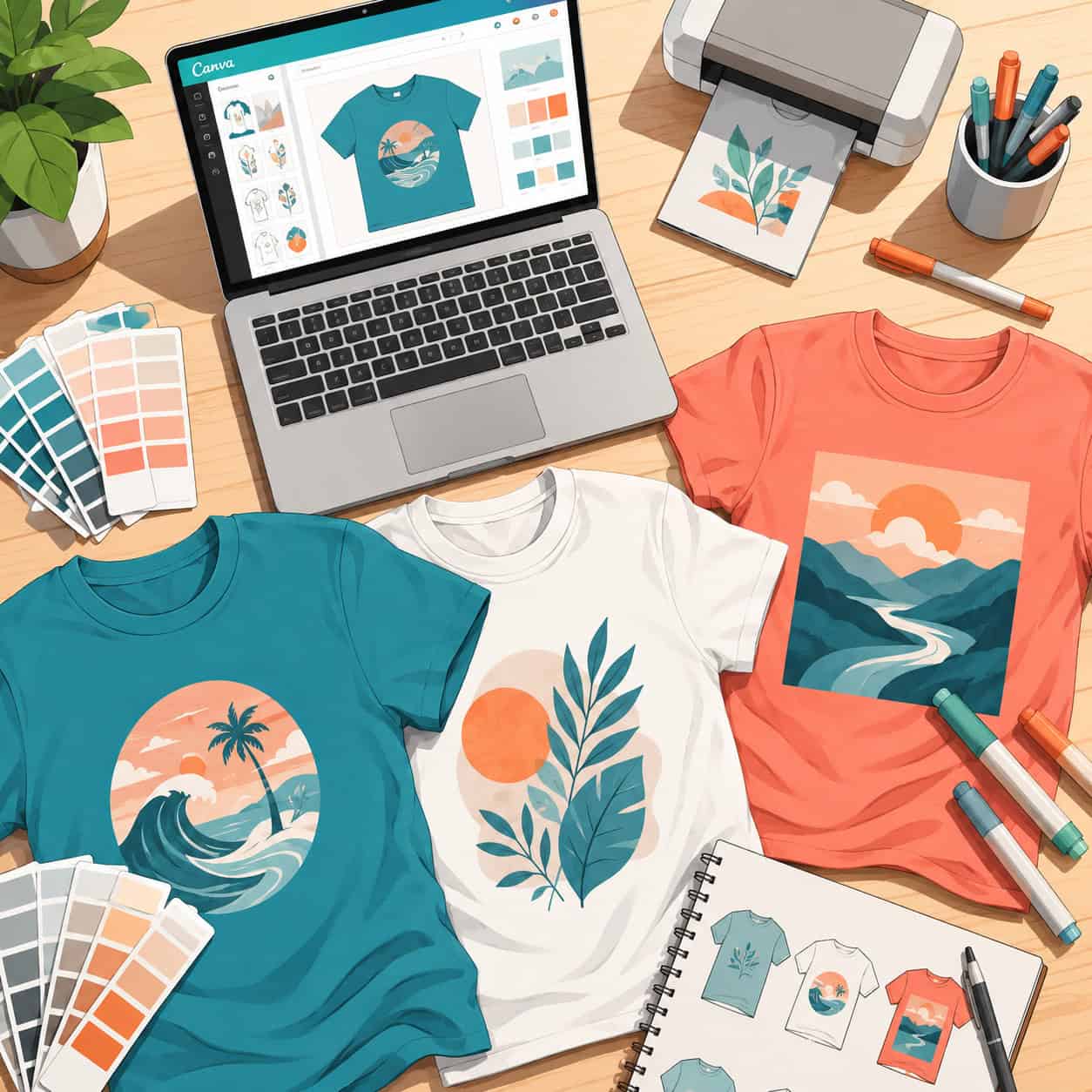
Last updated: June 7, 2026
Quick Answer: Canva is a browser-based design tool that lets anyone create t-shirt graphics using drag-and-drop templates, free fonts, and millions of design elements. It works well for beginners and small-batch sellers, though professional designers may hit limitations with vector editing and color management. You can design for free, export print-ready files, and legally sell your creations if you follow Canva’s content license terms.
Key Takeaways
- Canva offers dedicated t-shirt design templates in both free and Pro tiers, with canvas sizes pre-set for standard print dimensions.
- The free plan includes thousands of usable elements, but Pro (about $13/month in 2026) unlocks background remover, brand kits, and premium graphics.
- Export your designs as PNG with transparent background at 300 DPI for the best print results, or use PDF Print for professional printers.
- You can sell t-shirts made with Canva designs commercially, but you cannot sell the raw design files or use Pro elements in trademark applications without an extended license.
- Common print failures come from low resolution, incorrect color modes, and designs that aren’t properly centered on the canvas.
- Canva is not a replacement for Adobe Illustrator if you need true vector output, spot color separations, or advanced path editing.
- Resizing for different shirt sizes requires manual adjustment of your artboard and element proportions, not just scaling the canvas.
- No formal graphic design skills are required, but understanding basic color theory and typography improves results significantly.
What Is Canva and How Does It Work for T-Shirt Design?
Canva is a cloud-based graphic design platform that runs in your browser or mobile app. For t-shirt design specifically, it provides pre-sized templates (typically 4500 x 5400 pixels for standard front prints) along with a library of fonts, illustrations, photos, and shapes you can drag onto your canvas.
Here’s how the workflow typically goes:
- Open Canva and search “t-shirt” in the template gallery.
- Pick a template or start with a custom-sized blank canvas.
- Add elements — text, graphics, uploaded images, or AI-generated visuals.
- Adjust colors and layout to match your vision.
- Export as a high-resolution PNG or PDF.
I started using Canva for t-shirt designs back when a friend needed quick merch for a charity 5K. We went from concept to a print-ready file in about 40 minutes. That speed is Canva’s biggest selling point. If you’re already familiar with Canva’s interface from other projects like creating Instagram story templates or designing email campaigns, the t-shirt workflow will feel familiar.
Is Canva Better Than Adobe Illustrator for Making T-Shirt Graphics?
No, Canva is not better than Illustrator for professional-grade t-shirt production, but it’s far easier to learn and sufficient for most casual to mid-level projects.
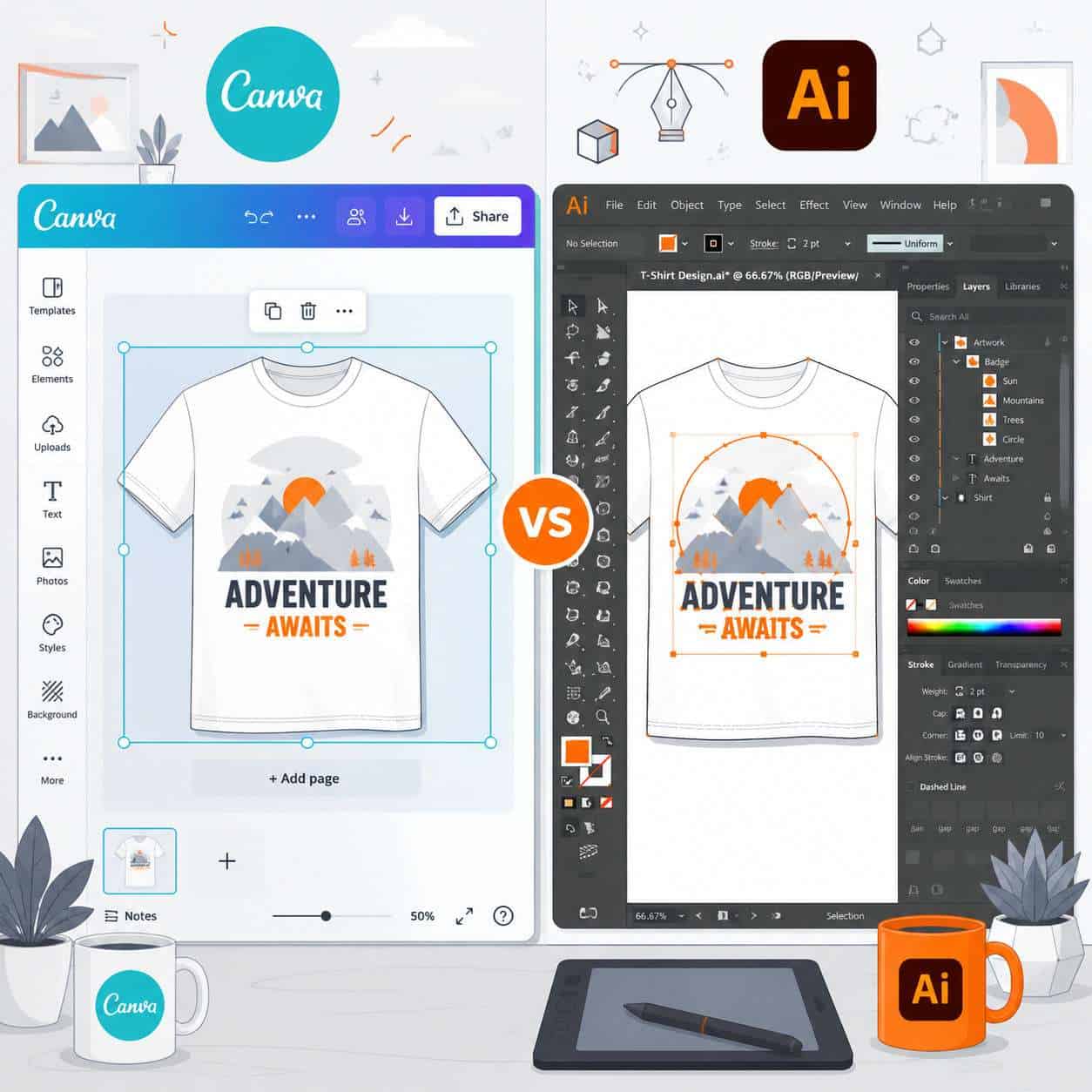
| Feature | Canva | Adobe Illustrator |
|---|---|---|
| Learning curve | Minimal (hours) | Steep (weeks to months) |
| Vector editing | Limited | Full control |
| Color separations for screen printing | Not supported | Fully supported |
| Cost | Free or ~$13/month | ~$23/month (Creative Cloud) |
| Templates | Thousands of t-shirt templates | Few built-in; relies on marketplaces |
| File output | PNG, JPG, PDF, SVG (Pro) | AI, EPS, SVG, PDF, PNG, and more |
| Collaboration | Real-time, browser-based | Cloud-based but heavier |
Choose Canva if you’re making designs for print-on-demand, small runs, or personal projects and you don’t need vector paths or Pantone color matching. Choose Illustrator if you’re doing screen printing with spot colors, need scalable vector files, or work with professional print shops that require .AI or .EPS formats.
For many creators exploring AI-powered design tools, Canva strikes the right balance between capability and accessibility.
How Much Does It Cost to Design T-Shirts on Canva?
You can design t-shirts on Canva for free. The free tier includes access to thousands of templates, basic fonts, and a large library of free graphics. However, the Pro plan (approximately $13/month or $120/year in 2026) adds features that matter for t-shirt work:
- Background Remover — essential for isolating graphics
- SVG export — needed by some print services
- Premium templates and elements — marked with a crown icon in the free tier
- Brand Kit — save your color palettes and fonts for consistent merch lines
- Resize tool (Magic Resize) — quickly adapt designs for different products
If you’re doing a one-off design, the free plan works fine. If you’re building a merch line or selling regularly, Pro pays for itself quickly.
What Are Some Cool T-Shirt Design Templates in Canva?
Canva’s template library includes hundreds of t-shirt-specific layouts organized by style and occasion. Some popular categories in 2026 include:
- Retro and vintage typography — distressed text with sunset color gradients
- Minimalist line art — single-line illustrations of faces, animals, or objects
- Bold statement tees — large sans-serif text with high-contrast backgrounds
- Event and team shirts — customizable layouts for reunions, sports teams, and fundraisers
- Seasonal and holiday designs — Halloween, summer, back-to-school themes
To find them, search “t-shirt” in Canva’s home screen, then filter by style, color, or theme. Each template is fully editable, so treat them as starting points rather than finished products. Changing fonts, colors, and element placement makes the design your own.
Can I Sell T-Shirts I Design on Canva?
Yes, you can sell t-shirts you design on Canva. Canva’s Free and Pro content licenses both permit commercial use of designs you create, including selling physical products like t-shirts. But there are important restrictions:
- You cannot sell the raw Canva design file itself.
- You cannot use Canva’s stock elements (photos, illustrations) as the primary, standalone element of a product without modification.
- You cannot trademark a design that uses unmodified Canva stock elements.
- Pro elements require an active Pro subscription to maintain commercial rights.
The safest approach: combine multiple elements, add your own text, and modify colors and layouts so the final design is substantially original. Many sellers on platforms like Etsy, Redbubble, and Merch by Amazon use Canva for t-shirt designs without issues.
What File Types Do I Need for Printing T-Shirt Designs From Canva?
For most print-on-demand services and local printers, export your design as a PNG file with a transparent background at the highest resolution Canva allows (300 DPI). This is the most widely accepted format.
Here’s a quick guide by print method:
- Direct-to-garment (DTG) printing: PNG with transparent background, 300 DPI, minimum 3600 x 4800 pixels
- Screen printing: PDF Print or SVG (Pro only); some shops require vector files Canva can’t fully provide
- Heat transfer/vinyl: PNG with transparent background
- Sublimation: PNG at 300 DPI with full bleed
When exporting from Canva, click “Share” then “Download,” select PNG, and check the “Transparent background” box. If you’re on Pro, you can also select “Compress file” to reduce size without losing visible quality.
Why Are My T-Shirt Designs Not Printing Correctly in Canva?
Print problems from Canva designs usually come down to three issues: resolution, color mode, and canvas sizing.
Resolution too low. If your canvas is smaller than 3000 pixels wide, the print will look blurry or pixelated on a shirt. Always start with a canvas at least 4500 x 5400 pixels for a standard front print area.
Color looks different on the shirt. Canva works in RGB color mode, but many printers use CMYK. Bright neon greens, electric blues, and vivid purples on screen often print duller. There’s no CMYK export option in Canva, so test print a sample before committing to a large order.
Design is off-center or cropped. This happens when the design doesn’t account for the printable area of the shirt. Most printers have a maximum print area (commonly 12″ x 16″ for adult shirts). Center your design within that space and leave margins.
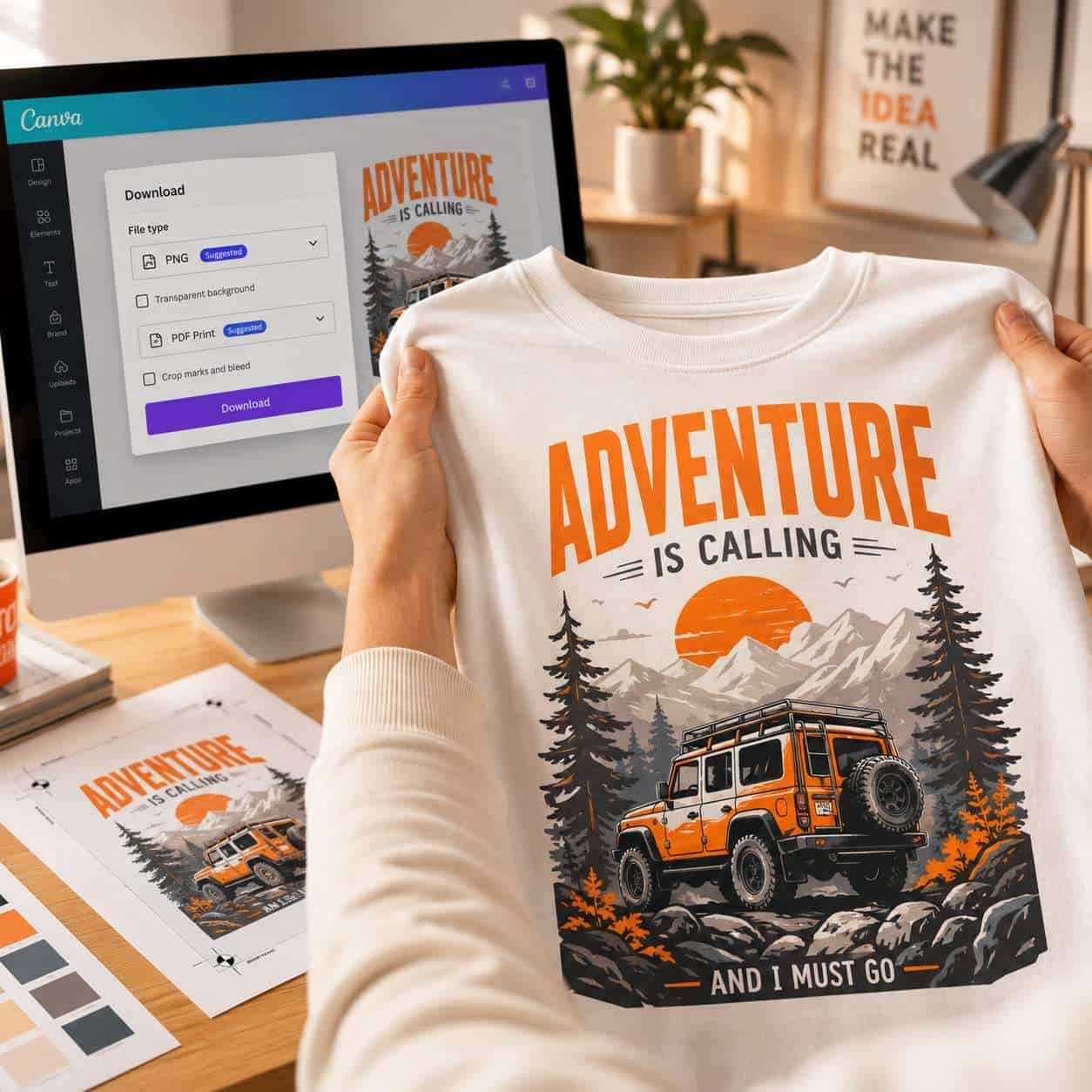
Quick fix checklist:
- Set canvas to 4500 x 5400 px before you start designing
- Use high-resolution uploaded images (avoid anything under 1000 px)
- Export as PNG, transparent background, highest quality
- Order a test print before bulk production
- Compare your screen colors to a physical color swatch if possible
What Common Mistakes Do People Make When Designing T-Shirts in Canva?
Beyond print issues, these are the mistakes I see most often:
- Using too many fonts. Stick to two fonts maximum. One for headlines, one for supporting text.
- Overcrowding the design. A t-shirt isn’t a poster. Leave breathing room. Simple designs almost always look better on fabric.
- Ignoring fabric color. A design that looks great on a white background may disappear on a black shirt. Always preview your design against the actual shirt color.
- Not checking element licenses. Some Canva elements have restrictions. Verify before selling.
- Skipping the mockup step. Use Canva’s t-shirt mockup templates or a free mockup generator to see how the design looks on an actual shirt before printing.
For more foundational design tips, our Canva logo design guide for beginners covers principles that apply directly to t-shirt graphics.
How Do I Resize Designs for Different T-Shirt Sizes in Canva?
Resizing a t-shirt design isn’t just about scaling the canvas. Different shirt sizes (youth, adult S-M, adult L-XL, plus sizes) have different printable areas. A design that fills the chest on a medium shirt may look too small on a 3XL.
The practical approach:
- Create your master design at the largest print area you’ll need (typically 4500 x 5400 px for adult XL+).
- Duplicate the design for each size variant.
- Adjust element proportions — scale text and graphics down for smaller sizes while keeping margins consistent.
- Use Canva’s ruler and guide tools to mark the printable area for each size.
If you have Canva Pro, the Magic Resize feature can change the canvas dimensions, but you’ll still need to manually reposition elements. It doesn’t intelligently adapt a t-shirt layout the way a dedicated apparel design tool might.
Are There Free T-Shirt Design Elements in Canva?
Yes. Canva’s free tier includes millions of design elements usable for t-shirt projects, including:
- Over 1,000 free fonts
- Thousands of free illustrations, icons, and shapes
- Free stock photos (useful for photo-transfer designs)
- Basic frames, lines, and graphic elements
Free elements are unmarked in the editor, while premium elements show a crown icon. You can filter search results to show only free items. For most simple t-shirt designs — text-based shirts, basic icon designs, event tees — the free library is more than enough.
Is Canva Good for Professional T-Shirt Designers or Just Beginners?
Canva is excellent for beginners and intermediate designers. It’s also useful for professionals in specific situations — quick mockups, client presentations, or simple print-on-demand products. But it has real limitations for professional apparel design work.
Where Canva falls short for pros:
- No true vector editing (pen tool, anchor points, bezier curves)
- No spot color or Pantone support
- No color separation for screen printing
- Limited layer management compared to Illustrator or CorelDRAW
- SVG export is Pro-only and sometimes loses complex effects
Where Canva works well even for pros:
- Rapid prototyping and concept exploration
- Client-facing mockups and presentations
- Simple DTG and print-on-demand designs
- Social media graphics to promote merch lines
If you’re exploring professional-grade tools alongside Canva, our guide to the best AI graphic design tools covers options that complement Canva’s strengths.
What Graphic Skills Do I Need to Make Good T-Shirt Designs?
You don’t need formal training, but a few core skills make a big difference:
- Basic color theory — understanding complementary colors, contrast, and how colors interact on fabric
- Typography awareness — knowing which fonts pair well and how to create visual hierarchy with text
- Composition — placing elements so the design feels balanced, not cluttered
- Understanding of print production — resolution, bleed, color modes, and file formats
Canva’s template system compensates for a lot of skill gaps. If you can choose a good template and make thoughtful modifications, you can produce solid t-shirt designs. Browse our Canva design archives for tutorials that build these foundational skills.
Are There Limitations to T-Shirt Design in Canva Compared to Other Tools?
Yes, and being honest about them saves you frustration. The main limitations:
- No CMYK color mode — your screen colors won’t match print output exactly
- Raster-based output — even SVG exports can lose quality on complex designs
- No advanced typography controls — limited kerning, no text-on-path in all cases
- Template dependency — starting from scratch requires more design knowledge
- File size limits — very large or complex designs can slow the editor
- No direct integration with screen printing workflows — you’ll need Illustrator or CorelDRAW for separations
For most print-on-demand sellers and casual creators, these limitations don’t matter. For professional screen printers or designers working with specialty inks, Canva is better used as a brainstorming tool than a production tool. Check our broader design resources for alternative workflows.
Conclusion
Using Canva for t-shirt designs is a practical, low-cost way to create custom apparel graphics in 2026, whether you’re making shirts for a family reunion or launching a small merch brand. The tool handles simple to moderately complex designs well, and its template library gives beginners a strong starting point.
Your next steps:
- Open Canva and set up a custom canvas at 4500 x 5400 pixels.
- Browse t-shirt templates for inspiration, then customize one with your own text and colors.
- Export as PNG with transparent background at the highest quality setting.
- Order a single test print before committing to a batch.
- If you’re selling, review Canva’s content license to confirm your design is compliant.
Start simple, test your prints, and build from there. You don’t need expensive software or years of training to make a great-looking shirt — you just need a clear design idea and the right export settings.
FAQ
Can I use Canva for t-shirt designs for free? Yes. Canva’s free plan includes t-shirt templates, fonts, and thousands of design elements. You only need Pro for premium elements, SVG export, and the background remover tool.
What size should I set my Canva canvas for t-shirt printing? Use 4500 x 5400 pixels (15″ x 18″ at 300 DPI) for a standard adult front print. This covers most DTG and heat transfer print areas.
Can I upload my own images to use in Canva t-shirt designs? Yes. You can upload JPG, PNG, and SVG files to use in your designs. Make sure uploaded images are at least 300 DPI for print quality.
Does Canva support transparent backgrounds for t-shirt designs? Yes. When exporting, select PNG format and check the “Transparent background” option. This is essential for printing on colored shirts.
Is Canva good enough for Merch by Amazon or Redbubble? Yes. Both platforms accept PNG uploads, which Canva exports well. Just make sure your canvas dimensions meet each platform’s specific requirements.
Can I use Canva’s AI image generator for t-shirt designs? You can use Canva’s AI tools to generate design elements, but check the current terms of service for commercial use of AI-generated content, as policies are evolving in 2026.
Why does my Canva design look blurry when printed on a shirt? Your canvas size is likely too small, or you used low-resolution images. Start with at least 4500 x 5400 pixels and avoid stretching small images.
Can I create designs for all-over print shirts in Canva? Canva isn’t ideal for all-over prints because it doesn’t support seamless pattern tiling or wraparound templates. You’d need specialized software for that.
Do I need Canva Pro to sell t-shirts commercially? No. You can sell t-shirts made with free Canva elements. Pro is only required if your design uses premium (crown-marked) elements.
How do I match my Canva colors to actual print colors? Canva uses RGB, while many printers use CMYK. Order a test print to compare, and avoid relying on extremely bright or neon colors that don’t translate well to CMYK printing.
Useful Resources: Canva design platform & Canva Design School free tutorials