Last updated: June 7, 2026
Quick Answer: Canva Draw is a built-in freehand drawing feature within Canva that lets you sketch, annotate, and illustrate directly on any design canvas using a mouse, trackpad, or stylus. It’s not a standalone app but a tool inside Canva’s editor, best suited for quick sketches, annotations, and simple illustrations rather than complex digital art.
Key Takeaways
- Canva Draw is a free feature available in all Canva plans, including the free tier, and works on desktop, mobile, and iPad.
- It offers basic brush types (pen, marker, highlighter, and glow pen) with adjustable size, color, and transparency.
- The drawing tools are designed for simplicity, not for replacing dedicated illustration software like Procreate or Adobe Fresco.
- Drawings export in the same formats as any Canva project: PNG, JPG, PDF, SVG (Pro only), and MP4 for animated designs.
- Stylus support on iPad and compatible tablets makes Canva Draw more usable, but pressure sensitivity is limited.
- Common frustrations include laggy brushes, lack of advanced layer controls, and limited brush customization.
- For professional illustration work, Canva Draw should be paired with or replaced by dedicated tools; for quick design annotations and simple hand-drawn elements, it works well.
What Exactly Is Canva Draw and How Is It Different From Regular Canva?
Canva Draw is the freehand drawing tool built into Canva’s design editor, not a separate product. You access it by clicking the “Draw” option in the left-side toolbar of any Canva project.
Standard Canva editing revolves around dragging, dropping, and arranging pre-made elements like templates, stock photos, text blocks, and shapes. Canva Draw adds a different layer: it lets you sketch directly onto the canvas with a virtual pen, marker, or highlighter. Think of it as the difference between assembling a collage and actually putting pen to paper.
Here’s what sets it apart from the core Canva experience:
- Freehand input rather than point-and-click element placement
- Four brush types: pen, marker, highlighter, and glow pen
- Adjustable settings for brush size, color, and opacity
- Eraser tool for corrections
- Each drawing becomes its own element on the canvas, which you can move, resize, or delete like any other Canva object
I first tried Canva Draw when I needed to add a hand-drawn arrow to a presentation slide. It took about five seconds. That’s the sweet spot for this tool: quick, informal additions to designs you’re already building in Canva. If you’re exploring other Canva features, check out the Canva archives for more guides.
Can I Use Canva Draw for Professional Graphic Design?
Yes, but with clear limits. Canva Draw works well for adding hand-drawn accents, annotations, signatures, or simple illustrations to professional designs. It is not built for creating detailed digital artwork from scratch.
Professional designers use Canva Draw for:
- Annotating mockups with client feedback
- Adding hand-lettered touches to social media graphics
- Sketching quick wireframes during brainstorming
- Creating simple icons or doodles that add personality to branded content
Where it falls short for professional use:
- No advanced brush engine (no texture brushes, no blend modes)
- Limited layer management for drawings
- No vector drawing tools (pen tool, bezier curves)
- Pressure sensitivity support is basic compared to Procreate or Illustrator
If you’re building social media content or email templates, Canva Draw can add a personal touch. For more on professional Canva workflows, see our guide on creating effective email templates in Canva.
Is Canva Draw Better for Digital Art or Graphic Design?
Canva Draw is better for graphic design tasks than for digital art. Its strength is enhancing existing designs with hand-drawn elements, not producing standalone illustrations.
| Use Case | Canva Draw Suitability |
|---|---|
| Social media post annotations | Strong |
| Simple doodles and icons | Good |
| Hand-drawn text accents | Good |
| Detailed character illustration | Poor |
| Digital painting | Poor |
| Technical illustration | Poor |
Choose Canva Draw if you need quick freehand additions to a design project. Choose a dedicated art app if the drawing itself is the final product.
Is Canva Draw Good for Beginners or Just for Experienced Artists?
Canva Draw is specifically well-suited for beginners. The interface is minimal, there are only a few brush options, and you can’t get lost in complex menus. If you’ve ever used a whiteboard app, you already know how Canva Draw works.
For beginners, the low barrier to entry is the main advantage:
- No learning curve beyond selecting a brush and drawing
- Undo/redo buttons are always visible
- Drawings snap into the existing Canva element system, so resizing and repositioning are intuitive
- Free to use with no subscription required
Experienced artists will find the tool limiting. There’s no brush library, no custom brush creation, and no advanced blending. But for someone learning logo design basics or adding sketches to presentations, it’s a solid starting point.
What Common Mistakes Do New Users Make When Drawing in Canva?
The most common mistake is treating Canva Draw like a full illustration program. New users often expect features that simply aren’t there, then get frustrated.
Here are the specific pitfalls I see most often:
- Drawing too fast with a mouse — Mouse input lacks the precision of a stylus, so fast strokes come out jagged. Slow down or switch to a tablet.
- Not adjusting brush size first — The default brush size is often too large or too small for the intended use. Set it before you start drawing.
- Forgetting that each stroke is a separate element — Every time you lift your finger or mouse, Canva creates a new element. This can clutter your layers quickly.
- Trying to create complex illustrations — Canva Draw isn’t built for this. Use it for accents, not full artwork.
- Ignoring the zoom function — Drawing at 100% zoom on a large canvas makes detail work nearly impossible. Zoom in to 200% or more for finer control.
- Not using the eraser strategically — The eraser removes entire stroke segments, not pixel-level detail. Plan your strokes accordingly.
Can I Use Canva Draw on an iPad or Just Desktop?
Canva Draw works on iPad, Android tablets, desktop browsers, and the Canva mobile app. The iPad experience is notably better than desktop because you can use an Apple Pencil for more natural drawing input.
On iPad specifically:
- Apple Pencil is supported with basic pressure sensitivity
- The drawing surface feels more natural than mouse-based input
- Palm rejection works, so you can rest your hand on the screen
- The same four brush types are available as on desktop
On desktop, you’re limited to mouse or trackpad input unless you connect a drawing tablet. The mobile phone experience works but the small screen makes detailed drawing impractical.
What Kind of Drawing Tablet Works Best With Canva Draw?
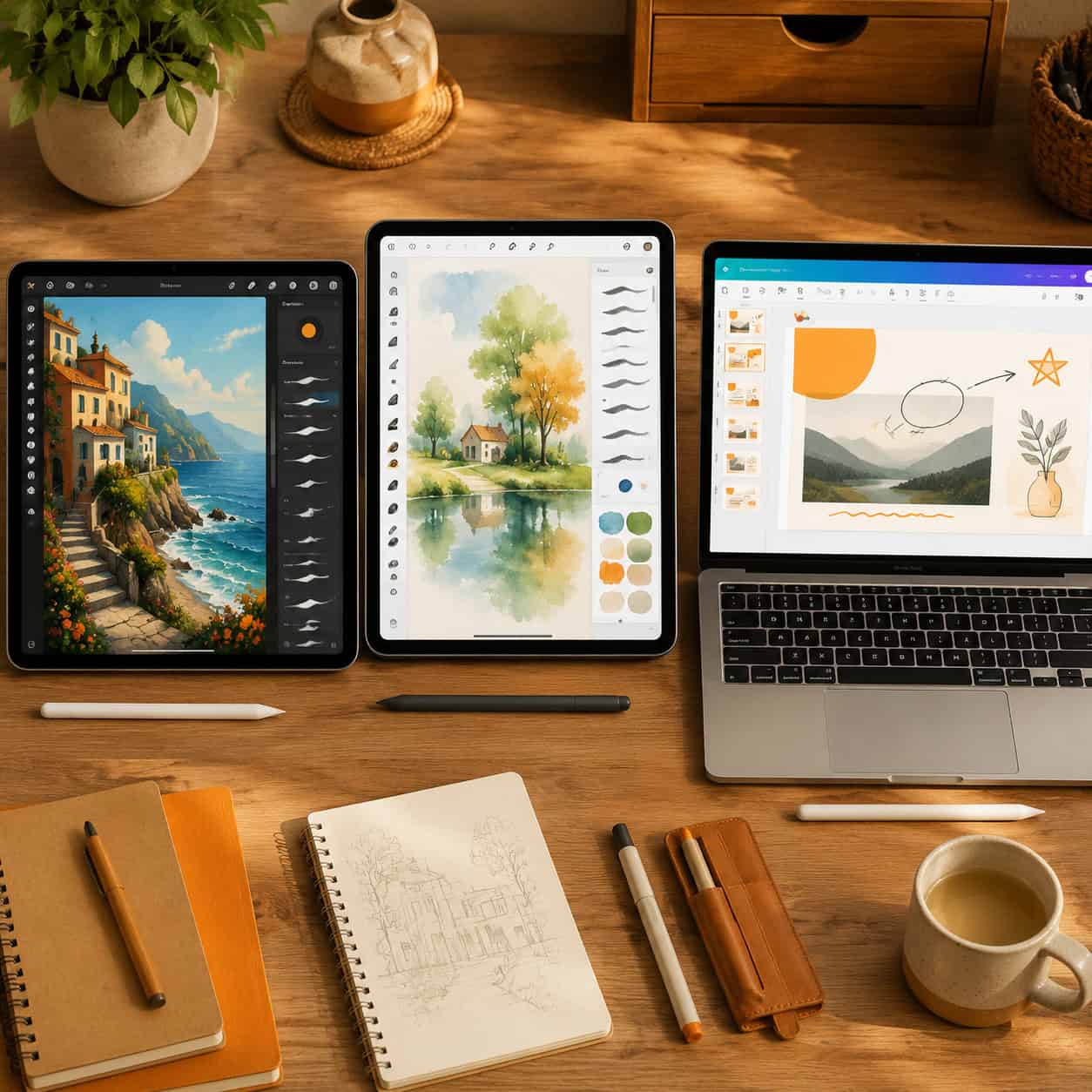
Any USB or Bluetooth drawing tablet that your operating system recognizes will work with Canva Draw, but don’t expect full pressure sensitivity support. Wacom Intuos, XP-Pen, and Huion tablets all function with Canva’s browser-based editor.
Key considerations:
- Basic Wacom Intuos (around $70-$100) is sufficient for Canva Draw since the tool doesn’t use advanced pressure curves
- Screen tablets (like Wacom One) offer a more direct drawing experience but are overkill for Canva Draw’s limited brush engine
- iPad with Apple Pencil remains the best tablet experience because Canva’s native iPad app handles stylus input more smoothly than the browser version
- Avoid spending heavily on a tablet specifically for Canva Draw; the software won’t take full advantage of premium hardware features
Why Won’t My Drawings Look Smooth in Canva Draw?
Jagged or rough-looking strokes in Canva Draw are usually caused by drawing too quickly with a mouse, using a low-resolution display, or having browser performance issues.
Fixes for smoother drawings:
- Slow your stroke speed — Canva’s stroke smoothing is basic, so slower input produces cleaner lines
- Use a stylus or tablet — Even an inexpensive stylus on a touchscreen laptop improves line quality significantly
- Zoom in — Drawing at higher zoom levels gives you more pixel space per stroke
- Reduce browser load — Close unnecessary tabs and extensions that might slow down canvas rendering
- Check your brush settings — The pen tool produces the smoothest lines; the marker and highlighter have intentional texture
Canva Draw does not currently offer adjustable stroke smoothing or stabilization like Procreate’s StreamLine feature. This is a fundamental limitation of the tool.
How Do I Fix Laggy or Unresponsive Drawing Tools in Canva?
Lag in Canva Draw is almost always a browser or device performance issue, not a Canva server problem. The drawing tools render locally in your browser.
Step-by-step troubleshooting:
- Clear your browser cache and restart the browser
- Disable browser extensions, especially ad blockers and privacy tools that intercept page rendering
- Switch to Chrome or Edge — these Chromium-based browsers handle Canva’s canvas rendering best
- Close other Canva tabs — each open design consumes memory
- Reduce the design’s complexity — designs with many elements, videos, or high-resolution images slow down the drawing tool
- Check your internet connection — while drawing renders locally, Canva still needs a stable connection for auto-saving
- Try the desktop app — Canva’s downloadable app sometimes performs better than the browser version
If lag persists, your device may lack the processing power for smooth canvas rendering. Canva recommends at least 4GB of RAM, but 8GB or more is better for complex designs. For more on optimizing your design workflow with AI-powered tools, explore our AI design creation guide.
What File Types Can I Export From Canva Draw?
Drawings made with Canva Draw export in whatever format you choose for the overall Canva design. There’s no separate export for just the drawing layer.
Available export formats:
- PNG — Best for drawings with transparency; high quality
- JPG — Smaller file size, no transparency support
- PDF (Standard and Print) — Good for documents and print materials
- SVG — Available only on Canva Pro; useful for scalable vector output, though Canva Draw strokes may not convert perfectly to vectors
- MP4/GIF — If your design includes animation
- PPTX — For PowerPoint-compatible presentations
Common edge case: If you export as SVG, your freehand drawings may appear slightly different than on screen because Canva converts raster-style strokes to vector paths. Always preview SVG exports before sending to clients.
For designs that combine drawing with other Canva elements like carousel posts or Instagram stories, PNG at the highest quality setting is usually the safest choice.
How Much Does Canva Draw Cost Compared to Other Design Tools?
Canva Draw is free. It’s included in every Canva plan, including the completely free tier. There is no paywall, add-on, or premium unlock required to access the drawing tools.
| Tool | Cost | Drawing Capability |
|---|---|---|
| Canva Free | $0 | Basic freehand drawing, 4 brush types |
| Canva Pro | $14.99/month | Same drawing tools + SVG export |
| Procreate | $12.99 one-time | Full illustration suite, 200+ brushes |
| Adobe Fresco | $9.99/month | Advanced painting and vector drawing |
| Krita | $0 (open source) | Full digital painting application |
| Sketchbook | $0 | Professional-grade drawing tools |
The value proposition of Canva Draw isn’t competing on drawing features. It’s the convenience of having a basic drawing tool inside a platform you’re already using for design.
How Does Canva Draw Compare to Procreate or Adobe Fresco?
Canva Draw is not in the same category as Procreate or Adobe Fresco. Those are dedicated digital art applications; Canva Draw is an annotation and sketching add-on within a graphic design platform.
Choose Canva Draw if: You need to add quick hand-drawn elements to an existing Canva design, you’re not an illustrator, or you want zero learning curve.
Choose Procreate if: You want a full digital painting experience on iPad with hundreds of brushes, advanced layer controls, animation tools, and a one-time purchase price.
Choose Adobe Fresco if: You need vector and raster brushes in one app, integration with the Adobe Creative Cloud ecosystem, or realistic watercolor and oil paint simulation.
The comparison really comes down to purpose. Canva Draw is a utility knife; Procreate and Fresco are chef’s knives. Both cut, but for very different jobs.
What Are Some Good Alternatives to Canva Draw for Digital Illustration?
If Canva Draw doesn’t meet your needs, several alternatives offer stronger drawing capabilities at various price points.
Free alternatives:
- Krita — Open-source, full-featured digital painting with brush customization, layer management, and animation
- Autodesk Sketchbook — Clean interface, professional brush engine, now free for all users
- MediBang Paint — Comic and manga-focused with cloud storage and collaboration
Paid alternatives:
- Procreate ($12.99 one-time, iPad only) — Industry standard for iPad illustration
- Adobe Fresco ($9.99/month) — Best for realistic media simulation
- Clip Studio Paint ($49.99 one-time or $2.49/month) — Excellent for comics and illustration
Hybrid approach: Many designers use Canva for layout and a dedicated drawing app for illustrations, then import the artwork into Canva as an image. This gives you the best of both worlds. If you’re interested in how AI tools can further enhance your creative workflow, browse our AI tools collection.
FAQ
How do I access Canva Draw? Open any design in Canva, click “Draw” in the left toolbar, select your brush type, and start sketching directly on the canvas.
Is Canva Draw available on the free plan? Yes. All four brush types and the eraser are available on Canva Free. SVG export of drawings requires Canva Pro.
Can I undo a drawing stroke in Canva? Yes. Use Ctrl+Z (Cmd+Z on Mac) or the undo button. Each individual stroke can be undone separately.
Does Canva Draw support layers? Each drawing stroke becomes a separate element that you can reorder, but there’s no traditional layer panel like in Photoshop or Procreate.
Can I import custom brushes into Canva Draw? No. Canva Draw is limited to its four built-in brush types. Custom brush import is not supported.
Will Canva Draw work with my Wacom tablet? Yes, as long as your operating system recognizes the tablet. Basic pen input works, but advanced pressure sensitivity features may not be fully utilized.
Can I draw on top of images in Canva? Yes. You can draw on top of any element in your Canva design, including photos, text, and shapes.
Is there a way to convert Canva drawings to vector paths? Exporting as SVG (Pro only) converts drawings to vector format, but the results may differ slightly from the original freehand strokes.
Can multiple people draw on the same Canva design simultaneously? Yes. Canva’s real-time collaboration works with the Draw tool, so multiple team members can sketch on the same canvas.
Does Canva Draw work offline? Only through the Canva desktop app with previously loaded designs. The browser version requires an internet connection.
Conclusion
Canva Draw fills a specific niche: quick freehand sketching and annotation inside a design tool you’re probably already using. It won’t replace Procreate for illustration or Adobe Fresco for digital painting, and it’s not trying to.
Here’s what to do next based on your situation:
- If you just need to annotate designs or add simple hand-drawn elements, Canva Draw is likely all you need. Open any Canva project, click Draw, and start sketching.
- If you want better line quality, invest in an iPad with Apple Pencil or a basic Wacom tablet. The hardware upgrade makes a bigger difference than any software setting.
- If you’re hitting the limits of Canva Draw, download Krita (free) or buy Procreate ($12.99) and import your finished illustrations into Canva for layout work.
- If you’re experiencing lag, follow the troubleshooting steps above, starting with clearing your browser cache and disabling extensions.
Canva Draw is a convenience feature, not a creative powerhouse. Use it for what it does well, and pair it with stronger tools when your projects demand more.
Useful Resources: Canva design platform & Canva Design School free tutorials