Last updated: June 7, 2026
Quick Answer: Canva free gives you access to over 250,000 templates, thousands of stock photos, a drag-and-drop editor, and exports in multiple file formats — all without entering a credit card. It’s a genuinely capable design tool for individuals, students, and small businesses who need professional-looking graphics without the cost of paid software.
Key Takeaways
- Canva free includes 250,000+ templates, 1 million+ stock photos and graphics, and 5 GB of cloud storage — no credit card required to sign up.
- The free plan supports custom dimensions and all standard social media sizes, so you’re not locked into preset formats.
- Students and teachers qualify for Canva for Education, which unlocks most Pro features at no cost.
- You can export designs as PNG, JPG, PDF, and MP4 on the free plan; SVG export requires Pro.
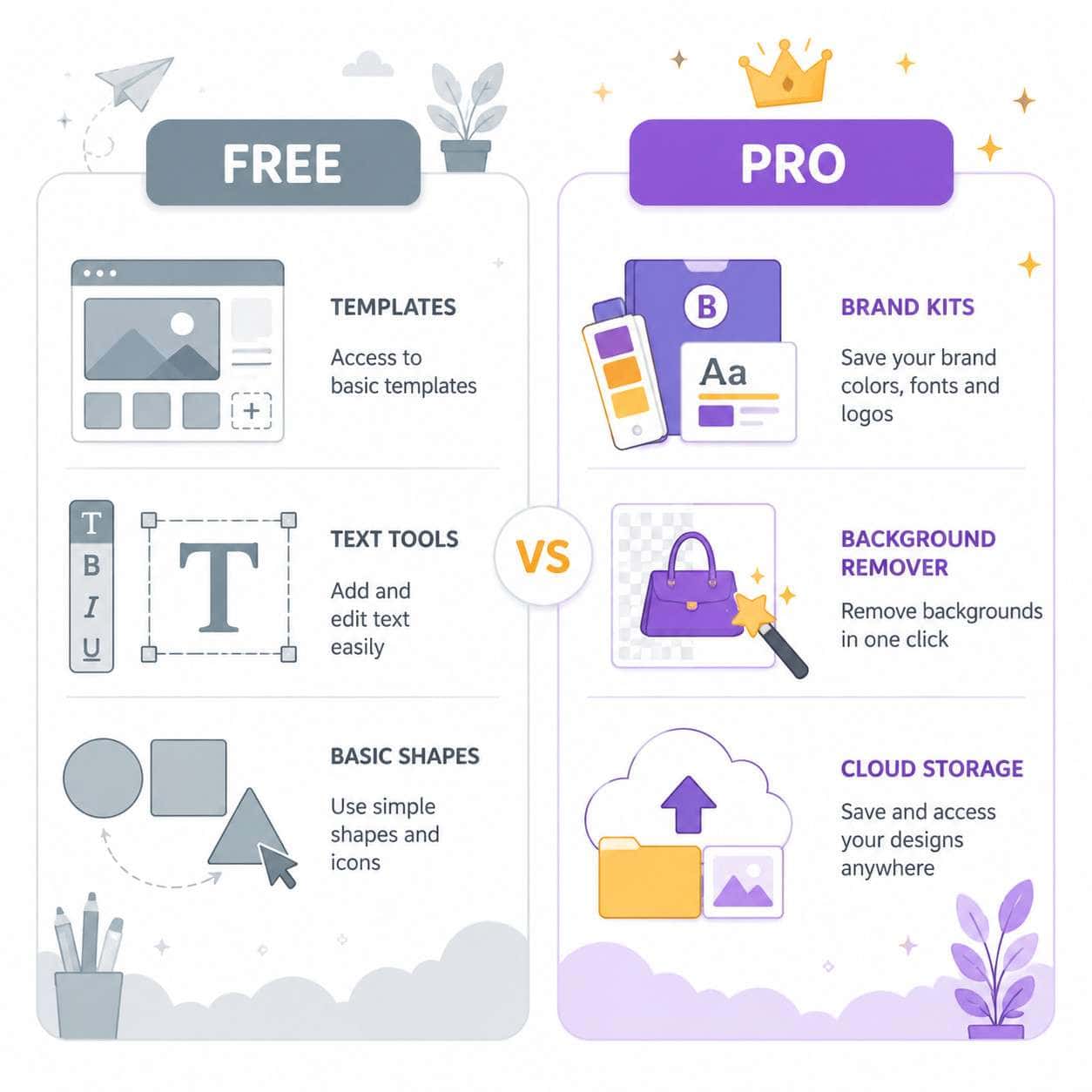
- The free version lacks background remover, brand kit, Magic Resize, and premium stock content.
- For basic social media posts, presentations, and simple print materials, Canva free is more than sufficient for small business marketing.
- Canva free compares favorably to Adobe Express free, especially for users with no design background.
- Upgrading to Canva Pro or Canva Teams is straightforward and can be done from within your free account at any time.
What Features Can I Actually Use for Free in Canva?
Canva free provides a surprisingly full design toolkit. You get the complete drag-and-drop editor, text tools, basic photo editing (crop, filters, brightness adjustments), and access to a large library of free elements.
Here’s what’s included on the free plan:
- Templates: Over 250,000 free templates across categories like social media, presentations, flyers, resumes, and more
- Stock media: Access to 1 million+ free stock photos, graphics, icons, and illustrations
- Cloud storage: 5 GB to save your designs
- Collaboration: Share designs and work with others in real time
- Folders: Organize your projects (limited to a smaller number compared to Pro)
- Presentations: Built-in presentation mode with basic animations
- Video editing: Simple video creation and editing tools
- AI tools: Limited access to Magic Write (AI text generation) with a monthly usage cap
You also get access to hundreds of free fonts and the ability to upload your own images. For anyone exploring AI-powered design creation in Canva, the free tier offers a solid starting point with basic AI features.
How Is Canva Free Different From Pro?
The core editor is identical — the difference is in content access, advanced features, and storage. Canva Pro costs around $13/month (billed monthly) or $120/year as of 2026 and adds a significant layer of premium functionality.
| Feature | Canva Free | Canva Pro |
|---|---|---|
| Templates | 250,000+ | 610,000+ |
| Stock photos/graphics | 1 million+ | 100 million+ |
| Cloud storage | 5 GB | 1 TB |
| Background Remover | No | Yes |
| Magic Resize | No | Yes |
| Brand Kit | No | Yes (up to 100 kits) |
| SVG export | No | Yes |
| Content Planner | No | Yes |
| Premium animations | Limited | Full access |
| AI tools usage | Capped | Higher limits |
Common mistake: Many users assume watermarked elements in the editor are part of the free plan. They’re not. If you see a small crown icon or watermark on a template element, that’s premium content. You’ll need to remove it or upgrade to use it.
The biggest functional gaps for most users are the background remover, Magic Resize (which reformats a design for different platforms in one click), and the brand kit for saving logos, colors, and fonts.
Is Canva Free Good Enough for Small Business Marketing?
Yes, for most small businesses just getting started with visual content, Canva free handles the essentials well. You can create social media posts, basic flyers, business cards, email headers, and simple presentations without spending anything.
Where it works best for small businesses:
- Social media content: Instagram posts, Facebook covers, LinkedIn banners, and Pinterest pins all have dedicated free templates
- Simple print materials: Flyers, posters, and business cards with professional layouts
- Presentations: Client-facing slide decks that look polished
- Email graphics: Headers and promotional banners for newsletters
Where it falls short: If you need consistent branding across dozens of assets, the lack of a brand kit becomes a real bottleneck. You’ll manually set colors and fonts every time. Also, without Magic Resize, reformatting a single design for Instagram, Facebook, and LinkedIn means creating three separate files from scratch.
For businesses creating effective email templates or engaging Instagram story templates, the free plan provides enough templates to produce quality work — you’ll just spend more time on manual adjustments.
Choose free if: You’re posting a few times a week and don’t need strict brand consistency across a large team. Choose Pro if: You’re producing daily content, managing multiple brand identities, or need premium stock imagery.
How Many Design Templates Do I Get With Free Canva?
Canva free includes over 250,000 templates. These span dozens of categories: social media posts, stories, presentations, resumes, invitations, posters, logos, infographics, videos, and more.
Not every template in Canva’s library is free. When browsing, filter by “Free” to avoid accidentally selecting a premium template. You can also identify premium templates by the crown icon in the corner.
The free template count is large enough that you’ll rarely feel limited for common use cases. Where selection thins out is in niche categories like animated templates, industry-specific designs (restaurant menus, real estate flyers), and trending aesthetic styles.
What Graphic Sizes Are Available in Free Canva?
Every preset dimension Canva offers is available on the free plan. This includes all standard social media sizes, print dimensions, and presentation formats. You can also enter completely custom dimensions.
Common presets available for free:
- Instagram Post (1080 x 1080 px)
- Instagram Story (1080 x 1920 px)
- Facebook Post (940 x 788 px)
- Presentation (1920 x 1080 px)
- A4 Document (210 x 297 mm)
- Poster (42 x 59.4 cm)
- Custom size (any pixel, inch, mm, or cm value)
The only size-related limitation is Magic Resize, which is Pro-only. On the free plan, you pick your size at the start and design within it. If you need the same design in a different size, you’ll recreate it manually. For users building carousel designs for social media, all the standard carousel dimensions are accessible on the free tier.
Can Students and Teachers Use Canva for Free?
Yes, and they get much more than the standard free plan. Canva for Education is available to K-12 teachers and students worldwide, and it includes most Canva Pro features at no cost.
To qualify, teachers verify their school email or provide proof of employment at an accredited institution. Once approved, they can invite their entire classroom. Canva for Education includes:
- Premium templates and stock content
- Brand Kit functionality
- Folders and collaboration tools designed for classrooms
- Assignment and review workflows
Edge case: University students don’t automatically qualify for Canva for Education. Some universities have institutional licenses, but individual college students typically use the standard free plan or pay for Pro with a student discount (when available). Check your university’s software portal first.
Are There Hidden Limitations in the Free Canva Plan?
There are no hidden costs, but there are limitations that aren’t immediately obvious when you first sign up.
- AI tool caps: Magic Write and other AI features have monthly usage limits on the free plan (typically 50 uses per month for Magic Write, though Canva adjusts this periodically).
- Premium content traps: It’s easy to build an entire design using premium elements without realizing it. You’ll only see the watermark when you try to download.
- Storage fills up: 5 GB sounds generous, but if you’re creating video content or uploading high-resolution images, it fills up fast.
- No version history: You can’t revert to a previous version of a design on the free plan.
- Limited folders: You can create fewer organizational folders than Pro users.
- No transparent background on some exports: PNG with transparency is available for free, but certain advanced export options aren’t.
None of these are deal-breakers for casual users, but they add friction over time for anyone producing content regularly.
How Do I Upgrade From Free Canva to the Paid Version?
Upgrading takes about 30 seconds. Click the “Upgrade” or “Try Canva Pro” button visible in your dashboard, choose monthly or annual billing, enter payment details, and your account instantly gains access to all Pro features.
Your existing designs, folders, and uploads carry over — nothing is lost. If you’re unsure, Canva typically offers a 30-day free trial of Pro, so you can test premium features before committing.
Decision rule: Try the free trial when you hit a specific limitation (like needing the background remover for a project) rather than upgrading preemptively. This way you’ll know whether Pro features genuinely save you time.
Which Design Types Work Best in Free Canva?
Static social media graphics, presentations, and simple print designs are where Canva free shines brightest. The template variety and editing tools for these formats are robust enough for professional results.
Best results on free:
- Social media posts (Instagram, Facebook, LinkedIn, Pinterest)
- Slide presentations
- Simple flyers and posters
- Resumes and cover letters
- Basic logo designs
Adequate but limited:
- Short-form videos (basic editing only)
- Infographics (fewer premium icons and charts)
- Multi-page documents
Better with Pro:
- Animated social content
- Brand-consistent marketing campaigns
- Print-ready materials requiring CMYK color profiles
What File Types Can I Export in Free Canva?
Canva free supports PNG, JPG, PDF (standard), MP4 (for video designs), and GIF exports. These cover the vast majority of use cases for digital and basic print needs.
What you can’t export on free:
- SVG (vector format, Pro only)
- PDF Print (with crop marks and bleed, Pro only)
- Transparent PNG is available for free, but only for designs without a background — this works fine for logos and overlays
For most digital marketing and social media work, PNG and JPG exports are all you need. If you’re exploring other AI design tools and comparing export capabilities, Canva free holds up well against most competitors.
Is Canva Free Really Free, or Do I Need a Credit Card?
Canva free is genuinely free. You sign up with an email address, Google account, or Facebook account. No credit card is required, and there’s no time limit on the free plan. You can use it indefinitely.
The only time payment enters the picture is if you click on a premium template or element and try to download it, or if you choose to upgrade to Pro. Canva won’t charge you anything unless you explicitly opt into a paid plan or purchase a one-off premium element (which costs around $1-2 per element).
How Does Canva Free Compare to Adobe Express Free?
Both offer free tiers with drag-and-drop editors, templates, and stock media. Canva free generally provides a larger template library and a more intuitive interface for beginners. Adobe Express free integrates better with the Adobe ecosystem (Photoshop, Illustrator) and offers some AI features through Adobe Firefly.
| Aspect | Canva Free | Adobe Express Free |
|---|---|---|
| Template count | 250,000+ | Fewer (Adobe doesn’t publish exact numbers) |
| Ease of use | Very beginner-friendly | Slightly steeper learning curve |
| AI features | Magic Write, basic AI tools | Adobe Firefly image generation |
| Stock media | 1 million+ free assets | Adobe Stock (limited free access) |
| Storage | 5 GB | 2 GB |
| Best for | Social media, presentations | Users already in Adobe ecosystem |
Choose Canva free if you want the easiest path to creating social media content and have no prior design experience. Choose Adobe Express free if you already use Adobe products and want tighter integration with tools like Photoshop.
What Design Skills Do I Need to Use Canva Effectively?
None. Canva was built specifically for people without design training. The template-based approach means you’re starting from a professionally designed layout and simply swapping in your own text, images, and colors.
That said, a few basic principles will improve your results:
- Stick to 2-3 fonts per design — mixing too many fonts looks cluttered
- Use consistent colors — pick a palette and stick with it across your designs
- Leave white space — resist the urge to fill every inch of the canvas
- Align elements — Canva’s snap-to-grid guides help with this automatically
- Use high-quality images — blurry or pixelated photos undermine even the best layout
I’ve seen complete beginners produce polished Instagram posts within 15 minutes of creating their first Canva account. The learning curve is genuinely minimal. For those wanting to go deeper, our Canva resources section covers more advanced techniques.
Frequently Asked Questions
Can I use Canva free for commercial purposes? Yes. Designs you create on Canva free can be used for commercial purposes, including marketing materials, social media ads, and client work. However, you cannot resell unmodified Canva templates or stock elements as standalone files.
Does Canva free have ads? No display ads. You’ll see prompts to upgrade to Pro and premium content is mixed into the library, but there are no banner ads or pop-ups interrupting your workflow.
Can I use Canva free offline? No. Canva is a web-based tool that requires an internet connection. There is a desktop app, but it still needs connectivity to function.
How long can I use Canva free? Indefinitely. There’s no trial period or expiration date on the free plan.
Can I collaborate with others on Canva free? Yes. You can share designs via link and collaborate in real time. The free plan supports basic collaboration, though team management features are limited compared to Canva Teams.
Does Canva free work on mobile? Yes. Canva has iOS and Android apps with the same free features available on the web version.
Can I remove the background of an image on Canva free? No. The background remover tool is a Pro-only feature. You’d need to use a separate free tool (like remove.bg) and then upload the edited image to Canva.
Are Canva free designs watermarked? No. Designs you create and download using only free elements have no watermarks. Watermarks only appear if you include premium (paid) elements in your design without purchasing them.
Can I upload custom fonts to Canva free? No. Custom font uploads require Canva Pro. The free plan includes hundreds of built-in fonts, but you can’t add your own.
Is there a limit to how many designs I can create on Canva free? No. You can create unlimited designs. The only storage constraint is the 5 GB limit for uploaded files and saved projects.
Conclusion
Canva free is one of the most capable no-cost design tools available in 2026. For individuals, students, and small businesses producing social media content, presentations, and basic marketing materials, it covers the essentials without asking for a dollar.
Here’s what to do next:
- Sign up at canva.com with your email — no credit card needed
- Start with templates rather than blank canvases to save time
- Filter for free content when browsing to avoid accidentally using premium elements
- Test the free plan for at least 2-4 weeks before deciding whether Pro features are worth the cost
- Check if you qualify for Canva for Education if you’re a teacher or K-12 student
The free plan has real limitations — no brand kit, no background remover, no Magic Resize — but for most people starting out, those gaps won’t matter until you’re producing content at scale. Start free, learn the tool, and upgrade only when a specific limitation slows you down.
Useful Resources: Canva design platform & Canva Design School free tutorials