Last updated: June 7, 2026
Quick Answer: The Canva video editor is a browser-based tool that lets anyone create, trim, and export videos using drag-and-drop templates, stock footage, animations, and basic transitions. It’s best suited for social media content, marketing videos, and presentations. It won’t replace professional editing software like Premiere Pro, but for most small business and creator needs, it does the job well and fast.
Key Takeaways
- Canva’s video editor works entirely in the browser with no software installation required.
- The free plan supports videos up to 5 minutes; Canva Pro extends this and adds premium stock footage, Brand Kit integration, and background remover.
- Canva Pro costs $14.99/month (or $119.99/year) as of 2026 and includes all video editing features.
- You can create vertical videos for TikTok and Instagram Reels using preset aspect ratios.
- Supported import formats include MP4, MOV, MKV, WEBM, and GIF files.
- Canva includes templates for YouTube intros, thumbnails, ads, and social media clips.
- Export quality maxes out at 1080p; there’s no 4K export option.
- Professional videographers will find Canva too limited for multi-track editing, color grading, or advanced audio work.
- Common beginner mistakes include ignoring aspect ratios, overusing animations, and not checking export settings.
- Strong free alternatives include CapCut, DaVinci Resolve, and Clipchamp.
What Exactly Can I Do With the Canva Video Editor?
The Canva video editor lets you create videos from scratch or from templates, trim and split clips, add text animations, overlay music, insert transitions, and export finished videos for any platform. It covers the full workflow for simple video projects.
Here’s what you can do in practice:
- Trim and split clips directly on a single-track timeline
- Add text with animations (fade, typewriter, pop, and more)
- Use thousands of templates for ads, social posts, presentations, and YouTube content
- Insert stock video and audio from Canva’s built-in library
- Apply transitions between scenes (dissolve, slide, match and more)
- Animate individual elements on the canvas
- Record yourself using the built-in webcam and screen recorder
- Collaborate in real time with team members on the same project
I used Canva’s video editor last year to produce a batch of 15-second Instagram ads for a client’s product launch. The entire process, from selecting a template to exporting final files, took about 40 minutes for three variations. That kind of speed is where Canva genuinely shines.
If you’re also creating static visuals for your campaigns, you might find our guide on Canva AI design creation useful for pairing with your video work.
How Does Canva Video Editing Compare to Adobe Premiere?
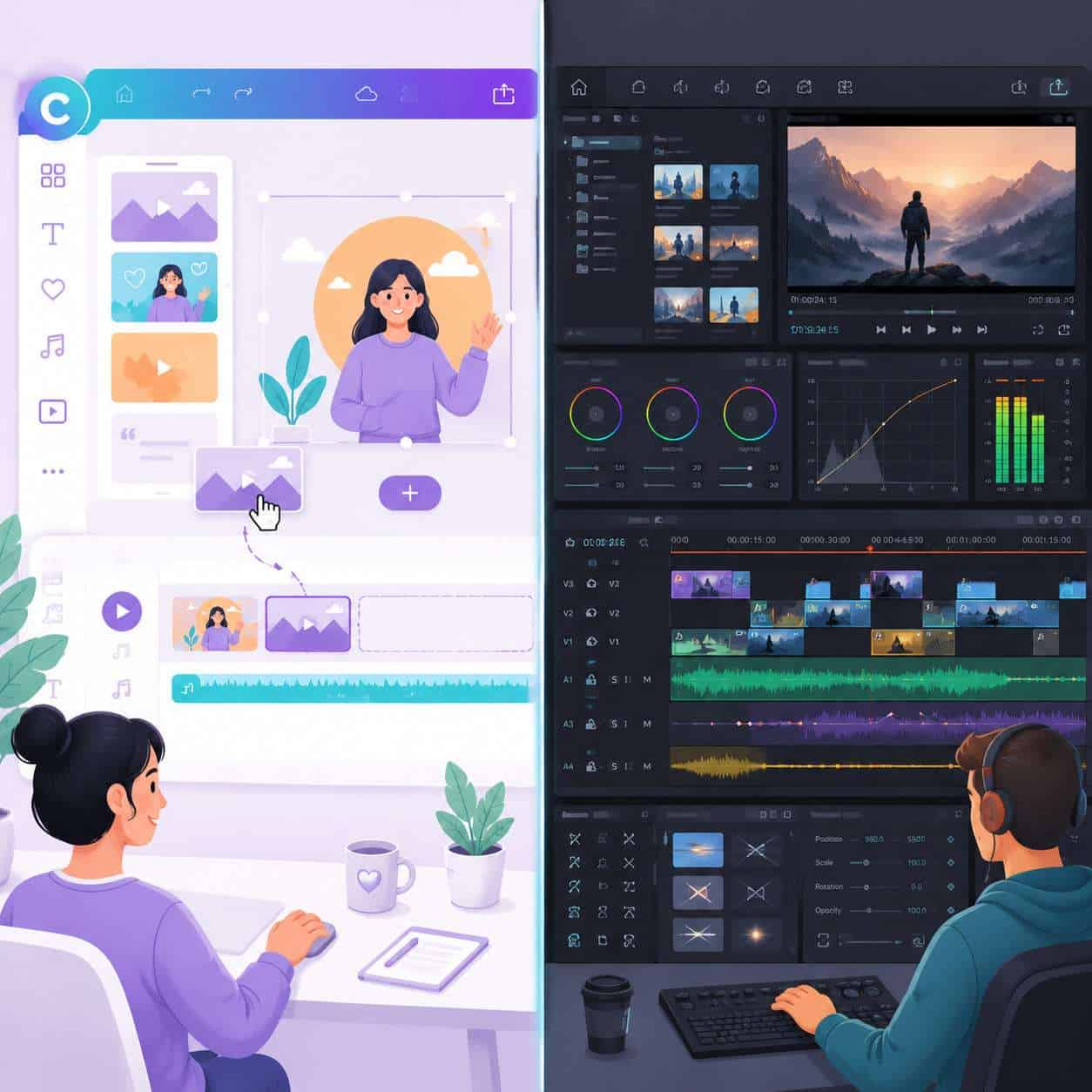
Canva and Adobe Premiere Pro serve fundamentally different users. Canva is a template-driven, single-track editor for quick content. Premiere Pro is a professional multi-track editor with deep control over color, audio, effects, and export settings.
Here’s a direct comparison:
| Feature | Canva Video Editor | Adobe Premiere Pro |
|---|---|---|
| Learning curve | Very low (minutes) | Steep (weeks to months) |
| Timeline tracks | Single track | Unlimited tracks |
| Max export resolution | 1080p | Up to 8K |
| Color grading | Basic filters only | Full Lumetri color panel |
| Audio editing | Volume control, fade | Full mixer, EQ, effects |
| Templates | Thousands included | Limited (via Mogrt files) |
| Price | Free or $14.99/mo (Pro) | $22.99/mo (annual plan) |
| Collaboration | Real-time sharing | Limited (via Creative Cloud) |
| Platform | Browser-based | Desktop application |
Choose Canva if you need social media clips, simple ads, or presentation videos and you don’t have editing experience. Choose Premiere if you’re editing long-form content, need multi-camera workflows, or require precise audio and color control.
How Much Does Canva Pro Cost for Video Editing?
Canva Pro costs $14.99 per month or $119.99 per year as of 2026. All video editing features are included in this single subscription, and there are no add-on fees for video-specific tools.
The free plan gives you access to the video editor with limitations:
- Free plan: Basic templates, limited stock footage, 5 GB storage, export up to 1080p, videos up to 5 minutes
- Pro plan: All premium templates, 100+ million stock assets, 1 TB storage, Brand Kit, background remover, Magic Resize, and longer video support
- Teams plan: $14.99/person/month (minimum 3 people), adds team management and shared Brand Kits
For small business owners producing weekly social content, the Pro plan typically pays for itself by replacing the need for separate stock footage subscriptions.
Is Canva Video Editor Good for Small Business Marketing?
Yes. The Canva video editor is one of the most practical tools for small business marketing videos in 2026. It combines template-based speed with enough customization to stay on-brand.
Here’s why it works well for small businesses:
- Brand Kit (Pro) lets you save logos, fonts, and colors so every video stays consistent
- Magic Resize converts a single video into multiple formats (square for Facebook, vertical for Reels, landscape for YouTube)
- Team collaboration means your designer and marketing manager can work on the same file
- Content calendar integration lets you schedule posts directly from Canva
A common mistake small businesses make is trying to produce cinematic-quality videos when their audience just wants clear, helpful content. Canva is built for that practical middle ground. If you’re also building email campaigns alongside video, check out our guide on creating effective email templates in Canva.
Is the Canva Video Editor Too Basic for Professional Videographers?
For professional videographers, yes, Canva is too limited. It lacks multi-track timelines, keyframe animation, professional color grading, advanced audio mixing, and plugin support.
Specifically, professionals will miss:
- No keyframe control for precise animation timing
- No LUT support for color matching across footage
- No audio waveform editing or multi-channel mixing
- No support for RAW or ProRes footage
- No motion tracking or masking tools
- Maximum 1080p export (no 4K or higher)
That said, some professional videographers use Canva alongside their main editor for quick social media repurposing. They’ll edit the main project in Premiere or DaVinci Resolve, then use Canva to create promotional clips and thumbnails.
Can I Edit Vertical Videos for TikTok and Instagram Reels in Canva?
Absolutely. Canva offers preset dimensions for vertical video (1080 x 1920 pixels), which is the standard format for TikTok, Instagram Reels, and YouTube Shorts.
To create vertical video in Canva:
- Open Canva and search for “Mobile Video” or “TikTok Video” in the template search
- Select a template or start with a blank 1080 x 1920 canvas
- Add your footage, text, and music
- Use the built-in text animations for captions (this matters for accessibility and engagement)
- Export as MP4
Quick tip: If you’ve already made a landscape video, use Magic Resize (Pro feature) to convert it to vertical. You’ll need to reposition elements manually, but it saves significant time. For more on creating platform-specific content, see our guide to engaging Instagram story templates.
What File Types Can I Import Into the Canva Video Editor?
Canva supports MP4, MOV, MKV, WEBM, and GIF files for video import. For audio, you can upload MP3 and WAV files.
A few constraints to know:
- Maximum upload file size is 1 GB on the free plan
- Pro users can upload files up to 5 GB (though very large files may process slowly)
- Canva does not support AVI, FLV, or ProRes formats natively
- If your file won’t upload, convert it to MP4 (H.264 codec) first using a free tool like HandBrake
How Long Can My Videos Be in the Free Version of Canva?
Free Canva accounts can create videos up to 5 minutes long. Canva Pro and Teams users can create significantly longer videos, though Canva recommends keeping individual projects under 30 minutes for optimal performance.
If you need to create longer content on the free plan, a workaround is to create multiple 5-minute segments and stitch them together using another free tool like CapCut or Clipchamp.
Does Canva Have Templates for YouTube Thumbnails and Video Intros?
Yes. Canva has thousands of templates specifically designed for YouTube, including thumbnails (1280 x 720), video intros, end screens, and channel banners.
For video intros specifically:
- Search “YouTube Intro” in the template library
- Most intro templates are 5-10 seconds long
- You can customize colors, text, and music to match your brand
- Export the intro separately, then add it to your main video project
YouTube thumbnails are one of Canva’s strongest categories. If you’re building a full brand identity for your channel, our Canva logo design guide for beginners walks through creating a consistent visual identity.
What Kind of Transitions and Effects Can I Add in Canva?
Canva offers around 20 transition styles and a range of element-level animations. Transitions include dissolve, slide, wipe, circle wipe, color wipe, match and move, and line slide, among others.
For effects and animations:
- Page transitions apply between scenes on the timeline
- Element animations (fade, rise, pop, breathe, tumble, etc.) apply to individual text boxes, images, or graphics
- One-click “Animate” button lets you apply a consistent animation style to an entire page
- Speed control lets you slow down or speed up individual clips
Common mistake: Beginners tend to use a different transition between every scene. This looks chaotic. Pick one or two transitions and use them consistently throughout your video for a polished result.
Why Are My Canva Video Exports Looking Low Quality?
Low-quality exports from Canva usually result from one of three issues: incorrect export settings, low-resolution source footage, or compression during upload to social platforms.
Here’s how to fix it:
- Check your export settings. Always select “MP4 Video” and choose the highest quality option available.
- Use high-resolution source material. If you upload a 480p clip, Canva can’t magically make it 1080p. Use footage that’s at least 1080p.
- Don’t re-export multiple times. Each export cycle adds compression. Export once from Canva and upload directly to your platform.
- Account for platform compression. Instagram and TikTok compress uploads heavily. Canva’s 1080p output is fine, but the platform will reduce quality further. This isn’t a Canva problem.
If you’re exploring AI-powered tools that can complement your video workflow, our guide to AI video generation with HeyGen covers another approach to creating video content.
What Common Mistakes Do Beginners Make When Editing Videos in Canva?
The most frequent beginner mistakes in the Canva video editor are using the wrong aspect ratio, overcrowding frames with text, ignoring audio levels, and skipping the preview before export.
Avoid these specific pitfalls:
- Wrong aspect ratio for the platform. A landscape video won’t perform well on TikTok. Set your dimensions before you start editing.
- Too much text on screen. Keep text to 6-8 words per screen for video. Viewers are watching, not reading.
- Ignoring safe zones. TikTok and Reels overlay UI elements on parts of the screen. Keep important content in the center 80% of the frame.
- Not previewing audio. Canva’s stock music can overpower voiceovers if you don’t adjust volume levels.
- Using every animation available. Restraint looks professional. Pick one animation style and stick with it.
For more on creating visually balanced content, our Canva carousel design guide covers composition principles that apply to video as well.
What Are the Best Free Alternatives to Canva for Video Editing?
The strongest free alternatives to Canva’s video editor are CapCut, DaVinci Resolve, and Clipchamp. Each serves a different use case.
| Tool | Best For | Key Advantage | Limitation |
|---|---|---|---|
| CapCut | Social media short-form | Auto-captions, trending effects | Limited long-form support |
| DaVinci Resolve | Professional editing (free tier) | Industry-grade color grading | Steep learning curve |
| Clipchamp (Microsoft) | Windows users, quick edits | Built into Windows 11 | Fewer templates than Canva |
| iMovie | Mac and iOS users | Clean interface, free | Apple ecosystem only |
Choose CapCut if you’re focused on TikTok and Reels. Choose DaVinci Resolve if you want professional-level editing without paying. Stay with Canva if you value templates, brand consistency, and an all-in-one design platform.
FAQ
Can I use the Canva video editor on my phone? Yes. The Canva mobile app for iOS and Android includes the video editor with most of the same features as the desktop browser version.
Does Canva add a watermark to free videos? No. Canva does not add watermarks to videos on the free plan. However, if you use premium stock elements without a Pro subscription, those elements will show a watermark.
Can I add my own music to Canva videos? Yes. You can upload MP3 or WAV audio files and add them to your video timeline. Make sure you have the rights to use the music commercially.
Does the Canva video editor support green screen? Canva Pro includes a background remover tool that works on video clips, which provides a similar effect to green screen removal for simple use cases.
Can I export Canva videos as GIFs? Yes. When exporting, select “GIF” as the file type. This works best for short clips under 10 seconds.
Is there a limit to how many videos I can create on Canva free? No. There’s no limit on the number of video projects. The main restrictions on the free plan are video length (5 minutes), storage (5 GB), and access to premium assets.
Can multiple people edit the same Canva video at once? Yes. Canva supports real-time collaboration. Share the project link with editing permissions, and multiple users can work simultaneously.
Does Canva support voiceover recording? Yes. Canva has a built-in recording feature that lets you record voiceovers directly in the editor without external software.
Conclusion
The Canva video editor fills a specific and valuable niche: fast, template-driven video creation for people who aren’t professional editors. It won’t replace Premiere Pro or DaVinci Resolve for complex projects, but it handles social media content, marketing videos, and simple branded clips with remarkable efficiency.
Here’s what to do next:
- Start with a template that matches your platform (vertical for Reels/TikTok, landscape for YouTube).
- Set up your Brand Kit if you’re on Pro, so every video stays visually consistent.
- Keep it simple with one or two transition styles and minimal text per frame.
- Export at the highest quality setting and upload directly to your platform to avoid double compression.
- Explore Canva’s broader design tools for thumbnails, carousels, and email graphics to build a cohesive content strategy.
For more Canva tutorials and design resources, browse our full Canva content library.
Useful Resources: Canva design platform & Canva Design School free tutorials