


Last updated: May 9, 2026
Quick Answer: Make.com is a visual no-code automation platform that lets you connect apps and automate repetitive tasks without writing a single line of code. You build “scenarios” by linking trigger events to actions across hundreds of apps. Beginners can launch their first working automation in under 30 minutes using the drag-and-drop canvas or a pre-built template. [1][2]
Key Takeaways
- Make.com uses a scenario-based model: you connect app modules visually, and the platform handles data transfer automatically. [2]
- No coding required: text-based triggers and actions (e.g., “When a new Shopify order is placed → Add subscriber to Mailchimp”) give you precise control. [1]
- Free plan available: Make.com’s free tier includes 1,000 operations per month, enough to test and learn.
- Ideal for: solopreneurs, small teams, marketers, and freelancers who want to automate workflows like lead capture, email sequences, and reporting.
- Not ideal for: developers who need complex custom logic or enterprises with strict data compliance requirements (evaluate carefully).
- Learning resources: Make Academy, YouTube tutorials, and a large community forum accelerate the learning curve significantly. [6]
- Key alternatives: Zapier, n8n, and Pabbly Connect — each with different pricing and complexity trade-offs.
- Biggest beginner mistake: building overly complex scenarios before testing simple ones first.

What Is Make.com and How Does No-Code Automation Work?
Make.com (formerly Integromat) is a visual workflow automation platform that connects your apps and services, moving data between them automatically based on rules you define. No-code automation means the platform executes processes — like sending emails, updating spreadsheets, or creating invoices — without you writing any code or manually doing the work. [1]
How it works at a basic level:
- A trigger fires — something happens in one app (a new form submission, a new email, a new sale).
- Make.com detects it — the platform watches for that event in real time or on a schedule.
- Actions run automatically — the platform performs one or more tasks in connected apps (add a row to Google Sheets, send a Slack message, create a CRM contact).
The core building block is the scenario — a visual flowchart on Make.com’s canvas where each step is an “app module.” Modules collect, transform, or send data. You connect them with lines, and Make.com does the rest. [2]
Who this is for: Anyone spending more than 2 hours per week on repetitive digital tasks — copying data between apps, sending follow-up emails, or generating reports manually.
Why Should Beginners Choose Make.com Over Other Automation Tools?
Make.com stands out for beginners because its visual canvas makes complex multi-step workflows easier to understand at a glance, compared to list-based tools. That said, it has a slightly steeper initial learning curve than Zapier, so the right choice depends on your needs.
| Feature | Make.com | Zapier | n8n |
|---|---|---|---|
| Visual canvas | ✅ Yes | ❌ No (list-based) | ✅ Yes |
| Free tier | 1,000 ops/month | 100 tasks/month | Self-hosted free |
| Multi-step scenarios | ✅ Unlimited | ⚠️ Paid plans | ✅ Yes |
| Learning curve | Medium | Low | High |
| Best for | Visual thinkers, complex flows | Quick simple automations | Developers |
Choose Make.com if you want to build multi-step workflows visually, need more free operations, or plan to scale without paying Zapier’s premium rates. Stick with Zapier if you want the absolute simplest setup with minimal configuration.
For teams already using no-code website tools, Make.com pairs naturally with platforms covered in our guide to no-code website design software.
How Do You Build Your First Make.com Scenario Step by Step?
Building your first scenario takes about 20–30 minutes. Here’s a concrete walkthrough using a real beginner use case: “When someone fills out a contact form, add their details to a Google Sheet and send them a welcome email.” [2]
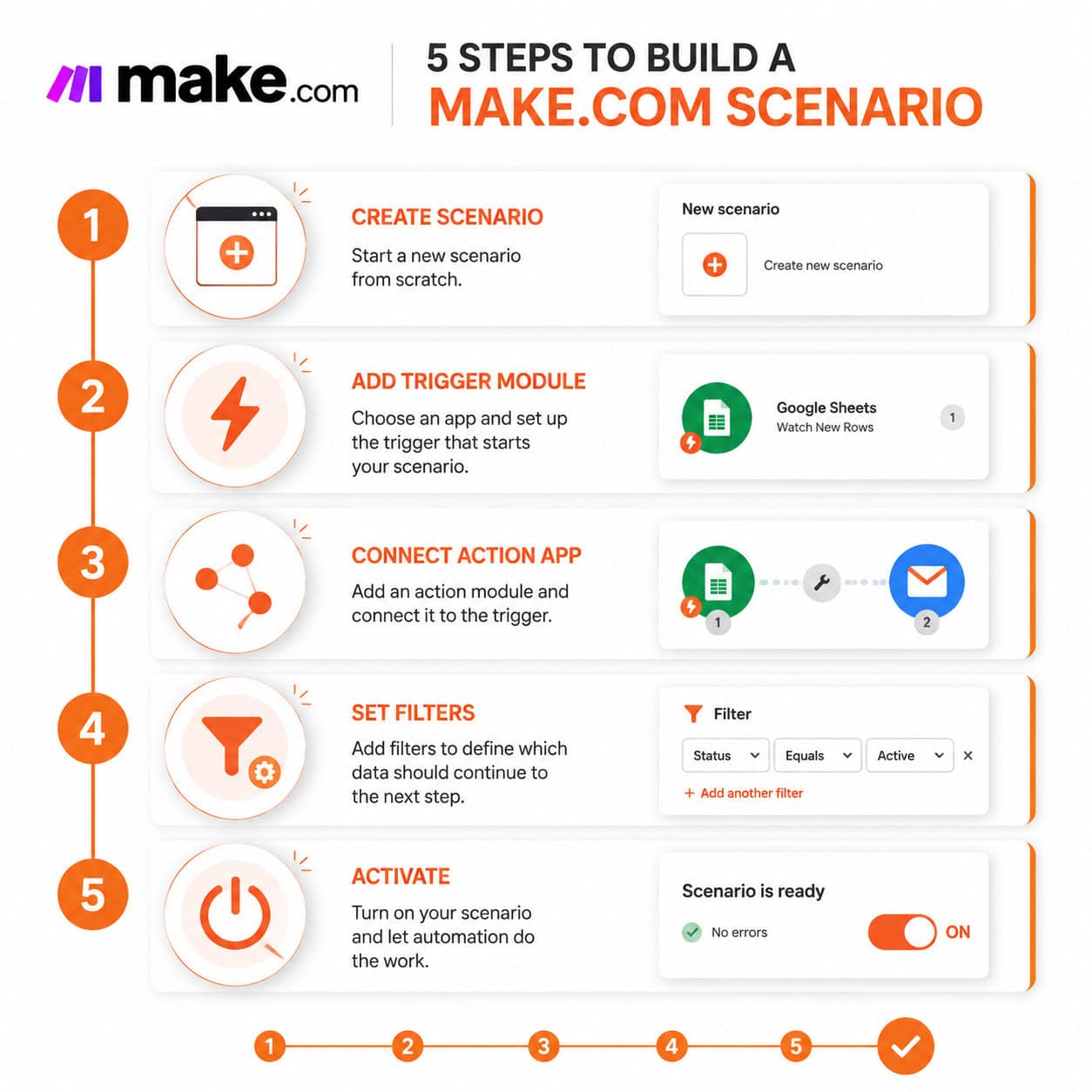
Step-by-step process:
- Create a free account at Make.com. No credit card needed.
- Click “Create a new scenario” on your dashboard.
- Add your trigger module — search for your form tool (e.g., Typeform, Google Forms, or a webhook). Select the trigger event: “New submission.”
- Authenticate the app — Make.com will ask you to log in and grant access. This is a one-time step per app.
- Add an action module — click the “+” icon and search for Google Sheets. Choose “Add a Row.” Map the form fields to the correct columns.
- Add a second action — click “+” again, search for Gmail. Choose “Send an Email.” Write your welcome message and use the submitter’s email from the form data.
- Run a test — click “Run once” to test with real data. Check that the sheet updated and the email sent.
- Activate the scenario — toggle it on. Make.com now runs this automatically every time a form is submitted.
Common beginner mistake: Skipping the test step and activating immediately. Always run a test with sample data before going live — it saves hours of debugging later.
What Are the Most Useful Make.com Automations for Beginners?
The best starting automations are ones that save you time daily and have clear, testable outcomes. Based on common beginner use cases covered in Make.com’s official resources, here are the highest-value starting points: [2][4]
- 📋 Lead capture: Form submission → Google Sheets row + CRM contact creation
- 📧 Email sequences: New subscriber → Send a series of onboarding emails via Gmail or Mailchimp
- 📅 Meeting scheduling: Calendly booking → Create Google Calendar event + send confirmation email
- 🛒 E-commerce: New Shopify order → Notify team on Slack + update inventory sheet
- 📊 Reporting: Weekly trigger → Pull data from multiple sources → Generate a Google Doc summary
- 🔗 Content publishing: For those running WordPress sites, you can automate social sharing — see our guide on how to auto-share WordPress blog posts to social media
Start with one automation that solves a real pain point. Once it runs reliably for a week, build the next one.
How Much Does Make.com Cost, and Is the Free Plan Enough?
Make.com’s free plan gives you 1,000 operations per month and up to 2 active scenarios. An “operation” is each module execution — so a 3-module scenario uses 3 operations per run.
Paid plans (as of 2026, approximate pricing):
- Core: ~$9/month — 10,000 ops, unlimited scenarios
- Pro: ~$16/month — 10,000 ops + advanced features (custom variables, priority execution)
- Teams: ~$29/month — collaboration features
Is the free plan enough for beginners? Yes, for learning and testing. If you run 5 automations that each fire 50 times per month with 3 modules each, that’s 750 operations — well within the free limit. Once your automations run daily at scale, upgrade to Core.
Where Can You Learn Make.com Faster: Best Resources in 2026?
The fastest path to Make.com mastery combines official documentation with hands-on video tutorials. Here are the resources I’d recommend, ranked by usefulness for beginners:
- Make Academy (academy.make.com) — free structured courses covering beginner to advanced scenarios. Official, up-to-date, and well-organized. [6]
- Make.com YouTube tutorials — real-world walkthroughs covering contact form automations, web research, meeting scheduling, and personalized email sending. [4]
- Make.com How-To Guides — the official beginner guide walks through scenario creation with screenshots. [2]
- Make.com Community Forum — ask questions, find templates, and see how others solved similar problems.
- Template library — inside Make.com’s dashboard, hundreds of pre-built scenarios let you start with a working automation and customize from there.
If you’re also working with AI-powered tools alongside your automations, our comprehensive guide to AI-powered content generation tools covers how these tools can plug into automated workflows.
Make.com vs. Manual Workflows: What Can You Actually Automate?

No-code automation with Make.com handles any task that follows a consistent “if this, then that” pattern. [1] Here’s a practical breakdown:
Automatable with Make.com:
- Data entry and transfer between apps
- Email notifications and follow-ups
- File creation (PDFs, Google Docs, invoices)
- Social media posting schedules
- CRM updates from form submissions
- Report generation on a schedule
Not well-suited for automation:
- Tasks requiring human judgment or creative decisions
- Processes with highly variable, unpredictable inputs
- Real-time customer conversations (use a chatbot tool instead — see our guide on integrating an AI-powered chatbot into WordPress)
For teams using design-to-development workflows, Make.com can also trigger actions based on design tool events. If you’re exploring broader workflow automation in design contexts, check out Figma AI workflow automation for complementary ideas.
FAQ: Make.com Mastery for Beginners
Q: Do I need any coding skills to use Make.com? No. Make.com is designed for non-technical users. You configure workflows by selecting options from menus and mapping data fields visually. [2]
Q: How many apps does Make.com support? Make.com connects with over 1,000 apps as of 2026, including Google Workspace, Slack, Shopify, Airtable, Notion, and most major SaaS tools. You can also connect any app with a public API using the HTTP module.
Q: What is an “operation” in Make.com? Each time a module in your scenario executes, it counts as one operation. A scenario with 4 modules uses 4 operations per run.
Q: Can Make.com run scenarios in real time? Yes. You can set scenarios to run instantly when a trigger fires (webhook-based), or on a schedule (every 15 minutes, hourly, daily, etc.).
Q: Is Make.com safe for handling sensitive data? Make.com is GDPR-compliant and offers data encryption. For highly sensitive data (medical, financial), review their data processing agreements and consider whether a self-hosted solution like n8n is more appropriate.
Q: What happens if a scenario fails? Make.com logs errors and can notify you by email. You can also set up error-handling modules to manage failures gracefully — for example, retrying a failed step or sending an alert to Slack.
Q: Can I use Make.com to automate WordPress tasks? Yes. Make.com has a WordPress module and can trigger actions on new posts, comments, or user registrations. Pair it with strategies from our advanced WordPress automation guide for deeper integration.
Q: How is Make.com different from Zapier for beginners? Zapier uses a simpler list-based interface and is faster to set up for basic two-step automations. Make.com’s visual canvas is better for complex multi-step workflows but takes slightly longer to learn initially.
Conclusion: Your Next Steps Toward Make.com Mastery
Make.com mastery doesn’t require a technical background — it requires starting with one real problem and building from there. The ultimate beginner’s guide to no-code workflow automation is less about memorizing features and more about identifying the repetitive tasks eating your time and replacing them with scenarios that run while you sleep.
Here’s your action plan for this week:
- ✅ Sign up for a free Make.com account (takes 2 minutes)
- ✅ Complete the first module on Make Academy [6]
- ✅ Build one scenario using a template — pick something you actually need
- ✅ Test it, activate it, and watch it run for 3 days
- ✅ Build your second scenario based on what you learned
The no-code automation space is growing fast, and Make.com sits at the center of it. For more automation ideas and no-code tool guides, browse the Automation Archives and No-Code Archives on WebAiStack.
Start small, test everything, and scale what works.
References
[1] No Code Automation – https://www.make.com/en/blog/no-code-automation [2] No Code Automation For Beginners – https://www.make.com/en/how-to-guides/no-code-automation-for-beginners [3] Watch – https://www.youtube.com/watch?v=CLutx-rqGgc [4] Watch – https://www.youtube.com/watch?v=SVkiqiSVo3k [5] Watch – https://www.youtube.com/watch?v=MpmpC4C5fZs [6] academy.make – https://academy.make.com


