Last updated: June 7, 2026
Quick Answer: Canva is a free, browser-based graphic design tool that lets anyone create professional-looking visuals without prior design experience. To start, go to canva.com, create a free account, pick a template, and customize it with your own text, images, and colors. The entire process from signup to finished design takes under ten minutes.
Key Takeaways
- Canva works in your web browser and on mobile apps, so you don’t need to install software or buy expensive hardware.
- The free plan includes over 250,000 templates, thousands of stock photos, and dozens of design types.
- You do not need any design skills or artistic talent to produce quality graphics in Canva.
- Canva differs from Photoshop and Illustrator primarily in simplicity: it’s built for non-designers.
- The most common beginner mistake is overcrowding designs with too many fonts, colors, and elements.
- You can resize a single design for multiple platforms using the Resize tool (available on Canva Pro).
- Canva benefits freelancers, small business owners, teachers, students, content creators, and nonprofit teams.
- Free learning resources include Canva’s own Design School, YouTube channels, and community tutorials.
What Exactly Is Canva and How Do I Start Using It?
Canva is a web-based graphic design platform founded in 2013 that lets you create everything from social media posts to presentations using a drag-and-drop editor. It runs in any modern browser and also has apps for iOS and Android.
Here’s how to get started in five steps:
- Go to canva.com and click “Sign up” using your Google account, email, or Facebook.
- Choose what you want to design. The homepage shows categories like social media, presentations, videos, and print products.
- Pick a template. Browse thousands of pre-made designs organized by category and style.
- Customize it. Change text, swap images, adjust colors, and move elements around.
- Download or share. Export as PNG, JPG, PDF, or share a direct link.
The whole signup process takes about two minutes. No credit card is required for the free plan.
Is Canva Free or Do I Need to Pay for a Subscription?
Canva’s free plan is genuinely useful and not just a teaser. It includes access to over 250,000 templates, 1 million stock photos and graphics, 5 GB of cloud storage, and the ability to export in multiple formats.
Canva Pro costs approximately $13/month (or $120/year as of 2026) and adds features like:
- Background remover tool
- Brand Kit for consistent branding
- Magic Resize to adapt designs across platforms
- Access to 100 million premium stock assets
- 1 TB of cloud storage
Canva for Teams starts around $15/month per person and adds collaboration features, shared brand assets, and approval workflows.
Choose free if you’re a casual user making occasional social posts or school projects. Choose Pro if you create content regularly for a business or personal brand and need premium templates, the resize tool, or brand consistency features.
How Is Canva Different from Photoshop or Adobe Illustrator?
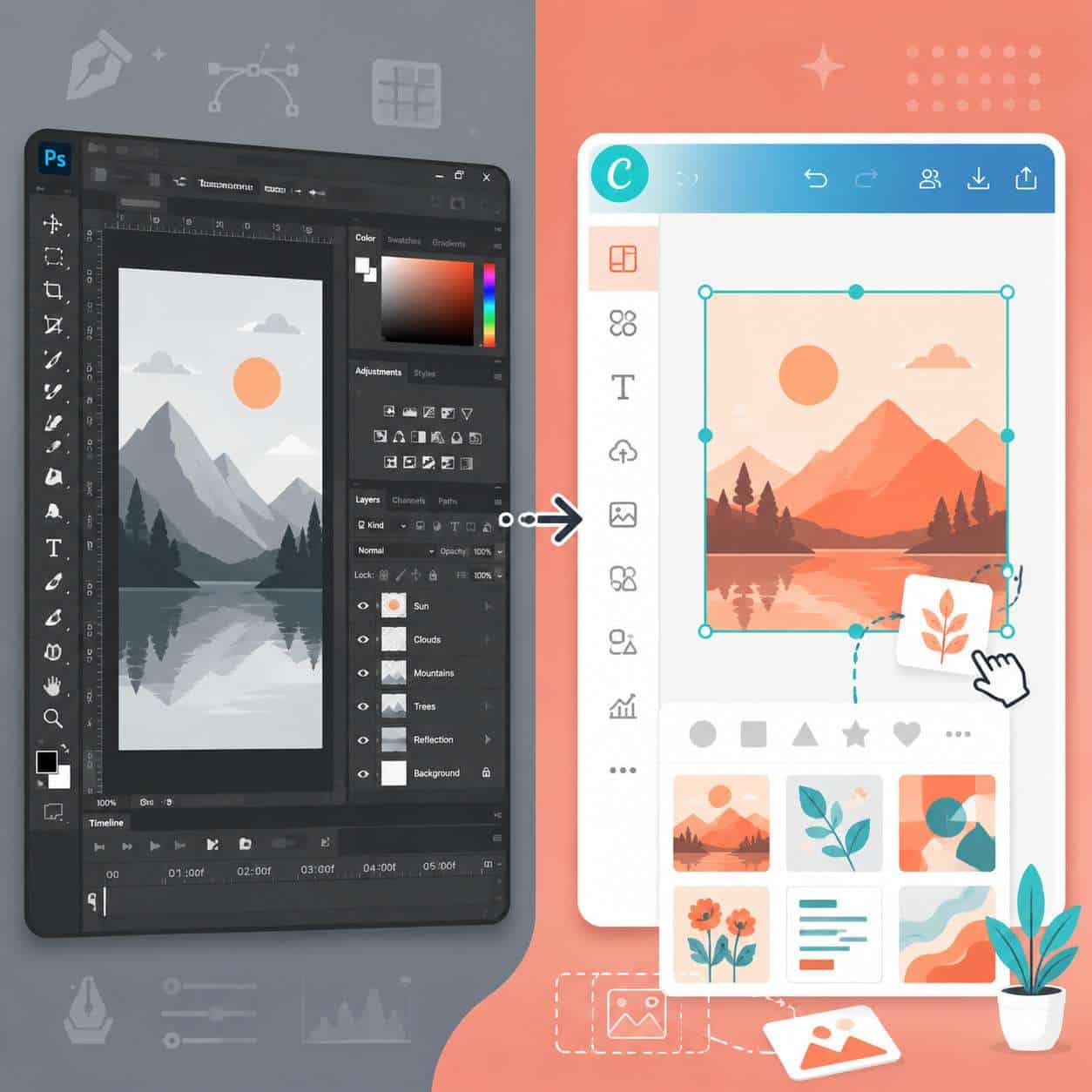
Canva is a template-first design tool built for speed and simplicity, while Photoshop and Illustrator are professional-grade software built for pixel-level control and complex creative work.
| Feature | Canva (Free/Pro) | Adobe Photoshop | Adobe Illustrator |
|---|---|---|---|
| Learning curve | Very low | Steep | Steep |
| Price | Free or $13/mo | $23/mo | $23/mo |
| Best for | Quick graphics, social media, presentations | Photo editing, compositing | Vector art, logos, print |
| Templates | 250,000+ built-in | Limited | Limited |
| Runs in browser | Yes | No (desktop app) | No (desktop app) |
| Collaboration | Real-time sharing | Limited | Limited |
Common mistake: Beginners sometimes think they need Photoshop to make social media graphics. For 90% of everyday design tasks, Canva handles the job faster. If you’re exploring AI-enhanced design options, check out our guide on Canva AI design creation tools for even more speed.
What Kind of Design Projects Can I Make as a Total Beginner?
Even on your first day, you can create polished designs across dozens of categories. Canva organizes projects by purpose, so you don’t need to guess dimensions or layouts.
Popular beginner projects include:
- Social media posts (Instagram, Facebook, LinkedIn, TikTok)
- Instagram Stories and Reels covers
- Presentations and pitch decks
- Flyers and posters
- Business cards
- Email headers and newsletters
- YouTube thumbnails
- Logos and brand marks
- Resumes and cover letters
- Invitations and greeting cards
Each category comes with pre-sized canvases and relevant templates. For example, if you want to build a brand identity, our step-by-step logo design guide walks you through the process. And if email marketing is your focus, see how to create effective email templates in Canva.
Do I Need Any Design Skills to Use Canva Effectively?
No. Canva was specifically built for people without design training. The templates handle the hard parts: layout, typography pairing, color harmony, and spacing. Your job is to swap in your own content.
That said, a few basic principles will make your designs look better:
- Stick to two fonts maximum. One for headings, one for body text.
- Use three colors or fewer. Canva’s color palette suggestions help with this.
- Leave white space. Resist the urge to fill every inch of the canvas.
- Align elements. Canva’s snap-to-grid and alignment guides make this automatic.
I remember my first Canva project back in 2019: a flyer for a local workshop. I had zero design background, but by choosing a clean template and only changing the text and one photo, the result looked like I’d hired a designer. That’s the power of good templates.
Can I Use Canva If I’m Not Creative or Artistic?
Absolutely. Canva’s entire business model depends on non-creative people producing great-looking work. The platform does the creative heavy lifting through curated templates, suggested layouts, and automatic color and font combinations.
If you feel stuck, try these approaches:
- Start with a template and change only the text. Don’t redesign anything else.
- Use Canva’s “Style” suggestions to swap the entire look of a design in one click.
- Browse the “Discover” tab for trending design styles and inspiration.
Creativity in Canva is more about choosing well than creating from scratch.
What Templates Work Best for Social Media Graphics?
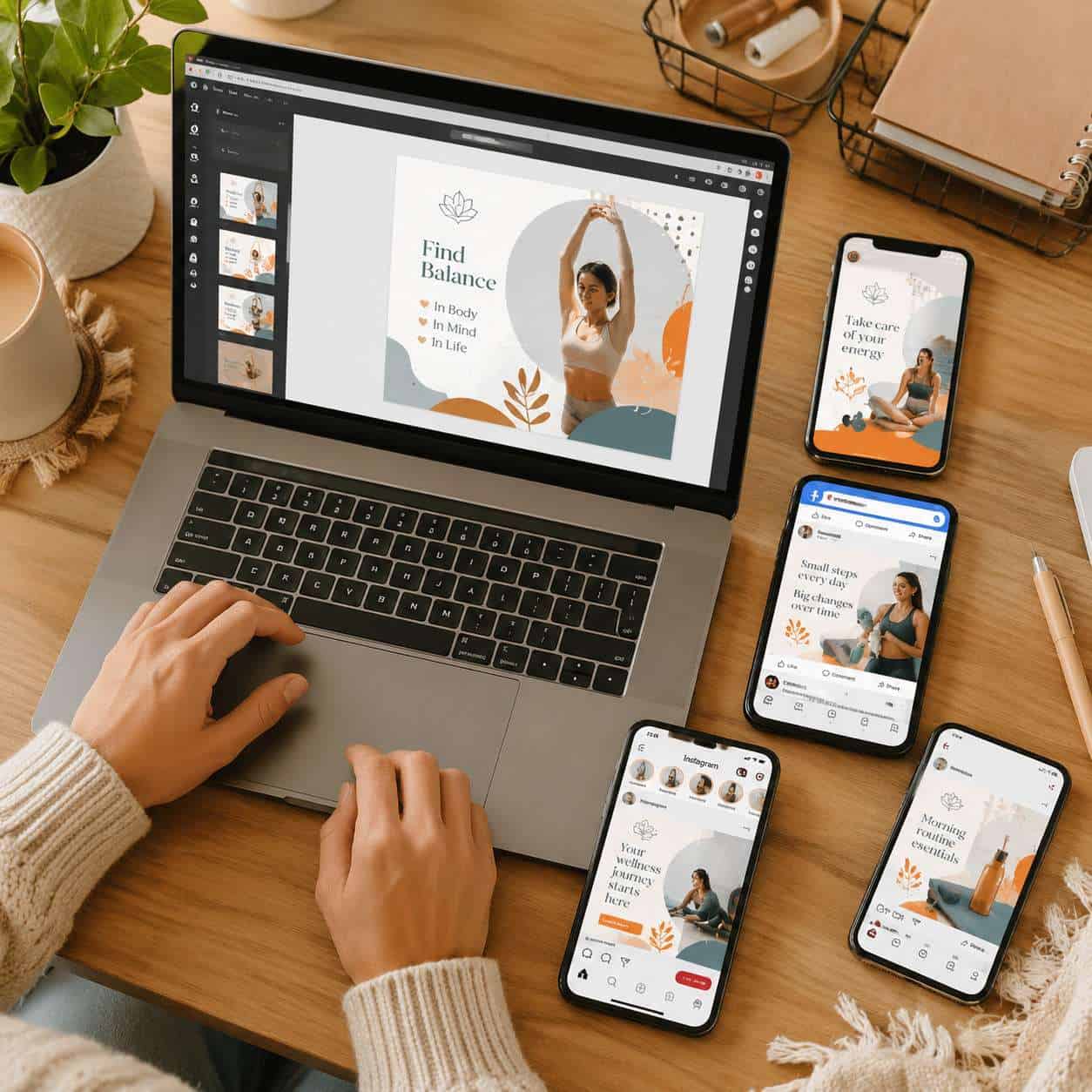
For social media, the best-performing templates are clean, bold, and easy to read on small screens. Canva’s social media template library is organized by platform, so choose your platform first and then filter by style.
Recommended template styles by platform:
- Instagram posts: Minimalist quote cards, product showcases, carousel educational slides
- Instagram Stories: Full-bleed photo backgrounds with text overlays, poll-style layouts
- Facebook: Event banners, promotional announcements, community engagement posts
- LinkedIn: Professional thought-leadership cards, data-driven infographics
- Pinterest: Tall vertical pins with clear titles and lifestyle imagery
- TikTok/Reels: Bold text-heavy covers with high-contrast colors
For Instagram specifically, our guide on designing engaging Instagram Story templates covers layout strategies that drive engagement. You can also learn to create carousel designs that keep viewers swiping.
How Do I Resize Designs for Different Platforms?
On Canva Pro, the Magic Resize tool lets you adapt a single design to multiple platform dimensions in one click. Select your finished design, click “Resize,” choose your target formats, and Canva generates new versions automatically.
On the free plan, you’ll need to manually create new designs at different sizes. Here’s a practical workaround:
- Design your primary version (for example, an Instagram post at 1080×1080 px).
- Create a new blank canvas at the target size (for example, a Facebook cover at 820×312 px).
- Copy elements from your original design and paste them into the new canvas.
- Rearrange and resize elements to fit.
Common mistake: Beginners often stretch images to fit new dimensions, which distorts them. Instead, crop or reposition images to maintain their proportions.
What Equipment or Software Do I Need to Get Started?
You need a device with a web browser and an internet connection. That’s it.
Canva works on:
- Desktop/laptop: Any modern browser (Chrome, Firefox, Safari, Edge)
- Tablet: Browser or the Canva app (iOS/Android)
- Smartphone: Canva mobile app
No special hardware is required. You don’t need a graphics tablet, a powerful GPU, or extra RAM. A basic Chromebook runs Canva just fine. If you’re interested in other AI-powered graphic design tools that complement Canva, we’ve reviewed the top options.
What Are the Most Common Mistakes Newbies Make in Canva?
The biggest beginner mistake is overdesigning: adding too many fonts, colors, images, and effects to a single canvas. Simple designs almost always look more professional.
Other frequent mistakes:
- Ignoring alignment. Elements that are slightly off-center look sloppy. Use Canva’s guides.
- Using low-resolution images. Blurry photos ruin otherwise good designs. Stick to Canva’s built-in stock library or upload high-quality files.
- Not checking text readability. Light text on a light background, or tiny fonts on a mobile-viewed design, makes content unreadable.
- Forgetting to download in the right format. Use PNG for graphics with transparency, JPG for photos, and PDF for print materials.
- Skipping the brand kit. If you create content regularly, set up consistent colors and fonts from the start, even on the free plan (which allows limited brand settings).
Are There Any Free Resources to Learn Canva Quickly?
Yes, and the best one is built right into the platform. Canva Design School (designschool.canva.com) offers free courses on graphic design basics, branding, social media design, and more. Courses take 15 to 60 minutes and include video lessons with practice projects.
Other free resources:
- Canva’s YouTube channel with hundreds of short tutorials
- Canva community forums for troubleshooting and inspiration
- YouTube creators like Design with Canva and Ronny Media who publish regular Canva walkthroughs
For a broader collection of design and tech tutorials, browse our tutorials archive or explore more Canva-specific guides.
What Types of Businesses or People Benefit Most from Canva?
Canva delivers the most value to people and organizations that need professional visuals but lack the budget or time for a dedicated designer.
Best-fit users include:
- Small business owners creating their own marketing materials
- Freelancers and solopreneurs building personal brands
- Social media managers producing high volumes of content
- Teachers and educators making worksheets, presentations, and classroom materials
- Students designing projects, resumes, and portfolios
- Nonprofit teams with limited design budgets
- Real estate agents creating listing flyers and social posts
- Content creators and bloggers needing consistent visual branding
Choose a different tool if you need advanced photo retouching (use Photoshop), vector illustration for scalable logos (use Illustrator), or complex motion graphics (use After Effects). For everything else, this canva tutorial for beginners approach will serve you well.
Frequently Asked Questions
Is Canva safe to use? Yes. Canva uses standard encryption and has been a trusted platform since 2013 with over 170 million monthly active users.
Can I use Canva designs commercially? Yes. Designs you create in Canva, including those using free stock images, can be used for commercial purposes. However, you cannot sell unmodified stock elements as standalone files.
Does Canva work offline? Not fully. Canva requires an internet connection for most features. The mobile app allows limited offline editing of previously opened designs.
Can I collaborate with others in Canva? Yes. You can share designs via link and allow others to view, comment, or edit in real time, similar to Google Docs.
What file formats can I export from Canva? PNG, JPG, PDF (standard and print), SVG (Pro only), MP4 for videos, and GIF for animations.
Is there a Canva tutorial for beginners that covers video editing? Yes. Canva includes a built-in video editor with templates for social media videos, presentations with video, and short-form content. Canva Design School covers video editing in dedicated courses.
Can I upload my own fonts to Canva? Yes, but only on Canva Pro or Canva for Teams. The free plan offers hundreds of built-in fonts.
How do I cancel Canva Pro? Go to Account Settings, then Billing & Plans, and select “Cancel subscription.” Your Pro features remain active until the end of your billing period.
Is Canva better than PowerPoint for presentations? For visual impact and ease of design, Canva often produces better-looking presentations. PowerPoint offers more advanced animation and data integration features. Choose based on your priority.
Can I print designs made in Canva? Yes. Export as a print-quality PDF, or use Canva Print to order physical products like business cards, posters, and flyers shipped to your door.
Conclusion
This canva tutorial for beginners covered everything you need to go from zero to confident designer. Canva removes the traditional barriers to graphic design: expensive software, steep learning curves, and the need for artistic talent. Whether you’re building a brand, creating classroom materials, or posting on social media, the platform meets you where you are.
Your next steps:
- Create a free account at canva.com and complete one design today.
- Take the free “Getting Started” course on Canva Design School (under 20 minutes).
- Set up your brand colors and fonts so every future design stays consistent.
- Bookmark two or three templates you’ll use regularly.
- Explore our Canva guides library for deeper tutorials on specific project types.
Start small, keep it simple, and let the templates do the heavy lifting. You’ll be surprised how quickly your designs improve.
Related: Canva Logotipo: The Complete Guide to Designing Your Logo in Canva
Related: Canva AI Headshot Generator: A Complete Guide for 2026
Related: Canva Sticker Maker: The Complete Guide to Designing and Printing Custom Stickers
Related: Canva Free Templates: A Complete Guide to Finding and Using Them in 2026
Useful Resources: Canva design platform & Canva Design School free tutorials