
Last updated: June 7, 2026
Quick Answer: The Canva AI headshot generator transforms casual selfies into polished, professional-looking headshots using artificial intelligence. It’s available through Canva’s Magic Studio suite, with limited access on free plans and full functionality for Canva Pro subscribers (starting around $13/month). The tool works best when you upload a clear, well-lit photo of your face and can produce multiple styles suited for LinkedIn, resumes, and corporate profiles.
A colleague of mine spent $350 on a professional photographer last year for new headshots. Three weeks later, she watched me generate a comparable result in Canva in under five minutes. That price gap is exactly why AI headshot generators have exploded in popularity, and Canva’s version has become one of the most accessible options available in 2026.
The Canva AI headshot generator sits inside Canva’s broader AI toolkit, and it’s designed for people who need a professional photo without the cost or hassle of a studio session. But it’s not perfect for everyone. This guide covers exactly how it works, what it costs, who should use it, and where it falls short.
Key Takeaways
- Canva’s AI headshot tool is part of Magic Studio and requires a Canva Pro subscription for full access, though limited trials may be available on free accounts.
- You’ll get the best results by uploading a high-resolution, front-facing photo with even lighting and a simple background.
- The tool generates multiple style options including corporate, creative, and casual professional looks.
- AI headshots work well for LinkedIn, freelance portfolios, and personal branding but may not be appropriate for regulated industries like law or medicine.
- Skin tone and ethnicity accuracy has improved but still requires careful review before use.
- Students and freelancers can access the tool affordably through Canva’s education plans or monthly Pro subscriptions.
- Always disclose AI-generated images when company policy or platform terms require it.
How Much Does the Canva AI Headshot Generator Cost?
The Canva AI headshot generator is bundled into Canva Pro, which costs approximately $13 per month (billed monthly) or about $120 per year. There is no separate fee specifically for the headshot feature. Free-tier Canva users may see the tool listed but will encounter usage limits or watermarked outputs.
Here’s how pricing breaks down:
| Plan | Monthly Cost | AI Headshot Access | Credits/Limits |
|---|---|---|---|
| Canva Free | $0 | Very limited or preview only | Minimal AI credits |
| Canva Pro | ~$13/month | Full access | Included in monthly AI credit allotment |
| Canva for Teams | ~$10/person/month | Full access | Shared team credits |
| Canva for Education | $0 (verified students) | Varies by institution | May include AI features |
Compared to dedicated AI headshot services like Aragon AI or HeadshotPro, which charge $29 to $49 per session, Canva’s bundled approach offers better value if you already use the platform for other design work. If you’re exploring Canva’s broader AI capabilities, check out our guide to AI design creation in Canva.
Can Students and Freelancers Afford Canva’s AI Headshot Service?
Yes. Students with a verified .edu email can access Canva for Education at no cost, which often includes AI features. Freelancers on tight budgets can subscribe to Canva Pro monthly and cancel after generating their headshots, keeping the total cost under $15.
This makes the Canva AI headshot generator one of the most budget-friendly options for people early in their careers. A single month of Pro gives you enough credits to generate several headshot variations, download them in high resolution, and cancel before the next billing cycle.
Common mistake: Some users sign up for the free trial and forget to cancel. Set a calendar reminder if you only need the tool temporarily.
Is the Canva AI Headshot Generator Free, or Do I Need a Paid Account?
The short answer: you need a paid account for meaningful use. Canva’s free plan may let you preview the AI headshot feature or generate a small number of images, but the outputs are typically limited in resolution or quantity. Full-quality headshots with multiple style options require Canva Pro or higher.
If you’re weighing whether the subscription is worth it, consider that Pro also unlocks background removal, brand kits, and thousands of premium templates. For a broader look at AI-powered tools across categories, see our comprehensive guide to AI content generation tools.
What Kind of Photo Input Works Best for Canva’s AI Headshot Tool?
Upload a clear, front-facing photo with even lighting, minimal background clutter, and your face taking up at least 40% of the frame. Avoid group photos, heavy filters, sunglasses, or images where your face is partially obscured.
Best practices for input photos:
- Resolution: At least 1024×1024 pixels. Phone cameras from the last three years work fine.
- Lighting: Natural daylight or soft indoor lighting. Avoid harsh overhead fluorescents or strong backlighting.
- Expression: Neutral or slight smile. Extreme expressions can produce odd AI results.
- Angle: Straight-on or slightly angled (no more than 15 degrees). Avoid looking down at the camera.
- Background: Plain walls or uncluttered spaces. The AI handles background replacement, but a busy original background can confuse the model.
- Clothing: Wear something close to what you’d want in the final headshot. The AI adjusts styling but works better with a realistic starting point.
Choose a selfie if you need a quick result and have good natural lighting. Choose a friend-taken photo if you want a more natural angle and better framing.
How Many Different Styles of Professional Headshots Can Canva Generate?
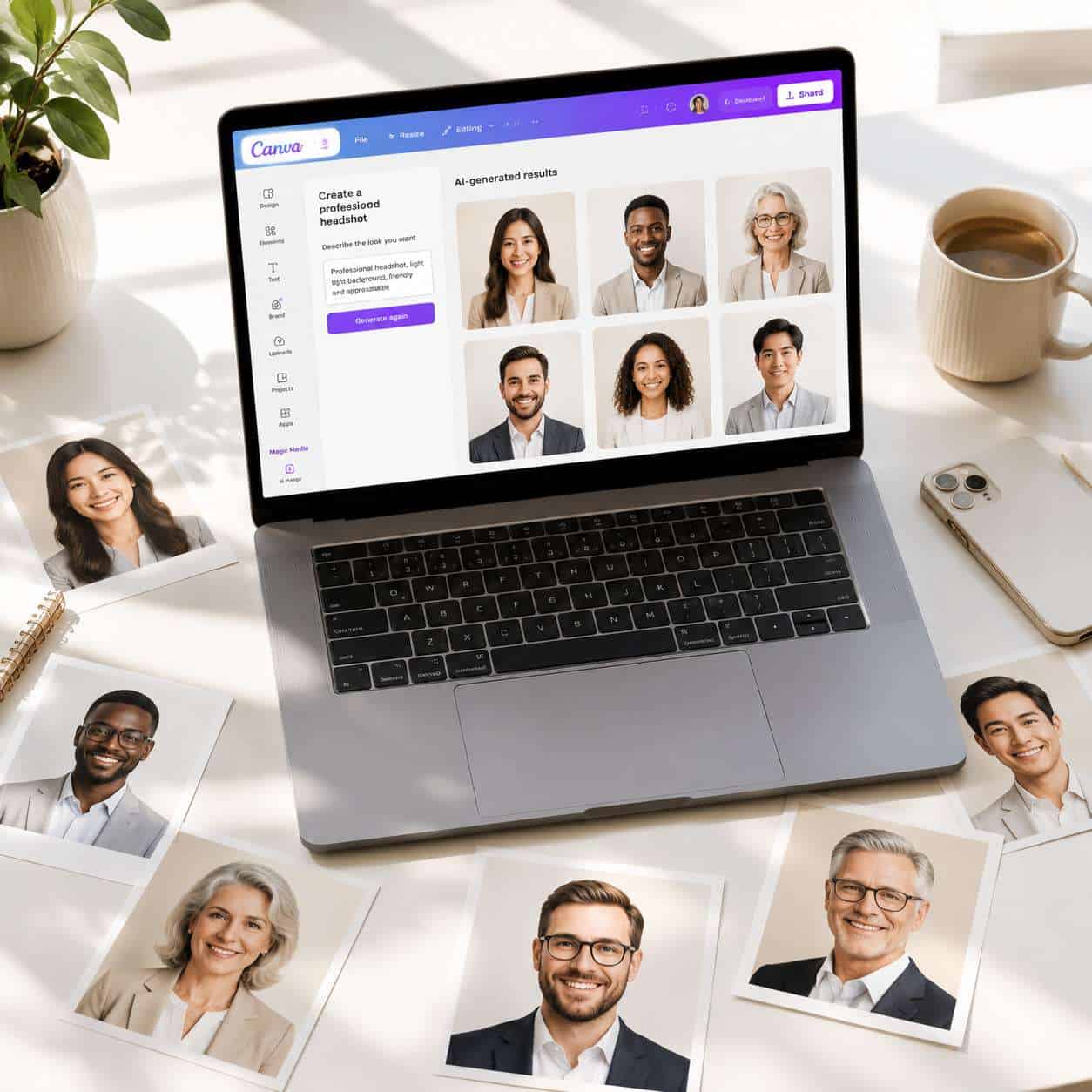
Canva typically offers between 8 and 15 style presets for AI headshots, ranging from corporate formal to creative casual. These styles adjust background color, lighting mood, clothing enhancement, and overall tone.
Common style categories include:
- Corporate: Dark or neutral backgrounds, formal lighting, suit-like appearance
- Creative professional: Softer backgrounds, warmer tones, slightly relaxed styling
- Startup/tech: Modern, clean backgrounds with contemporary styling
- Academic: Traditional, understated look suitable for university profiles
- Social media: Brighter, more approachable styling for platforms like LinkedIn or personal websites
You can generate multiple variations from a single input photo and pick the one that best fits your needs. For tips on optimizing your visual branding across platforms, our guide on creating engaging Instagram story templates covers related design principles.
What Makes a Good AI Headshot for LinkedIn or Professional Profiles?
A good AI headshot for LinkedIn looks natural, uses appropriate lighting, features a clean background, and presents you in a way that matches your industry. The photo should look like it could have been taken in a studio, even if it wasn’t.
Key qualities recruiters and connections notice:
- Eye contact with the camera — builds trust and engagement
- Shoulders visible — cropping too tight to just the face looks awkward
- Neutral or brand-aligned background — avoid distracting patterns
- Appropriate attire — match what you’d wear to an interview in your field
- Consistent skin texture — AI sometimes over-smooths, which looks artificial
LinkedIn’s own data suggests profiles with professional photos receive significantly more views than those without. An AI-generated headshot that follows these principles will outperform a blurry phone selfie every time.
How Accurate Are Canva’s AI Headshots for Different Skin Tones and Ethnicities?
Canva has made improvements in this area, but results still vary. The AI generally handles a wide range of skin tones better than earlier-generation tools, though users with very dark or very light skin tones should review outputs carefully for unnatural smoothing, color shifts, or altered facial features.
What to watch for:
- Skin tone appearing lighter or darker than your actual complexion
- Facial features being subtly altered (nose shape, eye shape, lip fullness)
- Hair texture being changed, especially for natural or textured hairstyles
- Uneven lighting that creates an artificial look on certain skin tones
If the output doesn’t look like you, don’t use it. The whole point of a headshot is accurate representation. Try adjusting your input photo’s lighting or angle and regenerate. Canva’s AI models are trained on diverse datasets, but no tool is perfect across every combination of features.
Can I Use Canva AI Headshots for Job Applications?
Yes, in most cases. AI-generated headshots are acceptable for resumes, job boards, and professional networking profiles, provided the image accurately represents your appearance. The key word is “accurately” — the headshot should look like you’d look walking into an interview.
When it’s fine:
- LinkedIn profiles
- Personal portfolio websites
- Freelance platform profiles (Upwork, Fiverr, etc.)
- Internal company directories (check policy first)
When to be cautious:
- Government applications requiring official photos
- Industries with strict identity verification (banking compliance, security clearances)
- Any application that explicitly asks for an unedited photograph
For more on building your professional presence with Canva, explore our Canva resources hub.
What Industries or Professions Should Avoid AI-Generated Headshots?
Legal, medical, financial advisory, and government-facing roles often carry expectations of authenticity that make AI headshots risky. In these fields, a headshot that’s later identified as AI-generated could undermine trust.
Specific situations where you should use a real photograph:
- Attorneys listed on bar association directories
- Licensed medical professionals on hospital or practice websites
- Financial advisors on SEC-regulated profiles
- Real estate agents in markets where photo authenticity is a licensing concern
- Public officials or candidates for elected office
- News journalists where credibility is tied to visual identity
If you’re in a creative or tech industry, AI headshots are generally well-accepted. The cultural norms around AI imagery are shifting quickly, but conservative fields tend to lag behind.
Is the Canva AI Headshot Generator Better Than Other AI Photo Tools?
It depends on what you need. Canva’s AI headshot generator is best for users who already work within the Canva ecosystem and want a convenient, affordable option. Dedicated headshot tools like HeadshotPro or Aragon AI may produce slightly higher-quality results but cost more per session.
| Feature | Canva AI | HeadshotPro | Aragon AI |
|---|---|---|---|
| Price | ~$13/month (bundled) | ~$29/session | ~$39/session |
| Style options | 8-15 | 20+ | 15+ |
| Turnaround | Minutes | 1-2 hours | ~2 hours |
| Other features included | Full design suite | Headshots only | Headshots only |
| Best for | Existing Canva users | Maximum quality | Variety of poses |
Choose Canva if you want an all-in-one design tool and headshots are just one need. Choose a dedicated tool if headshot quality is your top priority and you don’t mind paying more. For a look at other AI tools worth exploring, see our roundup of must-visit AI websites.
Are Canva AI Headshots Considered Authentic for Corporate Websites?
This is a gray area. Many companies in 2026 use AI-generated headshots for team pages, especially for remote employees who haven’t had professional photos taken. However, some organizations have policies requiring real photographs, and clients or partners may view AI headshots skeptically if they can tell.
Best practice: If your company uses AI headshots on its website, maintain consistency across all team members. A mix of obviously AI-generated and real photos looks unprofessional. Also consider adding a small disclosure in your site’s footer or about page.
For teams building out their brand presence, our guide on Canva logo design for beginners covers complementary branding steps.
What Are Common Mistakes People Make with AI Headshot Generators?
The biggest mistake is using an AI headshot that doesn’t actually look like you. Other frequent errors include poor input photo quality, choosing an overly stylized output, and not checking for AI artifacts.
Mistakes to avoid:
- Using a heavily filtered selfie as input — the AI compounds the distortion
- Picking a style that doesn’t match your industry — a creative-agency look won’t work for a banking profile
- Ignoring artifacts — check ears, hairline edges, collar lines, and background transitions for glitches
- Over-smoothing acceptance — if your skin looks like plastic, regenerate or adjust
- Not comparing to your real appearance — show the output to a friend and ask “does this look like me?”
- Using the same AI headshot everywhere — platforms with reverse image search can flag identical AI patterns
How Do I Fix Blurry or Weird-Looking AI Headshots from Canva?
Start by uploading a higher-resolution input photo with better lighting. If the output still looks off, try a different style preset or slightly crop and re-upload your original photo to change how the AI interprets your face.
Troubleshooting steps:
- Check your input photo is at least 1024×1024 pixels
- Ensure your face is well-lit and clearly visible
- Remove any accessories that might confuse the AI (unusual hats, face masks)
- Try generating 3-5 variations and compare
- Use Canva’s built-in photo editor to make minor adjustments to the output (brightness, contrast, sharpness)
- If artifacts persist around hair or clothing edges, use the background remover tool and place the headshot on a clean background manually
If you’re working with Canva’s broader design tools for professional materials, our guide on effective email template creation shows how to integrate your new headshot into business communications.
FAQ
Can I use the Canva AI headshot generator on mobile? Yes. Canva’s mobile app includes access to Magic Studio features, including AI headshot generation, for Pro subscribers.
How long does it take to generate an AI headshot in Canva? Most headshots generate within 30 seconds to 2 minutes, depending on server load and the number of style variations requested.
Will people be able to tell my headshot is AI-generated? High-quality outputs are difficult to distinguish from real photos. However, close inspection of hair edges, ear details, or background transitions can sometimes reveal AI artifacts.
Can I edit the AI headshot after it’s generated? Yes. You can bring the generated image into Canva’s editor to adjust brightness, contrast, cropping, and background.
Does Canva store my uploaded photos? Canva retains uploaded content per its privacy policy. Review their current data handling terms if you have concerns about facial data storage.
How many headshots can I generate per month? This depends on your plan’s AI credit allocation. Pro users typically get enough credits for dozens of generations per month, though exact limits may change.
Can I use a Canva AI headshot commercially? Yes, Pro subscribers can use generated images commercially, including on business websites and marketing materials, per Canva’s content license terms.
Do I need to credit Canva when using an AI headshot? No credit is required for commercial use under Canva Pro’s license.
What file formats can I download my headshot in? Canva supports PNG, JPG, and PDF downloads. For headshots, PNG at high resolution is recommended.
Can I generate headshots for other people using my account? Technically yes, but the person whose photo you upload should consent to having their image processed by AI.
Conclusion
The Canva AI headshot generator is a practical, affordable option for anyone who needs a professional photo without booking a photographer. It works best for LinkedIn profiles, freelance portfolios, personal websites, and startup team pages. It’s less ideal for regulated industries where photo authenticity carries legal or ethical weight.
Your next steps:
- If you already have Canva Pro, open Magic Studio and test the headshot tool with your best selfie.
- If you’re on a free plan, consider a one-month Pro subscription to generate and download your headshots.
- Upload a well-lit, front-facing photo and generate at least 3-5 style variations before choosing.
- Ask a trusted friend or colleague whether the output looks like you before publishing it anywhere.
- Review your industry’s norms around AI-generated imagery to ensure compliance.
The technology will keep improving, but the fundamentals stay the same: your headshot should look professional, look like you, and fit the context where you’re using it.
Useful Resources: Canva design platform & Canva Design School free tutorials