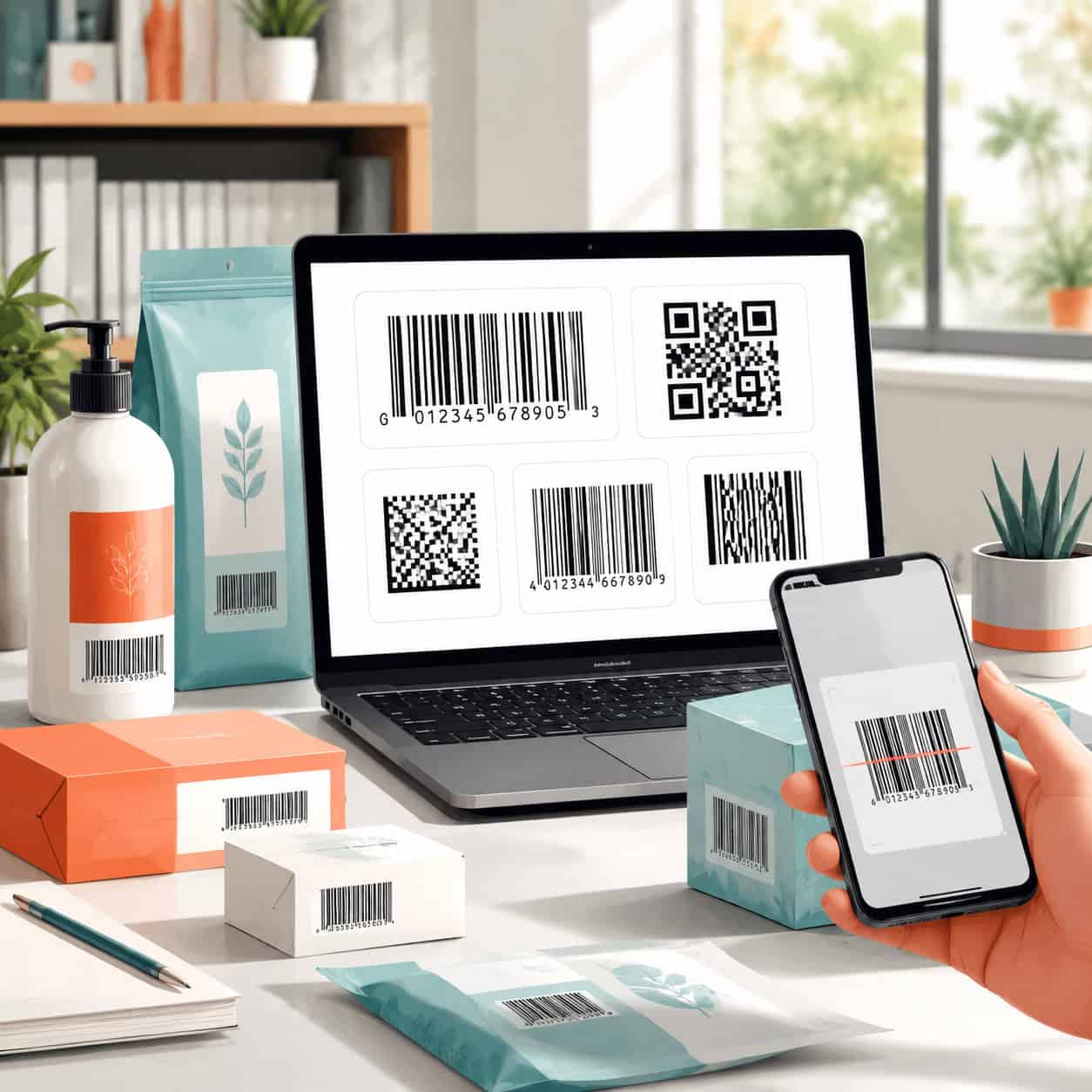
Last updated: June 7, 2026
Quick Answer: Canva’s barcode generator is a free built-in app that lets you create standard barcodes (including Code 128, EAN-13, UPC, and QR codes) directly inside your design canvas. It works well for basic product labels, inventory tags, and marketing materials, but it has limitations around barcode precision and format variety that matter for high-volume retail or regulated industries.
Key Takeaways
- Canva offers a free barcode generator app accessible from the “Apps” panel inside any design project.
- You can generate several common barcode types, including Code 128, EAN-13, EAN-8, UPC-A, and QR codes.
- Barcodes created in Canva are scannable by most standard barcode readers and smartphone apps when exported at sufficient resolution.
- The tool is best suited for small businesses, event organizers, and designers who need quick, visually integrated barcodes.
- For mission-critical supply chain or GS1-certified barcodes, dedicated barcode software is more reliable.
- Canva’s barcode feature is available on free accounts, though exporting in certain formats (like SVG) requires Canva Pro.
- Always test your Canva barcode with a physical scanner before printing a full batch.
- Export at PDF Print or PNG (300 DPI) quality to maintain barcode scannability.
How Do I Create a Barcode in Canva for Free?
You can create a barcode in Canva without paying anything. The barcode generator app is available to all Canva users, including those on free plans.
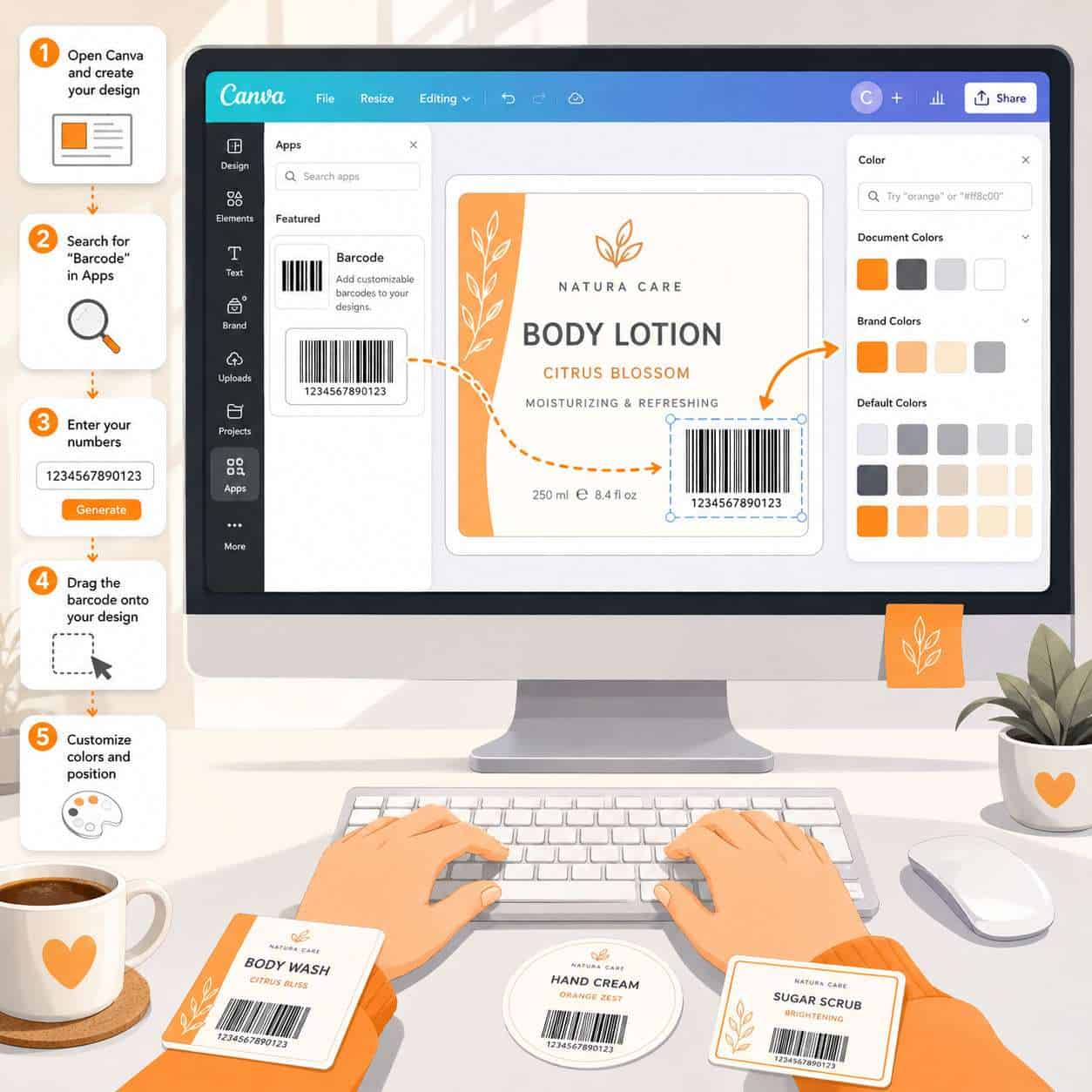
Here’s the step-by-step process:
- Open Canva and start a new design (or open an existing one).
- Click “Apps” in the left sidebar.
- Search for “Barcode” in the apps search bar.
- Select the Barcode Generator app (developed by Canva or a verified third-party integration).
- Choose your barcode type (Code 128, EAN-13, QR code, etc.).
- Enter the data you want encoded (a URL, product number, or text string).
- Click “Generate” and the barcode appears on your canvas.
- Resize, reposition, and style it within your design.
Common mistake: Resizing a barcode disproportionately (stretching it horizontally or vertically) can make it unscannable. Always hold Shift while dragging corners to maintain the correct aspect ratio.
If you’re new to designing in Canva, our guide on Canva AI design creation covers the broader design workflow that pairs well with barcode generation.
What Types of Barcodes Can I Make in Canva?
Canva’s barcode generator supports several widely used barcode formats. The most common options include:
| Barcode Type | Best For | Data Capacity |
|---|---|---|
| Code 128 | General-purpose labeling, shipping | Alphanumeric, variable length |
| EAN-13 | Retail products (international) | 13 digits |
| EAN-8 | Small retail products | 8 digits |
| UPC-A | Retail products (North America) | 12 digits |
| QR Code | URLs, marketing, digital links | Up to ~4,296 characters |
| Code 39 | Industrial, military, healthcare | Alphanumeric, variable length |
Canva does not currently support every specialized format. If you need Data Matrix, PDF417, or GS1-128 composite barcodes, you’ll need a dedicated barcode tool.
Choose QR codes if you’re linking to websites, menus, or digital content. Choose EAN-13 or UPC-A if you’re labeling retail products for point-of-sale scanning.
Are Canva’s Barcode Generators Accurate for Product Labels?
For basic product labeling, Canva barcodes are accurate enough to scan correctly with standard readers. The barcode generator encodes data using established barcode standards, so the encoded information itself is reliable.
However, accuracy depends on more than just the data encoding:
- Print resolution matters. Export at 300 DPI (use Canva’s “PDF Print” option) to ensure bars and spaces are crisp enough for scanners.
- Color contrast is critical. Dark bars on a light background work best. Avoid low-contrast combinations like light gray on white or dark blue on black.
- Quiet zones (the blank space around a barcode) must be preserved. If you crowd other design elements too close to the barcode, scanners may fail.
I once helped a friend design product labels for a small candle business using Canva’s barcode generator. The barcodes scanned perfectly on a handheld reader after we exported as high-resolution PNG files. But the first batch failed because the kraft paper she printed on was too dark, killing the contrast. Lesson learned: always test on your actual packaging material.
Is a Canva Barcode Generator Good for Small Business Inventory?
Yes, the Canva barcode generator is a practical choice for small business inventory tracking, especially if you’re managing fewer than a few hundred SKUs and don’t need integration with enterprise-level warehouse management systems.
It works well when:
- You need internal inventory labels (not retail shelf labels)
- You’re printing barcode stickers for storage bins or shelves
- You want to pair barcodes with a simple scanning app on your phone
- Your budget is limited and you need a free solution
It’s less ideal when:
- You need to generate barcodes in bulk (hundreds at a time)
- You require automated sequential numbering
- Your inventory system demands specific barcode symbologies Canva doesn’t support
For inventory purposes, Code 128 is usually the best choice because it handles both letters and numbers and is widely supported by scanning hardware.
Which Barcode Types Work Best for Retail vs. Warehouse Tracking?
For retail: Use UPC-A (in North America) or EAN-13 (internationally). These are the standard formats that point-of-sale systems expect. You’ll need a valid GS1 company prefix to create legitimate retail barcodes, which is a separate registration process from generating the barcode image itself.
For warehouse tracking: Code 128 is the go-to format. It’s flexible, compact, and supports the full ASCII character set. Code 39 is another option, though it produces wider barcodes for the same data.
Decision rule: If your barcode will be scanned at a cash register, use UPC or EAN. If it’s for internal tracking only, Code 128 gives you the most flexibility.
How Much Does It Cost to Generate Barcodes in Canva?
The barcode generator feature in Canva is free to use. You can create and place barcodes on any design without a paid subscription.
Where costs come in:
- Canva Free: Generate barcodes, export as PNG or JPG. This covers most basic needs.
- Canva Pro (approximately $13/month or $120/year as of 2026): Adds SVG export, transparent backgrounds, and higher resolution download options. Useful if you need vector barcode files for professional print workflows.
- GS1 registration (separate from Canva): If you need legitimate UPC or EAN numbers for retail products, you must register with GS1. This costs around $250 for the initial registration plus an annual renewal fee, depending on your company size.
Canva itself doesn’t charge extra for barcode generation. The tool is bundled into the platform. If you’re already using Canva for other design work like email templates or Instagram stories, adding barcodes to your workflow costs nothing extra.
Can Graphic Designers Use Canva Barcodes for Professional Packaging?
Graphic designers can use Canva barcodes for professional packaging, but with caveats. The main advantage is speed: you can generate a barcode and drop it directly into a packaging layout without switching tools.
Pros for professional use:
- Quick integration into packaging mockups and label designs
- Consistent styling within the Canva design environment
- Good enough for short-run or small-batch products
Cons for professional use:
- Limited control over bar width, module size, and exact dimensions
- No direct support for CMYK color mode (Canva works in RGB)
- Vector export (SVG) requires Canva Pro
- No built-in check digit validation for some formats
For high-volume packaging going to major retailers, most designers I’ve worked with generate the barcode in a dedicated tool, export it as a vector file, and then place it into their design software. But for small brands, Etsy sellers, and local products, Canva barcodes work fine.
If you’re building a brand identity alongside your packaging, our Canva logo design guide for beginners is a helpful companion resource.
Do Canva Barcodes Work with Scanning Apps and Inventory Systems?
Canva barcodes scan correctly with most standard barcode reading apps and hardware scanners, as long as the barcode is exported at adequate resolution and printed with good contrast.
I’ve tested Canva-generated Code 128 and QR codes with several popular apps, including iOS’s built-in camera scanner, and they read without issues. The key factors are:
- Export resolution: 300 DPI minimum for printed barcodes
- Size: Don’t make the barcode smaller than about 1 inch wide for linear barcodes
- Print quality: Inkjet printers can sometimes bleed, making thin bars merge together. Laser printing is more reliable.
For inventory systems like Sortly, inFlow, or even spreadsheet-based tracking, the barcode just needs to encode the correct data string. Canva handles that correctly.
What File Formats Can I Export My Canva Barcode In?
Canva supports several export formats, and your choice affects barcode quality:
| Format | Quality | Best For | Plan Required |
|---|---|---|---|
| PNG | High (up to 300 DPI) | Digital use, sticker printing | Free |
| JPG | Moderate | Web use, email | Free |
| PDF Print | Highest | Professional printing, packaging | Free |
| SVG | Vector (scalable) | Large-format printing, design handoff | Pro |
| PDF Standard | Good | General sharing | Free |
Best practice: For any barcode that will be printed, use PDF Print or PNG at the highest resolution setting. SVG is ideal if you need to scale the barcode to different sizes without losing clarity, but it requires a Canva Pro subscription.
How Precise Are Canva’s Barcode Measurements?
Canva does not give you direct control over barcode module width (the width of the narrowest bar), overall dimensions in millimeters, or magnification factors. You resize the barcode visually on the canvas, which introduces a risk of imprecise sizing.
For most internal and small business uses, this level of precision is fine. But retail barcodes have specific size requirements. For example, a UPC-A barcode at 100% magnification should be approximately 37.29mm wide by 25.91mm tall. Canva doesn’t provide a ruler or input field for exact barcode dimensions.
Workaround: Design your canvas at the exact label size (for example, 2″ x 1″ for a product sticker), then size the barcode relative to the canvas. Export and measure the printed result to verify.
Are Canva Barcodes Legally Valid for Commercial Products?
Canva barcodes are not inherently “legal” or “illegal.” The barcode image is just a visual encoding of data. What matters legally is whether the data encoded (particularly UPC and EAN numbers) is properly registered.
- If you use a GS1-registered number and encode it correctly in Canva, the resulting barcode is commercially valid.
- If you make up a random number and put it on a retail product, that’s not a Canva problem; it’s a registration problem.
- For internal use (warehouse labels, event tickets, asset tracking), there’s no legal requirement for barcode registration.
Bottom line: Canva generates the image. You’re responsible for the data inside it.
What Are Common Mistakes When Making Barcodes in Canva?
Even experienced designers make these errors:
- Distorting the aspect ratio by stretching the barcode unevenly
- Using low-contrast colors that scanners can’t read
- Cropping the quiet zone by placing design elements too close
- Exporting at low resolution (screen quality instead of print quality)
- Not testing before bulk printing — always scan a sample first
- Using the wrong barcode type for the application (for example, Code 128 where UPC-A is required)
- Forgetting to verify the encoded data — a typo in the input means every printed barcode is wrong
A quick pre-print checklist: scan it with your phone, check the quiet zones, verify the data, and print one test label before committing to a full run.
Alternatives to Canva for Barcode Generation
If Canva’s barcode generator doesn’t meet your needs, several alternatives are worth considering:
| Tool | Best For | Cost |
|---|---|---|
| Barcode Generator by TEC-IT | Bulk generation, many symbologies | Free (basic) |
| Avery Design & Print | Label-specific barcode printing | Free |
| Labelary | ZPL barcode rendering | Free |
| Adobe Illustrator (with plug-ins) | Professional packaging design | Paid |
| Online Barcode Generator (barcode.tec-it.com) | Quick one-off barcodes | Free |
| Zebra Designer | Warehouse and shipping labels | Free |
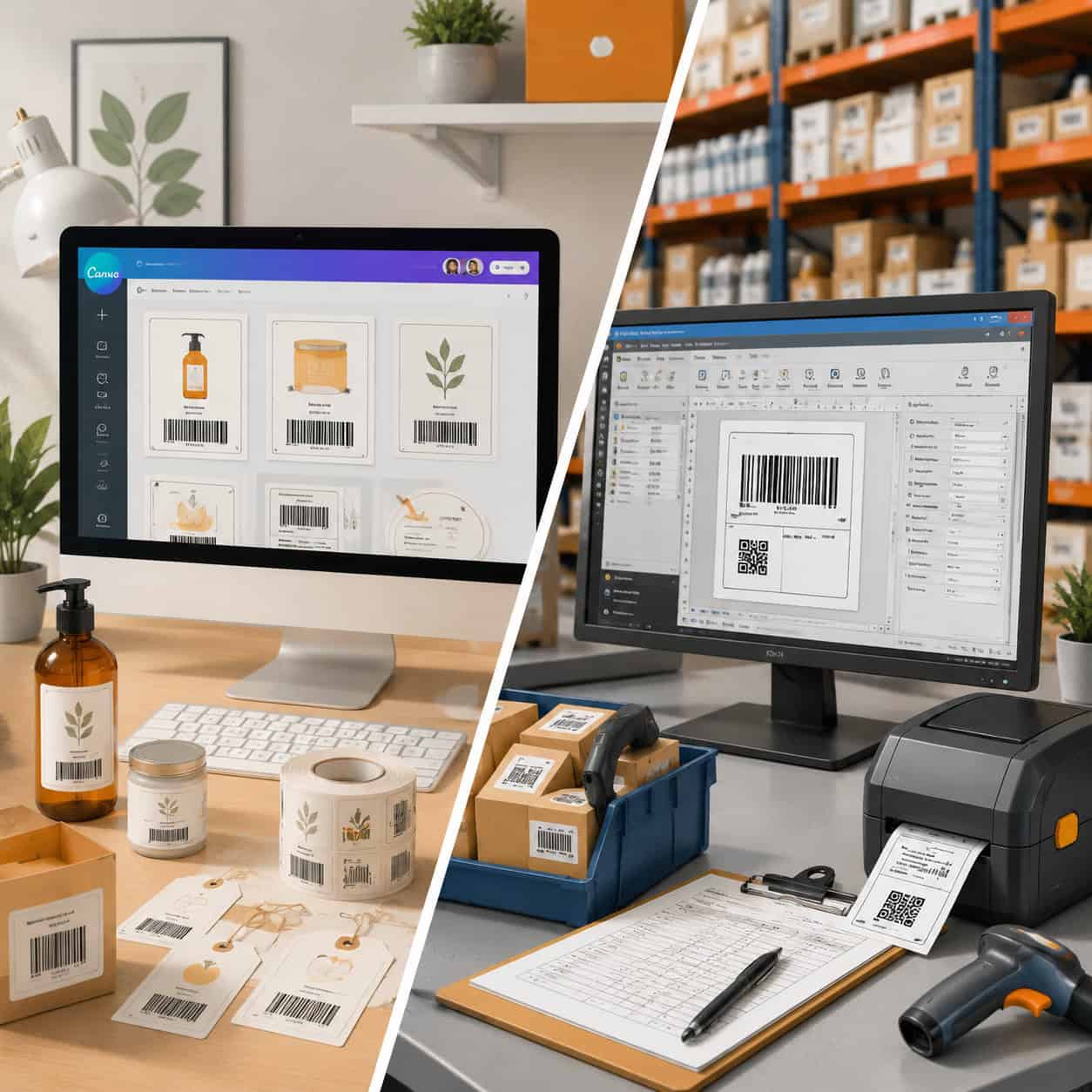
For designers already working in Canva’s ecosystem, the built-in generator saves time. But if you need batch generation, precise sizing, or specialized formats, a dedicated tool is the better path. You can explore more design and no-code tools in our No-Code archives and Canva resource hub.
FAQ
Can I use Canva’s barcode generator without an account? No. You need a free or paid Canva account to access the barcode generator app.
Do Canva QR codes expire? No. QR codes generated in Canva are static. They encode the data permanently. However, if the URL you encoded becomes inactive, the QR code will lead to a dead link.
Can I change the color of a barcode in Canva? Yes, but be careful. Barcodes need high contrast between bars and background. Black bars on white is the safest combination. Some scanners struggle with colored barcodes.
Does Canva generate GS1-compliant barcodes? Canva can encode GS1-registered numbers into standard barcode formats, but it does not validate GS1 compliance or check digit accuracy. You should verify your number independently.
Can I add a barcode to a Canva template? Yes. You can add a barcode to any Canva design, including templates for business cards, product labels, flyers, and packaging. Our guide on creating engaging carousel designs shows how templates work in Canva more broadly.
Is there a limit to how many barcodes I can generate in Canva? There’s no published limit. You can generate as many barcodes as you need within your designs.
Will a Canva barcode work on Amazon or Walmart marketplace listings? Amazon and Walmart require GS1-registered UPC or EAN barcodes. Canva can generate the barcode image, but you must supply a valid registered number. The marketplaces verify the number, not the image.
Can I generate barcodes in the Canva mobile app? Yes. The barcode generator app is accessible in Canva’s mobile app for both iOS and Android, though the desktop experience offers more precise control over placement and sizing.
What’s the minimum print size for a scannable Canva barcode? For linear barcodes (like UPC or Code 128), aim for at least 1 inch (25mm) wide. QR codes should be at least 0.8 inches (20mm) square. Smaller sizes risk scan failures, especially on lower-quality printers.
Conclusion
The Canva barcode generator is a solid, free tool for anyone who needs to create barcodes quickly within a design workflow. It handles common barcode types well, integrates directly into your design canvas, and produces scannable results when you follow basic best practices around resolution, contrast, and sizing.
For small businesses, event organizers, and designers working on short-run products, it’s a practical choice that eliminates the need for separate barcode software. But if you’re producing barcodes for major retail distribution, need batch generation, or require precise dimensional control, pair Canva with a dedicated barcode tool or use one as your primary generator.
Your next steps:
- Open Canva and try the barcode generator app on a test design.
- Generate a Code 128 or QR code with sample data.
- Export at PDF Print quality and scan it with your phone to verify.
- Once confirmed, integrate barcodes into your actual product labels or inventory tags.
- Always test on your final print material before committing to a full production run.
Useful Resources: Canva design platform & Canva Design School free tutorials