Last updated: June 7, 2026
Quick Answer: Canva Whiteboard is a free, browser-based infinite canvas built into Canva that lets individuals and teams brainstorm, plan, and organize ideas visually using sticky notes, shapes, connectors, drawings, and Canva’s full library of design assets. It works best for visual thinkers and small-to-mid-size teams who want quick collaboration without learning a new tool, though it’s not built for complex technical diagramming or enterprise-scale project management.
Key Takeaways
- Canva Whiteboard is included free with every Canva account, including the free tier.
- Real-time collaboration supports multiple users editing the same board simultaneously.
- It integrates directly with Canva’s design ecosystem, so you can drop in graphics, photos, and templates without leaving the tool.
- For simple brainstorming and visual planning, it competes well with Miro and FigJam, but lacks advanced features like voting, timers, and deep third-party integrations.
- Performance can lag on boards with hundreds of elements; keeping boards focused solves most issues.
- It works on mobile devices through the Canva app, though the experience is better on tablets and desktops.
- Common saving issues are usually caused by unstable internet connections or browser cache problems.
- It’s a strong choice for client-facing brainstorming when you want polished visuals without extra tools.
What Is Canva Whiteboard and How Does It Work?
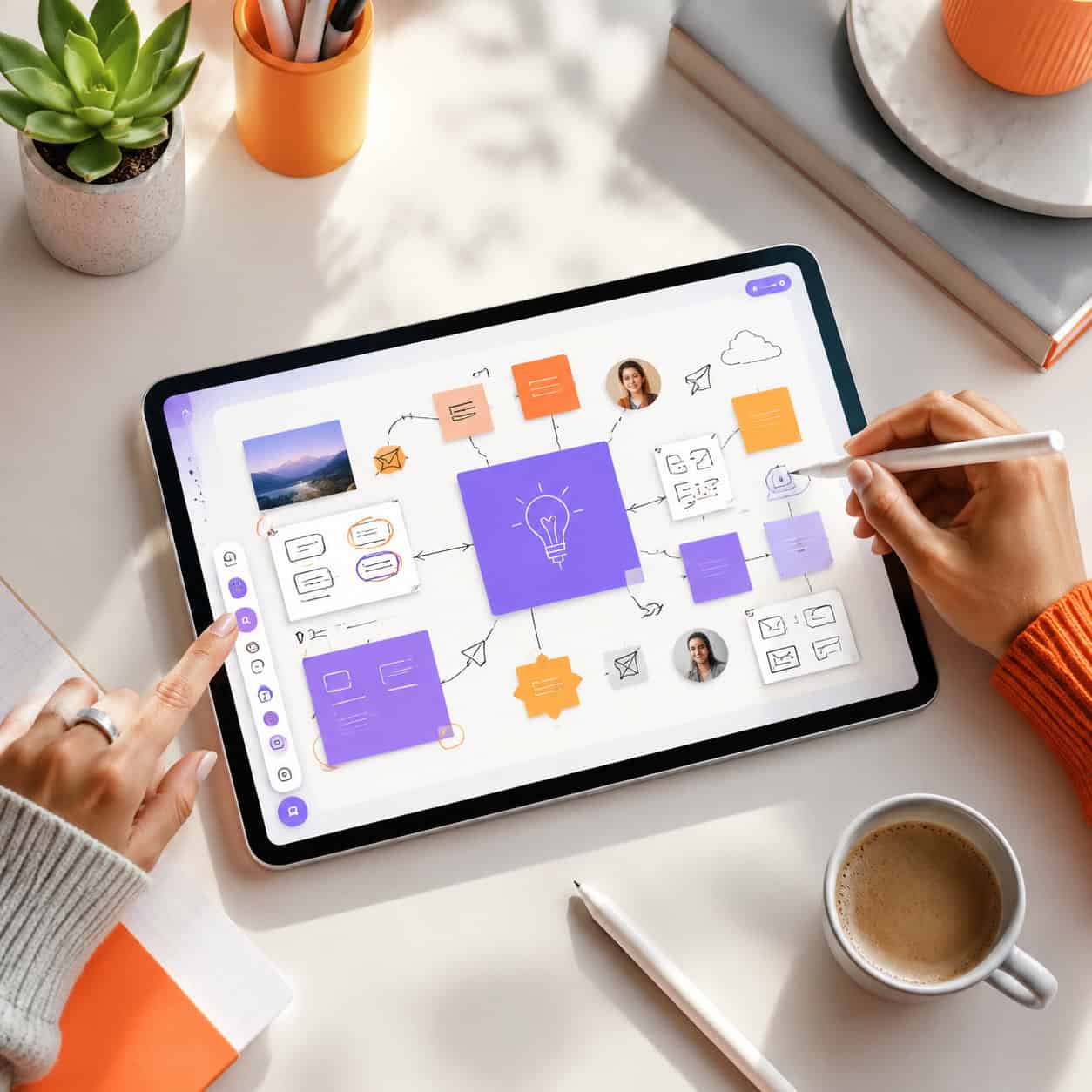
Canva Whiteboard is an infinite digital canvas inside Canva’s design platform where you can place sticky notes, text, images, shapes, drawings, and connectors to map out ideas visually. It works entirely in the browser or through the Canva app, with no separate software to install.
Here’s how it works in practice:
- Open Canva and select “Whiteboard” from the homepage or create a new design.
- Choose a template or start from a blank canvas. Canva offers templates for mind maps, flowcharts, project timelines, and brainstorming sessions.
- Add elements by dragging sticky notes, shapes, or images from the left panel. You can also freehand draw.
- Invite collaborators by sharing a link. Everyone edits in real time, with cursor tracking so you can see who’s doing what.
- Export or present directly from the whiteboard. You can convert sections into Canva presentations or download as PDF/image files.
The key difference from standalone whiteboard tools is that you’re working inside Canva’s full design environment. That means access to millions of stock photos, icons, illustrations, and brand kits without switching apps. If you already use Canva for creating social media content or designing email templates, the whiteboard feels like a natural extension.
Canva Whiteboard vs Miro: Which Is Better for Team Collaboration?
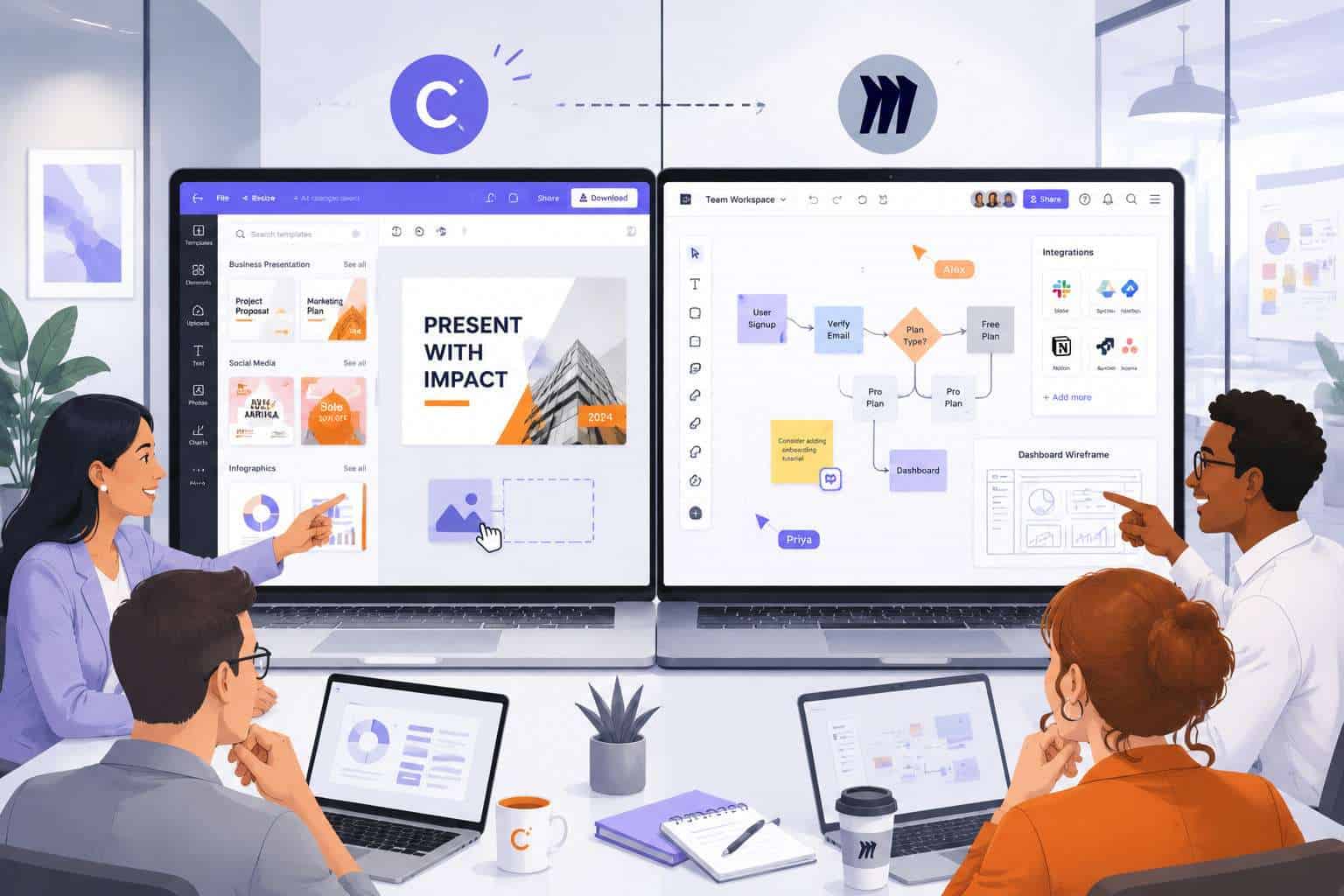
For casual brainstorming and visually-driven teams, Canva Whiteboard is simpler and faster to start with. For complex workflows, facilitated workshops, or teams that need deep integrations with tools like Jira and Slack, Miro is the stronger choice.
Here’s a direct comparison:
| Feature | Canva Whiteboard | Miro |
|---|---|---|
| Free tier | Yes, generous | Yes, limited to 3 boards |
| Templates | Design-focused (mind maps, mood boards) | Process-focused (retrospectives, user story maps) |
| Real-time collaboration | Yes | Yes |
| Facilitation tools (voting, timers) | No | Yes |
| Third-party integrations | Limited | Extensive (Jira, Asana, Slack, etc.) |
| Design asset library | Full Canva library built in | Basic; relies on uploads |
| Learning curve | Low | Moderate |
| Best for | Visual brainstorming, mood boards, simple planning | Agile workflows, UX research, enterprise collaboration |
Decision rule: Choose Canva Whiteboard if your team already lives in Canva and needs quick, attractive visual boards. Choose Miro if your collaboration involves structured processes, large teams, or heavy integration with project management tools.
How Much Does Canva Whiteboard Cost Compared to Other Online Whiteboards?
Canva Whiteboard is free on all Canva plans, including Canva Free. Canva Pro (currently around $13/month for one person) and Canva Teams (around $10/month per person) add premium templates, Brand Kit access, and more storage, but the core whiteboard functionality doesn’t require a paid plan.
By comparison:
- Miro offers a free plan limited to 3 boards, with paid plans starting around $8/member/month.
- FigJam (by Figma) is free for up to 3 files, with paid plans starting at $5/member/month.
- Microsoft Whiteboard is free with a Microsoft 365 subscription.
If you’re a solo user or small team that doesn’t need advanced facilitation features, Canva Whiteboard offers the best value because you also get access to Canva’s entire design platform at no extra cost. Teams exploring AI-powered design tools within Canva get even more value from the ecosystem.
Is Canva Whiteboard Good for Remote Design Teams?
Yes, Canva Whiteboard works well for remote design teams that need to brainstorm concepts, build mood boards, or map out visual direction together. The real-time editing, built-in design assets, and easy sharing make it practical for distributed creative work.
Where it shines for design teams:
- Mood board creation with drag-and-drop access to stock photos, color palettes, and typography
- Quick concept mapping before moving into detailed design tools
- Client presentations where you can present the whiteboard directly or export polished visuals
- Brand consistency using Canva’s Brand Kit (on paid plans)
Where it falls short: design teams doing detailed UI/UX work will still need tools like Figma for wireframing and prototyping. If you’re comparing approaches, our guide on designing mobile wireframes in Figma covers when a dedicated design tool makes more sense.
Canva Whiteboard Not Recommended for Which Type of Projects?
Canva Whiteboard is not the right tool for complex technical diagramming, large-scale agile project management, or boards requiring hundreds of interconnected elements with conditional logic.
Specifically, avoid it for:
- Software architecture diagrams that need precise notation (use Lucidchart or draw.io instead)
- Agile sprint planning with ticket tracking (use Miro + Jira or a dedicated PM tool)
- Data-heavy process mapping with dozens of swimlanes and decision trees
- Enterprise-scale collaboration with 50+ simultaneous editors on a single board
The tool is built for visual simplicity, not technical depth. Trying to force complex project management into Canva Whiteboard usually leads to performance issues and frustration.
Can I Use Canva Whiteboard for Brainstorming with Clients?
Absolutely. Client brainstorming is one of the strongest use cases for Canva Whiteboard because the output looks polished without extra effort, and clients don’t need a Canva account to view shared boards.
Tips for client brainstorming sessions:
- Use a branded template with your logo and colors so the board looks professional from the start
- Pre-populate the board with prompts, categories, or example content to guide the session
- Share a view-only link first, then upgrade to edit access once the client is comfortable
- Export key sections as PDFs or images for follow-up emails
I’ve run several client workshops using Canva Whiteboard, and the biggest advantage is that clients immediately understand the interface. There’s almost no “how do I use this tool?” friction, which keeps the focus on ideas rather than technology.
What Features Make Canva Whiteboard Unique from Other Digital Whiteboards?
The standout feature is full integration with Canva’s design ecosystem. No other whiteboard tool gives you inline access to millions of design assets, templates, and a complete graphic design editor on the same canvas.
Other unique features include:
- Magic Write (AI text generation) directly on the whiteboard for brainstorming copy ideas
- One-click presentation mode that turns whiteboard sections into a slideshow
- Direct conversion from whiteboard elements to Canva designs (turn a sticky note plan into an actual Instagram story template or carousel post)
- Drawing tools with shape recognition
- Sticky note clustering with color coding
Tips for Organizing Complex Projects in Canva Whiteboard
Keep your boards focused and structured by using frames, color coding, and multiple boards instead of cramming everything into one canvas.
Practical organization strategies:
- Use frames as sections. Create distinct areas for different project phases or topics. Frames act as containers you can zoom into during presentations.
- Color-code sticky notes by category. For example: yellow for ideas, pink for blockers, green for approved items.
- Limit one board to one topic. If a project has five workstreams, create five whiteboards instead of one massive board.
- Add connectors intentionally. Lines between elements should show real relationships, not just visual decoration.
- Name your elements. Add text labels to groups so collaborators can navigate quickly.
Common mistake: People create a single massive whiteboard for an entire project and wonder why it becomes slow and confusing. Smaller, linked boards always work better.
Common Mistakes People Make When Using Canva Whiteboard
The most frequent mistake is treating Canva Whiteboard like a full project management tool instead of a visual thinking space.
Other common errors:
- Overloading a single board with too many elements, causing lag and confusion
- Skipping templates and starting from blank when a pre-built layout would save 20 minutes
- Not setting permissions properly, leading to accidental edits by viewers
- Ignoring the grid and alignment tools, which results in messy, hard-to-read boards
- Forgetting to export or save key decisions from brainstorming sessions before the board gets cluttered with new content
Why Is My Canva Whiteboard Not Saving or Syncing Properly?
Saving and syncing issues in Canva Whiteboard are almost always caused by an unstable internet connection, browser cache problems, or using an outdated browser version.
Quick fixes:
- Check your internet connection and switch to a more stable network if possible.
- Clear your browser cache and cookies, then reload the page.
- Try a different browser (Chrome and Edge tend to work best with Canva).
- Disable browser extensions, especially ad blockers, which can interfere with Canva’s autosave.
- If using the app, force-close and reopen it.
Canva autosaves continuously, so if the save indicator shows a warning, don’t close the tab. Wait for the connection to restore and let it sync.
How to Fix Lag or Performance Issues in Canva Whiteboard

Lag in Canva Whiteboard usually happens when a board has too many high-resolution images or hundreds of elements. Reducing visual complexity is the fastest fix.
Step-by-step performance troubleshooting:
- Reduce image sizes. Compress or resize large images before adding them to the board.
- Split large boards. If your board has 200+ elements, break it into multiple boards.
- Close other browser tabs. Canva Whiteboard uses significant memory, especially with real-time collaboration active.
- Use Chrome or Edge. Safari and Firefox sometimes perform worse with canvas-heavy web apps.
- Check your device specs. Older machines with less than 8GB of RAM may struggle with complex boards.
- Reduce collaborator count. Having 15+ people editing simultaneously can slow things down.
Does Canva Whiteboard Work on Mobile Devices?
Yes, Canva Whiteboard works on both iOS and Android through the Canva mobile app. You can view, edit, and collaborate on whiteboards from your phone or tablet.
That said, the experience varies by device:
- Tablets (especially iPads) offer a good experience with touch gestures for zooming and moving elements.
- Phones work for quick edits and reviewing, but creating complex boards on a small screen is frustrating.
- Offline access is limited; you need an internet connection for real-time collaboration features.
For serious whiteboard work, I recommend using a tablet or desktop. Use your phone only for quick reviews or adding a few sticky notes on the go.
Best Free Alternatives to Canva Whiteboard
If Canva Whiteboard doesn’t fit your needs, several free alternatives are worth considering.
- FigJam (by Figma) — best for design teams already using Figma; strong facilitation features like voting and reactions
- Miro Free — limited to 3 boards but offers more structured templates for agile and UX workflows
- Microsoft Whiteboard — free with Microsoft 365; good for teams already in the Microsoft ecosystem
- Excalidraw — open-source, minimal, and great for quick hand-drawn-style diagrams
- Google Jamboard — very basic but works well for quick Google Workspace collaboration (note: Google has been scaling back Jamboard features)
Choose Canva Whiteboard if you want design assets and visual polish built in. Choose alternatives if you need specialized features like voting, deep integrations, or technical diagramming. For a broader look at design tools, check out our roundup of AI graphic design tools for creative workflows.
Conclusion
Canva Whiteboard fills a specific and valuable niche: it’s the best option for teams that want visual brainstorming with built-in design capabilities, all without paying extra or learning a new platform. It won’t replace Miro for enterprise agile workflows or Figma for detailed UI design, but that’s not its purpose.
Your next steps:
- Open Canva and try a whiteboard template to get familiar with the layout.
- Invite one or two collaborators to test real-time editing.
- Keep boards focused — one topic per board, with clear color coding.
- Use it for your next client brainstorming session and see how the polished output compares to other tools.
- Explore more Canva tutorials and guides to get the most from the platform.
If you find yourself hitting performance walls or needing advanced facilitation features, that’s your signal to evaluate Miro or FigJam for those specific use cases. But for most visual collaboration needs in 2026, Canva Whiteboard is a strong, free starting point.
Frequently Asked Questions
Is Canva Whiteboard really free? Yes. Whiteboard functionality is available on Canva Free, Canva Pro, and Canva Teams. Premium templates and Brand Kit features require a paid plan, but the core whiteboard tools cost nothing.
Can I use Canva Whiteboard without an account? No. You need a free Canva account to create and edit whiteboards. However, you can share a view-only link with people who don’t have accounts.
How many people can collaborate on a Canva Whiteboard at once? Canva doesn’t publish a hard limit, but performance degrades noticeably with more than 15-20 simultaneous editors on a complex board. For large groups, consider splitting into smaller boards.
Can I convert a Canva Whiteboard into a presentation? Yes. You can select frames or sections of your whiteboard and convert them into Canva presentation slides directly within the platform.
Does Canva Whiteboard have an offline mode? No. Canva Whiteboard requires an internet connection for editing and collaboration. You can export boards as PDFs or images for offline viewing.
Is Canva Whiteboard secure for business use? Canva uses encryption and offers team permission controls. For enterprise needs, Canva Teams includes additional admin controls and SSO options.
Can I import content from Miro or other whiteboards into Canva? There’s no direct import feature. You would need to export content from other tools as images or PDFs and then place them onto a Canva Whiteboard manually.
Does Canva Whiteboard support handwriting or stylus input? Yes. The drawing tool supports freehand input, and it works with stylus devices on tablets. Shape recognition can convert rough drawings into clean shapes.
What’s the maximum board size? Canva Whiteboard uses an infinite canvas, so there’s no fixed size limit. However, performance decreases as you add more elements, so practical limits depend on your device.
Can I embed a Canva Whiteboard on a website? Yes. Canva provides embed codes for whiteboards, allowing you to embed view-only versions on websites or in tools that support iframe embeds.
Useful Resources: Canva design platform & Canva Design School free tutorials