Last updated: June 7, 2026
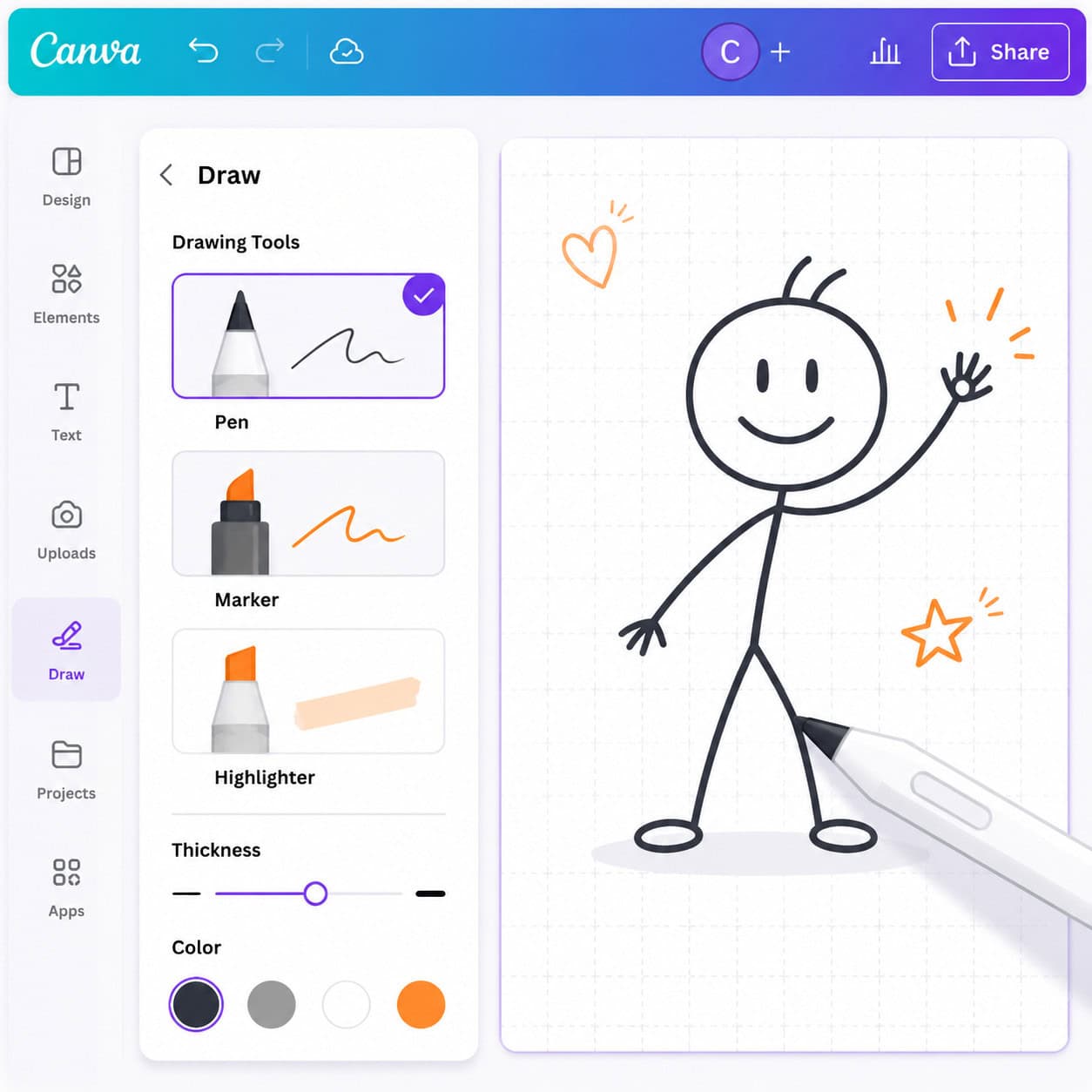
Quick Answer: To draw on Canva, open any design, click the “Draw” option from the left sidebar (or find it under Apps), select a drawing tool (pen, marker, highlighter, or shape assist), adjust size and color, and start sketching directly on your canvas. The Draw feature works on both free and paid plans, and it supports freehand drawing as well as shape-snapping for cleaner results [1].
Key Takeaways
- Canva’s Draw tool is accessible from the left sidebar or the Apps/More menu on both desktop and mobile.
- Four main drawing instruments are available: pen, marker, highlighter, and shape assist.
- Freehand drawing is fully supported; you are not limited to templates.
- Shape assist automatically converts rough sketches into clean geometric shapes.
- The Draw feature is available on Canva Free, though Canva Pro unlocks additional design assets.
- Canva is best for quick illustrations, annotations, and simple graphics rather than professional-grade vector illustration.
- You can undo, erase, and adjust individual drawing elements after placing them.
- Drawing works across most design types, including presentations, social media posts, and whiteboards.
Is Drawing Easy for Beginners on Canva?
Yes, drawing on Canva is genuinely beginner-friendly. The interface strips away complexity, so you don’t need any prior design experience to start sketching. Unlike professional illustration software that requires weeks of learning, Canva’s Draw tool is ready to use in seconds [2].
Here’s what makes it approachable:
- Minimal learning curve: You pick a tool, choose a color, and draw. That’s it.
- Shape assist helps clean up your work: If you draw a rough circle, Canva can snap it into a perfect one [1].
- No installation required: Everything runs in your browser or the Canva app.
- Undo is always one click away: Mistakes don’t stick.
When I first tried Canva’s drawing features, I was surprised at how quickly I could annotate a presentation slide with hand-drawn arrows and circles. It took under a minute. If you’re already comfortable with Canva logo design basics, the Draw tool will feel natural.
Choose Canva’s Draw tool if you need quick sketches, annotations, or simple illustrations. Look elsewhere if you need precise vector control or advanced brush engines.
What Drawing Tools Does Canva Have?
Canva offers four core drawing instruments, each suited to different tasks [1] [5]:
| Tool | Best For | Behavior |
|---|---|---|
| Pen | Clean lines, outlines, writing | Produces solid, consistent strokes |
| Marker | Bold strokes, emphasis | Thicker lines with slight texture |
| Highlighter | Annotations, overlays | Semi-transparent strokes that layer over content |
| Shape Assist | Geometric shapes | Converts rough freehand shapes into clean circles, squares, triangles, and lines |
Each tool lets you adjust:
- Stroke size (thin to thick)
- Color (full color picker plus brand kit colors on Pro)
- Opacity/transparency (varies by tool)
Beyond these four, Canva’s broader toolkit includes elements like pre-made shapes, lines, and stickers that complement your drawings. For designers building full visual projects, combining drawn elements with Canva’s template library creates polished results fast. You can explore more creative approaches in our Canva design tutorials.
How to Draw on Canva: Step-by-Step Process
Here is the exact workflow for drawing on Canva in 2026 [1] [2]:
- Open or create a design. Go to canva.com and start a new project or open an existing one.
- Find the Draw tool. Look in the left sidebar for “Draw.” If you don’t see it, click “Apps” (or “More” on older layouts) and search for “Draw” [1].
- Select your instrument. Click on pen, marker, highlighter, or shape assist from the toolbar that appears.
- Adjust settings. Set your preferred stroke size and color before you start drawing.
- Draw on the canvas. Click and drag (desktop) or use your finger/stylus (mobile/tablet) to sketch.
- Edit your drawing. Click on any drawn element to move, resize, rotate, or delete it.
- Use shape assist (optional). Toggle shape assist on, then draw a rough shape. Canva will auto-correct it into a clean geometric form.
- Save or export. Your drawing saves automatically. Export as PNG, JPG, PDF, or SVG (SVG on Pro).
Common mistake: Many users look for the Draw tool only in the top menu bar and can’t find it. It lives in the left sidebar or under Apps. If it still doesn’t appear, try refreshing the page or switching to a supported design type [1].
Can I Draw Freehand or Only Use Templates?
You can absolutely draw freehand on Canva. Templates are optional starting points, not requirements. The Draw tool works on blank canvases, existing templates, uploaded images, and even presentation slides [1] [5].
Here’s how freehand and templates work together:
- Freehand on blank canvas: Start from scratch and draw whatever you want.
- Freehand on templates: Open any template and draw directly over it to customize or annotate.
- Freehand on photos: Upload an image, then sketch on top of it for markups or creative effects.
This flexibility makes Canva useful for everything from quick whiteboard brainstorms to personalized Instagram story designs where hand-drawn elements add personality.
Edge case: Some element types (like locked template backgrounds) may sit behind your drawing layer. You can reorder layers to place drawings above or below other elements.
How to Draw Stick Figures in Canva
Drawing stick figures in Canva is straightforward with the pen tool. Select the pen, set a medium stroke size (around 8-12px works well), choose black or any color, and draw directly on your canvas [2].
Quick method for clean stick figures:
- Turn on shape assist for the head (draw a rough circle and it snaps to a clean one).
- Switch shape assist off for the body, arms, and legs (freehand lines look more natural for stick figures).
- Add details like facial expressions with the thinnest pen setting.
Pro tip: If your hand-drawn lines look shaky, try drawing more quickly. Faster strokes tend to produce smoother lines than slow, hesitant ones. You can also use Canva’s pre-made sticker elements as a shortcut: search “stick figure” in Elements to find ready-made options.
How to Draw Cartoon Characters in Canva
Creating cartoon characters in Canva requires combining the Draw tool with Canva’s element library. The Draw tool alone works for simple cartoon styles, but it lacks the precision brushes and layering that dedicated illustration apps offer [5].
Practical approach:
- Sketch the outline using the pen tool on a blank canvas.
- Use shape assist for geometric body parts (circles for heads, rectangles for bodies).
- Layer Canva elements like eyes, mouths, and accessories from the Elements panel to add detail.
- Color fill by placing colored shapes behind your outlines and arranging layers.
- Group everything so your character moves as one piece.
For more complex cartoon work, consider using Canva alongside AI-powered design tools that can generate character illustrations from text prompts, then refine them with the Draw tool.
What Kind of Drawings Can I Create on Canva?
Canva’s drawing tools support a wide range of visual outputs, though they’re best suited for simpler work rather than highly detailed illustrations [5].
Works well for:
- Annotations and markups on photos or documents
- Simple diagrams and flowcharts
- Hand-drawn lettering and signatures
- Stick figures and basic character sketches
- Geometric patterns (using shape assist)
- Whiteboard-style brainstorming visuals
- Social media graphics with hand-drawn accents
- Quick wireframes and layout sketches
Less ideal for:
- Detailed digital paintings
- Complex vector illustrations with many anchor points
- Technical architectural or engineering drawings
- Photo-realistic digital art
If you’re creating carousel designs for social media, adding hand-drawn arrows, underlines, or doodles can make your content stand out from template-heavy feeds.
Canva Drawing vs. Adobe Illustrator
Canva and Adobe Illustrator serve fundamentally different purposes. Canva’s Draw tool is a lightweight sketching feature inside a broader design platform. Illustrator is a dedicated professional vector illustration application [5].
| Feature | Canva Draw | Adobe Illustrator |
|---|---|---|
| Price | Free (Pro from ~$13/month) | ~$23/month (Creative Cloud) |
| Learning curve | Minutes | Weeks to months |
| Vector editing | Basic shape assist only | Full anchor point control |
| Brush variety | 4 tools | Hundreds of brushes |
| Export formats | PNG, JPG, PDF, SVG (Pro) | AI, SVG, EPS, PDF, PNG, and more |
| Collaboration | Built-in real-time sharing | Via Creative Cloud |
| Best for | Quick sketches, annotations, social media | Professional illustration, branding, print |
Choose Canva if you need fast, simple drawings integrated into broader design projects. Choose Illustrator if you’re a professional illustrator who needs precise vector control, custom brushes, and industry-standard file formats.
Best Drawing Tools for Graphic Designers and Digital Artists on Canva
For graphic designers working in Canva, the most useful drawing features are the pen tool combined with shape assist [1] [5]. This combination lets you sketch rough concepts and get clean geometric outputs without switching to another app.
Recommended workflow for designers:
- Use shape assist for logos, icons, and geometric layouts.
- Use the pen tool for custom hand-drawn elements that add personality to templates.
- Use the highlighter for presentation annotations and client feedback markups.
- Combine drawings with Canva’s element library for polished final designs.
Digital artists who need more power should treat Canva as a finishing tool rather than a primary creation tool. Sketch in a dedicated app (Procreate, Krita, or Illustrator), export as PNG, upload to Canva, then use the Draw tool for final touches and annotations. For broader design inspiration, browse our Design category.
Free vs. Pro Drawing Features in Canva
The core Draw tool is available on Canva’s free plan. You get access to all four drawing instruments (pen, marker, highlighter, shape assist) without paying anything [1].
What Free includes:
- All four drawing tools
- Full color picker
- Stroke size adjustment
- Shape assist
- Basic export (PNG, JPG, PDF)
What Pro adds (relevant to drawing):
- SVG export (critical for scalable vector use)
- Brand Kit integration (quick access to brand colors while drawing)
- Background Remover (useful for isolating drawn elements)
- Larger asset library for combining with drawings
- Magic Resize to adapt drawn designs across formats
Bottom line: If you only need to draw, Free is sufficient. Pro becomes valuable when you’re building complete design projects that incorporate drawings alongside brand assets, advanced exports, and team collaboration.
Common Mistakes People Make When Drawing in Canva
Most frustrations with Canva’s Draw tool come from a few repeated errors [2] [5]:
- Drawing too slowly. Slow strokes amplify hand tremors and produce wobbly lines. Draw with confident, quicker movements.
- Forgetting shape assist exists. Many users manually try to draw perfect circles when shape assist would do it automatically.
- Not finding the Draw tool. It’s in the left sidebar or under Apps, not in the top toolbar [1].
- Working at the wrong zoom level. Zoom in for detail work and zoom out for overall composition. Drawing at 100% zoom on a large canvas makes fine details difficult.
- Ignoring layers. Drawings sit on their own layer. If your drawing disappears behind an element, check the layer order.
- Not grouping elements. After drawing multiple strokes that form one object, group them so they move together.
How to Fix Drawing Errors in Canva
Fixing mistakes in Canva is simple because each stroke is treated as an individual element [1].
Quick fixes:
- Undo: Press Ctrl+Z (Cmd+Z on Mac) to reverse your last action.
- Select and delete: Click on any individual stroke to select it, then press Delete.
- Move or resize: Click a drawn element to reposition or scale it.
- Change color after drawing: Select the stroke, then use the color picker to change it.
- Erase: Some versions of the Draw tool include an eraser option in the toolbar.
If you need to redraw: Delete the problematic strokes, zoom in closer to the area, and redraw at a larger scale for more control. You can always resize the result afterward.
Is Canva Good for Professional Illustration?
Canva is not a replacement for professional illustration software. It lacks the precision tools, advanced brush engines, and vector editing capabilities that illustrators need for client work [5]. However, it fills a specific professional niche well.
Canva works professionally for:
- Quick concept sketches shared with clients or teams
- Annotated mockups and feedback documents
- Social media content with hand-drawn accents
- Presentation slides with custom drawn elements
- Simple branded illustrations for email templates and marketing materials
Canva falls short professionally for:
- Print-ready editorial illustrations
- Detailed character design or concept art
- Technical illustration requiring precise measurements
- Work that needs to be delivered in .AI or .EPS format
For teams that need both quick design work and professional illustration, using Canva alongside a tool like Illustrator or Affinity Designer covers both needs.
Frequently Asked Questions
Does Canva’s Draw tool work on mobile? Yes. The Draw feature works on both the Canva mobile app (iOS and Android) and the desktop browser version. On tablets with a stylus, the experience is closest to natural drawing [1].
Can I draw on uploaded photos in Canva? Yes. Upload any image to your design, then use the Draw tool to sketch directly on top of it. This is useful for markups, annotations, and creative photo editing.
Is there a pressure sensitivity feature in Canva’s drawing tools? Canva’s Draw tool has limited pressure sensitivity support. It works best with a consistent stroke width. For pressure-sensitive drawing, dedicated apps like Procreate offer a better experience.
Can I convert my Canva drawings to vector files? Canva Pro users can export designs as SVG files, which are vector format. However, the drawn strokes may not have the same editability as vectors created in Illustrator [5].
Does shape assist work with all shapes? Shape assist recognizes common geometric shapes: circles, ovals, squares, rectangles, triangles, lines, and arrows. Complex or irregular shapes won’t trigger the auto-correction [1].
Can multiple people draw on the same Canva design simultaneously? Yes. Canva supports real-time collaboration, so multiple users can draw on the same design at the same time. This makes it useful for brainstorming sessions and whiteboard exercises.
How do I change the color of a drawing after I’ve made it? Click on the drawn stroke to select it, then use the color picker in the toolbar to change its color. Each stroke can have a different color.
Is there a drawing layer system in Canva? Canva uses a basic layer system. Each drawn stroke becomes its own element that can be moved forward or backward in the layer stack, similar to how other Canva elements work.
Can I use Canva’s Draw tool for digital signatures? Yes. Many users draw signatures with the pen tool. For a cleaner result, use a tablet with a stylus rather than a mouse.
Conclusion
Learning how to draw on Canva takes minutes, not hours. The platform’s four drawing tools (pen, marker, highlighter, and shape assist) cover most casual and semi-professional drawing needs. Start by opening any design, finding the Draw tool in the left sidebar or Apps menu, and experimenting with each instrument.
For your next steps: try adding hand-drawn elements to an existing template to see how freehand touches can elevate a standard design. If you find yourself needing more advanced illustration capabilities, consider pairing Canva with a dedicated drawing app and importing your work. And if you’re exploring Canva’s broader capabilities, check out our Canva tutorials and guides for more hands-on walkthroughs.
The best way to improve at drawing in Canva is simply to start. Open a blank canvas, pick up the pen tool, and sketch something today.
References
[1] Draw In Canva – https://www.canva.com/help/draw-in-canva/ [2] How To Draw On Canva – https://www.tella.com/blog/how-to-draw-on-canva [5] How To Draw On Canva A Complete Guide To Canvas New Drawing Tools – https://www.33rdsquare.com/how-to-draw-on-canva-a-complete-guide-to-canvas-new-drawing-tools/
Related: Canva Logotipo: The Complete Guide to Designing Your Logo in Canva
Related: Canva AI Headshot Generator: A Complete Guide for 2026
Related: Canva Sticker Maker: The Complete Guide to Designing and Printing Custom Stickers