Last updated: June 7, 2026
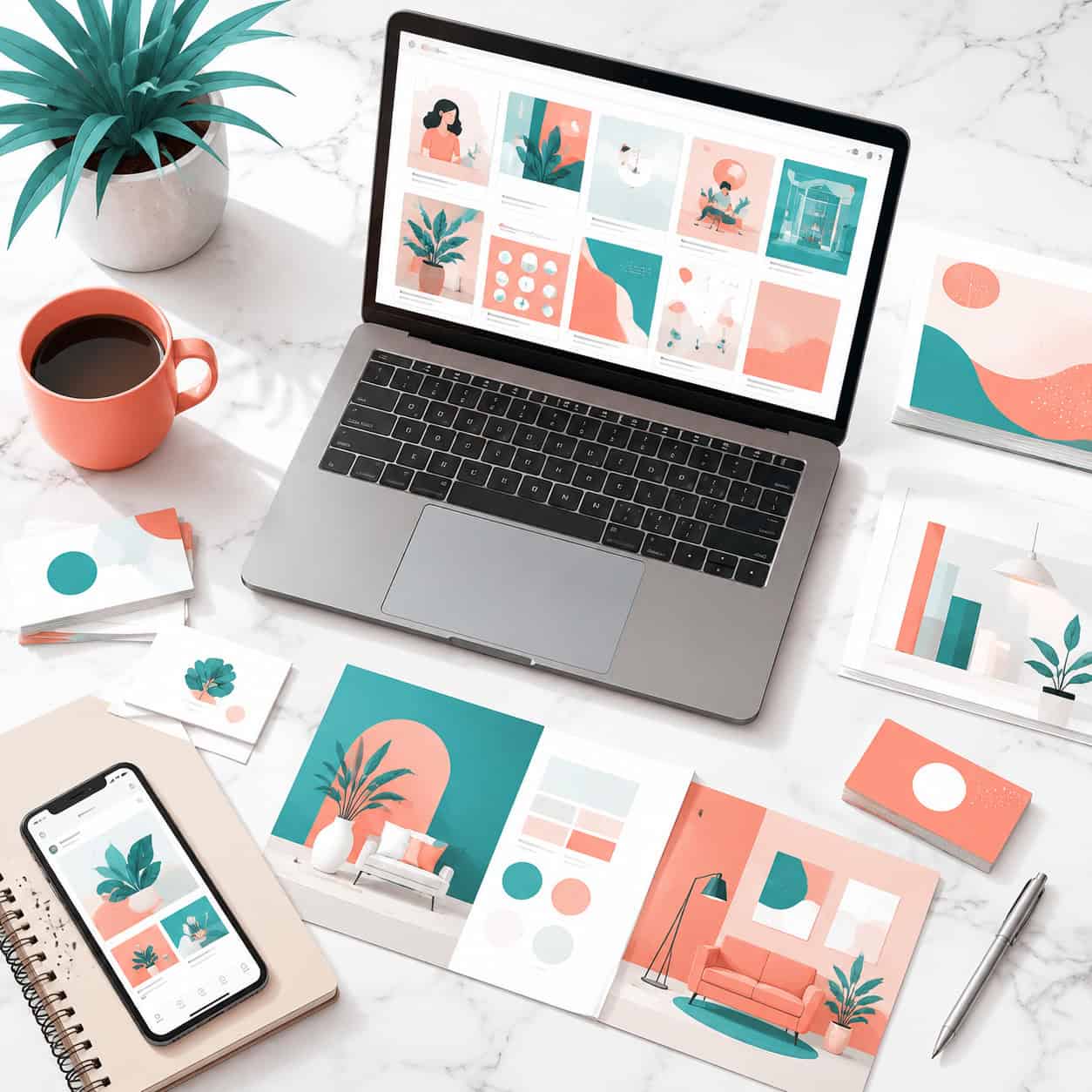
Quick Answer: Canva free templates are professionally designed, fully customizable layouts available at no cost across dozens of design categories, from social media posts to presentations to websites. The free library includes thousands of templates that work for personal and commercial use, and you don’t need any graphic design experience to start editing them with Canva’s drag-and-drop tools [1].
Key Takeaways
- Canva’s free template library spans social media, presentations, documents, videos, marketing materials, websites, calendars, and more [1].
- Free templates are labeled “professionally designed” and are production-ready, not just basic placeholders [1].
- You can use free Canva templates for commercial projects under Canva’s standard free content license.
- The biggest difference between free and Pro templates is access to premium stock photos, fonts, and design elements, not template quality itself.
- Free templates can be downloaded as PNG, JPG, PDF, MP4, GIF, and SVG (SVG requires Pro).
- Canva regularly adds new free templates and has introduced AI-assisted template generation through features like Magic Design [14].
- No graphic design skills are required. If you can type and drag a mouse, you can customize a free Canva template.
What Kinds of Free Templates Does Canva Actually Offer?
Canva’s free template library covers nearly every common design need. The main categories include social media posts (Instagram, Facebook, TikTok, LinkedIn), presentations, resumes, flyers, posters, business cards, logos, invitations, newsletters, calendars, planners, videos, and even full websites [1].
Here’s a breakdown of the most popular free template categories:
| Category | Examples | Approximate Free Options |
|---|---|---|
| Social media | Instagram posts, Stories, Facebook covers, TikTok videos | Thousands |
| Presentations | Business pitches, educational slides, project reports | Hundreds |
| Documents | Resumes, letters, reports, planners | Hundreds |
| Marketing | Flyers, posters, brochures, business cards | Thousands |
| Video | Intros, ads, reels, slideshows | Hundreds |
| Websites | Portfolios, event pages, business landing pages | Dozens |
| Calendars/Planners | Monthly, weekly, yearly, habit trackers | Dozens [2][10] |
Canva’s website builder alone offers free responsive templates for portfolios, events, and business sites that you can publish as one-page sites without separate hosting [3]. If you’re exploring other design categories, our Canva resource hub covers many of them in detail.
Are Canva Free Templates Really Professional Looking?
Yes. Canva explicitly markets its free templates as “professionally designed” layouts suitable for real-world use [1]. I’ve used free Canva templates for client presentations, social media campaigns, and event invitations, and the quality holds up well. The layouts use proper spacing, modern typography, and cohesive color schemes.
That said, a few things affect how polished your final design looks:
- Stock photos matter. Some free templates include placeholder images from Canva’s free photo library. These are decent but not always unique. Swapping in your own photos makes a big difference.
- Font selection. Free templates use Canva’s free font library, which includes hundreds of quality options. Pro unlocks more, but the free selection is solid.
- Color customization. You can change every color in a free template to match your brand, which instantly makes it look custom.
The bottom line: a free Canva template with your own photos and brand colors will look professional enough for most small business and personal use cases.
How Do Free Templates Compare to Paid Canva Templates?
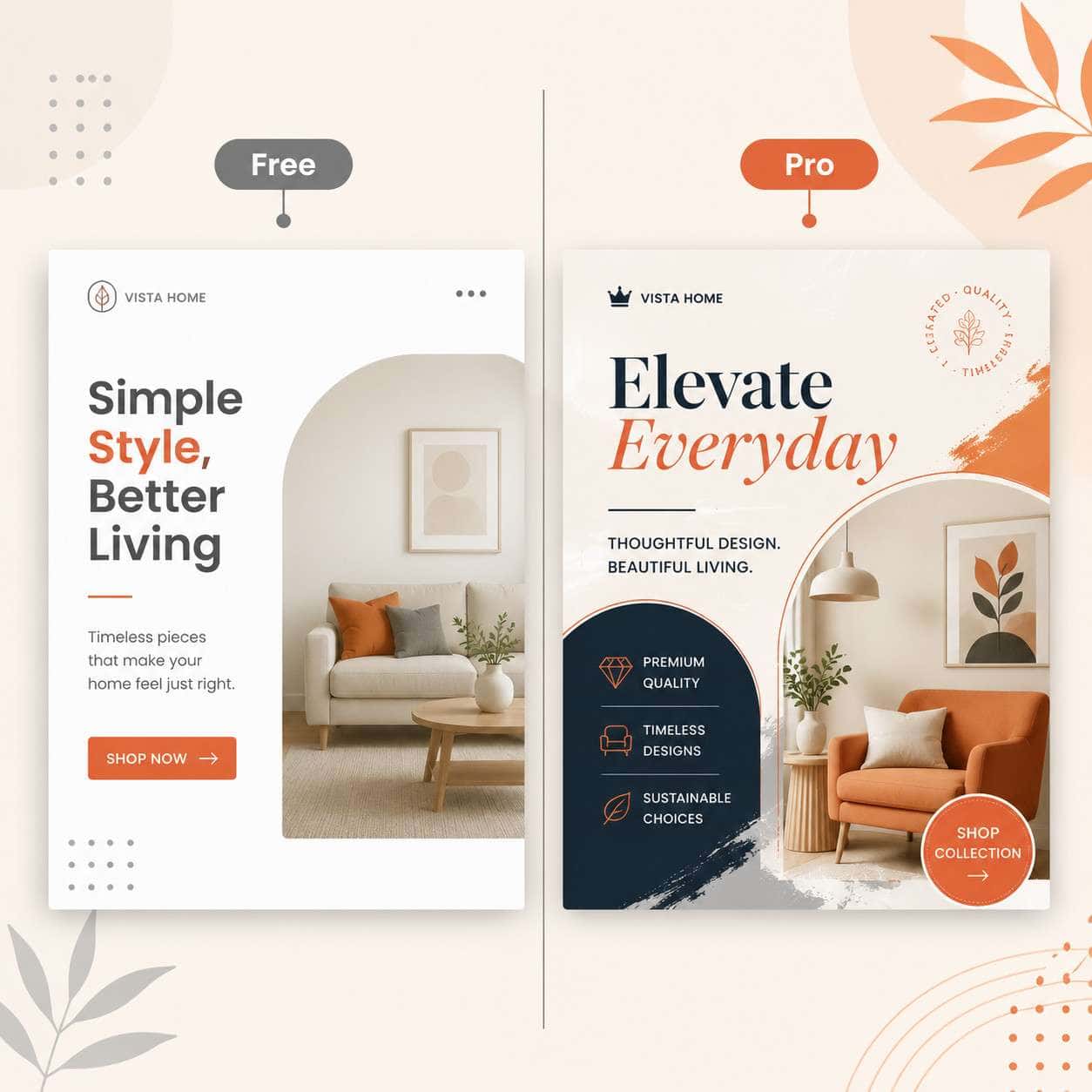
The core layout quality between free and Pro templates is often similar. The real differences come down to the assets inside the template, not the design structure itself.
What Pro adds over free:
- Premium stock photos, illustrations, and videos embedded in the template
- Access to Brand Kit features (save your logos, fonts, and colors)
- Premium fonts and design elements (stickers, graphics, frames)
- Background Remover and Magic Resize tools
- SVG download format
- More storage space
What stays the same:
- Drag-and-drop editing
- Full color and text customization
- Ability to download as PNG, JPG, or PDF
- Commercial use rights (under Canva’s content license)
- Access to thousands of template layouts
A common mistake is assuming Pro templates are fundamentally better designed. In many cases, a free template with a few premium elements swapped out for your own assets looks just as good. If you’re working on AI-powered design projects, the Pro tier adds useful AI features, but the free templates themselves remain a strong starting point.
Can I Use Free Canva Templates for Commercial Projects?
Yes, you can use Canva’s free templates for commercial purposes under their Free Content License. This covers things like social media marketing for your business, printed flyers for a local event, or client presentations.
There are a few restrictions to keep in mind:
- You cannot sell unmodified templates as your own product (for example, reselling a Canva template as a digital download without meaningful changes).
- You cannot use Canva designs as trademarks or logos without ensuring the elements are legally distinct.
- You must add your own creative input. Simply downloading a template and reselling it without changes violates the license.
For most small businesses, freelancers, and content creators, the free license covers everything you’d normally do. If you need templates for digital brochures or email campaigns, free Canva templates work well for commercial distribution.
What Design Types Have the Most Free Templates?
Social media templates dominate Canva’s free library by sheer volume. Instagram posts, Facebook covers, and Pinterest pins have the largest selection of free options because these are the most frequently created designs on the platform [1][6].
After social media, the next largest free categories are:
- Presentations — business, education, and creative decks
- Marketing materials — flyers, posters, and brochures
- Documents — resumes, reports, and planners [2]
- Video templates — short-form video intros and social clips
Website templates have fewer free options compared to social media, but the ones available are well-designed and functional [3]. Calendar and planner templates are a standout niche category with strong free offerings, including yearly, monthly, and weekly layouts [2][10].
How Do I Find the Best Free Templates in Canva?
Start from Canva’s template hub and use the “Free” filter. Here’s a step-by-step process:
- Go to canva.com/templates or open the Canva app and click “Templates” [1].
- Search for your design type (e.g., “Instagram post” or “business presentation”).
- Apply the Free filter to exclude Pro-only templates. Look for the filter toggle or check that templates don’t show a crown icon (which indicates Pro).
- Browse by style, theme, or color to narrow results.
- Preview templates before selecting. Click any template to see all pages/slides.
- Choose one and click “Customize this template” to start editing.
Pro tip: Search by specific use case rather than broad category. “Restaurant menu” returns more targeted results than just “menu.” Also, third-party sites like SlidesMania [4] and SlidesCarnival [9] offer additional free Canva-compatible templates you can import.
Are There Limitations with Free Canva Templates?
Free Canva templates have a few practical limitations worth knowing about:
- Premium elements inside free templates. Some free template layouts contain premium stock photos or graphics marked with a watermark. You’ll need to replace these with free alternatives or your own images, or pay for the individual element.
- No Brand Kit. Free users can’t save brand colors, logos, and fonts for quick reuse across templates. You’ll need to manually apply branding each time.
- Limited storage. Free accounts get 5 GB of cloud storage compared to 1 TB for Pro.
- No Magic Resize. You can’t automatically resize a free template to fit different platforms (e.g., turning an Instagram post into a Pinterest pin) without Pro.
- SVG exports require Pro. Free users can download PNG, JPG, PDF, MP4, and GIF, but not SVG.
These limitations are manageable for most casual and small business users. The design quality itself isn’t limited, just some convenience features.
Which Free Templates Work Best for Social Media Posts?
For social media, Canva’s free Instagram post templates and Facebook cover templates are the strongest categories. They’re updated frequently to reflect current design trends and platform dimension requirements [6].
My recommendations by platform:
- Instagram posts and Stories: The largest free selection. Great for quotes, product showcases, and announcements. For deeper guidance, see our guide to designing Instagram Story templates.
- Facebook covers and posts: Solid free options for business pages and event promotion.
- LinkedIn banners: Fewer free options, but enough for professional profiles.
- Pinterest pins: Good variety for blog promotion and product pins.
- TikTok/Reels: Growing free video template selection for short-form content.
If you’re creating carousel content, our Canva carousel design guide walks through the process using free templates.
What File Types Can I Download Free Canva Templates In?
Free Canva users can export designs in these formats:
- PNG — best for social media images and web graphics
- JPG — good for photos and smaller file sizes
- PDF (Standard and Print) — ideal for documents, flyers, and print materials
- MP4 — for video and animated designs
- GIF — for short animations
SVG export is only available to Pro subscribers. For most use cases, PNG and PDF cover what you need.
Are Canva Free Templates Good for Beginners?
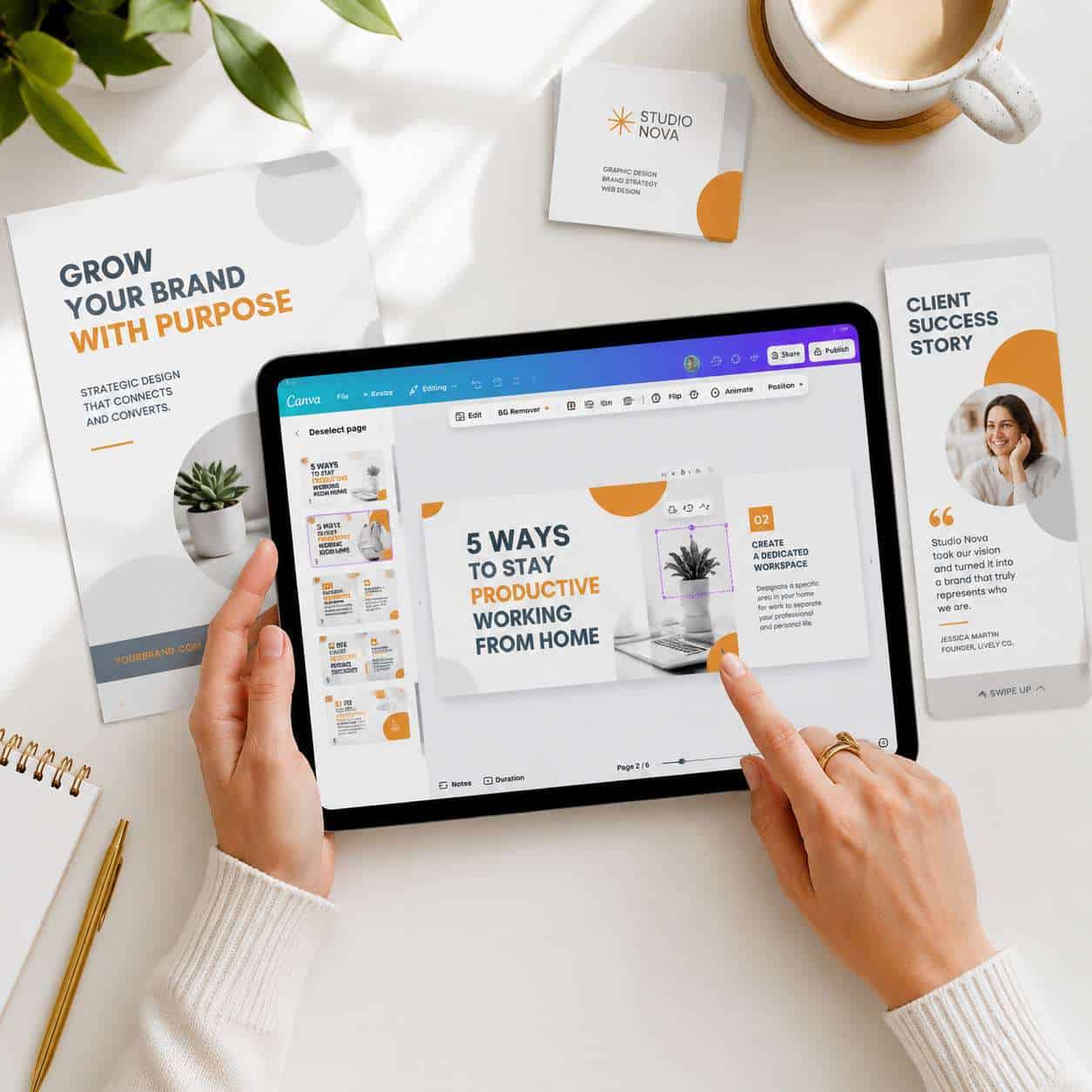
Canva free templates are arguably the best starting point for anyone new to graphic design. The entire platform is built around a drag-and-drop editor that requires zero technical skills [1].
What graphic design skills do you need? None. If you can select text, type new words, and drag an image into place, you can customize any free Canva template. The templates handle layout, spacing, and color harmony for you. You’re essentially filling in the blanks with your own content.
Beginners should start with these steps:
- Pick a template close to your final vision.
- Replace placeholder text with your own copy.
- Swap photos for your own images or Canva’s free stock library.
- Adjust colors if needed (Canva suggests palettes automatically).
- Download and use.
If you’re brand new to Canva, our beginner’s guide to Canva logo design covers the basics of the editor interface.
How Often Does Canva Update Its Free Template Library?
Canva adds new templates regularly, though the company doesn’t publish a fixed schedule. Based on Canva Create 2025 announcements (still current in 2026), the platform describes offering “millions of templates for every team and every task,” with ongoing expansion [14][15].
In addition to static templates, Canva’s Magic Design feature uses AI to generate custom layouts from your uploaded content, effectively expanding the available designs beyond the curated template library [14]. This means the practical number of starting points available to free users keeps growing. For more on how AI tools are changing design workflows, we’ve covered that separately.
Can I Customize Free Templates Completely?
Yes. Every element in a free Canva template is editable. You can change text, fonts, colors, images, layout positioning, element sizes, backgrounds, and more. You can also add new elements, delete existing ones, or rearrange pages in multi-page templates.
The only customization limits involve premium assets embedded in the template. If a free template uses a Pro stock photo, you’ll see a watermark until you either replace it with a free image or purchase that specific element.
Conclusion
Canva free templates are a practical, high-quality resource for anyone who needs professional-looking designs without a budget or design background. The free library covers social media, presentations, marketing materials, documents, videos, websites, and more [1]. While Pro adds convenience features like Brand Kit, Magic Resize, and premium assets, the free tier is genuinely capable for most personal and commercial design needs.
Your next steps:
- Visit Canva’s template hub and filter by “Free” to explore what’s available.
- Start with one design you need this week, whether it’s a social media post, a presentation, or a flyer.
- Customize a template with your own text, photos, and brand colors.
- Download it and put it to use.
- Explore our Canva tutorials for deeper guidance on specific design types.
The best way to learn Canva’s free templates is to pick one and start editing. You’ll have a finished design in minutes.
FAQ
How many free templates does Canva have? Canva describes its library as containing “millions of templates” across free and Pro tiers [14]. The exact number of free templates isn’t published, but thousands are available across all major design categories.
Do free Canva templates have watermarks? The templates themselves don’t have watermarks. However, some free templates contain premium stock photos or elements that show watermarks until you replace them or upgrade to Pro.
Can I use Canva free templates without creating an account? No. You need a free Canva account to access and edit templates. Account creation is free and takes about 30 seconds.
Are Canva free templates the same quality as Pro templates? The layout and design quality is often comparable. Pro templates mainly differ by including premium stock assets and fonts. The structural design quality of free templates is production-ready [1].
Can I print designs made from free Canva templates? Yes. You can download free template designs as print-ready PDFs and send them to any printer. Canva also offers its own print service for an additional cost.
Do free Canva templates work on mobile? Yes. Canva’s mobile app (iOS and Android) gives you full access to the free template library with the same editing capabilities as the desktop version.
Can I remove the Canva branding from free templates? Free templates don’t include Canva branding on the design itself. Your downloaded files are clean and unbranded.
What happens to my designs if I cancel Canva Pro? Your designs remain accessible, but any Pro elements (premium photos, fonts) will show watermarks. You can replace them with free alternatives to keep using the designs.
Can multiple people edit a free Canva template at the same time? Yes. Canva supports real-time collaboration on free accounts. You can share a design link and edit simultaneously with others.
Are there free Canva templates for email newsletters? Yes. Canva offers free email header and newsletter templates. For a detailed walkthrough, see our guide to creating email templates in Canva.
References
[1] Templates – https://www.canva.com/templates/ [2] Templates – https://www.canva.com/calendars/templates/ [3] Templates – https://www.canva.com/website-builder/templates/ [4] Canva – https://slidesmania.com/free-templates/canva/ [6] Canva Social Media Templates – https://www.heyorca.com/blog/canva-social-media-templates [9] Canva Templates – https://www.slidescarnival.com/category/free-templates/canva-templates [10] Watch – https://www.youtube.com/watch?v=_3lbwI8WPfs [14] Canva Create Launches – https://www.canva.com/canva-create/launches/ [15] Canva Launches – https://www.canva.com/launches/