Last updated: June 7, 2026
Quick Answer: A canvas drawing app is software that turns your device screen into a digital art surface, giving you brushes, layers, and color tools to create illustrations, paintings, and designs. In 2026, the best options range from free apps like Krita and MediBang Paint to professional-grade tools like Procreate ($12.99 one-time) and Adobe Fresco (free tier available). Your choice depends on your device, budget, and whether you need raster painting, vector drawing, or both.
Key Takeaways
- A canvas drawing app replicates traditional art tools on a digital screen, with added features like layers, undo history, and pressure sensitivity.
- Procreate is best for iPad artists who want a one-time purchase; Adobe Fresco suits cross-platform users who need both raster and vector tools.
- Beginners can start for free with Krita (desktop), MediBang Paint (mobile/desktop), or the basic tier of Adobe Fresco.
- Most canvas drawing apps work without a stylus, but a pressure-sensitive pen dramatically improves control and line quality.
- Lag on tablets usually comes from oversized canvases, too many layers, or low available RAM, not the app itself.
- Professional illustrators routinely use canvas drawing apps for client work, editorial illustration, and concept art.
- Chromebook users have viable options including web-based apps and Android-compatible drawing tools.
- The learning curve for most drawing apps is moderate; basic functionality takes hours to grasp, while mastering advanced features takes weeks.
What Exactly Is a Canvas Drawing App?
A canvas drawing app is any application that provides a blank digital surface (the “canvas”) along with tools for drawing, painting, and illustrating. Think of it as a sketchbook that never runs out of pages, combined with every art supply you could want.
These apps typically include:
- Brushes that mimic pencils, ink pens, watercolors, oils, and airbrushes
- Layers so you can separate elements of your artwork and edit them independently
- Color tools including color wheels, palettes, eyedroppers, and gradient fills
- Transform tools for resizing, rotating, and distorting selections
- Export options to save work as PNG, PSD, JPEG, SVG, or PDF
Canvas drawing apps run on tablets, phones, desktops, and even web browsers. They differ from general design tools in that their primary focus is freehand creation rather than layout or template-based work.
Procreate vs Adobe Fresco: Which Is Better for Digital Art?
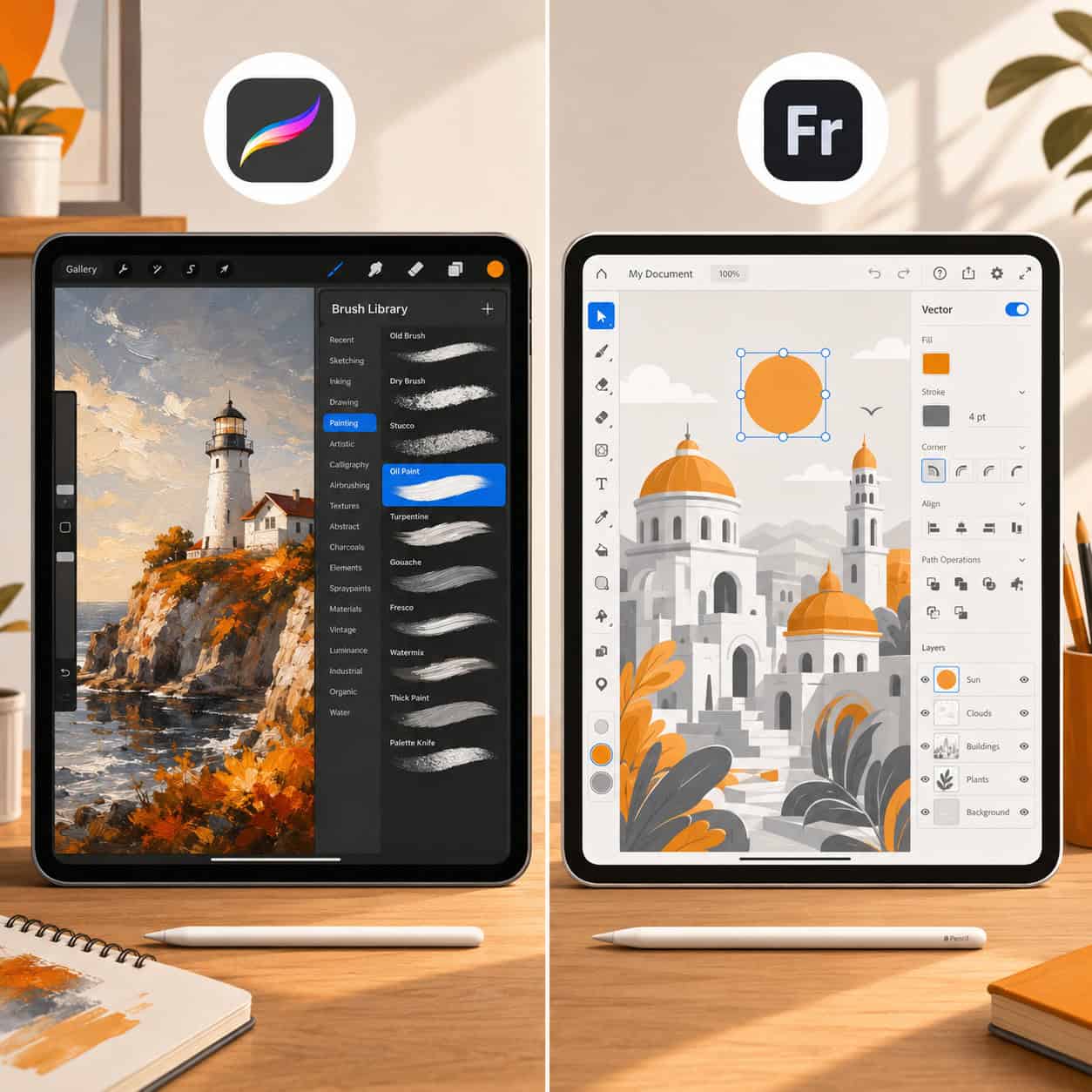
Neither is universally “better.” Procreate wins on simplicity and value for iPad-only artists. Adobe Fresco wins on cross-platform flexibility and vector capabilities.
Here’s a direct comparison:
| Feature | Procreate | Adobe Fresco |
|---|---|---|
| Price | $12.99 one-time | Free tier; full version with Creative Cloud ($22.99/mo) |
| Platforms | iPad only | iPad, Windows, some Android devices |
| Brush engine | Excellent raster brushes, huge community library | Live Brushes (watercolor/oil simulation) plus vector brushes |
| Vector support | No native vector tools | Yes, built-in vector brushes |
| Layer limits | Depends on canvas size and iPad model | More generous, especially on desktop |
| File compatibility | PSD, PNG, JPEG, TIFF, PDF | PSD, PDF, PNG, plus native Creative Cloud sync |
| Learning curve | Low to moderate | Moderate |
Choose Procreate if you own an iPad, prefer a one-time payment, and primarily do raster illustration or painting. Choose Adobe Fresco if you work across devices, need vector drawing, or already pay for Adobe Creative Cloud.
I switched from Fresco to Procreate two years ago for personal sketching because the gesture-based interface felt faster. But I still open Fresco when a project needs vector linework that scales to any size.
How Much Does a Good Canvas Drawing App Cost?
Good canvas drawing apps range from completely free to about $23 per month, depending on the feature set and licensing model.
- Free: Krita (desktop), MediBang Paint (all platforms), Sketchbook by Autodesk (all platforms), Adobe Fresco free tier
- One-time purchase: Procreate ($12.99), Clip Studio Paint ($49.99 for the Pro version perpetual license)
- Subscription: Adobe Fresco full ($22.99/mo as part of Creative Cloud), Clip Studio Paint ($4.49/mo for mobile)
For most beginners and hobbyists, free apps provide more than enough functionality. If you’re exploring AI-powered art tools alongside traditional digital drawing, you can experiment without spending anything.
Common mistake: Paying for a subscription before you’ve committed to regular use. Start free, learn the fundamentals, then upgrade only when you hit a specific limitation.
Best Free Canvas Drawing Apps for Beginners
Beginners should start with a free canvas drawing app that has a clean interface, good brush defaults, and helpful tutorials built in. These three stand out in 2026:
- Krita (Windows, Mac, Linux) — Open-source with professional-grade brush engines, layer support, and animation tools. The interface can feel dense at first, but community tutorials are excellent.
- MediBang Paint (Windows, Mac, iOS, Android) — Lightweight, cloud-based saving, and a large library of free brushes and tones. Great for manga and comic-style art.
- Autodesk Sketchbook (iOS, Android, Windows, Mac) — Minimalist interface that stays out of your way. Limited layer count on mobile, but the drawing experience feels natural.
If you already use Canva for graphic design projects, note that Canva’s drawing features are basic compared to dedicated apps. For freehand illustration, a purpose-built canvas drawing app will serve you far better. You can always bring finished artwork into tools like Canva for logo design or social media templates afterward.
Is a Canvas Drawing App Good for Professional Illustrators?
Yes. Professional illustrators, concept artists, and comic creators use canvas drawing apps daily for paid client work. Procreate, Clip Studio Paint, and Adobe Fresco are industry standards in editorial illustration, game art, and animation.
What makes these apps professional-grade:
- High-resolution canvas support (300+ DPI at print sizes)
- PSD compatibility for handoff to designers and art directors
- Color management including CMYK for print work
- Custom brush creation for consistent style across projects
- Time-lapse recording (Procreate) for process videos and client presentations
The shift toward digital illustration has accelerated, and many studios now expect deliverables created in digital apps rather than scanned traditional media. If you’re building a creative workflow, consider pairing your drawing app with AI design creation tools for production tasks like background generation or color palette suggestions.
Are Canvas Drawing Apps Hard to Learn?
Most canvas drawing apps take a few hours to learn the basics and a few weeks to feel comfortable with advanced features. The difficulty depends more on your drawing skill than the software itself.
What’s easy to pick up quickly:
- Selecting brushes and colors
- Drawing on the canvas
- Using undo/redo
- Creating and merging layers
What takes longer:
- Mastering blending modes and opacity controls
- Building custom brushes
- Using clipping masks and alpha lock
- Efficient layer management on complex pieces
Tip: Pick one app and stick with it for at least a month. Jumping between apps slows your learning because each one has different gestures, shortcuts, and menu structures.
Can Canvas Drawing Apps Work Without a Stylus?
Yes, every major canvas drawing app works with finger input. You can draw, paint, and sketch using just your fingertip on a touchscreen device.
That said, a stylus makes a significant difference. Here’s why:
- Pressure sensitivity lets you vary line thickness and opacity naturally
- Palm rejection prevents accidental marks while your hand rests on the screen
- Precision for fine details, small text, and clean linework
If you’re testing whether digital art is for you, start with your finger. If you find yourself frustrated by imprecise lines after a week or two, invest in a basic stylus. Even a $20 capacitive stylus improves the experience, though an active stylus like the Apple Pencil or Samsung S Pen is the real upgrade.
What Kind of Tablet Do I Need for Digital Drawing?
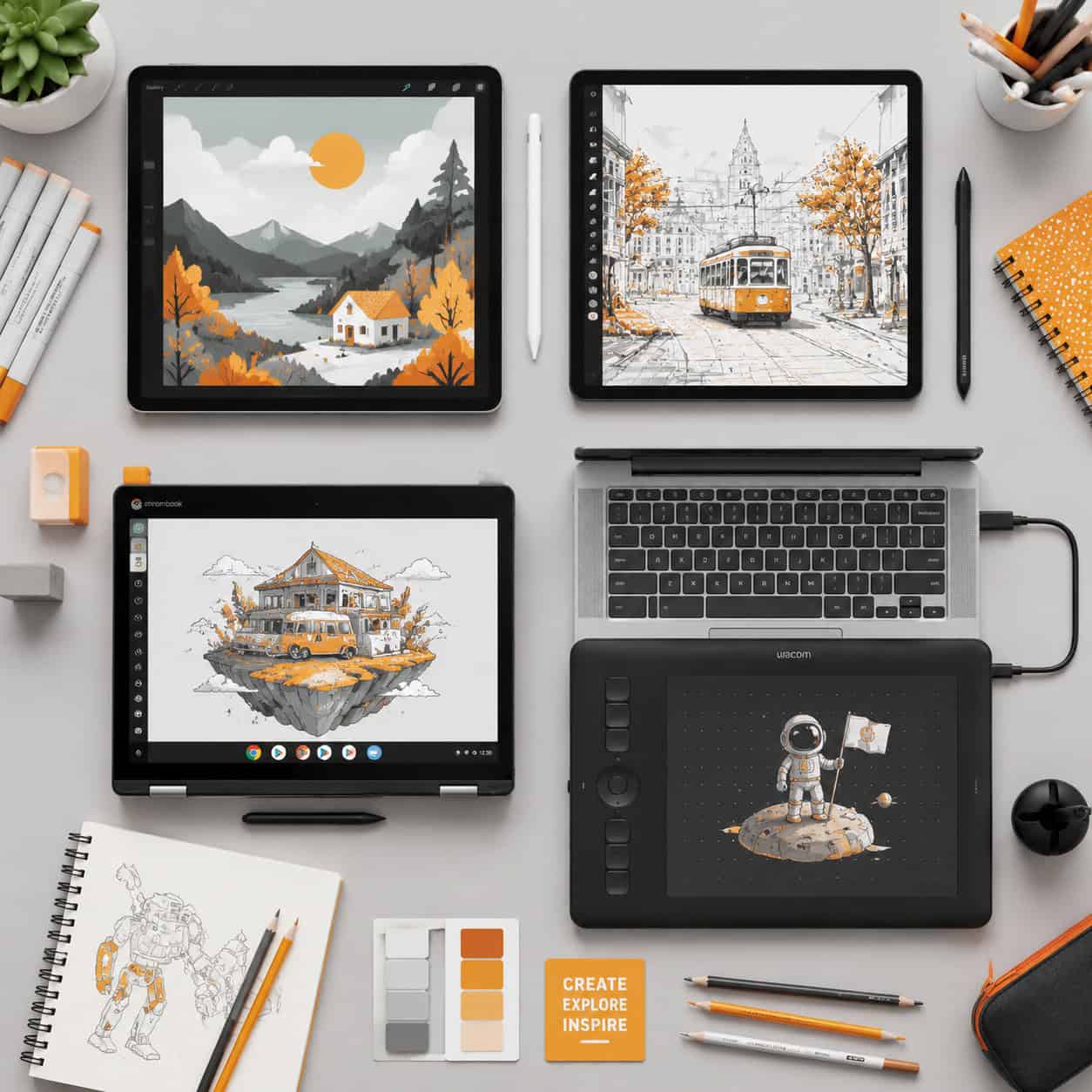
You need a tablet with a responsive touchscreen and ideally support for a pressure-sensitive stylus. The three main categories are:
- iPad (Air, Pro, or Mini) — Best ecosystem for drawing apps. Apple Pencil support, excellent screen quality, and the widest selection of canvas drawing apps.
- Samsung Galaxy Tab S series — Strong Android option with S Pen included. Good for Clip Studio Paint, MediBang, and Sketchbook.
- Windows tablets (Surface Pro, Wacom MobileStudio) — Full desktop app access. Best for users who need Photoshop, Krita, or Clip Studio Paint’s desktop versions.
Budget option: An older iPad Air (4th or 5th generation) with a 1st-generation Apple Pencil gives you a professional drawing experience for under $400 total.
Edge case: If you already own a non-touch laptop, a Wacom Intuos drawing tablet ($60-$80) connects via USB and gives you pressure sensitivity without replacing your computer.
Do Canvas Drawing Apps Work on Chromebooks?
Yes, but with limitations. Chromebooks can run Android drawing apps from the Google Play Store, and several web-based drawing tools work directly in Chrome.
Android apps that work on Chromebooks:
- MediBang Paint
- Autodesk Sketchbook
- ibisPaint
Web-based options:
- Photopea (Photoshop-like, runs in browser)
- Aggie.io (collaborative drawing)
- Kleki (simple, no account needed)
The catch: Most Chromebooks lack pressure-sensitive stylus support, and lower-end models may struggle with large canvases or many layers. If you’re serious about digital art on a Chromebook, look for models that support USI (Universal Stylus Initiative) pens.
For wireframing and UI sketching rather than illustration, you might find Figma’s browser-based tools more practical on a Chromebook.
Which Canvas Drawing App Is Best for Graphic Design?
For graphic design specifically, Adobe Fresco combined with Illustrator or Clip Studio Paint with its vector layer support are the strongest choices. Pure illustration apps like Procreate lack vector tools, which limits their usefulness for logo work, icon design, and scalable graphics.
Choose based on your design task:
- Logo and icon design: Adobe Fresco (vector brushes) or Vectornator/Curve
- Social media graphics: Any drawing app for custom illustrations, then bring assets into a layout tool. Our guide on carousel design covers the layout side.
- UI/UX illustration: Procreate or Fresco for custom elements, Figma for assembly
- Print design: Clip Studio Paint (CMYK support, high-res export)
If you’re exploring the broader landscape of AI graphic design tools, many now integrate with traditional drawing apps through plugins or export workflows.
Why Is My Drawing App Lagging on My Tablet?
Drawing app lag almost always comes from one of four causes: canvas size too large, too many layers, insufficient RAM, or background apps consuming resources.
Quick fixes, in order:
- Reduce canvas size. A 6000×6000 pixel canvas at 300 DPI demands far more processing than 3000×3000. Only use large canvases when you need print-quality output.
- Merge finished layers. Every active layer consumes RAM. If you’re done editing a layer group, flatten it.
- Close background apps. Streaming music or having a browser open eats into available memory.
- Restart your device. Clears cached memory and stops background processes.
- Turn off unneeded features. Disable stabilization, symmetry guides, or drawing assist if you’re not using them.
If lag persists: Your device may not have enough RAM for your workflow. Most drawing apps need at least 4GB of RAM for comfortable use, and 8GB or more for complex, layered work.
What Common Mistakes Do New Digital Artists Make?
New digital artists tend to make the same handful of mistakes regardless of which canvas drawing app they use.
- Using too many brushes. Pick 3-5 brushes and learn them deeply. Constantly switching brushes fragments your style.
- Ignoring layers. Drawing everything on one layer makes editing painful. At minimum, separate your sketch, linework, and color onto different layers.
- Skipping the sketch phase. Jumping straight to clean lines without a rough sketch leads to proportion errors and stiff poses.
- Zooming in too much. Working at extreme zoom makes you lose sight of overall composition. Zoom out frequently.
- Never flipping the canvas. Horizontally flipping your canvas reveals asymmetry and proportion issues your eye has adapted to.
- Overworking details early. Establish big shapes and values first. Details come last.
These mistakes aren’t app-specific. They apply whether you’re in Procreate, Krita, or any other tool.
Conclusion
Choosing the right canvas drawing app comes down to three decisions: what device you own, how much you want to spend, and what kind of art you want to create.
Your next steps:
- If you’re brand new, download a free app (Krita for desktop, MediBang or Sketchbook for mobile) and spend a week doing daily 15-minute sketches.
- If you’re ready to invest, Procreate ($12.99) on iPad or Clip Studio Paint on any platform gives you professional tools at a fair price.
- If you’re a working professional, evaluate whether your current app supports your export needs (PSD, CMYK, vector) and switch only if it doesn’t.
The best canvas drawing app is the one you actually open every day. Start simple, build the habit, and upgrade when your skills outgrow your tools.
Useful Resources: Canva design platform & Canva Design School free tutorials