Last updated: June 7, 2026
Quick Answer: You can download the Canva app for free from the Apple App Store (iPhone/iPad), Google Play Store (Android), or the Microsoft Store and Mac App Store for desktop. The app requires roughly 200-350 MB of storage depending on your device, and it gives you access to thousands of templates, a drag-and-drop editor, and basic design tools at no cost.
Key Takeaways
- Canva is free to download on all platforms. You only pay if you choose to upgrade to Canva Pro or Canva for Teams.
- The mobile app is available for iOS 15+ and Android 8.0+ devices.
- Desktop versions exist for Windows 10+ and macOS 10.15+, plus a full web app at canva.com.
- You need approximately 200-350 MB of free storage for the initial install, though cached projects will increase this over time.
- Offline functionality is limited — you can view recent designs offline, but most editing features require an internet connection.
- No prior design skills are required. Canva’s template-based system is built for beginners.
- The free version includes over 250,000 templates, but premium elements, Brand Kit, and background remover are locked behind Canva Pro.
- Common download errors are usually caused by insufficient storage, outdated OS versions, or regional app store restrictions.
Is the Canva App Free to Download?
Yes, the Canva app is completely free to download and use on every platform. You won’t encounter a paywall just to install it or create basic designs.
Once installed, the free tier gives you access to:
- Over 250,000 free templates across social media posts, presentations, flyers, and more
- 5 GB of cloud storage for your projects
- Hundreds of free fonts and basic photo editing tools
- Export options in PNG, JPG, and PDF formats
The paid upgrade, Canva Pro, costs approximately $13/month (or $120/year as of 2026) and adds premium templates, the background remover tool, Brand Kit, content scheduling, and 1 TB of cloud storage. But for casual users and small projects, the free version is genuinely useful — not just a teaser.
If you’re exploring design tools more broadly, our guide to the best AI graphic design tools covers how Canva stacks up against alternatives.
How to Download Canva for iPhone and Android
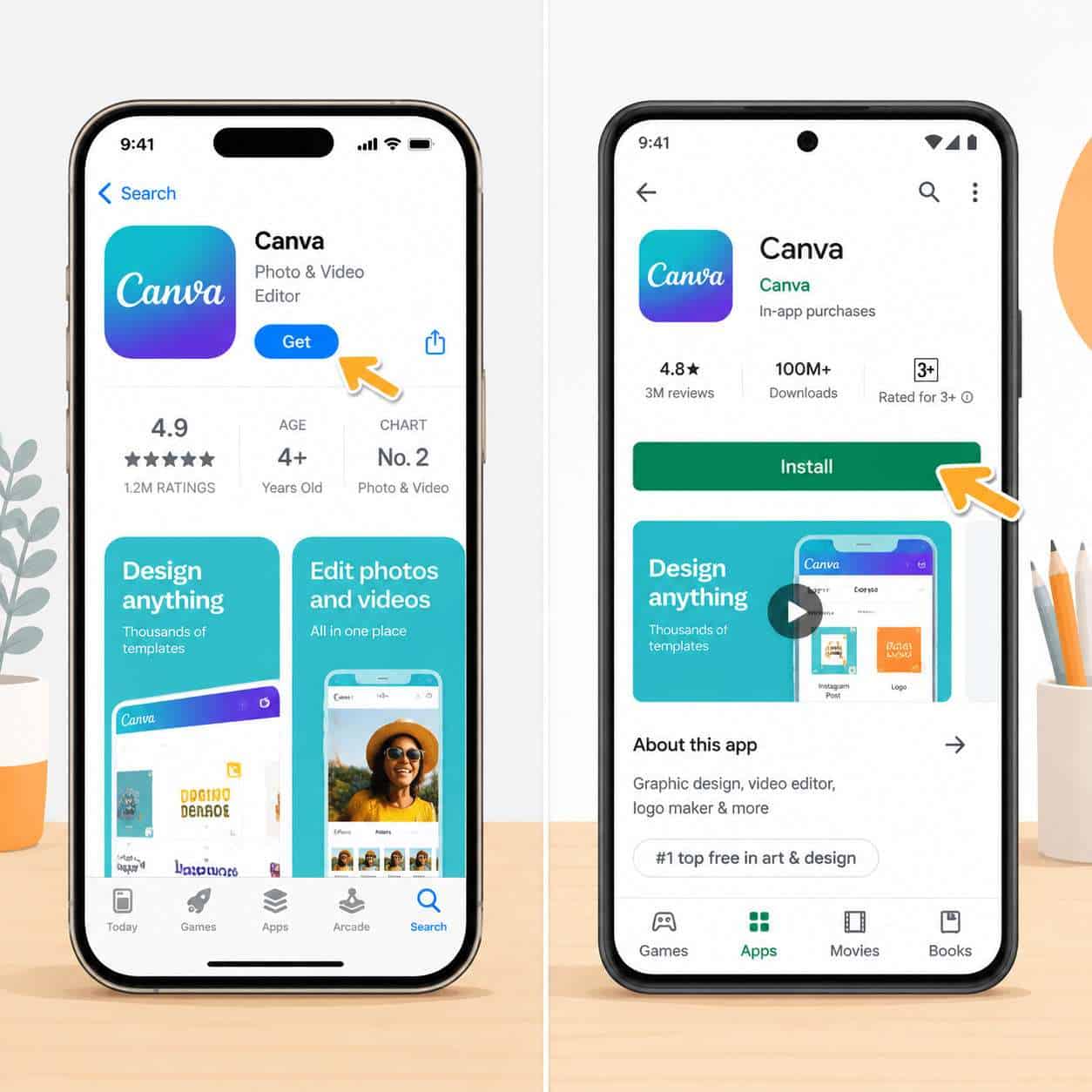
The process takes under two minutes on either platform. Here’s exactly how to do it.
Download Canva on iPhone or iPad
- Open the App Store on your device.
- Tap the search icon and type “Canva” in the search bar.
- Look for the official app by “Canva Pty Ltd” — it has a purple and white logo.
- Tap Get, then confirm with Face ID, Touch ID, or your Apple ID password.
- Wait for the download to finish, then open the app and sign up or log in.
Requirements: iOS 16 or later, approximately 300 MB of free space.
Download Canva on Android
- Open the Google Play Store.
- Search for “Canva” in the search bar.
- Select the official listing by “Canva” (look for the verified developer badge).
- Tap Install.
- Once installed, open the app and create an account or sign in.
Requirements: Android 8.0 or later, approximately 200 MB of free space (varies by device).
Common mistake: Some users accidentally download third-party “Canva helper” apps that aren’t official. Always verify the developer name is “Canva Pty Ltd” before installing.
What Devices Is the Canva App Compatible With?
Canva runs on nearly every modern device. Here’s a quick compatibility breakdown:
| Platform | Minimum Requirement | Where to Download |
|---|---|---|
| iPhone/iPad | iOS 16+ | Apple App Store |
| Android phones/tablets | Android 8.0+ | Google Play Store |
| Windows PC | Windows 10+ | Microsoft Store or canva.com |
| Mac | macOS 10.15 (Catalina)+ | Mac App Store or canva.com |
| Chromebook | Chrome OS (latest) | Google Play Store or canva.com |
| Linux | Any modern browser | canva.com (web app only) |
If your device doesn’t support the native app, the web version at canva.com works in any modern browser (Chrome, Firefox, Safari, Edge). I’ve personally used the web app on an older Linux laptop without issues — the experience is nearly identical to the desktop app.
Canva App vs. Desktop Version: Key Differences
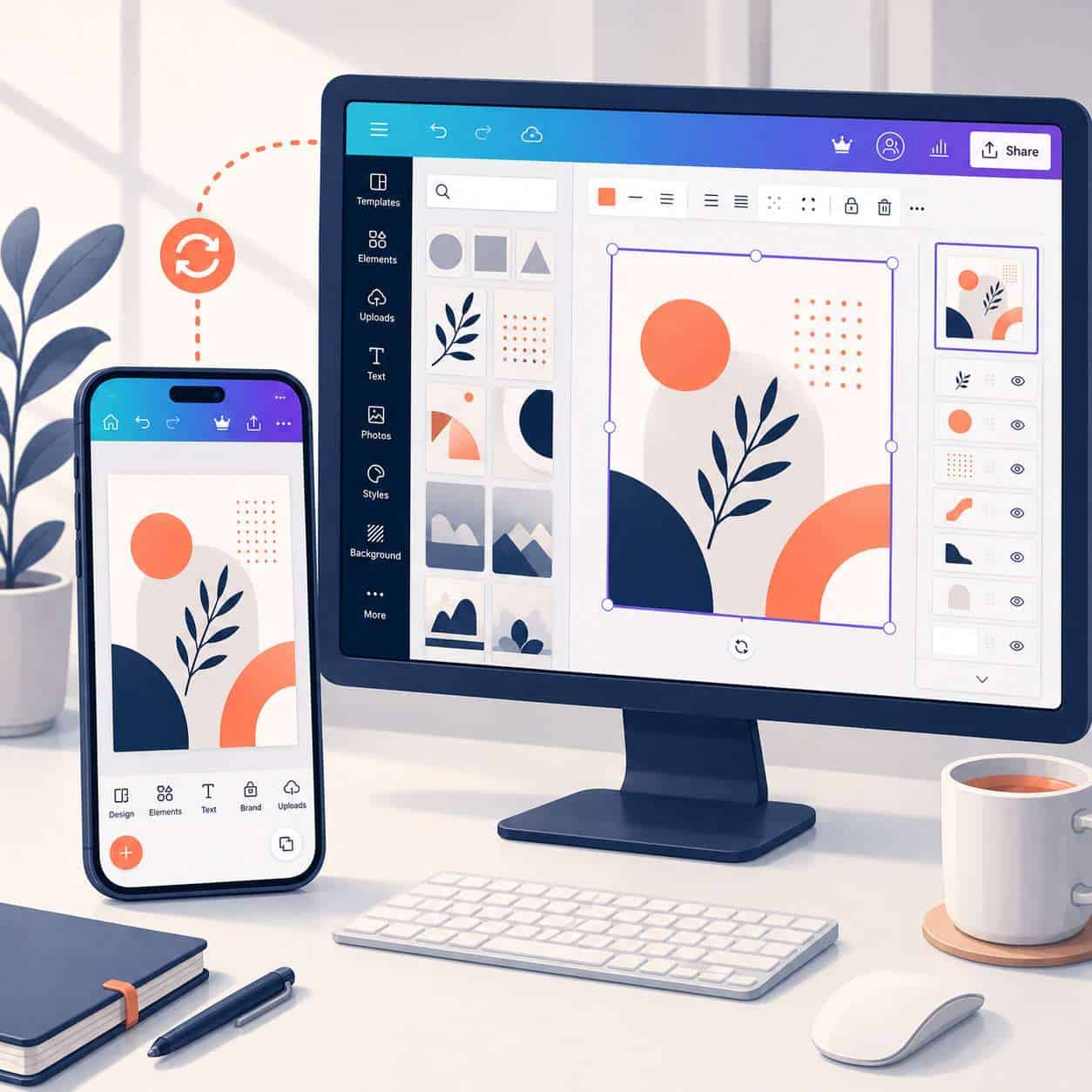
The mobile app and desktop version share the same core editor, but they aren’t identical. The desktop version (whether the installed app or the web editor) offers a larger workspace and a few extra features.
What the desktop version does better:
- Multi-page editing is easier to manage on a bigger screen
- Bulk resize and batch export work more smoothly
- Keyboard shortcuts speed up repetitive tasks
- Detailed layer management is more accessible with a mouse
What the mobile app does well:
- On-the-go editing — tweak designs from anywhere
- Camera integration — snap a photo and drop it directly into a design
- Quick social media posting — publish directly to Instagram, Facebook, or TikTok
- Touch gestures — pinch to zoom, drag to reposition
Choose the mobile app if you primarily create social media content, need to make quick edits away from your desk, or want to capture and use photos instantly. Choose the desktop version if you’re working on multi-page documents, presentations, or anything that benefits from a larger canvas.
For creating specific content types like engaging Instagram story templates or carousel designs, either version works — but I find the desktop editor faster for initial creation and the mobile app better for last-minute adjustments.
How Much Storage Does the Canva App Need?
The initial download is relatively small — around 200-350 MB depending on your platform and device. But the app’s storage footprint grows over time as it caches templates, fonts, and recent projects locally.
Estimated storage usage over time:
- Fresh install: 200-350 MB
- After 1 month of regular use: 500 MB – 1 GB
- Heavy use with many cached projects: 1-2 GB
Tip: If storage becomes an issue, clear the app cache through your device settings. On Android, go to Settings > Apps > Canva > Storage > Clear Cache. On iPhone, you may need to offload and reinstall the app since iOS doesn’t offer a direct cache-clearing option for individual apps.
Best Features of the Canva Mobile App
The mobile app isn’t just a stripped-down version of the desktop editor. Several features actually work better on a phone.
- Magic Resize (Pro only) — instantly reformats a design for different platforms (Instagram post to Twitter header, for example)
- Background Remover (Pro only) — tap once to remove backgrounds from photos
- Built-in camera — photograph something and add it to your design immediately
- Content Planner — schedule posts to social media directly from the app
- Real-time collaboration — share a design link and edit simultaneously with teammates
- AI-powered tools — text-to-image generation and Magic Write are accessible on mobile
Canva has been expanding its AI design capabilities significantly, and most of these features are now available on the mobile app too.
Can I Use Canva Offline After Downloading?
Canva’s offline functionality is limited. You can view and present designs you’ve recently opened while connected, but creating new designs or accessing templates requires an internet connection.
What works offline:
- Viewing recently cached designs
- Presenting slideshows from cached presentations
What doesn’t work offline:
- Creating new designs
- Searching or browsing templates
- Uploading new images
- Saving changes to the cloud
- Accessing premium elements
If you know you’ll be without internet, open the designs you need while still connected. They’ll be cached locally for viewing. But for any real editing work, plan to be online.
What Skills Do I Need to Use the Canva App?
None. That’s not an exaggeration — Canva was specifically built for people without design training.
The template-based system means you pick a pre-designed layout and swap in your own text, images, and colors. If you can use a smartphone, you can use Canva. The drag-and-drop interface requires no knowledge of layers, color theory, or typography rules (though understanding those concepts will help you make better designs).
That said, if you’re looking to build your design skills further, our Canva logo design guide for beginners walks through fundamental principles while using the app.
Is the Canva App Good for Professional Designers?
Canva works well for quick mockups, social media content, and client presentations, but it has real limitations for professional design work.
Where Canva fits in a professional workflow:
- Rapid prototyping of social media campaigns
- Creating client-facing presentations quickly
- Producing branded templates for non-designer team members
- Quick photo edits and social content
Where it falls short:
- No vector editing (unlike Adobe Illustrator or Figma)
- Limited typography controls (no kerning, limited leading adjustments)
- No CMYK color mode for print production
- Restricted export options (no SVG on free, limited DPI control)
Professional designers often use Canva alongside tools like Figma or Adobe Creative Cloud rather than as a replacement. If you’re evaluating your design toolkit, our overview of AI-powered design tools compares several options side by side.
Canva App Limitations Compared to the Pro Version
The free Canva app is generous, but several features are reserved for Pro subscribers.
| Feature | Free | Pro |
|---|---|---|
| Templates | 250,000+ | 610,000+ |
| Cloud storage | 5 GB | 1 TB |
| Background Remover | No | Yes |
| Brand Kit | No | Yes |
| Magic Resize | No | Yes |
| Premium stock photos | No | Yes |
| Content Planner | Limited | Full |
| Custom fonts upload | No | Yes |
| Transparent PNG export | No | Yes |
Decision rule: If you’re creating content for a brand and need consistent colors, fonts, and logos across designs, Pro is worth the cost. If you’re making occasional social posts or personal projects, free is sufficient.
For those building professional email campaigns, our guide on creating effective email templates in Canva explains which features you’ll need.
Common Problems When Downloading the Canva App
Most download issues fall into a few predictable categories. Here are the most frequent problems and their fixes.
How to Troubleshoot Canva App Download Errors
Problem: “App not compatible with your device”
- Your operating system is likely outdated. Update to iOS 16+ or Android 8.0+.
Problem: Download stalls or fails
- Check your internet connection. Switch between Wi-Fi and mobile data.
- Restart your device and try again.
- Clear the app store cache (on Android: Settings > Apps > Google Play Store > Clear Cache).
Problem: “Not enough storage”
- Free up at least 500 MB before attempting the download.
- Delete unused apps, old photos, or clear other app caches.
Problem: App crashes immediately after opening
- Uninstall and reinstall the app.
- Make sure your OS is fully updated.
- If the problem persists, contact Canva support through their help center.
Problem: App not available in your country
- Canva is available in most countries, but some regions have restrictions. A VPN may help, though this can violate app store terms of service.
If you’re experiencing broader connectivity issues with web apps, our guide to checking service status and resolving connectivity problems covers general troubleshooting steps that apply here too.
Frequently Asked Questions
Is the Canva app safe to download? Yes. Canva is a legitimate company with over 190 million monthly active users. Download only from official app stores to avoid counterfeit apps.
Can I use the same Canva account on my phone and computer? Yes. Your account syncs across all devices. Any design you create on your phone appears on your desktop and vice versa.
Does Canva app use a lot of data? Initial download uses 200-350 MB. Regular use consumes moderate data since templates and images load from the cloud. Using Wi-Fi is recommended for heavy editing sessions.
Can I download Canva on a tablet? Yes. Canva works on iPads and Android tablets. The tablet experience is closer to the desktop version because of the larger screen.
Do I need to create an account to use Canva? Yes. Canva requires a free account. You can sign up with email, Google, Facebook, or Apple ID.
Can I print designs made in the Canva app? Yes. You can export designs as high-resolution PDFs or PNGs and print them yourself, or use Canva Print to order physical copies delivered to your address.
Is Canva Pro worth it for students? Canva offers free Pro access to verified students and teachers through Canva for Education. Check eligibility on their website before paying.
Can I cancel Canva Pro and keep my designs? Yes. Your designs remain accessible on the free plan. However, any premium elements used in those designs will show a watermark until you replace them or resubscribe.
Does the Canva app support video editing? Yes. Basic video editing, including trimming, transitions, and text overlays, is available on the mobile app.
How often is the Canva app updated? Canva pushes updates roughly every two to four weeks with bug fixes and new features. Enable automatic updates to stay current.
Conclusion
Getting Canva onto your device is straightforward: open your app store, search for Canva, and tap install. The free version gives you enough tools to create professional-looking designs without spending anything.
Your next steps:
- Download the Canva app from your device’s official app store right now.
- Create a free account using your email or social login.
- Start with a template — browse by category (social media, presentation, flyer) rather than starting from a blank canvas.
- Explore the AI tools — try Magic Write or text-to-image to speed up your workflow.
- Consider Pro only if you need Brand Kit, background removal, or premium templates after using the free version for a few weeks.
Whether you’re designing Instagram stories, building a logo for your new business, or putting together a quick presentation, the Canva app puts capable design tools in your pocket. Start with the free version, learn the interface, and upgrade only when you hit a genuine limitation.
Related: Canva Draw: The Complete Guide to Freehand Drawing in Canva
Related: Canva Download: The Complete Guide to Exporting Your Designs in 2026
Related: How to Use Canva: A Complete Guide for Beginners and Beyond
Useful Resources: Canva design platform & Canva Design School free tutorials