Last updated: June 7, 2026This Canva Download Guide Export Formats Tips Fixes article will help you navigate downloading, export options, helpful tips, and common fixes in Canva.
Quick Answer: To perform a Canva download, click the “Share” button in the top-right corner of the editor, select “Download,” choose your file type (PNG, JPG, PDF, SVG, MP4, or GIF), adjust quality settings, and hit the download button. Free users can export most standard formats, while Canva Pro unlocks transparent backgrounds, SVG files, and higher compression quality.
Key Takeaways
- Canva supports downloads in PNG, JPG, PDF (standard and print), SVG, MP4, and GIF formats.
- Free accounts can download unlimited designs in most formats, but transparent backgrounds and SVG exports require Canva Pro.
- For print projects, always choose “PDF Print” with crop marks and bleed enabled.
- Social media graphics should be downloaded as PNG for best quality or JPG for smaller file sizes.
- One-time premium element purchases cost roughly $1 to $2 per element if you don’t have a Pro subscription.
- Common download failures are caused by browser cache issues, oversized files, or unstable internet connections.
- High-resolution downloads (300 DPI) are available to all users when exporting as PDF Print.
Over 190 million people use Canva each month, according to the company’s own reporting in 2024. That’s a staggering number of designs being created, and nearly every single one of them needs to be downloaded at some point. Yet the Canva download process trips up more users than you’d expect. I’ve personally watched colleagues struggle with blurry exports, wrong file formats, and mysterious error messages that seem to appear at the worst possible time. This guide covers every angle of downloading from Canva so you can get your files right the first time.
How Do I Download My Canva Design as a PNG or JPEG?
The process takes about 10 seconds. Open your design, click the Share button (top-right corner), then select Download. Choose either PNG or JPG from the file type dropdown, then click the purple Download button.
Here’s when to pick each format:
- PNG is best for graphics with text, logos, icons, or any design where you need sharp edges. It supports transparency (Pro only) and produces crisper results.
- JPG is better for photographs or designs where file size matters more than pixel-perfect sharpness. JPG files are typically 30-50% smaller than PNGs.
Common mistake: Choosing JPG for a logo or text-heavy design. JPG compression creates visible artifacts around sharp edges and text. Always use PNG for those.
If you’re working on branding projects, our step-by-step logo design guide walks through the full creation-to-export workflow.
What File Types Can I Export From Canva?
Canva supports seven primary export formats. Here’s a breakdown:
| File Type | Best For | Free Users | Pro Users |
|---|---|---|---|
| PNG | Social media, web graphics, logos | Yes | Yes (with transparency) |
| JPG | Photos, email headers | Yes | Yes |
| PDF Standard | Documents, presentations | Yes | Yes |
| PDF Print | Professional printing | Yes | Yes |
| SVG | Scalable graphics, web icons | No | Yes |
| MP4 | Video content | Yes | Yes |
| GIF | Animated social posts | Yes | Yes |
Edge case: If you need an SVG but only have a free account, you can export as PNG at the largest size possible and then use an online converter. The quality won’t match a true vector file, but it works for basic web use.
Is There a Difference Between Free and Pro Canva Downloads?
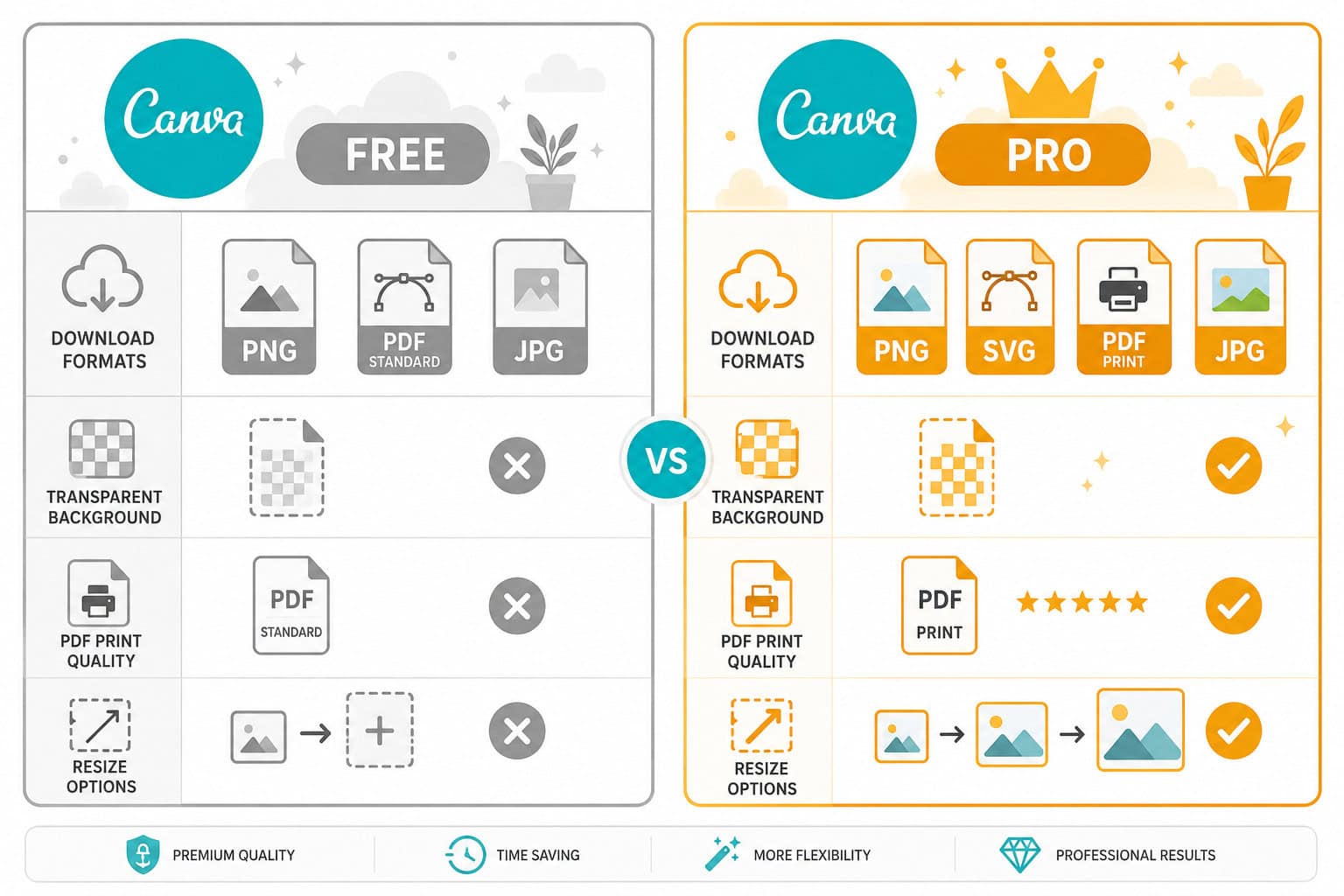
Yes, and the differences matter more than most people realize. Free users get full access to PNG, JPG, PDF, MP4, and GIF downloads. But Pro subscribers unlock several features that affect export quality:
- Transparent backgrounds (PNG only) — removes the white background behind your design
- SVG export — critical for web developers and anyone needing scalable vector graphics
- Magic Resize — lets you resize and re-download designs for multiple platforms in one click
- Custom compression — control over file size vs. quality balance
- Brand Kit exports — maintain consistent branding across downloads
For casual users making social media posts, the free tier is genuinely sufficient. If you’re a freelancer or small business producing client work, Pro pays for itself quickly. Canva Pro costs approximately $13/month (billed monthly) or $120/year as of 2026.
How to Download High-Resolution Images From Canva
For the highest resolution Canva download, use the PDF Print format, which exports at 300 DPI. PNG and JPG exports default to 96 DPI, which is fine for screens but too low for printing.
Steps for a high-resolution export:
- Click Share then Download
- Select PDF Print as the file type
- Check Crop marks and bleed if your printer requires them
- Check Flatten PDF if you want to prevent editing
- Click Download
If you specifically need a high-res PNG (for example, for a large web banner), set your canvas dimensions larger from the start. A design created at 4000 x 4000 pixels will export as a much sharper PNG than one created at 1080 x 1080 pixels, even though both are 96 DPI.
When designing for engaging Instagram stories, the standard 1080 x 1920 pixel canvas is already optimized for mobile screens.
Best Way to Download Canva Designs for Print
Always choose PDF Print format for any design going to a professional printer. This is the single most important rule for print downloads from Canva.
Here’s a quick print-download checklist:
- Select PDF Print (not PDF Standard)
- Enable Crop marks and bleed — this gives your printer the extra margin they need
- Use CMYK-friendly colors in your design (Canva Pro converts to CMYK automatically in some cases)
- Flatten the PDF if you don’t want the printer to accidentally shift elements
- Verify your canvas size matches your target print dimensions before downloading
Decision rule: If your printer asks for “press-ready” or “print-ready” files, PDF Print with crop marks is what they mean. If they ask for “high-res images,” export as PNG at the largest canvas size you can manage.
For print brochures and marketing materials, check out our guide on digital brochure templates for design tips that translate well to physical prints.
Can I Download Canva Designs and Templates for Free?
Yes. Any design you create using only free elements can be downloaded at no cost in PNG, JPG, PDF, MP4, or GIF format. There is no daily or monthly download limit for free Canva accounts when using free content.
However, if your design includes premium elements (marked with a small crown icon), you’ll either need:
- A Canva Pro, Teams, or Enterprise subscription, or
- To pay for each premium element individually (typically $1-$2 per element)
About templates specifically: You can use free templates and download the finished design for free. Premium templates can be used and downloaded if you have Pro, or you can pay per premium element within them. The template structure itself isn’t what costs money — it’s the premium stock photos, illustrations, or graphics inside it.
How Much Does It Cost to Download Commercial-Use Designs?
Canva’s Content License Agreement (as of 2026) allows commercial use of downloaded designs for both free and Pro users. You don’t pay extra for “commercial use” as a separate license.
The costs break down like this:
- Free elements + free account: $0
- Premium elements without Pro: $1-$2 per element, per design
- Canva Pro subscription: All premium elements included at no extra per-download cost
- Canva Teams: Starts around $10/person/month (billed annually) with shared brand assets
Important limitation: You cannot resell unmodified Canva templates or elements. Your downloaded design must be a unique creation, not a raw template sold as-is. This applies to both free and paid accounts.
What Size Should I Download My Canva Graphic for Social Media?
Each social platform has ideal dimensions. Download your Canva design at the correct canvas size for the platform you’re targeting:
| Platform | Recommended Size | Format |
|---|---|---|
| Instagram Post | 1080 x 1080 px | PNG |
| Instagram Story | 1080 x 1920 px | PNG |
| Facebook Post | 1200 x 630 px | PNG or JPG |
| Twitter/X Post | 1600 x 900 px | PNG |
| LinkedIn Post | 1200 x 1200 px | PNG |
| Pinterest Pin | 1000 x 1500 px | PNG |
| YouTube Thumbnail | 1280 x 720 px | JPG |
Pro tip: Set the canvas to these dimensions before you start designing, not after. Resizing after the fact can distort elements and text. If you create carousel designs for social media, each slide should match the platform’s post dimensions.
PNG is generally the better choice for social media because platforms already compress uploads. Starting with a higher-quality file means less degradation after the platform applies its own compression.
Why Won’t My Canva Design Download? Troubleshooting Common Errors
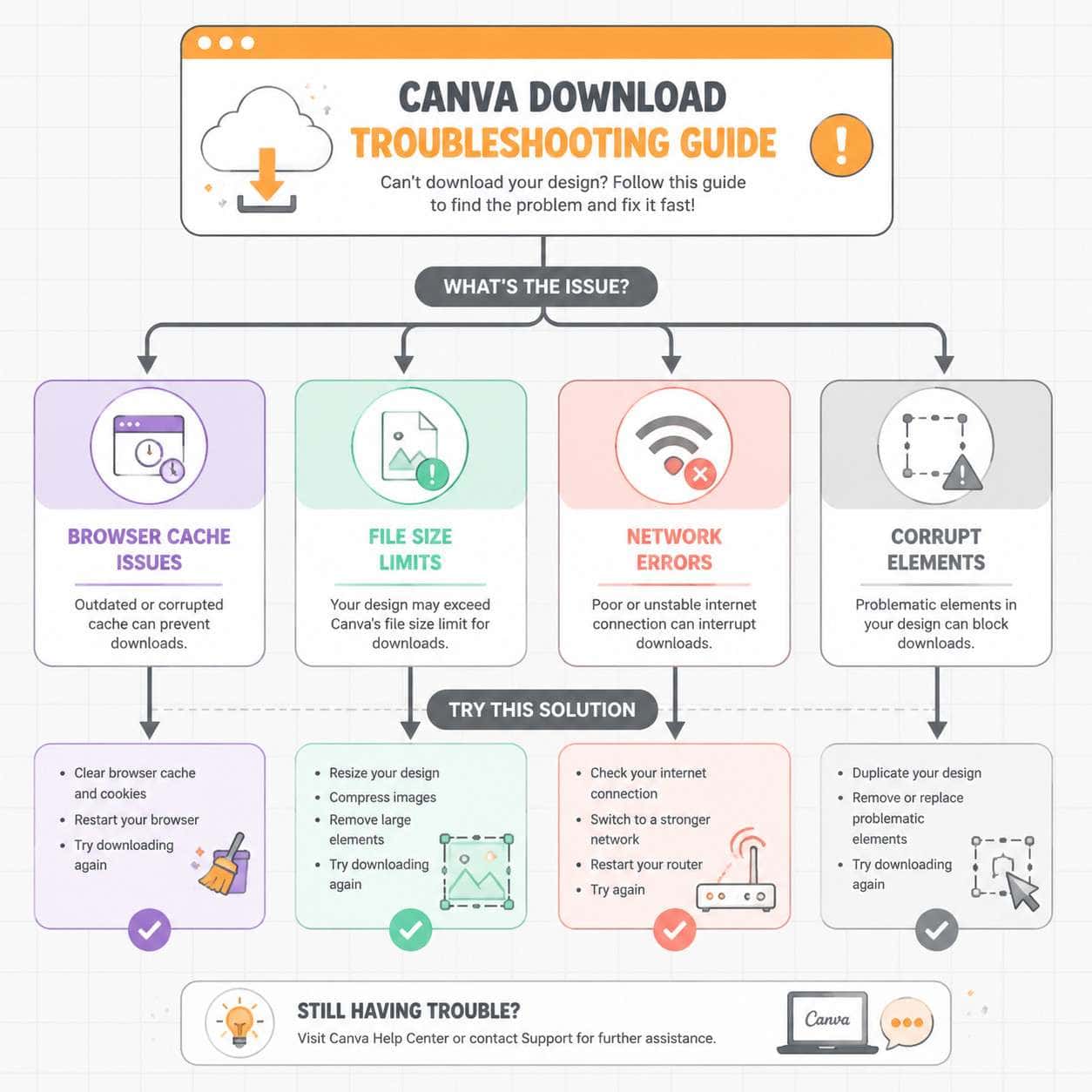
Most Canva download failures come from three sources: browser problems, file size, or network issues. Here’s how to fix each one.
Browser-related fixes:
- Clear your browser cache and cookies
- Disable browser extensions (ad blockers frequently interfere)
- Try a different browser (Chrome and Edge tend to work best with Canva)
- Update your browser to the latest version
File size issues:
- Designs with many pages or high-resolution images can exceed processing limits
- Try downloading fewer pages at a time (use the page range selector)
- Remove unused elements or duplicate images
Network problems:
- Switch from Wi-Fi to a wired connection if possible
- Disable VPN temporarily
- Check if Canva’s status page reports any outages
Canva-specific fixes:
- Log out and log back in
- Try the Canva desktop app instead of the browser version
- Duplicate the design and download the copy (this sometimes resolves corrupt file issues)
If you’re experiencing broader connectivity problems with web apps, our guide to checking service status covers general troubleshooting strategies that apply here too.
Canva Download Limits for Free Accounts
Free Canva accounts have no hard download limit for designs made with free content. You can download as many designs as you want, as often as you want.
The practical limits are:
- Premium content: Each premium element requires individual purchase if you don’t have Pro
- Cloud storage: Free accounts get 5 GB of cloud storage for uploads (this affects what you can store, not what you can download)
- File processing: Very large or complex designs may time out during export, but this isn’t a formal “limit”
- Bulk downloads: Free users cannot bulk-download multiple designs at once (this is a Pro/Teams feature)
Alternatives to Canva for Easy Design Downloads
If Canva doesn’t fit your workflow, several alternatives offer straightforward download experiences:
- Adobe Express — Similar template-based approach, strong integration with Adobe Creative Cloud, exports in PNG, JPG, PDF, and MP4
- Figma — Better for collaborative design work, supports SVG and PDF exports on free accounts
- Piktochart — Focused on infographics and presentations, simple export process
- Snappa — Specifically built for social media graphics, allows 3 downloads/month on free plan
- Crello (now VistaCreate) — Very similar to Canva with comparable export options
Choose Canva if you want the largest template library and easiest learning curve. Choose Figma if you need precise design control and developer handoff. Choose Adobe Express if you’re already in the Adobe ecosystem.
For those exploring AI-powered design tools as part of their workflow, Canva’s built-in AI features make it competitive with standalone AI generators while keeping the familiar download process.
You can also explore our broader collection of Canva tutorials and guides for more design tips.
Frequently Asked Questions
Can I download Canva designs on my phone? Yes. The Canva mobile app (iOS and Android) supports the same download formats as the desktop version. Tap the share/download icon in the top-right corner of the editor.
Does downloading from Canva reduce image quality? PNG downloads preserve full quality. JPG uses lossy compression, so there’s slight quality loss. For maximum quality, use PNG or PDF Print.
Can I download just one page of a multi-page Canva design? Yes. In the download menu, use the “Select pages” option to choose specific pages rather than downloading the entire document.
Do I need to credit Canva when using downloaded designs? No. Canva’s license does not require attribution for designs you create and download, whether you’re on a free or paid plan.
Can I download a Canva design as a PowerPoint file? Yes. For presentations, Canva offers a “Microsoft PowerPoint” export option under the Share menu, which saves the file as a .pptx.
Why is my downloaded PNG showing a white background instead of transparency? Transparent backgrounds are a Canva Pro feature. Free users will always get a white (or colored) background in their PNG exports.
Can two people download the same shared Canva design? Yes. Anyone with edit or view access to a shared design can download it. The file type options available depend on each person’s individual account tier.
How long does a Canva download take? Simple single-page designs typically download in under 5 seconds. Multi-page documents or videos can take 30 seconds to several minutes depending on complexity and internet speed.
Is there a way to batch download multiple Canva designs at once? Canva Pro and Teams users can select multiple designs from the home dashboard and download them together. Free users must download designs one at a time.
Conclusion
Getting your Canva download right comes down to three decisions: picking the correct file format, matching your canvas size to the final use case, and knowing which features require a Pro subscription. For screen use, PNG handles most situations well. For print, PDF Print at 300 DPI is non-negotiable. And if downloads fail, start with clearing your browser cache before trying anything else.
Your next steps: open your most recent Canva design, check that the canvas dimensions match your intended platform, and do a test export in PNG format. If the quality looks right, you’re set. If not, revisit the resolution and format guidelines above. The difference between a good design and a great one often comes down to how it’s exported.
Useful Resources: Canva design platform & Canva Design School free tutorials